
Certificates and Billing
Free & ProThis page covers the two student account pages that deal with credentials and payments: My Certificates and Billing.
My Certificates
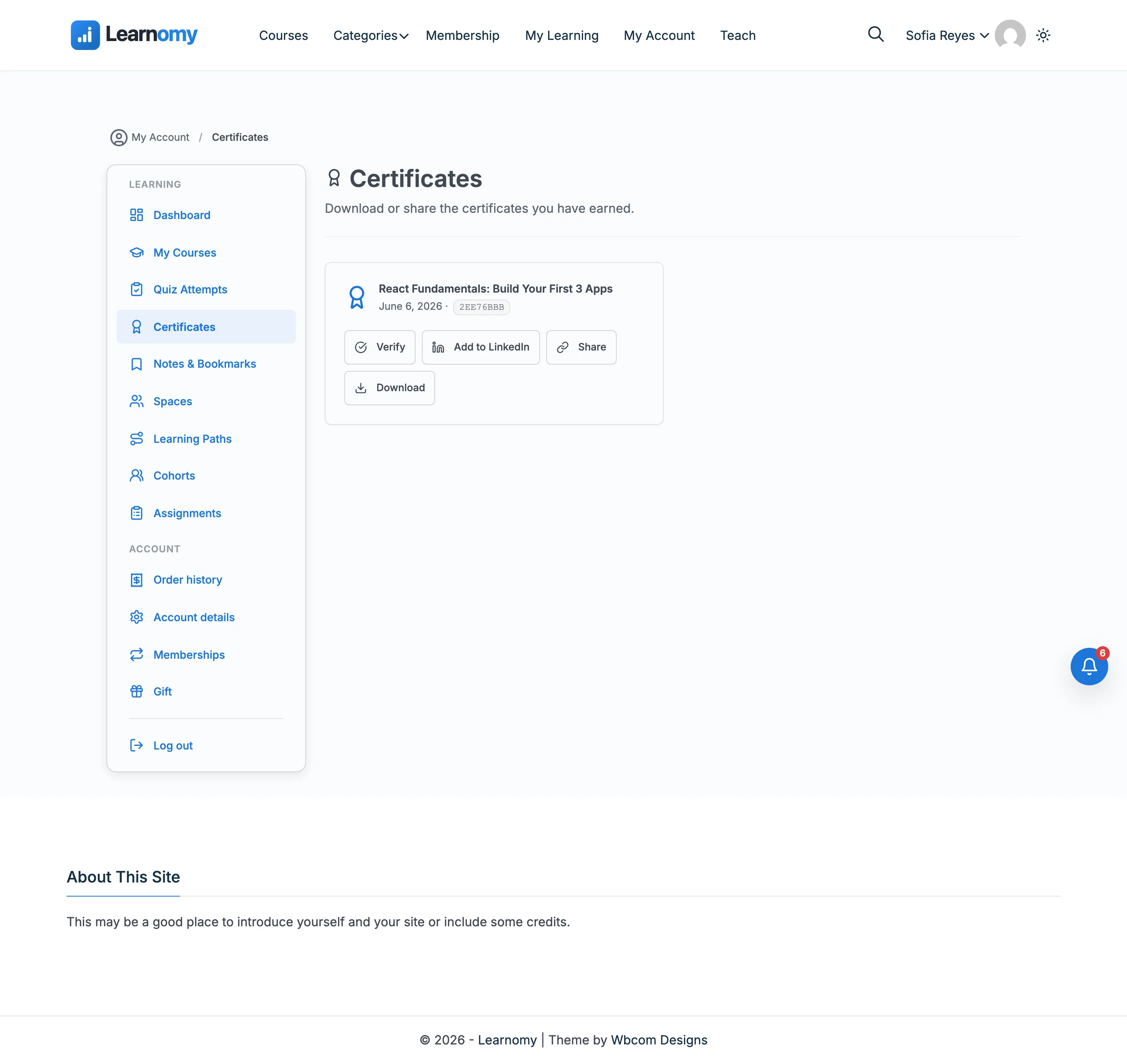
The certificates page is at /account/certificates/. It lists every certificate a student has earned, with actions to verify, share, download, and add to LinkedIn.
Getting there
From any account page, click Certificates in the account navigation.

Certificate cards
Each certificate appears as a card.
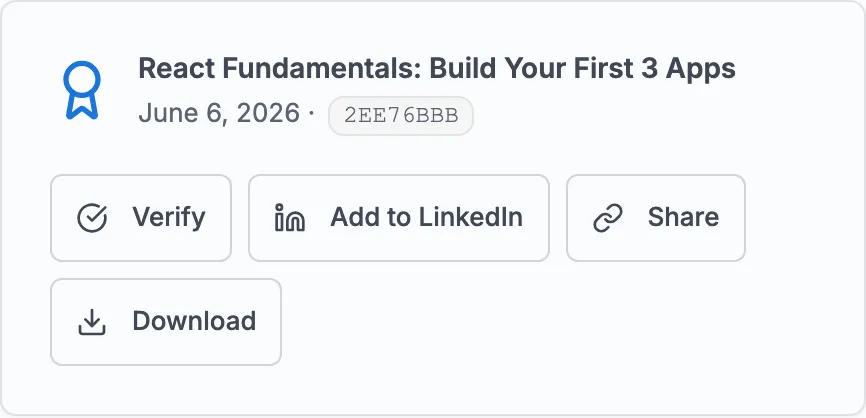
The card shows:
- The course name.
- The issue date.
- The short credential ID (the first eight characters of the UUID in a code block).
Card actions
Each certificate card has four actions.
| Action | What it does |
|---|---|
| Verify | Opens the public verification page at /verify/<uuid> in the browser. Anyone with this link can confirm the certificate is genuine. |
| Add to LinkedIn | Opens LinkedIn's "Add Certification" dialog pre-filled with the course name, your site name as the organization, the issue year and month, the credential ID, and the verification URL. |
| Share | Copies the verification URL to the clipboard. |
| Download | Downloads the certificate as a PDF. |
Empty state
If the student has not earned any certificates yet, the page shows a message: "Complete a course to earn your first certificate."
Certificates from deleted courses
If a course has been deleted after a certificate was issued, the certificate remains on this page and stays valid. The card title shows "Course archived (certificate still verifiable)". The credential ID, verification URL, and download all continue to work. The LinkedIn button does not appear for archived certificates.
Anyone who opens the certificate's public verification link at /verify/<uuid> sees the course named "Course no longer available" instead - the verification page and this account page use different wording for the same situation, but both agree the certificate is still genuine.
The full certificates page
Billing
The billing page is at /account/billing/. It shows active subscriptions, time-limited course access, and the full order history.
Getting there
From any account page, click Billing in the account navigation.

Active subscriptions
The first section lists all active subscriptions.
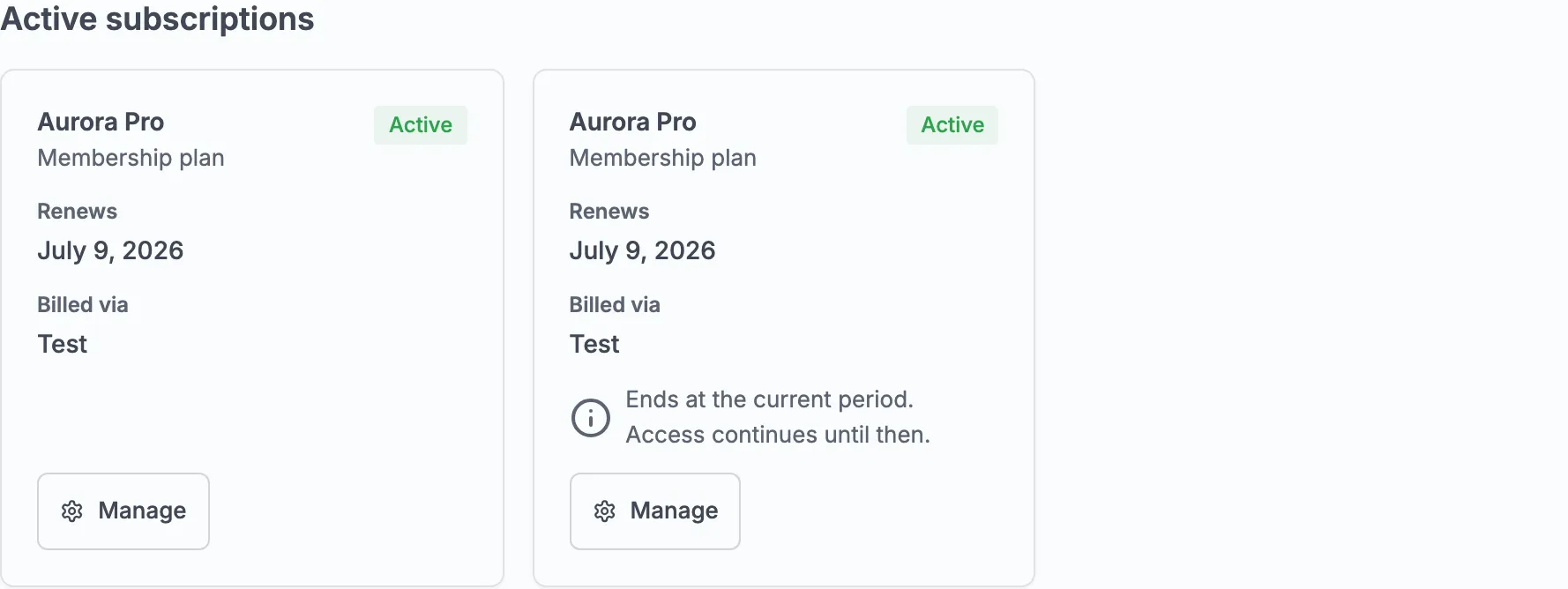
Each subscription card shows:
- The plan or course name.
- Whether it is a "Membership plan" or "Course subscription."
- The status badge (Active, Past due, Cancelled, etc.).
- The renewal date.
- The next payment amount.
- The payment provider (Stripe or PayPal).
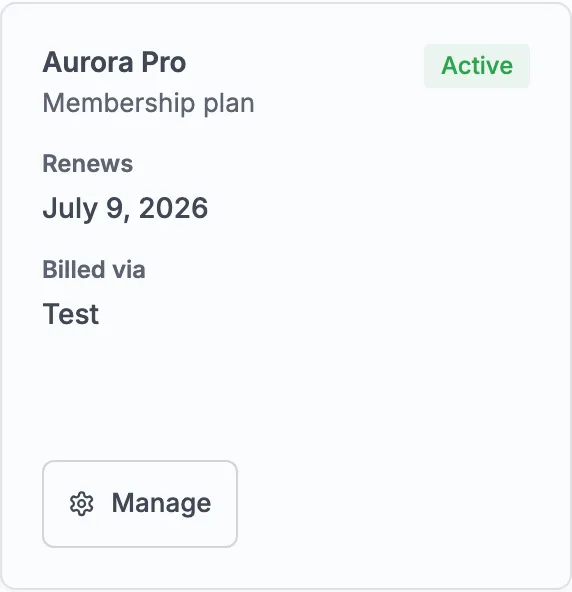
If a subscription is set to cancel at the end of the billing period (the student cancelled but access continues until the period ends), the card shows a note: "Ends at the current period. Access continues until then."
Two buttons are available per subscription:
- Manage - links to the membership manage page where the student can cancel or change their plan.
- Manage payment method - opens the Stripe Customer Portal (shown for Stripe subscriptions only) where the student can update their card on file.
If the student has no subscriptions, the section shows an empty state with a "Browse plans" link.
Time-limited access
When a student has enrolled in a course with a fixed access period (a course that expires after a set number of days), those enrollments appear in the "Time-limited access" section.
Each card shows the course title, the access expiry date, and how many days remain. When fewer than 7 days remain, the badge turns to a warning color. When access has expired, the badge shows "Expired" and a Renew access button replaces the Continue button.
This section only appears when the student has at least one time-limited enrollment.
Order history
The order history table lists all completed transactions.

Columns:
| Column | Contents |
|---|---|
| Date | Transaction date |
| Item | Course or membership name. Clickable if the enrollment is still active |
| Amount | Amount charged. Struck through if refunded |
| Status | Transaction status badge |
| Receipt | A download link for the PDF receipt |
Refunded transactions appear in the table with the original amount struck through and a note showing the refund date below the amount.
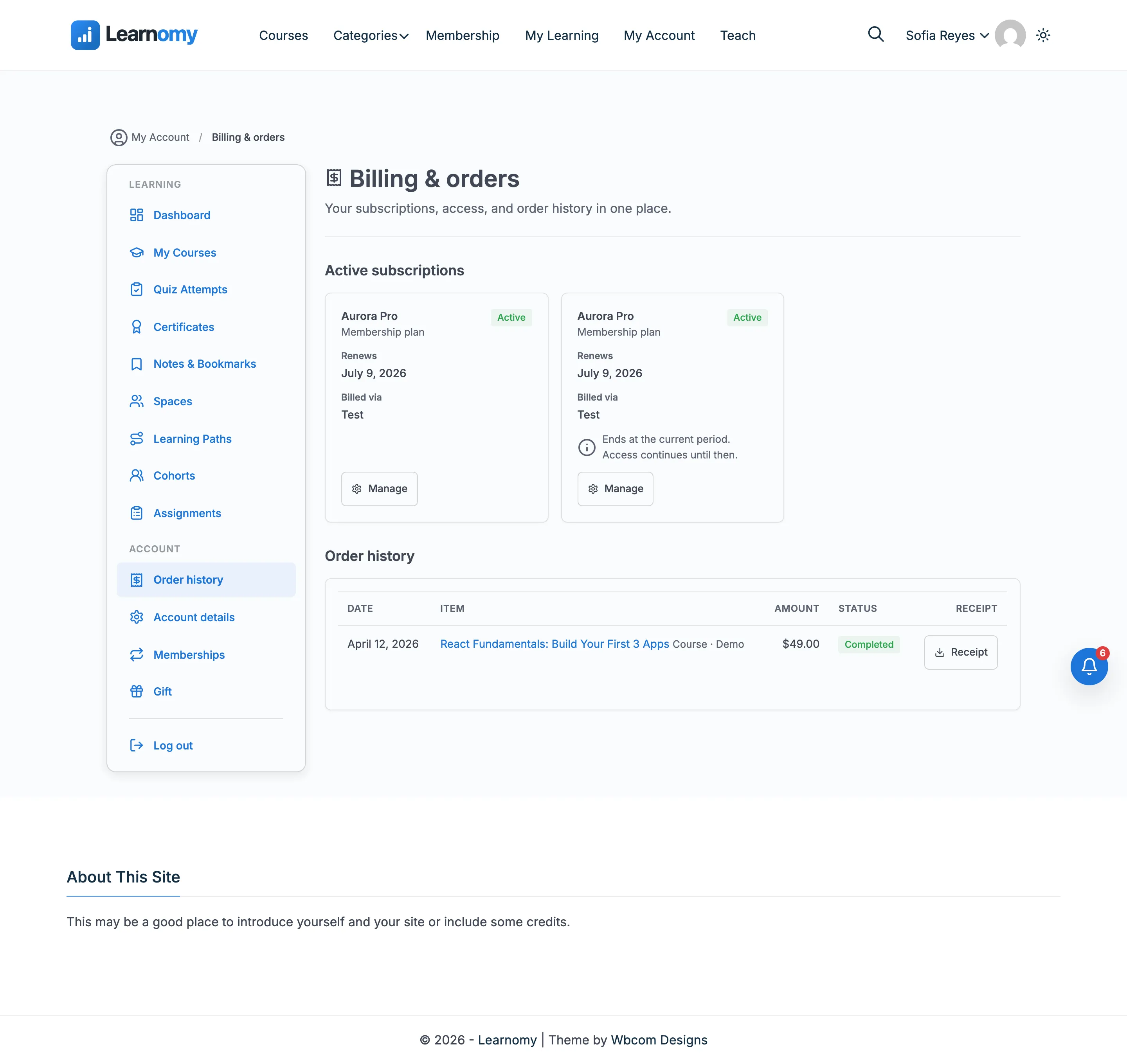
If the student has no transactions, the section shows an empty state with a "Browse courses" link.
Billing history
Pro feature. Requires Learnomy Pro with the Membership Pro extension active.
Below the order history, a Billing history section shows what happened to the student's membership, as opposed to what they were charged for it. The order history above answers "what did I pay". It cannot answer "why did my plan change mid-month", "when was I paused", or "who gave me this", because none of those are payments.
Three columns, ordered by when each change was recorded rather than by the date shown, so a plan change scheduled for a future date sits with the day it was made:
| Column | Contents |
|---|---|
| Date | When the change took effect |
| Change | Plan changed, Paused, Resumed, Refunded, or Gift applied |
| Details | For a plan change, the plan it moved from and the plan it moved to. For a gift, the plan granted. Otherwise a dash. |
The section lists the 25 most recent changes across all of the student's subscriptions, and only appears once something has actually happened to one of them. A student who subscribed and stayed on the same plan sees nothing here, rather than an empty heading that reads like a broken feature.
Students only ever see their own history. You see the same events per subscription in wp-admin, under Change history on the subscription detail page, so a member asking "why did my plan change" is answered from the record they are already looking at. See Subscriptions.
Tips
- The verification URL is a permanent link. It works whether the student is logged in or not, making it safe to put on a resume or portfolio.
- Receipts are downloadable as PDFs from the order history table. They are also emailed to the student at the time of purchase (unless the student has opted out of transactional emails).
- Students cannot cancel a Stripe subscription from within the Learnomy billing page directly. The Manage button on the subscription card links to the membership management page, which has the cancel option. For Stripe subscriptions, the Manage payment method button opens the hosted Stripe Customer Portal.
- PayPal subscriptions show the payment provider as "Paypal" in the billing details. Cancellation for PayPal subscriptions goes through the membership manage page as well.