
Share a Certificate on LinkedIn
CertificatesEvery certificate a student earns comes with share actions so they can add it to their LinkedIn profile, copy a public verification link, or download the certificate. This works out of the box in the free version, with no extra setup.
What you can do#
- Add an earned certificate straight to a student's LinkedIn profile with a pre-filled "Add to Profile" form (course name, your site as the issuing organization, issue month and year, and a link back to the public verification page).
- Copy the certificate's public verification link to the clipboard to paste anywhere - email, chat, a resume, or another social network.
- Download the certificate (PDF where available, otherwise HTML).
- Let anyone open the public verification page to confirm the certificate is genuine, with no login required.
- Share works from two places: the student's own Certificates page in their account, and the public verification page for that certificate.
How to use it#
Step 1 - earn a certificate#
A certificate is issued automatically when a student completes a course that has certificates enabled. Once issued, it shows up on the student's Certificates page.
Step 2 - open the Certificates page#
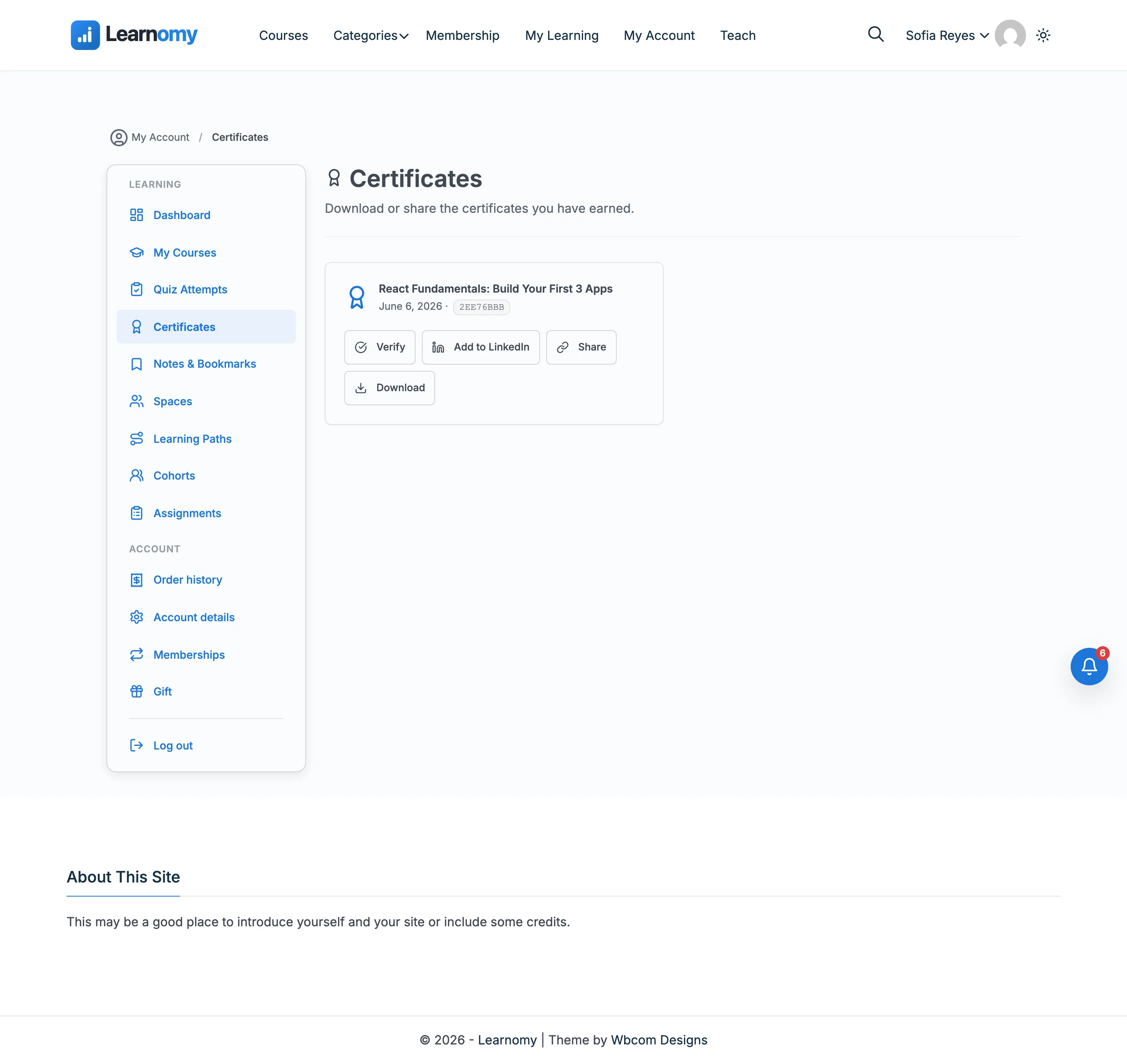
The student goes to My Account -> Certificates (/account/certificates/). Each earned certificate is a card showing the course title, the issue date, and a short certificate ID.
Step 3 - use a share action#
Each certificate card has an actions row:
- Verify - opens the public verification page for the certificate.
- Add to LinkedIn - opens LinkedIn's "Add to Profile" screen in a new tab, pre-filled from the certificate.
- Share - copies the public verification link to the clipboard.
- Download - downloads the certificate file.
Step 4 - add it to LinkedIn#
Clicking Add to LinkedIn sends the student to LinkedIn's certification form with these details already filled in:
- The course title as the certification name.
- Your site name as the issuing organization.
- The month and year the certificate was issued.
- A link back to the public verification page so viewers can confirm it.
The student reviews the pre-filled form on LinkedIn and saves it to their profile.
Step 5 - share the link anywhere else#
The Share button copies the certificate's public verification URL. On secure (HTTPS) sites the copy happens instantly; on plain HTTP sites it falls back to a legacy copy, and if that is blocked the student is shown the link to copy by hand. The same LinkedIn and copy actions also appear on the public verification page itself, so anyone viewing a shared certificate can re-share or add their own.
A note on archived courses#
If the course behind a certificate has been deleted, the certificate is marked "archived" and the Add to LinkedIn button is hidden (LinkedIn needs a course name and issuer). The certificate stays independently verifiable, and the Verify, Share, and Download actions still work.
Settings & options#
There are no dedicated settings for LinkedIn sharing - the share actions appear automatically on every earned certificate whenever the Certificates module is enabled. The LinkedIn form is populated from the certificate's own data (course title, issue date, certificate ID) and your site name from Settings -> General.
The LinkedIn "Add to Profile" link is built against https://www.linkedin.com/profile/add with these parameters:
| Parameter | Value |
|---|---|
startTask |
CERTIFICATION_NAME |
name |
The course title |
organizationName |
Your site name (get_bloginfo('name')) |
issueYear / issueMonth |
The certificate's issue date |
certUrl |
The public verification page URL |
certId |
The short certificate ID (first 8 characters of the UUID) |
For developers#
Hooks:
learnomy_certificate_verify_after- fires after the verified-certificate result block on the public verification page. Passed the verified certificate row. Extensions use this to render extra actions (for example the Pro certificates extension adds its own "Add to LinkedIn" and Open Badge buttons here).
Frontend:
- The Share (copy link) button uses the class
lrn-copy-link. On the account page it is handled byassets/js/student-dashboard.js(clipboard with an execCommand fallback and a manual-copy prompt). On the public verification page it is driven by the Interactivity API storelearnomy/certificate-verify(actions.copyLink) inassets/js/certificate-verify-view.js.
REST:
GET /learnomy/v1/certificates/{uuid}/download- downloads the certificate file (PDF where available, HTML otherwise). This backs the Download action.
URLs:
- The public verification page is the
certificate-verifyroute (/verify/{uuid}/), built with\Learnomy\route_url( 'certificate-verify', array( 'slug' => $uuid ) ). This is the link the LinkedIn form and the copy action both point to.