
Grading Submissions
Learnomy grades most question types automatically the moment a student submits. Essay questions require a human reviewer. This page explains both paths and how to use the Grading inbox.
Auto-grading
When a student submits a quiz, Learnomy auto-grades every question type it can handle:
| Question type | How it is graded |
|---|---|
| Multiple choice (single) | Full marks for the correct option; zero otherwise. |
| Multiple choice (multiple) | Partial credit using the fraction weights set on each answer. |
| True / False | Full marks for the correct choice; zero otherwise. |
| Short answer | Case-insensitive exact match against the accepted answers. |
| Fill in the blank | Each blank checked independently; partial credit per blank. |
| Essay | Not auto-graded. Routed to the Grading inbox. |
Once all responses in an attempt are auto-graded, the attempt status changes from Submitted to Graded and the student can see their results.
Manual grading: the Grading inbox
Essay questions -- and any question type that the site configuration routes to manual review -- land in the Grading inbox.
Go to Learnomy > Grading to open the inbox.
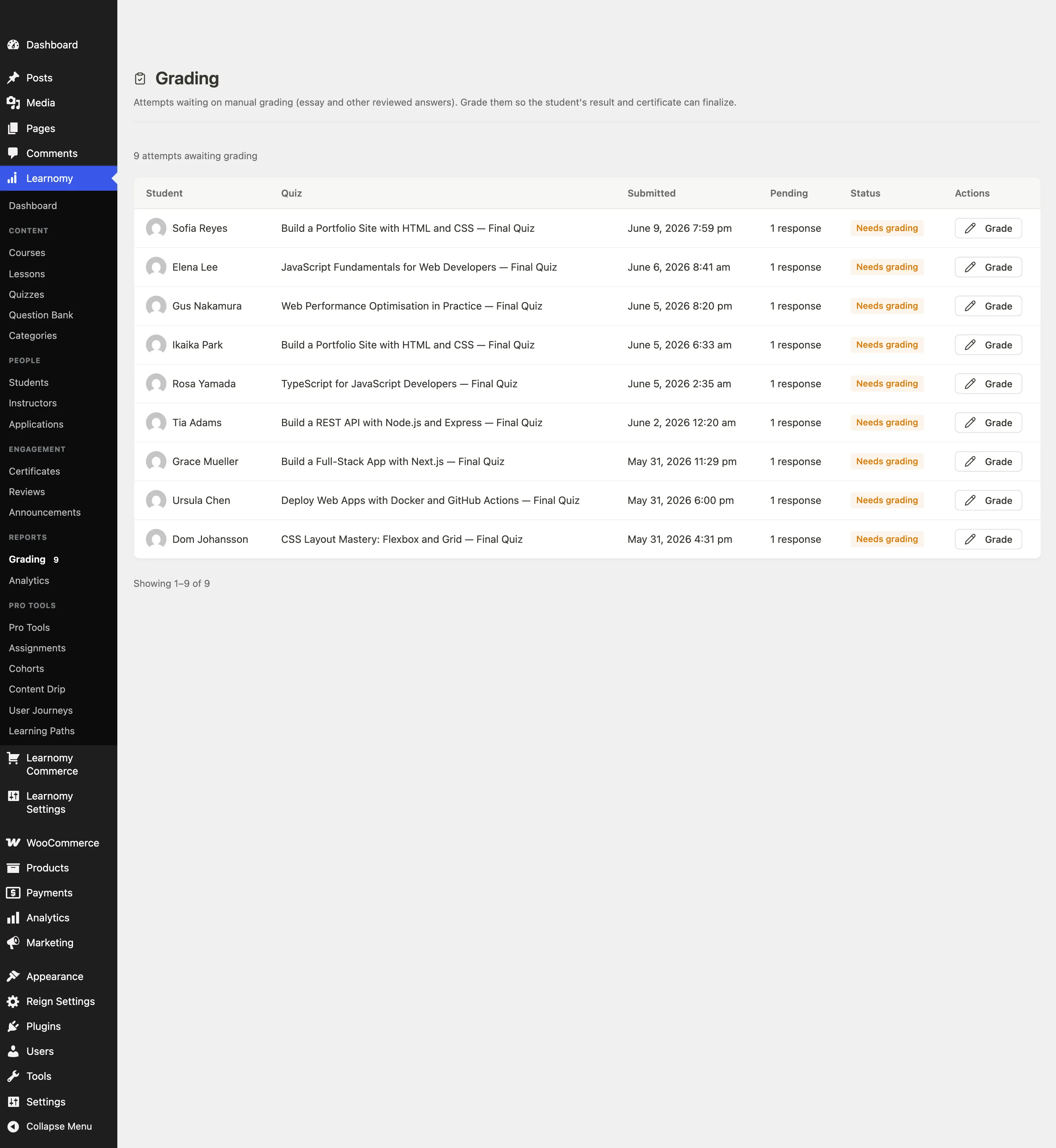
Who sees what
The inbox is ownership-scoped:
- Administrators see pending attempts from all quizzes on the site.
- Instructors see only attempts for quizzes attached to courses they co-instruct.

Reading the inbox
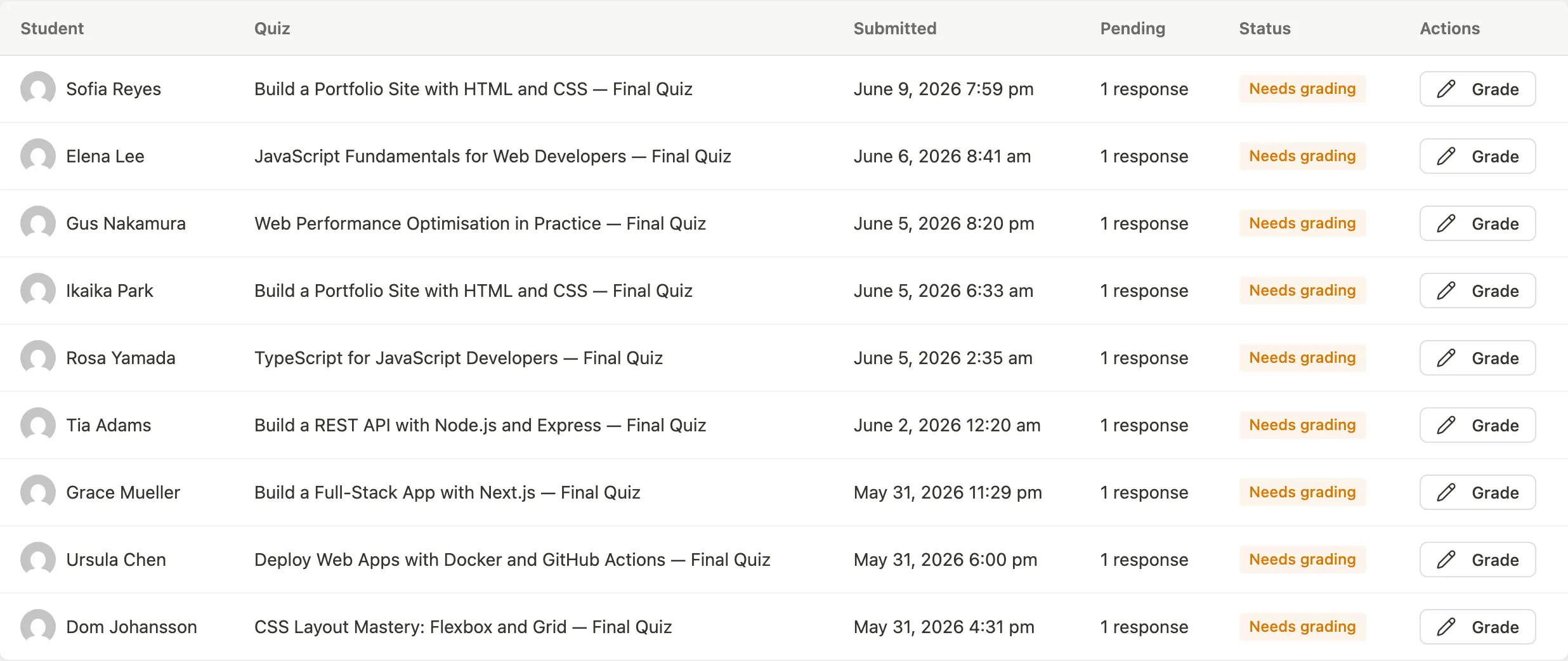
Each row shows:
- Student -- name and avatar.
- Quiz -- the quiz title.
- Submitted -- the date and time the attempt was submitted.
- Pending -- how many responses in this attempt still need a grade.
- Status -- "Needs grading" badge.
The inbox is paginated. The counter at the top shows the total number of attempts currently waiting.
Grading an attempt
Click Grade on any row. The grader opens.

The grader shows one card per response that needs manual review. Already auto-graded responses are shown as read-only for context, labelled Graded.
For each ungraded response:
Read the Student answer displayed in the card.

Enter a Score between 0 and the maximum marks for that question. The maximum is shown next to the input field.
Write optional Feedback to send back to the student. The feedback is shown with the student's results after the attempt is finalized.
Click Save grade.

The card flips to read-only showing the score and feedback you entered.
When the last ungraded response in the attempt is saved, a banner appears: "All responses are graded. This attempt has been finalized." The attempt status in the database changes from Submitted to Graded. The student can now see their full results.
The attempt is automatically removed from the inbox once it is finalized.
How finalization works
The backend checks after every graded response whether any ungraded responses remain. When none remain, it finalizes the attempt: applies the grading method (highest / first / latest / average) chosen on the quiz, calculates the total score, sets the pass/fail flag, and updates the student's course progress.
This means you do not have to submit or confirm anything at the end. Saving the last grade triggers finalization automatically.
Rubric grading (Pro)
Pro feature. Available in Learnomy Pro with the Advanced Quizzes extension active.
When the Advanced Quizzes extension is enabled, essay responses can be graded against a rubric instead of (or alongside) a freeform score. A rubric is a set of named criteria, each with a maximum point value, that the instructor defines per question in the question editor.
Where rubric grading appears
There is no separate rubric page or Grade with rubric link to click. The rubric scorer renders inline, right under each essay response, on the same grading surfaces you already use:
- The wp-admin Grading screen (Learnomy → Grading).
- The frontend instructor Grading route.
Open a quiz for grading as usual. For any essay response whose question has a rubric defined, a Grade with rubric panel appears directly beneath the student's written response, showing one numeric input per criterion with the maximum points for each criterion next to the input.
Enter a score for each criterion. The scores are combined automatically into the total points for that response. When all responses on the attempt are graded, the attempt is finalized in the same way as the standard grader.
If a question has no rubric defined, no rubric panel is shown for that response — grade it with the standard freeform score instead. Define a rubric per question in the quiz advanced settings.
Access
Inline rubric grading requires the learnomy_manage_quizzes capability. Administrators always have this capability. Instructors have it for quizzes attached to courses they co-instruct.
Defining rubrics
Rubrics are defined in the question editor under the Advanced Quizzes settings for each essay question. Each rubric entry has a criterion name and a maximum point value. A question can have any number of criteria.
Tips
- Students whose quiz contains essay questions will see a "Pending review" message on the results screen. Their attempt count and course progress are not updated until grading is complete. Grade promptly to keep students moving through the course.
- The inbox shows the count of pending attempts in a badge next to the Grading menu item in the sidebar. This updates each time the page loads.
- If a student contacts you saying their result is missing, check the inbox. An ungraded essay response is the most common reason an attempt stays in "Submitted" status.
- Scores are entered in points (not percentages). The quiz converts the raw score to a percentage using the total available marks from all slot marks combined.
- If grading reveals that a student was cut off unfairly - a crash mid-attempt, a cap set too low - you can hand them one more go without changing the quiz for anyone else. Open their profile and use Grant 1 attempt under Quiz attempt limits. Instructors get this on quizzes they can grade, which is the same permission that let them open this inbox.
Related
- Building a Quiz
- Question Types
- Taking a Quiz
- Managing Students - granting an extra attempt