
H5P Interactive Content
Integrations pro Pro feature
Pro feature. Available in Learnomy Pro.
Attach interactive content you built with the official H5P plugin (interactive video, course presentation, drag-and-drop, branching scenario, and the rest) as a Learnomy lesson. The learner plays it inside the normal lesson player, and when the H5P content reports completion its result flows into Learnomy progress, so an H5P lesson counts toward course completion and certificates like any other lesson.
Learnomy does not host or re-implement H5P. This is a bridge: the official H5P WordPress plugin stores the content and runs it, Learnomy renders it through H5P's own [h5p] shortcode and captures the content's native completion signal.
What you can do#
- Pick any interactive content created in the H5P plugin and set it as the content of a lesson, alongside your video, text, quiz, embed, and SCORM lessons.
- Reuse H5P content you already authored (or downloaded from the H5P Hub) without rebuilding it in Learnomy.
- Let learners open and complete the interactive content in the lesson player, with H5P handling its own runtime, save state, and resume.
- Have the content's
completedorpassedsignal mark the lesson complete through the same progress pipeline as native lessons, so course progress and certificates just work. - Keep the H5P score where H5P keeps it (in the H5P plugin's own store), the same way a SCORM lesson keeps its score in the CMI store.
How to use it#
H5P is an opt-in module. It is never on by default, and it only works when the official H5P plugin is installed, so the first steps are to install H5P and enable the Learnomy module.
- Install and activate the official H5P plugin (from h5p.org) and create at least one interactive content in H5P > Add New. If the H5P plugin is not active, Learnomy shows a notice on its admin screens ("Learnomy H5P is enabled, but the official H5P plugin is not active") with an Install H5P link, and the H5P lesson type never appears.
- Go to Learnomy Settings > Modules and enable H5P (listed under Integrations). Nothing H5P-related loads until this is on.
- Open the lesson you want to hold the content (Learnomy > Lessons, or create a new one) and set its content type to H5P interactive.
- In the H5P content field, use the Select H5P content dropdown to pick one of your existing H5P contents. The list shows each content's title. Use the Add new H5P content link if you still need to create it.
- Save the lesson. The selected content id is stored against the lesson (in the same
video_urlreference field the MediaShield content type uses), so there is no separate upload step. - Publish the lesson. Enrolled learners open it in the lesson player and the H5P content runs in place. When the content reports that it is completed or passed, the lesson is marked complete automatically.
The picker lives in the wp-admin lesson editor. In the Pro front-end course builder the H5P panel shows a short hint ("Pick H5P interactive content for this lesson in the wp-admin lesson editor"), because the content list comes from the H5P plugin's own admin.
What the student sees#
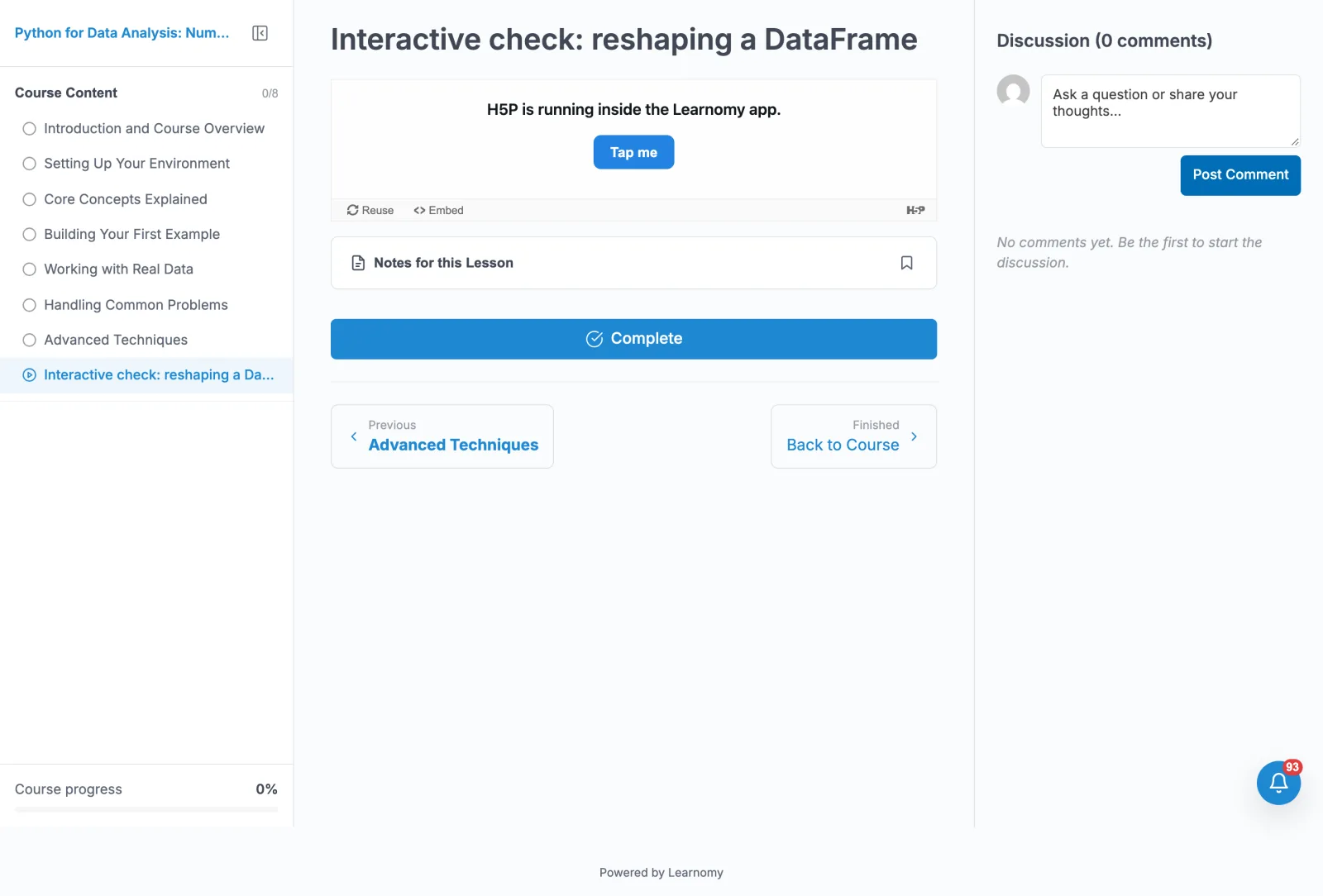
The H5P activity renders inside the normal lesson player, with the curriculum sidebar, notes, the Complete button and the discussion panel all in their usual places. The activity itself is served by the H5P plugin; Learnomy only hosts it.
Settings and options#
- H5P module (
Learnomy Settings > Modules) - the on/off switch for the whole feature. Category: Integrations. It requires Learnomy Pro. - H5P plugin dependency - the feature is soft-gated on the official H5P plugin being active (detected via H5P's
H5P_Pluginclass and its[h5p]shortcode). When H5P is not active theh5pcontent type is never registered, so it cannot be chosen, and a soft admin notice explains why. It is never fatal. - Content type -
H5P interactiveis added as a selectable lesson content type in the wp-admin lesson editor, the Pro front-end builder, and the API. - H5P content - the picker is a dropdown of your existing H5P contents (up to 500, ordered by title), read from the H5P plugin's own content query. The chosen content id is stored as a numeric reference on the lesson, not a URL.
- Completion signal - completion is driven by the content itself. When H5P's native xAPI reports
passedthe lesson is markedpassed; any other completion report marks itcompleted. There is no separate "mark complete" button for H5P lessons. - Score - the interactive content's score stays in the H5P plugin's own store. Learnomy records lesson completion, not the raw H5P score, matching how the SCORM bridge treats CMI score.
- Preview - an admin or instructor can open an H5P lesson to check it. Only an enrolled learner's completion is written to progress, because the completion route requires the learner to be enrolled in the lesson's course.
For developers#
The H5P module lives in Learnomy Pro at includes/extensions/h5p/. It owns no table and no runtime: the H5P content id is stored in the Free lrn_lessons.video_url column as a numeric reference (the same shape as the Free mediashield content type), and the content is rendered by H5P's own [h5p id="N"] shortcode.
REST route (namespace learnomy-pro/v1):
| Method | Route | Purpose | Gate |
|---|---|---|---|
POST |
/h5p/complete |
Mark the H5P lesson complete. Params: lesson_id (required, absint) and verb (sanitize_key; passed maps to a passed status, anything else to completed). |
Authenticated learner enrolled in the lesson's course, and the lesson's content type is h5p. |
The front-end capture script (assets/js/capture.js) listens to H5P's native xAPI statements and calls POST /h5p/complete when the content reports completed or passed.
Completion path - rest_complete() calls Content_Standards_Bridge::report_completion( $user_id, $lesson_id, $status, [ 'source' => 'h5p' ] ). That bridge is the single completion path shared with SCORM (and future content standards); it routes the completing status into Free lesson progress, which is the one path that also drives course progress, certificates, and any learnomy_lesson_completed listeners.
Free extension seams this bridge consumes:
learnomy_lesson_content_types- registersh5pas a lesson content type (only when the H5P plugin is active).learnomy_lesson_content_type_label- labelsh5pas "H5P interactive".learnomy_lesson_numeric_ref_types- marksh5pso itsvideo_urlis treated as a numeric id (absint, notesc_url_raw), the same asmediashield.learnomy_lesson_content_editor- renders the wp-admin content picker.learnomy_lesson_render_content- renders the player viado_shortcode( '[h5p id="N"]' ).learnomy_pro_builder_lesson_content_panel- the Pro front-end builder hint panel.
The module registers no hooks of its own. Because it participates in the standard learnomy_lesson_content_types pipeline, an H5P lesson behaves like any other lesson content type across the frontend, wp-admin, and the API.