
Content Moderation
SettingsMembers can report a review, a lesson comment, or a course they believe needs a moderator's attention. Reports land in a queue where an admin can dismiss them or mark them as actioned.
Overview#
This is a light, report-driven queue -- not an automated keyword or rule engine. Nothing is hidden or removed automatically when it is reported; a report simply flags the item for a human moderator to review. What you do about a reported item (edit it, unpublish it, contact the member) happens on that item's own screen -- the Reports queue is where you triage what needs a look.
How members report content#
A logged-in member sees a Report button in three places:
| Where | What gets reported |
|---|---|
| Any course review | The review |
| Any lesson comment (and its replies) | The comment |
| A course's page | The course itself |
Clicking Report opens a short form asking for an optional reason, then submits the report. A member can report the same item only once -- reporting it again simply confirms it was already reported instead of creating a duplicate entry.
Reviewing the Reports queue#
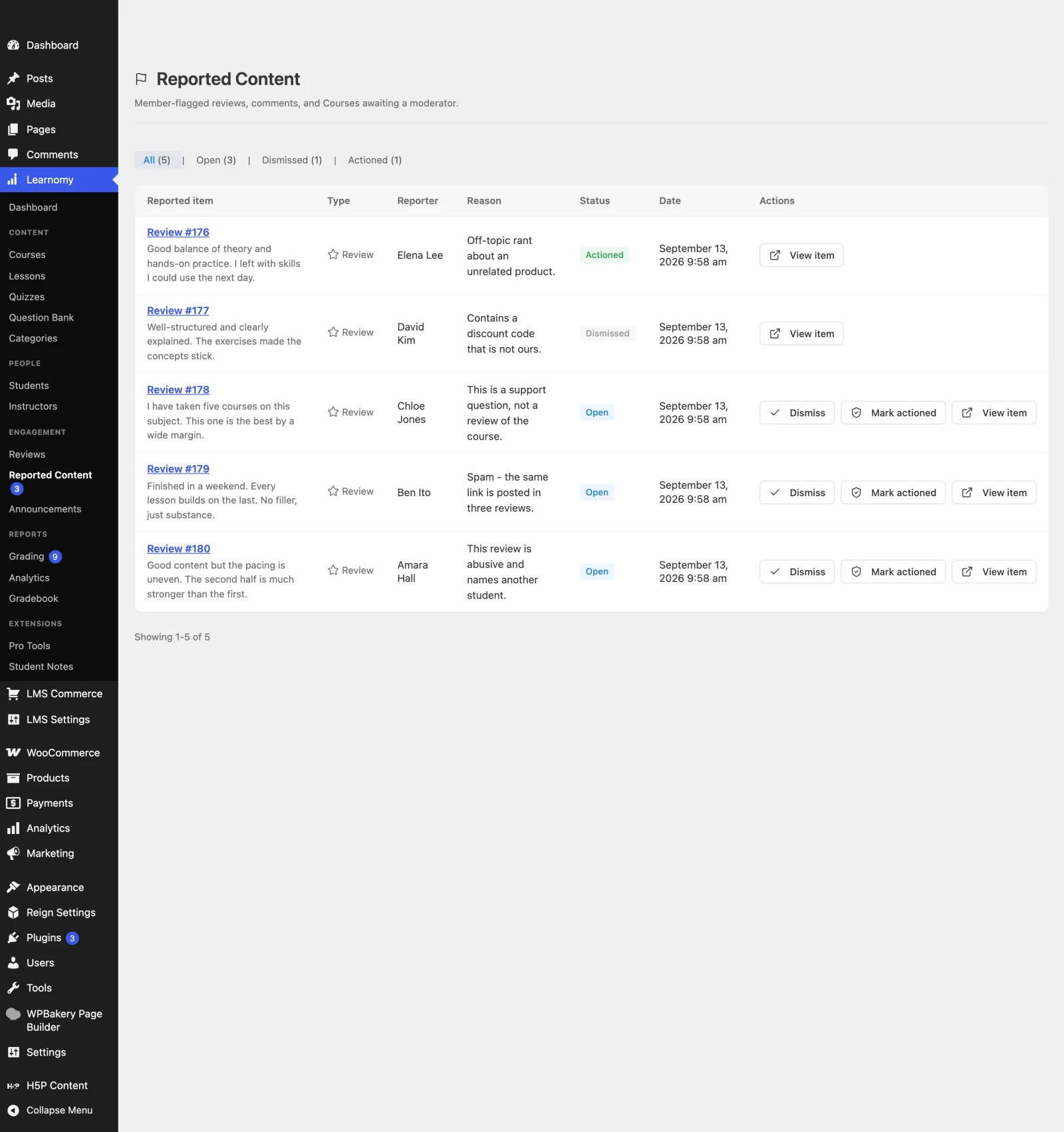
Go to Learnomy > Reported Content in the admin sidebar. The submenu label shows an open-report count badge when there is a backlog.
Use the status tabs above the table to filter by All, Open, Dismissed, or Actioned. Each tab shows its row count.
The table lists every report with these columns:
Column What it shows Reported item The review title, course title, or "Comment #ID", with an excerpt when available Type Review, Comment, or Course Reporter The member who filed the report Reason The reason the reporter gave, or "No reason given" Status Open, Dismissed, or Actioned Date When the report was filed For an Open report, use the row actions to:
- Dismiss -- close the report with no further action (for example, you reviewed it and found nothing wrong).
- Mark actioned -- close the report after you handled the underlying item (for example, you edited or removed the review, comment, or course).
Click View item to open the reported review, course, or comment in its own screen so you can inspect or edit it before deciding.
Reports do not disappear after you resolve them -- they move to the Dismissed or Actioned tab, giving you a history of what was reported and how it was handled.
Settings and options#
The Reports queue has no separate settings screen or toggle -- reporting is always available to logged-in members, and the queue is always visible to admins so a backlog stays actionable even if you later turn off reviews.
For developers#
learnomy_report_submitted-- action fired after a member files a report. Receives$report_id, $object_type, $object_id, $user_id, $reason.learnomy_report_resolved-- action fired after a moderator resolves a report. Receives$report_id, $status, $moderator($statusisdismissedoractioned).