
Transactions
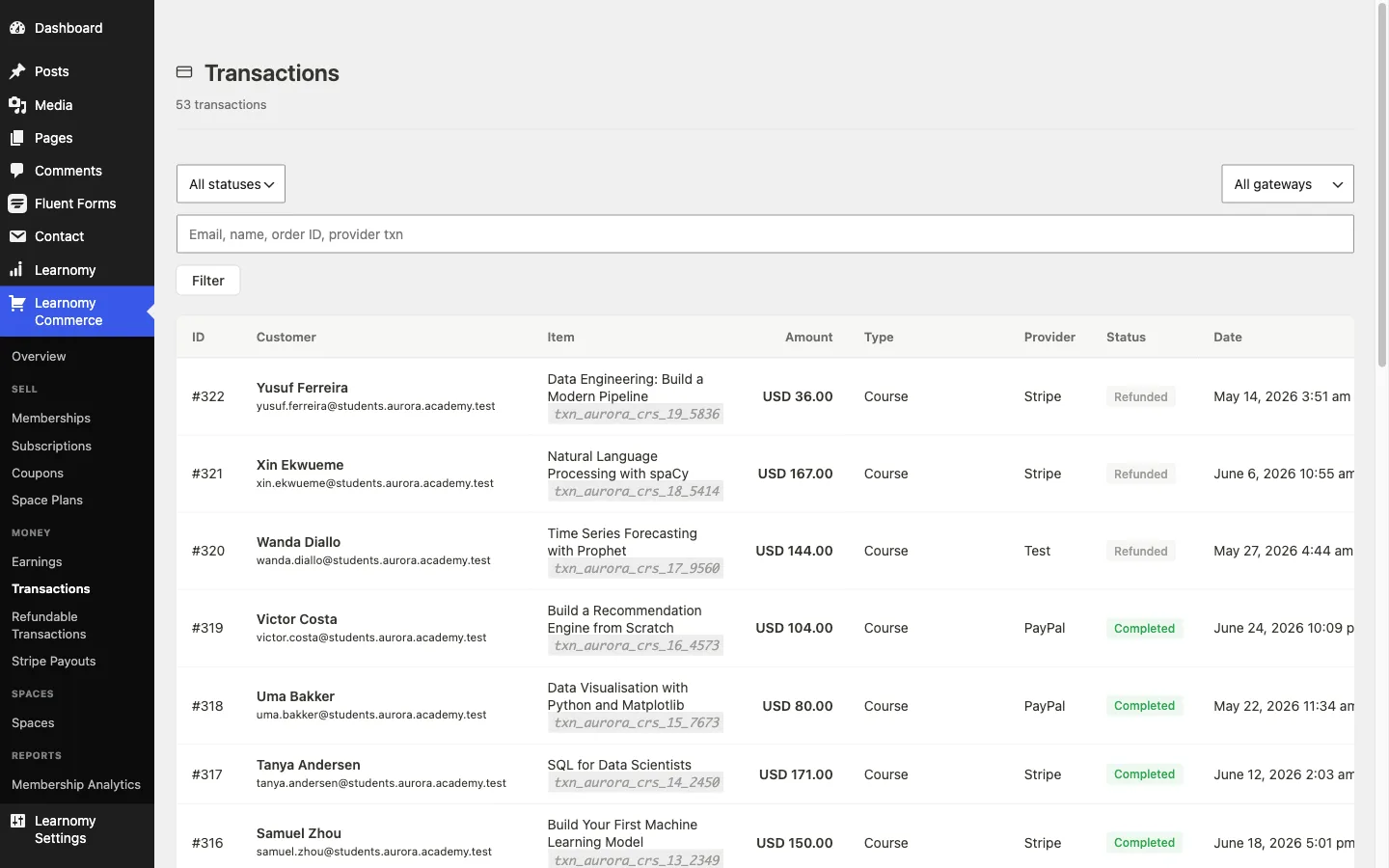
The Transactions screen is the complete financial ledger for your academy. Every course purchase, membership payment, subscription renewal, and refund appears here in one place. You can filter, search, issue refunds, and drill into the full detail of any individual transaction.
Overview
Go to LMS Commerce > Transactions. The list shows every transaction row with totals in the page subtitle.
The transactions list
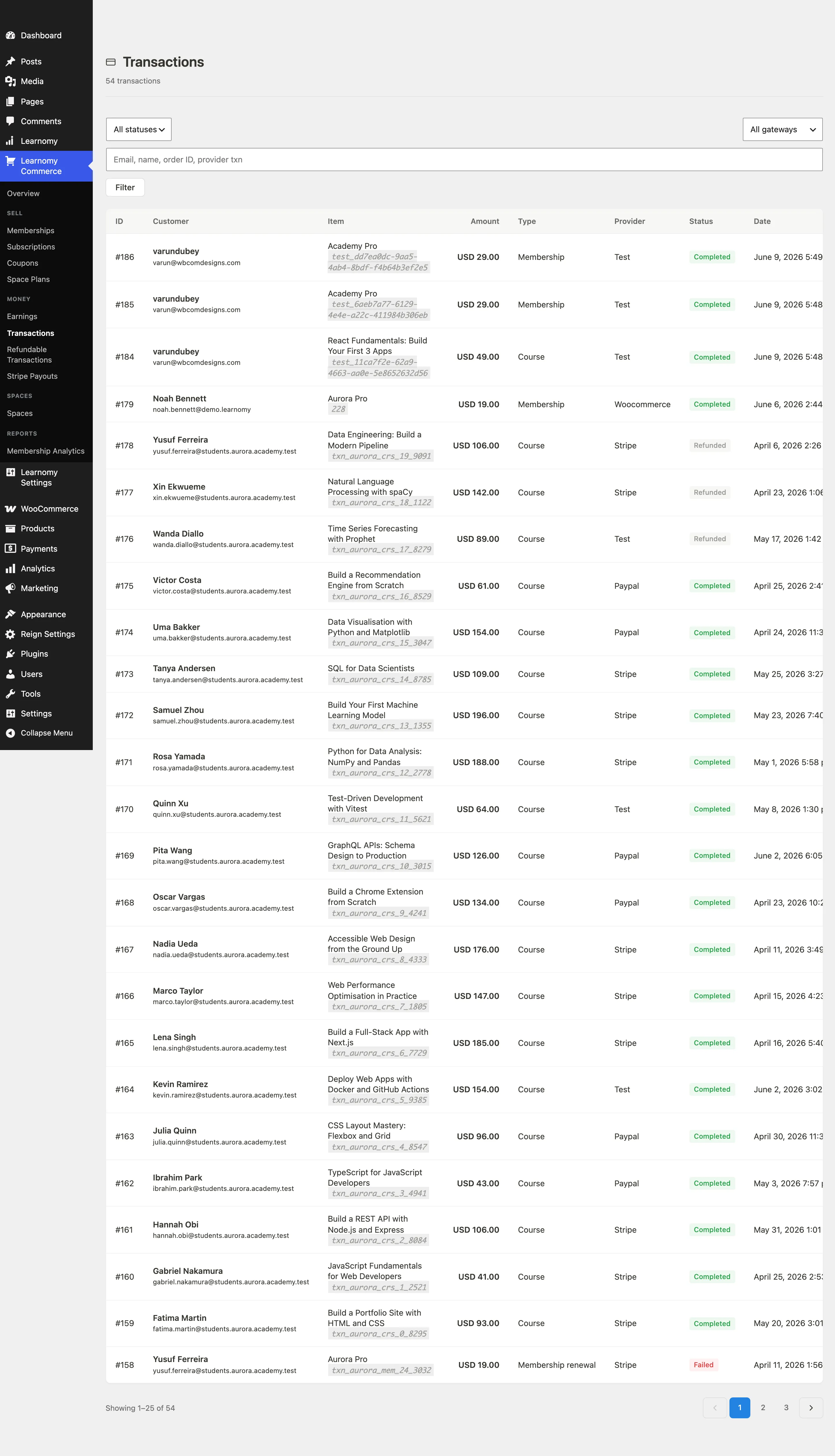
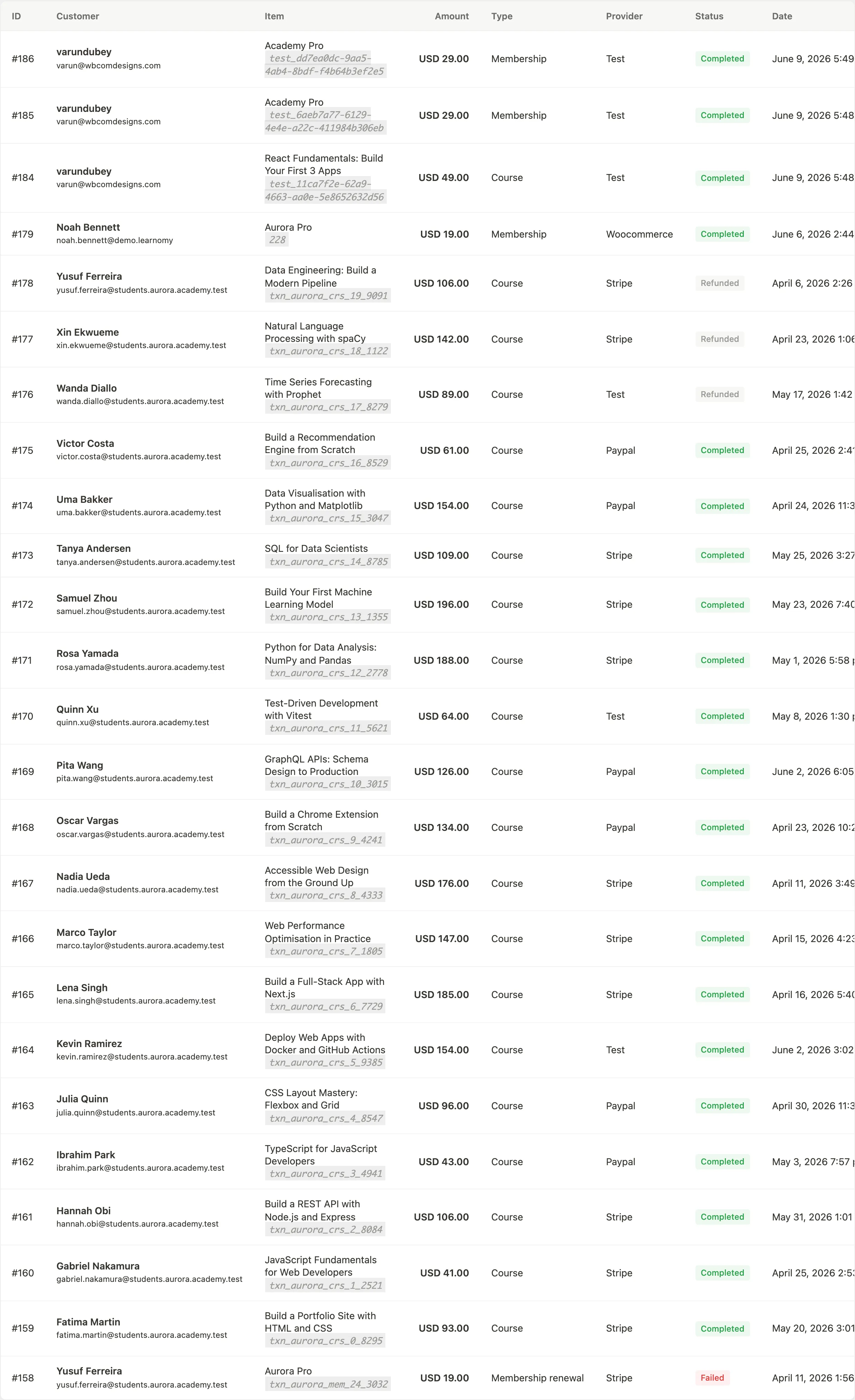
Columns
- ID - the internal transaction number (links to the detail page).
- Customer - display name and email.
- Item - the course title or membership plan name, plus the gateway's own transaction reference (provider transaction ID) in small text below.
- Amount - the charged amount with currency code.
- Type - the transaction category (Course, Membership, Membership renewal, Refund, etc.).
- Provider - which gateway processed the charge (Stripe, PayPal, WooCommerce, Test).
- Status - the current state of the row.
- Date - date and time of the transaction.
- Actions - Refund button for eligible rows.
Transaction statuses
| Status | Meaning |
|---|---|
| Completed | Payment was collected and fulfilment ran (enrolment, subscription, etc.) |
| Refunded | The full amount was refunded; the matching refund row links back here |
| Partially refunded | Part of the amount was refunded; the matching refund row links back here |
| Pending | Payment initiated but not yet confirmed |
| Failed | The charge attempt failed; no fulfilment occurred |
Refund rows (transaction type "Refund") appear in the list and show "Refund of #N" in the Actions column, linking back to the original transaction.
Filtering and searching

Use the Status dropdown to filter by Completed, Refunded, Pending, or Failed. Use the Provider dropdown to isolate transactions from a specific gateway (Stripe, PayPal, WooCommerce, Test, or Demo). Enter a name, email, order ID, or provider transaction reference in the search box and click Filter. Click Reset to clear all filters.
Issuing a refund
A Refund button appears in the Actions column for transactions that meet all of these conditions:
- Transaction type is not itself a refund.
- Status is Completed.
- No refund has been issued for this transaction yet.
- The gateway is Stripe, PayPal, or Test (WooCommerce refunds are issued from the WooCommerce order).
Click Refund to open a dialog showing the customer name, item, and amount, with a Refund amount field. The field is prefilled with the full charge, so a full refund is still one click and Enter. Lower it to refund only part of the charge. The amount must be greater than zero and no more than the amount charged.
What happens on refund:
- The gateway adapter calls the provider's refund API for the amount you entered.
- A new transaction row is written with type "Refund", the refunded amount as a negative figure, and the original transaction's ID stored in
refund_of. - The original row's status updates to "Refunded" for a full refund, or "Partially refunded" when you refunded less than the full charge.
- On a full refund, the commission split for that transaction is reversed: instructor commission rows are marked
reversed(not deleted), and the platform commission row is also reversed. The net effect is that neither party keeps earnings from a refunded sale. - On a full refund, the student's course enrolment or membership access is revoked. A partial refund leaves access in place.
Partial refunds do not reverse commission. The refunded amount is recorded in the ledger, so your revenue figures net out, but the instructor and platform commission rows for that sale are left untouched. If you need the split adjusted after a partial refund, do it manually. Reversal only runs on a full refund.
A transaction can be refunded more than once, up to the amount charged. Refund 25.00 of a 100.00 sale today and the Refund button stays on the row, now offering the remaining 75.00. The button only disappears once the sale is refunded in full.
Retrying a refund on an already-refunded transaction
A fully refunded transaction shows status "Refunded" and loses its Refund button. If a refund is attempted against it anyway (a stale page, or a second admin acting on the same row before it refreshes), Learnomy reports "This transaction has already been refunded in full" instead of the misleading "not completed" message that older versions returned.
A partially refunded transaction keeps its Refund button, and the dialog offers the remaining amount rather than the original charge, so you cannot accidentally return more money than is left.
Transaction detail
Click any transaction ID in the list to open the full detail page.
Transaction card
Shows amount, type (e.g. "Membership renewal"), status badge, provider name, the gateway's own transaction reference (for cross-referencing in Stripe or PayPal), and the date.
If the transaction is itself a refund, a "Refund of #N" row links to the original. If the transaction has been refunded, a "Refunded by #N" row links to the refund.
Customer and items card
Shows the customer (linked to their student profile), the item (course or membership plan linked to its editor), the linked subscription (if a membership payment), and the coupon applied at checkout (if any), with the discount amount.
Commission split
A table shows how the transaction amount was divided. For a course purchase, two rows typically appear: one for the Platform (the site owner's share) and one for the instructor. Each row shows:
- Recipient name and type
- Amount
- Rate applied
- Payout status (pending, paid, reversed)
When a full refund is issued, the commission rows for the original transaction are updated to "reversed". After a partial refund they stay as they were. The new refund transaction has no commission rows.
If no commission rules are configured for a transaction, the table shows "No commission records for this transaction."
Gateway metadata
When a transaction carries a metadata_json payload from the gateway (e.g. Stripe session data), a raw JSON block appears at the bottom of the page for debugging. This block is read-only.
Tips
- WooCommerce transactions show with provider "Woocommerce". To refund them, go to the WooCommerce order (the gateway reference in the Item column is the WC order ID) and use WooCommerce's own refund flow. The Learnomy adapter listens to the
woocommerce_order_refundedhook and records the refund row automatically. - Pending transactions are created when a student reaches the checkout but the payment has not yet been confirmed. They clear to Completed when the gateway webhook fires, or to Failed if the webhook reports failure. A backlog of Pending rows usually means the gateway webhook is not configured correctly.
- The search field matches against customer name, email, the internal order ID, and the provider's own transaction reference. You can paste a Stripe
pi_...orch_...ID directly into search to find the matching row. - Partial refunds are issued from the Refund button here, not in the gateway dashboard. Commission reversal only happens on a full refund, so a partial refund does not currently claw back any of the instructor or platform split.