
Review board exam layout
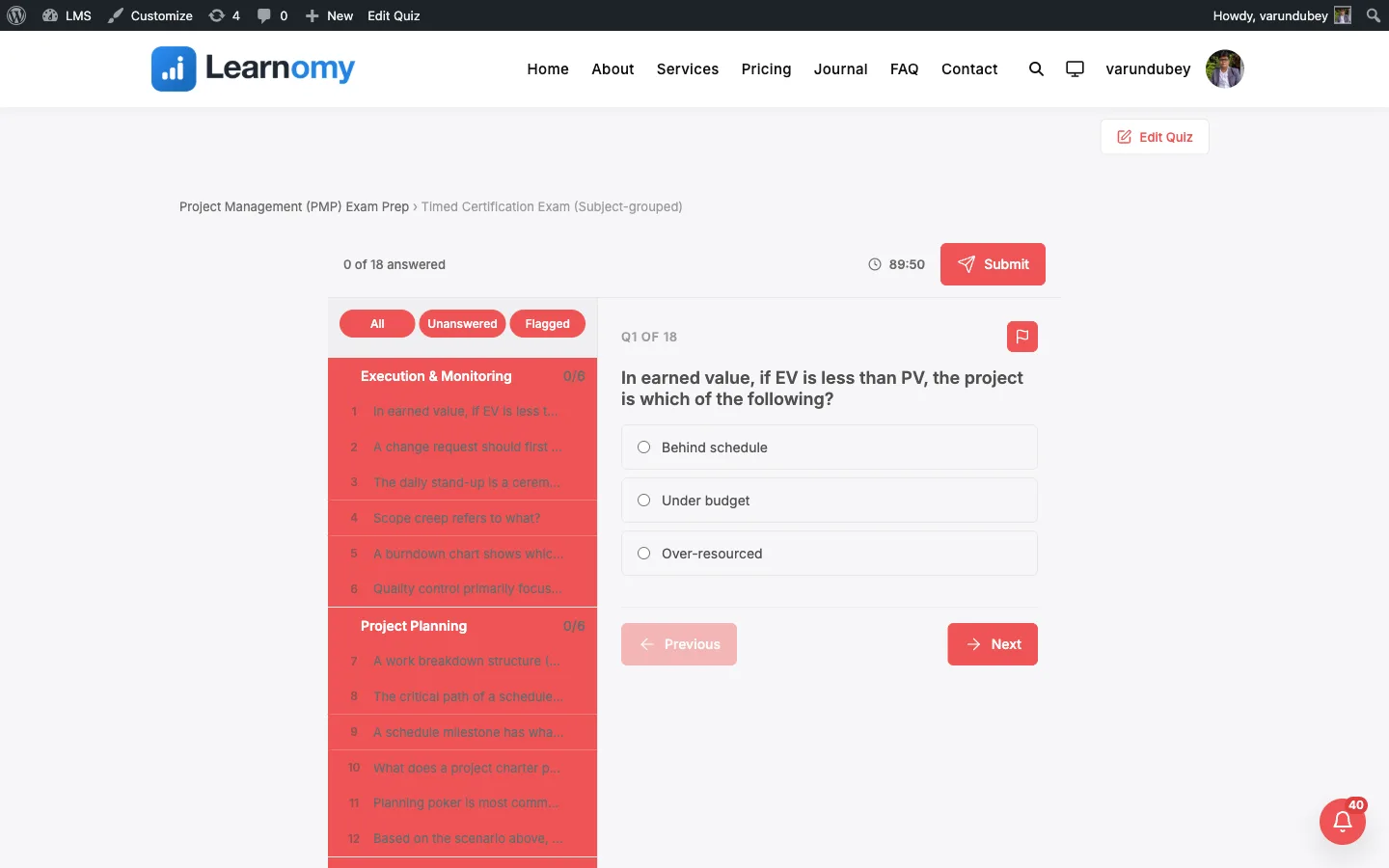
Quizzes and Grading pro Pro featureThe Review board layout shows a long exam as a split panel: a scrollable question navigator on the left and the active question at full detail on the right. The student can jump to any question in one click, flag questions to come back to, and filter the list down to what is still unanswered, which suits long certification and entrance exams.
Pro feature. Available in Learnomy Pro. The Review board display template is a Pro layout on the quiz editor.
What you can do#
- Present a long exam (40, 100, 150+ questions) as a navigable board instead of one endless scroll or a strict one-at-a-time run.
- Let candidates jump straight to any question from the left-hand list, in any order, at any time.
- Show each question's status at a glance in the navigator: unanswered, answered, current, or flagged.
- Filter the navigator to All, Unanswered, or Flagged so a candidate can find the questions they still owe an answer to near the end of a long paper.
- Let candidates flag any question for review and come back to it before submitting; flags survive a mid-exam page refresh.
- Group the navigator by subject when the quiz groups questions by category, so a candidate can collapse and expand each subject and see a per-subject answered count.
- Keep a single exam timer with the last minute highlighted and auto-submit when time runs out.
- Give a per-category score breakdown on the results screen, plus a full per-question review, when the quiz groups by category.
- Work on mobile: the left navigator becomes a bottom sheet that a candidate pulls up to switch questions.
How to use it#
- Open the quiz in Learnomy > Quizzes and edit it (or add a new one).
- In the quiz settings, find Display template and choose Review board. This template is a Pro layout, so Learnomy Pro must be active for it to be selectable.
- Add your questions as normal. Every question the quiz contains appears in the left navigator in quiz order.
- Optional: turn on Group questions by category to make the navigator show a collapsible group per subject with a per-category answered count, and to add a per-category score to the results screen. This works best when your questions belong to question categories.
- Set a Time limit if you want the exam timed. The timer runs across the whole exam.
- Save and publish the quiz.
What the student sees at exam time:
- A start screen with the usual rules summary, plus one extra rule that reads "Review board - jump to any question at any time." The student clicks Start Quiz to create the attempt.
- A two-panel player. The left panel is the question navigator; the right panel shows the active question with its answer inputs, an optional hint, and a flag button.
- The top bar shows an "X of N answered" progress count, the timer (when the quiz is timed), and the Submit button.
- The student answers the current question, then either clicks another question in the navigator to jump to it, or uses Previous and Next to move one at a time.
- To flag a question for later, the student clicks the flag button in the question header. Flagged questions show a flag icon in the navigator and appear under the Flagged filter.
- The student narrows the navigator with the All, Unanswered, and Flagged filter pills, for example to clear the last few unanswered questions before submitting.
- When the quiz groups by category and has more than one category, the navigator is split into collapsible subject groups, each with an answered / total count. The student clicks a subject header to collapse or expand it.
- On mobile, the navigator collapses into a bottom sheet. The student taps the handle (which shows the answered count and any flag count) to pull the list up, picks a question, and the sheet closes.
- The student clicks Submit when done, or the exam auto-submits if the timer reaches zero.
- The results screen shows the pass/fail score, the passing threshold, a per-category score breakdown (when grouped by category), and a full per-question review.
Settings and options#
These are set on the quiz editor (Learnomy > Quizzes > edit a quiz) and stored on the quiz.
| Setting | Field name | Values | Notes |
|---|---|---|---|
| Display template | display_template |
review-board |
Pro layout. Selecting it turns the quiz into a review-board exam. |
| Group questions by category | group_by_category |
0 (off, default), 1 (on) |
When on and the quiz has more than one category, the navigator renders as collapsible per-subject groups with a per-category answered count, and the results screen adds a per-category score breakdown. |
| Time limit | (quiz time limit) | minutes | One timer for the whole exam. When under 60 seconds remain the timer turns red; at zero the attempt auto-submits. |
| Passing score | passing_score |
percentage | Same passing rule as every other layout; scored across all questions. |
The Group questions by category help text on the quiz editor reads: "Show questions under their category heading, and a per-category score on the results screen."
The navigator filters (All / Unanswered / Flagged) and per-question flagging are always available on the Review board layout. There is nothing to configure for them.
For developers#
- REST: the quiz create and update endpoints (
learnomy/v1/quizzes) acceptdisplay_template(enum includesreview-board) andgroup_by_category(boolean). Both are returned on the quiz resource. Without Learnomy Pro active, sendingreview-boardreturns HTTP 400 with codelearnomy_layout_requires_proand nothing is saved. - Database:
group_by_categoryis a column onlrn_quizzes(tinyint(1), default0), added in migration3_11_0.display_templateis stored on the same table. - Template override: the layout renders from
templates/quiz/review-board.php. Copy it totheme/learnomy/quiz/review-board.phpin your theme to override it through the Template Loader. - Frontend store: the player extends the shared
learnomy/quizInteractivity store inassets/js/quiz-view-review-board.js. It adds the navigator statuses (state.questionStatuses), the filtered list (state.filteredQuestionList), the grouped-by-category navigator (state.groupedQuestionList, gated bystate.showGroupedList), and the mobile bottom sheet. Flags are held on the shared basestate.flaggedarray so they hydrate on resume and persist throughpersistRunnerState.