
Coupons
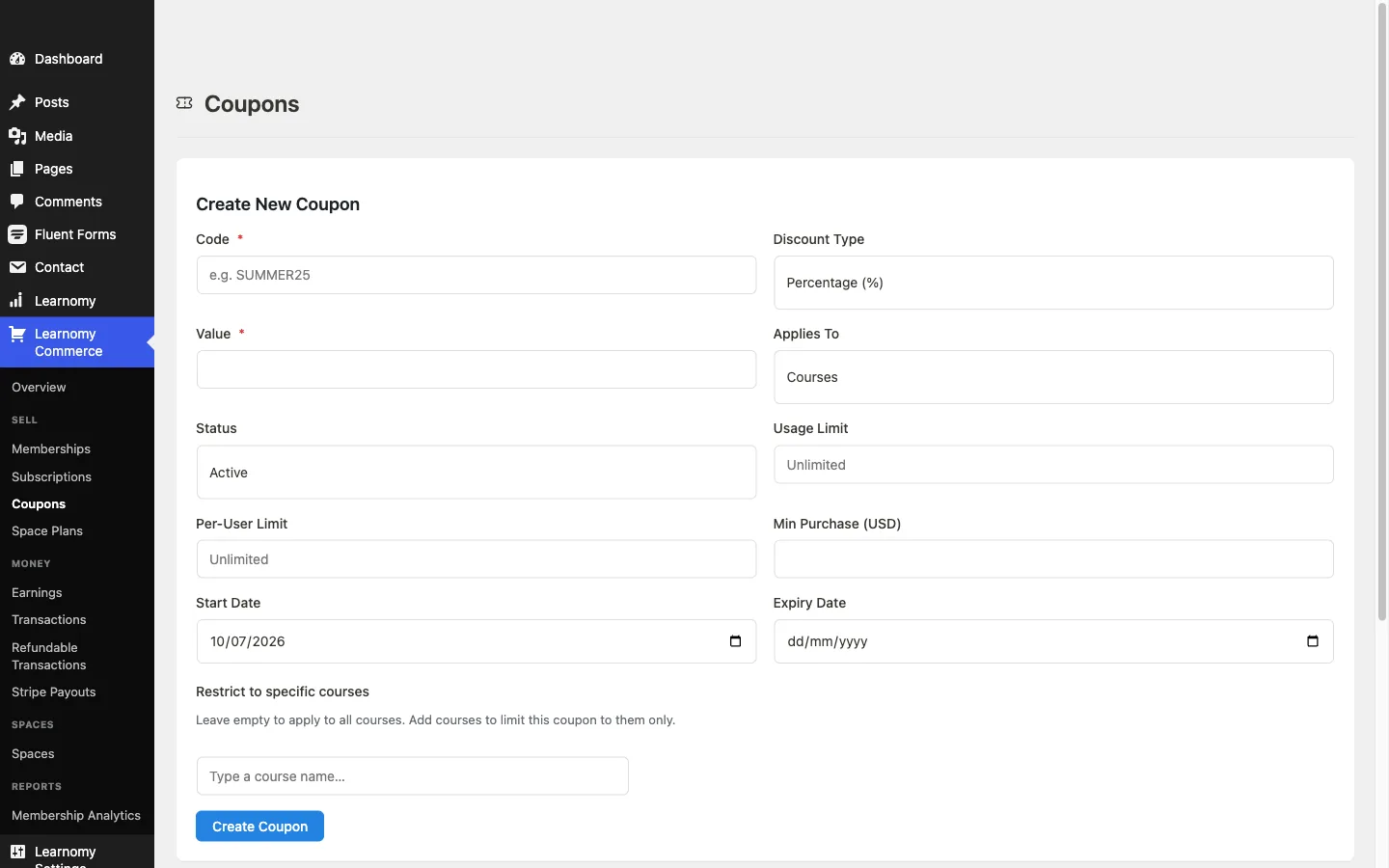
Coupons are discount codes that students enter at checkout to reduce the price of a course purchase or membership subscription. You control the discount type, value, usage limits, minimum purchase, and active date window.
Overview
Go to LMS Commerce > Coupons. The page has two parts: a create/edit form at the top and the coupons list below.
Creating a coupon
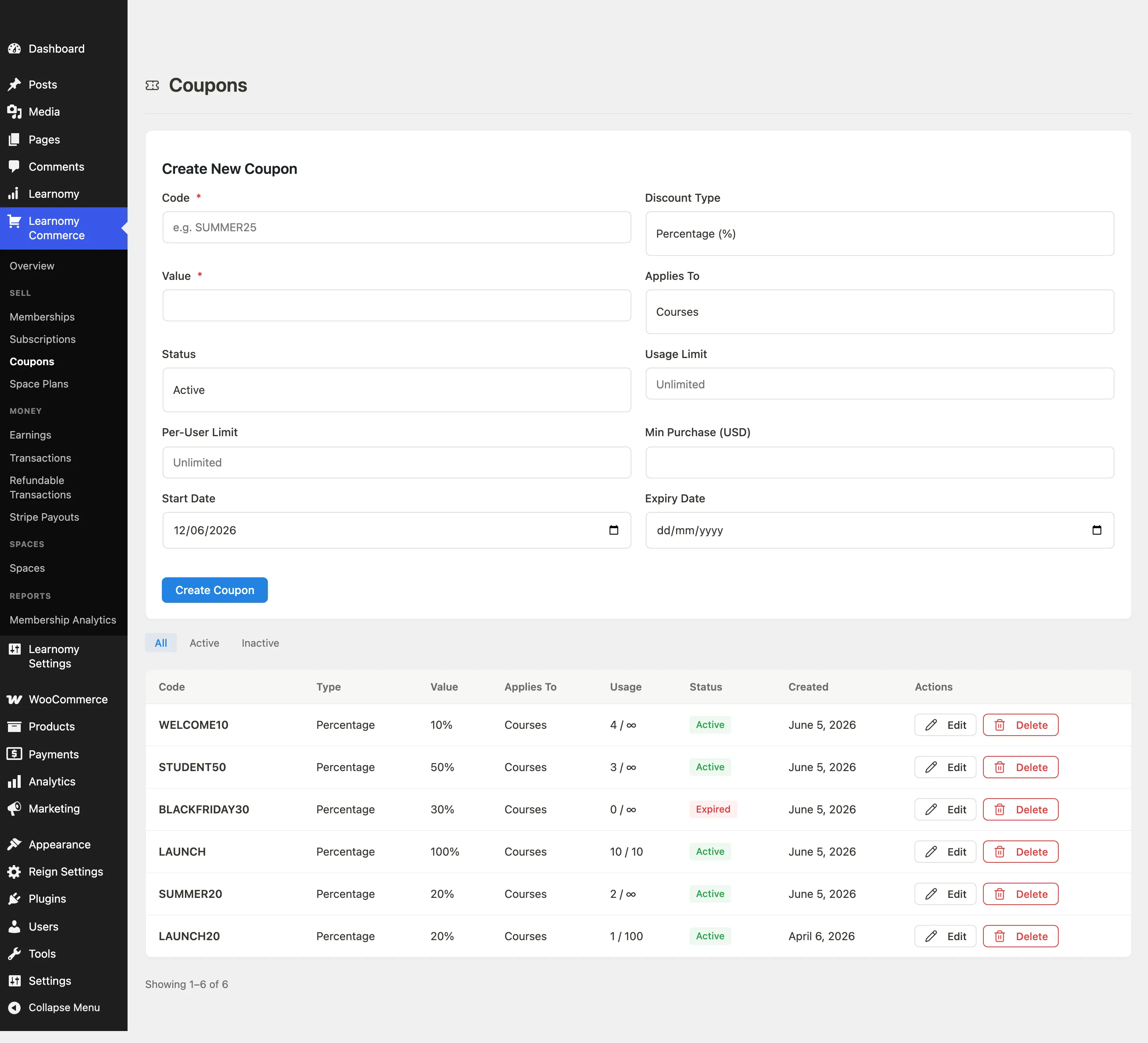
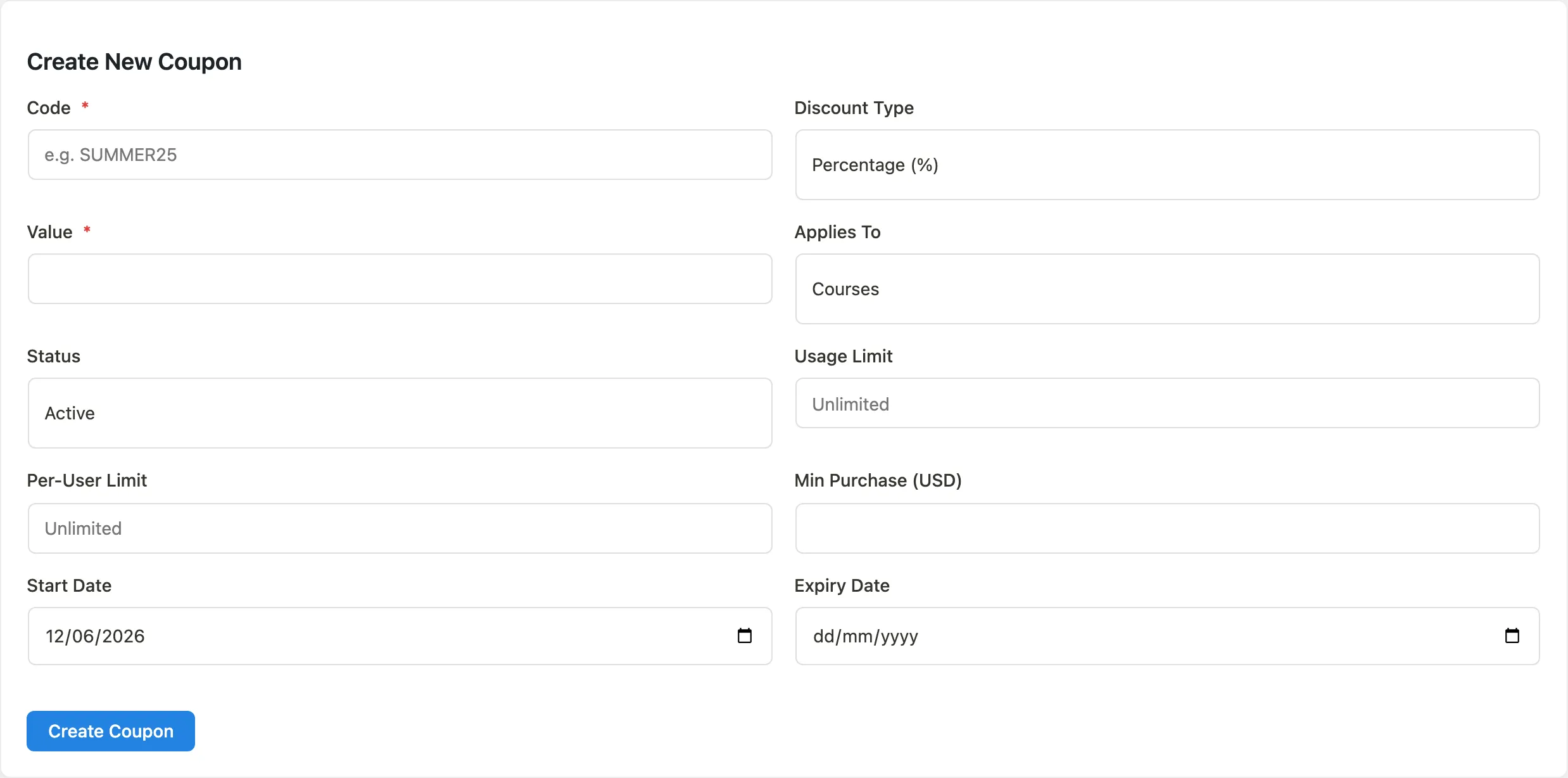
Fill in the fields and click Create Coupon.
Form fields
| Field | Description |
|---|---|
| Code | The code students type at checkout. Example: SUMMER25. Must be unique. |
| Discount Type | Percentage (%) deducts a percentage of the item price. Fixed Amount deducts a flat currency amount. |
| Value | The discount amount: a percentage (e.g. 25) or a fixed amount (e.g. 10.00). Required. |
| Applies To | Courses (course purchases only), Membership Plans (subscription purchases only), or Both. |
| Restrict to specific courses | Optional. When Applies To includes Courses, a searchable field lets you limit the coupon to particular courses instead of your whole catalog. |
| Status | Active means the coupon can be used now. Inactive disables the code without deleting it. |
| Usage Limit | Maximum total redemptions. Leave blank for unlimited. |
| Per-User Limit | Maximum redemptions per individual user. Leave blank for unlimited. |
| Min Purchase | The minimum order amount (before discount) required to use the code. Leave blank for no minimum. |
| Start Date | The date the coupon becomes usable. Defaults to today. |
| Expiry Date | The date the coupon stops working. Always set a future date: a blank Expiry Date currently stores as an already-expired date and the coupon is rejected at checkout. A fix is planned. |
Restricting a coupon to specific courses
Below the main fields, the Restrict to specific courses field lets you scope a coupon to only certain courses instead of your whole catalog. Type a course name into the search box; matching courses appear in a dropdown as you type. Selecting one adds it as a chip above the search box. Add as many courses as you need, and click the "x" on a chip to remove it.
Leave this field empty to apply the coupon to every course (subject to the Applies To setting). Once you add at least one course, the coupon only works at checkout for those courses.
Editing a coupon
Click the Edit row action on any coupon in the list. The create form above the table updates to show the coupon's current values, including any course restriction, and switches to edit mode. Change the fields you want and click Update Coupon. Click Cancel to discard edits and return the form to create mode.
The coupons list
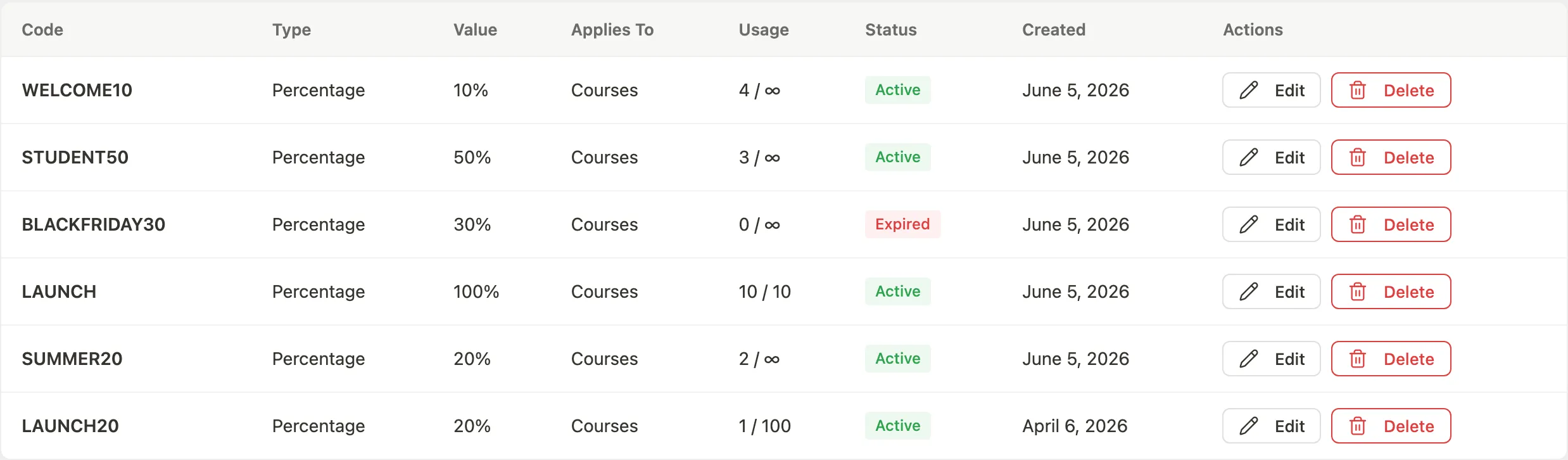
Columns: Code (links to detail page), Type, Value, Applies To, Usage (used / limit), Status, Created, Actions.
Status tabs filter by All, Active, or Inactive.

Status values in the table:
- Active - the coupon is usable (within its date window and usage limits).
- Inactive - manually disabled.
- Expired - the expiry date has passed; the coupon can no longer be used even if its status is Active.
Row actions:
- Edit - populates the form at the top of the page.
- Delete - permanently removes the coupon.
Coupon detail
Click a coupon code in the list to open its detail page.
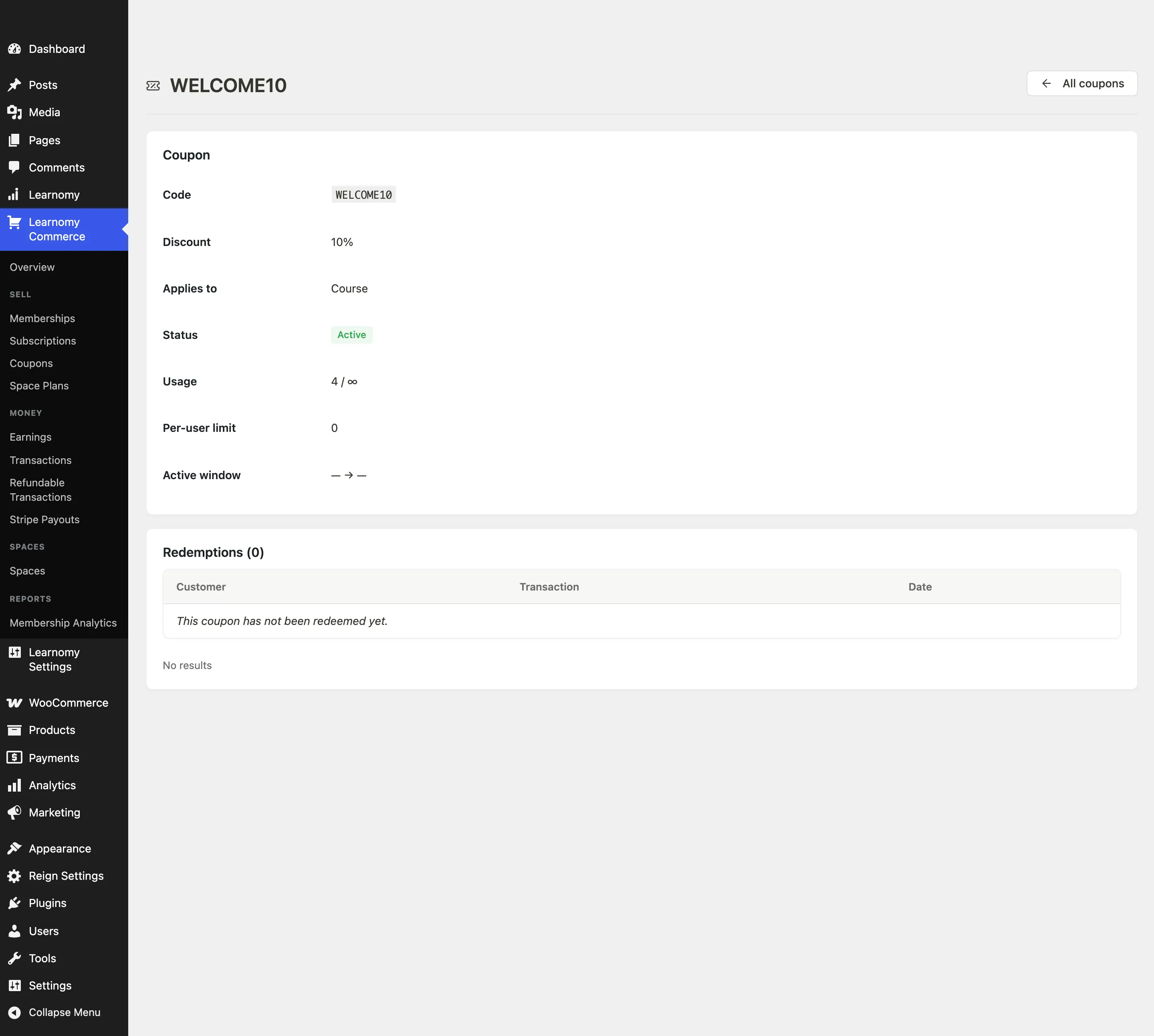
Coupon metadata card
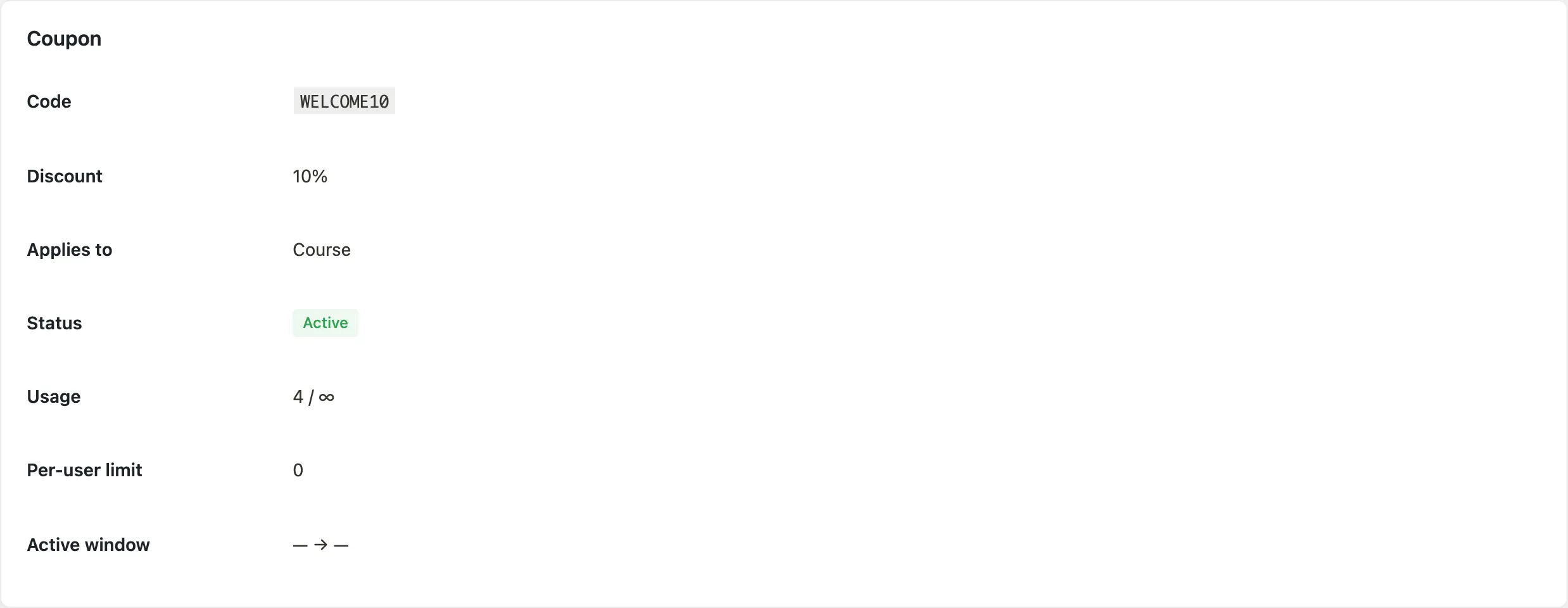
Shows all the coupon settings at a glance: code, discount, applies-to scope, status, usage count vs limit, per-user limit, minimum purchase, and the active date window (start to expiry).
Redemptions

Every time a student uses the coupon, a row appears here with the customer name (linked to their student profile) and the transaction ID (linked to the transaction detail). The section heading shows the total redemption count.
If the coupon has not been used yet, the table shows "This coupon has not been redeemed yet."

What students see: live reprice at checkout
Coupons are entered on the enroll/checkout page, and nowhere else. The course detail page and the membership pricing page each carried a coupon box until 1.9.4; both were removed. A code entered on a sales page promises a discount that page cannot honour - on the WooCommerce route the buyer saw a discounted total and was charged the full price - so the field now lives only on the one surface that actually applies it, across Stripe, PayPal, and the Test gateway. Buyers paying through WooCommerce use WooCommerce's own coupon box at the WooCommerce checkout instead.
At checkout, students type a code into the Coupon Code field and press Apply. When the code validates, the order summary updates in place without a page reload: a "Coupon" line appears with the code and the discount (either the percentage or the fixed amount off), and the total updates to the new price. The input row is replaced by a chip showing the applied code, with a remove button to clear it. If the code is invalid, expired, or restricted to other courses, the checkout shows the matching plain-English message instead of repricing (for a course-restricted coupon used on the wrong course, this is "This coupon does not apply to the selected item.").
Coupons on a membership subscription
A membership plan accepts a coupon. Set Applies To to Membership Plans (or Both) and the code can be entered at membership checkout like any other purchase.
The discount applies to the first payment only. Renewals are charged at the plan's regular price. The checkout says so under the coupon field: "Applies to your first payment. Renewals are billed at the regular price." This is what lets you run an early-adopter or launch offer without discounting the membership for the life of every subscription taken during it.
There is one limit worth knowing before you advertise a code. The gateway has to be able to bill a discounted first invoice and then charge the regular amount on renewal, and today Stripe is the only gateway that can. If a buyer applies a coupon to a recurring plan and then chooses PayPal or the Test gateway, the checkout refuses the code with "This coupon cannot be applied to a recurring purchase paid through ...", and asks them to remove it or choose another payment method. The refusal is deliberate: quoting one price and capturing another is never acceptable, so the checkout stops rather than overcharging.
A one-time (lifetime) membership plan is not affected by any of this. It is a single charge with nothing to renew, so a coupon behaves exactly as it does on a course purchase, on every gateway.
When the field does not appear
The coupon field only shows for a purchase a visitor can actually pay for at Learnomy checkout. It is not offered when:
- the course or plan is bought through the WooCommerce gateway, where the Learnomy checkout is only a hand-off panel and WooCommerce's own coupon box applies discounts instead;
- the course is closed, invite-only, or cohort-join only, so access is granted rather than sold;
- the visitor's membership already covers the course, or the course is free, so there is no charge to reduce;
- the Coupons module is switched off under Learnomy Settings > Modules, in which case no purchase on the site takes a code.
If a 100% coupon zeroes the total, the checkout swaps in a free-order button so the enrollment completes without going through a payment gateway.
Tips
- Coupon codes are case-insensitive at checkout.
SUMMER25andsummer25are treated the same. - A coupon with an expired date shows as Expired in the status column even when its status field is Active. The code cannot be used once the expiry date has passed.
- Setting both a Usage Limit and a Per-User Limit means both caps apply. A coupon with limit 100 / per user 1 allows 100 unique customers, each using it once.
- Deleting a coupon does not remove existing transaction records. Those transactions retain the coupon reference in their detail view.
- The minimum purchase is evaluated against the pre-discount price, not the final price.
- On a membership plan, a Usage Limit counts first payments, not renewals. A code capped at 50 gives 50 people a discounted first month, and every one of them renews at full price after that.
- If you are running a membership offer, check which gateways you have enabled before you publish the code. On a site selling recurring plans through PayPal alone, the code cannot be honoured and buyers will hit a refusal at checkout.