
Lesson Content Types
Courses and ContentEach lesson has a content type that decides how it is delivered -- a text body, an audio player, a PDF, a downloadable file, or a scheduled live session. This page covers the non-video types. Video and embedded content have their own page: see Embedding Video and External Content.
What you can do#
- Deliver a written lesson with the Text type (the default).
- Play audio-only lessons in an inline Audio player.
- Show a PDF inline in the lesson, with an "Open in a new tab" fallback link.
- Offer a Download lesson -- a single button that downloads a file (zip, ebook, worksheet).
- Run a scheduled Live session that links out to Zoom, Meet, or Teams, with before / during / after states.
- Rely on a graceful empty state: when a media type has no URL set, the student sees a clear "not available, contact your instructor" message instead of a broken player.
- Have files you upload protected automatically, so only people entitled to the lesson can open them.
How to use it#
Step 1 -- add or edit a lesson#
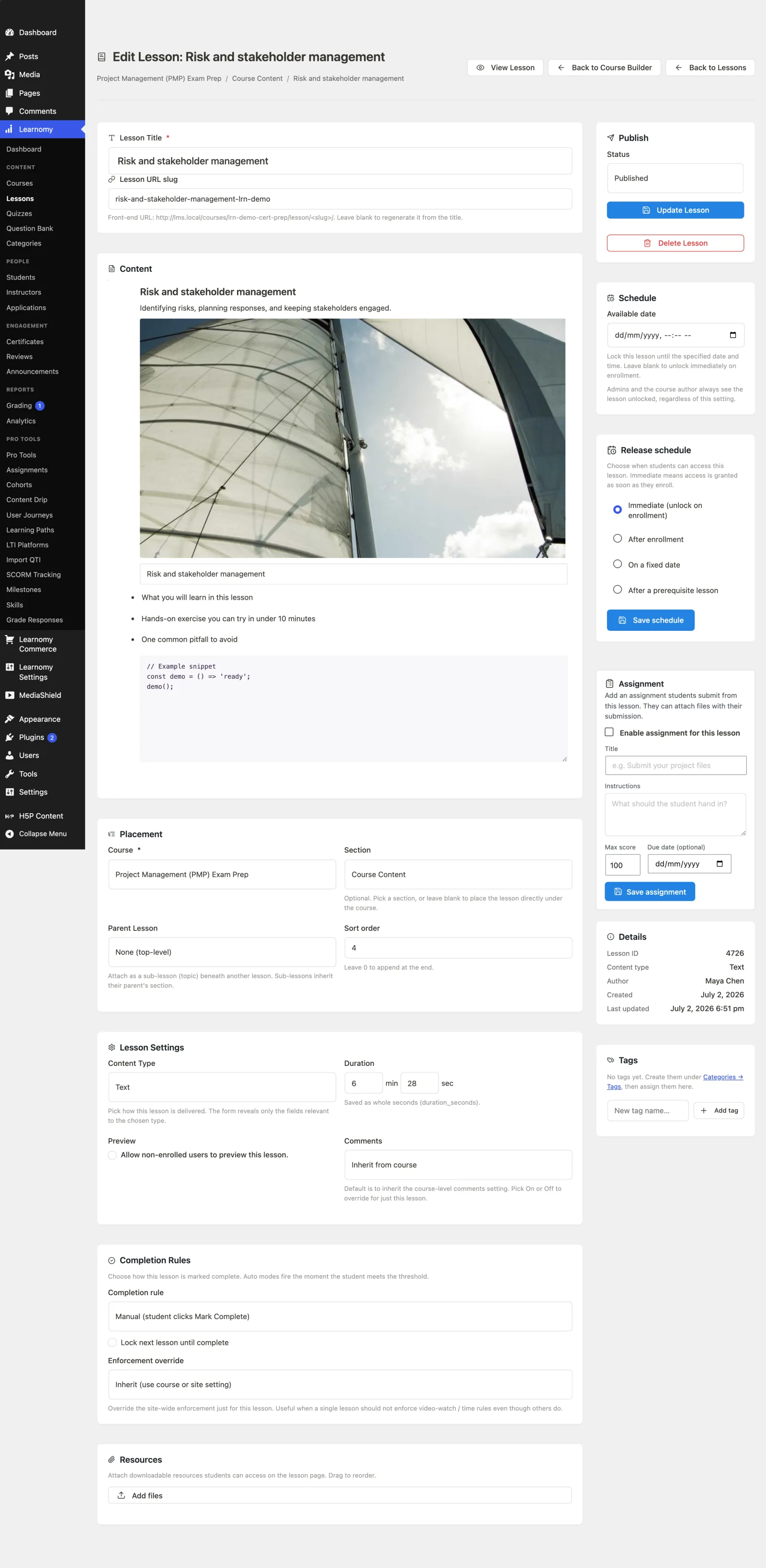
Open a course, add or edit a lesson, and find the Content type dropdown in the lesson editor.
Step 2 -- choose the content type#
Pick one of the non-video types:
- Audio -- an audio-only lesson.
- PDF -- a document shown inline.
- Download -- a single downloadable asset.
- Live -- a scheduled live session.
(For Video and Embed, see Embedding Video and External Content.)
Step 3 -- set the media URL#
Audio, PDF, and Download all read the lesson's media URL field -- paste the file or document URL there. A Live lesson does not use this field: it has its own fields, covered in Step 4.
Files you upload to this site are protected automatically. When the URL points at a file in your own media library, saving the lesson moves that file out of the public uploads folder and serves it through a link that checks the viewer first. The check is the same one that decides whether the lesson body is readable, so a file follows enrollment, membership, the free-preview flag and the drip schedule without you configuring anything.
What that means in practice:
- Someone who is not entitled to the lesson cannot open the file, even with the direct link.
- The original
wp-content/uploads/...address stops working for that file. Anywhere you pasted that address outside Learnomy will need updating. - A link that has already been shared or bookmarked stops working for people who are not entitled. That is the point, but it is worth knowing before you upgrade.
Links to files you do not host are left exactly as they are. A YouTube, Vimeo or Loom URL, or a file on your own CDN, is not moved and not gated -- Learnomy cannot control access to something it does not store. If a file must be protected, upload it to this site rather than linking to it elsewhere.
Step 4 -- for a Live lesson, fill the three live fields#
A live lesson has three dedicated fields, both in the lesson editor (Learnomy → Lessons → edit a lesson) and in the Pro front-end course builder:
- Join link -- the Zoom, Google Meet, or Teams meeting URL.
- Starts at -- the date and time the session takes place, in the site's timezone. Leave it blank for an always-open room.
- Runs for (minutes) -- how long the Join now button stays available after the start. Leave it blank and the session runs for 60 minutes.
Do not put the session start in the Schedule card's Available date. That field is the drip schedule -- it decides when the lesson unlocks, not when the session happens. Setting it locks the lesson, so students cannot open it and see the countdown at all. Leave it blank on a live lesson.
Step 5 -- save and check the player#
Save the lesson and open it in the student player to confirm the right player renders.
Settings and options#
One shared media field. Audio, PDF, and Download all reuse the lesson's single media-URL column. That is why you only ever fill one URL field for those types.
Live sessions have their own fields. A live lesson is authored with Join link, Starts at, and Runs for (minutes) instead of the generic media-URL field. All three are available in wp-admin, in the Pro front-end course builder, and over the REST API.
Empty-state handling. If a media type is selected but no URL is set, the lesson renders a labelled empty state ("Audio not available", "PDF not available", and so on) rather than a broken element.
Access gating is the same for every type. Content type only changes how the lesson renders. Whether a student can open the lesson at all is decided by course enrollment, the course access model, and any content drip -- not by the content type. A preview lesson stays previewable and a gated lesson stays gated across all types.
Live session window. Runs for decides how long the Join now button stays available, counting from Starts at. Leave it blank and the session runs for 60 minutes. That window drives the before / during / after states below.
What the student sees in a live lesson. Three states:
- Before the start -- a countdown ("Starts in 120 minutes") with the Join now button disabled.
- From the start until the end of the window -- an enabled Join now button that opens the join link in a new tab.
- After the window -- "This session has ended".
With no Starts at set, the lesson is treated as live now, so the Join button is enabled straight away.
Available date is not the session start. The Schedule card's Available date is the drip schedule -- when the lesson unlocks. It is a separate, unrelated field, and using it for a live start locks the lesson so students never see the countdown. The lesson editor says as much in the field's own help text. On a live lesson, normally leave it blank.
Standards content types (admin only)#
If a compatible Pro or third-party extension is active, a lesson can also be delivered through a standards format: SCORM, xAPI, LTI, QTI, or H5P. These are registered the same way as any other content type, so they appear in the admin Content Type dropdown and in the Lessons list with their correct technical name.
Students never see the technical name. On learner-facing surfaces -- the course card's content type badge, and anywhere else a format is announced to a student -- a standards type resolves to a plain label or no badge at all, so a student sees "a lesson," not "a SCORM lesson." Only wp-admin shows the accurate classification.
For developers#
Model (Learnomy\Models\Lesson):
Lesson::CONTENT_TYPES-- the canonical list:text,video,audio,pdf,embed,live,download,mediashield.Lesson::content_types()-- the filterable, selectable list read by the wp-admin editor, the Pro front-end builder, and REST validation.Lesson::content_type_label( $type )/Lesson::content_type_icon( $type )-- the human label and Lucide icon for a type. This is the admin-accurate label:text,video,audio,pdf,embed,live,download,mediashield, and the standards typesscorm,xapi,lti,qti,h5pall resolve to their correct name here (admin lists, the lesson editor dropdown).Lesson::learner_content_type_label( $type )-- the learner-facing label. Identical tocontent_type_label()for the everyday formats, but returns an empty string for any type inLesson::TECHNICAL_CONTENT_TYPES(scorm,xapi,lti,qti,h5p), so a customer surface never announces the delivery technology.Course::attach_content_type_summary()(the batch helper that decorates catalog cards with their dominant content type) reads through this method, notcontent_type_label().
The lrn_lessons.content_type column stores the type; video_url is the generic media-URL column reused across audio / pdf / download / embed / live (its name predates the multi-type scope) -- for a live lesson it holds the Join link.
A live session's schedule has its own columns: lrn_lessons.scheduled_start_at (when the session happens) and lrn_lessons.live_duration_minutes (how long the Join button stays up; blank means the default). These are distinct from available_date, which is the drip column -- when the lesson unlocks.
Filters and actions: learnomy_lesson_content_types (register a new selectable type), learnomy_lesson_content_type_label (name it across surfaces), learnomy_technical_content_types (filter the list of types treated as internal/technical -- defaults to Lesson::TECHNICAL_CONTENT_TYPES; remove a type from this list to show its label to learners too), learnomy_lesson_render_content (render a Pro-registered type's player -- fires only for types the built-in chain does not handle), learnomy_live_session_duration (change the 60-minute default used when Runs for is blank), and learnomy_lesson_live_post_actions (inject a recording or contact link after a live session ends).