
Course Difficulty and Target Audience
Courses and ContentSet a difficulty level and describe who a course is for so students can tell at a glance whether it fits them. The difficulty shows as a badge on the course page and the target audience shows as a short "Who This Course Is For" section.
What you can do#
- Tag each course with one of four difficulty levels: Beginner, Intermediate, Advanced, or Expert.
- Leave difficulty unset so no badge appears when a level does not apply.
- Write a short target audience note in plain language, for example "Intermediate developers looking to master React hooks."
- Show the difficulty as an outline badge on the course page header, next to rating and duration.
- Show the target audience as a "Who This Course Is For" block in the course body.
- Set both fields from the course editor, or through the REST API when importing or syncing courses.
How to use it#
Step 1 -- open the course settings#
Edit the course and open the Prerequisites, Difficulty & Target section of the course editor. It carries a target icon and a short line: "Describe who this course is for, what they should know going in, and what they will leave with."
Step 2 -- choose a difficulty#
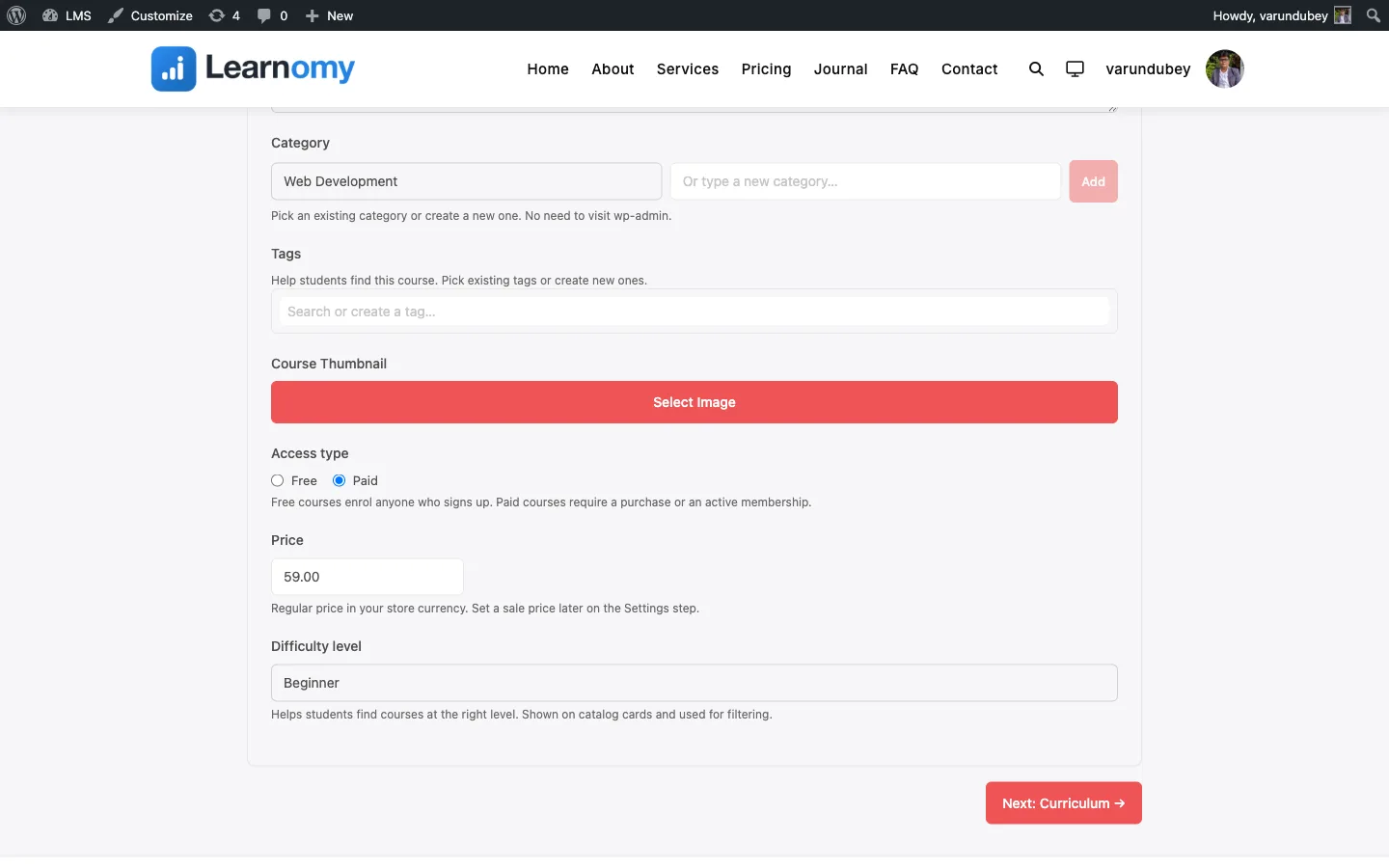
Use the Difficulty dropdown and pick one of Beginner, Intermediate, Advanced, or Expert. Leave it on Select if you do not want a difficulty badge on the course page.
Step 3 -- describe the target audience#
In the Target Audience box, write one or two sentences about who the course is for. This is free text, so keep it short and specific about the reader's role or starting point.
Step 4 -- save and check the course page#
Save the course, then open the public course page. The difficulty appears as an outline badge in the course header, and the target audience appears under a "Who This Course Is For" heading in the body.
Settings & options#
- Difficulty (
difficulty) -- stored on the course record. Accepted values arebeginner,intermediate,advanced, andexpert; an empty value means no badge. - Target Audience (
target_audience) -- stored in the course settings. Plain text, rendered as the "Who This Course Is For" section.
Both fields sit in the same editor section as Language, Estimated Duration, What you will learn, and Prerequisites, but each is independent and optional.
For developers#
- REST route:
POST/PUT /learnomy/v1/coursesand/learnomy/v1/courses/{id}acceptdifficulty(string, sanitized withsanitize_text_field) andtarget_audience(text setting). - The difficulty label shown on the course page is resolved in
Single_Course_View_Data, which maps the storeddifficultyvalue to its display label (Beginner, Intermediate, Advanced, Expert).