
Group Questions by Subject
Quizzes and GradingA single quiz can pull questions from several subjects and keep each subject together during the attempt, then show a per-subject score on the results screen. This turns one quiz into a multi-subject exam (for example a certification paper with a JavaScript section, a React section, and an HTML and CSS section) without building a separate quiz per subject.
What you can do#
- Run one exam that covers several subjects and keep each subject's questions together instead of interleaved, so a candidate answers all of one subject before moving to the next.
- Show a per-subject score breakdown on the results screen ("JavaScript 4 / 5 (80%)", "React 3 / 5 (60%)") on top of the overall pass or fail score.
- Reuse the same question categories you already manage in the Question Bank, so a question tagged "Algebra" counts toward the Algebra subject in every quiz that uses it.
- Keep it optional and additive: the setting is off by default, and a quiz with it off behaves exactly as before (no subject headings, no breakdown).
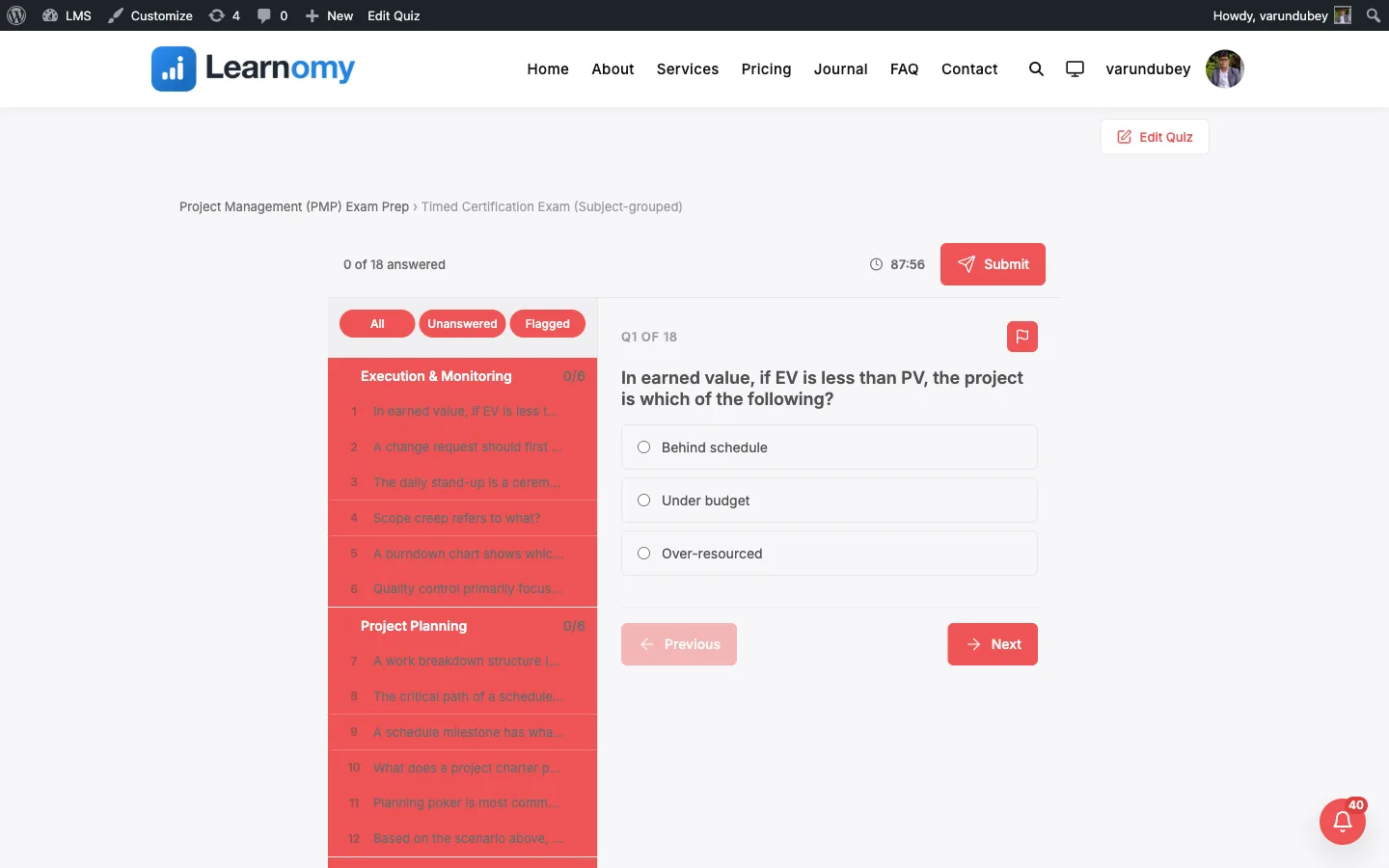
- Turn it on for any layout: the all-at-once (Classic) layout gets subject headings, the one-at-a-time layouts show the current question's subject above the prompt, and the Pro Review board layout turns its navigator into collapsible per-subject groups with an answered count.
- Author the setting from three places that stay in sync: the wp-admin quiz editor, the REST API, and the Pro front-end course builder.
How to use it#
- Give your questions a category. In Learnomy > Question Bank, open each question and set its Category (for example JavaScript, React, HTML and CSS). Question categories are their own hierarchy, separate from course categories. A question with no category falls into an "Uncategorized" group.
- Open the quiz in Learnomy > Quizzes and edit it, or add a new one.
- Add the questions you want from the bank as normal. They can be added in any order; grouping is applied at attempt time.
- In the quiz settings, tick Group questions by category. The help text reads "Show questions under their category heading, and a per-category score on the results screen."
- Optional: choose a Display template. Grouping works on every layout; the Pro Review board layout adds a collapsible per-subject navigator with an answered count per subject.
- Save and publish the quiz.
What the student sees at attempt time:
- On the Classic (all-at-once) layout, the questions are ordered by subject and each subject run has one heading above it, for example an "Algebra" heading over its questions and a "Geometry" heading over the next set. The heading is shown once per subject, not repeated on every question.
- On the one-at-a-time layouts (Focused, Sectioned, Conversational), the current question's subject is shown as a small label above the question, so the candidate always sees which subject they are in.
- On the Pro Review board layout, the left navigator splits into collapsible groups, one per subject, each with an answered / total count.
- After the student submits, the results card shows a Score by category block: one row per subject with its name and its earned / possible (percentage). Those per-subject scores reconcile to the overall attempt percentage.
Settings and options#
These are set on the quiz editor (Learnomy > Quizzes > edit a quiz) and stored on the quiz.
| Setting | Field name | Values | Notes |
|---|---|---|---|
| Group questions by category | group_by_category |
0 (off, default), 1 (on) |
When on, questions are ordered and headed by their question category, and the results screen adds a per-category score breakdown. |
| Display template | display_template |
classic, focused, sectioned, conversational, review-board (Pro) |
Grouping is honoured by every template. Only the Pro Review board renders the collapsible per-subject navigator. |
| Question category | (set per question in the Question Bank) | - | The category a question belongs to is what the grouping and the per-subject score are built from. Managed in Learnomy > Question Bank, not on the quiz. |
Notes on behavior:
- The per-subject Score by category breakdown only appears when the quiz's feedback timing already reveals per-question correctness. If the quiz is set to hide answers, the breakdown is withheld too, so it cannot leak which answers were right.
- Grouping needs the quiz to have more than one category to show anything meaningful. With a single category (or none) the attempt just runs as a normal quiz.
- Turning the setting off and retaking removes all subject headings and the breakdown; a normal quiz is completely unaffected.
For developers#
- Database:
group_by_categoryis a column onlrn_quizzes(tinyint(1), default0), added in migration3_11_0(no new table). The per-question subject comes fromlrn_question_categoriesvia each question'scategory_id. - REST: the quiz create and update endpoints (
learnomy/v1/quizzes) acceptgroup_by_categoryas a boolean (string"1"is coerced) and return it on the quiz resource.POST /learnomy/v1/quizzes/{id}/startreturns each item indata.questions[]withcategory_idandcategory_name, ordered category-contiguous.GET /learnomy/v1/attempts/{id}includes acategory_breakdownkey only whengroup_by_category = 1and the feedback timing exposes the per-question review. - One query for the breakdown:
QuestionResponse::score_by_category( $attempt_id )is a single grouped query (responses joined to questions and categories), so the per-subject score has no per-row N+1. - Frontend store: the shared
learnomy/quizInteractivity store holdsstate.groupByCategoryand exposesstate.currentCategoryLabelfor the one-at-a-time layouts. The Classic layout binds a real<h2 class="lrn-quiz-classic__category-heading">per subject run. The Review board player (assets/js/quiz-view-review-board.js) adds the grouped navigator viastate.groupedQuestionList(gated bystate.showGroupedList). - Template override: each layout renders from
templates/quiz/{classic,focused,sectioned,conversational,review-board}.php. Copy the one you use totheme/learnomy/quiz/<layout>.phpto override it through the Template Loader.