
Commerce Overview
Free & Pro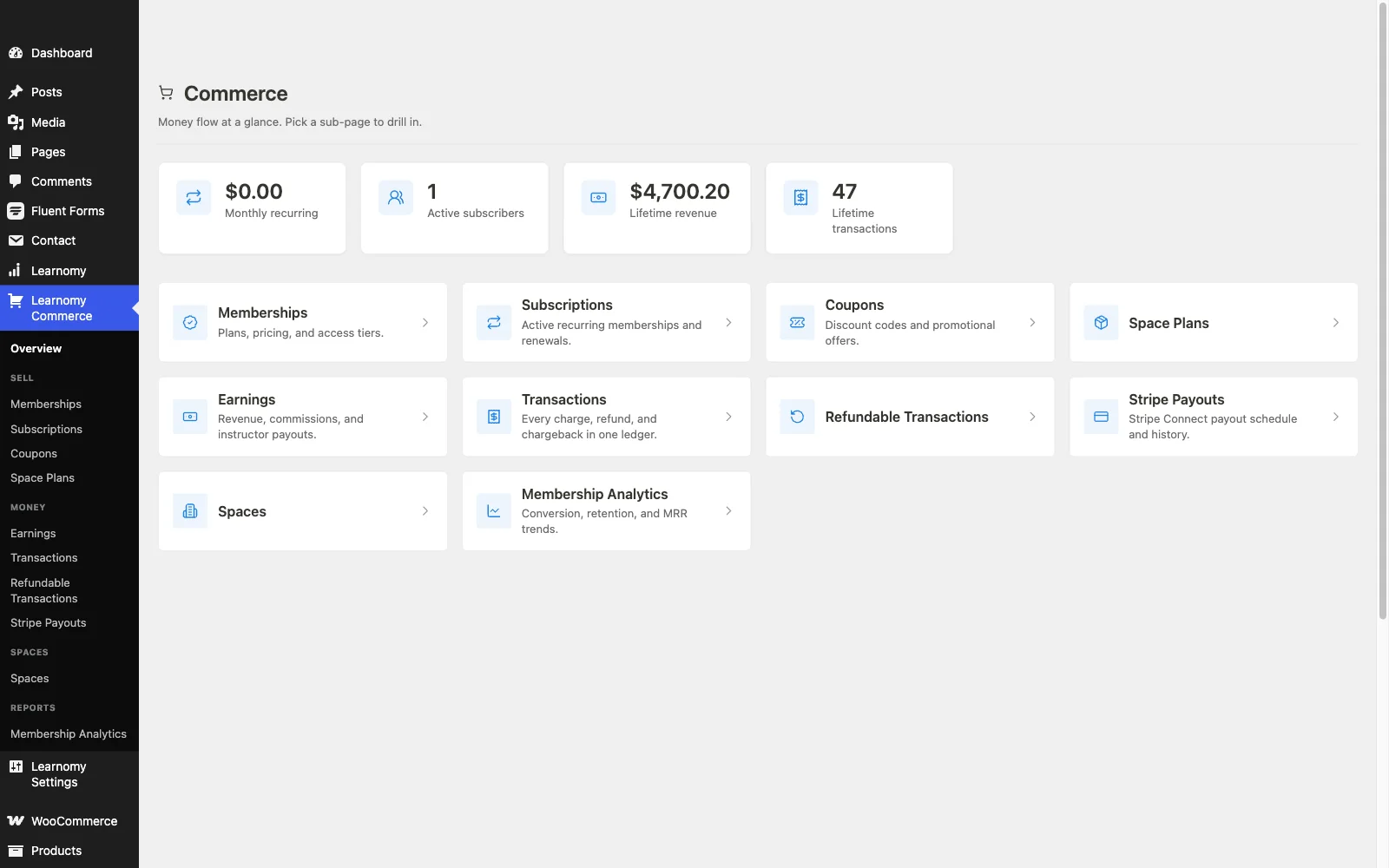
The LMS Commerce menu is where you manage every money-related part of your academy: membership plans, subscriber accounts, discount coupons, and the full transaction ledger. This page describes the Commerce home screen and what lives in each sub-page.
Overview
Go to LMS Commerce in the WordPress admin sidebar. The menu only appears when at least one commerce module is enabled on Learnomy Settings > Modules (Memberships, Subscriptions, or Coupons). If no module is on, the screen shows an empty state with a direct link to the Modules page.
Sub-pages available under Commerce:
| Sub-page | What it does |
|---|---|
| Overview | This landing screen with revenue KPIs and navigation cards |
| Memberships | Create and manage membership plans |
| Subscriptions | View and manage member subscription accounts |
| Coupons | Create and manage discount codes |
| Earnings | Revenue, instructor commissions, and payout requests |
| Transactions | Complete ledger of every charge, refund, and renewal |
🔶 Pro feature. Membership Analytics and Stripe Payouts are available in Learnomy Pro.
The Commerce Overview screen
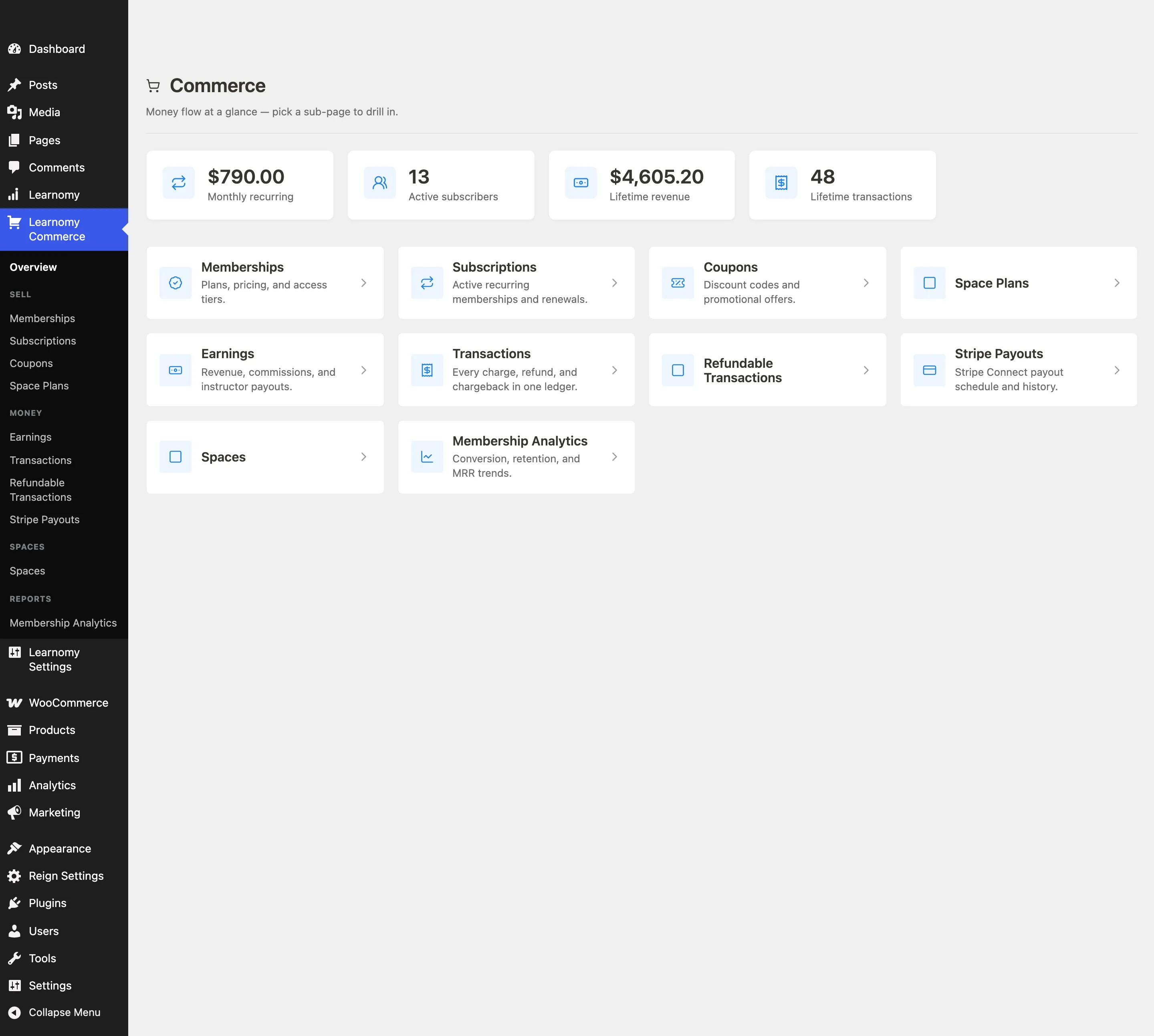
The overview screen gives you a quick read on money flow before drilling into a sub-page.
KPI summary cards
Four stat cards sit at the top of the page.
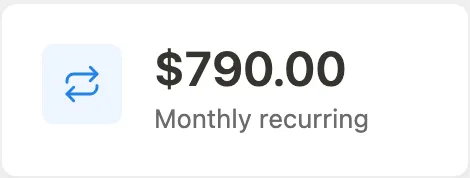
- Monthly Recurring Revenue (MRR) - the billed amount from all active subscriptions in the current month.
- Active subscribers - the count of subscriptions with status
activeortrialing. - Lifetime revenue - the total of all completed transactions since the site started.
- Total transactions - the count of all recorded transaction rows (purchases, renewals, and refunds).
Navigation cards
Below the KPIs, each enabled Commerce sub-page appears as a clickable card with a one-line description.
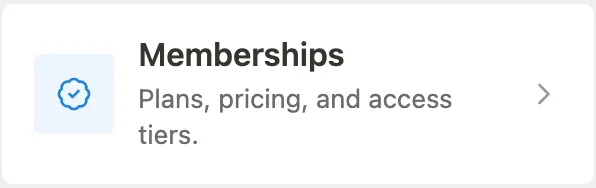
Click any card to go directly to that sub-page. The card for a sub-page only appears when the corresponding module is enabled.
No modules enabled
If you land on Commerce before enabling any module, the page shows an empty state with a button to open Modules.

Go to Learnomy Settings > Modules, toggle on Memberships or Coupons, and save. The Commerce menu and its cards will populate.
Tips
- The Commerce menu is conditional: it disappears entirely if all commerce modules are deactivated. Re-enabling any one module brings it back.
- Pro extensions (Membership Analytics, Stripe Payouts) add their own cards to the hub automatically.
- Third-party plugins can add cards and descriptions via the
learnomy_commerce_card_descriptionsfilter.