
Frontend Course Builder
Pro feature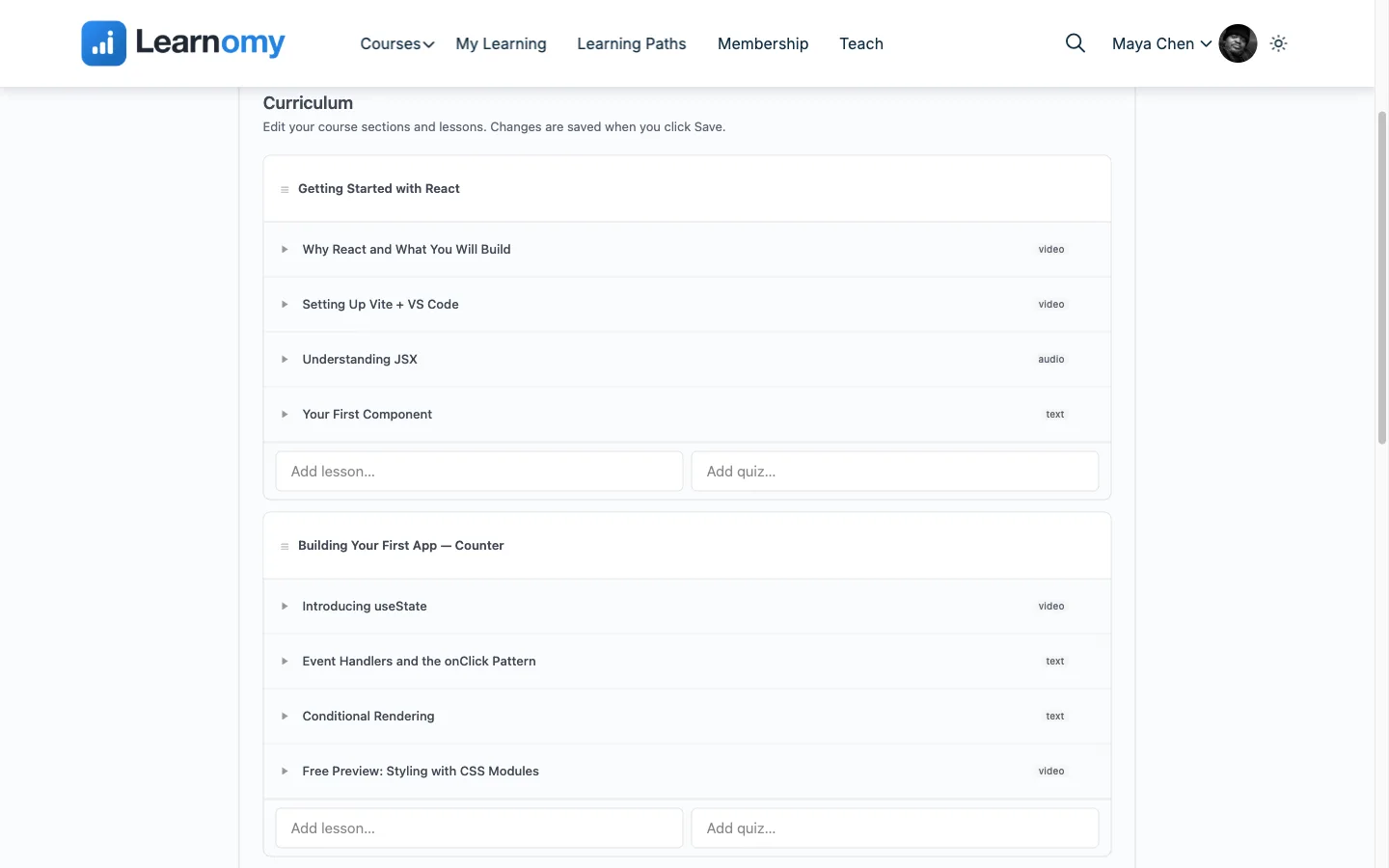
🔶 Pro feature. Available in Learnomy Pro.
The Frontend Course Builder lets instructors create and manage courses entirely from the front end of your site, with no access to wp-admin required. An instructor follows a four-step wizard to create a course, then uses the persistent editor to build out curriculum, configure settings, and publish.
Overview
The builder lives at two routes:
/instructor/create-course/- the four-step creation wizard./instructor/edit-course/{id}/- the persistent editor for an existing course.
Both routes are login-required. A visitor who lands on /instructor/create-course/ without the right capability is redirected to the course catalog with ?access=instructors_only.
The builder is enabled for all users with the learnomy_frontend_course_edit ability, which is granted to users with the lrn_instructor role.
Creating a course: the four-step wizard
Step 1 - Course Info
The first step collects the core course details.
- Course Title (required) - the public name of the course.
- Description - a rich-text editor (powered by Editor.js) for the course overview. Supports paragraphs, headings, lists, code blocks, and quotes.
- Category - a dropdown of existing categories. Type a new name in the field to create a category inline without leaving the builder.
- Course Thumbnail - upload an image from your device. A preview appears once uploaded.
Click Next (or the step indicator) to advance. The wizard remembers your progress as you move between steps.
Save Draft in the top-right header saves your work at any point without publishing. The course is created in the database as a draft on the first save, and the browser navigates to the editor at
/instructor/edit-course/{id}/.
Step 2 - Curriculum
Build the course structure. Add sections (groupings of lessons) and loose lessons (lessons not inside a section).
- Click Add Section to add a named section.
- Inside a section, click Add Lesson to add a lesson title. The lesson is saved when you save the draft, or when you finish editing it in the editor.
- Lessons outside sections are listed as loose lessons below the sections.
- Drag sections and lessons to reorder them. Dragging uses native HTML5 drag-and-drop and saves the new order immediately.
Step 3 - Settings
Configure access and completion rules.
- Access Type - Free, Paid, Membership, or Paid or Membership.
- Price - shown when Paid access is selected.
- Difficulty - Beginner, Intermediate, or Advanced.
- Completion Type - how the course is marked complete: all lessons, lessons and quiz, percentage, or manual.
Step 4 - Review and Publish
Review a summary of what you have entered. Click Publish to set the course status to Published and redirect to the persistent editor. A success notice confirms publication.
Editing an existing course
The persistent editor at /instructor/edit-course/{id}/ covers everything you can do after the course is created.
From the editor, the instructor can:
- Edit course info (title, description, category, thumbnail)
- Add, rename, and delete sections
- Add, edit, and delete lessons (lesson content uses Editor.js for rich text)
- Add quizzes to the curriculum
- Set up content drip rules (when each lesson unlocks after enrollment)
- Choose a certificate template
- Set prerequisites (a multi-select picker of other courses)
- Add tags
- Add or remove co-instructors
Every change is saved via the same REST API used by the mobile app. There is no separate save button in the editor; saves happen on each action.
The Create Course and Edit Course links on the instructor dashboard point to the frontend builder when this extension is active. Instructors do not need to know about
/wp-admin/.
Question types in the builder
When an instructor adds a quiz to a course via the editor, the question type dropdown is populated from the learnomy_question_types filter. Available types depend on which extensions are active:
| Type | Available in |
|---|---|
| True / False | Free |
| Single choice | Free |
| Multiple choice | Free |
| Short answer | Free |
| Essay | Free |
| Fill in the blank | Free |
| Matching | Advanced Quizzes (Pro) |
| Ordering | Advanced Quizzes (Pro) |
| Numeric | Advanced Quizzes (Pro) |
| Math | Advanced Quizzes (Pro) |
| Calculated | Advanced Quizzes (Pro) |
The matching, ordering, numeric, math, and calculated types only appear in the dropdown when the Advanced Quizzes extension is enabled.
Tips
- Instructors author lesson content in the persistent editor after publishing. The creation wizard does not include an Editor.js content panel; content editing starts in the editor.
- Every time a lesson is saved, a revision snapshot is stored. Instructors can open the revision history panel to browse previous versions and restore any saved state.
- If an instructor pastes a YouTube URL into the lesson editor, the embed saves. Re-editing the lesson reconstructs the embed block. Full media-embed round-tripping improvements are planned for v1.1.
- The builder is a frontend route (
/instructor/create-course/and/instructor/edit-course/{id}/). It uses the WordPress Interactivity API for step navigation and real-time state, with no React or jQuery.
No screenshots available
No dedicated frontend-builder screenshots are included in this release. The feature shares the course-builder and course-editor templates. Refer to the ../images/courses/ and ../images/lessons/ folders for adjacent UI screenshots, or capture them from /instructor/create-course/ on a test site.