
WP Fusion
Integrations pro Pro featurePro feature. Available in Learnomy Pro.
The WP Fusion bridge connects Learnomy to your CRM through WP Fusion. It does three things: it grants course access from CRM tags, it auto-enrolls (and unenrolls) students when a linked tag is applied or removed, and it writes Learnomy tags back to the CRM as students move through your courses, purchase a course, earn a certificate, or subscribe to a membership plan. It also syncs Learnomy custom account fields to the contact record in your CRM.
Prerequisites#
- WP Fusion is installed and active.
- WP Fusion is connected to a CRM. The tag read and write features only work once a connection is configured. Until then the bridge stays inert and never blocks a Learnomy flow.
It auto-enables#
The bridge is not a toggle on the Modules page. It enables itself when WP Fusion is active and disappears when WP Fusion is not, so there is nothing to switch on. When WP Fusion is active but not yet connected to a CRM, the bridge does nothing: tag writes are skipped and access gating fails open, so already-enrolled students are never locked out by a CRM that is unreachable or half-configured.
Where you configure rules#
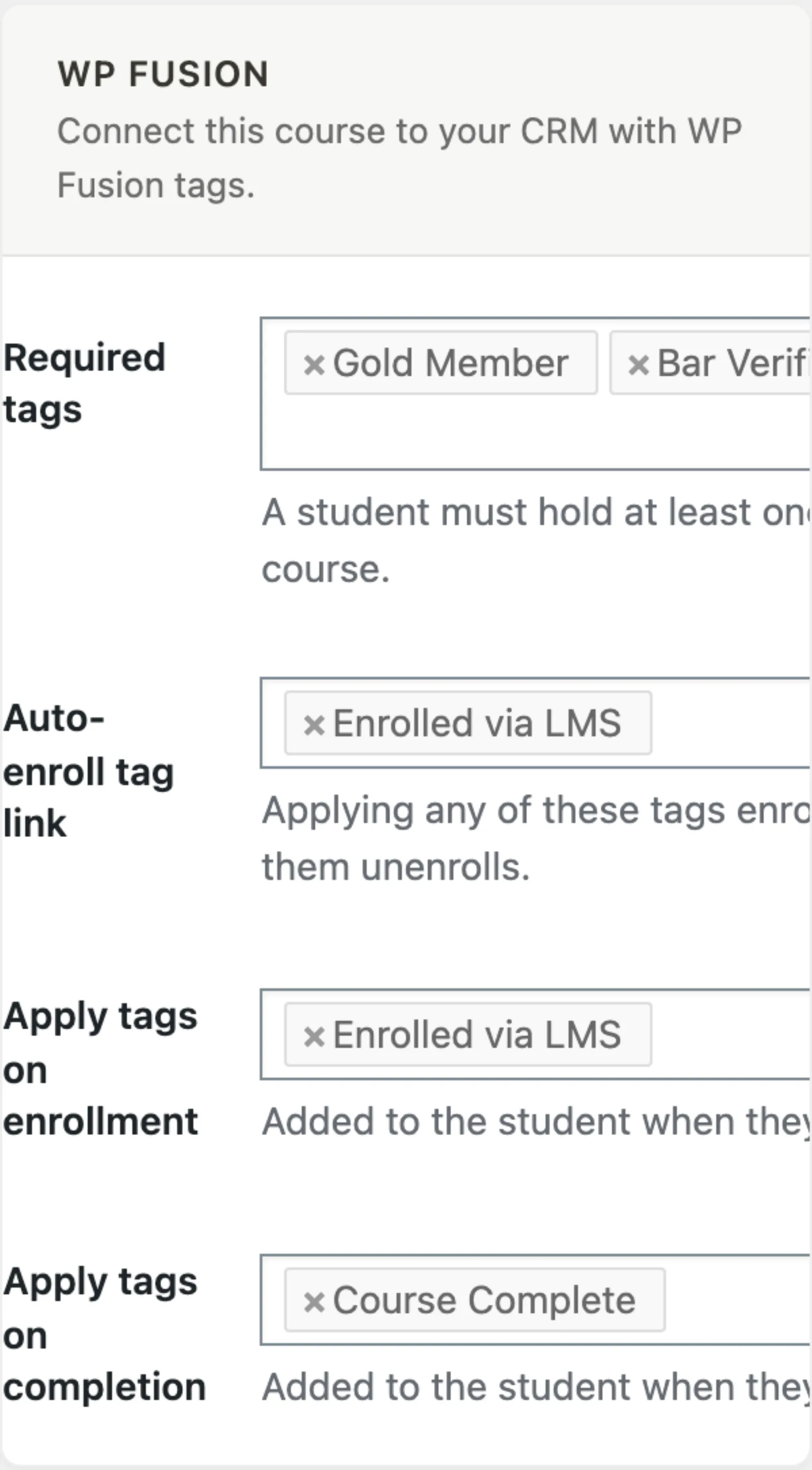
You configure WP Fusion tag rules inline in the Learnomy editors you already use. A WP Fusion (CRM) card appears on the course-detail hub, the lesson and quiz editor screens, and the membership plan editor. Each rule is a list of WP Fusion tags chosen with WP Fusion's own tag picker. Leaving a field empty means that rule is not applied.
The available rules per editor:
| Editor | Field | What it does |
|---|---|---|
| Course | Required tags | A student must hold at least one of these tags to access the course. |
| Course | Auto-enroll tag link | Applying any of these tags enrolls the student; removing them unenrolls. |
| Course | Apply tags on enrollment | Added to the student when they enroll in this course, and removed when they lose it (no other purchase, plan, space, path or grant still gives it). Completion tags stay. |
| Course | Apply tags on completion | Added to the student when they complete this course. |
| Course | Apply tags on purchase | Added to the buyer when they complete a purchase of this course. This is distinct from enrollment: it fires on the purchase itself, so it also catches a buyer who paid but has not started the course yet. |
| Course | Apply tags on certificate earned | Added to the student when they earn this course's certificate. |
| Lesson | Required tags | A student must hold at least one of these tags to open the lesson. |
| Lesson | Apply tags on completion | Added to the student when they complete this lesson. |
| Quiz | Apply tags on pass | Added to the student when they pass this quiz. |
| Quiz | Apply tags on fail | Added to the student when they fail this quiz. |
| Membership plan | Apply tags on subscribe | Added to the member when they subscribe to this plan, and re-applied on every renewal. |
| Membership plan | Apply tags on cancel / expiry | Added to the member when their subscription is cancelled or expires. The subscribe tags are removed at the same time. |
The course card lives on the course-detail hub (not the course editor) and saves immediately with its own Save CRM tags button, because the tag multiselect needs more room than the edit-course sidebar has. The membership plan card sits below the plan editor form and saves the same way, so it is only available once the plan has been created and saved at least once.
Configuring access rules (required tags)#
Required tags gate access. The contract is "has at least one of these tags", so list every tag that should grant access.
- Open the course (or lesson) in its Learnomy editor.
- In the WP Fusion card, add one or more tags to Required tags.
- Save the course (or lesson).
A student who does not hold any of the required tags is shown an Access Restricted message instead of the enroll prompt. If WP Fusion is active but cannot answer (not connected to a CRM), the gate fails open so existing students keep their access.

Auto-enroll on tag#
The Auto-enroll tag link on a course turns a CRM tag into an entitlement. When a student's tag set changes in WP Fusion:
- If they now hold any of the course's linked tags, the course is granted to them through Access Grants, the same way a store order grants access: it shows in Learnomy > Access Log with WP Fusion as the source, and the student gets one "Your access is ready" email (switch it off under Settings > Emails).
- If they no longer hold any linked tag, that grant is revoked and the course access it gave ends.
- If they get the tag back, the course is granted again, unless you removed that grant in the Access Log: an access you took away is not given back by the same tag.
Because the linked tag is treated as the entitlement, this can grant access to a paid course without a purchase. Only access this bridge gave is affected; manual, purchase, membership and store access are left untouched. Students a tag enrolled before Learnomy 2.1.4 keep their access, and it still ends when the tag is removed.
To set it up:
- Open the course in its editor.
- Add the tag (or tags) to Auto-enroll tag link in the WP Fusion card.
- Save the course.
Tags written back to the CRM#
The bridge applies tags to the student's CRM contact on these Learnomy events, using whatever tags you configured for each:
- Student enrolls in a course applies the course's Apply tags on enrollment.
- Student loses a course (refund, removal, plan or term ended, and nothing else gives it) removes the course's Apply tags on enrollment. Losing one of two ways they held it changes nothing.
- Student completes a course applies the course's Apply tags on completion.
- Student completes a lesson applies the lesson's Apply tags on completion.
- Student passes a quiz applies the quiz's Apply tags on pass.
- Student fails a quiz applies the quiz's Apply tags on fail.
- Student purchases a course applies that course's Apply tags on purchase.
- Student earns a certificate applies that course's Apply tags on certificate earned.
- Member subscribes to a plan applies the plan's Apply tags on subscribe. The same tags are re-applied on every renewal, so a tag removed mid-cycle is restored automatically.
- Member's subscription is cancelled or expires applies the plan's Apply tags on cancel / expiry and removes the plan's Apply tags on subscribe tags.
Tag writes are deferred#
Applying or removing a tag is a call to your CRM. To keep the student's request fast, the bridge does not make that call inline. It hands the tag write to Action Scheduler, so the enroll, completion, or quiz request returns immediately and the CRM round-trip happens in the background. A slow or unreachable CRM never blocks the student. If a tag write was queued before WP Fusion finished connecting, the background worker re-checks the connection and simply skips the write rather than failing.
Custom field sync#
If you use Learnomy custom account fields, the bridge tells WP Fusion to watch those field keys. When a student edits a watched field on their account, the change syncs to their CRM contact record through WP Fusion's normal field-sync mechanism.
Developer note#
The required-tag gate copy is filterable. To change the title, message, or call-to-action shown when a student is blocked by a required tag, hook learnomy_pro_wpf_gate_copy:
add_filter( 'learnomy_pro_wpf_gate_copy', function ( array $copy ) {
    $copy['title']     = 'Members only';
    $copy['message']   = 'Join the membership to unlock this course.';
    $copy['cta_label'] = 'View plans';
    $copy['cta_url']   = home_url( '/membership/' );
    return $copy;
} );
The filter receives an array with key, title, message, cta_label, and cta_url.