
Course Catalog
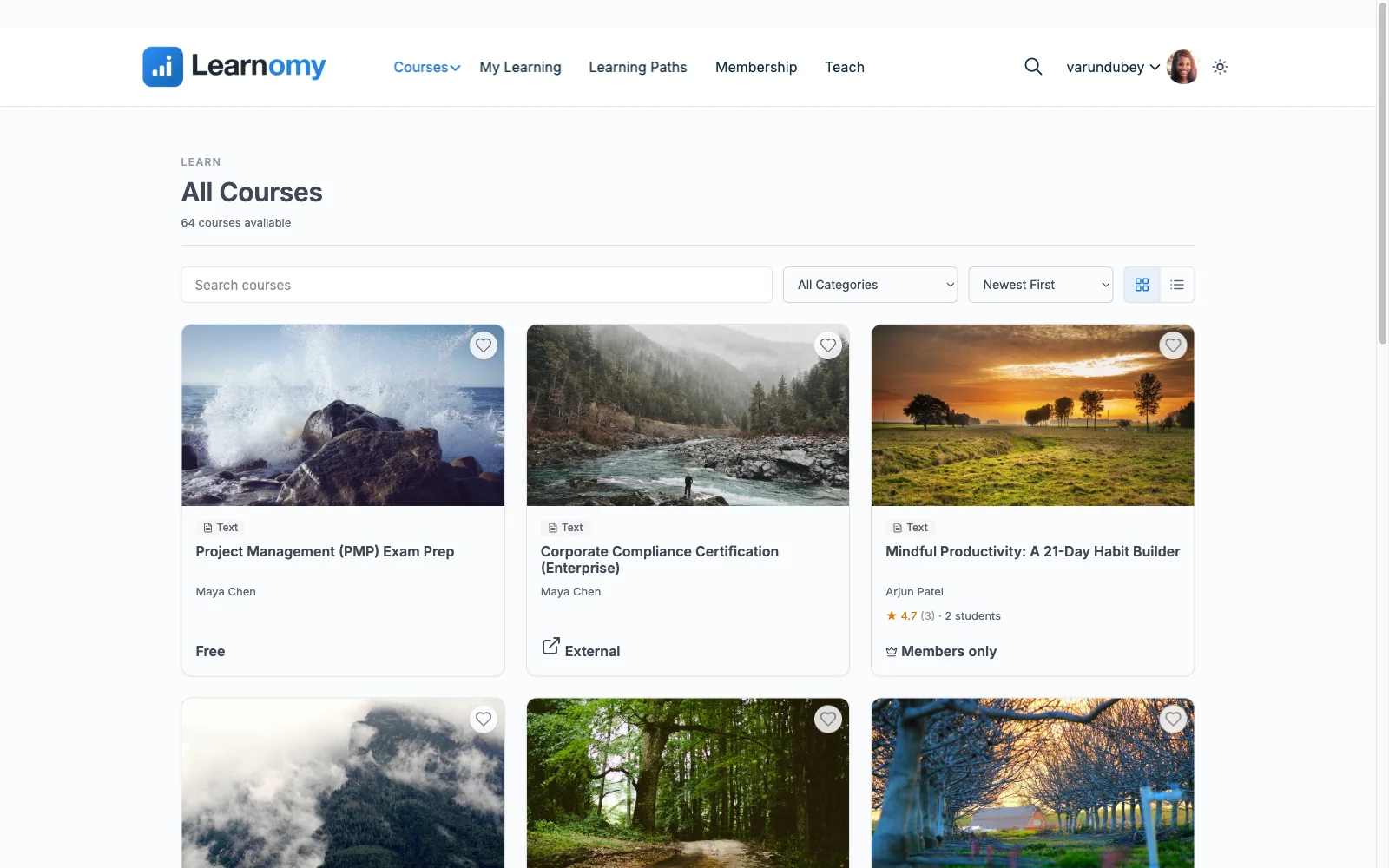
The course catalog is the public storefront for your academy. Students browse, filter, and enroll from here. It lives at /courses/ and is created automatically when Learnomy is activated.
Overview
The catalog page shows all published, non-private courses. Visitors can search, narrow the list by category and -- in the filter sidebar layout -- by price, level, rating, duration, instructor and tags, sort the results, and click into any course to see its detail page. Every choice is written into the page URL, so any filtered view can be linked to or bookmarked.
Go to Learnomy → Courses to manage what appears here.
The catalog page
Page header
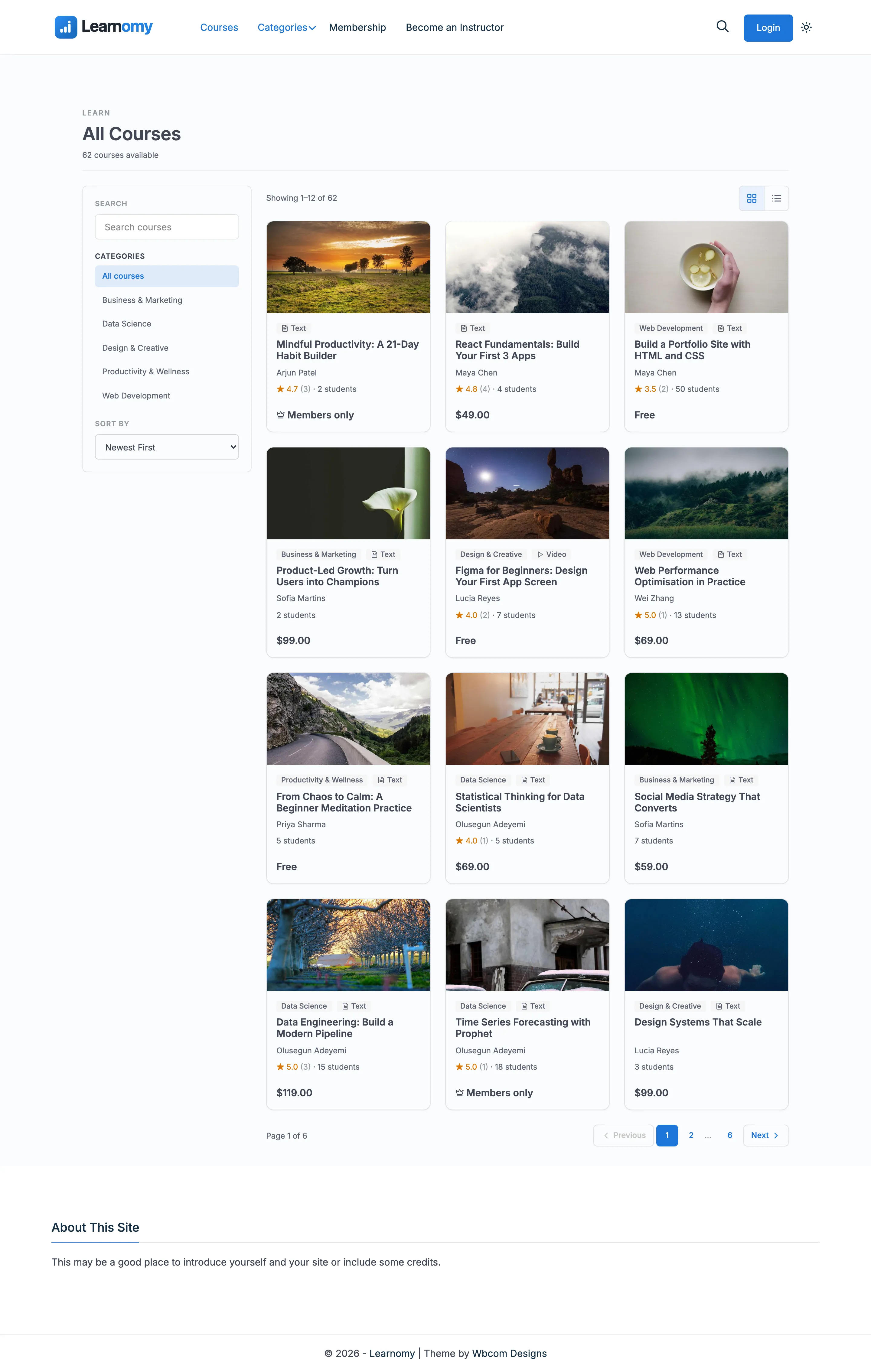
The header displays the catalog title, a search input, and the total number of published courses.

Two catalog layouts
The catalog has two layouts, and the one you pick decides how much filtering students get. Choose it at Learnomy Settings → Settings → Layouts, in the row for the course catalog:
| Layout | What students get |
|---|---|
| Grid (default) | A filter bar above the course grid: search, category dropdown, sort. |
| Filter sidebar | A filter rail down the left side: search, category list, sort, and the full set of filters described below. |
Switching layouts never changes the catalog URL, and no course settings change. If you want students to be able to narrow the catalog by price, level, rating, duration or instructor, switch this setting to Filter sidebar -- those filters do not appear in the grid layout.
Filter bar (grid layout)
The filter bar sits above the course grid. It provides:
- Search -- keyword search across course title, description, and short description.
- Category -- filter to a single category by selecting it from the dropdown.
- Sort -- order results by: Newest First, Most Popular, Highest Rated, Price: Low to High, Price: High to Low.
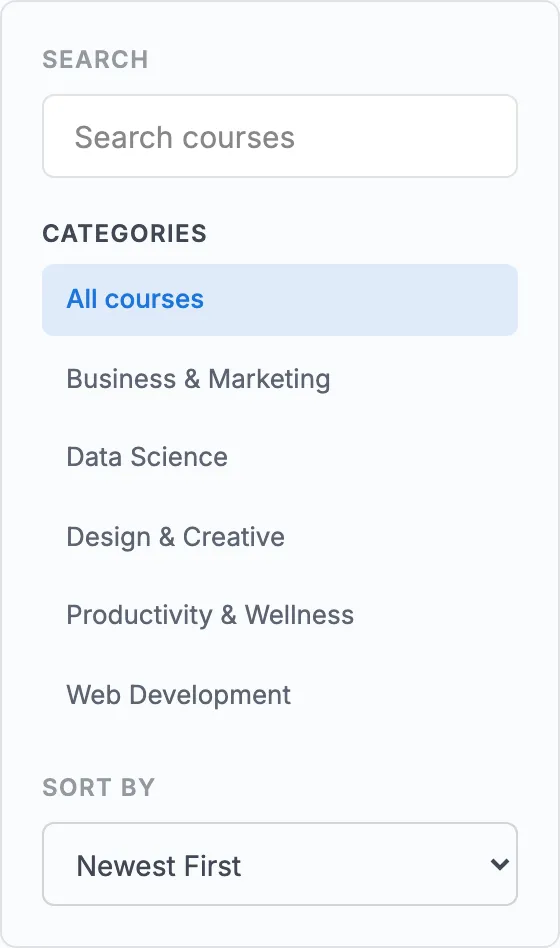
Filters are composable: you can search within a category and sort by rating at the same time.
Filter sidebar
In the sidebar layout the same search, category and sort controls move into a rail on the left, and a set of filters sits underneath them. Learnomy ships these out of the box:
| Filter | Options | Selection |
|---|---|---|
| Price | Free, Paid, Membership, Paid or membership, External / closed -- whichever of these your published courses actually use | Multiple |
| Level | Beginner, Intermediate, Advanced | Multiple |
| Rating | 4 stars & up, 3 stars & up, 2 stars & up | One at a time |
| Duration | Under 1 hour, 1 to 3 hours, 3+ hours -- measured from the course's total video length | Multiple |
| Instructor | The instructors with published courses, most prolific first, up to 50 of them | Multiple |
| Tags | Every course tag that is on at least one published course | Multiple |
The Instructor filter is titled with whatever word your site uses for instructors, and the Tags filter follows the course tag vocabulary, so both read naturally on a site that has renamed them.
Every option carries a live count of how many published courses match it, so a student can see there are 12 beginner courses before clicking. Options with no published courses behind them are not offered, and a filter with nothing to show does not render at all -- a brand new site with three free courses sees a much shorter rail than a mature catalog, which is intended.
Selecting a filter reloads the results and writes the choice into the page URL, so a filtered view can be bookmarked, shared or linked to from a campaign. Choices stack: a student can search "python", stay inside a category, tick Beginner and Under 1 hour, and sort by rating, all at once. Changing any filter returns to the first page of results.
The results area above the grid reports Showing 1-12 of 34 so the effect of each choice is visible, and the count in the page header updates too.
On phones and narrow screens the rail collapses behind a Filters button and expands on tap, so the course grid still gets the full width.
Adding your own filters
The filter list is a registry, not a fixed set. Two ways to extend it without touching a template:
- Add a course tag vocabulary. Any tag vocabulary registered through the
learnomy_course_taxonomiesfilter -- "Industry", "Language", "Skill" -- automatically gets its own catalog filter, populated from the terms actually in use. - Register a filter directly. Developers can call
\Learnomy\Catalog\Facets::register()oninitto add a filter with its own options and query rules, orderegister()to remove one of the built-in filters from a site. Filters registered this way get the same sidebar UI, counts and URL handling as the built-in ones.
Search autocomplete
As a visitor types in the search field, a dropdown appears below it listing courses that match so far. Clicking a suggestion goes straight to that course's page -- there is no need to press Enter and wait for the full catalog to reload. The list updates as the visitor keeps typing (with a short debounce so it does not fire on every keystroke), and shows a "No matching courses" message when nothing matches.
The dropdown is keyboard-accessible: arrow up/down moves between suggestions and Enter opens the highlighted one, so keyboard-only visitors get the same shortcut as a mouse user.
Course grid
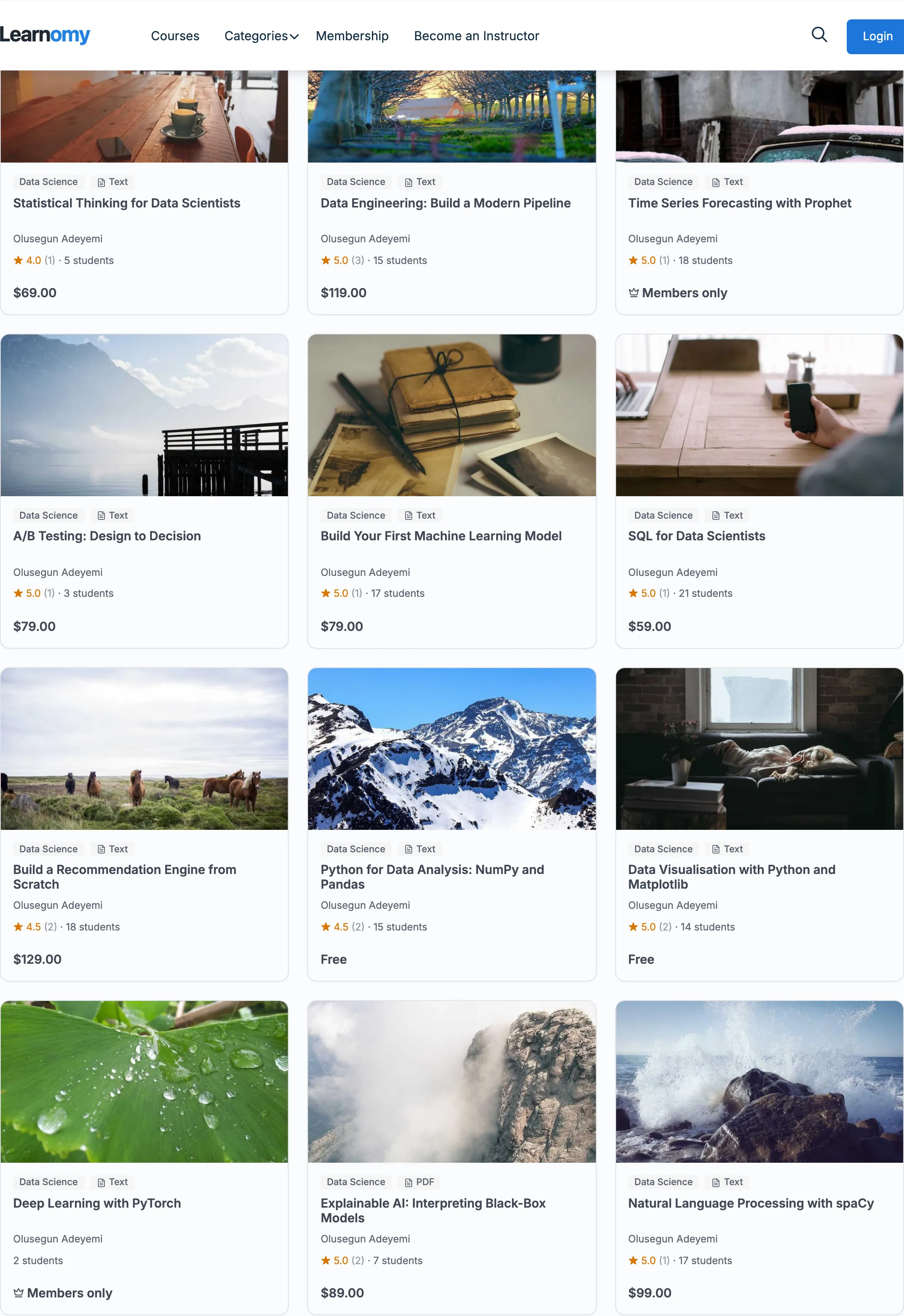
Published courses appear as cards in a responsive grid.
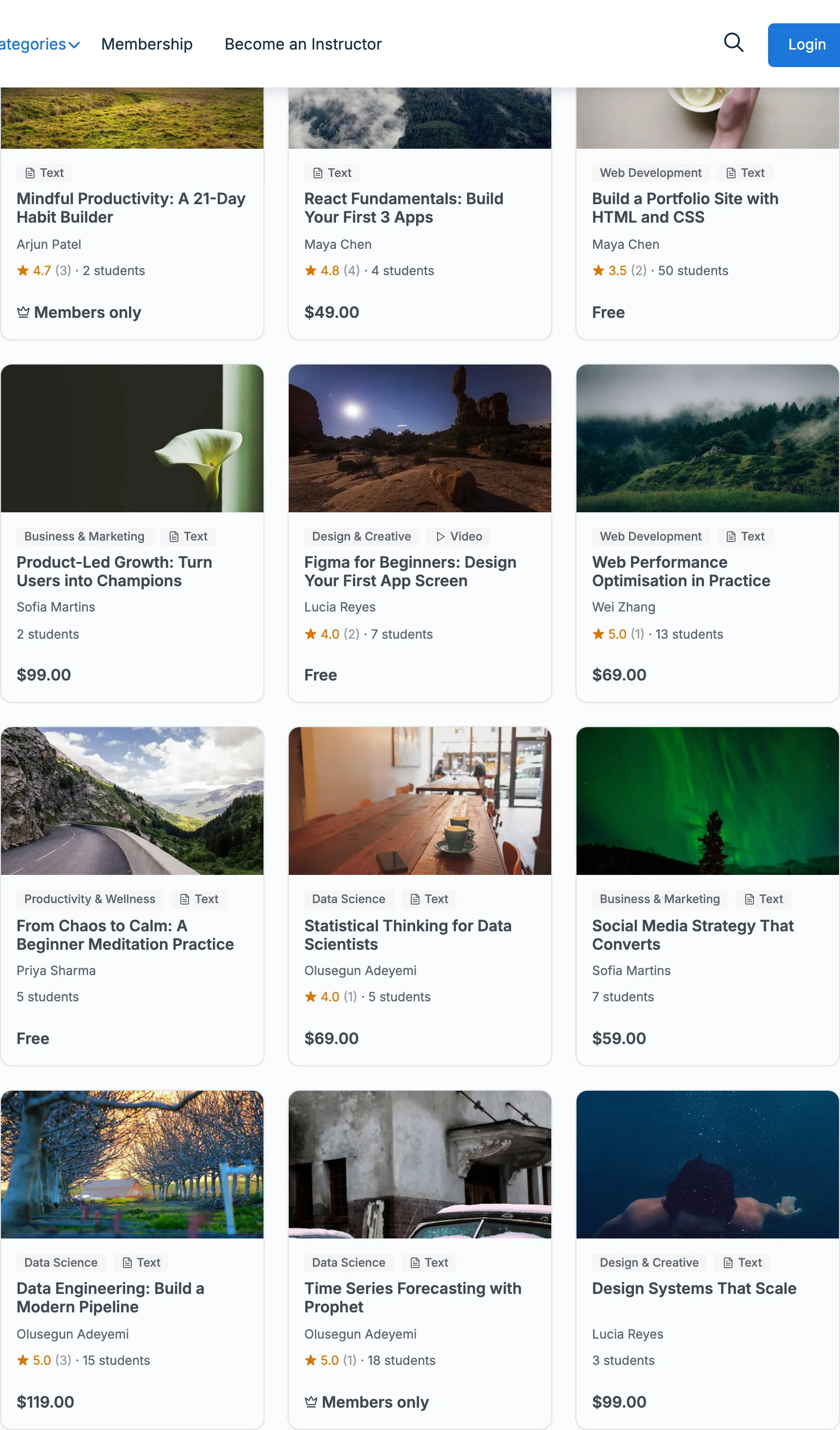
Each card shows:
- Course thumbnail (gradient with a title initial if no image is set)
- Category badge
- Course title
- Instructor name
- Star rating and review count
- Student count (hidden when zero)
- Content type badge (Video, Text, PDF, etc.) -- shows the format most of the course's lessons are delivered in. If the course is mostly delivered through a standards format such as SCORM, xAPI, LTI, QTI, or H5P, the badge is hidden rather than naming the technical format; students see a normal course card either way. See Lesson Content Types for how these labels are decided.
- Price or "Free" label
- An action: Enroll on a free course, Buy on a paid or on-sale one (new in 1.9.1)
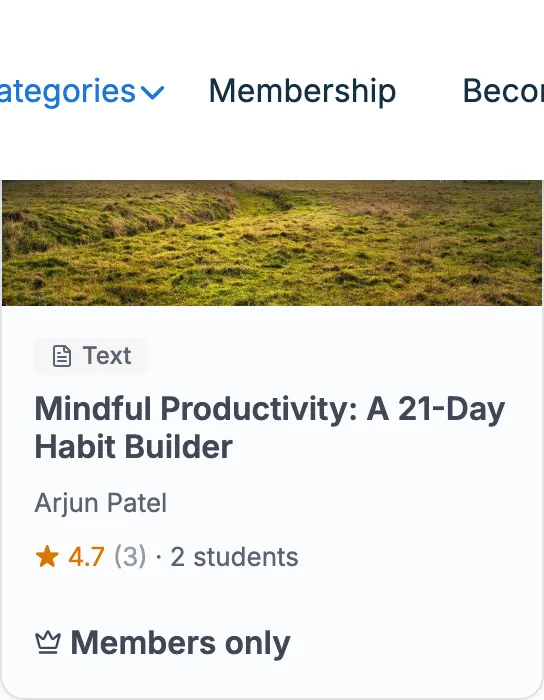
Clicking the card title, thumbnail or action takes the visitor to the single course page, where they enrol or buy.
The action appears only where there is something a visitor can do. Invite only, External and Members only cards keep their explanatory label and get no action, because sending someone to a course they cannot buy is a dead end. A card for a course the visitor is already enrolled on shows Start, Continue or Review instead, as it always has -- 1.9.1 closed the gap where the course you owned invited you in and the course you might buy did not.
Private courses
A course marked Private (hide from catalog) in its Pricing settings does not appear in the catalog grid. It is only visible to the enrolled student and site admins. Instructors can still see their own private courses when logged in.
Category pages
Clicking a category badge on a card, or navigating to /courses/category/your-slug/, shows a filtered view of that category.

The category page uses the same card grid and supports the same sort options, scoped to that category.
The full category listing at /courses/ shows all top-level categories. Courses inside a sub-category also count toward the parent's course count.
Single course page -- not enrolled
When a visitor has not yet enrolled, the course page shows the marketing view.
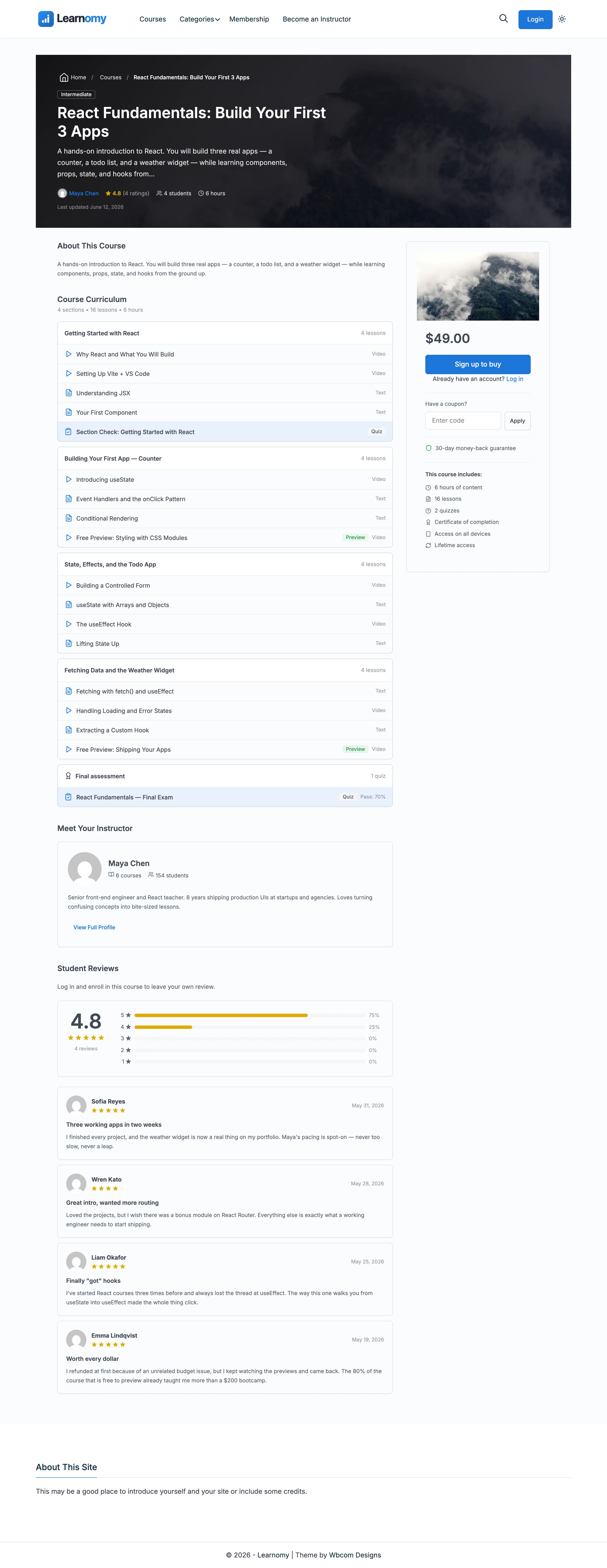
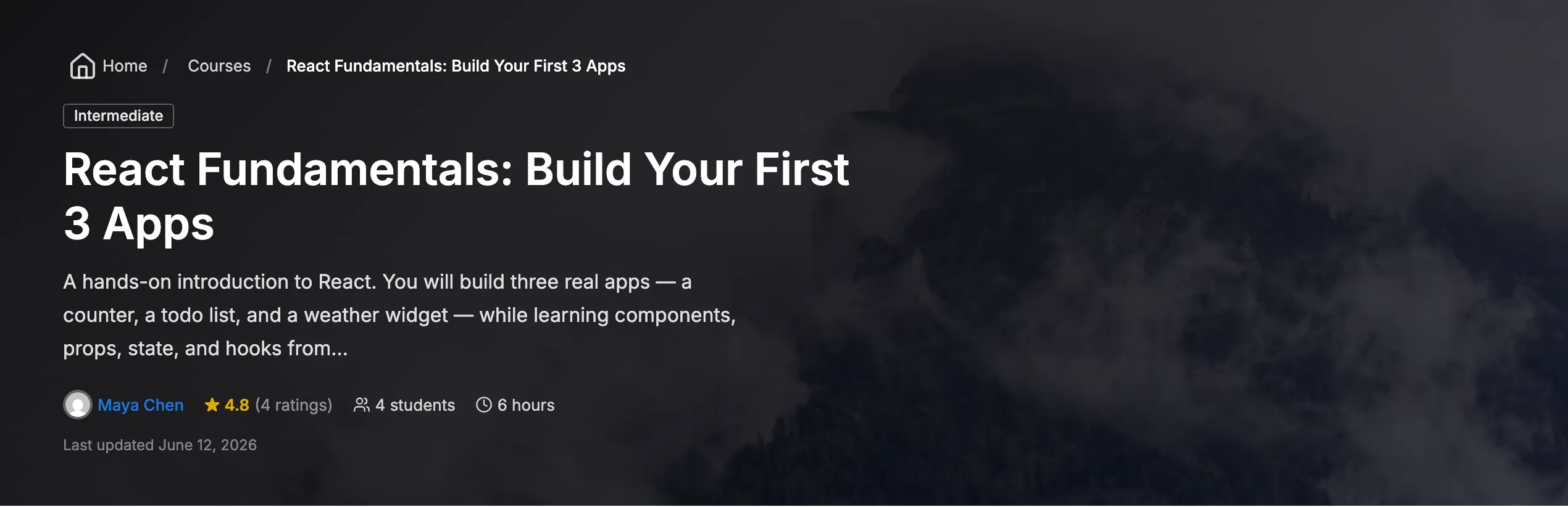
Hero section
The hero displays the course title, short description, star rating, student count, and instructor name. If a thumbnail is set it appears here; otherwise a gradient fills the space.
Pricing and access box
The access box shows the enrollment call to action.
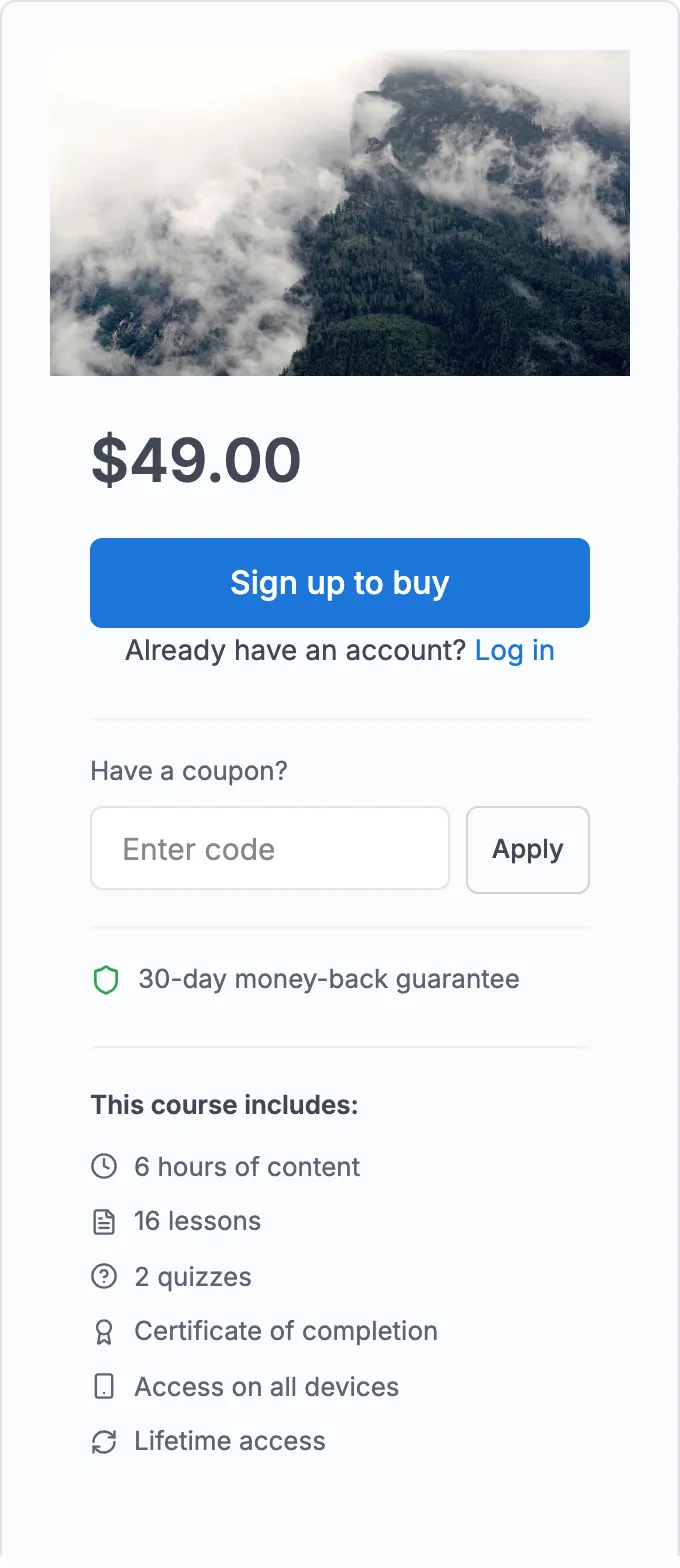
What appears depends on the course's access type:
| Access type | What the student sees |
|---|---|
| Free | "Enroll Free" button |
| One-time payment | Price and "Buy Now" button |
| One-time payment (time-limited) | Price, access duration, and "Buy Now" button |
| Recurring subscription | Recurring amount, billing interval, and "Subscribe" button |
| Members only | "Join to Enroll" and a link to the membership pricing page |
| One-time payment or Members | Both the buy price and a members-only path |
When a valid sale price and date range are configured the box shows the sale price crossed against the regular price.
Curriculum preview
The curriculum preview lists sections and lessons so visitors can see the course structure before enrolling.

Lessons marked as preview lessons include a "Preview" badge. Clicking a preview lesson opens the lesson player without requiring enrollment.
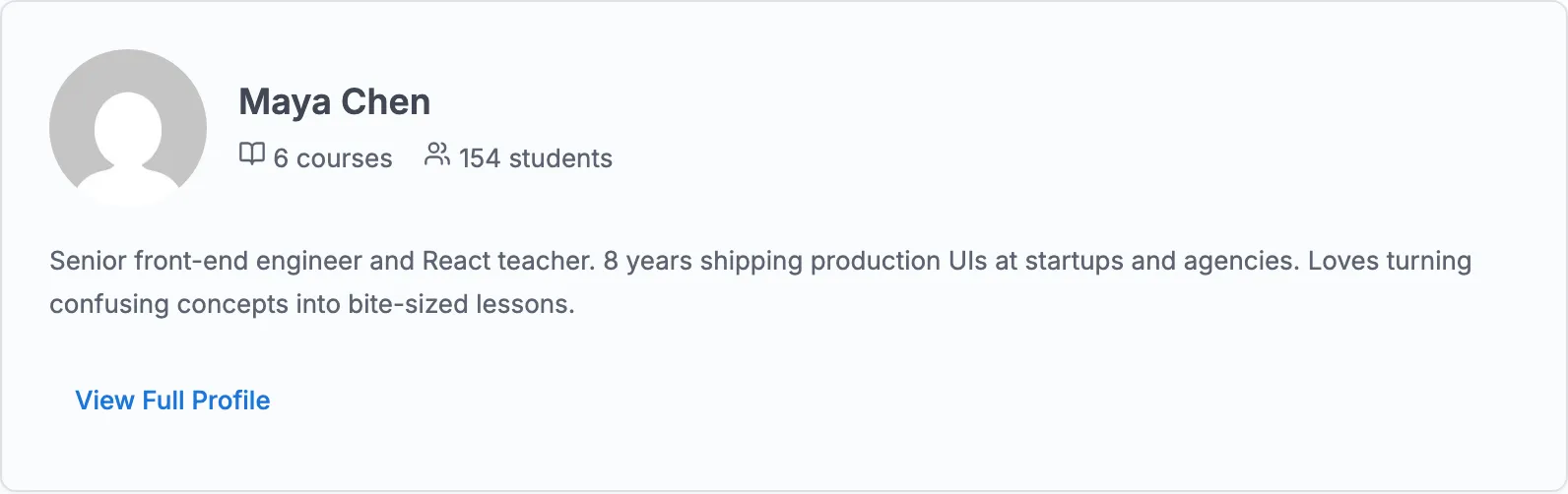
Instructor
The instructor card shows the instructor's avatar, name, bio, and a link to their public profile page.
Reviews
If reviews are enabled at both the site level (Learnomy Settings → Settings → Reviews) and on the individual course, the reviews section shows the aggregate star rating, a rating breakdown bar chart, and individual student reviews.
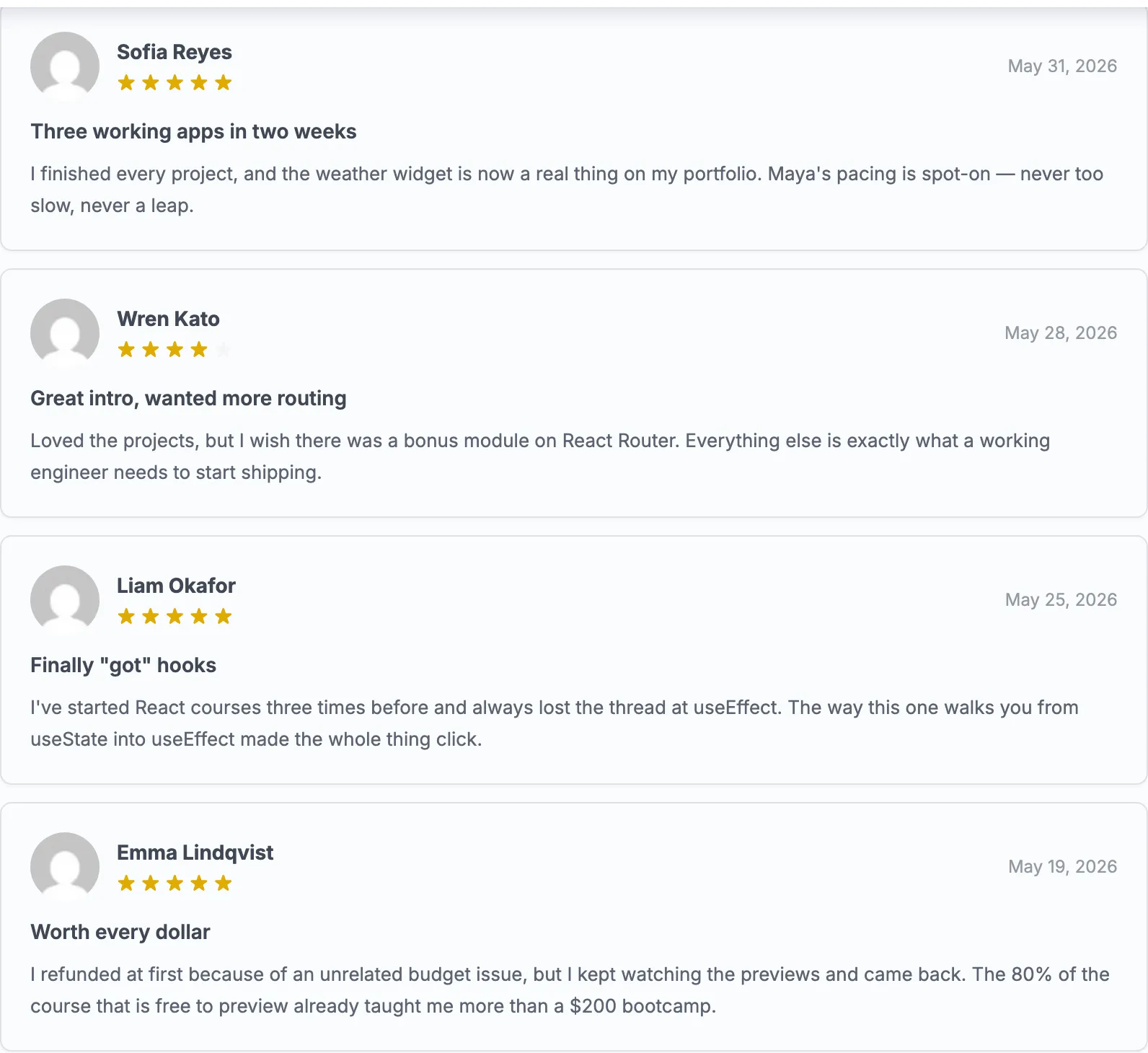
When there are no approved reviews yet, a single "No reviews yet" message appears.
Single course page -- enrolled view
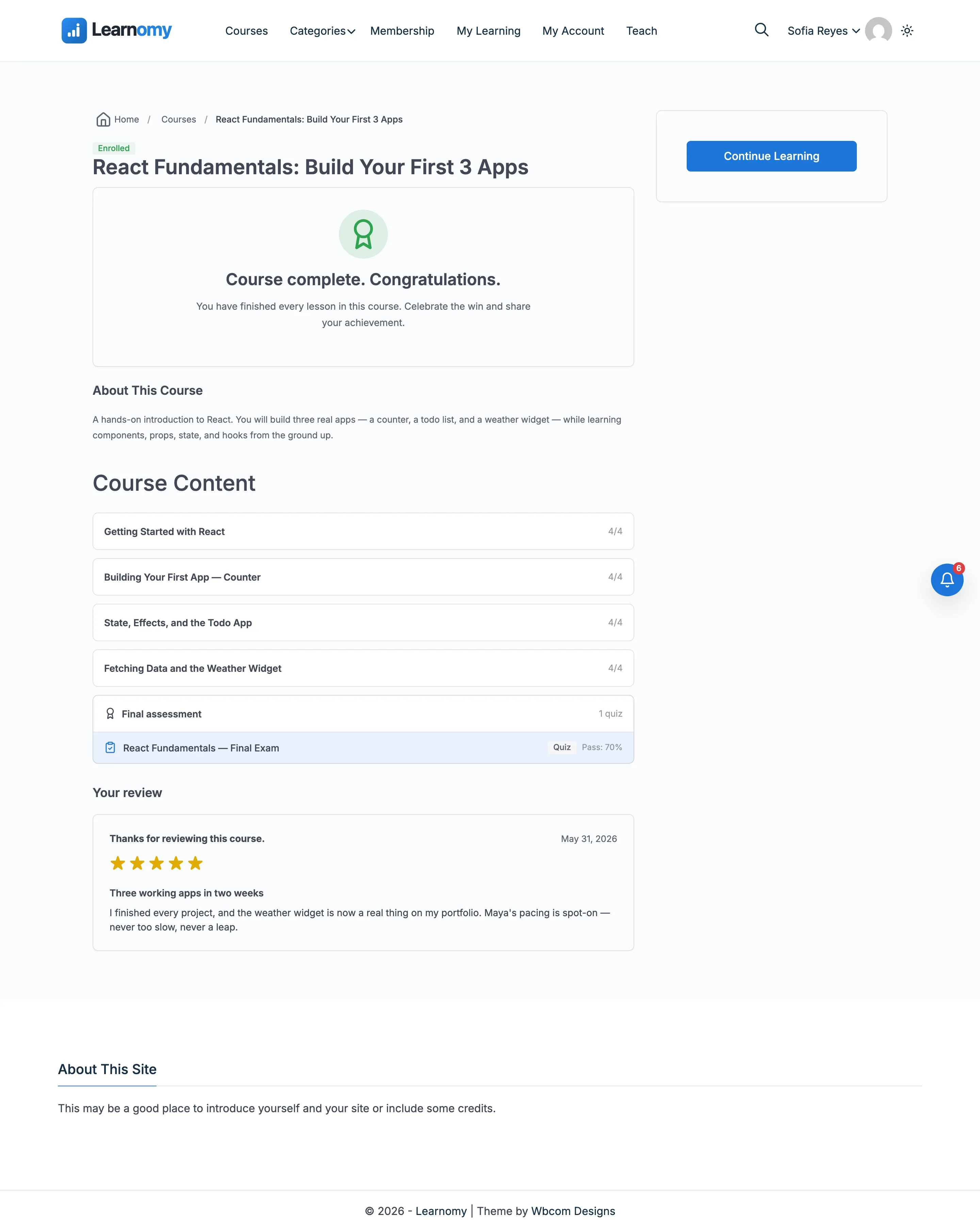
After enrollment, the course page changes to the learning view.
Progress bar
A progress bar at the top shows how far through the course the student is, as a percentage of completed lessons.
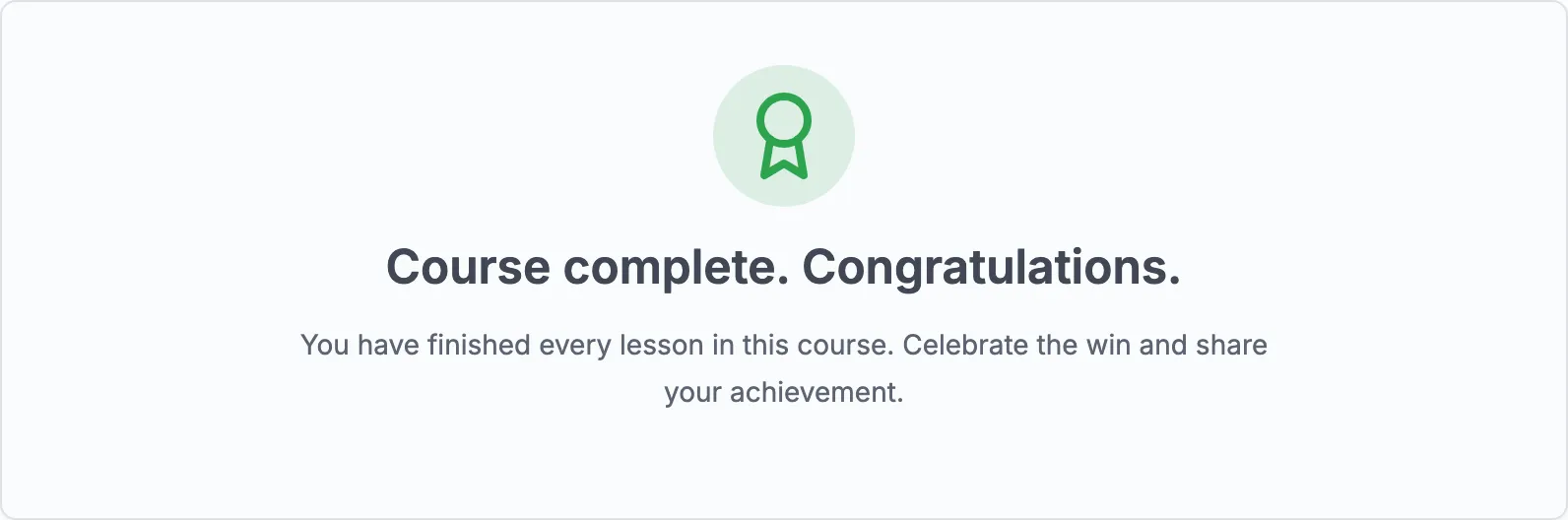
Curriculum with resume
The curriculum now shows completion status for each lesson. Completed lessons carry a checkmark. The student can click any unlocked lesson to open it in the lesson player.
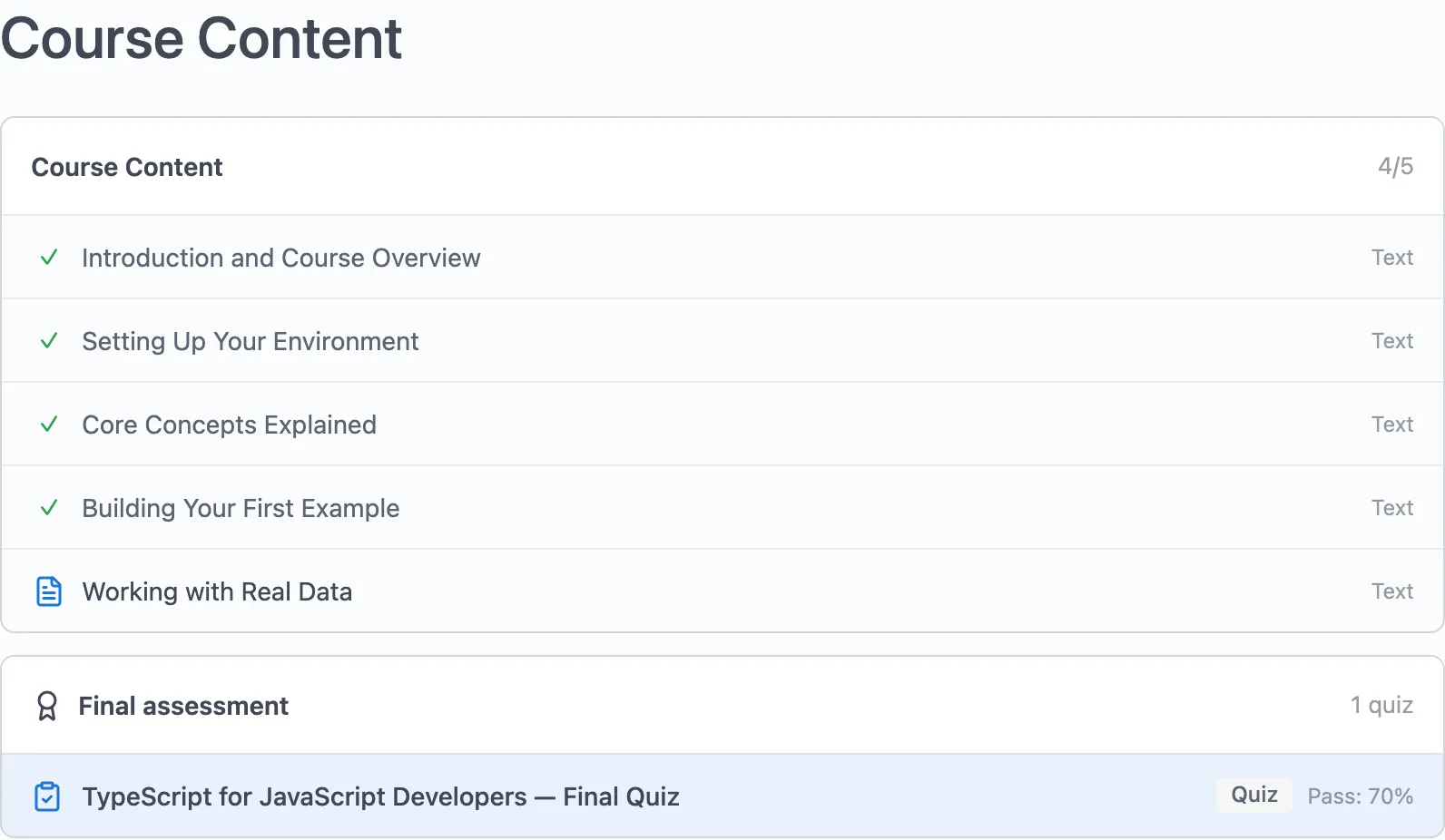
If the course requires sequential lesson completion, locked lessons show a lock icon and are not clickable until the previous lesson is complete.
Final quiz
When the course has a final quiz and the student has completed the required lessons, the final quiz card appears at the bottom of the curriculum.

Tips
- The catalog URL is
/courses/by default. You can change the base slug in Learnomy Settings → General. - The price, level, rating, duration, instructor and tag filters live in the Filter sidebar layout only. If students say they cannot narrow the catalog, check Learnomy Settings → Settings → Layouts first -- the default is the grid.
- Price and the tag-based filters cache their counts and refresh whenever a course, tag or category changes, so a newly published course shows up in the counts without any manual clearing.
- The Level, Rating, Duration and Instructor filters are not cached: their counts are recalculated on every catalog page load, and Rating runs one query per band. Their numbers are therefore always current, but on a large catalog under heavy traffic this is the part of the page worth watching. Caching them is a plugin-side change, not something you configure.
- The catalog only shows published courses. Draft, pending, and trashed courses never appear.
- The Featured flag in a course's Visibility settings affects the default listing order internally but is not a named sort option in the catalog UI. The available sort options in the dropdown are Newest First, Most Popular, Highest Rated, Price: Low to High, and Price: High to Low.
- The catalog query is filterable via the
learnomy_catalog_where_clauseshook for custom integrations.