
Subject-wise Quiz Score Breakdown
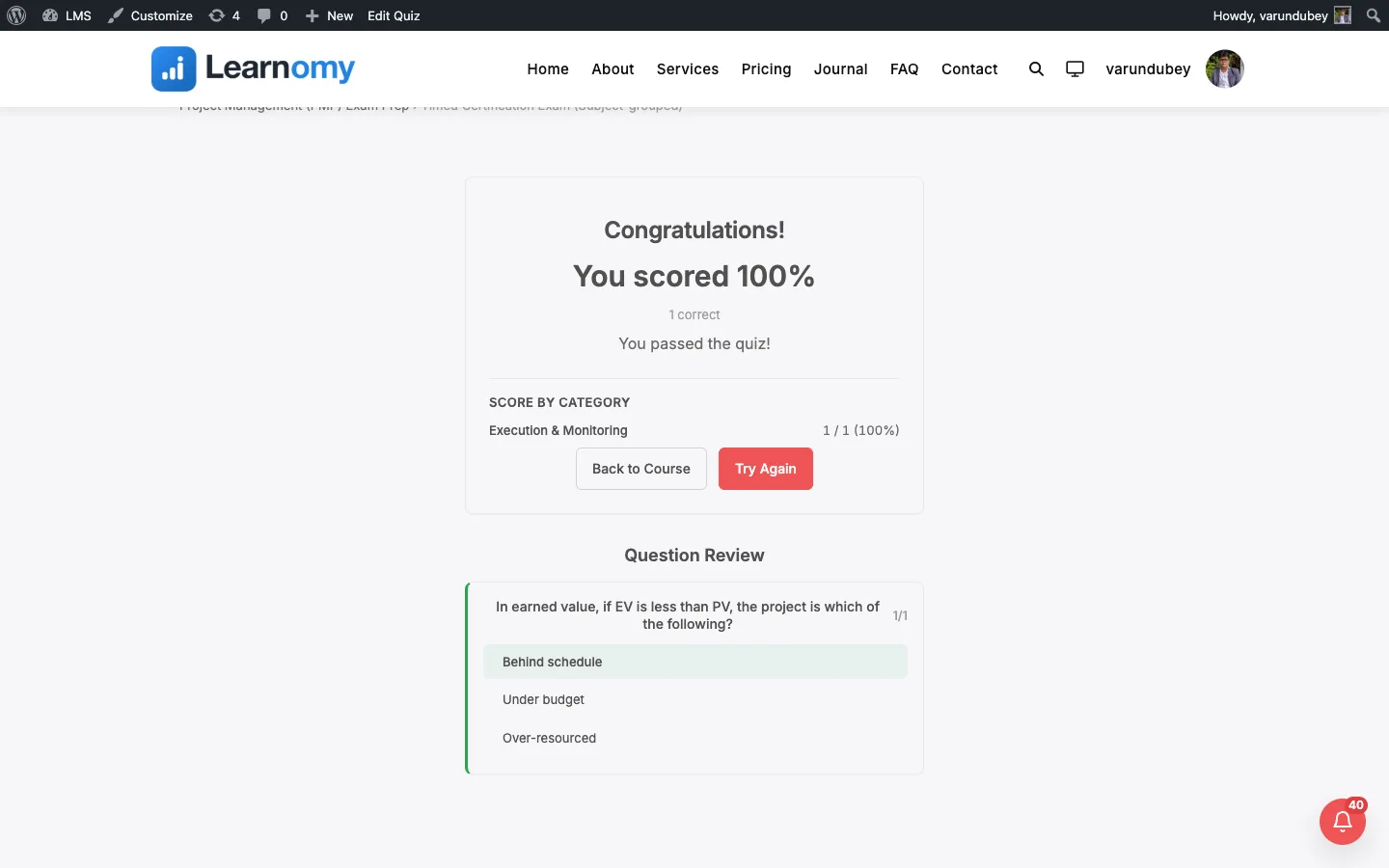
ReportingWhen a quiz groups its questions by category, the results screen shows a per-subject score panel so a student can see how they did in each subject area, not just their overall mark.
What you can do#
- Show learners a "Score by category" panel on the quiz results screen, one row per subject.
- Read each subject as earned marks, possible marks, and a percentage (for example
2 / 2 (100%)). - Group questions under their subject heading while the quiz is being taken, so related questions stay together.
- Use question categories (subjects) to organise a multi-subject exam such as a certification test that spans several topics.
- Let instructors and admins see the same subject breakdown when they review a submitted attempt for grading.
- Works across every quiz layout: focused, classic, sectioned, conversational, and review board.
How to use it#
Assign each quiz question a category. Question categories are the "subjects". Set a question's category in the wp-admin question editor (or in the Pro front-end builder). Questions with no category are grouped under General.
Open the quiz in the quiz editor at Learnomy > Quizzes, then edit the quiz you want to break down by subject.
Turn on Group questions by category. The help text reads: "Show questions under their category heading, and a per-category score on the results screen." Save the quiz.
Take the quiz as a student. When grouping is on and the quiz has more than one question, Learnomy serves the questions grouped by subject (all of one subject's questions stay together) and shows the current subject heading above the question.
Submit the quiz. On the results screen, the Score by category panel lists each subject with its score summary in
earned / possible (percentage%)form.To review later, an instructor or admin can open the attempt. Staff always see the full subject breakdown. A student re-opening their own past attempt sees it only when the quiz's feedback timing allows per-question results (see below).
Settings & options#
Group questions by category (
group_by_category) - the quiz-level checkbox that turns the whole feature on. Off by default. When on, it drives both the in-quiz subject headings and the results-screen panel. It only takes effect when the quiz has more than one question.Question category - each question's subject, stored on the question. Categories come from the question category hierarchy, which is separate from course categories. A question with no category is reported as General.
Feedback timing (quiz setting) - controls whether a student sees the breakdown when reading a past attempt. The panel is withheld when timing is
neverorafter_attempt; withafter_passonly passing students see it. Instructors and admins reviewing an attempt always see it, regardless of timing.The panel is only shown when the graded attempt actually has responses to group. If there is nothing to score by subject, the panel is hidden rather than shown empty.
Each subject row is calculated from the student's responses: earned marks are the sum of the scores awarded, possible marks are the sum of the maximum marks for that subject's questions, and the percentage is earned divided by possible. Subjects are listed in alphabetical order.
For developers#
- The setting is saved through the quiz update endpoint,
PATCH /learnomy/v1/quizzes/{id}, which accepts a booleangroup_by_categoryparam. (The route registers GET, PATCH and DELETE; there is no PUT handler.) - The quiz start endpoint,
POST /learnomy/v1/quizzes/{id}/start, returnsgroup_by_categoryand serves the questions category-contiguous when it is on. Each question carries acategory_name. - On submit (
POST /learnomy/v1/attempts/{attempt_id}/submit) and when reading an attempt (GET /learnomy/v1/attempts/{attempt_id}), the response includes acategory_breakdownarray. Submission is keyed by attempt, not by quiz; there is no/quizzes/{id}/submitroute. Each row hascategory_id,label,earned,possible,answered, andpercentage. - The aggregation runs in
QuestionResponse::score_by_category( $attempt_id ), which groups the attempt's responses by the question'scategory_id. - The results panel is rendered by the Interactivity API store in
assets/js/quiz-view.jsvia thecategoryBreakdownandhasCategoryBreakdowngetters; thesummarystring (earned / possible (percentage%)) is composed there so the template binds plain text.