
Taking a Course
Free & Pro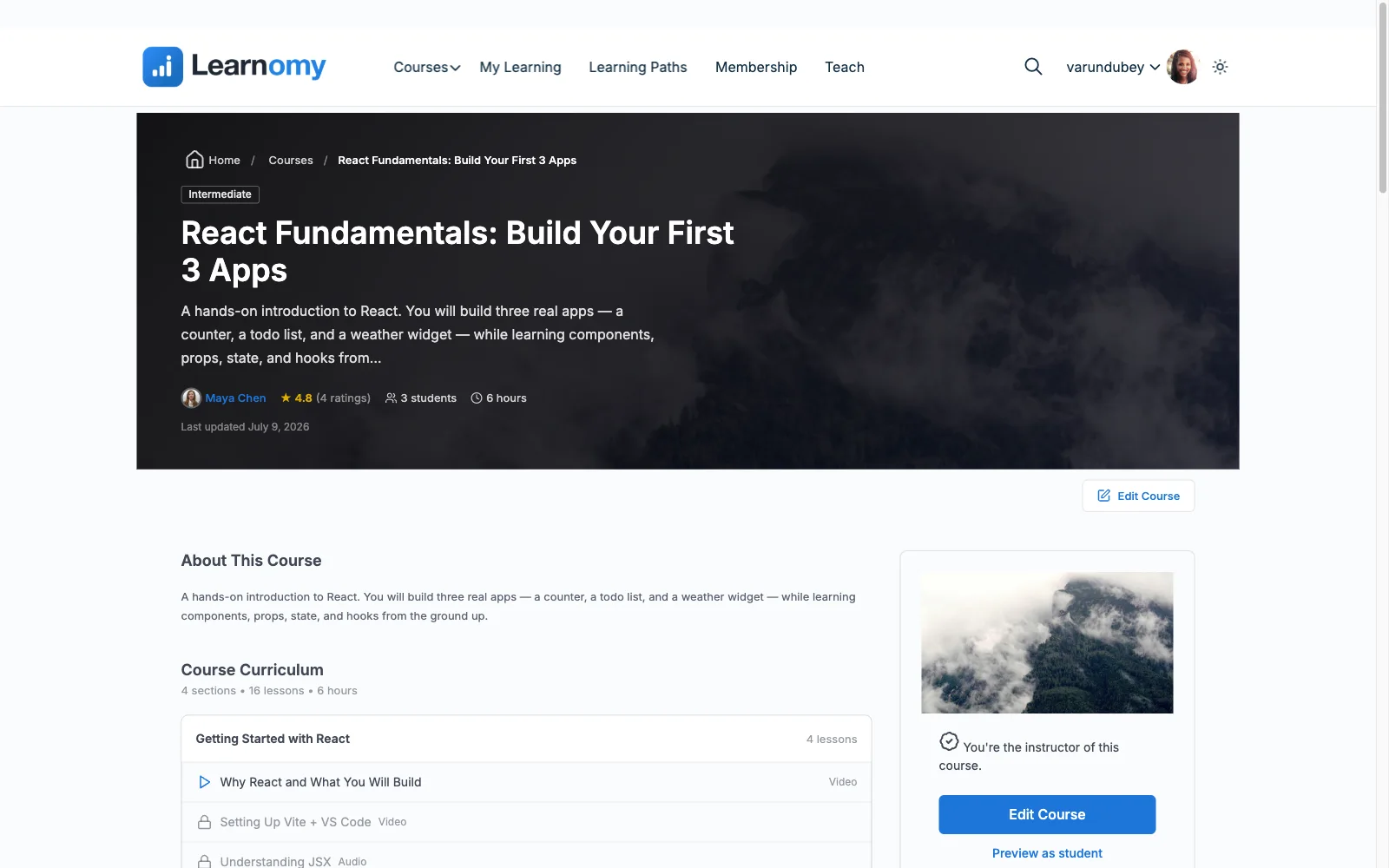
This page covers the enrolled learning experience: how to navigate to a course after enrolling, how the lesson player works, how to mark lessons complete, and how Learnomy tracks progress so a student can always pick up where they left off.
Overview
Once a student is enrolled, the course detail page at /courses/<slug>/ switches to an enrolled view that shows the curriculum with progress indicators. Each lesson opens in a full-screen player. Progress is tracked per lesson and rolls up to a course-level percentage. Learnomy remembers the last lesson a student was on so they can resume from the dashboard.
The enrolled course page
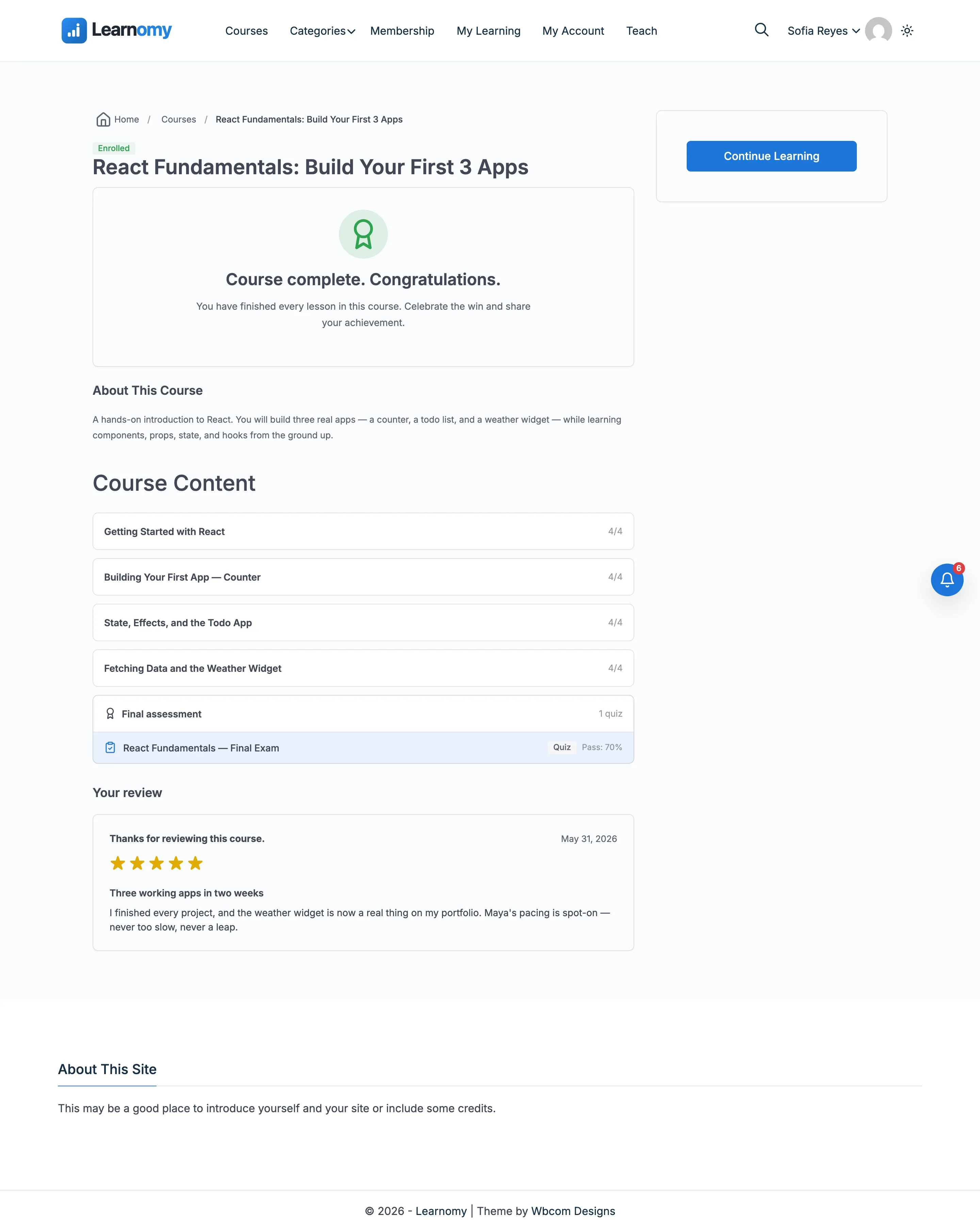
After enrolling, the course detail page shows an "Enrolled" badge and a curriculum with per-lesson checkmarks and a progress bar.
Progress bar
The progress bar at the top of the curriculum section shows the percentage of lessons completed.
The percentage is recalculated each time a lesson is marked complete.
Curriculum with checkmarks
Every lesson in the curriculum shows a checkmark when completed.
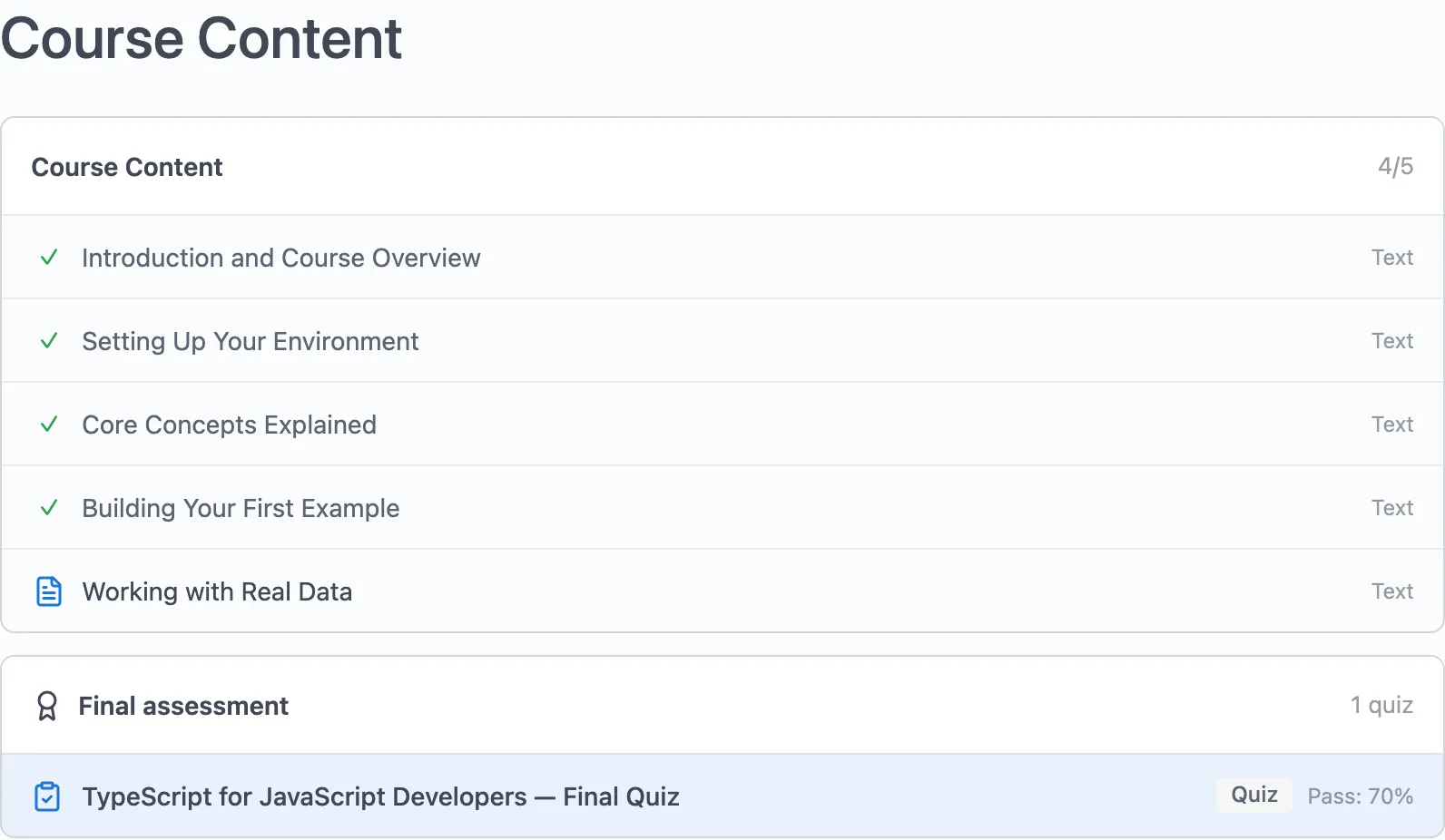
Lessons that require a previous lesson to be finished first (sequential mode) appear locked until the prerequisite is met.
Final quiz
When a course has a final quiz attached, it appears at the bottom of the curriculum.

The lesson player
Clicking a lesson in the curriculum opens the full-screen lesson player.
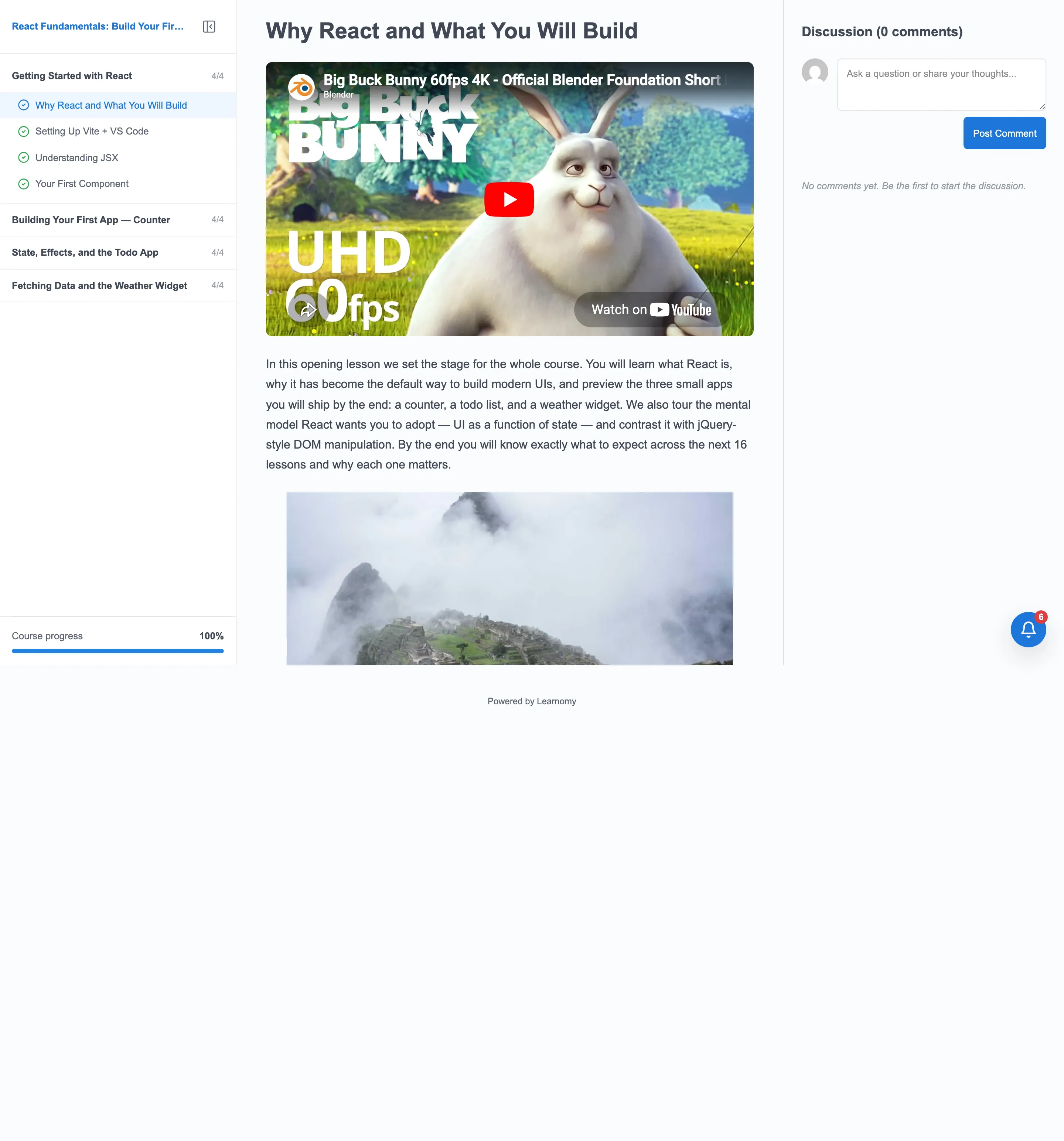
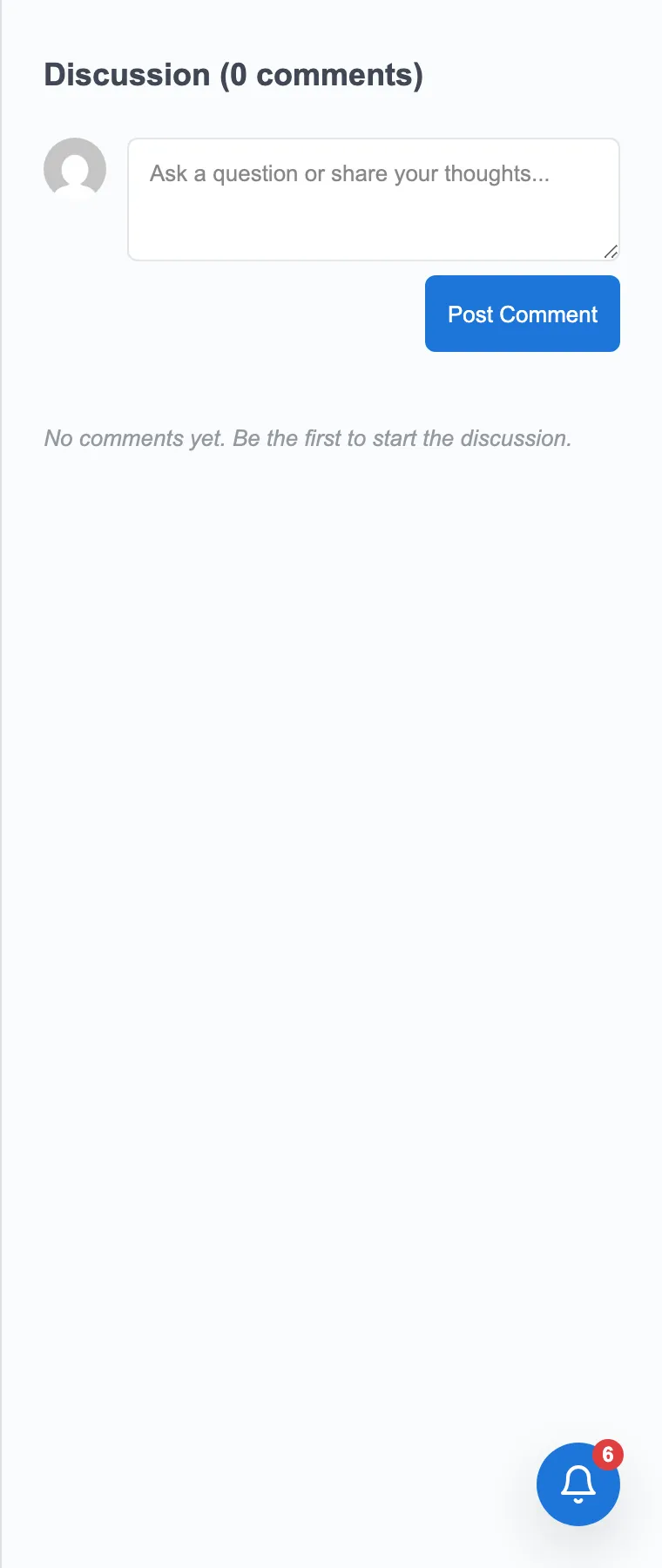
The player uses a learning-first layout with a collapsible curriculum sidebar on the left, the lesson content in the centre column, and a discussion panel on the right where students can ask questions and read replies.
Curriculum sidebar
The left sidebar shows the full course curriculum (sections and lessons) with completion states.
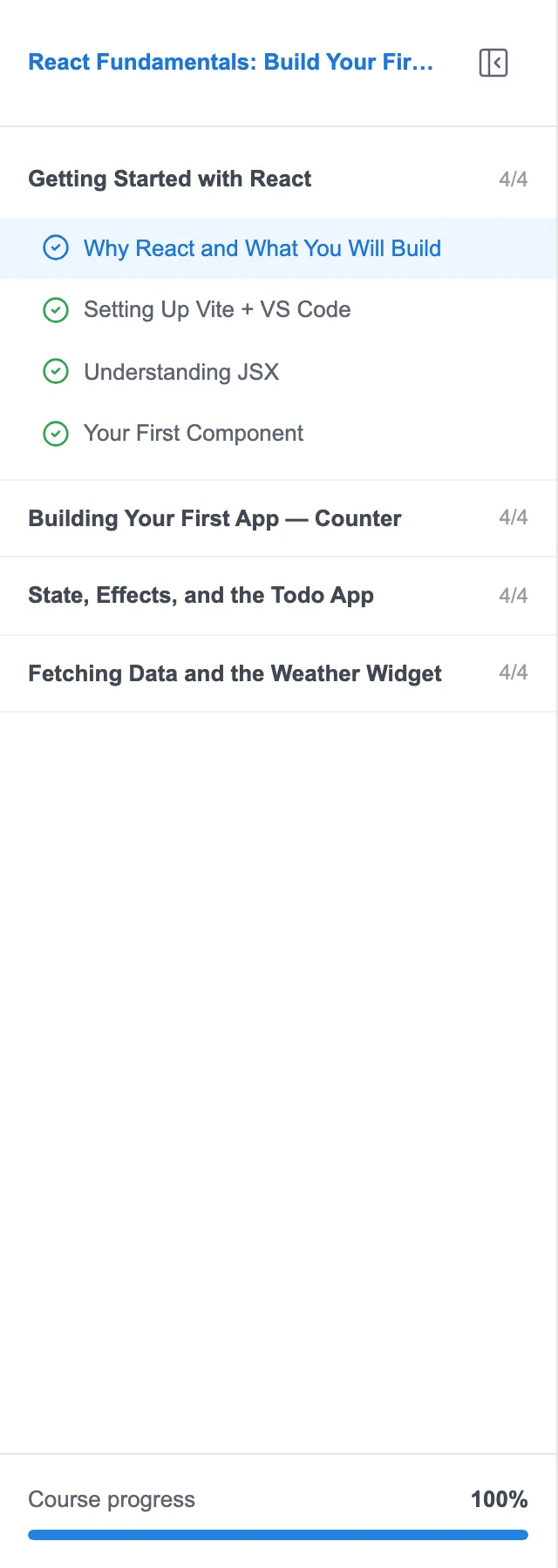
- Completed lessons show a filled checkmark.
- The current lesson is highlighted.
- Locked lessons (in sequential mode) are shown with a lock icon and cannot be clicked until the prerequisite lesson is completed.
Click the close icon at the top of the sidebar to collapse it and give the content more room. An open-panel button appears on the edge of the screen to reopen it.
Lesson content
The main content area shows the lesson body.
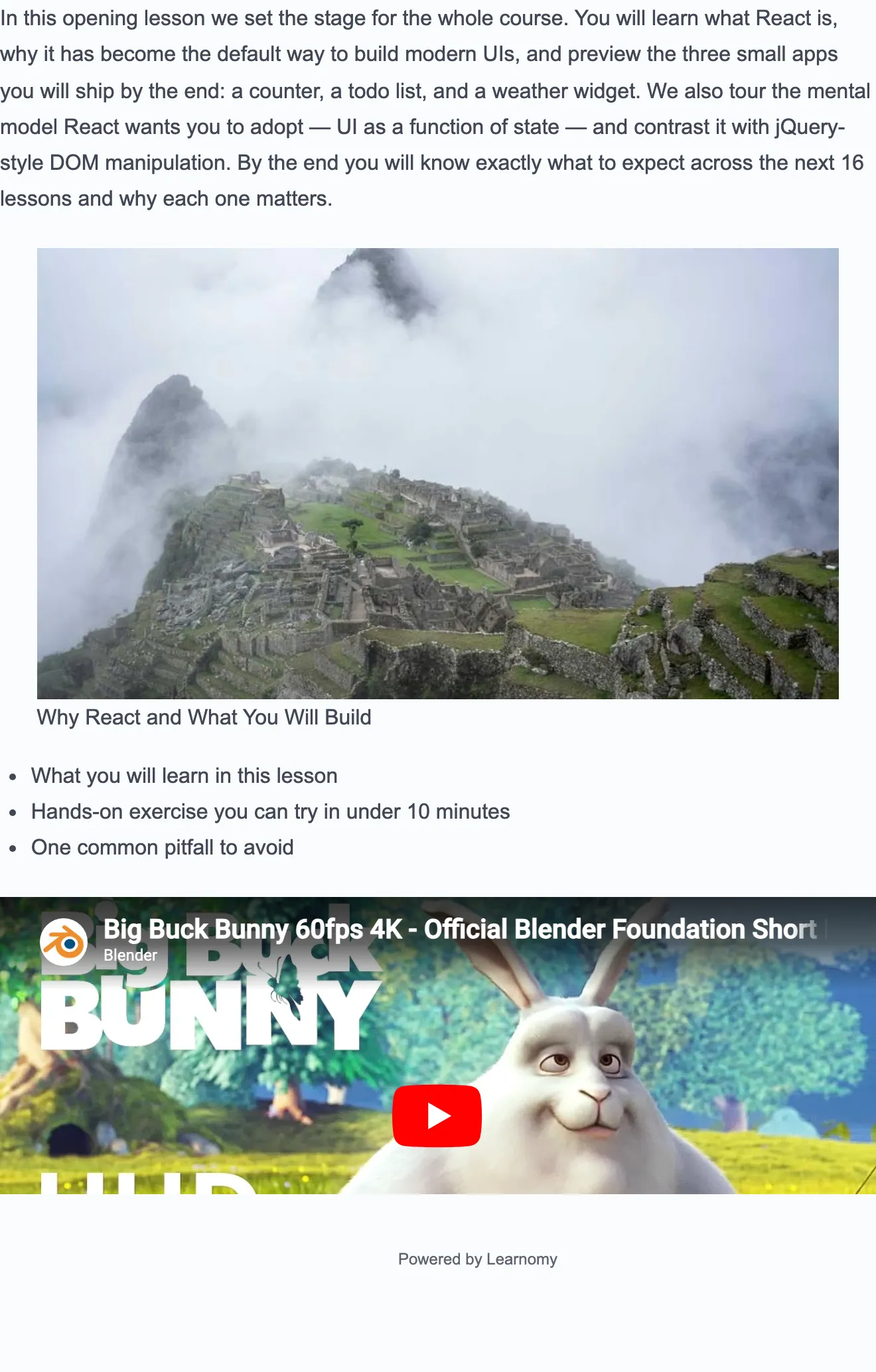
The content type determines what the player shows:
| Lesson type | What renders |
|---|---|
| Text / rich content | Editor.js body with formatted text, headings, lists, images, and embedded media |
| Video | An embedded video player (Plyr.io) that tracks watch percentage |
| Audio | An embedded audio player |
| An inline PDF viewer |
Learnomy tracks video watch percentage in the background. If the course or lesson requires a minimum watch percentage before the lesson can be marked complete, the "Mark complete" button stays inactive until that threshold is reached.
Navigation
Prev and Next buttons at the bottom of the content area move between lessons.

The buttons are labeled with the adjacent lesson titles. Clicking Next after marking the current lesson complete moves directly to the next lesson. Clicking Next without marking complete advances to the next lesson but leaves the current one unmarked.
Actions bar
The actions bar at the top of the content column holds the mark-complete button and other controls.
Marking a lesson complete
- Work through the lesson content.
- Click Mark complete in the actions bar or at the bottom of the content area.
Learnomy saves the completion, updates the progress percentage, and checks the lesson checkmark in the sidebar. The "Mark complete" button changes to show "Completed."
If the lesson has a completion requirement (a minimum video watch percentage, a required quiz pass, or manual confirmation), the button is inactive until the requirement is satisfied. The requirement is shown below the button.
Course progress
Progress is stored per lesson per student. The course-level percentage is derived from the ratio of completed lessons to total lessons.
When a student returns to the course later, the Dashboard shows a "Continue Learning" card pointing to the last lesson they were on. Clicking it jumps directly back into the player at that lesson.
Leaving a course
A student who joined a free course themselves can leave it again without asking anyone. On the course page, under the Start / Continue learning button in the sidebar, there is a quiet Leave this course link.
Clicking it asks for confirmation first, and the confirmation says what is actually at stake. A student who has made progress is told the percentage they will lose; a student who has not started is simply told they can rejoin. On confirming, they are removed from the course and sent back to My Courses.
Rejoining is allowed, but progress does not come back. A student who leaves at 60% and enrolls again later starts from zero. This is worth saying out loud when a student asks, because "you can rejoin at any time" sounds like nothing is lost.
The link lives on the course page itself and nowhere else -- deliberately not on the course cards in My Courses, where a screen full of cards each carrying a control that removes access is a mis-click waiting to happen.
What cannot be left this way
Only a free course the student joined themselves can be left. If access came from anywhere else, the link does not appear at all:
| How the student got access | Can they leave from the course page? |
|---|---|
| Enrolled themselves in a free course | Yes |
| Bought the course | No |
| A membership or subscription that includes the course | No |
| Enrolled by an administrator, individually or in bulk | No |
| Enrolled from an outside system through the incoming webhook | No |
The reason is money and entitlement. Leaving a course they paid for would forfeit the access without refunding anything, and access that comes from a membership is not the course's to give up -- it ends when the membership ends. The same rule is enforced on the API, so an app or integration cannot work around it: a request to leave a paid or membership enrollment is refused with an explanation rather than honoured.
Students in this position should be pointed at you, not at a button. An administrator can remove any enrollment from the Students screen, and can pair that with a refund where one is due. See Course Access and Enrollment for how removal works on the admin side and what happens to the student's record afterwards.
The completion screen
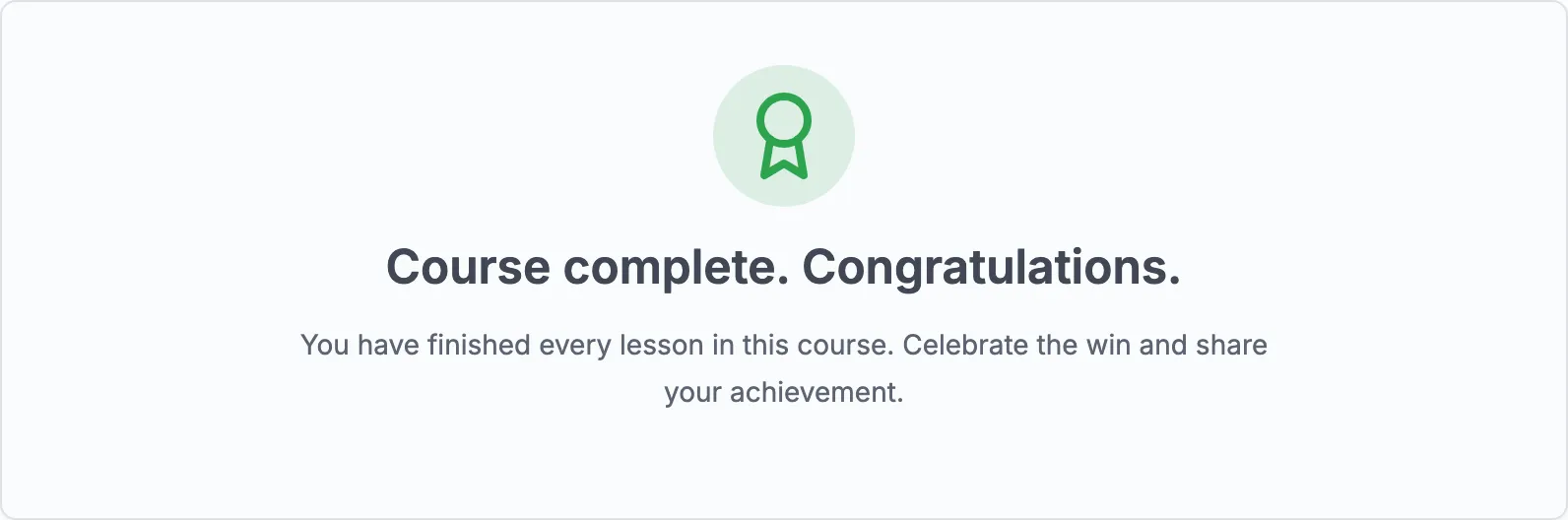
When a student finishes the last required element (all lessons, or lessons plus the final quiz, depending on the course completion setting), the course page shows a completion screen.
The completion screen shows the instructor's custom completion message if one is set, or a default congratulations message. If the course awards a certificate, a View Certificate (or Get Certificate) button appears here.
If the course allows retaking, a Retake Course button also appears. When retaking is configured to reset progress, the button warns the student that their previous progress and quiz attempts will be cleared.
Pre-enrollment: what non-enrolled students see
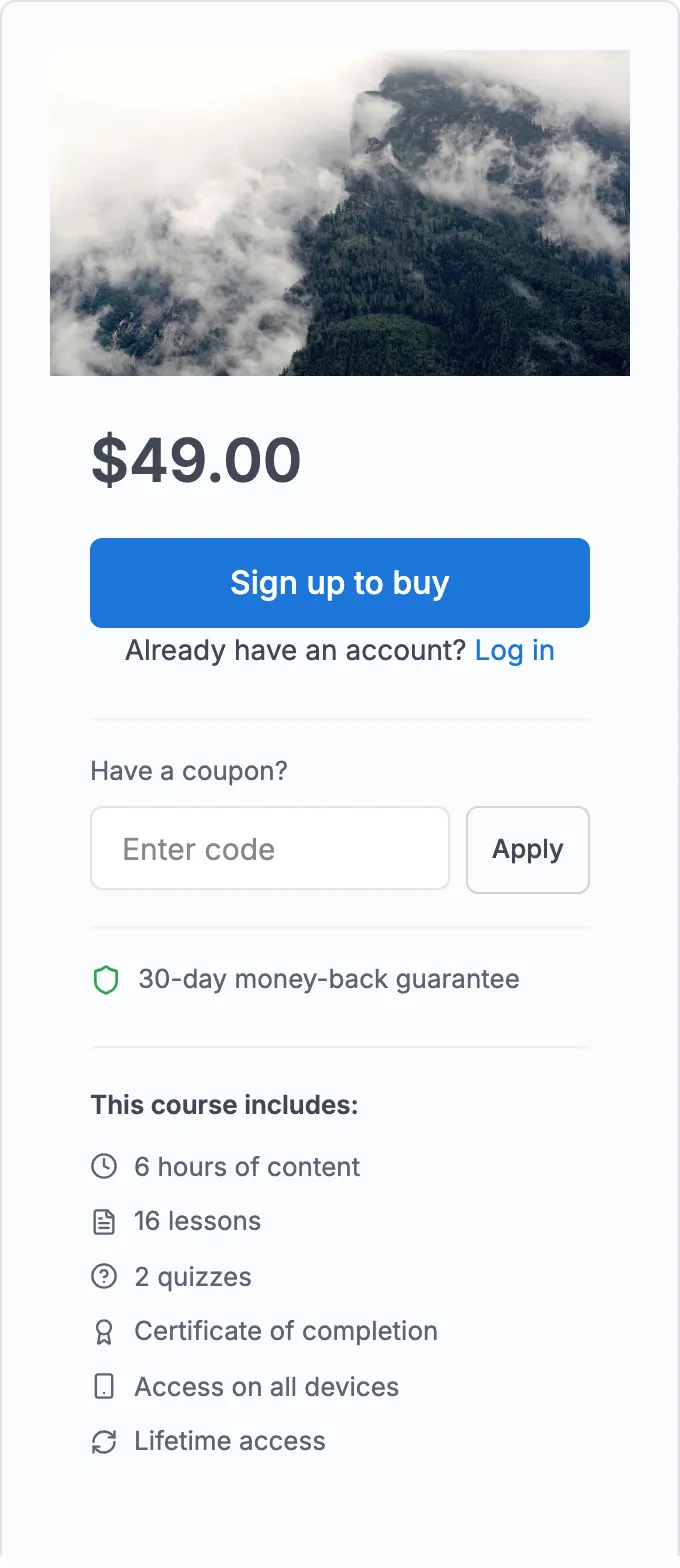
A student who is not yet enrolled sees the course detail page in its sales view.
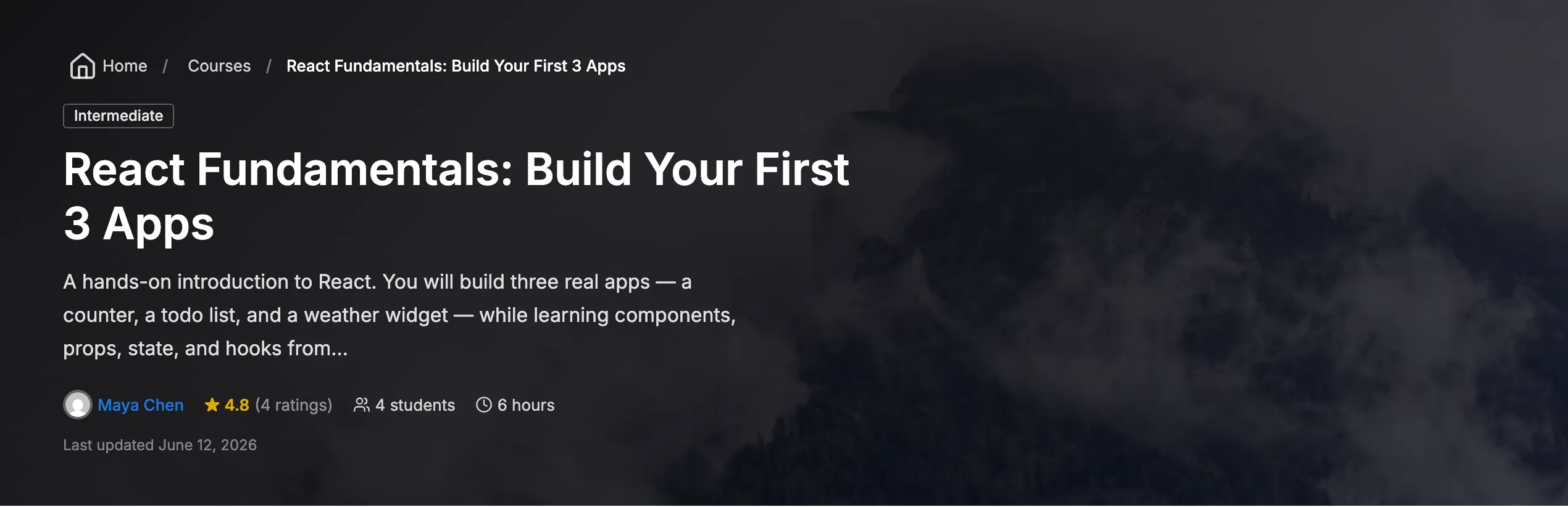
The curriculum shows a preview of section titles and a subset of lessons.

An enrollment box shows the price and a button to enroll or purchase.
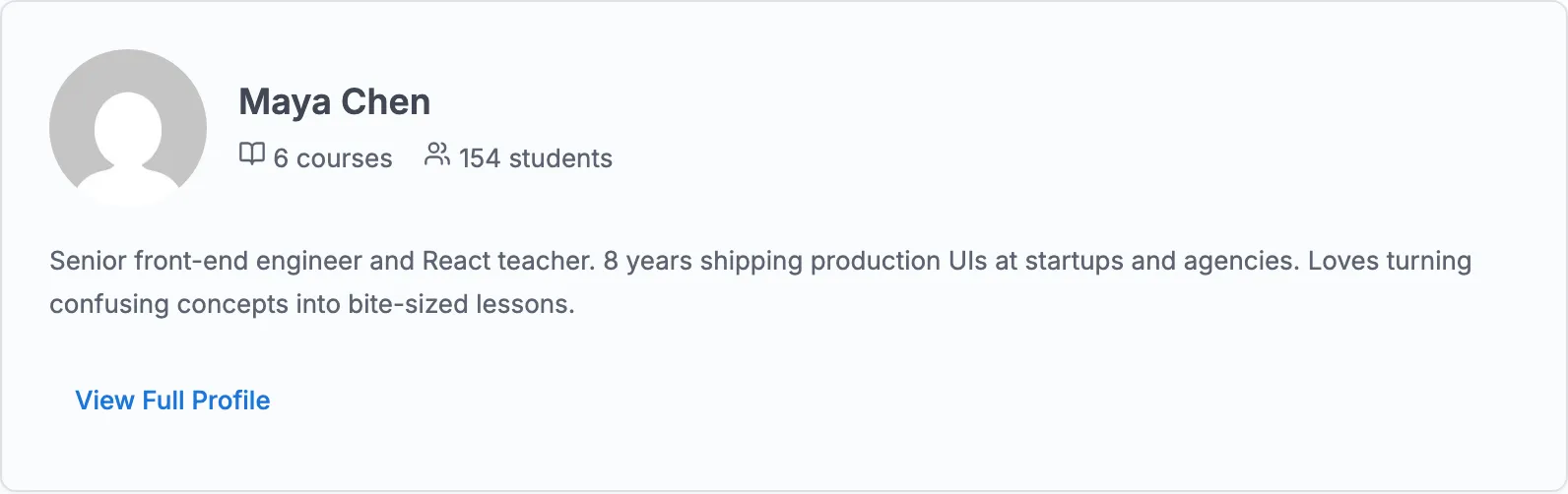
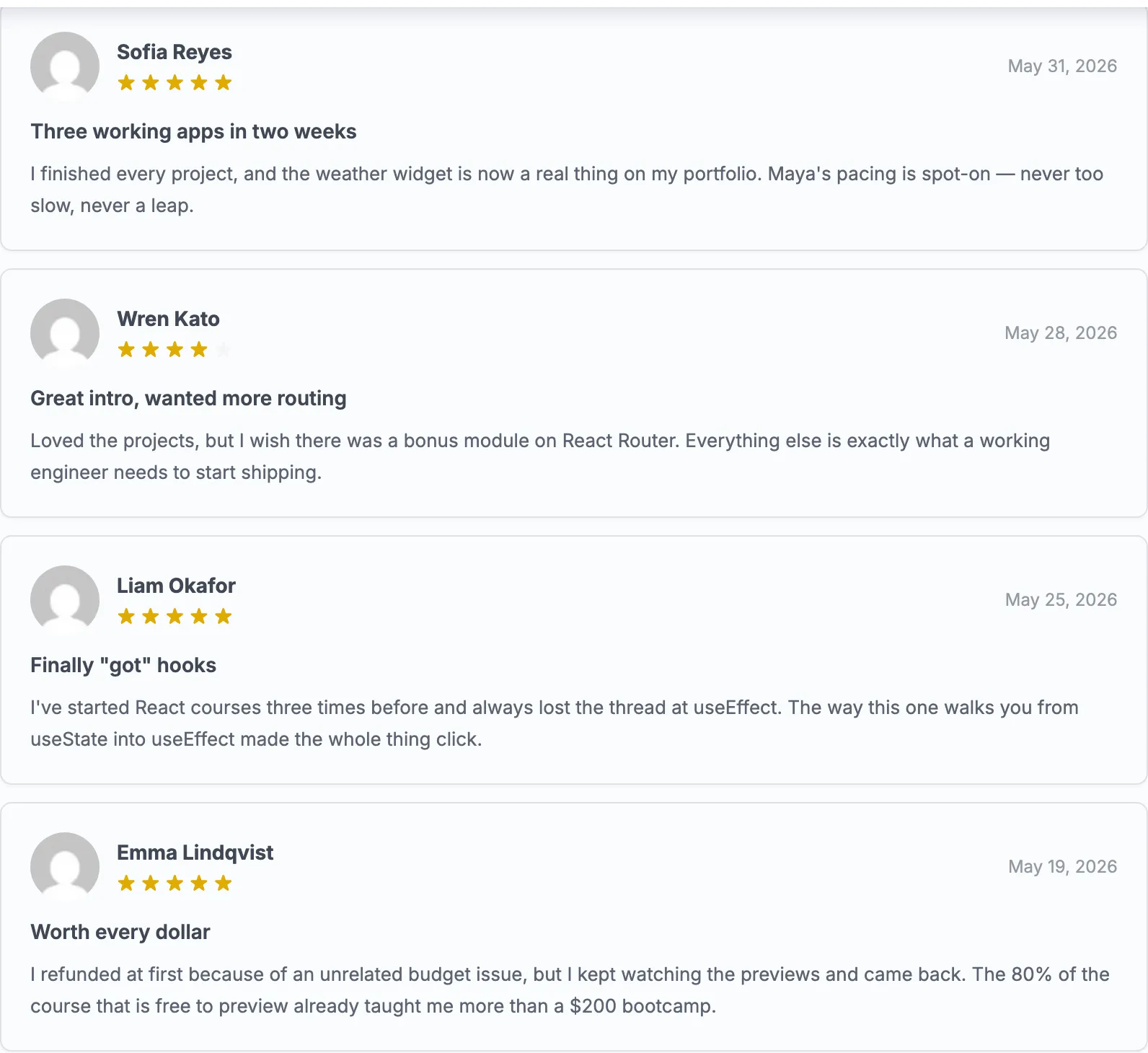
The instructor bio and course reviews are visible to everyone.
Tips
- Sequential mode is controlled per-course by the instructor. In sequential mode, lessons must be completed in order. When sequential mode is off, students can open any lesson in any order.
- The lesson player is fully keyboard-accessible. Sidebar navigation, the mark-complete button, and the prev/next controls are all reachable by keyboard.
- The player works in the Learnomy mobile web app (WebView mode) as well as the browser. The layout adapts to mobile viewports.
- If a student tries to access a lesson URL directly without being enrolled, the player shows an "Enrollment Required" gate instead of the lesson content.