
Settings Overview
Free & Pro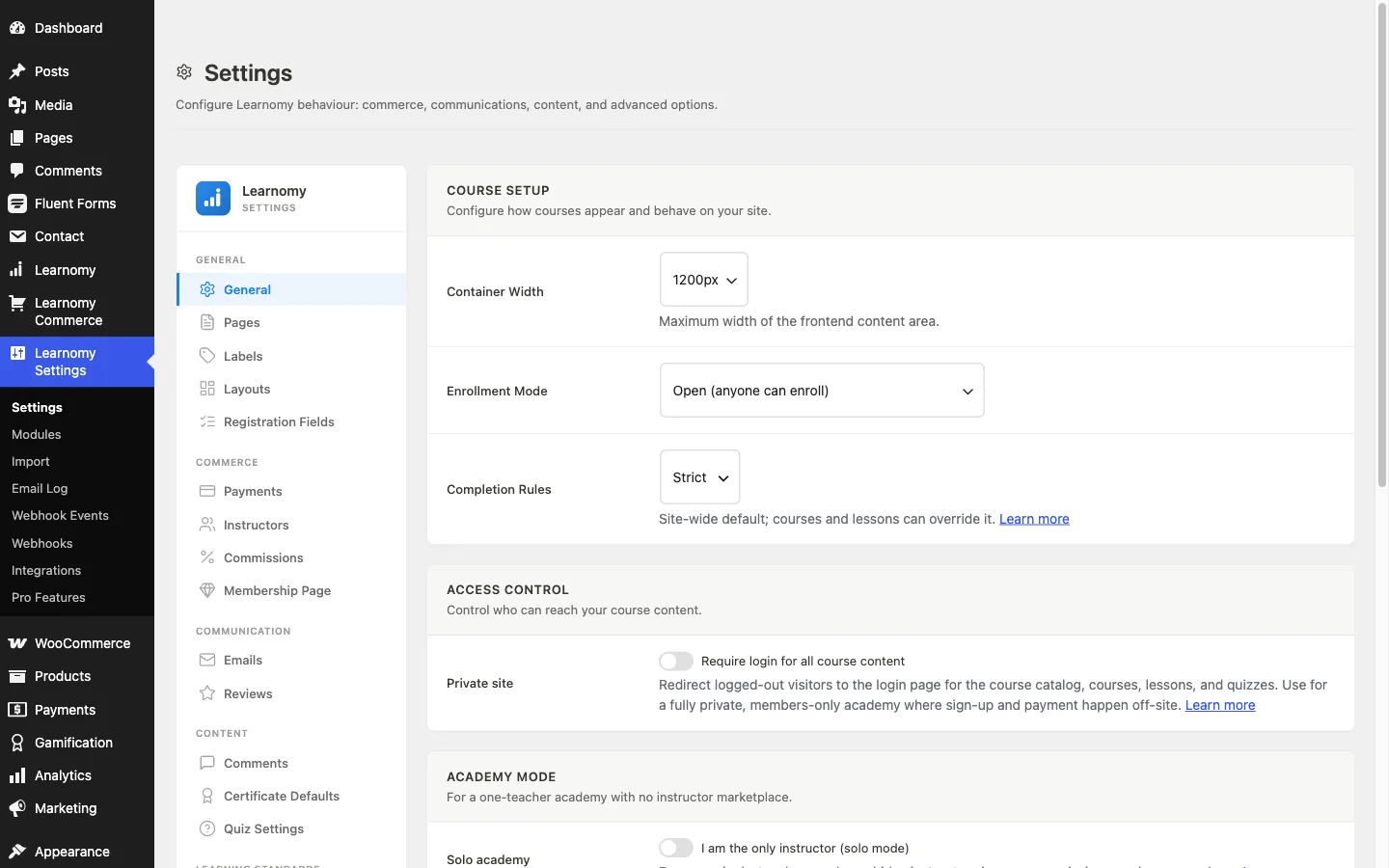
The Settings page is where you configure every aspect of how Learnomy behaves on your site. It lives under Learnomy Settings in the WordPress admin sidebar.
Overview
Go to Learnomy Settings in the sidebar. The settings page opens with a left-hand navigation panel. The sections are grouped, not one long list:
| Group | Sections |
|---|---|
| General | General, URLs & Pages, Labels, Layouts, Registration Fields |
| Commerce | Payments, Instructors, Commissions, Membership Page |
| Communication | Emails, Reviews |
| Content | Course Comments, Certificate Defaults, Quiz Settings, Learning Standards |
| Advanced | API & Performance, Data Management |
Clicking a section label scrolls you to that section without reloading the page.
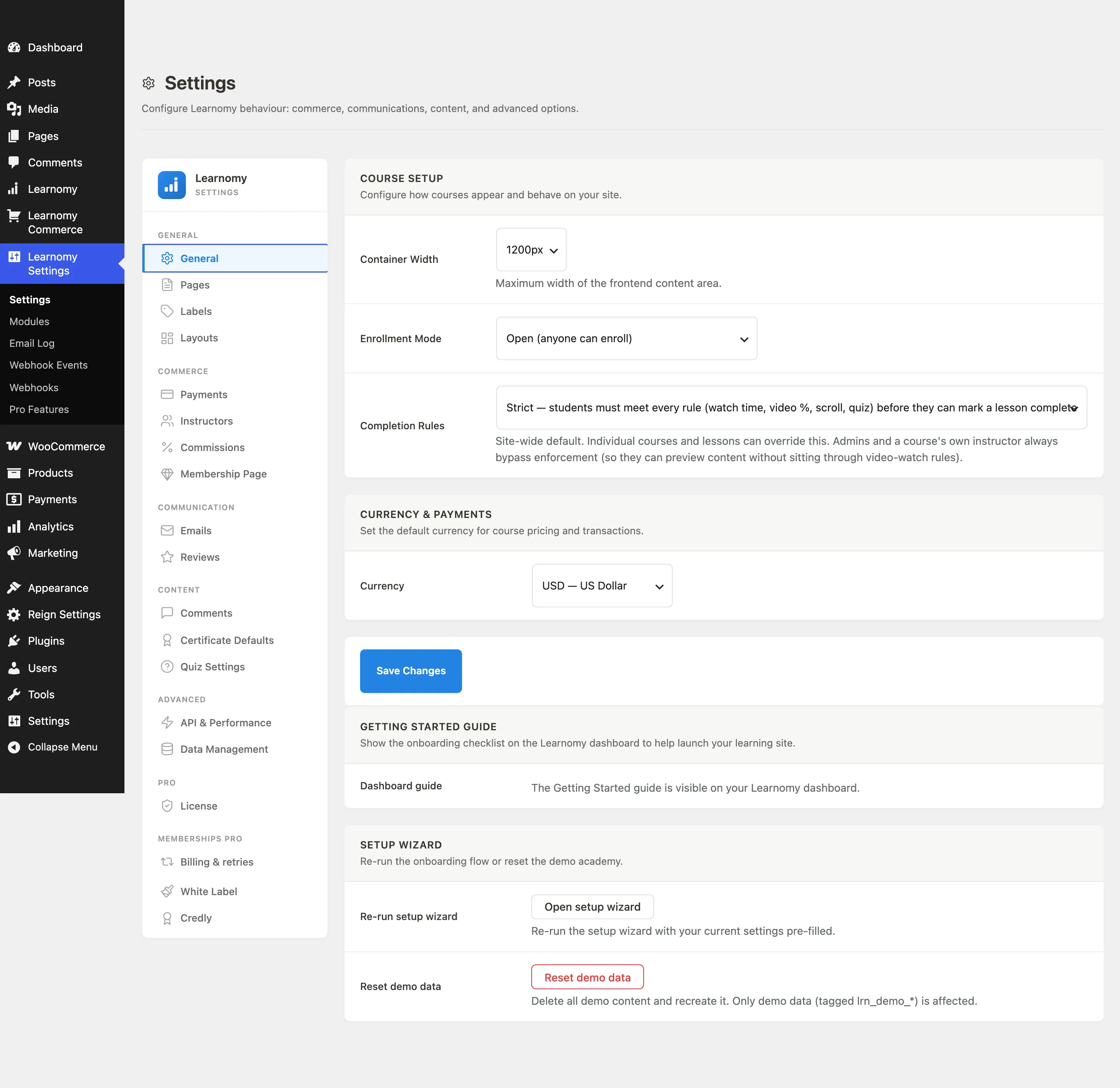
With Learnomy Pro active, its extensions add their own groups at the bottom, each one appearing only when that extension is enabled:
| Group | Sections |
|---|---|
| Pro | License, White Label |
| Memberships Pro | Billing & retries |
| Integrations | Credly |
The navigation only shows sections for modules that are enabled on your site. For example, the Payments, Instructors, and Commissions sections disappear if the corresponding modules are turned off on the Modules page, and a group with no visible sections left does not render its heading.
General
Go to Learnomy Settings and click General in the sidebar.
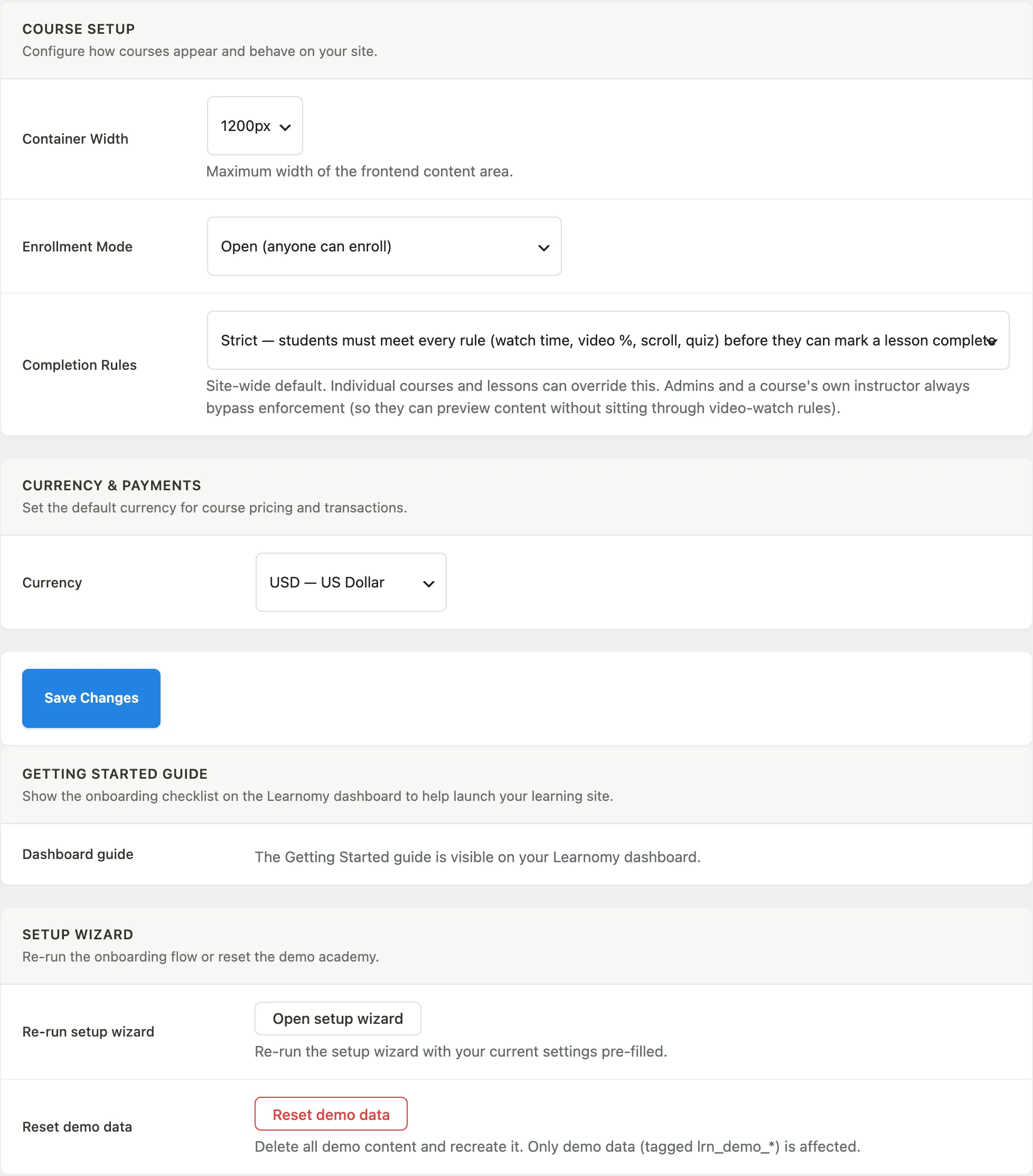
Course Setup card
| Setting | What it does |
|---|---|
| Container Width | Sets the maximum width of the Learnomy content area on the frontend. Options are 960 px, 1100 px, 1200 px, 1400 px, or Full Width. |
| Completion Rules | Strict means students must meet every rule (watch time, video percentage, scroll, quiz) before marking a lesson complete. Advisory shows the rules but lets students mark complete at any time. Off removes rules entirely. Admins and a course's own instructor always bypass this setting. |
Currency and Payments card
Set the default currency for course pricing and all transactions. Changing this only affects how amounts are formatted and stored going forward; it does not convert existing transactions.
Getting Started Guide card
If you previously dismissed the onboarding checklist on the Learnomy dashboard, click Show the guide again to bring it back.
Setup Wizard card
Click Open setup wizard to re-run the onboarding flow with your current settings pre-filled. Use Reset demo data to delete all demo content (tagged lrn_demo_*) and recreate it from scratch. Only demo data is affected.
URLs & Pages
Go to Learnomy Settings and click URLs & Pages in the sidebar. (This tab was called just "Pages" in earlier versions - the fields are your Learnomy URL slugs, not WordPress Pages.)
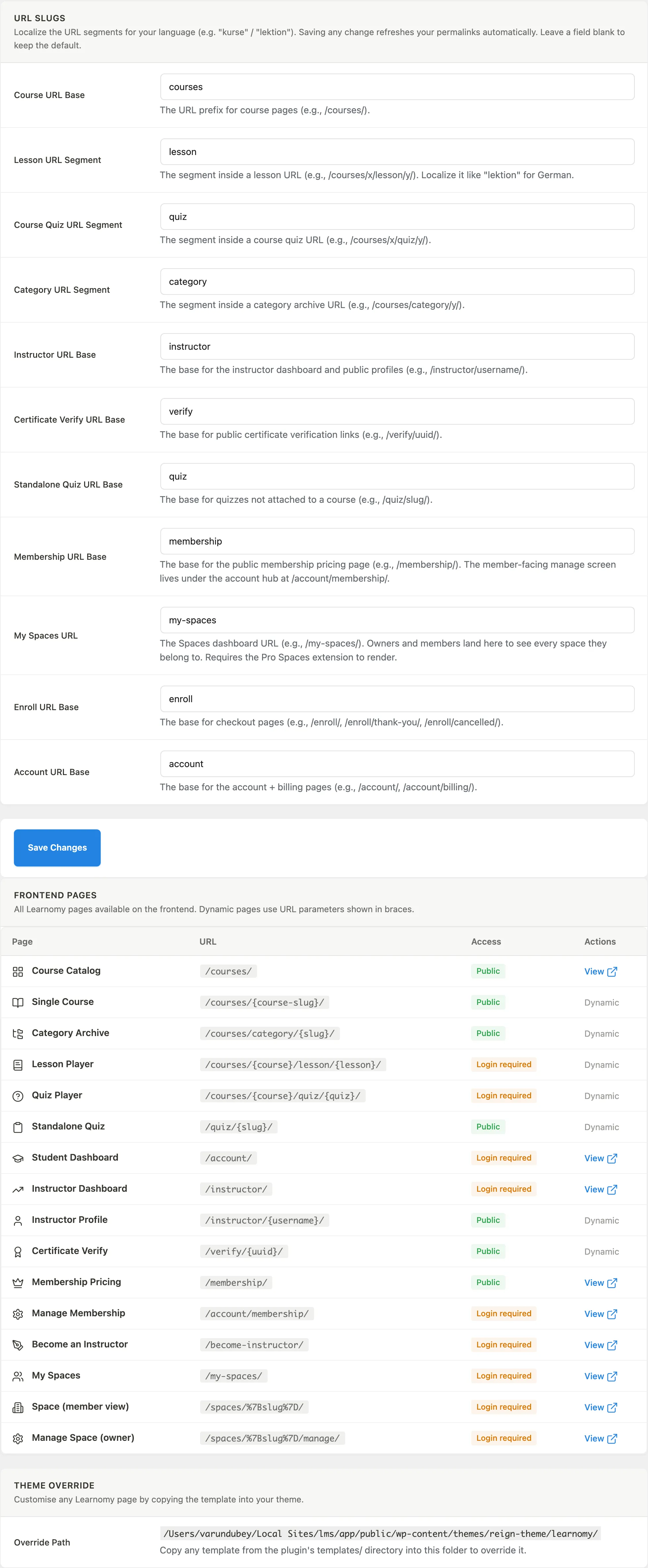
URL Slugs card
These fields let you localize or rename the URL segments for all Learnomy pages. For example, a German site might use kurse instead of courses. Leave any field blank to keep the default.
| Field | Default | Example URL |
|---|---|---|
| Course URL Base | courses |
/courses/ |
| Lesson URL Segment | lesson |
/courses/my-course/lesson/intro/ |
| Course Quiz URL Segment | quiz |
/courses/my-course/quiz/final/ |
| Category URL Segment | category |
/courses/category/design/ |
| Instructor URL Base | instructor |
/instructor/jane/ |
| Certificate Verify URL Base | verify |
/verify/uuid/ |
| Standalone Quiz URL Base | quiz |
/quiz/my-quiz/ |
| Membership URL Base | membership |
/membership/ |
| My Learning Spaces URL | my-spaces |
/my-spaces/ (Pro Spaces required) |
| Enroll URL Base | enroll |
/enroll/ |
| Account URL Base | account |
/account/ |
Saving any slug change automatically refreshes your WordPress permalink rules.
Frontend Pages card
A read-only table listing every Learnomy page on your site, its URL, whether login is required, and a View link for static pages.
Theme Override card
To customize any Learnomy template, copy it from the plugin's templates/ folder into your-theme/learnomy/ and edit from there. The path is displayed on screen so you know exactly where to place the file.
Labels
Go to Learnomy Settings and click Labels in the sidebar.
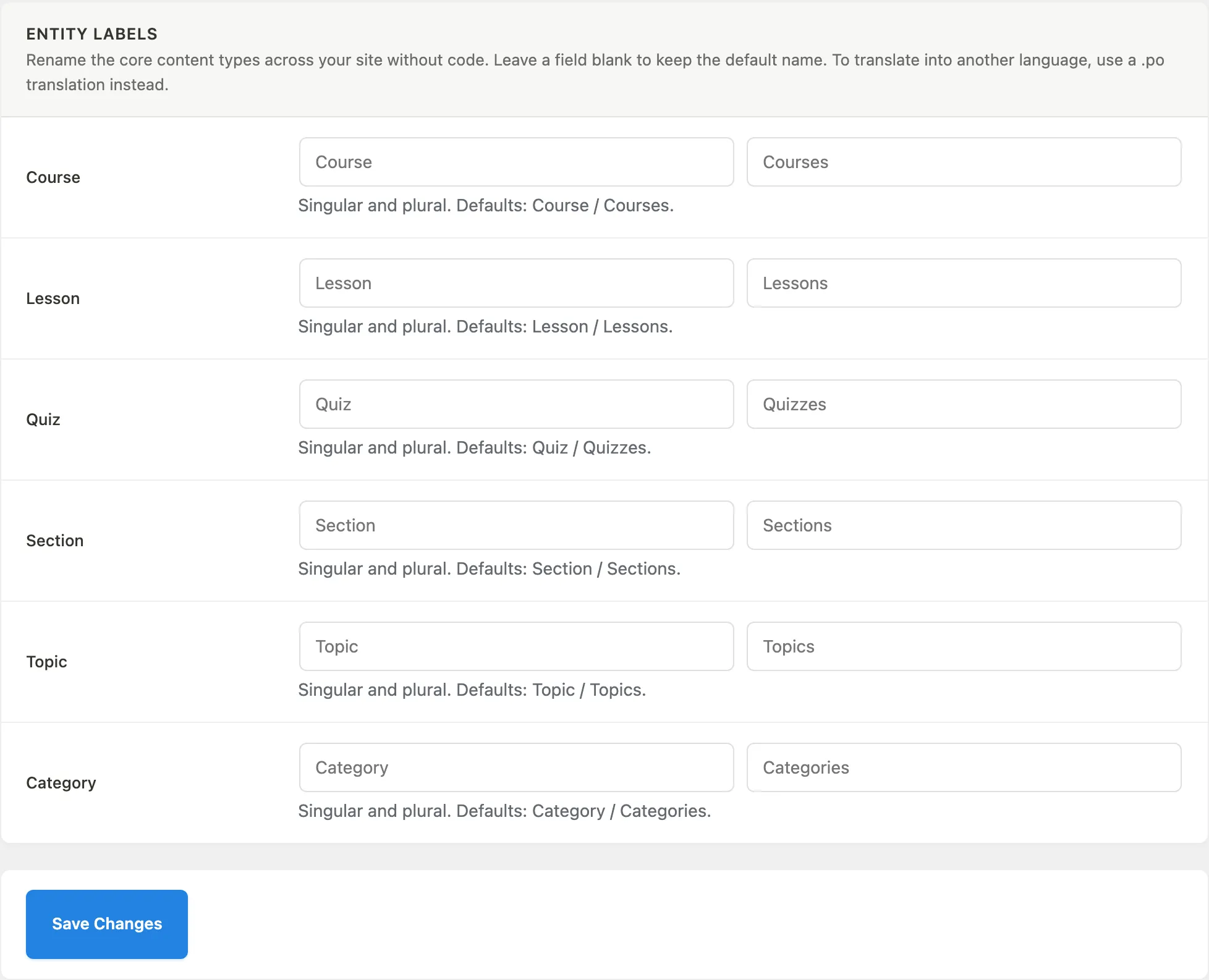
Rename core content types across your whole site without writing any code. Each entity has a singular and a plural field. Leave either blank to keep the default. To translate labels into another language, use a .po translation file instead of this panel.
Layouts
Go to Learnomy Settings and click Layouts in the sidebar.
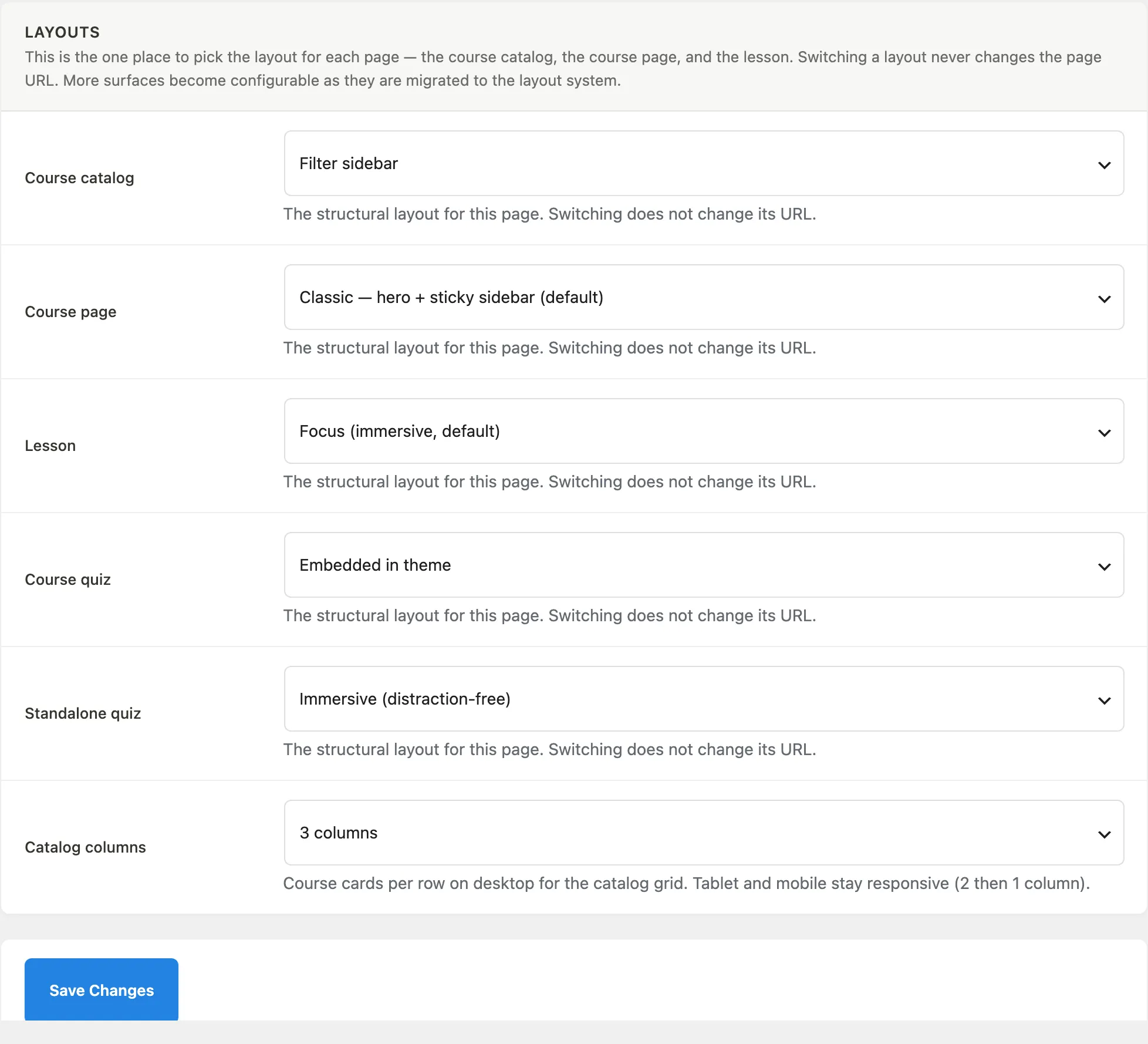
Pick the structural layout for each page type: the course catalog, single course page, lesson player, course quiz, and standalone quiz. Switching a layout never changes the page URL.
Registration Fields
Go to Learnomy Settings and click Registration Fields in the sidebar.
Add your own custom fields to the sign-up form and the account profile page without writing any code, for example a license number, company name, phone number, or a consent checkbox. Each field saves to the member's profile, can be marked required, and shows on the student detail page in the admin.
For the field types, the Show on locations, and how values are captured and viewed, see Custom Account Fields.
Payments
Go to Learnomy Settings and click Payments in the sidebar. This section only appears when the Payments module is active.
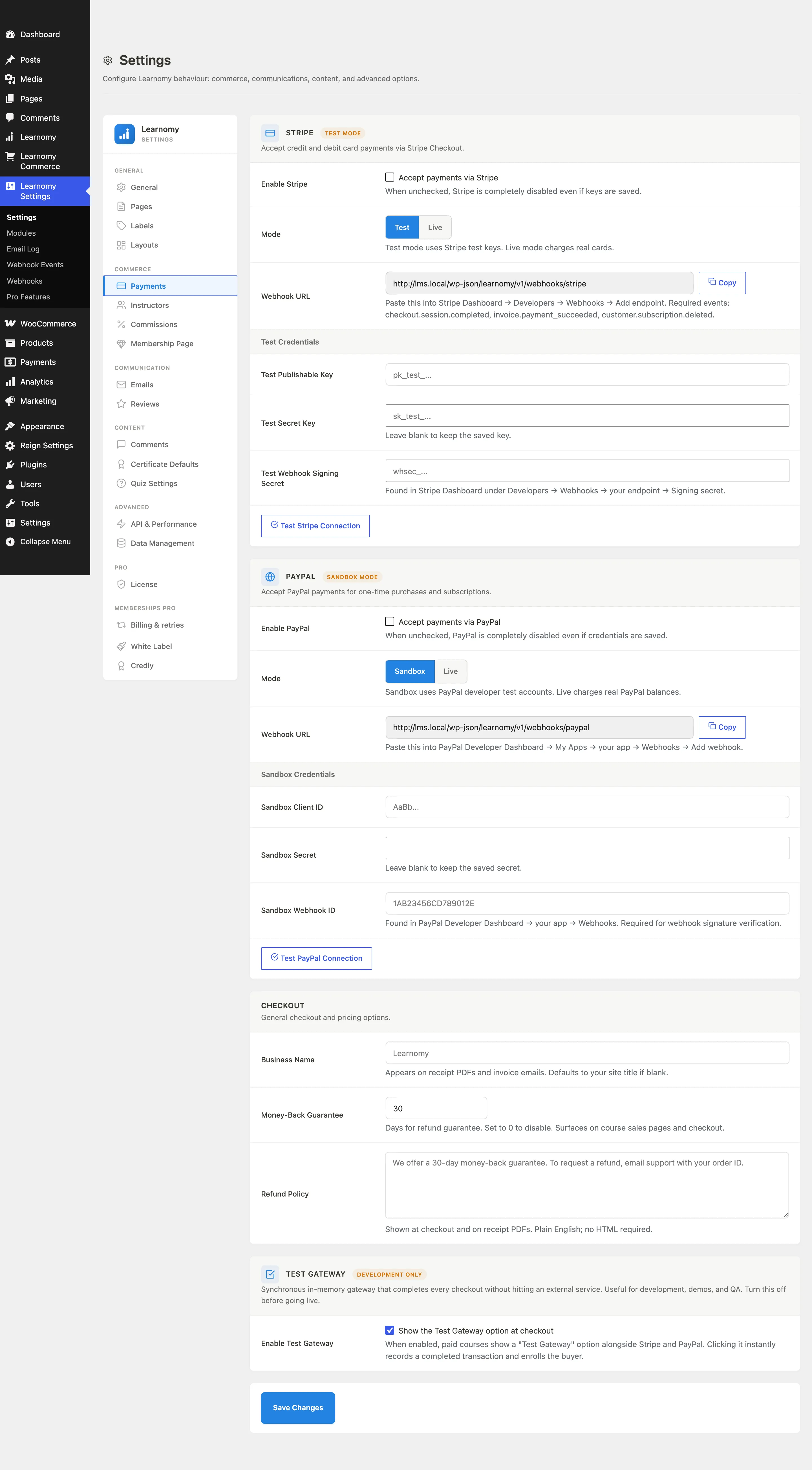
Stripe card
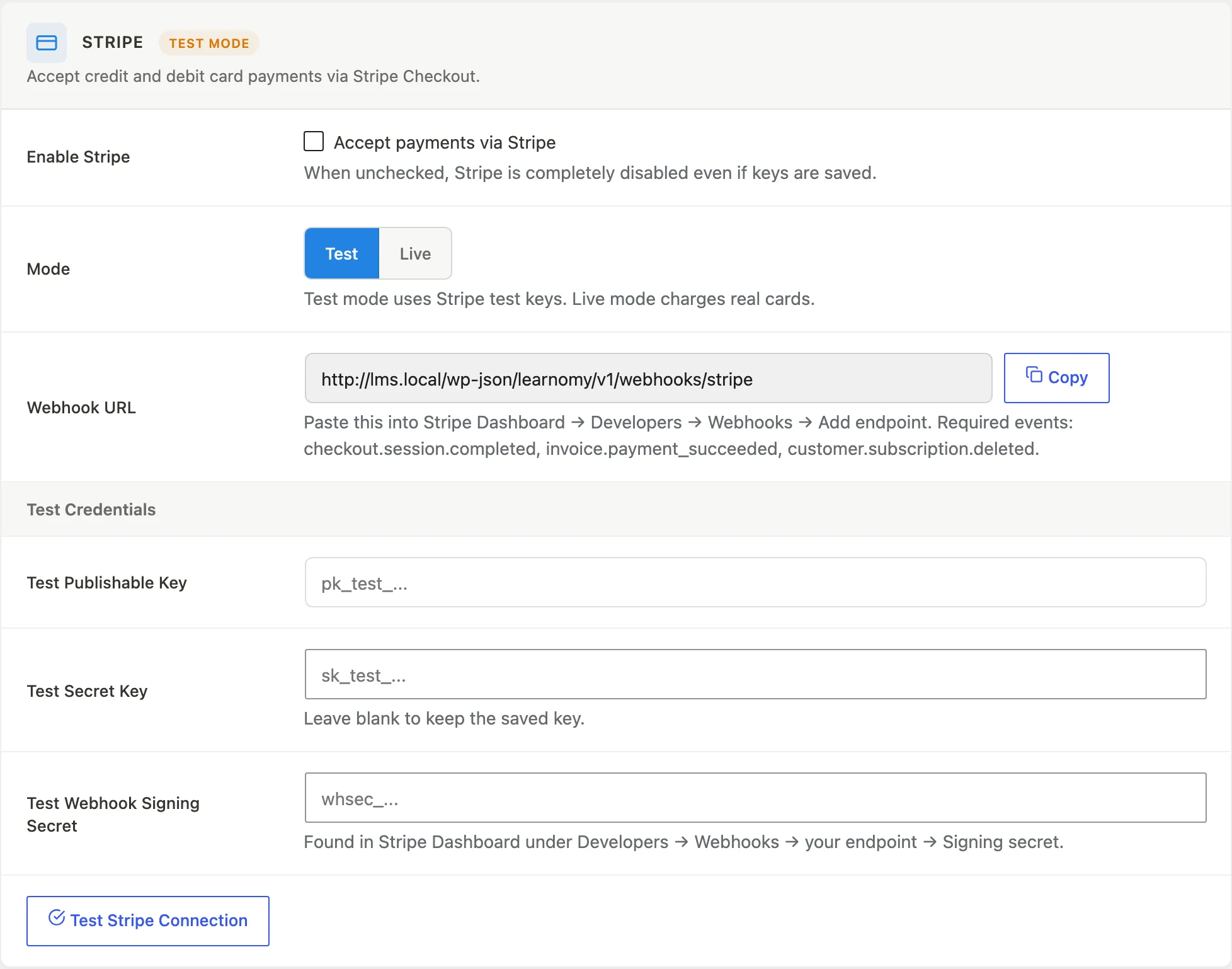
Enable or disable Stripe, toggle between Test and Live mode, and enter your keys. Secret keys and webhook signing secrets are write-only fields: once saved, they show a "Saved" badge and the field stays blank for security. Paste your Stripe webhook URL into Stripe Dashboard under Developers > Webhooks > Add endpoint. The required events are checkout.session.completed, invoice.payment_succeeded, and customer.subscription.deleted.
PayPal card
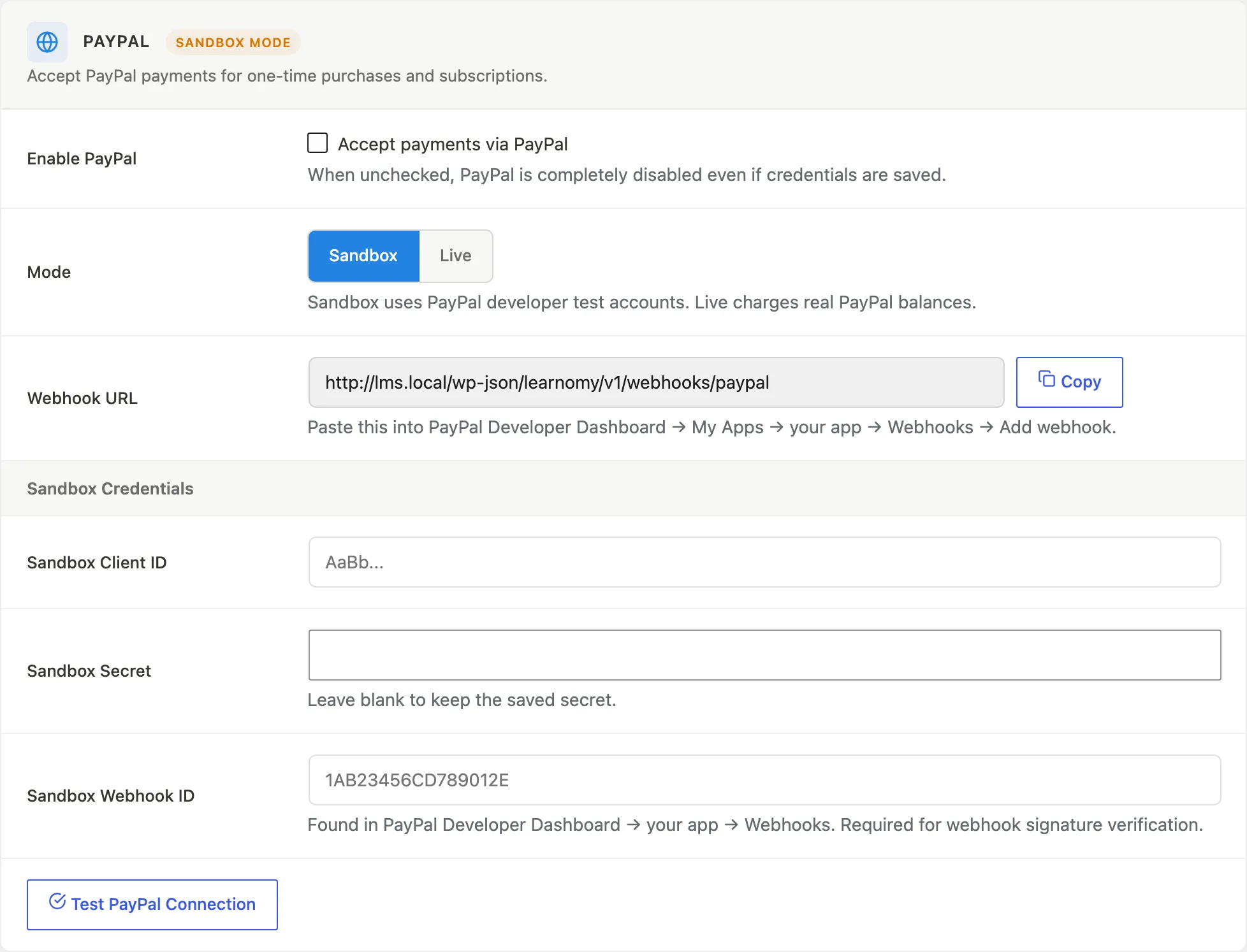
Same pattern as Stripe: enable, choose Sandbox or Live mode, enter Client ID, Secret, and Webhook ID. The Webhook ID is found in PayPal Developer Dashboard under your app > Webhooks, and is required for signature verification.
WooCommerce card
The Use WooCommerce toggle routes every Learnomy purchase (course, membership, gift, learning path, space, seat pack) through the WooCommerce cart and checkout instead of Learnomy's own Stripe/PayPal checkout. It requires WooCommerce to be installed and active; installing WooCommerce on its own changes nothing until this is turned on. Recurring membership plans need the WooCommerce Subscriptions extension -- without it, the card lists which recurring plans cannot check out through WooCommerce, and those plans need to switch to a Lifetime (one-time) interval to keep selling. WooCommerce is exclusive when enabled: it takes over checkout for every purchase type, and the Stripe/PayPal settings are kept (not deleted) but sit unused with a notice linking back to this card until you switch WooCommerce off again.
Checkout card
| Setting | What it does |
|---|---|
| Business Name | Appears on receipt PDFs and invoice emails. Defaults to your site name. |
| Money-Back Guarantee | Number of days for your refund guarantee. Set to 0 to disable. Shown on course sales pages and at checkout. |
| Refund Policy | Plain text shown at checkout and on receipt PDFs. |
Test Gateway card
A development-only adapter that completes every checkout without hitting any external service. Turn this off before going live. When enabled, paid courses show a "Test Gateway" option alongside Stripe and PayPal.
Tax card
| Setting | What it does |
|---|---|
| Collect tax | Labelled "Add a flat tax rate to paid checkouts". Applies to both Stripe and PayPal, on one-time purchases and on subscriptions. WooCommerce uses its own tax engine instead. |
| Tax rate (%) | A single percentage applied to every paid purchase, 0 to 100, for example 20 for 20%. |
| Tax label | What to call the tax on the order summary, for example Tax, VAT, or GST. Falls back to "Tax" when blank. |
See Tax (Flat Rate) for the full behaviour at checkout.
Failed payments card
| Setting | What it does |
|---|---|
| Grace period | How many days a past-due subscription keeps access after a failed renewal before it is expired. Any whole number from 0 to 90. Default 7. Set to 0 to cut access off as soon as the paid period ends. |
Membership Page
Go to Learnomy Settings and click Membership Page in the sidebar.
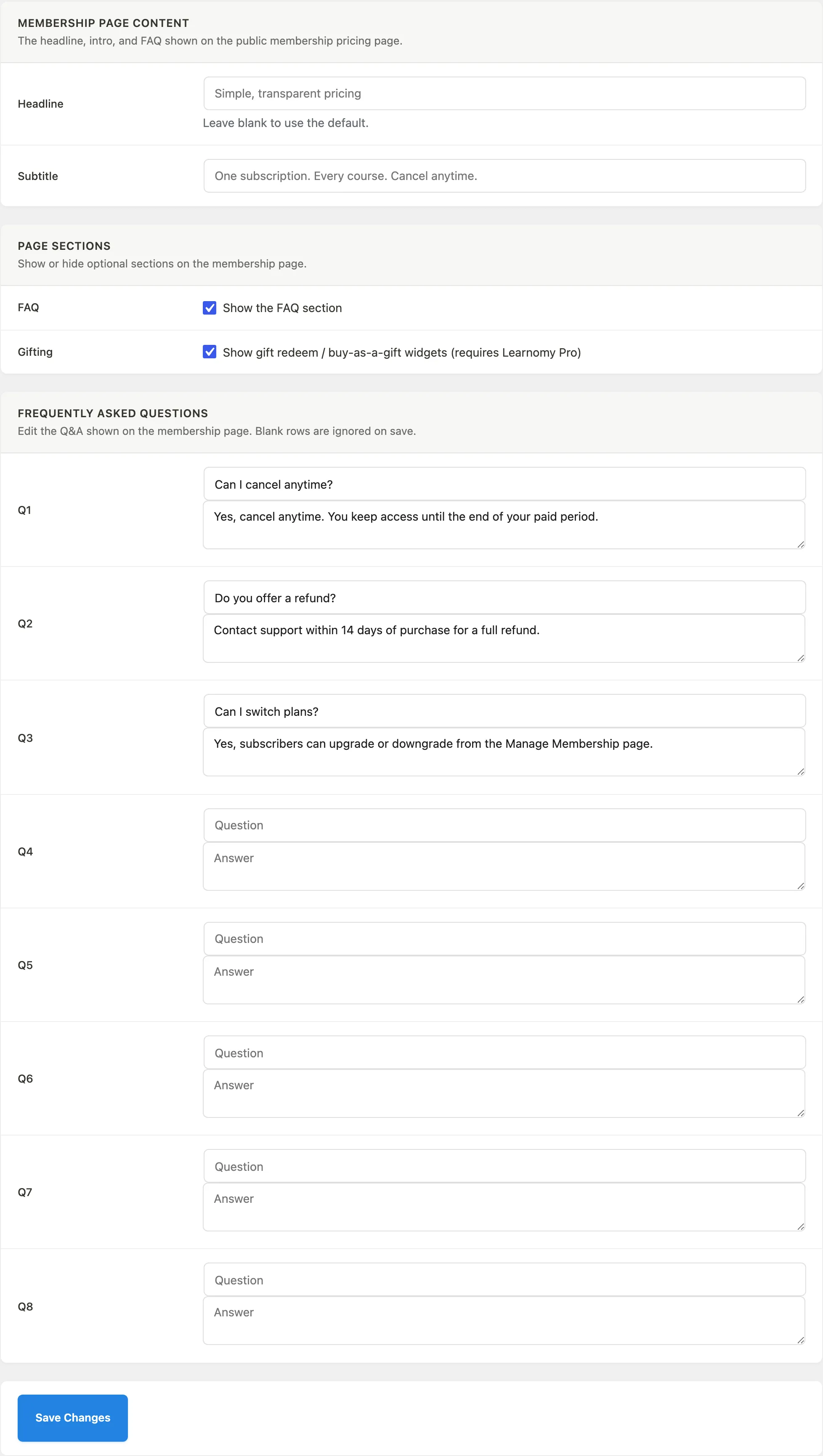
Control the headline, subtitle, and FAQ shown on the public membership pricing page at /membership/. You can also toggle the FAQ section and the gifting widgets on or off. The gifting widgets require Learnomy Pro.
Instructors
Go to Learnomy Settings and click Instructors in the sidebar. This section only appears when the Commissions module is active.
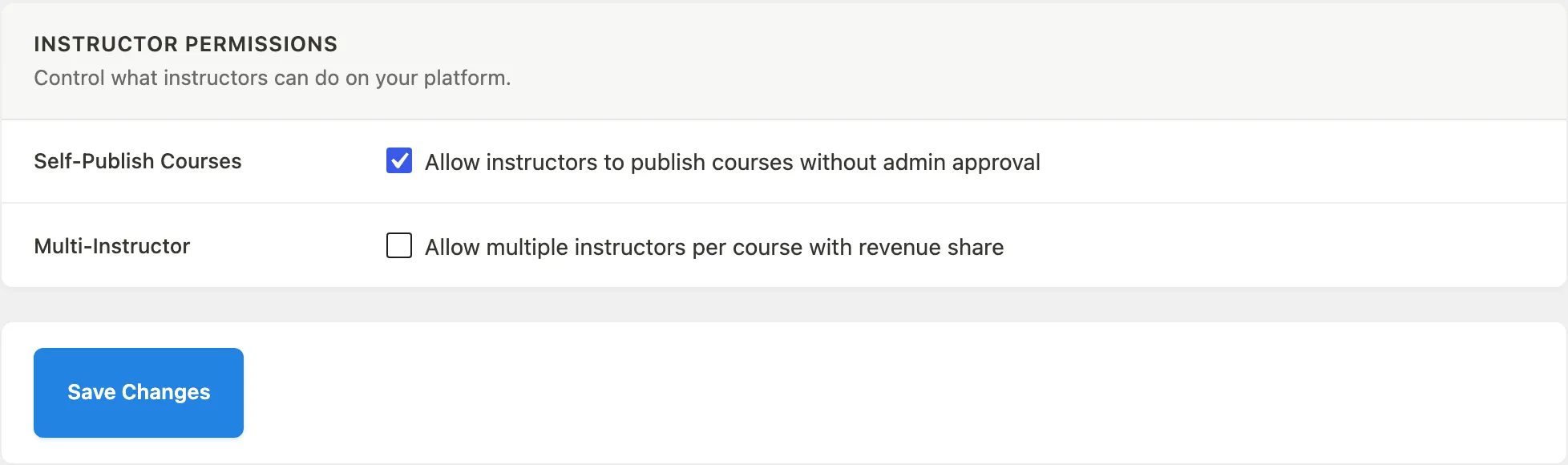
| Setting | What it does |
|---|---|
| Self-Publish Courses | When enabled, instructors can publish courses without admin approval. When off, courses go to pending review. |
| Multi-Instructor | Allows multiple instructors to be assigned to a single course with a configurable revenue share per instructor. |
Commissions
Go to Learnomy Settings and click Commissions in the sidebar. This section only appears when the Commissions module is active.
Commission Rules card
| Setting | What it does |
|---|---|
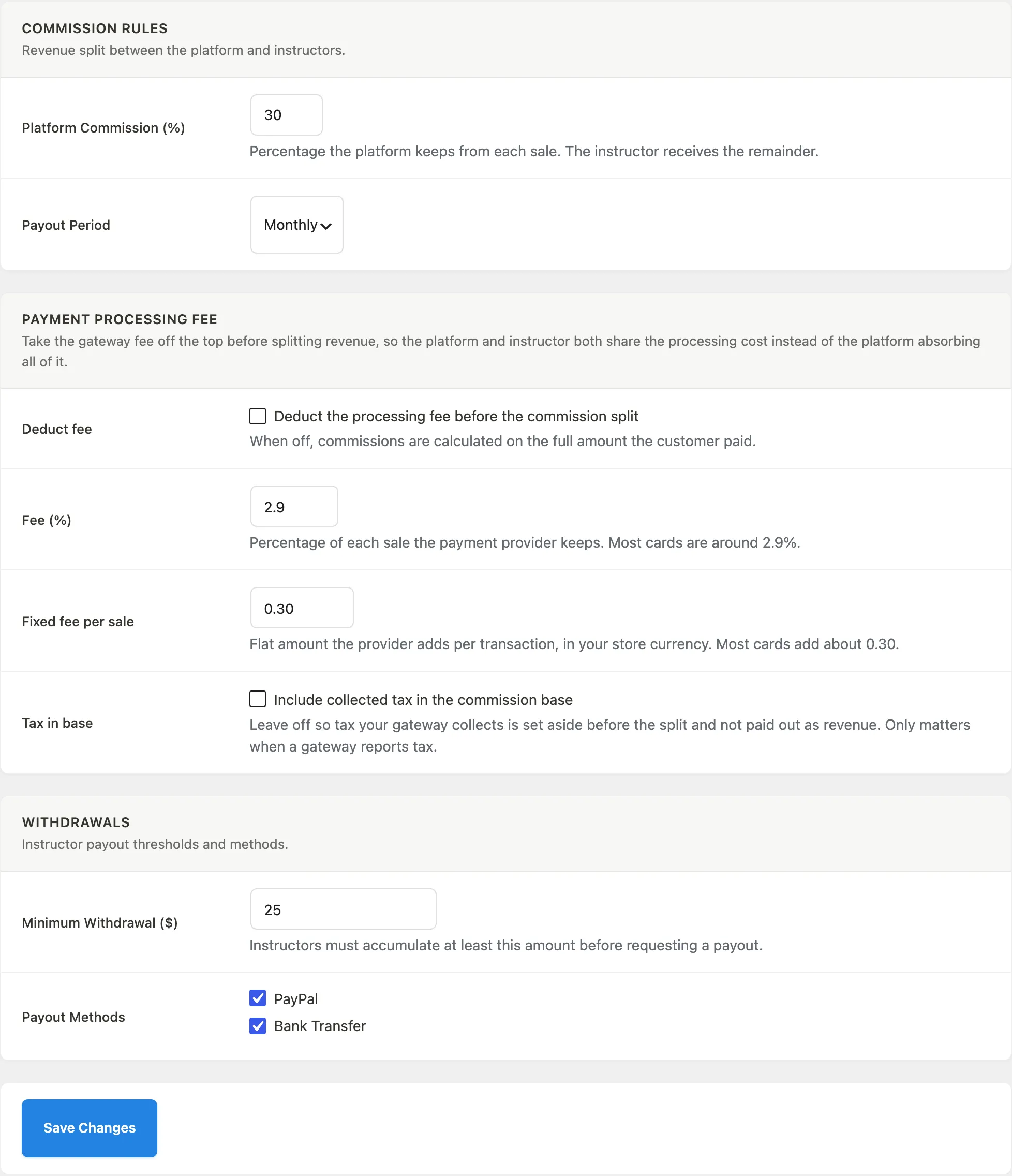
| Platform Commission (%) | The percentage the platform keeps from each sale. The instructor receives the remainder. Default is 30. |
| Payout Period | How often commissions are grouped for payout: Monthly, Bi-weekly, or Weekly. |
Payment Processing Fee card
When Deduct fee is on, the gateway fee is taken off the sale amount before the commission split, so both platform and instructor share the processing cost. Set the percentage fee (typically 2.9%) and the fixed per-sale amount (typically 0.30). The Tax in base toggle controls whether gateway-collected tax is included in the commission base.
Withdrawals card
| Setting | What it does |
|---|---|
| Minimum Withdrawal | Instructors must accumulate at least this amount before requesting a payout. |
| Payout Methods | Enable PayPal and/or Bank Transfer as payout options for instructors. |
Emails
Go to Learnomy Settings and click Emails in the sidebar. This section only appears when the Notifications module is active.
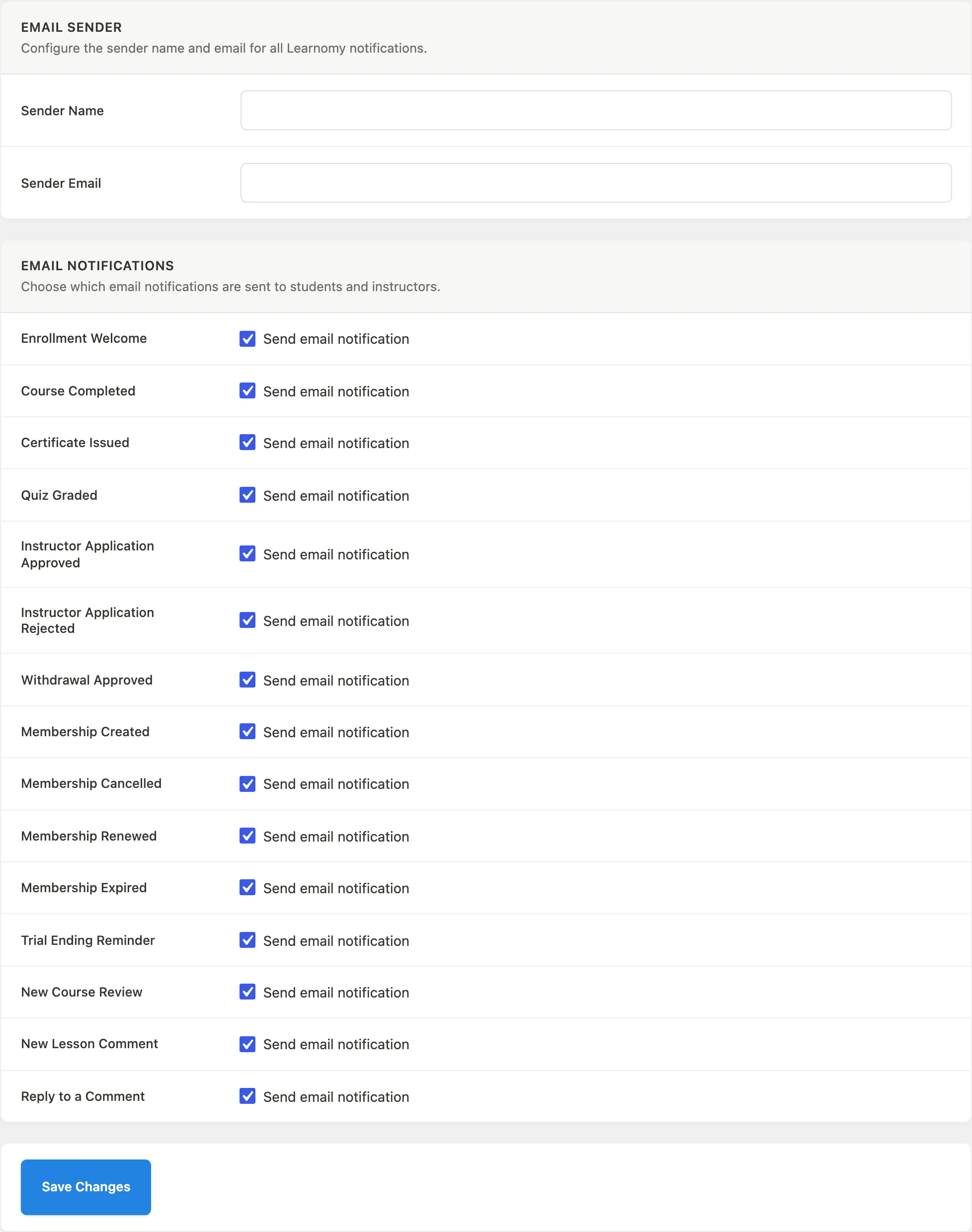
Email Sender card
Set the sender name and email address used for all Learnomy notifications.
Email Notifications card
Turn individual notification types on or off. The following notifications are available:
- Enrollment Welcome
- Course Completed
- Certificate Issued
- Quiz Graded
- Instructor Application Approved / Rejected
- Withdrawal Approved
- Membership Created / Cancelled / Renewed / Expired
- Trial Ending Reminder
- New Course Review
- New Lesson Comment
- Reply to a Comment
All notifications default to on. Unchecking a type stops that email from being sent.
Reviews
Go to Learnomy Settings and click Reviews in the sidebar. This section only appears when the Reviews module is active.
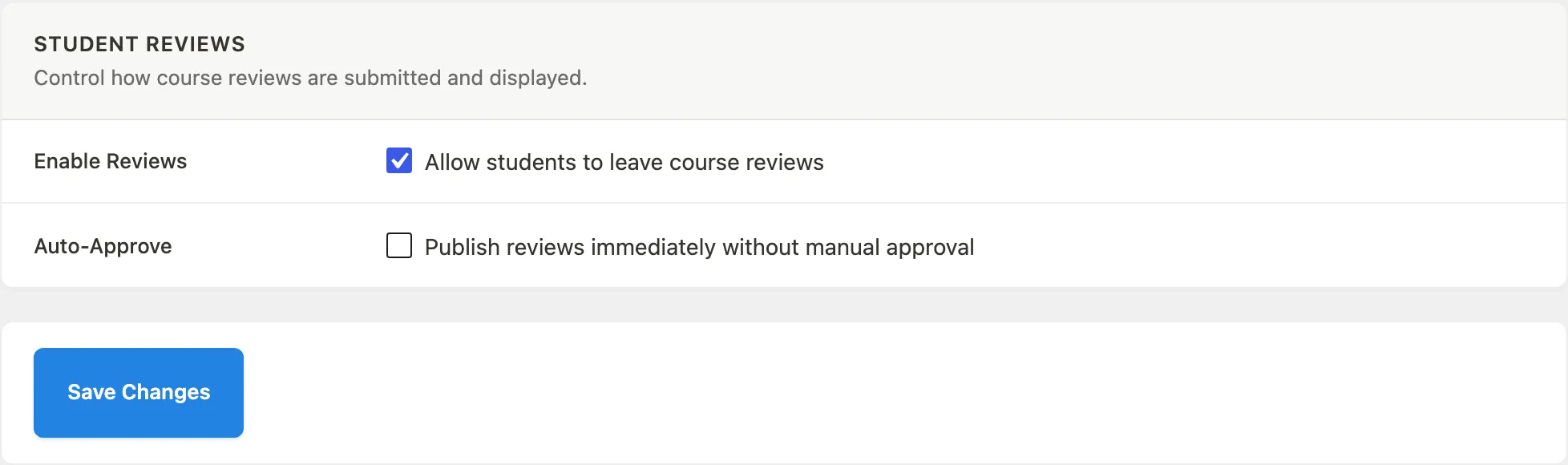
| Setting | What it does |
|---|---|
| Enable Reviews | Allow students to leave course reviews. |
| Auto-Approve | When on, reviews go live immediately without admin moderation. When off, new reviews land in the Reviews queue for manual approval. |
Course Comments
Lesson comments are configured in the Course Comments section - go to Learnomy Settings, click Course Comments in the sidebar, and find Enable Lesson Comments.
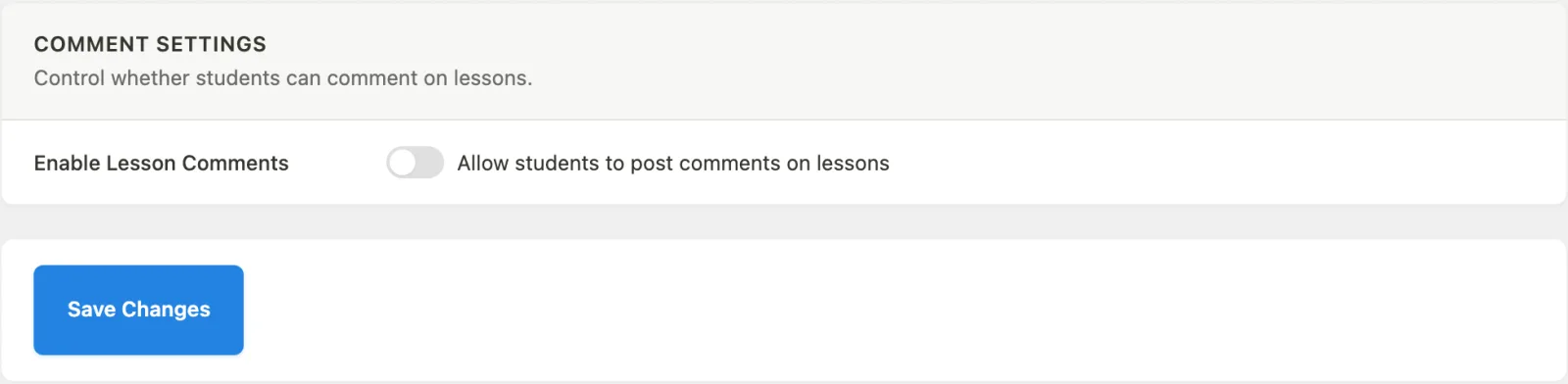
| Setting | What it does |
|---|---|
| Enable Lesson Comments | Allow students to post comments on individual lessons. |
Course-level comments are planned for a future release and do not appear here.
Certificate Defaults
Go to Learnomy Settings and click Certificate Defaults in the sidebar. This section only appears when the Certificates module is active.
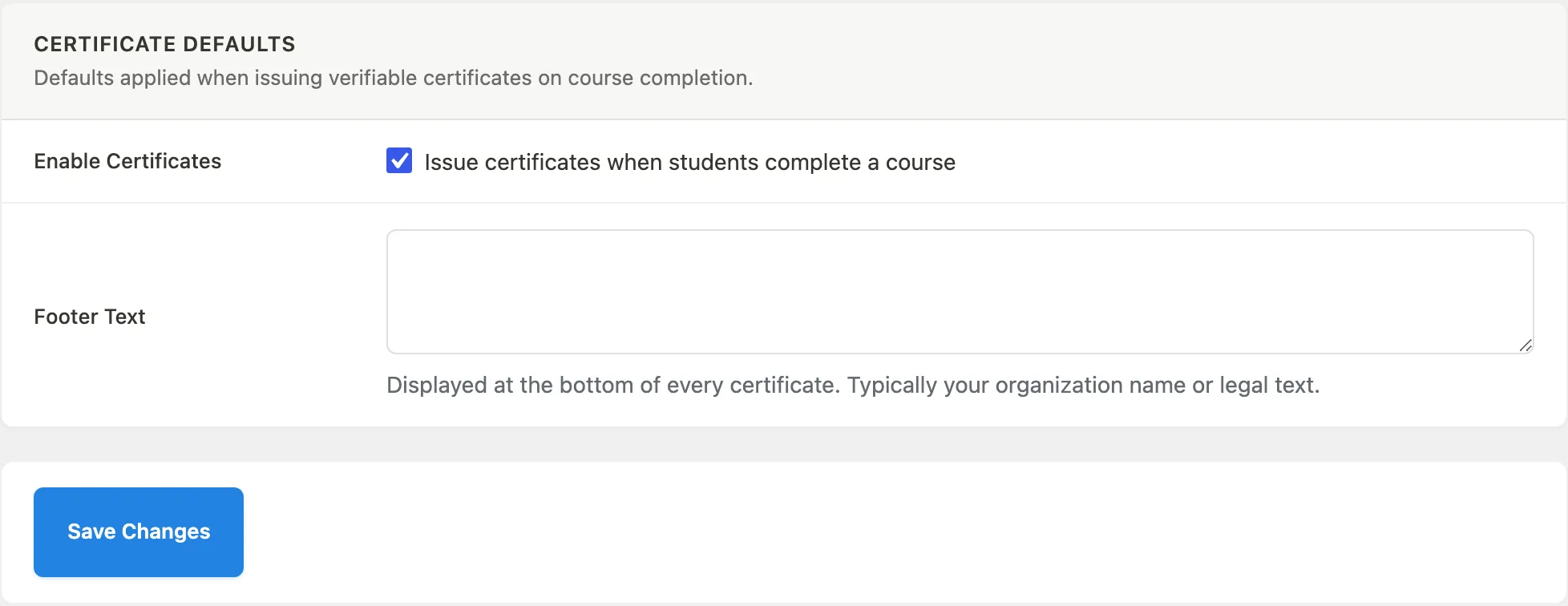
| Setting | What it does |
|---|---|
| Enable Certificates | Issue a certificate automatically when a student completes a course. |
| Footer Text | Text shown at the bottom of every certificate. Typically your organization name or legal text. |
Quiz Settings
Go to Learnomy Settings and click Quiz Settings in the sidebar.
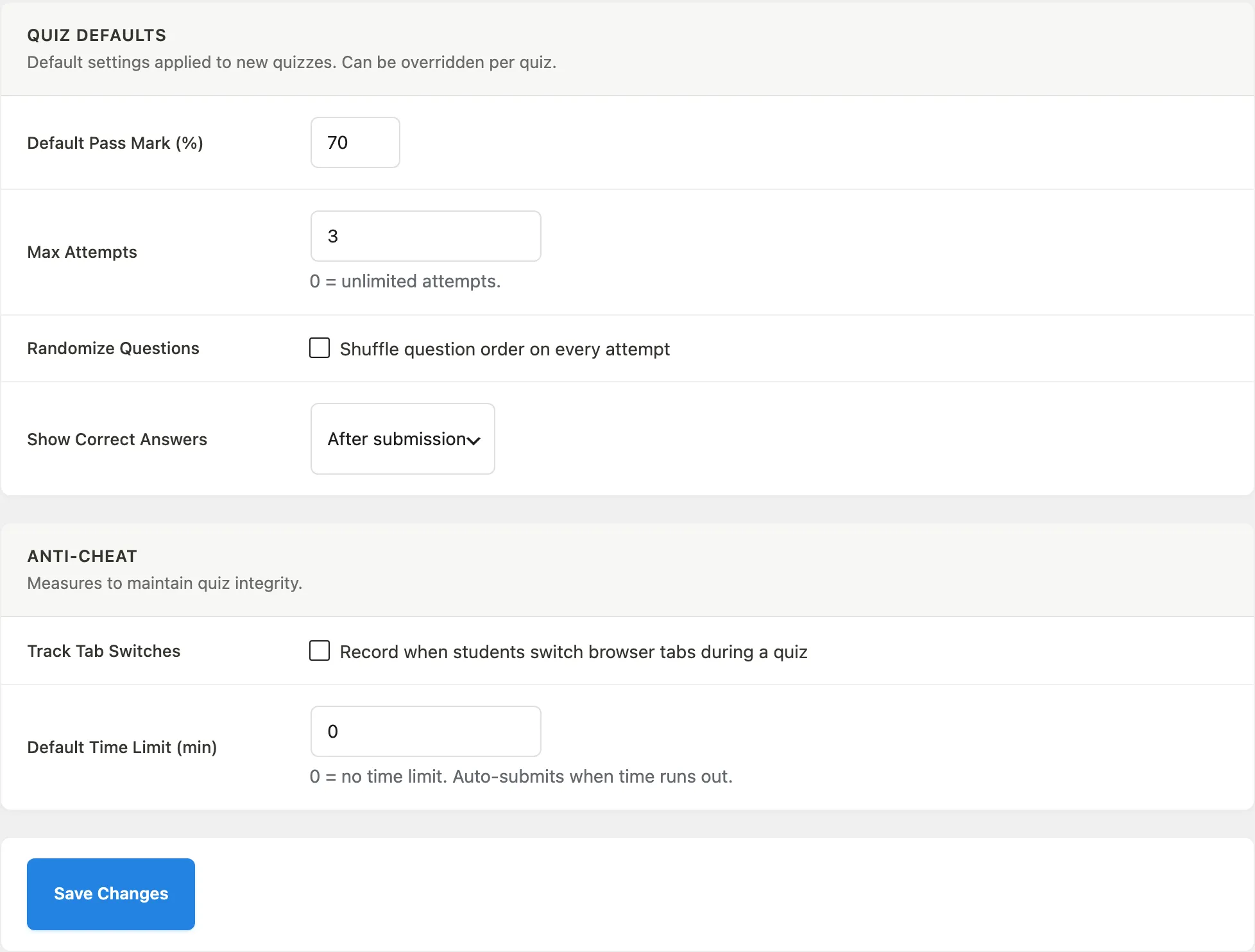
Quiz Defaults card
These settings apply to every new quiz unless overridden at the individual quiz level.
| Setting | What it does |
|---|---|
| Default Pass Mark (%) | Minimum score required to pass. Default is 50. |
| Max Attempts | How many times a student can attempt a quiz. Set to 0 for unlimited. |
| Randomize Questions | Shuffle question order on every attempt. |
| Show Correct Answers | Choose when students see correct answers: after submission, only after passing, or never. |
Anti-Cheat card
| Setting | What it does |
|---|---|
| Track Tab Switches | Record when a student switches browser tabs during a quiz. The count is stored on the attempt record. |
| Default Time Limit (min) | Time limit in minutes. 0 means no limit. When time runs out the quiz is submitted automatically. |
API and Performance
Go to Learnomy Settings and click API and Performance in the sidebar.
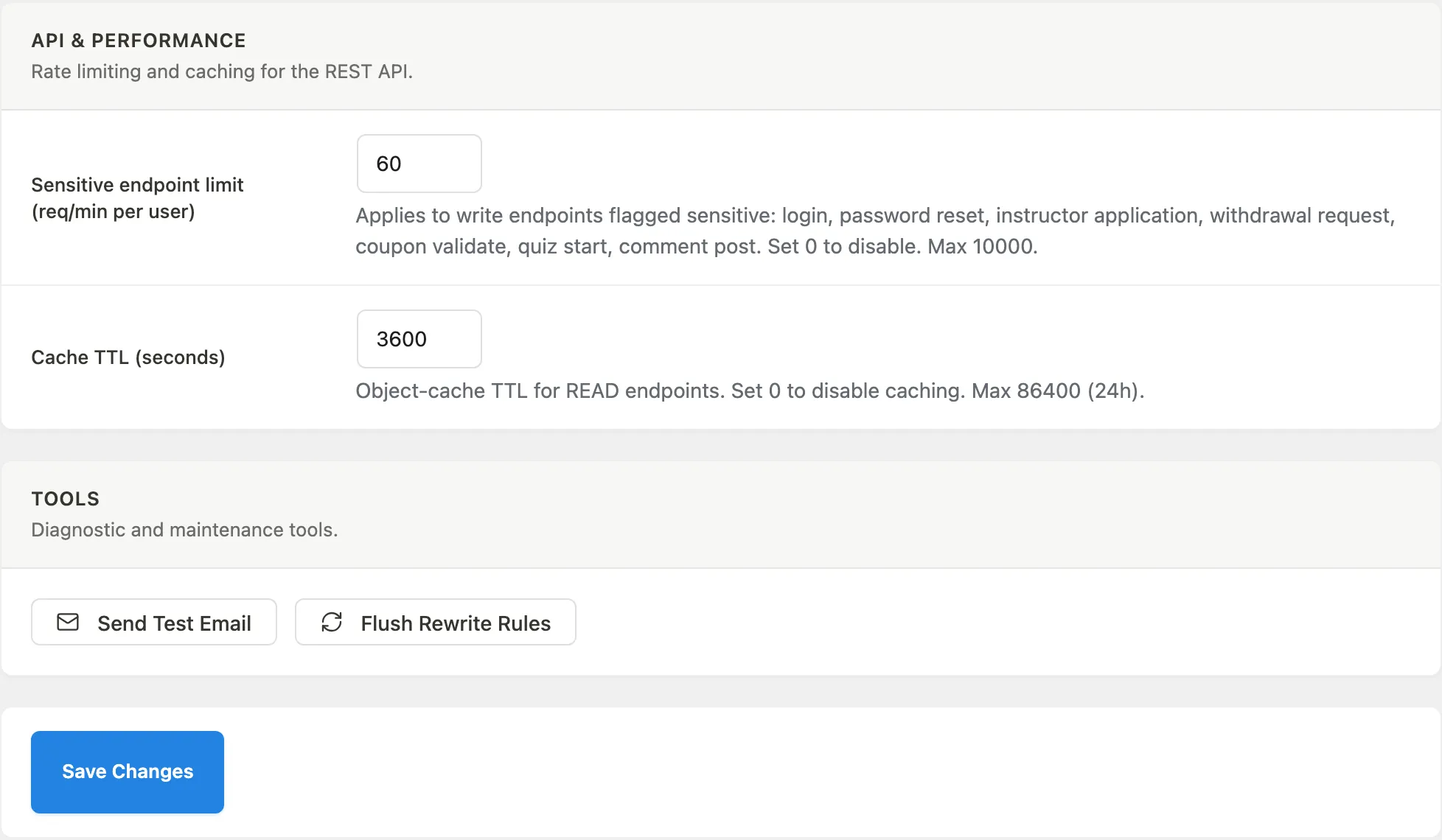
| Setting | What it does |
|---|---|
| Sensitive endpoint limit (req/min per user) | Rate limit for write endpoints flagged as sensitive: login, password reset, instructor application, withdrawal request, coupon validate, quiz start, and comment post. Set to 0 to disable. Maximum 10,000. |
| Cache TTL (seconds) | Object-cache lifetime for read endpoints. Set to 0 to disable caching. Maximum 86,400 (24 hours). |
The Tools card provides two buttons: Send Test Email dispatches a test notification to the admin email address, and Flush Rewrite Rules regenerates WordPress permalink rules without requiring a visit to Settings > Permalinks.
Data Management
Go to Learnomy Settings and click Data Management in the sidebar.
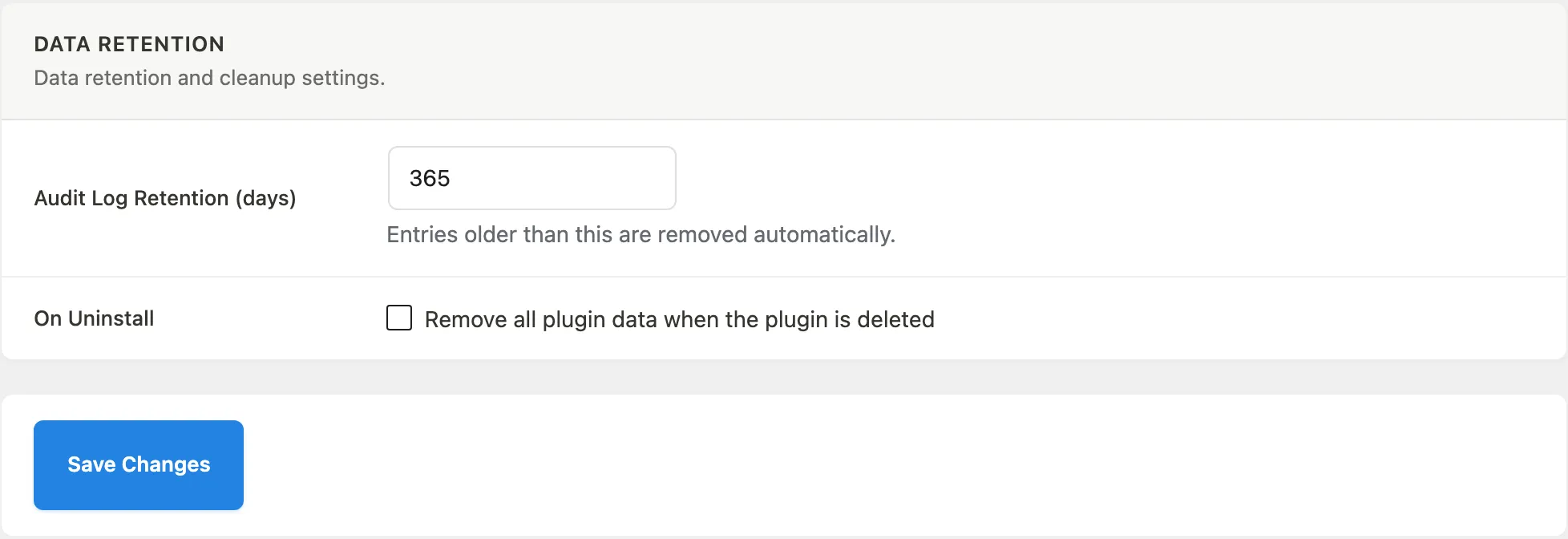
| Setting | What it does |
|---|---|
| Audit Log Retention (days) | Entries in the audit log older than this many days are removed automatically. Minimum is 30 days, default is 365. |
| On Uninstall | When checked, all plugin data is deleted when the plugin is removed. Leave unchecked to preserve student progress, transactions, and other data if you reinstall later. |
License
Pro feature. Requires Learnomy Pro.
Go to Learnomy Settings and click License in the sidebar.
Enter your Learnomy Pro license key here to activate automatic updates and support. Once saved, the panel shows the license status, the site domain it is registered against, and the expiry date.
Tips
- Settings are stored as a single WordPress option (
learnomy_settings). All sections share one Save Changes button per section. Saving one section does not overwrite other sections. - Sidebar sections whose module is disabled still exist in the page HTML so that deep-linked URLs continue to work, but they are hidden from the navigation.
- Pro-only settings sections (License) appear in the sidebar only when Learnomy Pro is active.