
Sectioned exam layout
Quizzes and Grading pro Pro featureThe Sectioned layout splits a quiz into ordered parts (sections) and shows the student one section at a time, in the style of an SAT, GRE, or mock certification exam. Questions are grouped into sections of a fixed size you choose (ten by default), and the student completes each section before moving on.
Pro feature. Available in Learnomy Pro. The Sectioned display template is a Pro layout on the quiz editor.
What you can do#
- Present a long exam as a series of shorter, self-contained sections instead of one endless list.
- Show a section intro card between parts so the student knows how many questions each section holds before they start it.
- Run the exam in Linear order (finish each section before the next, no going back) for high-stakes proctored-style tests.
- Run the exam in Free order (the candidate picks any section first and switches between them until they submit) for mock exams where students want to attempt their strong sections first.
- Track two levels of progress at once: a per-section question counter and a segmented bar showing which sections are done, active, or locked.
- Keep a single quiz timer across the whole exam, with the last minute highlighted and auto-submit when time runs out.
- Give students a per-section score breakdown on the results screen, with the question review grouped section by section.
How to use it#
- Open the quiz in Learnomy > Quizzes and edit it (or add a new one).
- In the quiz settings, find Display template and choose Sectioned. This template is a Pro layout, so Learnomy Pro must be active for it to be selectable.
- Set Section navigation to either Linear - complete each section in order or Free - candidate picks section order. Linear is the default.
- Set Questions per section if you want sections larger or smaller than the default of ten (any value from 1 to 100).
- Add your questions as normal. Learnomy groups them into sections of that size in the order they appear on the quiz. With the default of ten, the first ten questions become Section 1, the next ten become Section 2, and so on.
- Set a Time limit if you want the exam timed. The timer runs across the whole exam, not per section.
- Save and publish the quiz.
What the student sees at exam time:
- A start screen with the usual rules summary, plus one extra rule that reads "Multi-section exam - complete each section in order." The student clicks Start Quiz to create the attempt.
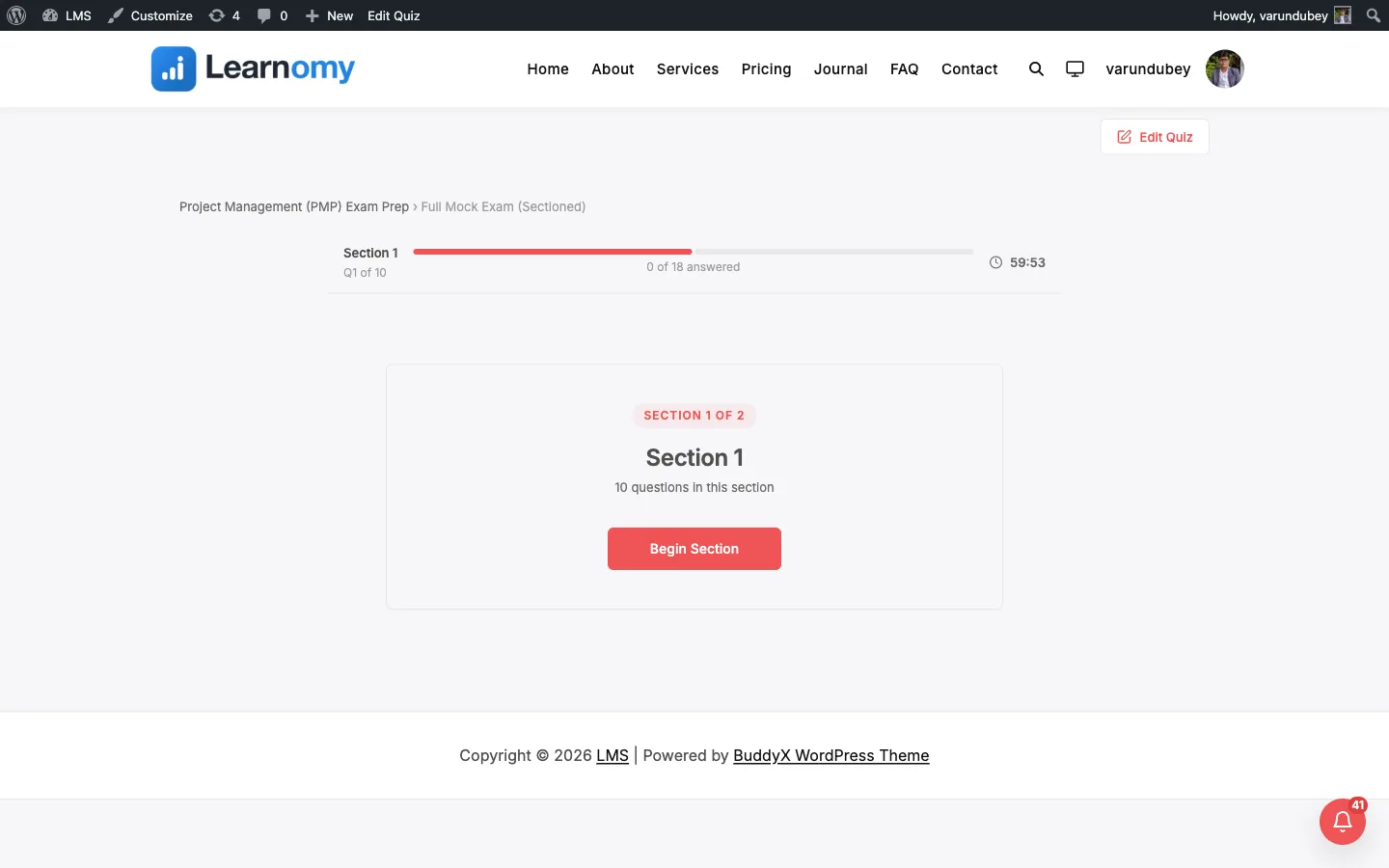
- Linear mode: a section intro card ("Section 1 of 3") showing how many questions are in that section. The student clicks Begin Section to start answering. Free mode: a "Choose a section" picker listing every section with its answered / total count. The student clicks a section card to enter it.
- Inside a section, questions appear one at a time. The top bar shows the section name, a "Q2 of 10" counter, a segmented section-progress bar, an overall "X of N answered" count, and the timer.
- The student moves through the section with Previous and Next. On the last question of the section, the Next button becomes End Section.
- Linear mode: ending a section asks for confirmation ("Are you sure you want to end this section? You cannot return to it."), locks that section, and moves to the next section intro. In Free mode, finishing a section returns the student to the picker so they can switch to another section; a Sections button also lets them jump back to the picker at any time.
- After the last section (Linear) or from the Submit exam button on the picker (Free), the attempt is submitted.
- The results screen shows the pass/fail score, the passing threshold, and a per-section question review.
Settings and options#
These are set on the quiz editor (Learnomy > Quizzes > edit a quiz) and stored on the quiz.
| Setting | Field name | Values | Notes |
|---|---|---|---|
| Display template | display_template |
sectioned |
Pro layout. Selecting it turns the quiz into a sectioned exam. |
| Section navigation | section_navigation |
linear (default), free |
Applies to the Sectioned template only. linear locks each section after it ends; free lets the candidate choose the order and switch between sections until submit. |
| Questions per section | questions_per_section |
number 1-100 (default 10) | How many questions each auto-built section holds. Applies to the Sectioned template only. |
| Time limit | (quiz time limit) | minutes | One timer for the whole exam. When under 60 seconds remain the timer turns red; at zero the attempt auto-submits. |
| Passing score | passing_score |
percentage | Same passing rule as every other layout; scored across all sections. |
Section size defaults to ten but is set by Questions per section on the quiz editor. How many sections an exam has is then a function of that size and how many questions the quiz contains.
The Section navigation help text on the quiz editor reads: "Applies to the Sectioned display template. Free lets the candidate choose which section to attempt first and switch between them until submit."
For developers#
- REST: the quiz create and update endpoints (
learnomy/v1/quizzes) acceptdisplay_template(enum includessectioned),section_navigation(enumlinear|free), andquestions_per_section(integer, clamped to 1-100). All are returned on the quiz resource. Sendsection_navigationandquestions_per_sectiononly for sectioned quizzes; other values are ignored. Without Learnomy Pro active, sendingsectionedreturns HTTP 400 with codelearnomy_layout_requires_proand nothing is saved. - Database:
section_navigationis a column onlrn_quizzes(varchar(20), defaultlinear), added in migration3_14_0.questions_per_sectionis a column on the same table (smallint unsigned, default10), added in migration3_45_0- before that release the client hardcoded ten. - Template override: the layout renders from
templates/quiz/sectioned.php. Copy it totheme/learnomy/quiz/sectioned.phpin your theme to override it through the Template Loader. - Frontend store: the player extends the shared
learnomy/quizInteractivity store inassets/js/quiz-view-sectioned.js. It readssection_navigationfrom the start payload intostate.sectionNavigation; infreemode the player opens on the section picker instead of the Section 1 intro. Section size comes from the start payload intostate.questionsPerSection(default 10).