
Spaces
Pro feature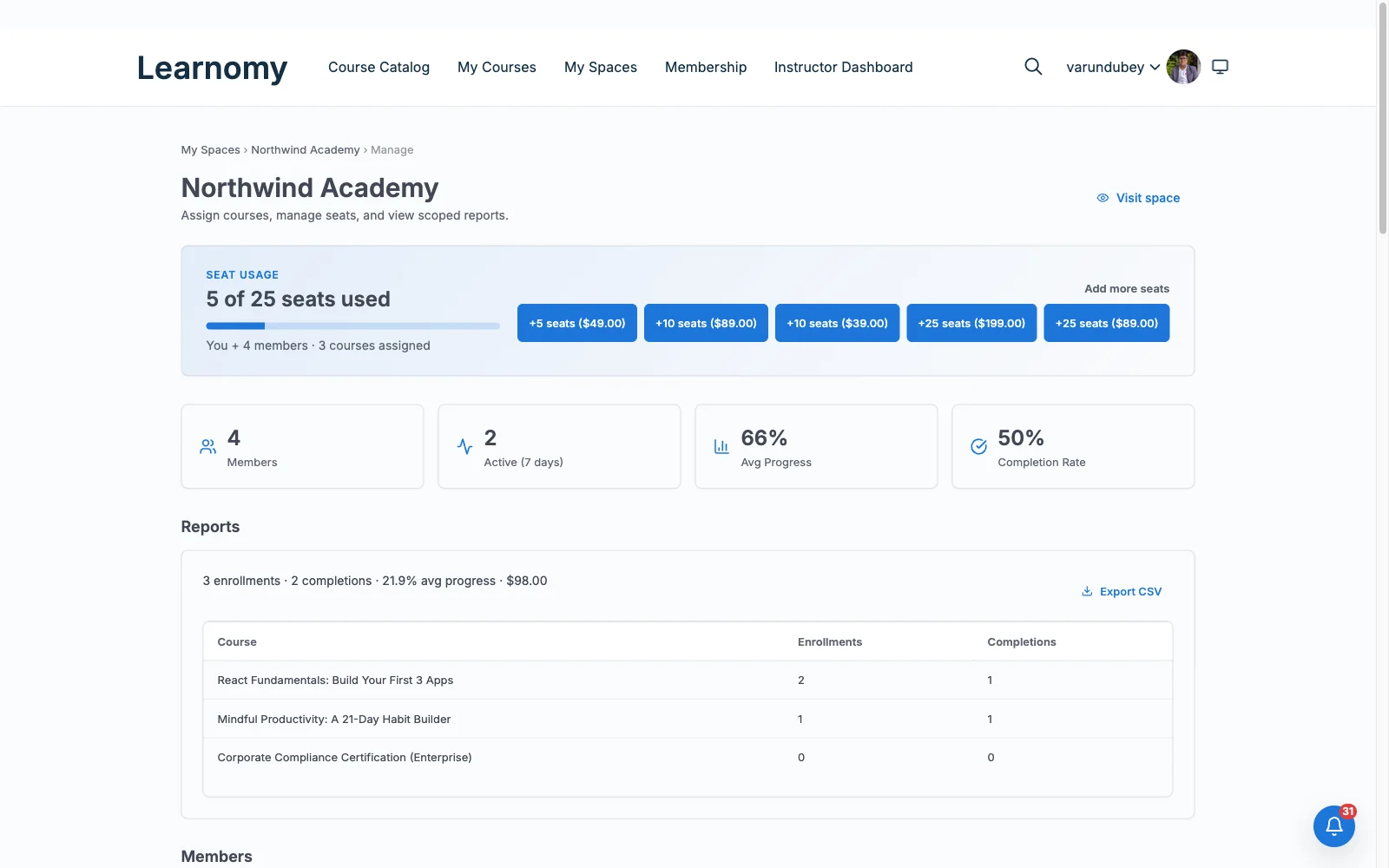
🔶 Pro feature. Available in Learnomy Pro.
Spaces are organisation or group accounts inside your LMS. Think of each space as a mini-school: it has its own roster of students and its own set of assigned courses. When you add a member to a space, they are automatically enrolled in every course assigned to that space. When you add a new course to a space, every existing member is automatically enrolled in it.
A typical use case is a corporate client who buys access for their whole team. You create one space for them, assign the relevant courses, and add their staff. All staff get access immediately without you having to enroll each person one by one.
Overview
Go to LMS Commerce > Learning Spaces to see all spaces. Until the site has an active space plan it is not selling seats, so the page sits under Learnomy > Learning Spaces instead - a company running teams without selling anything reaches it there. The list shows each space's name, member count, assigned course count, status, and subscription status.
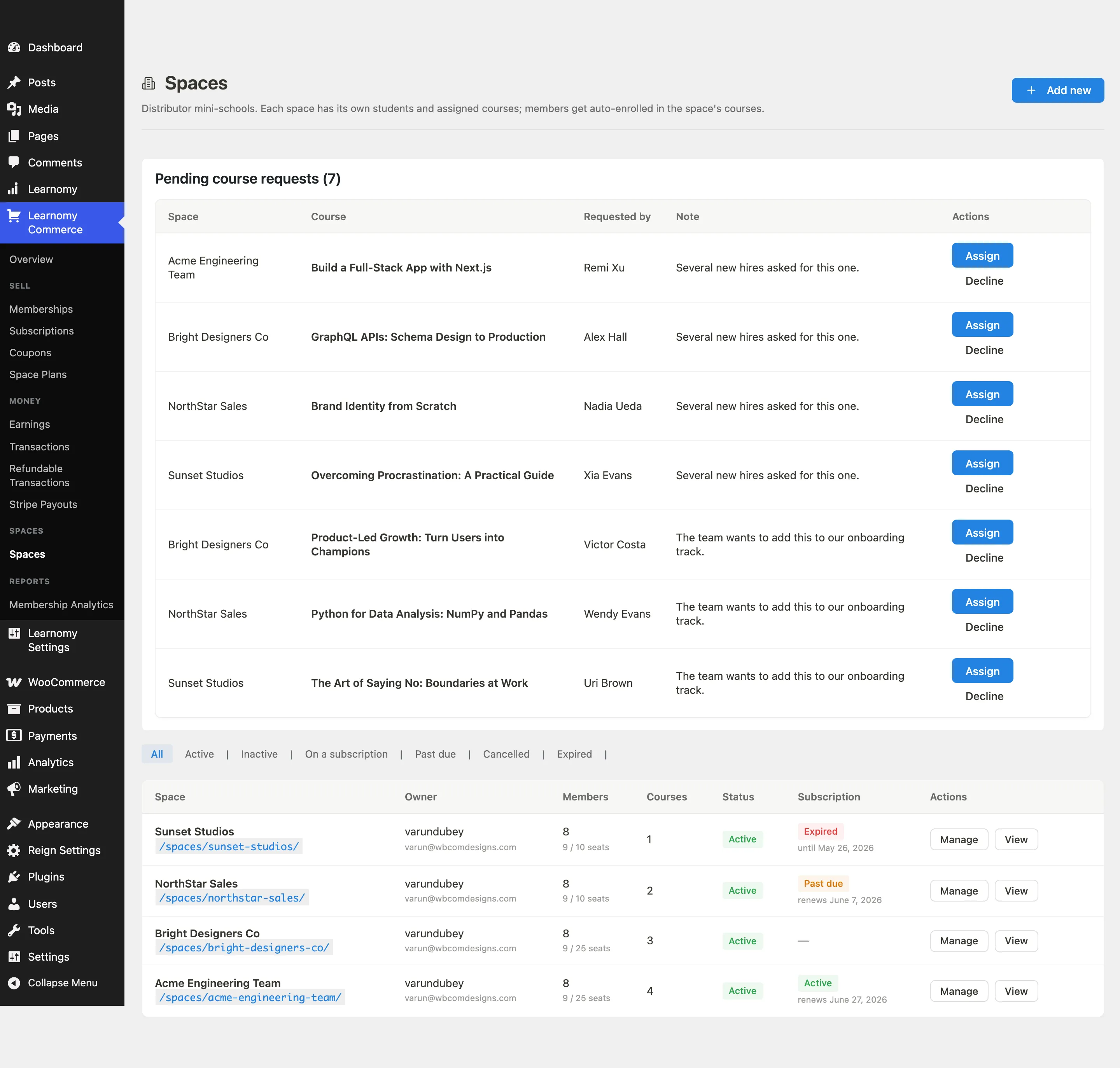
Filter the list using the links above the table: All, Active, Inactive, Recurring, Past Due, Cancelled, Expired.
Creating a space
Click Add new. A create form slides into view.

Enter a space name (for example, "Acme Corporation Training") and set the initial status to Active. Save the space. The new space appears in the table.
The space detail page
Click the space name or the Manage action to open the space detail page. The page has four tabs: Settings, Members, Courses, and Groups - the last three each carry a live count in their label. The header shows seat usage (for example, "12 / 50 seats used") or a plain member count when the space has no seat limit.
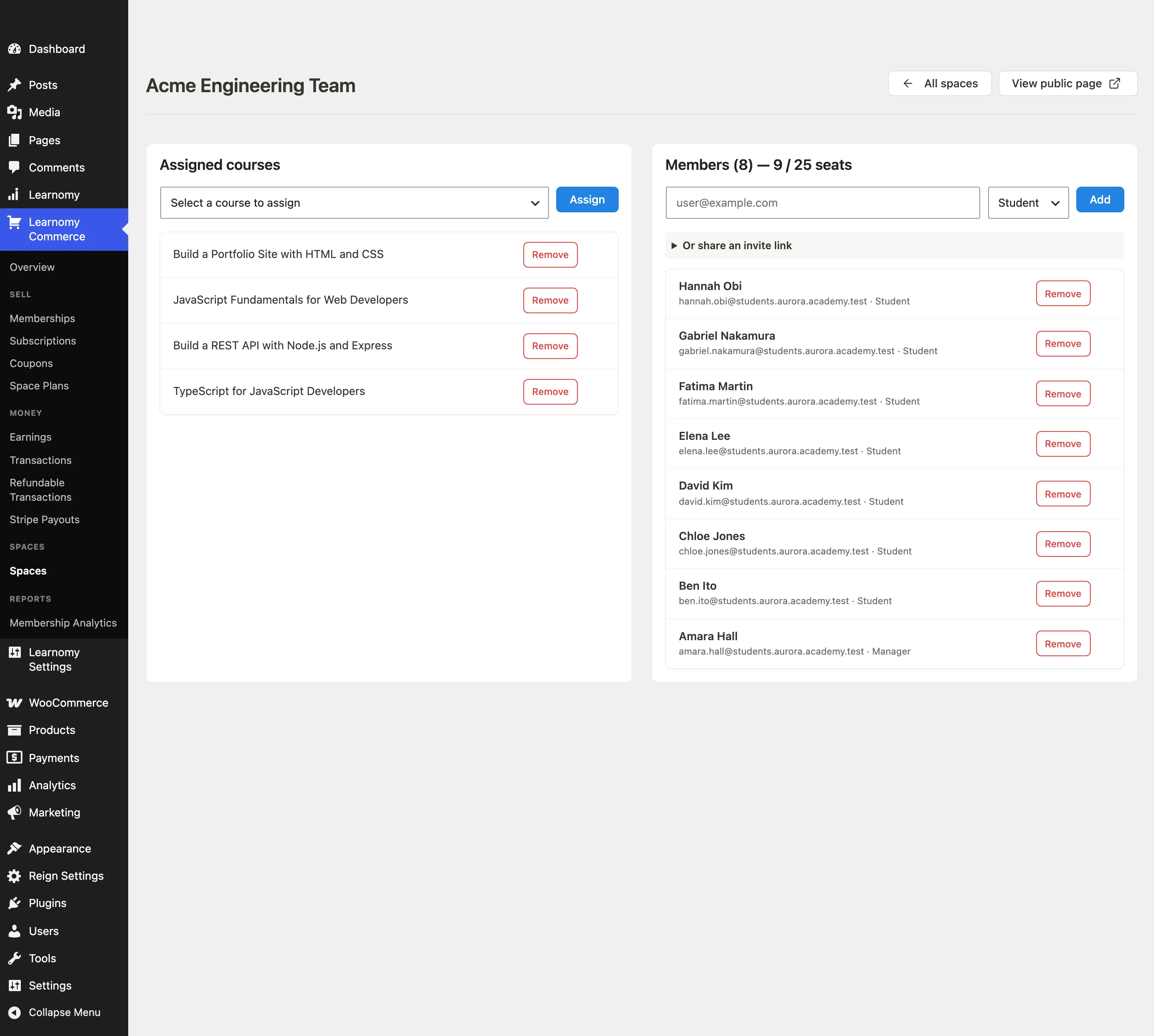
Use the tabs to switch between managing members, assigning courses, and working with sub-groups. Groups are covered on their own page (see Groups below).
Assigning courses to a space
Open the space detail page and switch to the Courses tab.
The tab shows Assigned courses first, which is what members of this space can open, and Add courses below it.
Under Add courses, search your catalogue by title and click Assign on the course you want.
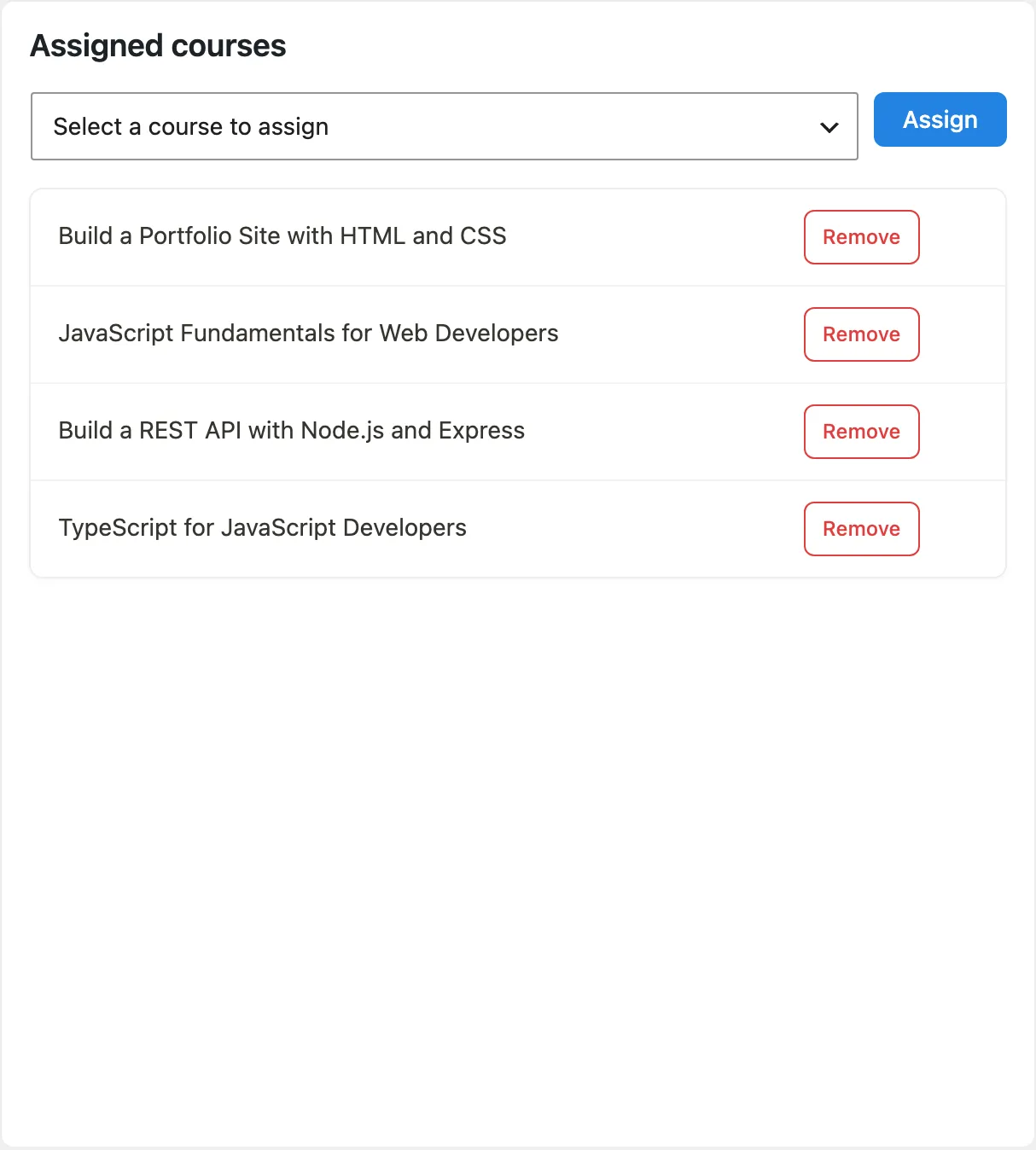
The list is paged and tells you how many courses exist in total, for example Showing 1-20 of 329 courses, so you can see at a glance whether what you are looking for is further in. Courses already in this space stay in the list marked Assigned, so you can tell "not added yet" from "already there".
Every current space member is enrolled in the newly assigned course automatically.
To add a whole track at once, pick a category from the dropdown and click Assign whole category. Every published course in that category, including its sub-categories, is added in one go.
This is a one-time copy. Courses you add to that category later are not added to the space automatically; run Assign whole category again to top up. Courses already in the space are skipped, so re-running is safe.
To remove a course from the space, click Remove next to it. Members keep their existing enrollments.
Adding members
On the space detail page, open the Members tab.
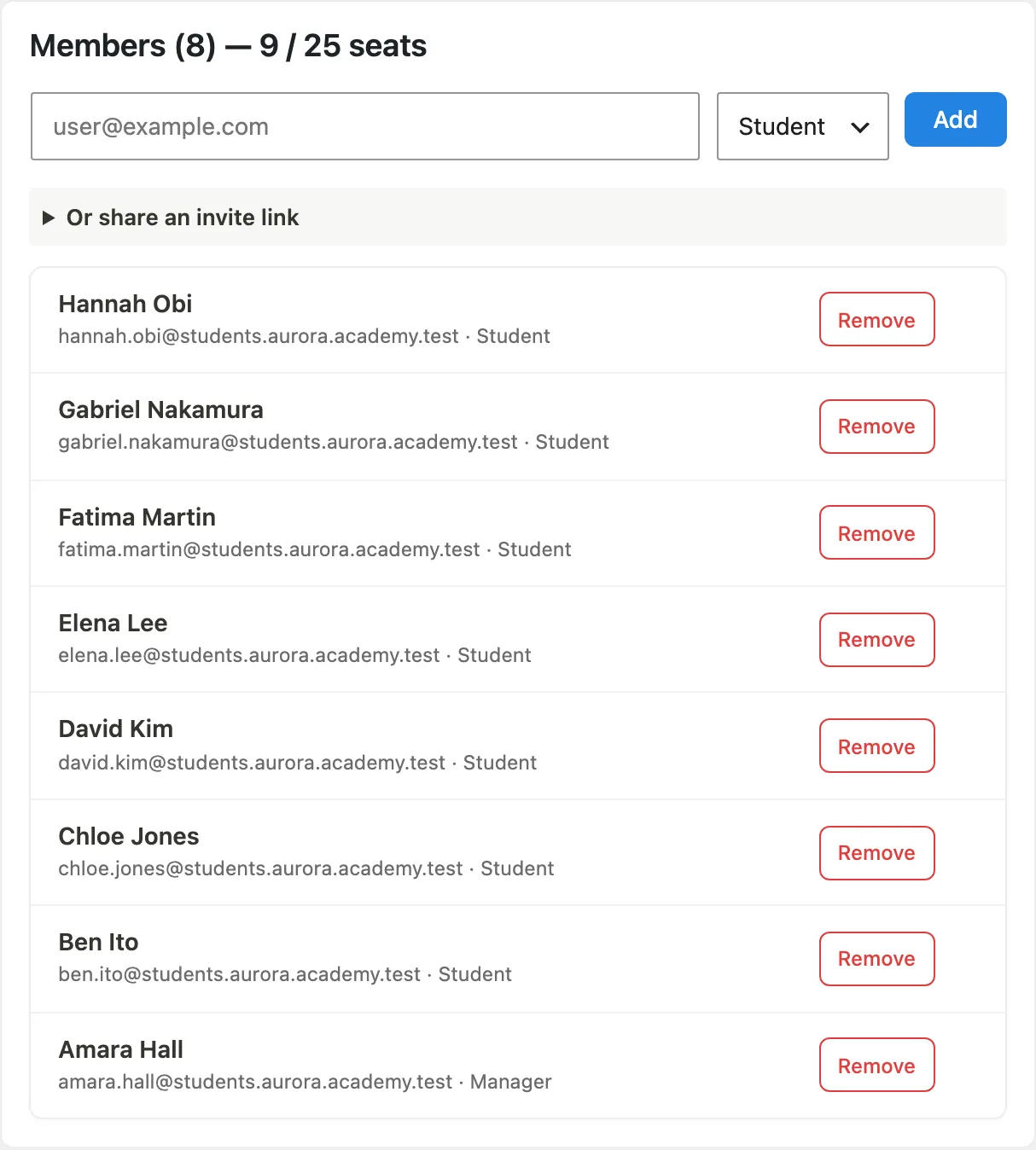
Type a member's email address into the add-member field, choose a role from the dropdown (Student or Manager), and click Add.
The user is added to the space and auto-enrolled in all assigned courses. If the user account does not exist, an invitation is queued.
To add many members at once, open Add many people at once and either paste addresses or load a CSV. You can also share an invite link (see below).
Importing a roster from a CSV
Open Add many people at once, then click Sample CSV to download a file with the columns the importer expects:
First Name,Last Name,Email
Dana,Whitfield,dana.whitfield@example.com
Amir,Haddad,amir.haddad@example.com
Fill it in, click Load a CSV, check the addresses that appear in the box, and click Add all.
Why the names matter. When you import someone who does not have an account yet, Learnomy creates one for them. With a first and last name it builds their username and display name from their name, so Dana Whitfield becomes dana.whitfield. Without names, it has nothing to work from but their email address, so their username is based on that instead. WordPress shows usernames in several places, so on a roster of students or association members that is not what you want. Pasting bare addresses still works for adding a colleague or two quickly; use the CSV whenever you are importing real people in bulk.
Export, edit, re-import. Export members (CSV) produces a file with those same three columns first, so you can export your roster, edit it in a spreadsheet, and load it straight back in. The extra columns in the export (role, joined date, progress) are there for your records and are ignored on import.
If a row has no usable email address it is skipped and the message names the line number, so you can fix that row rather than hunting through the file.
Changing a member's role
Each member row has a role dropdown set to Student or Manager. Change the dropdown to promote a member to Manager or demote a Manager back to Student. The change applies straight away. Use the Remove button on the row to take a member out of the space.
Suspending a member
When someone is behind on their dues, Suspend pauses their access without deleting them. Click Suspend on the member row; the row shows an amber Suspended badge and the action becomes Resume.
A suspended member:
- keeps their membership. Their role, their join date, and who invited them are all still there, and come back exactly as they were when you resume.
- stays on the roster and keeps their seat. They are still someone you bill, so they still count against the seat limit and still appear in reports.
- gets nothing from the space. Every course the space grants is closed to them, including courses granted through a group they belong to.
- sees an explanation, not a broken page. Their Spaces page says access is paused rather than silently showing an empty list.
Resuming puts everything back. This is the difference between Suspend and Remove: removing a member destroys the record you bill on and cannot be undone by re-adding them, because tenure and role are gone.
Suspend sits before Remove on the row and is deliberately not styled as a destructive action -- pausing is the routine, reversible one.
A Manager may suspend and resume students only, never the space owner and never another manager -- the same limit that applies to removal.
Suspending a whole association
To pause an entire company at once -- an unpaid invoice rather than one member behind on dues -- set the space itself to inactive from the spaces list. An inactive space grants nothing at all: not the courses assigned to it directly, and not the courses assigned to its groups. Members see the paused screen. Set it back to active and every grant returns.
A Manager added here is a space-wide manager. To put someone in charge of just one group instead, use a group-scoped manager from the Groups tab (see Groups).
Invite links
On the Members tab, open Or share an invite link to copy the shareable invite link. The link is valid for 7 days, and multiple people can use the same link during that window.
Anyone who clicks the link lands on a branded invite page inside your site, not the bare WordPress login screen. The page shows the space name and description and handles every case on one screen:
A logged-out visitor sees the invite details with an inline Log in & accept form and a Create an account link. Both bring them back to the same page to finish joining.
Where Create an account goes follows your own sign-up setting. If you have turned Allow students to sign up themselves off in the Academy Mode card of General Settings, there is no sign-up page to send an invited person to, so the link goes to the login page rather than a dead one. A site collecting sign-ups through its own form can point the link at that form instead, along with every other sign-up link on the site, with the
learnomy_student_registration_urlfilter.A logged-in visitor who is not yet a member sees an Accept invitation button.
An expired or already-used link shows a friendly "no longer valid" notice with a link to browse courses.
If the space has hit its seat limit, the page explains the space is full and asks the visitor to try again once a seat is free.
Once they accept, they are added to the space, auto-enrolled in every assigned course, and sent to the space page.
Letting people ask to join
Invite links are the normal way into a space. This is for the people an invite missed: someone who joined the team after the link was shared, or whose link expired. Without it their only option is to find the owner out of band.
It is on by default. Nobody is added by asking, so this puts a question in front of the owner rather than opening a door. To turn it off for a space that should only ever be joined by invitation, open the space in LMS Commerce > Learning Spaces, go to the Settings tab, and untick Let people ask to join under Joining.
While it is on:
- Someone who can see the space but is not in it sees an Ask to join button on the space page, with an optional note for the owner. Nobody is added by asking.
- The owner sees a Join requests card on their manage page, above the invite link, listing each person's name, email address and note. They press Approve or Decline.
- The owner is emailed when somebody asks, and so is anyone with the Manager role in that space - they can approve too, so a request does not sit waiting while one person is away. The email carries the person's note and links straight to the manage page.
- The person who asked is emailed if they are declined. Approving already sends them the normal welcome email for joining a space, so they hear either way.
- Approving adds the person to the space and enrols them in its courses, the same as any other member.
- If the space has no free seat, approving is refused and says so. The request stays in the queue, so nobody is lost. Add seats or remove a member, then approve again.
A person who asks twice does not create a second request; they are shown that their request is already waiting. Declining is not a ban - the person is not told who declined, and they can ask again, which is what you want when a request simply landed on the wrong space.
Site administrators can approve requests from the same screen, and keep that control even on a space where the setting is switched off - so requests that were already waiting when you turned it off can still be cleared.
Pending course requests
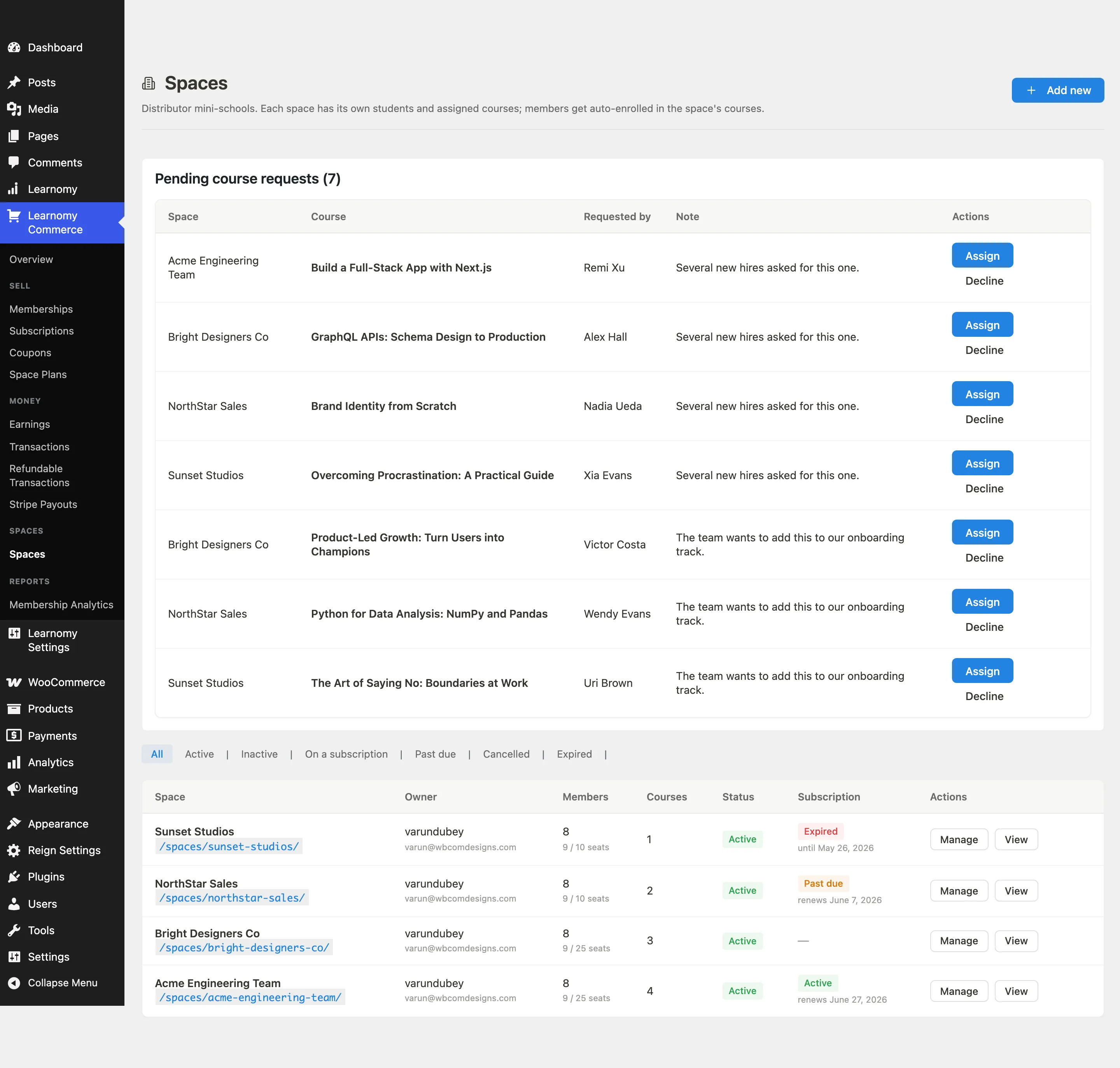
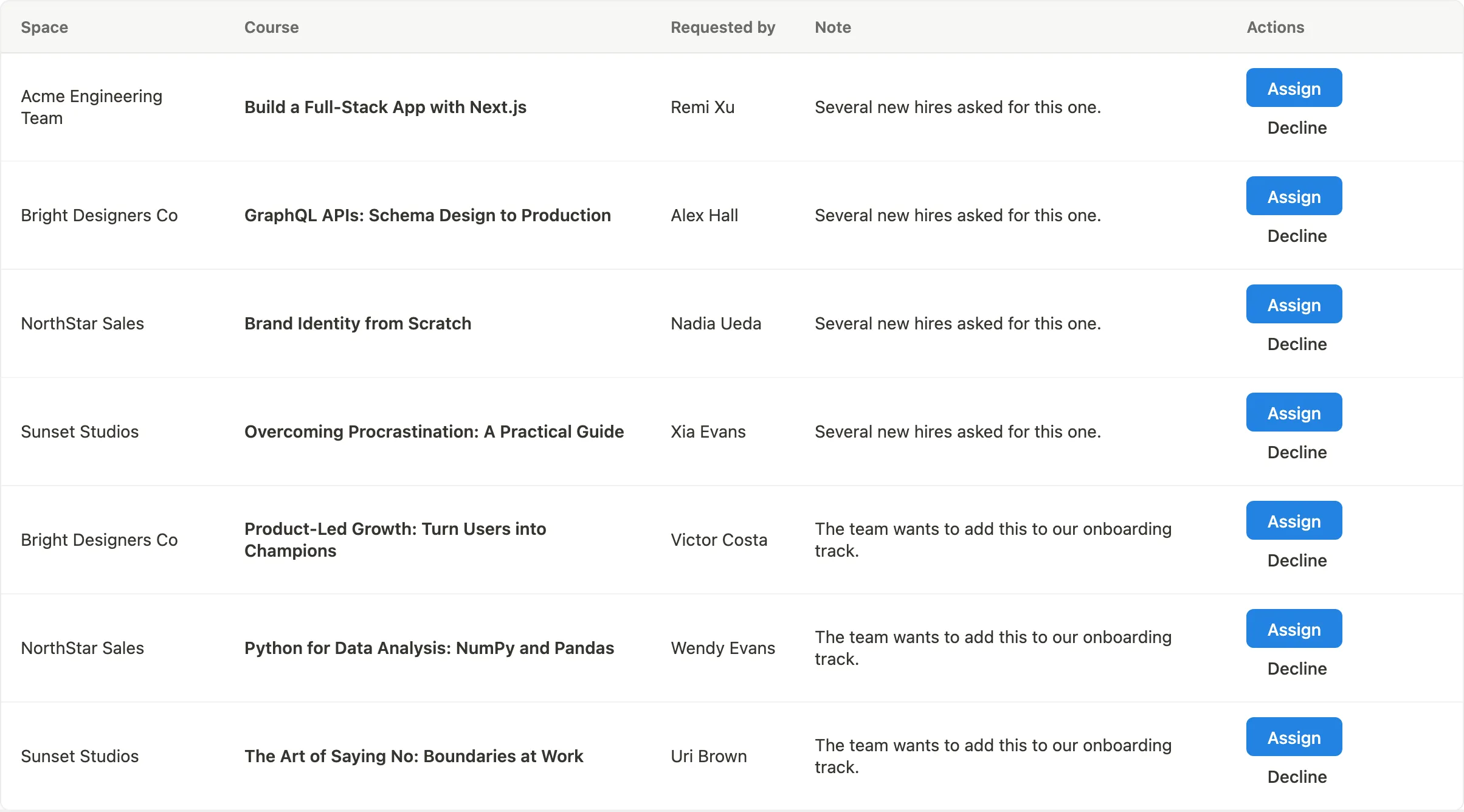
Separately from the above, a space owner can ask you to add a course to their space (see Let the owner request courses). When there are pending course requests, a notice appears at the top of the Spaces list page.
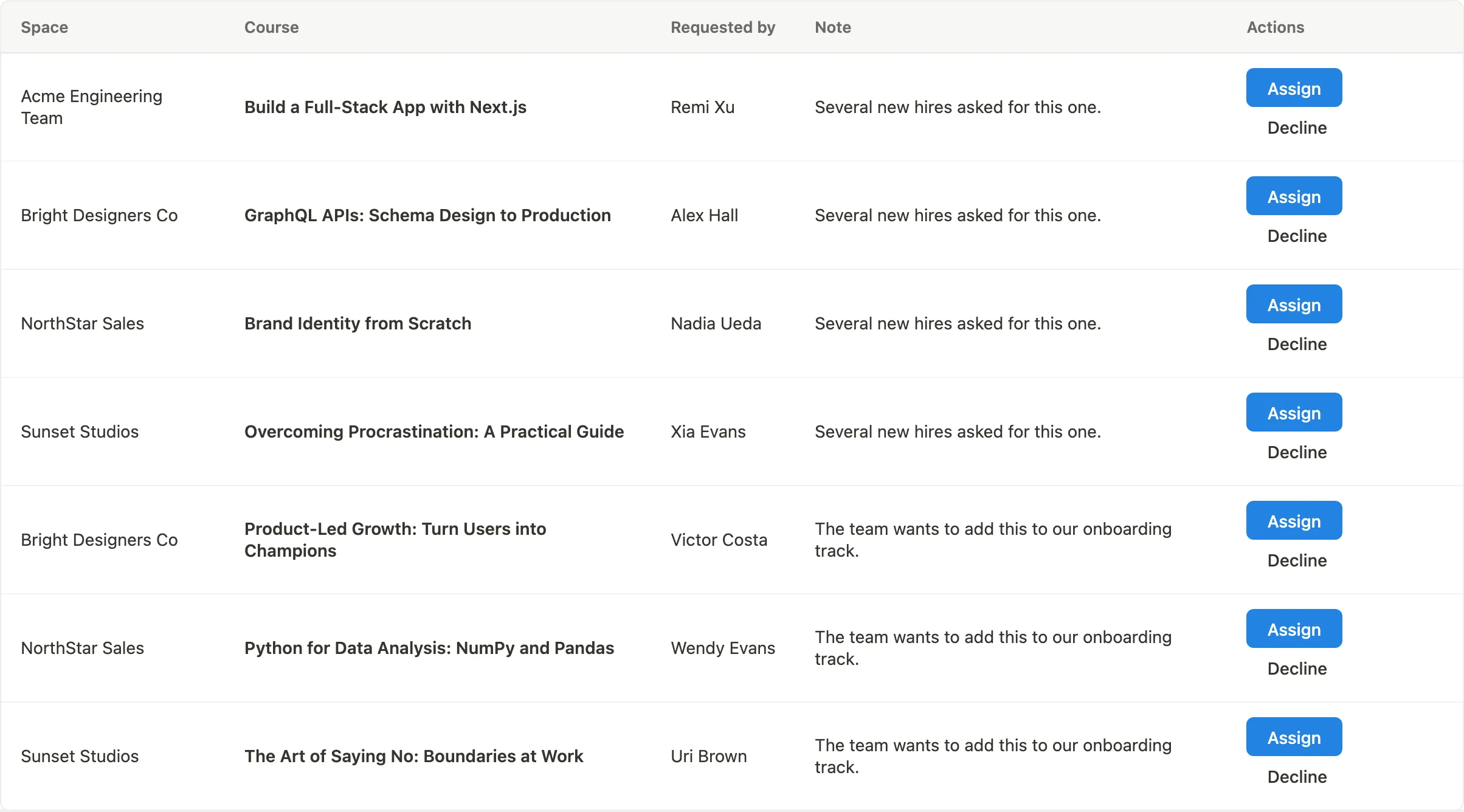
Click the notice to see the queue, where you can Assign or Decline each request individually.
Space seat packs
If you sell seat packs (bundles of additional student seats), manage them from LMS Commerce > Space Plans, on the Seat Packs tab (the page has two tabs, Plans and Seat Packs). This page appears under LMS Commerce only when your site sells seats.
The seat packs table shows each pack name, the number of seats it contains, the price, and its status. Use Add new to create a pack, and the row action menu to edit or delete existing ones.
Spaces can be configured to require a seat pack purchase. When a student attempts to join a space that has run out of seats, they are directed to buy more.
Subscriptions
Spaces support recurring subscriptions through whichever gateway your site checks out with: Stripe, or WooCommerce (with the WooCommerce Subscriptions extension active). When a subscription is active, it appears in the Subscription column of the spaces list. The cron job learnomy_pro_space_subscription_sweep runs daily to detect past-due or expired subscriptions and update space status accordingly. PayPal recurring subscriptions for space plans are planned for a future release.
The daily sweep processes cancelled subscriptions whose billing period has ended in bounded pages of 100 rows at a time, rather than one unbounded query, so a large backlog of expiring subscriptions is drained completely in one run instead of only the first batch being processed. Developers can change the page size with the learnomy_pro_space_expiry_batch filter (default 100).
Selling a subscription that only works inside a space
New in 1.9.4. A membership plan can be scoped to one Learning Space. Seat packs sell the space to the organisation; a space-scoped plan is the other shape of the same deal, where each person subscribes individually and their subscription is only worth anything while they are on that space's roster.
Scope a plan from the plan editor at LMS Commerce > Memberships, in the Learning Space field. The field only appears once at least one space exists, so a site not running spaces never sees a dropdown for a concept it does not have. See Membership Plans for the rest of the plan editor.
What that means on your side of the fence, as the person who runs the space:
- The roster is the access control. A subscriber on a space-scoped plan reaches the plan's courses only while they are a member of the scoped space. Add them to the space and the plan works for them; remove them and it grants nothing, even though their subscription is still live and still billing.
- It gates access, not the sale. Scoping does not stop somebody outside the space buying the plan, and does not hide it on your pricing page. Anyone who buys without being on the roster is paying for a plan that unlocks nothing until you add them. If the plan exists for one client, name it so that is obvious to everyone else looking at your pricing page.
- Onboarding is unchanged. The invite link, join requests, and the CSV import are still how people get onto the roster. The plan decides what they pay; the space decides what they can open.
Offering a space on the sign-up form
Asking to join only helps somebody who already has your space's link. If you want new students to find you while they are creating their account, turn on Offer this space on the sign-up form in the space's Joining options.
The space then appears by name on the student sign-up page. Nothing else is shown - no description, no course list, no member or seat numbers. A new student can tick any organisations they belong to, and each one becomes an ordinary join request for that owner to approve or decline. Nobody is added to anything by signing up.
It is off by default, and worth a moment's thought before turning it on. The name becomes visible to anyone who opens your sign-up page, including people who never register. That is fine for a school, club or training provider that wants to be found, and wrong for a company space whose existence is private. Leave it off for those; invite links and direct adding are unaffected.
Two details worth knowing:
- A space only appears if it also has Let people ask to join switched on. Listing a space that is closed to requests would show a choice that always fails.
- There is no site-wide switch in Settings, because the per-space option is already off by default - nothing appears on the form until somebody deliberately opts a space in. A developer who wants to refuse the whole feature regardless can return
falsefrom thelearnomy_pro_signup_picker_enabledfilter, which hides it and stops requests being created even if one is posted directly. - Up to twelve organisations appear as tick boxes. Past that the student gets a single dropdown instead: they type the first letters of a name to jump to it, and each one they choose is added to a short list underneath that they can remove from. There is no need to hold any key, and nothing they have already picked can be cleared by accident.
The member experience
Members visit /spaces/{slug}/ on the frontend to see their space. The page shows the space name and clickable course cards for every assigned course. Clicking a card takes the student directly to the course page.
Two things on that page are private by default, for the same reason: a space is usually a company's training group, so neither its headcount nor what it trains its people on is public information. Members and managers always see both.
- The member count is not shown to visitors. Turn on Show the member count to visitors in the space's options if you want it public -- a community space rather than a corporate one.
- The course list is not shown to visitors (new in 1.9.1). A non-member sees how many courses the space teaches, not which ones. Turn on Show the course list to visitors to make it public.
Before 1.9.1 the course list was always public, so a visitor saw the full curriculum with a View Course link on each card while being told to ask the owner for an invite. Nothing was ever accessible that should not have been -- those are published courses already in your catalog, and a non-member clicking through lands on the ordinary sales page -- but the space was naming what a company trains on to anyone with the URL. If you were relying on that page being public, turn the new option on.
The Space Owner dashboard
A space owner or space-wide manager has their own self-service dashboard at /spaces/{slug}/manage/, separate from the wp-admin space detail page. It is a set of widgets covering the day-to-day running of the space:
- Courses - the space's assigned courses, plus an Add a course search. An owner or manager can search and add a course themselves without asking an admin, but only from what they are entitled to: any free published course, or a course bundled in the space's plan. Admins can add any course from wp-admin as described above. If a wanted course isn't in the owner's entitlement, they can send a Request a course note to the site admin instead, and any pending requests show underneath.
- Members - add, remove, and manage member roles, the same actions available from the wp-admin Members tab.
- Groups - manage sub-groups when the space uses them.
- Reports - per-course enrollments, completions, average progress, and spend across the space's members. Click Export CSV to download the per-course breakdown as a spreadsheet.
- Billing, KPIs, Invite, and Announce widgets round out the dashboard with subscription/seat status, at-a-glance numbers, the shareable invite link, and a way to post an announcement to members.
Groups
A space can be split into sub-groups. A group is a sub-segment inside a space (a subject, a class, a department), and a member can belong to no group, one group, or several at once. A space with no groups behaves exactly like a flat space, so groups stay out of your way until you create the first one. You manage groups from the Groups tab on the space detail page (and space owners and managers can also manage them from the frontend manage page).
Groups let you assign a course to only certain members, and let you put a manager in charge of just one part of the space. They are covered in full on their own page.
See Space Groups for creating groups, adding members and managers to a group, assigning courses to a group, exclusive group-course access, and how course access combines across the space and its groups.
Space Manager role
A member with the Manager role helps run the space without needing WordPress admin access. There are two kinds of manager, and the owner picks which one per person:
- Space-wide manager: manages the whole space. They can add and remove members, change member roles, assign and remove courses, manage groups, and view reports for the space, like the owner but without owning it.
- Group-scoped manager: manages only the members and courses of their assigned group or groups. When they open the manage page they see only the groups they manage. They cannot create or delete groups, assign other managers, touch groups they do not manage, or change a course's access scope.
The Manager role is a member-row designation, not a WordPress capability. To make someone a space-wide manager, set their role to Manager on the Members tab. To make someone a group-scoped manager instead, add them as a manager of a specific group from the Groups tab. Scoping is enforced on every group action on both the frontend and the REST API. See Space Groups for the full detail.
Linking a Space to a community (with BuddyNext Pro)
If you also run BuddyNext Pro, a Space (or an individual course) can be linked to a BuddyNext community so that members join the community automatically. When someone is added to the Space or enrolls in the linked course, BuddyNext Pro adds them to the community; when they leave, it removes them from any community it created for the link.
This linking is a BuddyNext Pro feature. Learnomy does not manage communities itself. What Learnomy provides is the extension points BuddyNext Pro attaches to, so when both plugins are active you manage the link from Learnomy's own screens:
- A Community card on the Space detail page (admin), and on the public Space header, added by BuddyNext Pro.
- A community card in the single-course sidebar for a course-level link.
If BuddyNext Pro is not installed, these controls do not appear and the Space behaves normally. See the BuddyNext Pro documentation for how to create and manage the link.
Tips
- Deleting a space does not unenroll its members from courses. Enrollments persist after a space is deleted.
- Branded subdomains (for example,
acme.yourdomain.com) and per-space email templates are planned for a future release. - Bulk onboard is available: paste a list or upload a CSV of emails on the Members tab (
POST /spaces/{id}/members/bulk), or share the invite link / invite code. Seat limits are enforced on insert. - Owners and managers can download a compliance-style progress report as CSV from the space reports UI (
GET /spaces/{id}/reports/export). - The shareable invite link is a signed URL (HMAC-SHA256 with a 7-day expiry). No token is stored server-side; the expiry and signature are verified from the URL itself.
Automating space membership
Everything below works with an application password, so Zapier, Make, WP Fusion or your own code can drive it. There are two ways in, matching the two modes:
Add someone directly - POST /wp-json/learnomy-pro/v1/spaces/{id}/members
with user_email (or user_id) and an optional role. The person is added and
enrolled immediately, with no approval step. Requires permission to manage the
space.
Lodge a request for someone - POST /wp-json/learnomy-pro/v1/spaces/{id}/join-request
with user_email (or user_id) and an optional note. The request lands in the
owner's queue exactly as if the person had asked, and nobody is added until it is
approved. Requires permission to manage the space. Called with no user field it
lodges the request for whoever is authenticated, which is what the space page
itself does.
This is what makes a signup form work without Learnomy owning the form: let your form plugin create the WordPress account, then have it call one of the two endpoints with the new user's email. Use the second if a human should still approve.
Webhooks fire on both sides so an automation can react rather than poll. Subscribe under Learnomy Settings > Outgoing Webhooks. The space-related events are:
| Event | Fires when |
|---|---|
space.request_created |
Somebody asks to join (also fires for course and seat requests - read the type out of the payload) |
space.request_resolved / space.request_declined |
A request is approved or turned down |
space.member_added / space.member_removed |
Anyone joins or leaves, by any route |
space.member_suspended / space.member_resumed |
Access is paused or restored |
space.member_role_changed |
Somebody is made a manager, or returned to student |
space.course_assigned / space.course_removed / space.course_scope_changed |
What the space teaches, and who it is scoped to |
space.provisioned / space.seats_added |
A space is created from a plan, or buys more seats |
space.subscription_renewed / _past_due / _expired / _cancelled |
Seat billing - the events to drive dunning or deprovisioning |
space.trial_ended |
A trial finishes |
space.created / space.updated / space.deleted / space.status_changed |
Space lifecycle |
space_group.* |
Groups: created, updated, deleted, members added or removed, managers assigned or removed, courses assigned or removed |
Subscribing to a space event does not scope it to one space. Every subscriber receives the event for every space, and the payload carries the space id - filter on it in your automation if you only care about one customer.
Beyond spaces, the same screen publishes 140 events in total - the full
lifecycle of a course, lesson, quiz, enrolment, certificate, membership,
subscription and payout, plus cohort membership
(cohort.member_added and siblings), learning paths (learning_path.enrolled,
.completed, .purchased), milestones (milestone.earned / .revoked),
assignments (assignment.submitted, .graded, .resubmit_requested and the
authoring events), membership and subscription billing
(membership.renewed, membership.expired, membership.invoice_paid,
subscription.created, .past_due, .plan_changed, and the plan catalogue
under membership_plan.*), and money out (refund.issued, withdrawal.paid,
withdrawal.failed, payout.reversed, gift.issued, gift.redeemed).
A few things are deliberately not published, so the list stays usable: SCORM
progress commits, which fire many times per lesson and would bury everything
else, and the raw Stripe relays, because the normalised payment.* and
refund.issued events already describe the same facts once.
Every payload has the shape { event, timestamp, data }, where data is the
argument list of the underlying action.
For developers
The columns shown in the space members widget can be customised with the learnomy_pro_space_member_columns filter, which receives the current column list and the space ID. Use it to add or reorder columns in the member roster.
Learnomy exposes extension points on the Space screens so companion plugins (such as BuddyNext Pro, above) can add their own controls without modifying Learnomy:
learnomy_pro_space_front_header_end(action) fires at the end of the public Space header, passing the space and whether the current user is a member.learnomy_admin_space_detail_tabs(filter) lets a plugin add a tab to the admin Space detail page.learnomy_admin_space_detail_panels(action) renders the matching tab's panel, passing the space and the active tab key.
The single-course sidebar exposes learnomy_course_sidebar_card_footer (action, passes the course) for a course-level card in the same way.