
Managing Instructors
Free & ProThe Instructors list in wp-admin gives you a searchable, sortable view of every approved instructor on your site. Clicking an instructor opens a detail page with their full profile, the courses they teach, their earnings summary, and the application they originally submitted.
Overview
The Instructors list is at Learnomy > Instructors (?page=learnomy-instructors). Only users who have been granted the lrn_instructor role appear here. Pending applicants are in Learnomy > Applications, not in this list.
The Instructors List
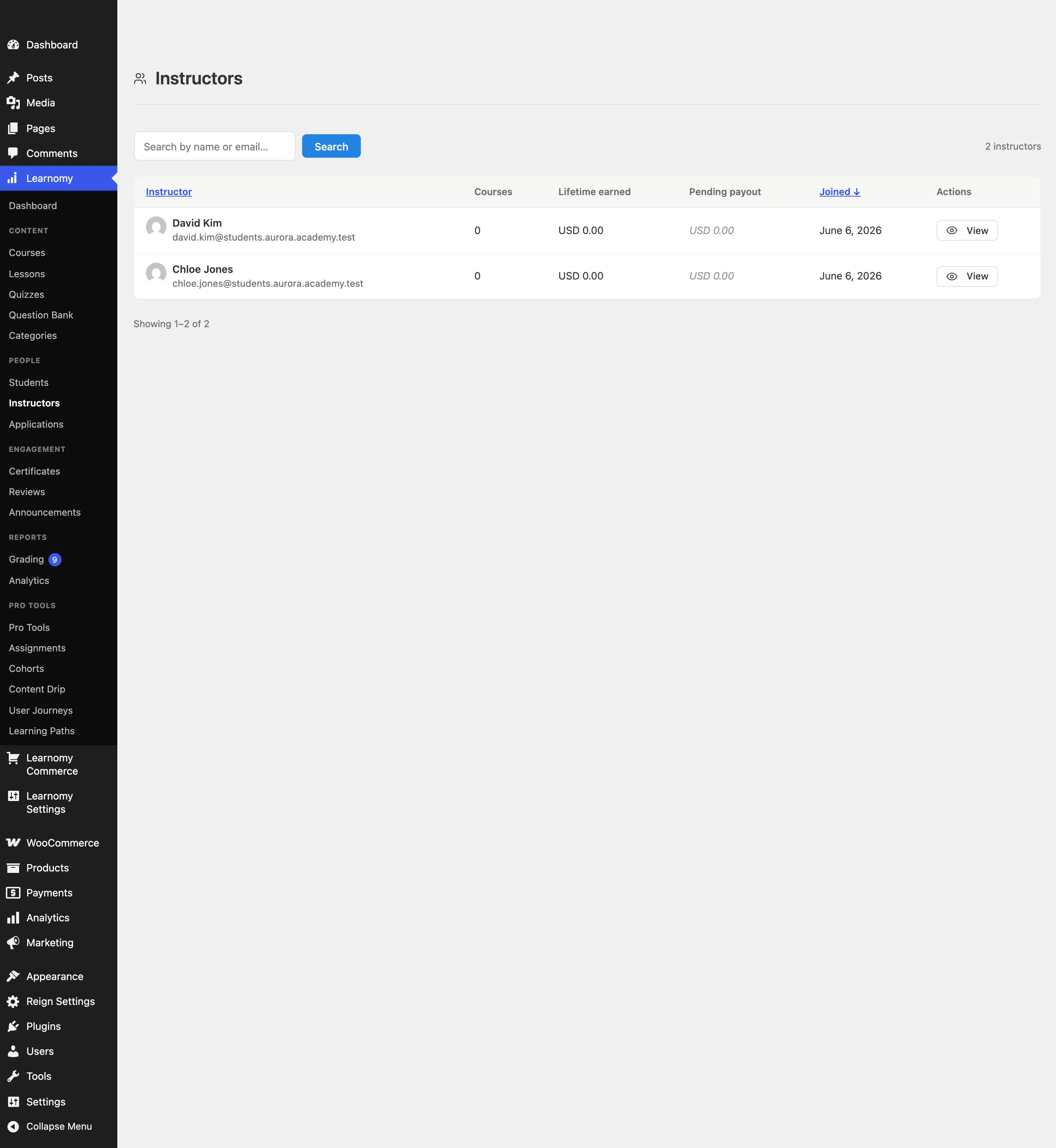
Header and search
The page header shows the Instructors title and the total count of instructors on your site.

Use the search field to find an instructor by name or email. Type your search term and click Search. Click Clear to remove the filter.
Table columns

| Column | What it shows |
|---|---|
| Instructor | Avatar, display name (links to the detail page), email, and headline |
| Courses | Number of courses they author or co-teach |
| Lifetime earned | Total instructor commission paid to date |
| Pending payout | Current balance awaiting a withdrawal request |
| Joined | The date their WordPress account was created |
The Instructor and Joined columns are sortable. Click the column heading to sort ascending; click again to reverse.
Each row

Click an instructor's name to open their detail page. The email address is a mailto link.
The list paginates at 20 rows per page. Navigation controls appear at the bottom.
Suspending an instructor
The Suspend action pauses an instructor. While they are suspended:
- they no longer appear in the public instructor directory, and their public profile page stops resolving
- their courses stop accepting new enrollments, and the enrol button on those courses is replaced with a short note
Everything else is left alone, on purpose:
- their courses stay published
- students already enrolled keep full access and keep their progress
- earnings already owed to them are unaffected, and any pending payout still stands
Suspended instructors show an amber Suspended badge in the list, and the row action becomes Resume. Suspension is fully reversible - resuming puts them back in the directory and reopens their courses to new enrollments.
You can still enrol somebody into a suspended instructor's course yourself, and the instructor can still see their own courses and earnings. Suspension is about who may start learning with them, not about locking anyone out of what they already have.
There is no "delete instructor" action. Removing the profile row would erase their biography and public details permanently while leaving their published courses and enrolled students exactly where they are, so the list would no longer show somebody who is still teaching on your site. If you need an instructor gone for good, suspend them first, then move or unpublish their courses and settle anything you owe them before removing the WordPress user account.
Instructor Detail Page
Click any instructor's name from the list to open their full detail page.
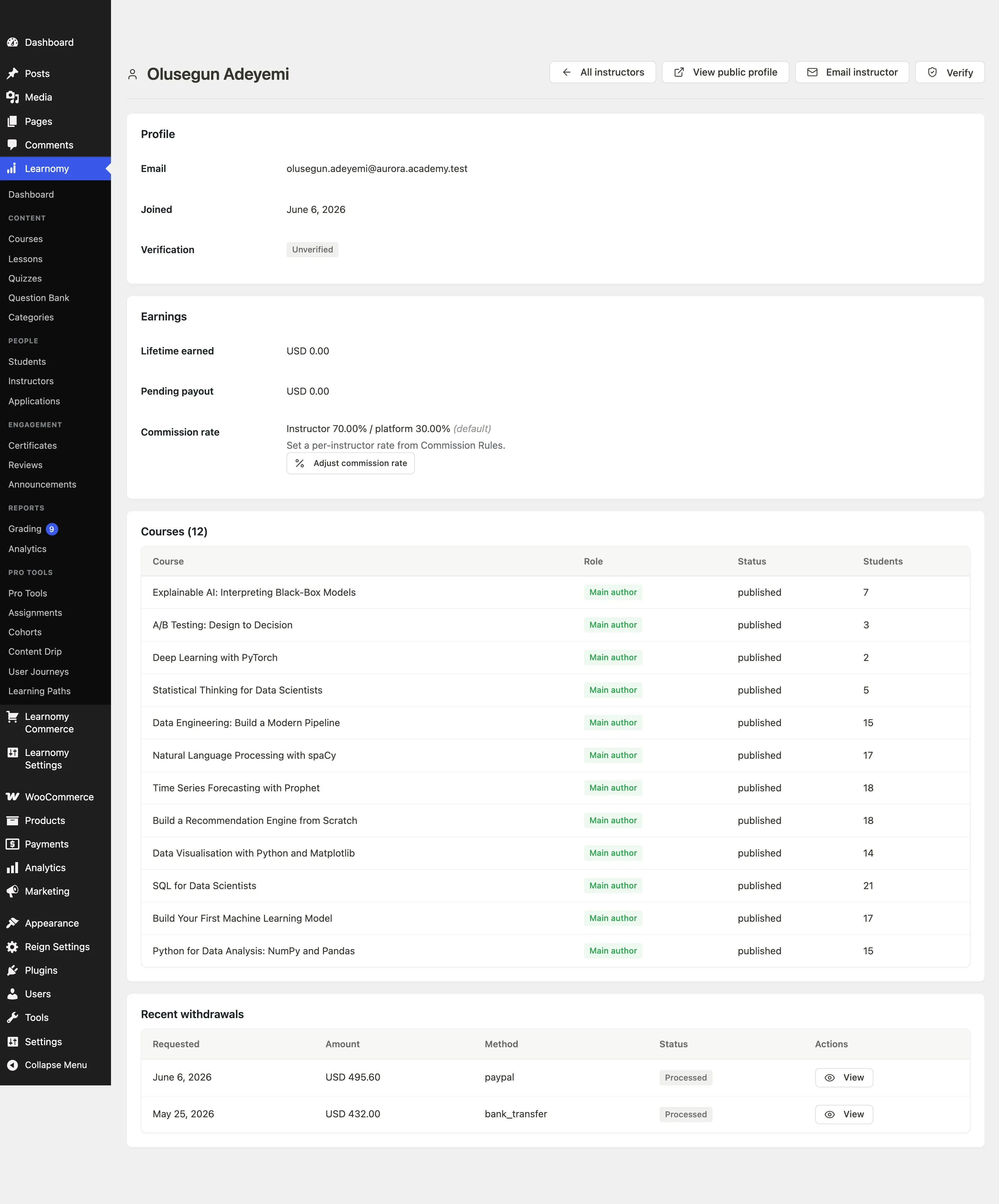
Page header actions
The header area contains several quick-access buttons:
- All instructors - Returns to the Instructors list.
- View public profile - Opens the instructor's public profile page in a new tab.
- Email instructor - Opens your email client with the instructor's address pre-filled.
- Verify / Unverify - Grants or removes the verified badge on the instructor's public profile.
If the instructor has a pending application, Approve and Reject buttons also appear here so you can act directly from the detail page.
Profile card

The profile card shows the instructor's email, join date, and any profile data they have filled in: headline, expertise, bio, location, website, Twitter handle, LinkedIn URL, and verification status.
Earnings card
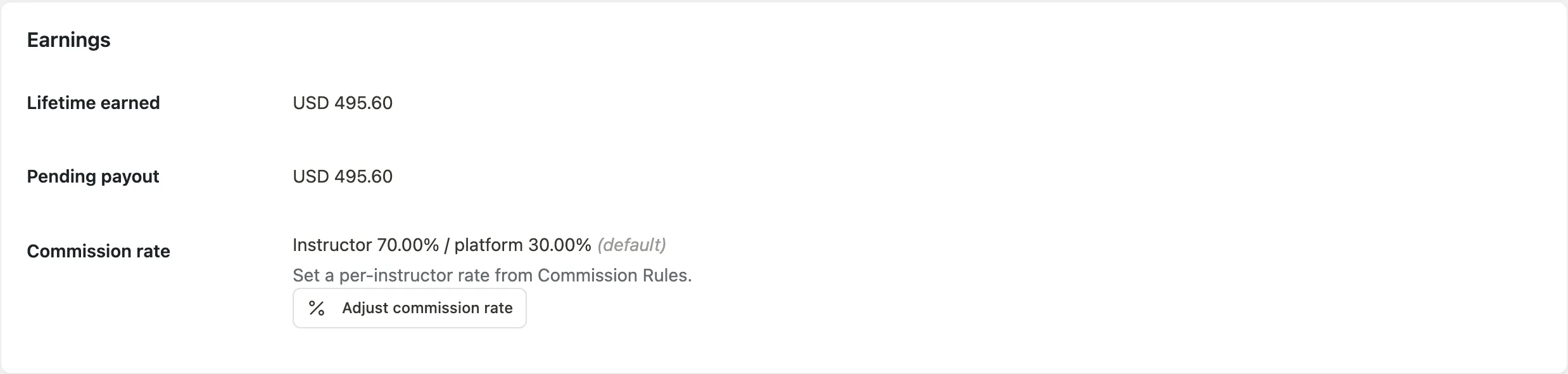
The earnings card shows:
- Lifetime earned - Total instructor share received to date.
- Pending payout - The current cleared balance waiting for a withdrawal.
- Commission rate - The effective rate for this instructor (instructor % / platform %). If an override rule applies, a Custom badge appears; otherwise it says (default).
On Free, per-instructor custom rates are not available. The note in the card explains how to set one if Pro is active. On Pro, an Adjust commission rate link goes directly to the Commission Rules section on the Earnings page.
Signup application
If the instructor submitted an application before being approved, a Signup application card appears below the profile and earnings cards.
It displays the original application data: status, submission date, expertise, teaching experience, bio, and course idea. A preferred payout method is shown if one was recorded on the application. If the application was rejected at some point, the rejection reason is also shown.
Courses table
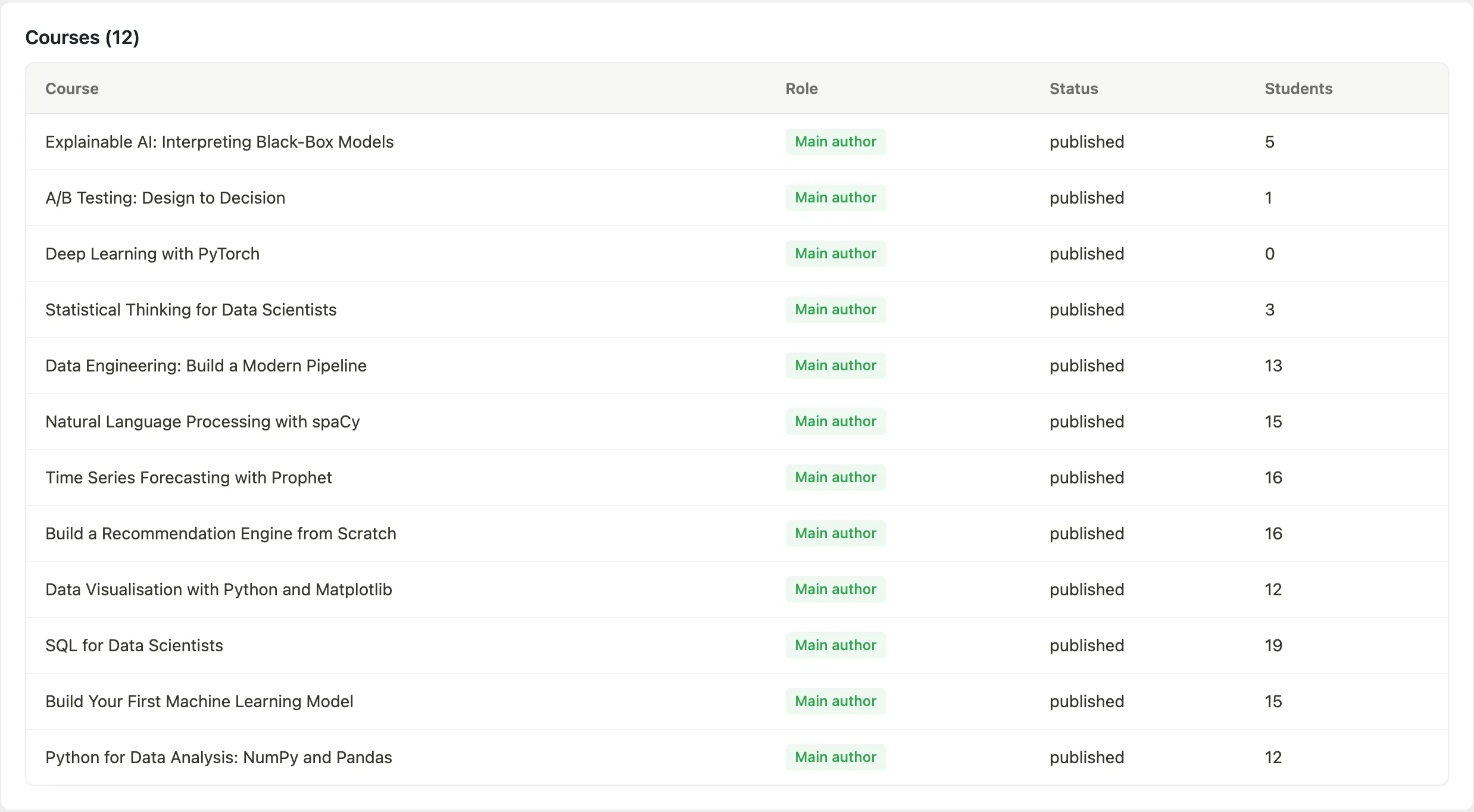
The courses card lists every course the instructor is involved with. Each row shows the course title, their role (Main author or Co-instructor), the course's published status, and its student count.
Recent withdrawals table
The withdrawals card shows the instructor's most recent withdrawal requests, each with the date requested, amount, payout method, and status.
Reassigning the lead author and adding co-instructors
You assign instructors from the course editor, not from the Instructors list. Open a course at Learnomy > Courses, click Edit, and scroll the main column to the Instructors card.
This card appears only when all of these are true:
- You are editing an existing course (it does not show while creating a new course).
- You are a site administrator. Instructors do not see this card, because reassigning the lead author and the revenue split is a site-owner decision.
- The Allow multiple instructors per course site setting is on. It is off by default. Turn it on under Learnomy Settings.
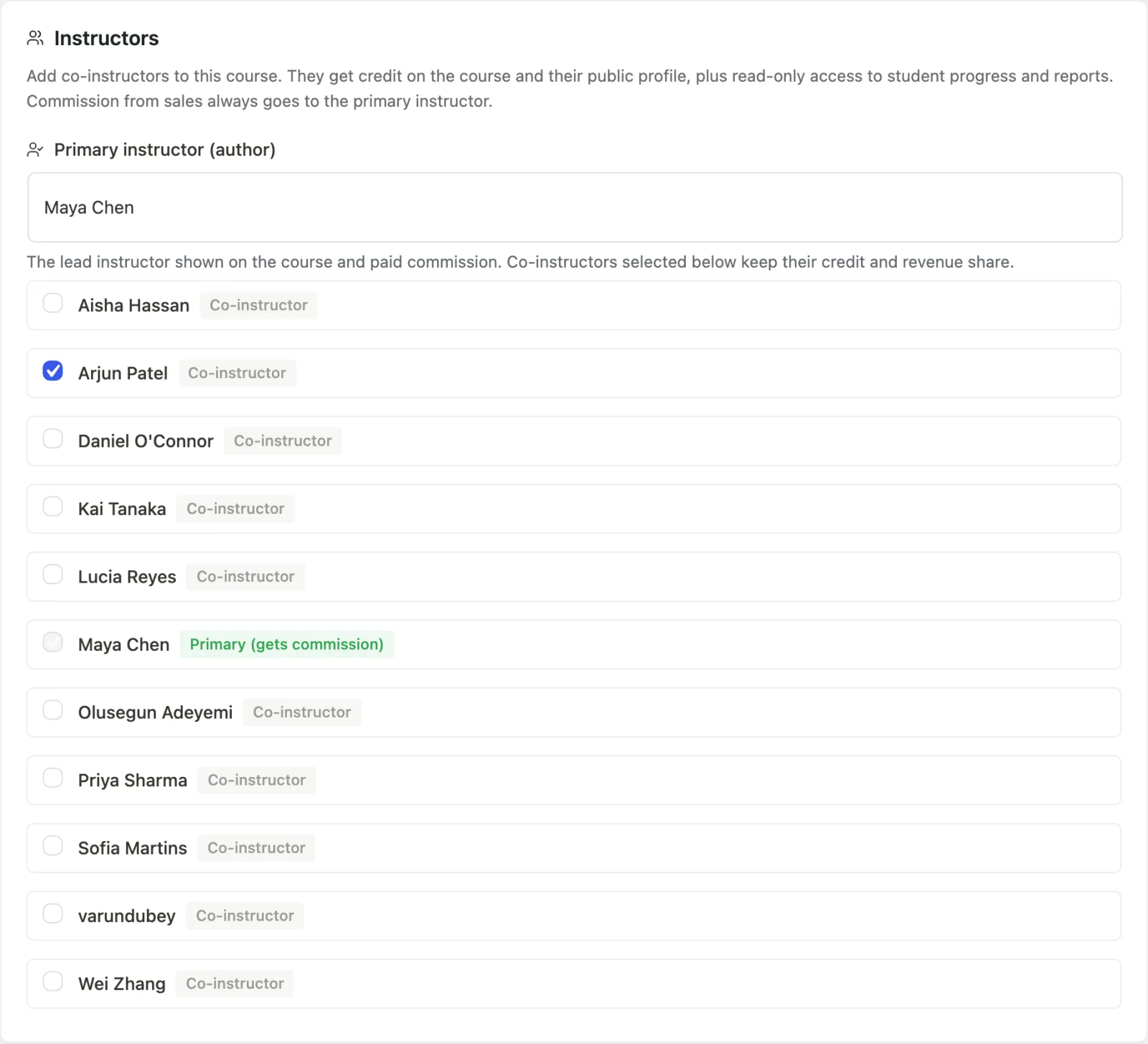
Reassign the lead author
The lead author is the course owner. They are shown on the course, and all sales commission goes to them.
- Open the course and go to the Instructors card.
- In the Primary instructor (author) dropdown, choose the person who should own the course. The list shows approved instructors and administrators.
- Click Update Course at the top of the sidebar to save.
Use this when you build a course on behalf of a presenter and then hand it over: the chosen user becomes the primary instructor and the commission recipient.
Add a co-instructor
Co-instructors get credit on the course and on their public profile, plus read-only access to student progress and reports. Commission from sales still goes only to the primary instructor.
- In the Instructors card, find the list of people below the primary dropdown.
- Tick the checkbox next to each person you want to add as a co-instructor. Each row shows a Co-instructor badge; the lead author's row shows a Primary (gets commission) badge and is locked so it cannot be unticked.
- Click Update Course to save.
On large sites the list shows the first 200 instructors. If the person you need is not shown, use the Instructors screen to confirm their account, then return to the course editor.
Deleting an instructor
Learnomy does not have its own "delete instructor" button. You remove an instructor's WordPress account the normal way, from Users > All Users in wp-admin, and Learnomy reacts to that deletion automatically.
- Go to Users > All Users and select the instructor's account for deletion.
- WordPress asks what to do with content owned by that user. You can attribute it to another user or leave it for Learnomy to reassign (see below).
- Confirm the deletion.
What happens to their courses
As soon as the account is deleted, Learnomy reassigns every course the instructor owned (as primary author) or co-taught to a real user instead of leaving the course showing "Unknown":
- If you chose to attribute the deleted user's content to another user on the WordPress delete-user screen, courses go to that user.
- Otherwise, courses go to whichever administrator performed the deletion.
- If the deletion happened without a logged-in admin (for example, via WP-CLI), courses go to the site's first administrator account.
A one-time notice appears in wp-admin confirming how many courses were reassigned and to whom. The reassignment covers both the course's primary-author record and any co-instructor credit the deleted user held.
If you would rather show a custom label than the site name for any courses that still show no instructor, use the learnomy_unknown_instructor_label filter.
add_filter( 'learnomy_unknown_instructor_label', function( $label, $course ) {
    return 'Learnomy Academy';
}, 10, 2 );
What else is removed
Deleting the WordPress account also removes the instructor's own learner data if they had any: quiz attempts, certificates earned as a student, enrollments, reviews, and progress records. Their instructor earnings and course data are not part of this cleanup - only the courses are reassigned as described above.
What an instructor sees in wp-admin
The Courses, Lessons, Quizzes and Question Bank lists show an instructor their own work. "Their own" means two things, and both count:
- Anything they created, wherever it lives.
- Anything on a course they manage, whoever created it. If you add a final exam to an instructor's course yourself, it appears in their Quizzes list, because they are the person answering for it.
The course filter dropdown on those lists offers exactly the courses they manage, so it can never list a course with nothing in it or leave one out.
The Question Bank is the exception. A question does not belong to a course - it can be used in any quiz on the site - so the bank is scoped to the person who wrote each question. An instructor sees their own questions, and administrators see all of them.
Who counts as managing a course is the lead author, plus any co-instructor
you marked Primary. Ordinary co-instructors get credit and read-only
reporting, not management, unless your site opts in with the
learnomy_co_instructor_can_manage filter (see
Commissions and Earnings for the credit side).
Administrators always see everything.
Tips
- The verification badge is a trust signal on the instructor's public profile. It does not affect their wp-admin access or commission rate.
- When an instructor is approved via the Applications queue, they appear in the Instructors list immediately.
- An instructor can be a main author on some courses and a co-instructor on others. Both show up in the courses table.
- Only the primary instructor receives commission. Co-instructors get credit and read-only reporting access, not a payout.
- Deleting an instructor's account is permanent. If you only want to stop them from managing courses, consider changing their role instead of deleting the account.