
Building a Quiz
Free & ProQuizzes let you test what students have learned. You can attach a quiz to a specific lesson inside a course, place it at the end of a course section, or create a standalone quiz that lives at its own URL.
Overview
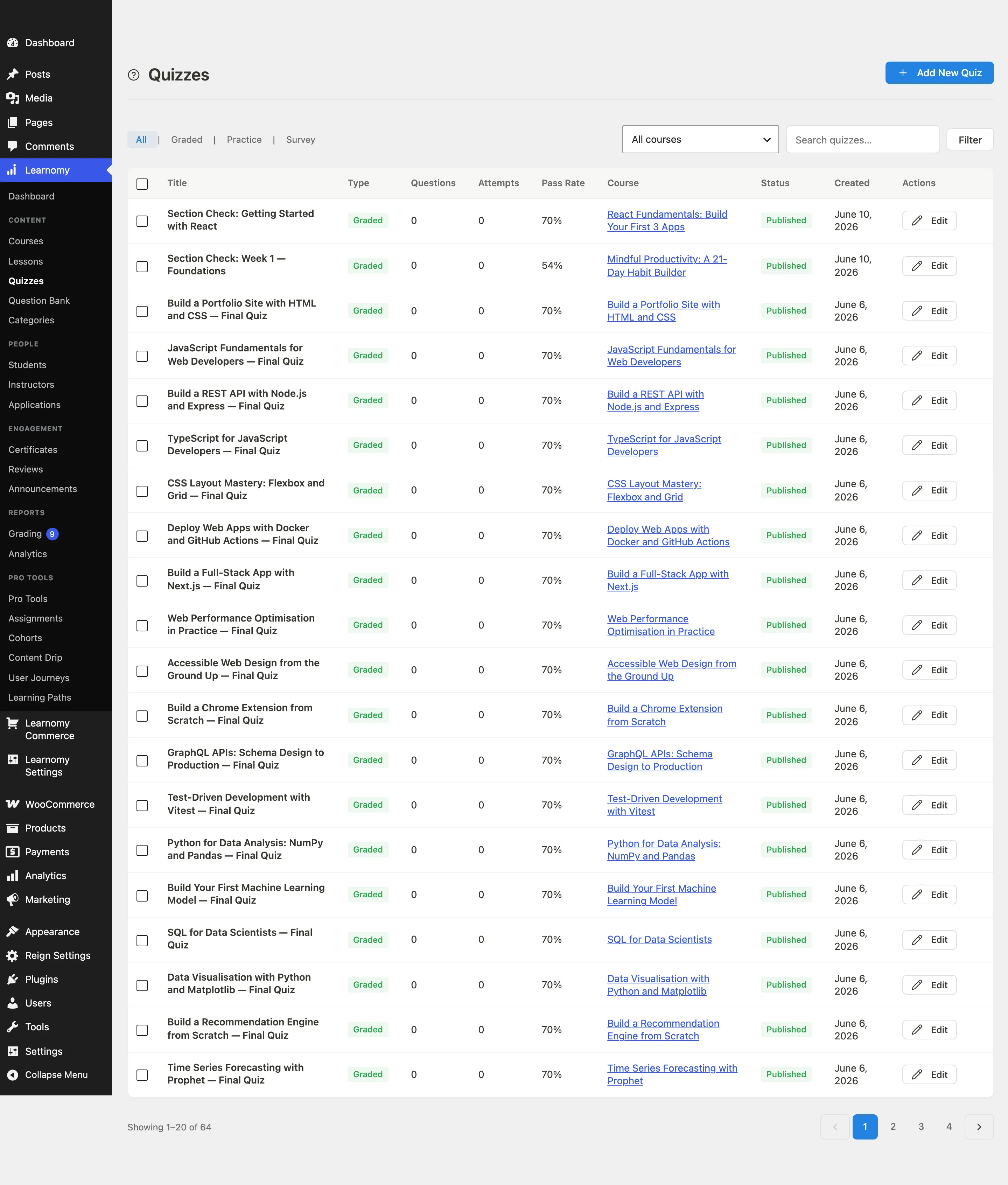
Quizzes live under Learnomy in your WordPress admin sidebar. Go to Learnomy > Quizzes to see all your quizzes and Learnomy > Question Bank to manage the questions that populate them.
A quiz is a container. Questions are stored separately in the Question Bank and added to a quiz through "slots". This means one question can appear in multiple quizzes, and editing a question updates it everywhere.
Creating a quiz
Go to Learnomy > Quizzes.

Click Add New Quiz in the top-right corner. The quiz editor opens.
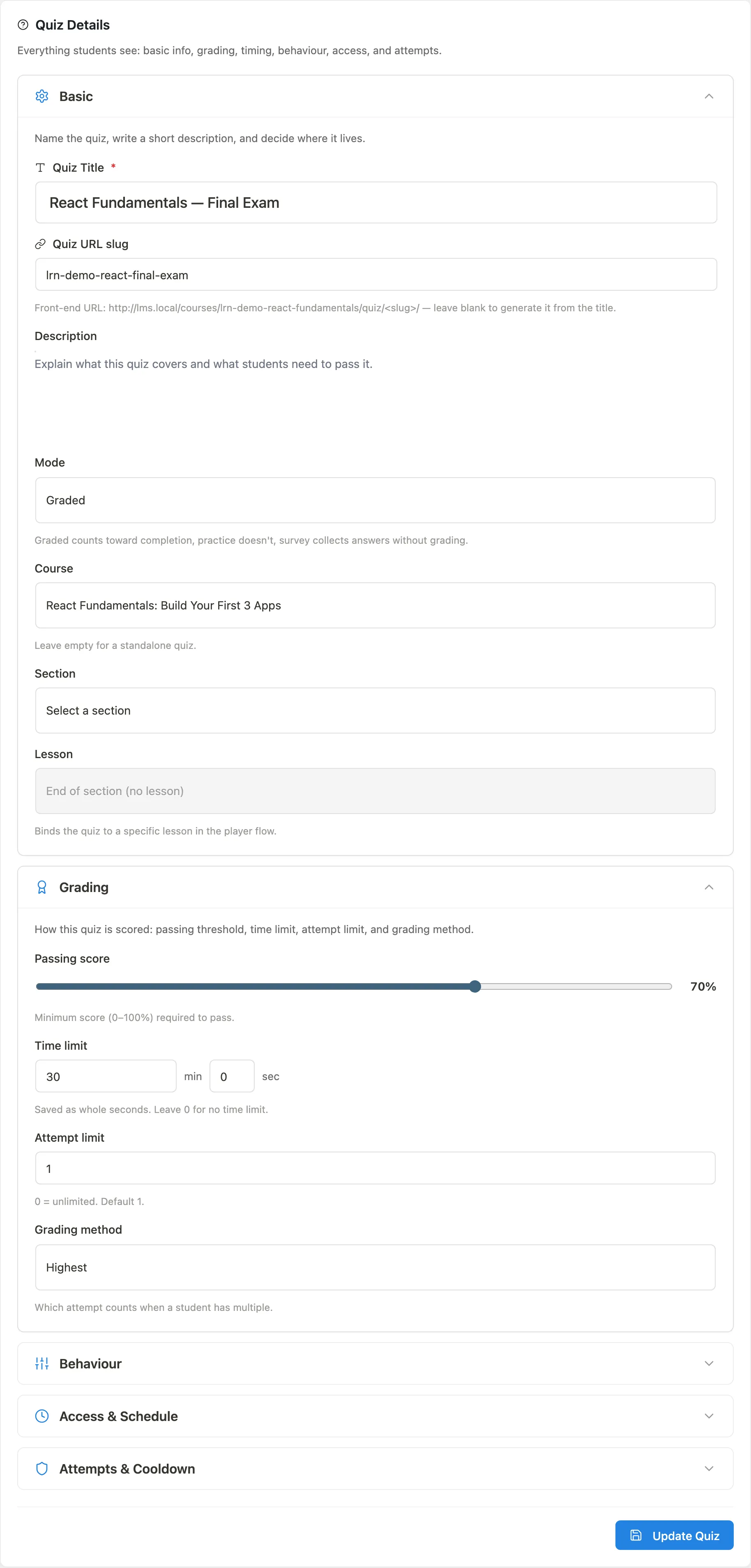
Enter a Quiz Title. The URL slug is generated from the title automatically. You can override it in the Quiz URL slug field -- use lowercase letters, numbers, and hyphens only.
Write an optional Description using the rich text editor. Students see this on the start screen before they begin.
Choose a Mode:
- Graded -- scores the quiz and counts toward course completion. This is the default.
- Practice -- students can take it freely without it affecting their progress.
- Survey -- collects answers without grading them.
Click Create Quiz to save. The quiz is created in Draft status, hidden from students until you publish it.
Attaching a quiz to a course
A quiz can be standalone (accessible at /quiz/<slug>/) or attached to a course. To attach it:
- In the quiz editor, open the Basic section.
- Select a Course from the dropdown. The Section dropdown becomes active.
- Select the section the quiz belongs to.
- Optionally select a Lesson to tie the quiz to a specific lesson.
If you leave Course empty, the quiz is standalone and appears at /quiz/<slug>/.
Where the quiz appears
The Lesson field decides where students see the quiz, so pick it deliberately:
| Lesson field | Where the quiz appears |
|---|---|
| A specific lesson | Indented directly under that lesson in the course outline and in the player sidebar, and as a "Take quiz" prompt at the end of that lesson. |
| End of section | After every lesson in its section, in both the course outline and the player sidebar. |
| No course selected | Standalone, at its own URL. Not listed in any course outline. |
A quiz attached to a course but to no section appears under Final assessment, after the last section. That is the right place for a final exam.
If you later set the bound lesson back to draft, or move that lesson to another section, the quiz falls back to the end of its section rather than disappearing. It stays visible so you can re-point it.
Adding questions via slots
The Questions card is available right away -- you do not need to save the quiz first. It sits below the settings, whether you are creating a new quiz or editing an existing one.
- Enter the Quiz Title at the top of the editor. If you have not saved the quiz yet, the title is the only thing required before you can start adding questions.
- Click Add questions from bank. A picker modal opens, showing your existing questions. Use the search field or type filter to find what you need.
- Check one or more questions and click Add selected.
- If the quiz has not been saved yet, Learnomy saves it automatically at this point (using the title and whatever settings you have filled in so far), then attaches your selected questions in the same step. There is no separate save-and-reopen round trip.
- If the quiz is already saved, the selected questions are attached immediately.
- The questions appear as a numbered slot list. Drag the handle on the left of any row to reorder them.
- Each slot has a Marks field. Click the field in the row to change the point value for that question in this quiz (this does not change the question itself).
- To remove a question from the quiz, click the trash icon on its row.
To create a new question directly from the quiz editor, click Create new question. It opens the question editor in a new tab. When you return and refresh the picker, the new question is available.
Quiz settings
Open the Settings card to configure all quiz behaviour. Settings are grouped into collapsible sections.
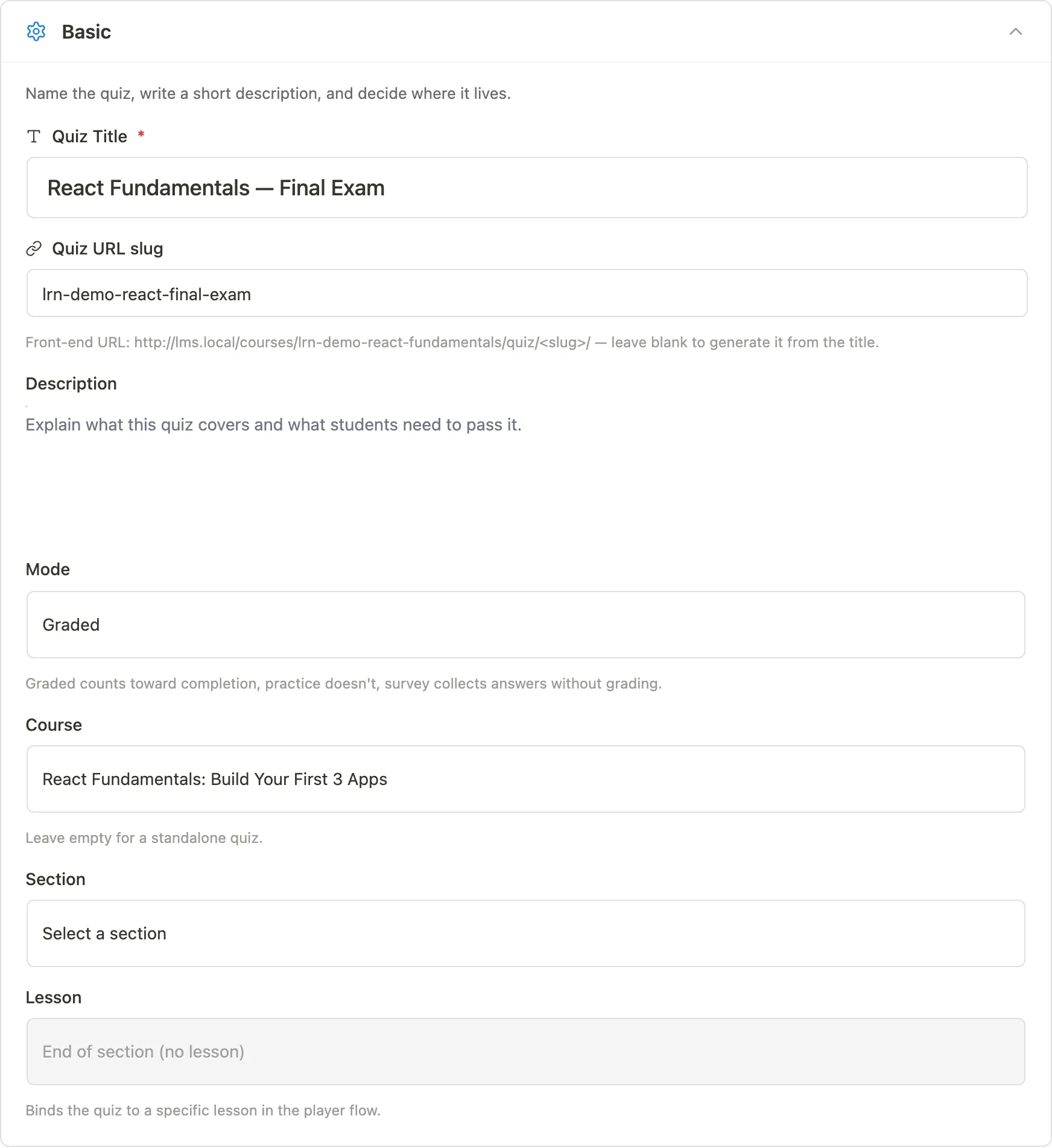
Grading section
| Setting | What it does |
|---|---|
| Passing score | Slider from 0 to 100%. Default is 70%. Students who score at or above this threshold pass the quiz. |
| Time limit | Enter minutes and seconds. Leave at 0 for no time limit. The timer is shown to the student during the quiz. |
| Attempt limit | How many times a student can take the quiz. 0 means unlimited. Default is 1. |
| Grading method | Which attempt counts when a student has multiple: Highest, First, Latest, or Average. |
Behaviour section
| Setting | What it does |
|---|---|
| Shuffle questions | Randomises question order on each attempt. |
| Shuffle answers | Randomises the order of answer choices. |
| Navigation | Free lets students jump between questions. Sequential shows one question at a time and does not allow going back. |
| Feedback timing | Controls when students see correct answers and per-question feedback. See the table below. |
Feedback timing options:
| Option | Student experience |
|---|---|
| After submit | Full feedback after the whole quiz is submitted. |
| After each question | Feedback shown immediately after each question is answered. |
| Immediate | Feedback shown the moment an answer is chosen. |
| After attempt finalizes | Feedback held until the attempt is fully graded (relevant for quizzes with essay questions). |
| Only after passing | Students who pass see full feedback; those who fail see score only. |
| Never | Answers stay hidden. |
Display template
Choose how the quiz looks to students. Two templates are free; three require Learnomy Pro.
| Template | Description | Availability |
|---|---|---|
| Focused | One question at a time. Good for high-stakes quizzes. | Free |
| Classic | All questions on one scrollable page. | Free |
| Sectioned | Questions grouped into named sections. | Pro |
| Conversational | Chat-style one-question flow. | Pro |
| Review board | Full-page grid with a jump-to-question map. | Pro |
Access and Schedule section
| Setting | What it does |
|---|---|
| Access code | Students must enter this code before starting. Leave blank for no gate. |
| Opens at | Students see the quiz but cannot start until this date and time. |
| Closes at | No new attempts are accepted after this date and time. |
| Status | Draft hides from students. Published makes it visible. Archived keeps it accessible to enrolled students but removes it from search. |
Attempts and Cooldown section
| Setting | What it does |
|---|---|
| Cooldown between attempts | Minutes a student must wait after submitting before they can start again. |
| Max failed attempts | Students who fail this many times are locked out until an instructor resets them. 0 means no lockout. |
These settings apply to everyone taking the quiz. To give one student an extra attempt without changing the cap for the rest of the cohort, use Grant 1 attempt on their profile - see Quiz attempt limits. A quiz with no cap does not appear there, because there is nothing to grant.
Tips
- The Questions card shows the total mark value across all slots. Review this before publishing so the passing score percentage translates to a sensible point threshold.
- A new quiz defaults to Draft status. Change the Status field to Published when you are ready for students to see it.
- Changing marks on a slot does not change the question -- it sets the value of that question in this quiz only. The same question can have different marks in different quizzes.
- If a quiz has essay questions, set feedback timing to After attempt finalizes so students do not receive partial results while grading is still pending.