
Content Drip
Pro featurePro feature. Available in Learnomy Pro.
Content Drip lets you schedule when individual lessons become available to students. Instead of releasing the entire course at once, you control the unlock timing lesson by lesson.
Overview
Content Drip is configured from the Pro Tools hub in the Learnomy admin. Select a course, then set a drip rule on each lesson you want to delay. Lessons without a rule are available immediately after enrollment.
Go to Learnomy → Pro Tools, then click the Content Drip card to get started.
Setting up a drip schedule
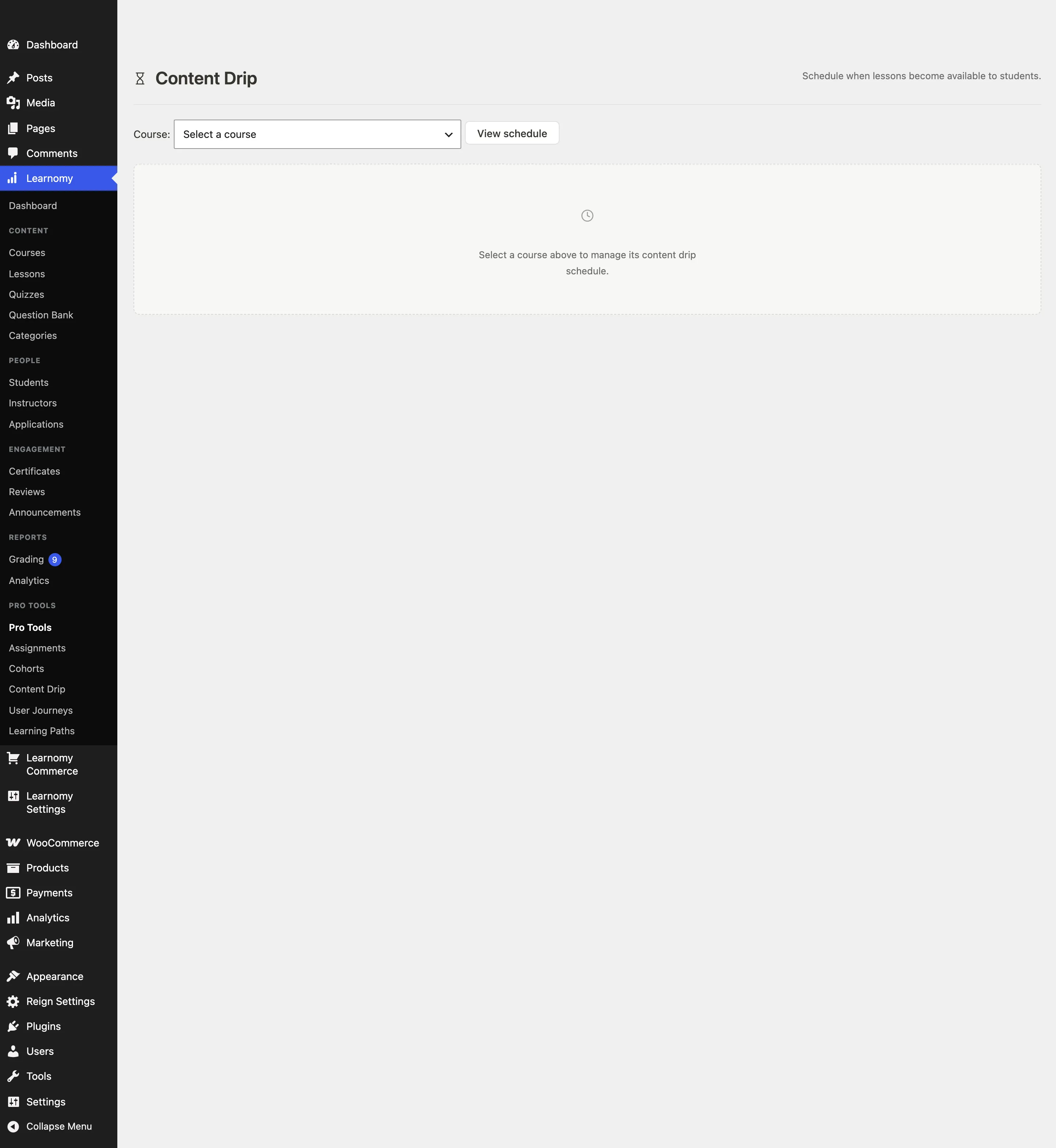
Step 1 -- select a course
The Content Drip page opens with a course selector at the top.

- Open the Course dropdown.
- Select the course you want to schedule.
- Click View schedule.
Step 2 -- review the lesson schedule
The lesson schedule table appears once you select a course.

The table has four columns:
- Lesson -- the lesson title.
- Drip Type -- the unlock rule in effect, or "Immediate" if no rule is set.
- Value -- the specific value for the rule (number of days, a fixed date, or a prerequisite lesson name).
- Status -- "Available" (no rule) or "Dripped" (a rule is active).
Step 3 -- set drip rules
Drip rules are created and updated via the REST API: POST /learnomy-pro/v1/courses/{id}/drip-rules.
The three rule types are:
| Drip Type | Value | When it unlocks |
|---|---|---|
| Days after enrollment | A whole number (for example, 7) | N days after the student enrolled in the course |
| Fixed date | A date (for example, 2026-09-01) | On or after the specified date, for all students regardless of when they enrolled |
| After completing lesson | Another lesson in the same course | As soon as the student marks the prerequisite lesson complete |
Each lesson can have at most one drip rule. Setting a new rule on a lesson replaces the previous one.
To remove a drip rule from a lesson, send DELETE /learnomy-pro/v1/drip-rules/{rule_id}.
The locked-lesson experience for students
When a student opens a course and a lesson is not yet unlocked by its drip rule, that lesson is inaccessible. In the curriculum list on the course page the lesson row shows a lock indicator. Clicking the lesson title does not open the player.
If the rule type is Days after enrollment or Fixed date, the lesson player shows the date when the lesson will unlock so the student knows when to return.
If the rule type is After completing lesson, the player tells the student which lesson they need to complete first.
Lessons with no drip rule, or whose rule conditions are already satisfied, open normally.
How scheduling works
Whether a lesson is locked or unlocked for a given student is evaluated live against your drip rules every time they open the course, so it is always current.
At the moment a student enrolls, Learnomy also works out when each dripped lesson in that course will unlock for them, so it can fire the normal "lesson unlocked" notification at the right time. On a large enrollment -- a bulk CSV import or a cohort with hundreds of members enrolling into a course with many dripped lessons -- computing and writing that schedule for everyone at once could slow down the enrollment request itself. To avoid that, this step runs in the background via Action Scheduler immediately after enrollment, instead of inline as part of it, and writes the schedule in a single batch. Enrollment completes at normal speed regardless of how many lessons are dripped or how many students are enrolling at once.
Notes
- Content Drip rules apply to enrolled students only. Non-enrolled visitors and admins can always access all lessons regardless of drip rules.
- The prerequisite rule type checks whether the prerequisite item (lesson or quiz) has a completed progress record. Graded attempts count as completed for quizzes.
- The "Days after enrollment" calculation is based on the student's enrollment timestamp in UTC. A student who enrolled at 11 PM will have their Day 1 unlock happen at the same clock time the following day.
- Drip rules survive course updates. If you change a lesson's title, its existing drip rule is unaffected.
- There is no bulk-assign tool in the current admin view. To schedule many lessons at once, use the REST API with a scripted loop.