
Cohorts
Pro feature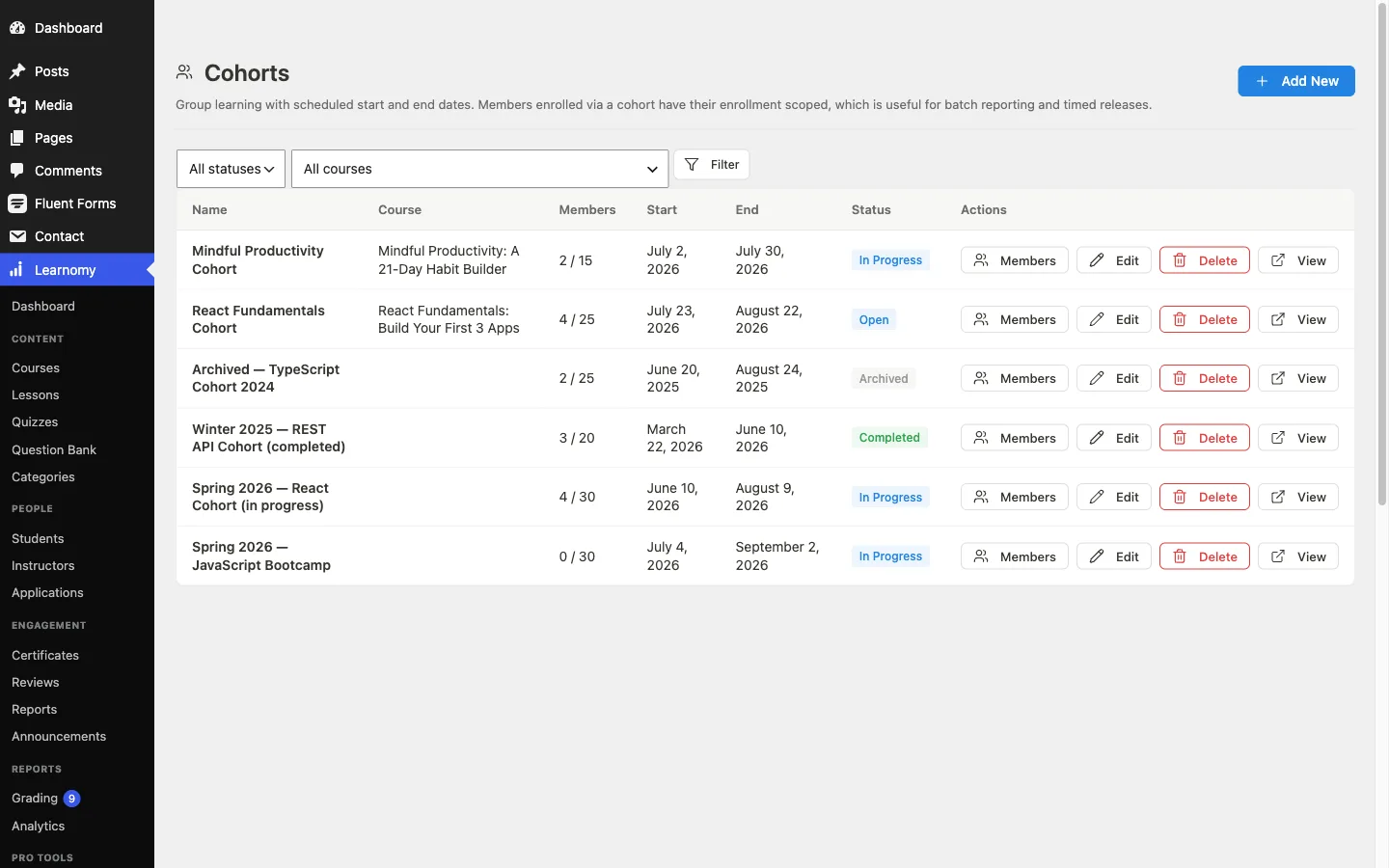
🔶 Pro feature. Available in Learnomy Pro.
Cohorts let you run the same course in scheduled batches. Each cohort is tied to one course, has a fixed start and end date, and caps the number of seats. Students added to a cohort are auto-enrolled in the course, and their enrollment row records which cohort they belong to so you can filter and report on them as a group.
Overview
Go to Learnomy > Pro Tools > Cohorts to manage all cohorts. The page shows a table with each cohort's name, linked course, member count, start date, end date, and status.
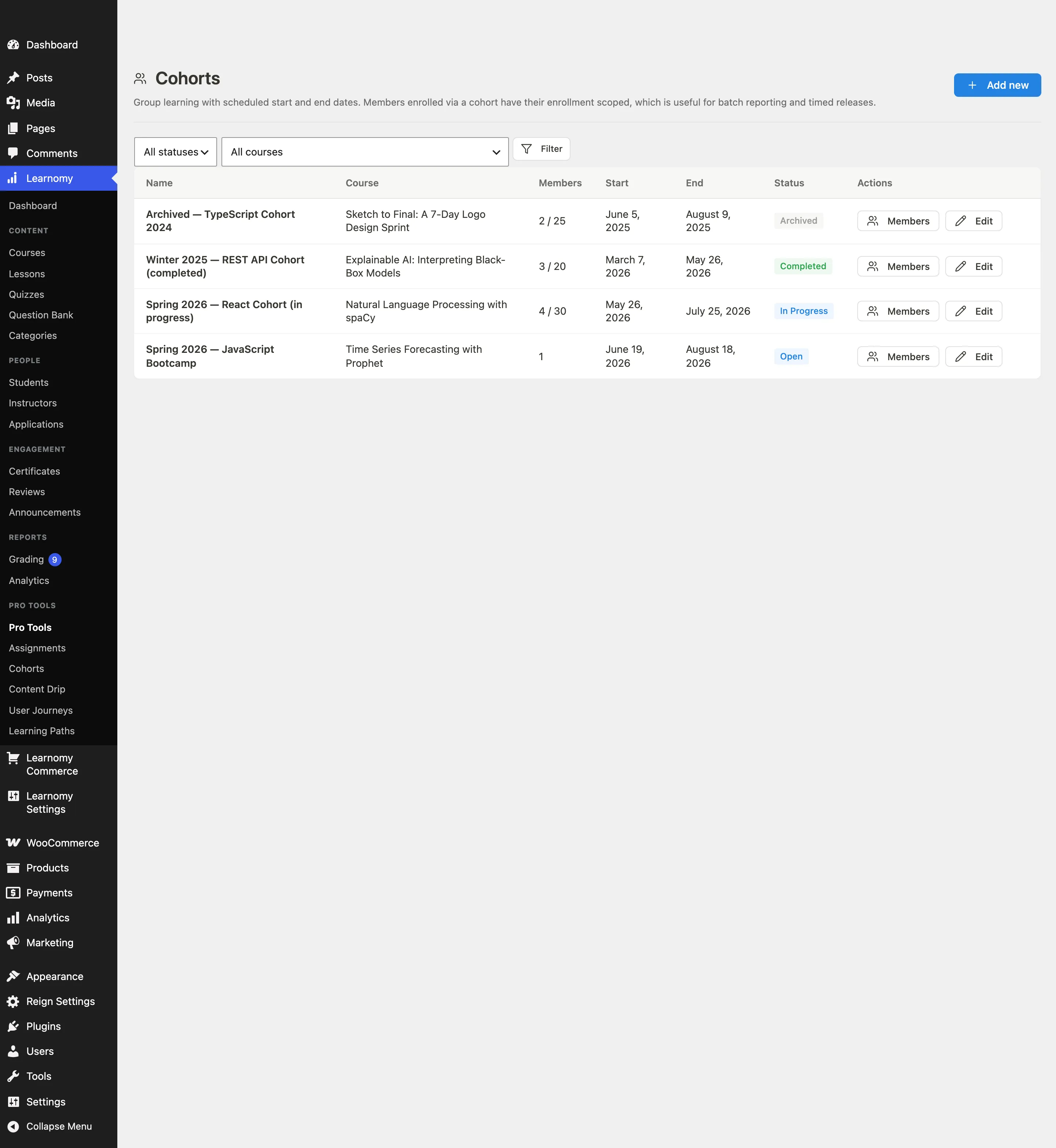
Cohort status can be one of: Draft, Open (accepting members), In progress, Completed, or Archived. Status transitions are manual in this release.
Creating a cohort
Click Add new in the top-right corner. The create form slides into view above the table.

Fill in the fields:
- Cohort name (required) - a label for this batch, for example "Spring 2026 cohort".
- Course (required) - select any published course from the dropdown.
- Start date and End date - optional calendar inputs. Leave blank if the cohort has no fixed schedule.
- Max students - defaults to 30. The wp-admin form accepts 1-999. (The REST API additionally accepts 0 for unlimited and does not enforce the 1-999 bound.)
- Status - set to Open (accepting members) when you are ready to add students. Newly created cohorts default to Draft.
Click Save cohort. The new cohort appears in the table immediately.
Adding and removing members
In the cohort table, click Members in the Actions column to open the members view for that cohort.
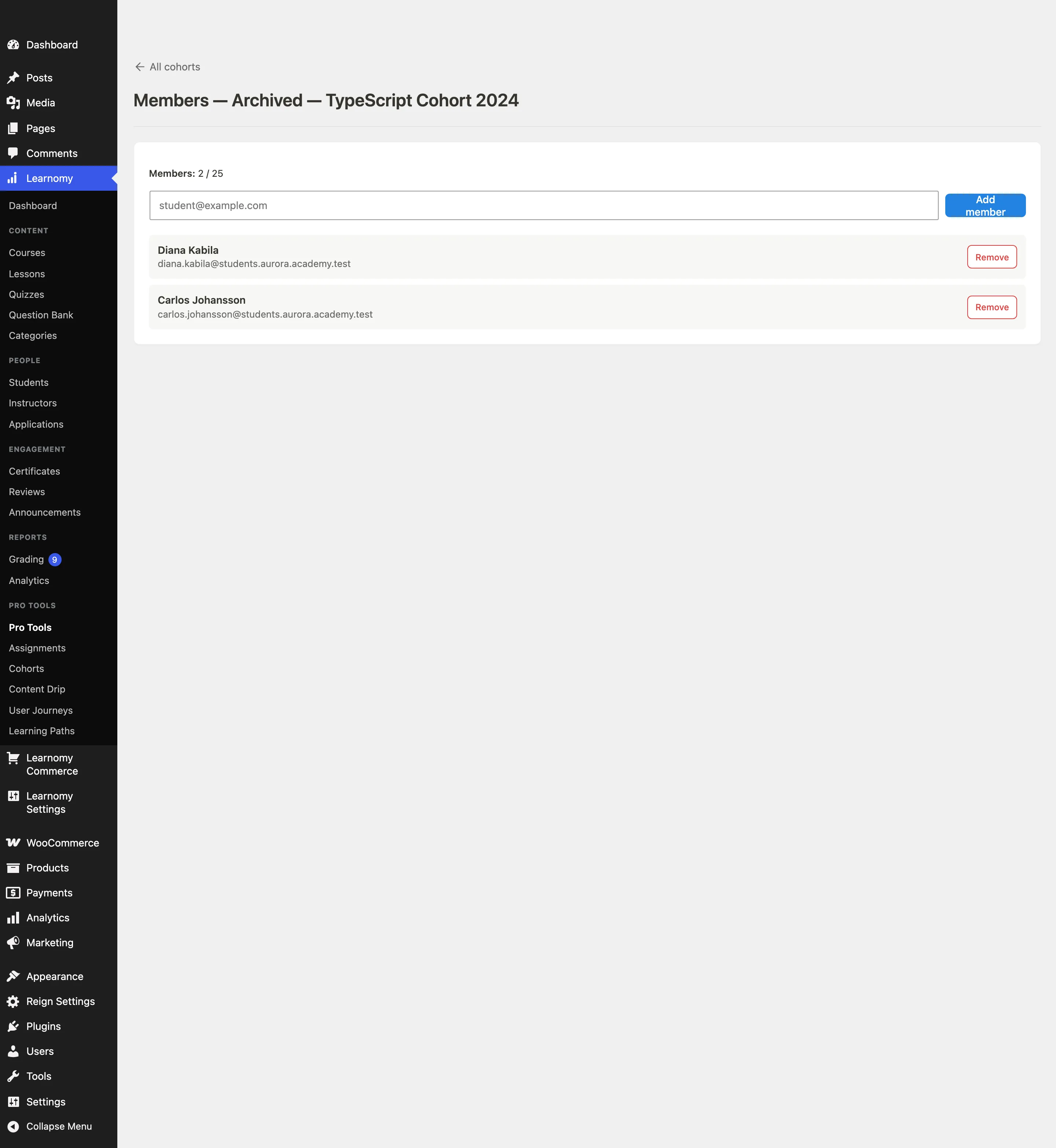
To add a student, type their email address into the Add member field and confirm. The student is added to the cohort and automatically enrolled in the cohort's course. Their enrollment row records the cohort ID.

To remove a member, click Remove next to their row. This removes them from the cohort but does not unenroll them from the course.
Bulk CSV import is not available in this release. Add members one at a time using the email lookup.
Editing a cohort
Click Edit next to any cohort row. The same form reappears pre-filled with the current values. Update the fields and click Save cohort to apply changes.
Deleting a cohort
Click the overflow menu (three-dot icon) in the Actions column and choose Delete. Deleting a cohort removes the cohort record and clears the cohort_id from any related enrollment rows. Students remain enrolled in the course.
Cohort progress
The REST API exposes an aggregate progress endpoint at GET /learnomy-pro/v1/cohorts/{id}/progress (available to cohort owners and admins). It returns the overall completion rate and a per-member status list. A UI for this view is planned for a future release.
The learner experience
Students enrolled via a cohort see the course exactly as any other enrolled student would. There is no separate cohort-facing page in this release. If a student visits /cohorts/{id}/ they see the cohort name, linked course, dates, and capacity; enrolled members also see a Continue Learning button.
Tips
- Status transitions are manual. When your cohort's start date passes, switch the status from Open to In progress yourself.
- The enrollment gate fires when status is set to a mode other than Open. If your course settings require cohort membership, students who are not in an Open cohort cannot self-enroll.
- Member counts and all list queries are paginated at the database level, so cohorts with thousands of members load at the same speed as cohorts with ten.