
Stripe Connect Payouts (Pro)
Pro featurePro feature. Available in Learnomy Pro.
Stripe Connect Payouts (Pro)
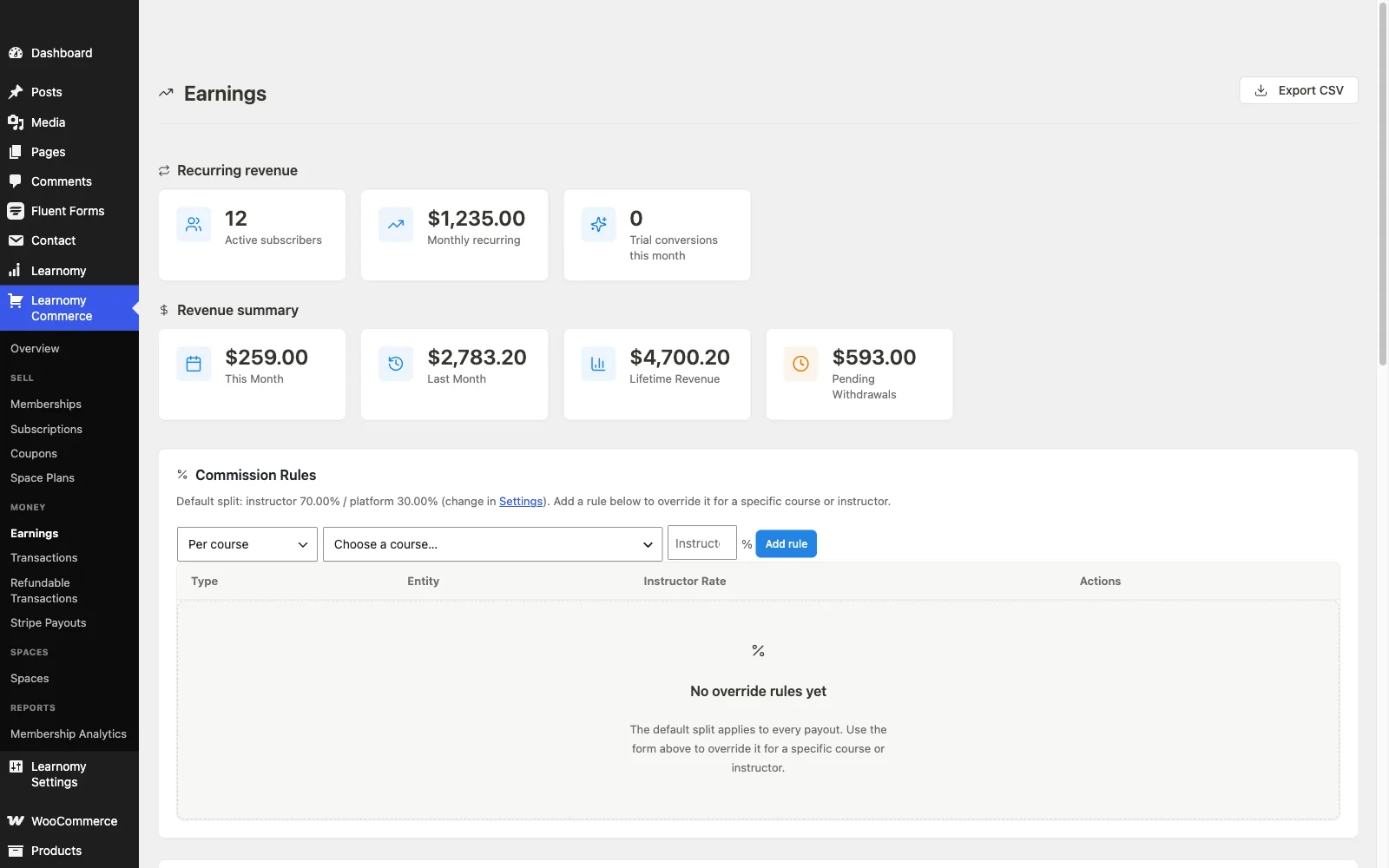
Stripe Connect lets Learnomy Pro automatically transfer instructor commissions directly to each instructor's own Stripe account. Instead of manually approving withdrawal requests and sending money through a third-party tool, payouts are triggered from wp-admin (or on a schedule) and land in the instructor's bank account via Stripe.
Overview
The Stripe Payouts page lives at LMS Commerce > Stripe Payouts (?page=learnomy-stripe-payouts). It has four sections: Connect Settings (API keys and payout policy), a summary stats row, a paginated payouts table, and an Outstanding Refund Debts panel.
Step 1: Configure Stripe Connect Settings
Before any instructor can connect or receive a payout, you need to configure the platform's Stripe credentials.
Open LMS Commerce > Stripe Payouts.
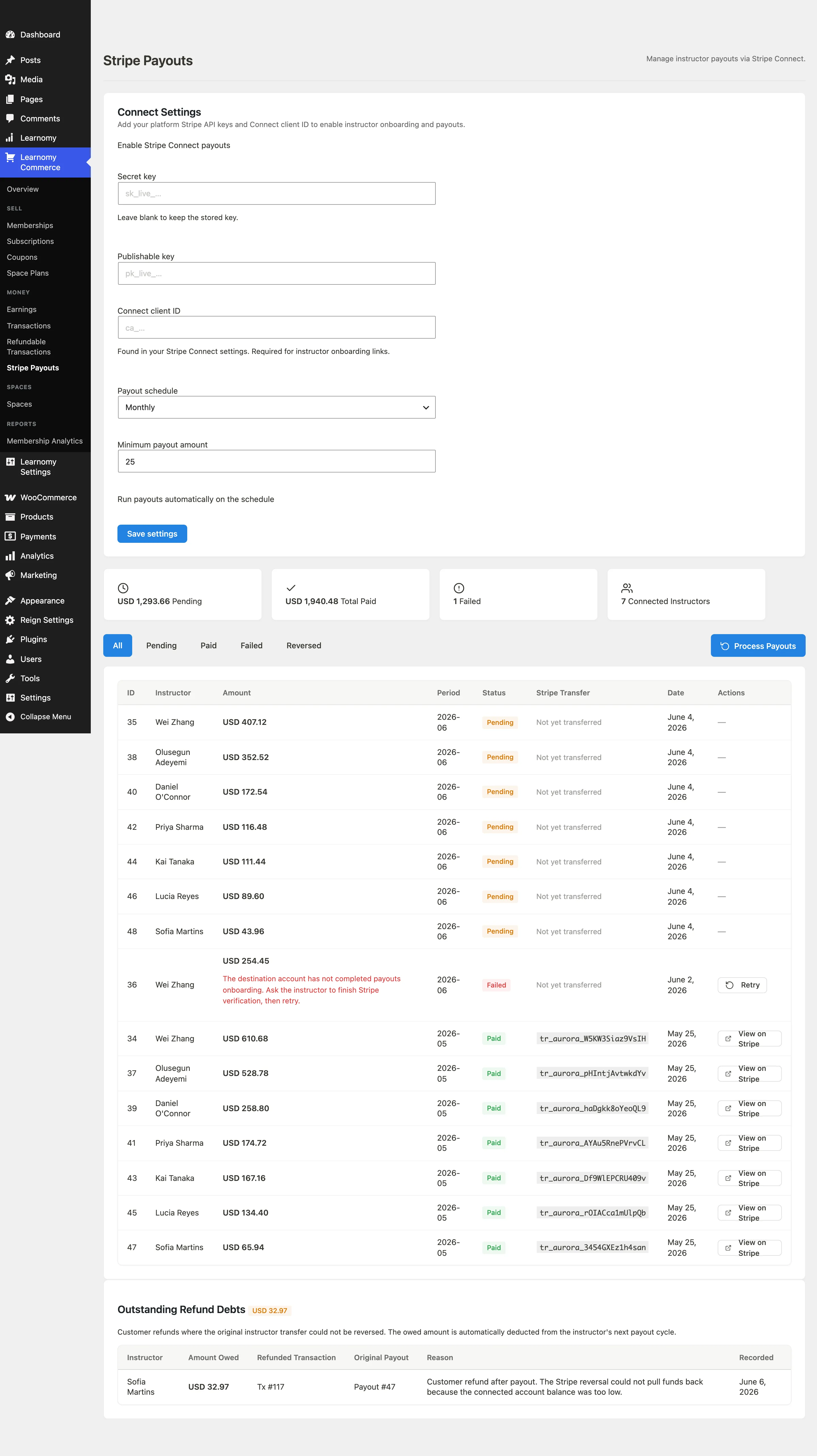
Find the Connect Settings card at the top of the page.
Check Enable Stripe Connect payouts.
Enter your Secret key (starts with
sk_live_orsk_test_).Enter your Publishable key (starts with
pk_live_orpk_test_).Enter your Connect client ID (starts with
ca_). This is found in your Stripe Dashboard under Settings > Connect.Set the Payout schedule: Monthly, Every two weeks, or Weekly. This controls how often automatic payouts run.
Set the Minimum payout amount. Instructors with a balance below this threshold are held until the next cycle.
Check Run payouts automatically on the schedule if you want payouts to fire without a manual trigger.
Click Save settings. A status confirmation appears next to the button.
When you leave an API key field blank and save, the previously stored key is preserved. Submitting the form does not wipe keys you did not re-enter.
Step 2: Instructor Onboarding (Connect Account)
Each instructor must connect their own Stripe account before they can receive automated payouts. The onboarding link redirects the instructor through Stripe's OAuth flow.
At the end of the flow, Stripe returns an authorization code. Learnomy exchanges the code for the instructor's Stripe account ID and stores it encrypted (libsodium + AUTH_KEY). The instructor is now connected.
Before any transfer is attempted, Learnomy checks the instructor's Stripe account status to confirm charges_enabled and payouts_enabled are both true. If Stripe requires additional KYC information, the payout is held and an error is recorded rather than producing a silent failure.
Summary Cards
Below the Connect Settings card, four summary cards give a live overview of payout activity.

| Card | What it shows |
|---|---|
| Pending | Total amount of pending payouts waiting to be transferred |
| Total Paid | Cumulative amount successfully transferred to instructors |
| Failed | Count of payouts that failed or were reversed |
| Connected Instructors | Number of instructors who have completed Stripe onboarding |
Processing Payouts
Manual trigger
Click Process Payouts in the toolbar above the payouts table. The button shows a loading state while the transfers run. A live status region announces the outcome to screen readers.
Processing finds all instructors with unpaid commissions above the minimum payout threshold, creates a Stripe Transfer to each connected account, and records the result.
Automatic schedule
When Run payouts automatically on the schedule is enabled, Learnomy runs the same process automatically according to the configured cadence (monthly, every two weeks, or weekly). The automatic run skips the cadence check if a manual run was triggered during the same period.
The Payouts Table
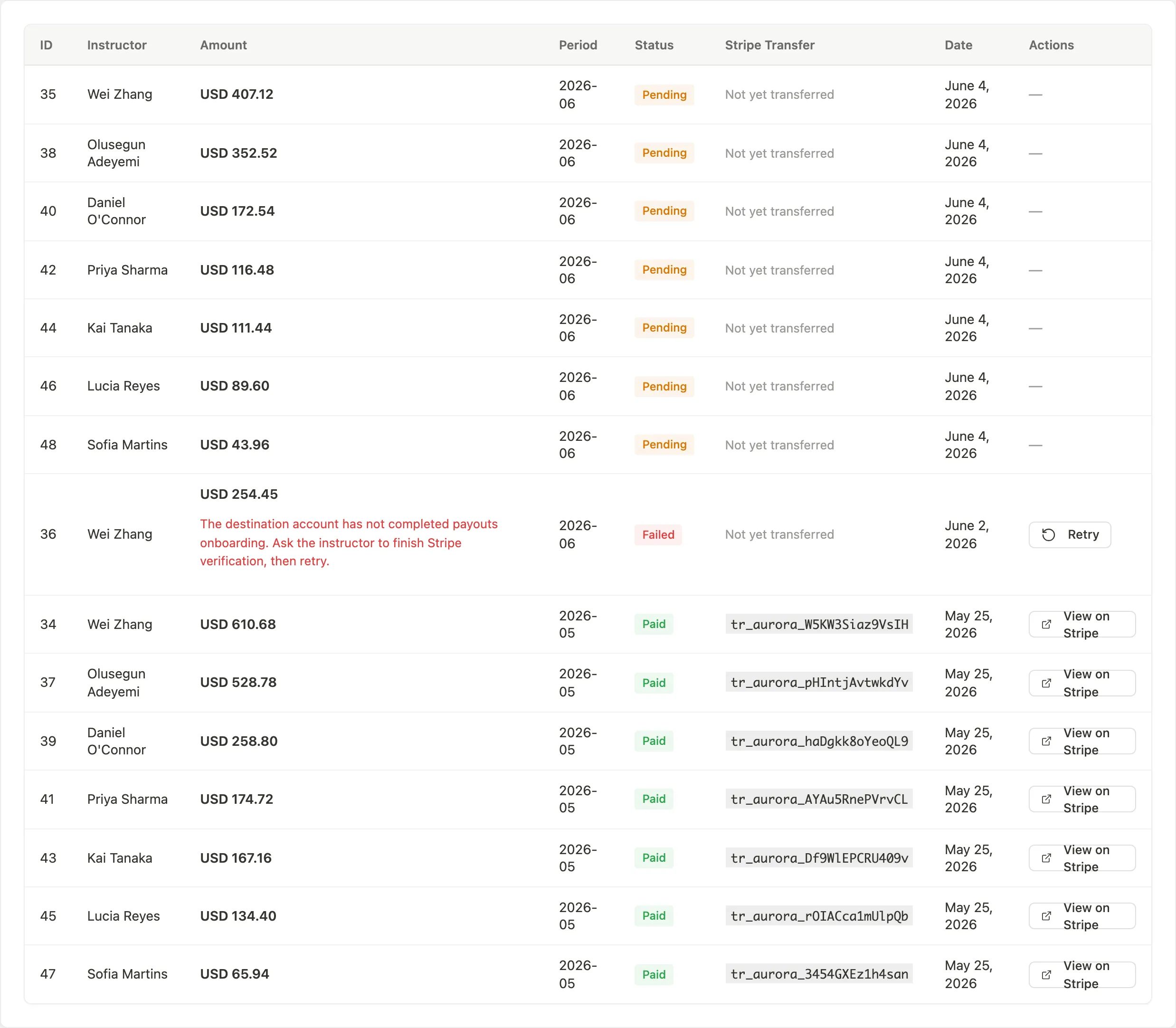
Each row in the payouts table shows:
| Column | What it shows |
|---|---|
| ID | Internal payout row identifier |
| Instructor | The instructor who received (or is owed) the payout |
| Amount | The transferred amount |
| Period | The billing period (YYYY-MM) this payout covers |
| Status | Current payout status (see below) |
| Stripe Transfer | The Stripe transfer ID, linked directly to the Stripe Dashboard |
| Date | When the payout row was created |
Payout statuses
| Status | Meaning |
|---|---|
| pending | Transfer not yet attempted |
| paid | Transfer successfully created in Stripe |
| failed | Transfer attempt failed; see the inline error row below the payout |
| reversed | A paid transfer was later reversed (typically due to a refund) |
Filtering the list
Use the All / Pending / Paid / Failed / Reversed filter buttons to narrow the table.
Retrying a failed payout
When a payout fails, an error row appears directly below the failed row in the table, showing the Stripe error message.
Click Retry in the error row to re-attempt the transfer. Learnomy uses an idempotency key derived from the instructor and the exact commission set, so a retry cannot produce a duplicate transfer in Stripe. On success, the failed row is removed and a new paid row is recorded.
After a successful retry, the page reloads with a success notice. If the retry fails again, the error notice updates with the new error.
Outstanding Refund Debts

When a customer is refunded and the original Stripe transfer to the instructor cannot be fully reversed (for example, because the instructor has already withdrawn the funds), Learnomy records the shortfall as an Outstanding Refund Debt in this panel.
Each debt row shows:
- The instructor who owes the amount
- The amount owed
- The refunded transaction it came from
- The original payout it is associated with
- The reason for the debt
- The date it was recorded
Learnomy automatically deducts outstanding debts from the instructor's next payout cycle (oldest debt first). A fully recovered debt disappears from this panel. A partial recovery reduces the row amount; the remainder carries over to the next cycle.
If the instructor's gross payout after debt deduction falls below the minimum payout threshold, the entire cycle is held until the next period.
When there are no outstanding debts, the panel shows an empty state.
Tips
- Keep Stripe in test mode (
sk_test_/pk_test_) during setup. Test-mode keys let you run the full flow without real money moving. - The minimum payout amount prevents micro-transfers that Stripe would charge fees on. Set it to at least $25.
- Stripe accounts that have not completed identity verification (
charges_enabled = falseorpayouts_enabled = false) are silently skipped during a payout run. The KYC check result is cached for one hour per instructor to avoid repeated API calls. - The Stripe transfer ID in each paid row links directly to the corresponding transfer in your Stripe Dashboard, making reconciliation straightforward.