
Conversational quiz layout
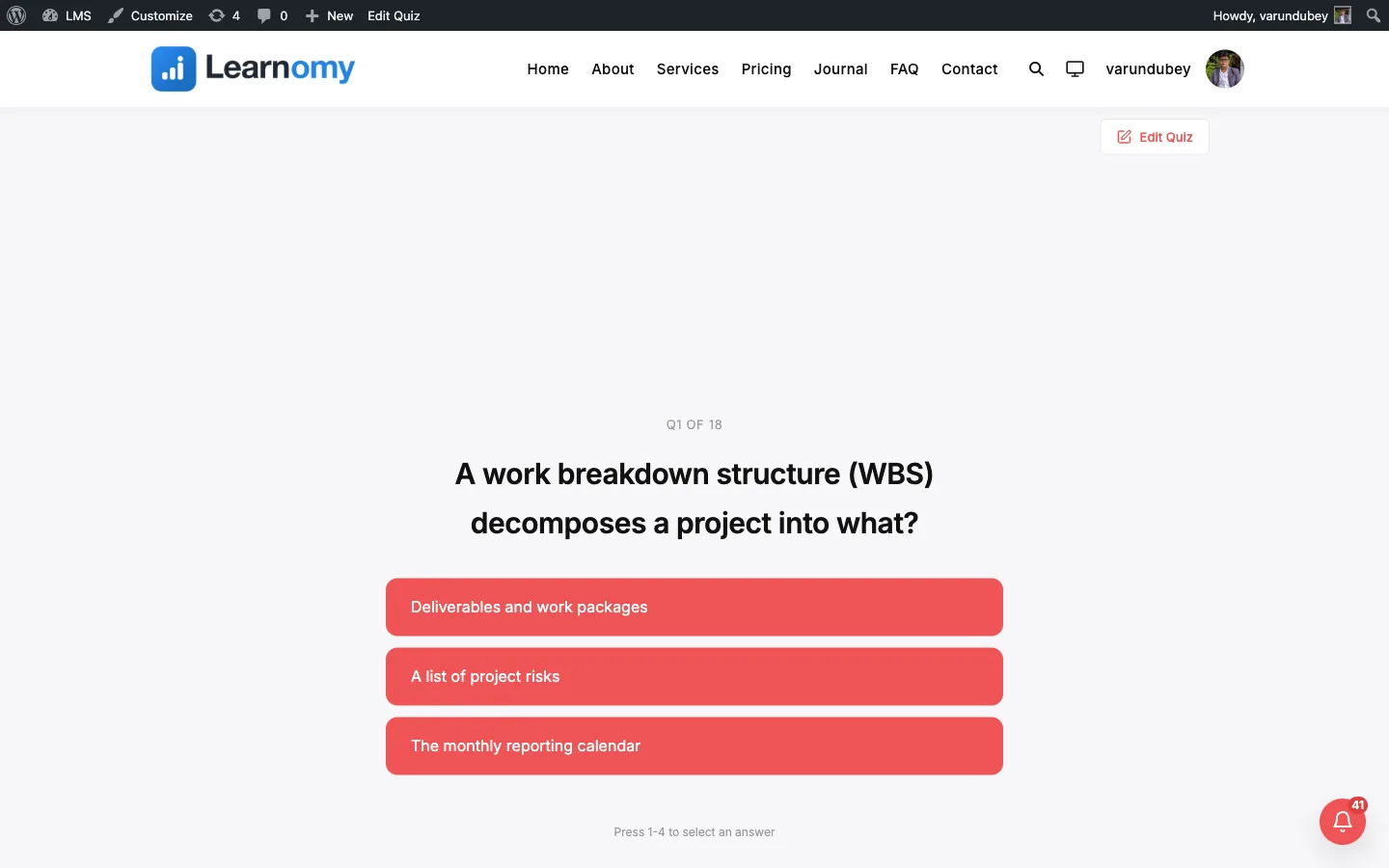
Quizzes and Grading pro Pro featureThe Conversational layout shows one question at a time on a full, uncluttered screen and moves forward on its own the moment a student picks an answer. It is the Typeform-style layout, built for short, casual knowledge checks where you want the quiz to feel light and quick rather than like a formal exam.
Pro feature. Available in Learnomy Pro. The Conversational display template is a Pro layout on the quiz editor.
What you can do#
- Present a quiz as a series of single, full-screen question cards instead of one long scrolling page.
- Auto-advance to the next question the instant a student picks a single-answer multiple-choice or true/false answer, so there is no separate "Next" click.
- Let students answer with the keyboard: number keys pick the matching answer option (1 for the first option, 2 for the second, and so on).
- Keep multi-select multiple-choice questions on the layout with a manual Continue button, since the student is still choosing until they say they are done.
- Keep text-style questions (short answer, fill in the blank, essay) on the same layout with a manual Continue button, since those cannot auto-advance.
- Show a thin progress bar across the top of the screen so students always know how far through they are.
- Run the quiz timed, with a minimal top-right timer that turns red in the last minute and auto-submits when time runs out.
- Offer an optional per-question hint that the student can expand with Show hint.
- Give students a full results screen with the score, pass/fail status, an optional per-category breakdown, and a question-by-question review.
How to use it#
- Open the quiz in Learnomy > Quizzes and edit it (or add a new one).
- In the quiz settings, find Display template and choose Conversational. This template is a Pro layout, so Learnomy Pro must be active for it to be selectable.
- Add your questions as normal. Single-answer multiple-choice and true/false questions auto-advance; multi-select multiple-choice, short answer, fill in the blank, and essay questions get a Continue button instead.
- Set a Time limit if you want the quiz timed. One timer runs across the whole quiz.
- Set the Passing score and any attempt limit as you would for any other layout.
- Save and publish the quiz.
What the student sees at quiz time:
- A full-screen start card with the quiz title, the description, and a short rules summary (question count, time limit if set, passing percentage, and attempts if limited). The student clicks Start Quiz to create the attempt. If the quiz belongs to a course they have not enrolled in, they see an enroll prompt instead of the start button.
- One question fills the screen at a time. The top of the screen shows a thin progress bar and, when the quiz is timed, a minimal timer in the top-right corner.
- For single-answer multiple-choice and true/false questions, the student clicks one of the pill-shaped answer buttons (or presses the matching number key). The card fades and the quiz advances to the next question on its own after a short pause.
- For multi-select multiple-choice questions, the student ticks as many options as apply and then clicks Continue to move on -- these do not auto-advance, since a single tick is not a "done" signal.
- For short answer, fill in the blank, and essay questions, the student types their answer and clicks Continue to move on. These do not auto-advance.
- A Show hint control appears under the question when the question has a hint.
- Selecting an answer (or pressing Continue) on the last question submits the quiz.
- The results screen shows the pass/fail icon, the score, the passing status, an optional score-by-category breakdown, and a per-question review. Depending on your quiz settings the student can move on to the next item, go back to the course, or try again if attempts remain.
Settings and options#
These are set on the quiz editor (Learnomy > Quizzes > edit a quiz) and stored on the quiz.
| Setting | Field name | Values | Notes |
|---|---|---|---|
| Display template | display_template |
conversational |
Pro layout. Selecting it turns the quiz into a conversational, one-at-a-time quiz. |
| Time limit | (quiz time limit) | minutes | One timer for the whole quiz. When under 60 seconds remain the timer turns red; at zero the attempt auto-submits. |
| Passing score | passing_score |
percentage | Same passing rule as every other layout. |
| Attempt limit | attempt_limit |
number | When attempts remain, the results screen shows Try Again; otherwise it shows an "all attempts used" message. |
The Conversational option in the Display template picker is described as "One at a time, keyboard-friendly. Best for casual knowledge checks."
Auto-advance behavior is built into the layout, not a setting: single-answer multiple-choice and true/false answers advance automatically after a short delay, while multi-select multiple-choice, short answer, fill in the blank, and essay questions always require a manual Continue click.
For developers#
- REST: the quiz create and update endpoints (
learnomy/v1/quizzes) acceptdisplay_template(enum includesconversational) and return it on the quiz resource. Without Learnomy Pro active, sendingconversationalreturns HTTP 400 with codelearnomy_layout_requires_proand nothing is saved. - Database:
display_templateis a column onlrn_quizzes(varchar(30), defaultfocused), added in migration1_1_0. - Template override: the layout renders from
templates/quiz/conversational.php. Copy it totheme/learnomy/quiz/conversational.phpin your theme to override it through the Template Loader. - Frontend store: the player extends the shared
learnomy/quizInteractivity store inassets/js/quiz-view-conversational.js. Auto-advance is driven byactions.selectAndAdvanceafterstate.autoAdvanceDelay(500ms), but it bails without advancing whenstate.isCurrentMultiSelectis true; multi-select questions advance throughactions.continueFromMultiSelect, and text and essay types (state.isTextInputQuestion) throughactions.continueFromText, both via the Continue button. Thecallbacks.initKeyboardhandler binds the number-key shortcuts, which map keynto the nth answer option.