
Download and Print a Certificate
CertificatesEvery certificate a student earns can be downloaded as a PDF or opened in a print-ready view. This works out of the box in the free version, both from the student's account and from the public verification page, with no extra setup.
What you can do#
- Download a certificate as a PDF straight from the student's My Certificates page.
- Download the same PDF from the public verification page that anyone with the link can open.
- Open a print-ready version of the certificate and send it to a printer or save it as a PDF from the browser.
- Keep working even when the PDF library is not installed - the download falls back to a clean printable HTML page instead of failing.
- Let students print without logging in, because the download and print links are keyed to the certificate's unguessable ID rather than a login session.
How to use it#
Step 1 - open your certificates#
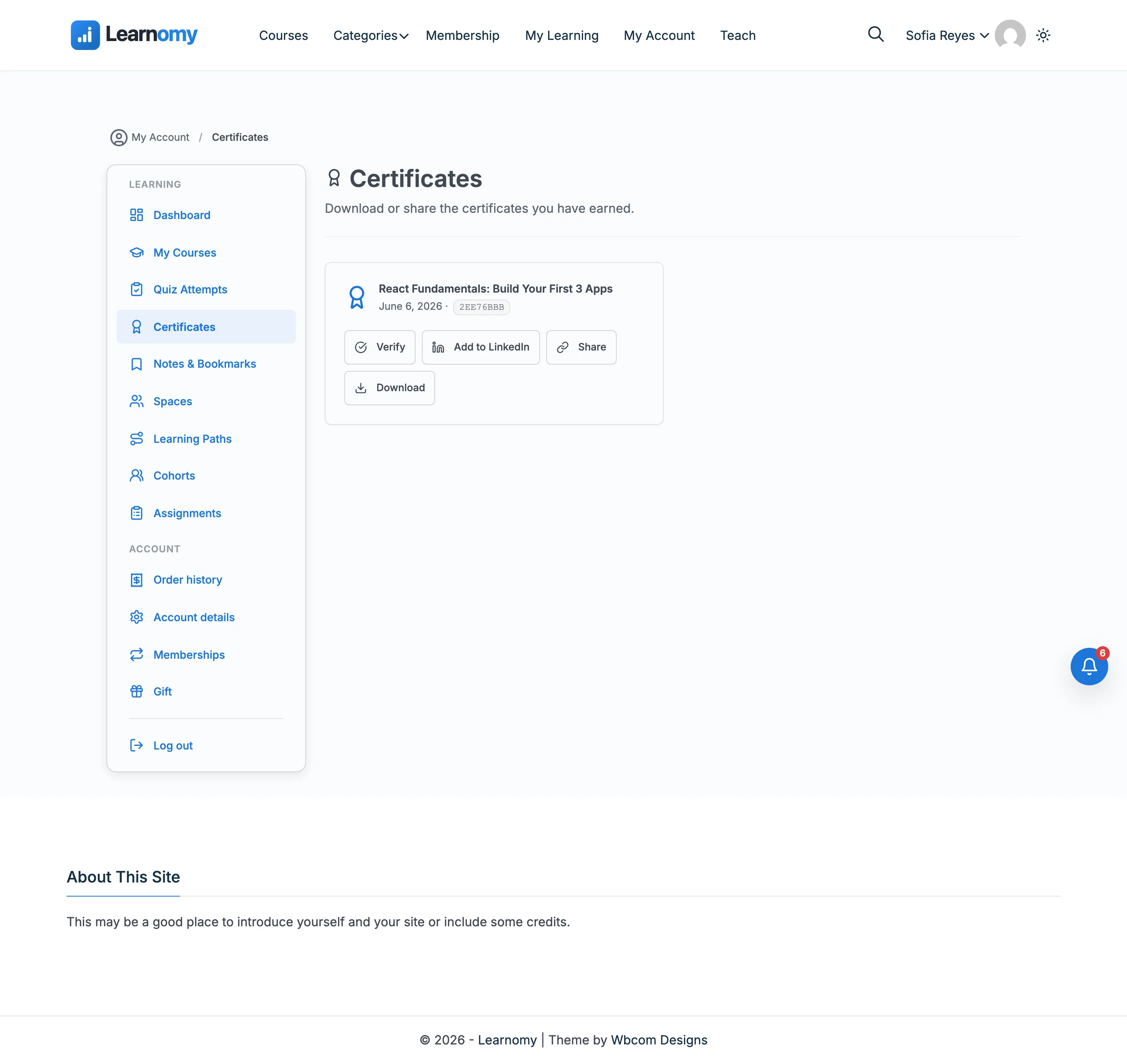
A student opens My Account and goes to the Certificates page (/account/certificates/). Each certificate earned shows as a card with the course name, the issue date, and a short credential ID.
Step 2 - download the PDF#
On the certificate card, select Download. This opens the certificate as a PDF in a new tab, which the browser then saves or displays. The file is named certificate-<id>.pdf.
If the site does not have the PDF library available, the same Download link serves a clean, print-ready HTML page instead, so the student always gets a usable copy.
Step 3 - print from the verification page#
Anyone can also download or print from the public verification page at /verify/<id>/ (no login needed). Below the certificate preview there are two actions:
- Download - saves the certificate as a PDF. This button only appears when the PDF library is available.
- Print - opens the print-ready version in a new tab and automatically brings up the browser's print dialog.
Holding Ctrl, Cmd, or Shift while selecting Print opens the printable view in a background tab without popping the print dialog, so power users can save it for later.
Step 4 - save as PDF from the print view#
The print-ready page includes its own Print / Save as PDF button. Selecting it opens the browser print dialog, where the student can either send the certificate to a printer or choose "Save as PDF" as the destination. When the PDF library is present, the same page also shows a Download PDF button that grabs the true PDF directly.
Settings & options#
There are no separate on/off settings for downloading and printing - both are always available for any issued certificate. Two things shape the output:
| What | Effect |
|---|---|
| PDF library (Dompdf) present | When available, Download serves a real PDF and the verification page shows the Download button. When missing, downloads fall back to the print-ready HTML page and the PDF-only button is hidden. |
| Certificate template | The visual design, page orientation, and optional QR code come from the template assigned to the course. See Certificate Templates. |
The printable page is built for clean output: it forces exact background colors for print and hides its own action buttons under an @media print rule so only the certificate itself lands on the page.
For developers#
REST endpoint (public - access is controlled by the unguessable certificate UUID, not a login):
GET /learnomy/v1/certificates/{uuid}/download- serves the certificate file. Theformatquery parameter acceptspdf(default) orhtml. A revoked or missing certificate returns HTTP 404. Whenformat=pdfis requested but the PDF library is unavailable, the endpoint transparently serves the print-ready HTML instead.
Backing implementation:
Certificate_Renderer::render_pdf( $certificate, $template )- renders the PDF binary via Dompdf; returns an empty string when Dompdf is not installed (the controller then falls back to HTML).Certificate_Renderer::render_html( $certificate, $template )- renders the certificate as HTML.Certificate_Renderer::dompdf_available()- the check that decides whether the PDF download link is shown on the verification page.
Front-end print action:
- Interactivity API store
learnomy/certificate-verify, actionprintCert- opens theformat=htmlview in a new tab and triggerswindow.print(), while honouring Ctrl/Cmd/Shift-click.