
Course Approval Workflow
Instructors and Earnings Free & ProBy default, instructors can publish their own courses the moment they are ready. If you run a marketplace-style academy where every course needs a look before it goes live, Learnomy has a course-approval gate: a site-wide toggle, a per-instructor override, and an Approve / Reject workflow on the Courses list.
Overview#
There are three parts to this feature:
- A global setting at Learnomy Settings > Settings > Instructors that controls whether instructors can publish without review.
- A per-instructor override on the instructor's detail page, for requiring approval from one specific instructor even while the global setting allows self-publish.
- A Pending Review tab on the Courses list where you approve or reject submissions.
Turn on approval site-wide#
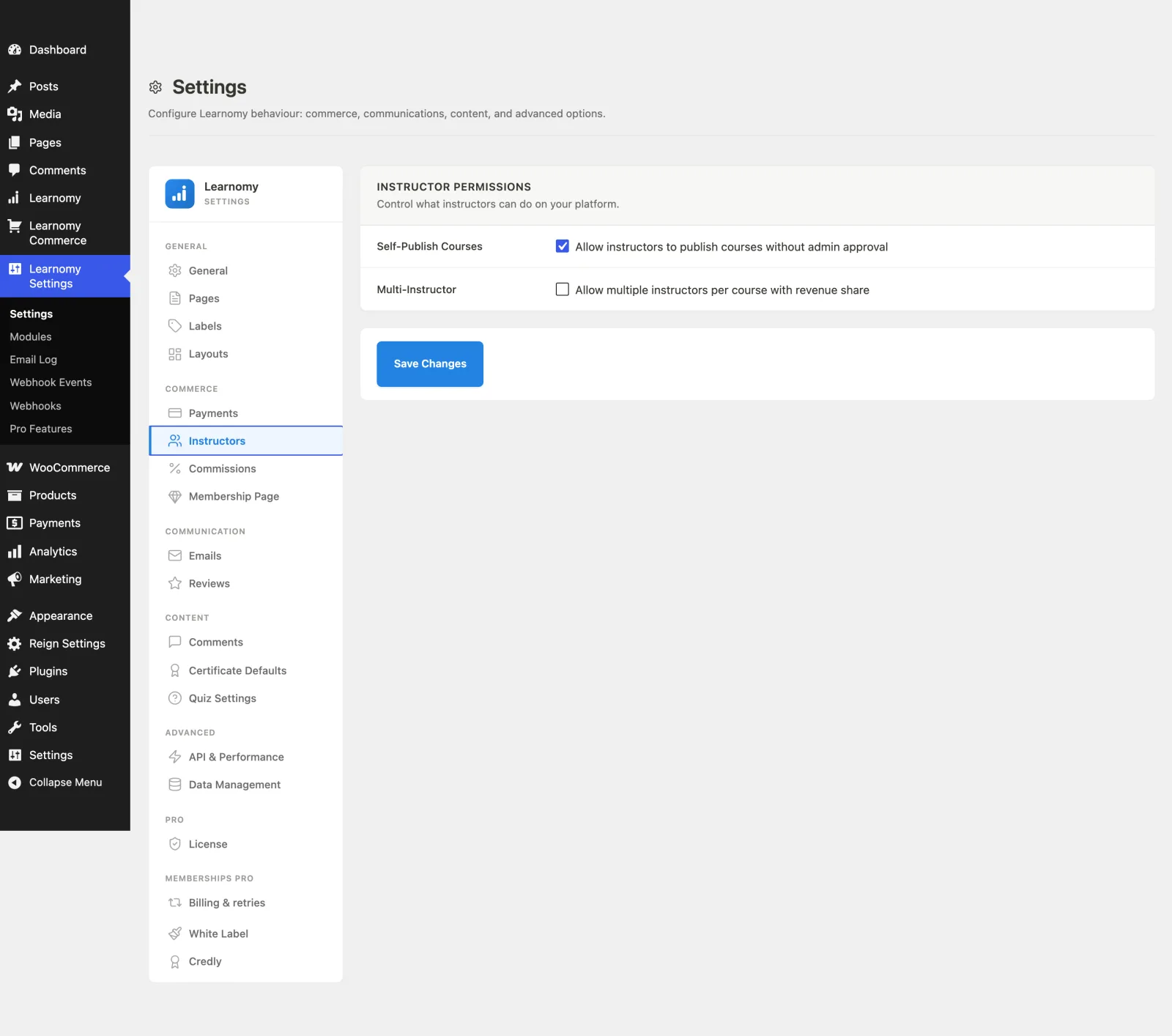
- Go to Learnomy Settings > Settings, then open the Instructors section.
- Find Self-Publish Courses. The toggle is labeled Allow instructors to publish courses without admin approval and is on by default.
- Turn it off to require admin approval for every instructor. From then on, when an instructor submits a course it is held as Pending Review instead of going live, and you approve or reject it from the Courses list.
- Click Save Changes.
You can also require approval for a single instructor while leaving this setting on for everyone else. See the next section.
Require approval for a single instructor#
Use this when most of your instructors are trusted to self-publish but one specific instructor's courses should always be reviewed first.
- Go to Learnomy > Instructors and click the instructor's name to open their detail page.
- In the page header, click Require course approval.
- Confirm the prompt.
This instructor's course submissions are now routed to Pending Review even if the site-wide Self-Publish Courses setting is on. The button toggles: click Allow self-publish to remove the override for that instructor.
Reviewing pending courses#
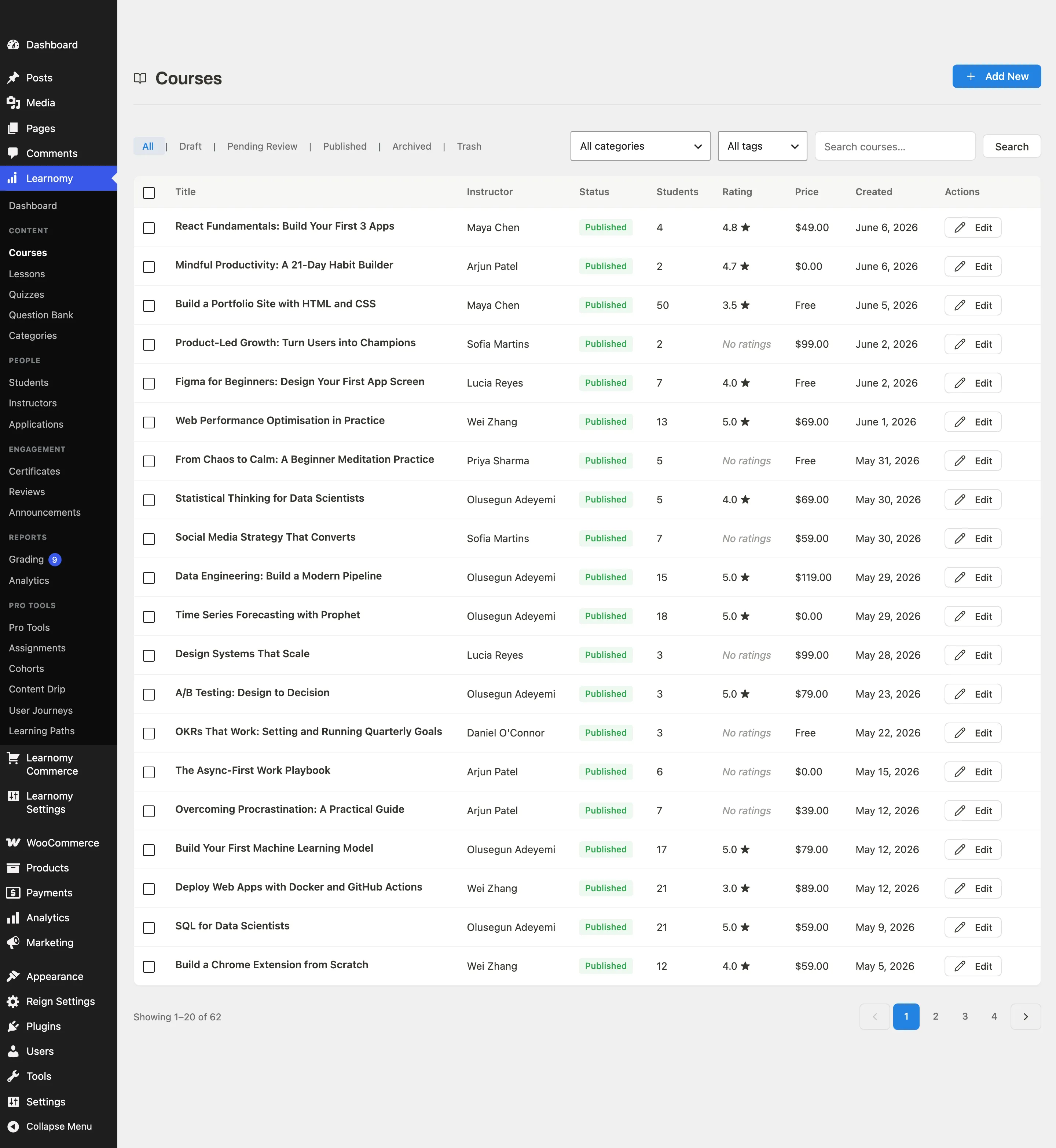
- Go to Learnomy > Courses.
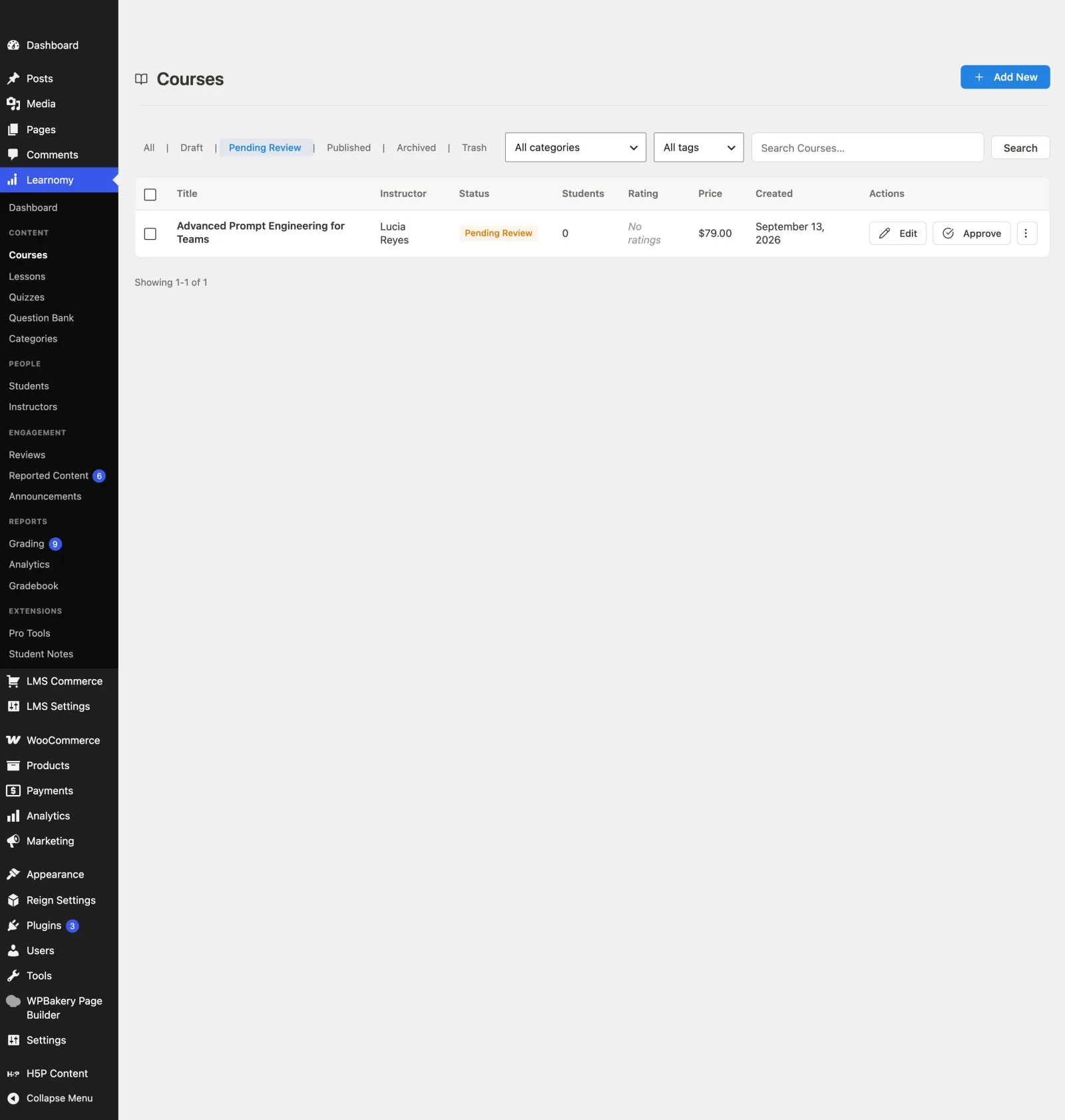
- Click the Pending Review tab. It shows every course currently awaiting your decision, whether it is held because of the global setting or a per-instructor override.
- For each course, two row actions are available:
- Approve - Publishes the course immediately. Confirm the prompt to proceed.
- Reject - Prompts you for a rejection reason, then returns the course to Draft status so the instructor can revise it.
The instructor's experience#
When approval is required, an instructor submits their course as Pending Review from the course editor instead of publishing it directly, and you get a "Waiting for your review" email and notification. The course stays off the catalog until you approve it.
- Approved: the instructor gets an email and a notification that the course is live.
- Rejected: the course returns to Draft and the instructor gets an email and a notification with your reason. The reason also stays on the course: it shows under the course in My Courses on the instructor dashboard and at the top of the course editor in wp-admin, until the course is approved. The instructor makes changes and resubmits.
Each of these emails has its own switch under Learnomy Settings > Emails.
Tips#
- The global setting and the per-instructor override work together: turning the global setting off requires approval from everyone, while the per-instructor override only tightens the rule for one person on top of whatever the global setting allows.
- Approving a course from the Pending Review tab publishes it the same way the Publish action does anywhere else in Learnomy - it fires the normal course-published event, so anything that listens for a new course (webhooks, notifications) still triggers.
- Rejecting a course does not delete anything. It only changes the status back to Draft; all curriculum content is untouched.