
Question Types
Free & ProLearnomy supports six question types out of the box. All six are graded automatically. Five advanced types -- matching, ordering, numeric, math expression, and calculated -- are available with Learnomy Pro and require the Pro advanced-quizzes module. Pro also renders LaTeX math in any question (see Math and formulas).
Overview
Question types are set per question in the Question Bank or the question editor. Changing the type on an existing question updates how the answer editor is displayed and which grading logic is applied. Historical attempt responses record the question version they answered, so old attempts are not affected by later edits.
Multiple choice (single correct answer)
The student picks one answer from a list of options. Only one answer can be marked correct. This is the default type when you create a new question.
Setting up answers:
- Write each answer choice in a separate answer row.
- Check the radio button next to the one correct answer.
- Optionally add per-answer feedback that is shown to the student when feedback is enabled on the quiz.
The question is graded as full marks if the correct option is selected, zero otherwise.
Multiple choice (multiple correct answers)
The student selects all correct answers from a list. More than one answer can be marked correct. The question uses partial credit: each answer carries a fraction value that represents its portion of the total marks for the question.
Setting up answers:
- Write each answer choice.
- For correct answers, set the fraction to a value between 0 and 1. Fractions across all correct answers should add up to 1.0 for full marks.
- For incorrect answers, you can leave the fraction at 0 or set a negative fraction to penalise incorrect selections.
True / False
A two-option question where the student picks either True or False. Mark one of the two options as correct.
This type is graded identically to a single-answer multiple choice question.
Short answer
The student types a short free-text response. The grader compares the response against one or more accepted answer strings using a case-insensitive exact match.
Setting up answers:
- Add one row per accepted answer. All variations that should be counted as correct need their own row.
- You can mark multiple rows as correct. The student's response is checked against all of them.
For a question where you want the answer to be graded by a human instead of automatically matched, use the Essay type.
Fill in the blank
The student fills in missing words in a sentence or paragraph. Blanks are defined by tokens in the question text.
Setting up the question text:
Use tokens like {{blank1}}, {{blank2}} at each position where a blank should appear. For example:
The capital of France is {{blank1}} and its currency is {{blank2}}.
Setting up answers:
Add one answer row per blank. Each row corresponds to the matching {{blank_N}} token in order.
The grader checks each blank independently using case-insensitive exact matching. Each correctly filled blank earns its fraction of the question's marks.
Essay
The student writes a longer free-text response. Essay questions are not graded automatically -- they go to the Grading inbox in the admin for a human reviewer to score and provide feedback.
A quiz attempt containing one or more essay questions stays in Submitted status until every essay response has been manually graded. Once the last response is graded, the attempt is finalized automatically.
Set quiz Feedback timing to After attempt finalizes when your quiz contains essay questions, so students do not receive a partial result while grading is still in progress.
Advanced question types (Pro)
Pro feature. Available in Learnomy Pro with the advanced-quizzes module active.
Matching
The student pairs items from two columns: a set of prompts and a set of responses. Each prompt has one correct response.
Setting up answers:
- Each answer row represents one pair. Write the prompt in the main content field and the matching response in the pair field.
- The quiz player displays prompts and responses shuffled so the student cannot rely on position.
- Each correctly matched pair earns its fraction of the question's marks.
Ordering
The student drags items into the correct sequence.
Setting up answers:
- Add one answer row per item in the sequence.
- Set the sort order on each row to indicate the correct position (1 = first, 2 = second, and so on).
- The quiz player presents the items in a shuffled order. The student drags them into the correct sequence.
- Scoring awards partial credit per correctly placed item based on the fraction assigned to each row.
Numeric
The student types a number. The grader compares it to your correct value, optionally within a tolerance, so close-enough answers still count.

Setting up the answer:
- Enter the Correct value (for example,
0.333). - Set an Accepted tolerance if you want a range. Leave it blank for an exact match. A tolerance of
0.01accepts any answer within 0.01 of the value, so9.81would accept9.80through9.82.
The student sees a number field in the quiz. Grading is all-or-nothing: full marks when the answer is within tolerance, zero otherwise. Use this for calculations, physics constants, unit conversions, and any question with a single numeric answer where small rounding differences should be forgiven.
Math expression
The student types an algebraic expression. Unlike short answer, the grader does not look for matching text -- it checks whether the student's expression is mathematically equivalent to yours, so (x+1)^2 is accepted for x^2+2*x+1 even though the two strings differ.
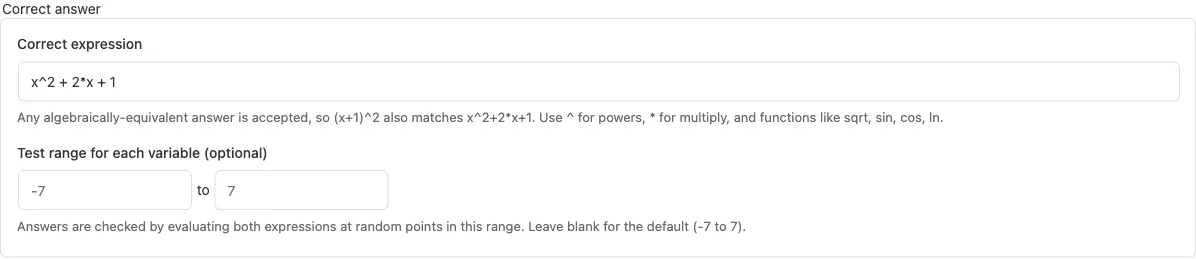
Setting up the answer:
- Enter the correct expression. Use
^for powers,*for multiply, parentheses for grouping, and functions such assqrt,sin,cos,tan,ln,log,abs,min,max. Constantspiandeare recognised. - Optionally set a test range. Answers are graded by evaluating both expressions at several random points within this range and confirming they agree everywhere; the default range is -7 to 7.
In the quiz the student sees a text field and types their expression. It renders nicely when you write the question stem with math delimiters.

The check is numeric, not a full computer-algebra system, so it reliably recognises equivalent algebra and trigonometric identities (for example sin(x)^2 + cos(x)^2 equals 1). For safety, expressions are evaluated in a sandbox that only understands the operators and functions above -- a quiz answer can never run code.
Calculated
Each student gets the same question with different numbers. You write the question text with {name} placeholders and define a set of variables with ranges; every attempt fills the placeholders with its own random values, and the student is graded against a formula evaluated on those exact values. This makes it easy to set one problem that everyone answers genuinely rather than copying a single answer.
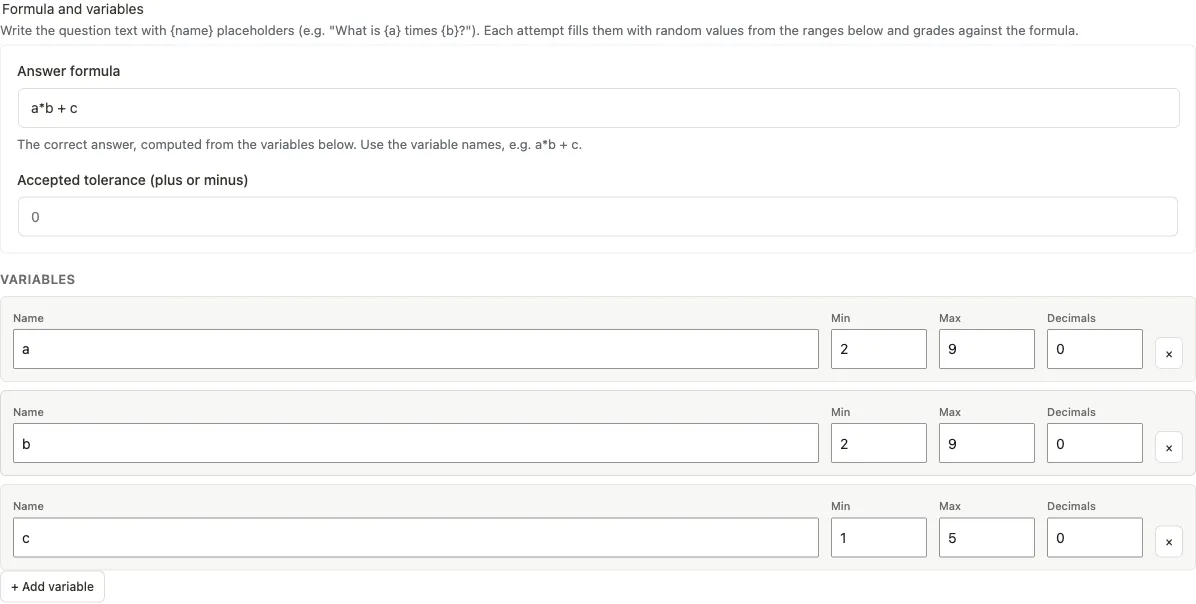
Setting up:
- Write the question text with placeholders, e.g.
A box holds {a} rows of {b} items. How many items in total? - Enter the answer formula in terms of those variables, e.g.
a*b. It uses the same operators and functions as the Math expression type. - Add each variable with a name, a min and max, and how many decimal places to round to. Use Add variable for more, and the × button to remove one.
- Optionally set a tolerance if the answer is not a whole number.
When a student starts the quiz, the placeholders are replaced with concrete numbers (for example "A box holds 8 rows of 5 items.") and they type the result. The values are generated per attempt and the same values are used to grade, so each student is marked on exactly the numbers they saw, and the answer cannot be shared.
Matching, Ordering, Numeric, Math expression, and Calculated all require the advanced-quizzes extension to be active. On a Free installation these types are not available in the type selector.
Math and formulas
Pro feature. Rendered by the advanced-quizzes module.
You can write mathematical notation anywhere in a question -- the stem, the answer options, and the explanation -- using LaTeX delimiters. The quiz player renders it as typeset math.
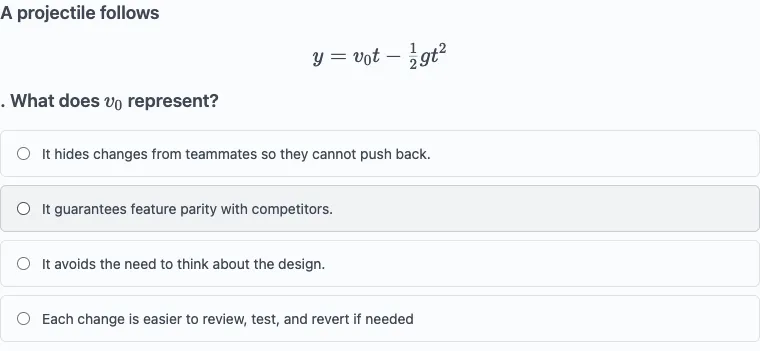
Delimiters:
$$ ... $$-- a display formula on its own centered line. Example:$$y = v_0 t - \tfrac{1}{2} g t^2$$\( ... \)-- inline math that flows with the surrounding text. Example:What does \(v_0\) represent?\[ ... \]-- an alternative display formula.
Single $ is intentionally not a math delimiter, so prices like "$5" are never mistaken for a formula. Write your math with $$ or \( instead.
This works for every question type, so you can, for example, render a formula in the stem and have students answer with the Numeric type. On a Free installation the delimiters are shown as plain text.
Tips
- Hints are supported on all question types. Write a hint in the Hint field. Students can reveal it during a quiz at a small marks cost configured on the quiz settings.
- Explanations work on all types. The explanation is shown to students after they answer (depending on the quiz feedback timing). Use it to teach rather than just confirm whether they were right or wrong.
- Difficulty levels (Beginner through Expert) are metadata for filtering in the Question Bank. They do not affect scoring.
- The question version counter increments each time you update an existing question. Past attempts record which version they were answered against, so your historical data is preserved even if you later revise a question.