
Issuing and Verifying Certificates
Free & Pro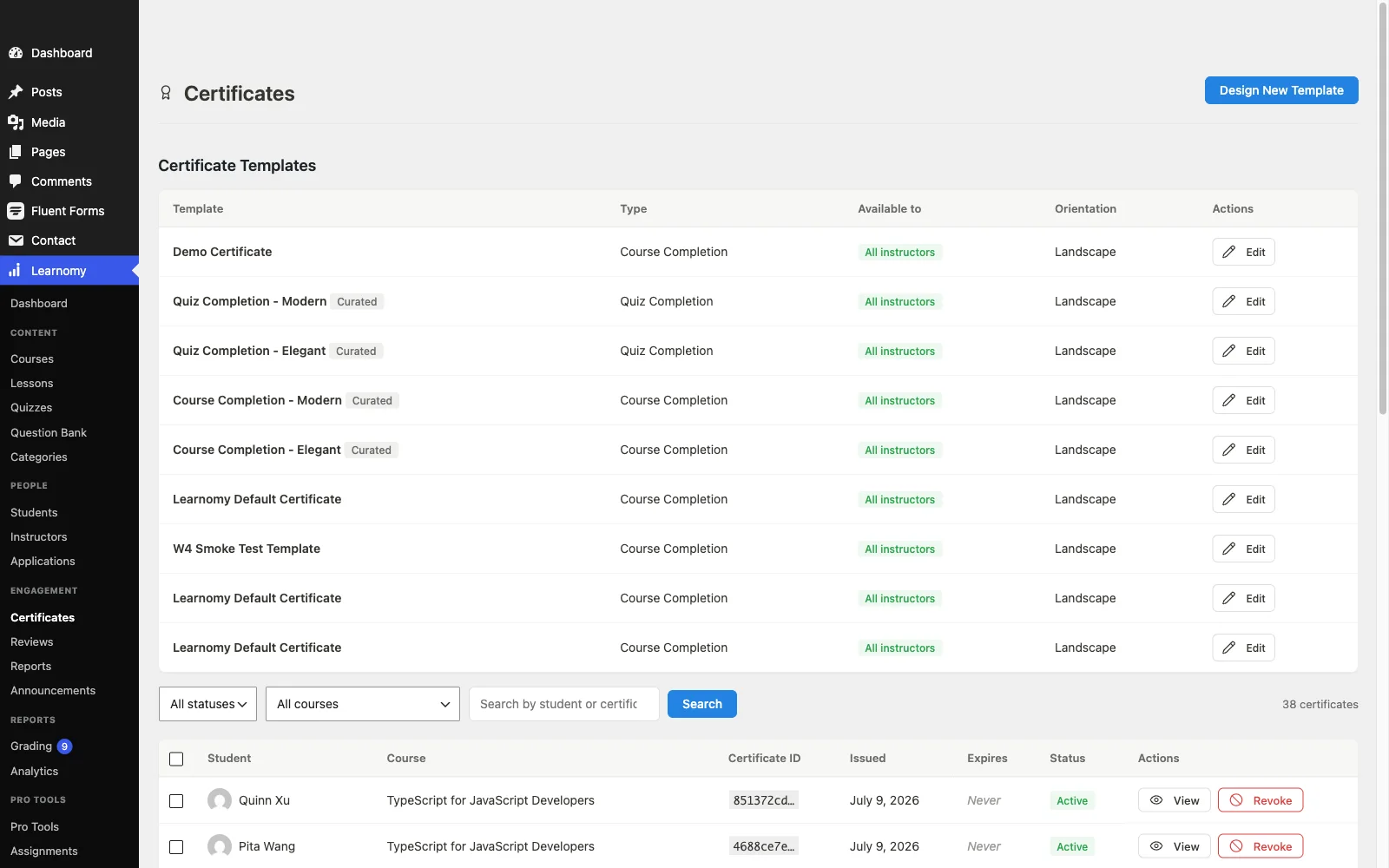
Learnomy issues certificates automatically when a student completes a course. Every certificate carries a UUID, an Ed25519 cryptographic signature, and a public verification URL that anyone can open to confirm it is genuine.
Overview
You do not manually issue certificates. The system issues them at the moment a student's course completion is recorded. The admin Certificates list at Learnomy > Certificates shows every issued certificate, with filters to search, narrow by status, and take bulk actions. Certificates that are no longer valid can be revoked individually or in bulk.
How automatic issuance works
When a student satisfies the completion requirement set on a course (all lessons completed, lessons plus final quiz, a percentage threshold, or manual completion), the following happens automatically:
- Learnomy records the completion and fires the
learnomy_course_completedaction. Certificate_Servicechecks whether the course has Award a certificate on completion enabled and a template assigned.- If both conditions are met, the service calls
Certificate::issue(), which writes a new row tolrn_certificateswith a UUID v4 identifier, a status ofactive, and a timestamp. - The certificate is signed using Ed25519. The private key is stored in WordPress options (encrypted with
AUTH_KEY). The public key is embedded in the signed payload. - The student receives a certificate email notification (if enabled) and the certificate appears immediately on their My Certificates page at
/account/certificates/.
If a student retakes a course and Reset progress on retake is on, a new certificate is issued upon the next completion.
The admin Certificates list
Go to Learnomy > Certificates to see all issued certificates.
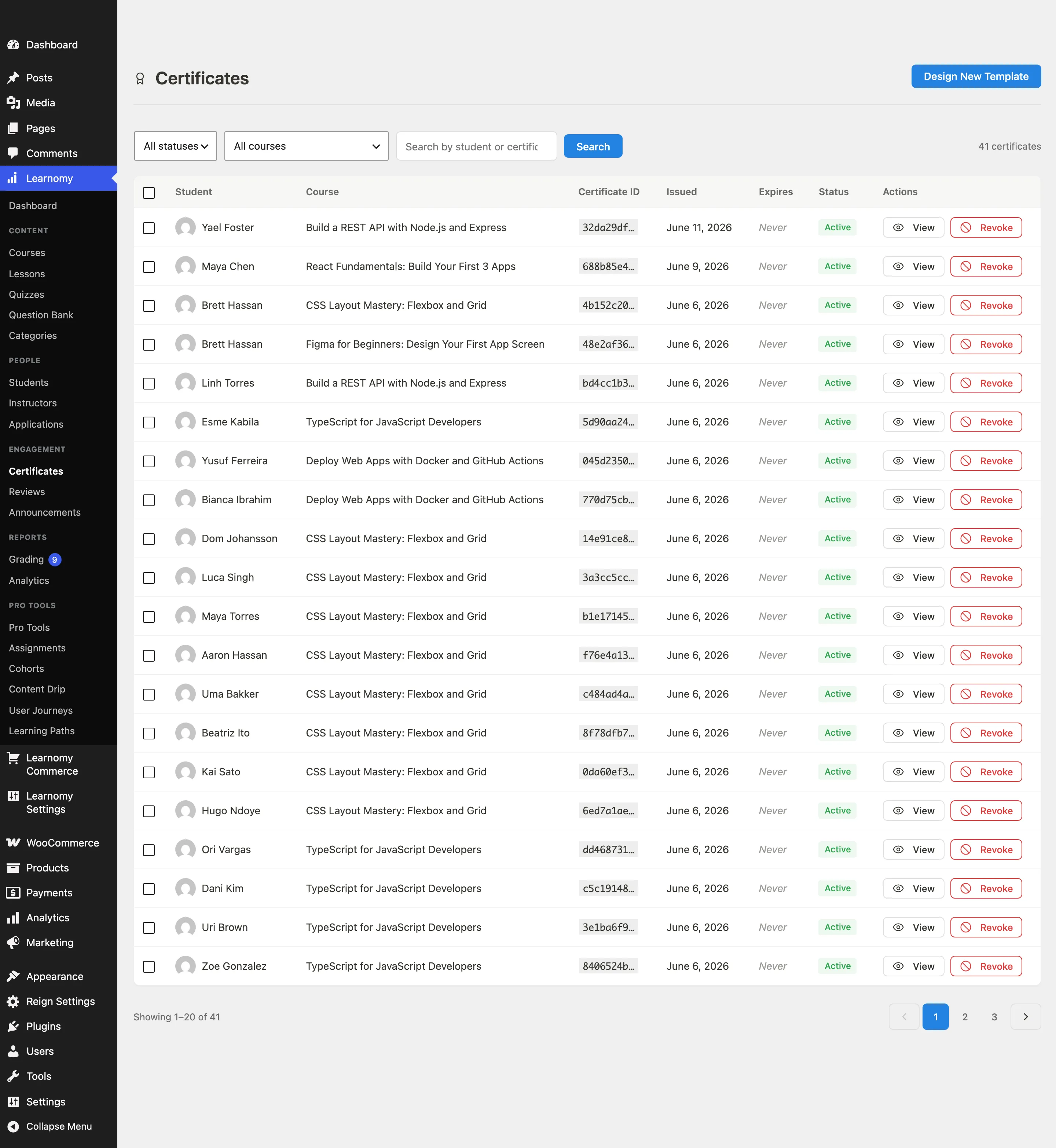
The table columns are:
| Column | Contents |
|---|---|
| Student | Avatar, display name |
| Course | Course title |
| Certificate ID | First eight characters of the UUID (hover or copy for the full ID) |
| Issued | Issue date in your WordPress date format |
| Expires | Expiry date, or "Never" if the certificate has no expiry |
| Status | Active or Revoked |
| Actions | View (opens the public verification page) and Revoke |
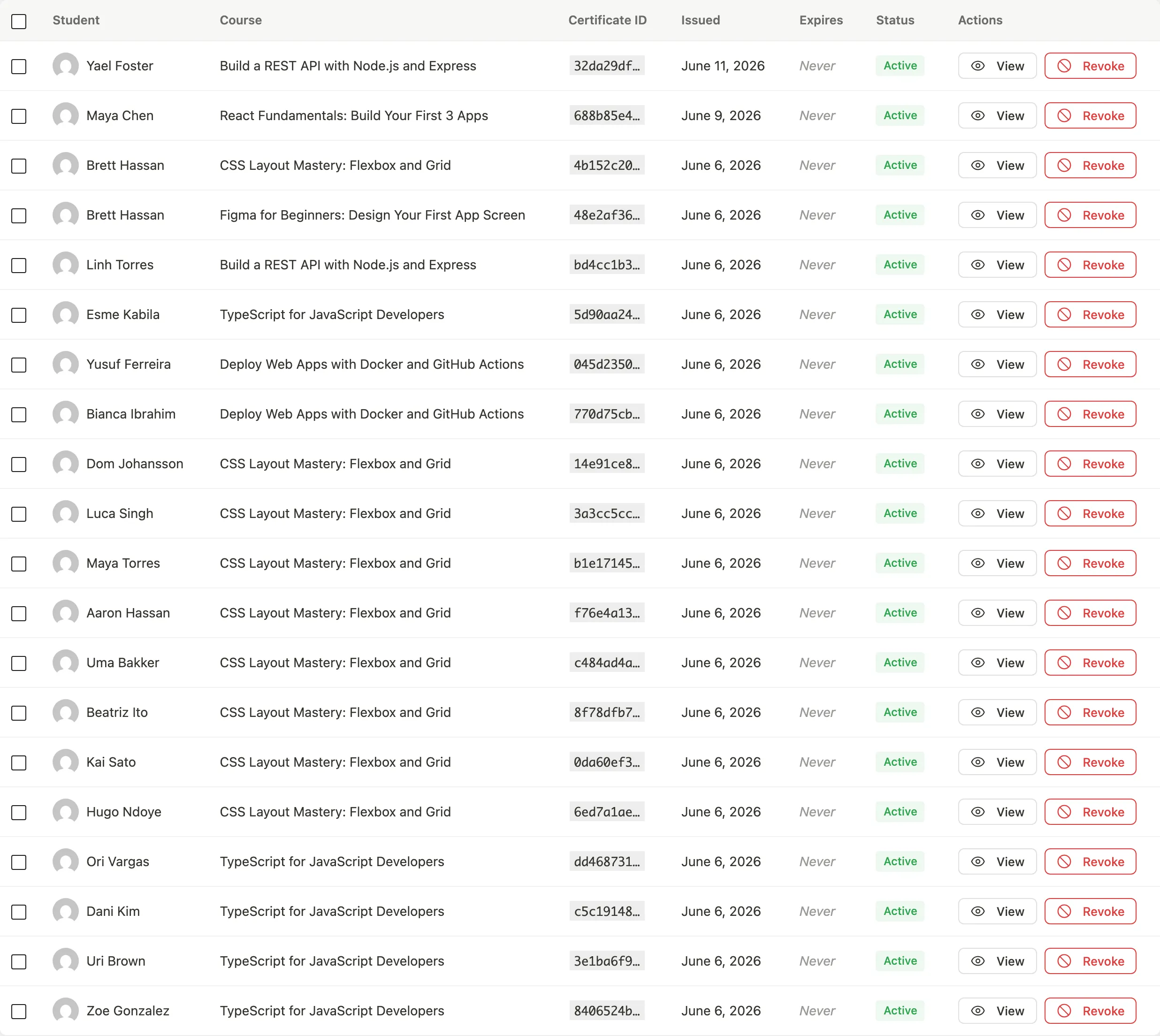
Filtering and searching
The filter bar at the top of the list lets you narrow results by:
- Status: All statuses, Active, Revoked, or Expired.
- Course: A dropdown of courses that have at least one certificate issued.
- Student or certificate ID: Free-text search. Learnomy resolves names and email addresses to user IDs, then searches. You can also paste a full or partial UUID.
Pagination keeps the active filters as you move through pages.
Revoking a certificate
Revoking marks a certificate as no longer valid. The public verification page immediately shows "Certificate Revoked" to anyone who visits the URL.
Revoke a single certificate
- Find the certificate in the list.
- Click the Revoke action in the row. Revoke is only shown for active certificates.
Bulk revoke
- Check the checkboxes on the rows you want to revoke.
- Choose Revoke from the Bulk Actions dropdown.
- Click Apply.
A revoked certificate cannot be reactivated from the admin UI. To reissue, the student needs to complete the course again (or the admin can issue one via the REST API).
The public verification page
Every certificate has a unique public URL:
/verify/<uuid>
No login is required to visit it. When a valid certificate UUID is in the URL, the page shows:
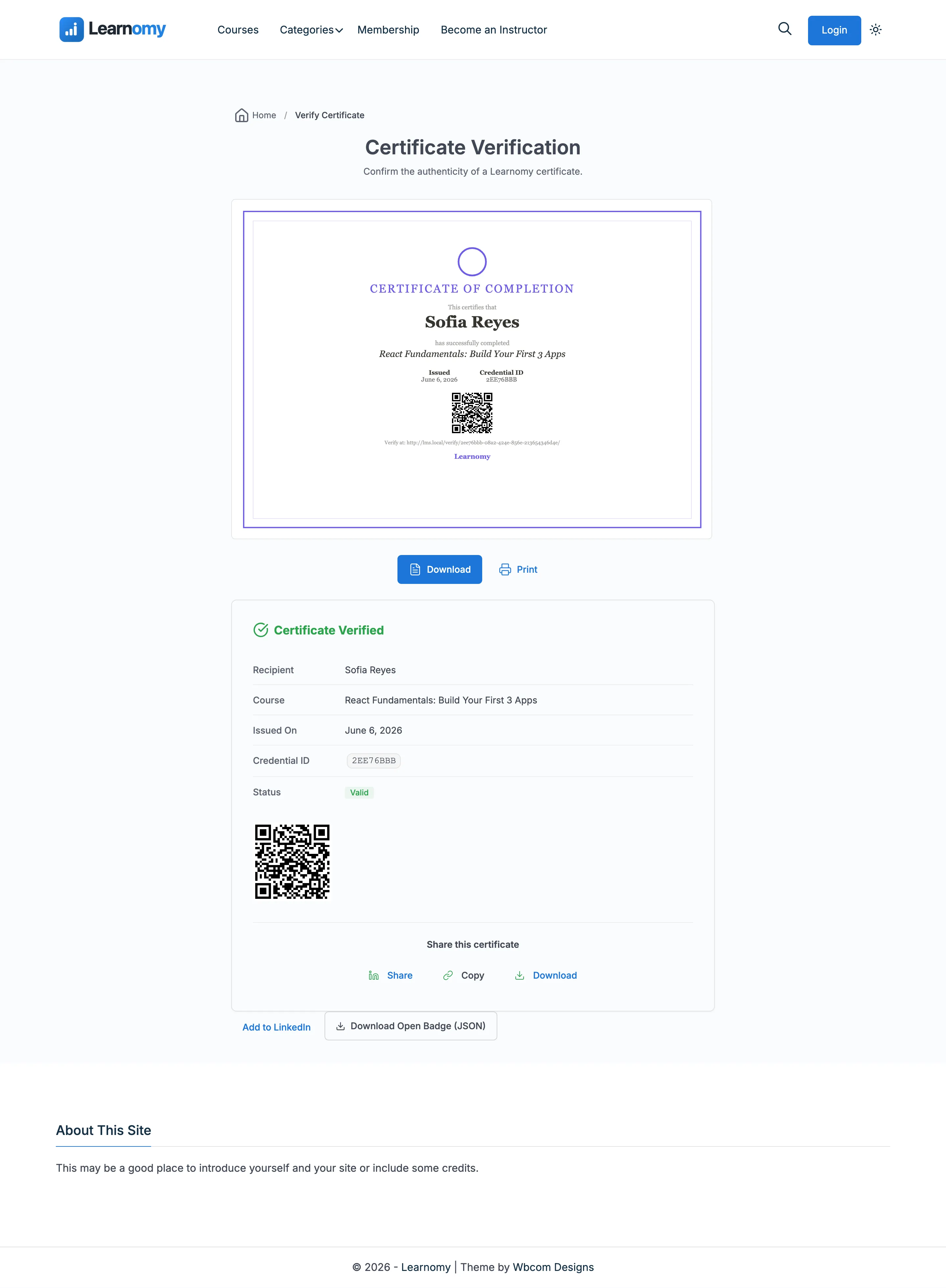
The result block shows the recipient name, course title, issue date, credential ID, and a "Valid" status badge.
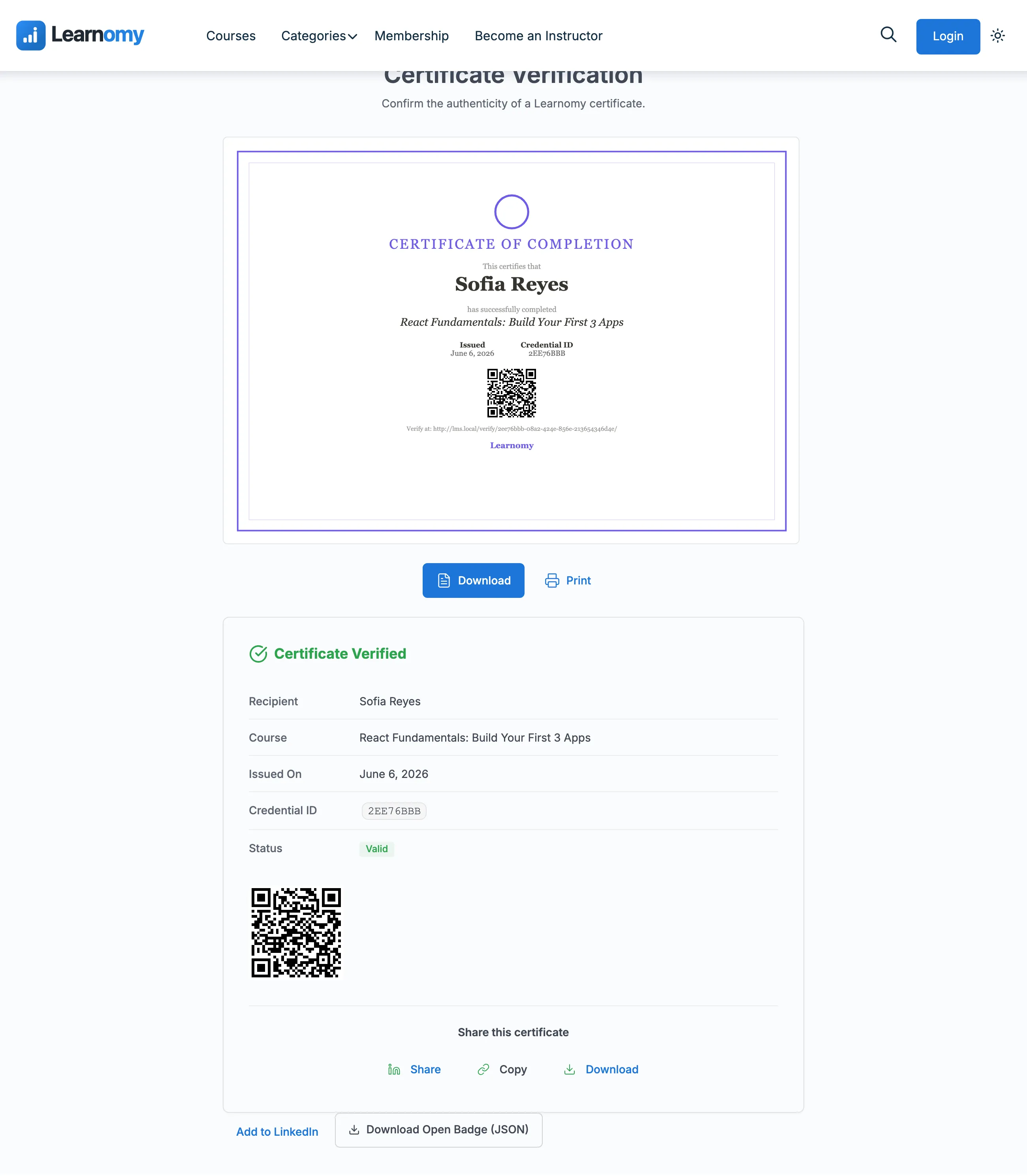
The page also shows:
- A rendered preview of the certificate design (scaled to fit the browser viewport).
- A Download button for the PDF (if the certificate template renders a PDF).
- A Print button that opens a print-ready HTML version.
- A Share section with a LinkedIn "Add to Profile" link and a copy-link button.
- A QR code (if the template includes a QR Code element) linking back to this same URL.
What happens for invalid IDs
| Scenario | What the visitor sees |
|---|---|
| UUID matches an active certificate | "Certificate Verified" result block |
| UUID matches an active certificate whose course was later deleted | "Certificate Verified" result block - the course name reads "Course no longer available" and the certificate stays valid |
| UUID matches a revoked certificate | "Certificate Revoked" message |
| UUID does not match any certificate | "Certificate Not Found" message |
| No UUID in the URL | A form to enter a credential ID manually |
Deleting a course never invalidates certificates already issued for it. The credential ID, signature, and verification URL keep working; only the course name display changes.
Verification count
Each time the verification page is loaded for a valid UUID, Learnomy increments the verification_count and updates last_verified_at on the certificate row. You can see these values via the REST API or WP-CLI. They are useful for spotting unusual spikes that could indicate credential sharing.
Student experience
Where a student meets their certificate
A student does not have to go looking. Learnomy offers the certificate at the moment it is earned, in three places:
- The quiz result screen. When a student passes a quiz and holds an active certificate for that course, the result card shows a View Certificate action alongside Back to Course. This covers the common case where passing the final quiz is what completes the course - the certificate is issued during that submission, so it is offered on the same screen that announces the pass.
- The course completion screen. A completed course shows View Certificate once one has been issued, or Get Certificate when the course awards certificates and none has been issued yet.
- The account page, described below, which is the permanent home for every certificate a student has earned.
The result screen only offers a certificate the student actually holds. Passing a mid-course section quiz shows no certificate action, because nothing has been earned yet - a button leading to an empty list is worse than no button.
The account certificates page
Students access their certificates at /account/certificates/. Each certificate shows as a card with the course name, issue date, short credential ID, and action buttons.
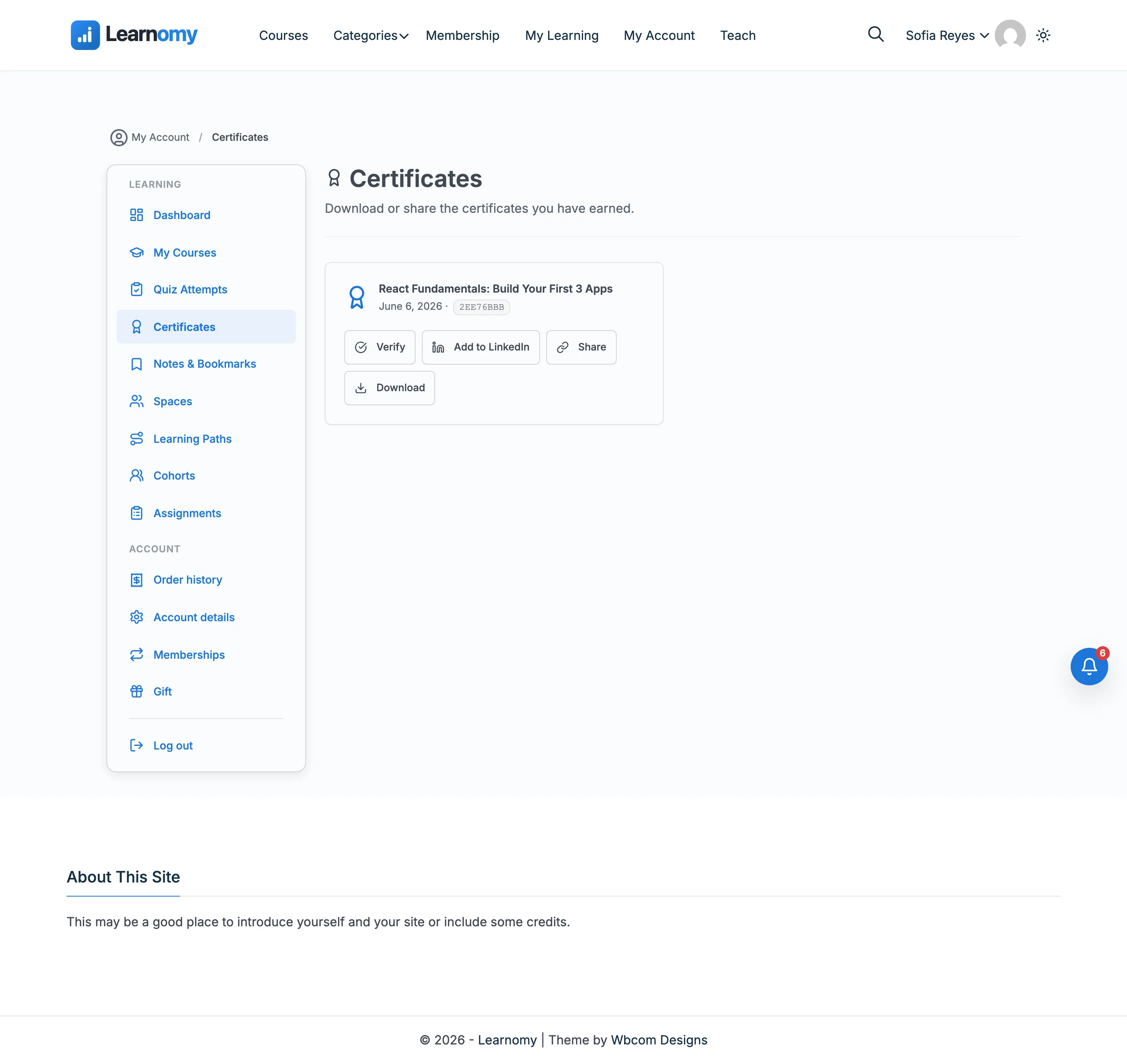
Each card has:
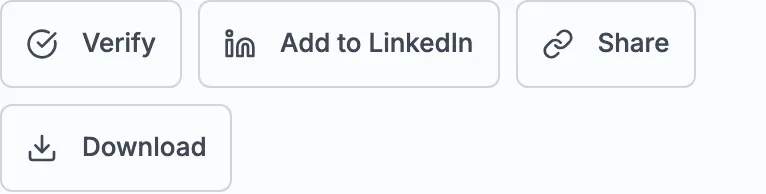
- Verify - opens the public verification URL.
- Add to LinkedIn - pre-fills the LinkedIn "Add Certification" form with the course name, organization, issue year/month, and credential ID.
- Share - copies the verification URL to the clipboard.
- Download - downloads the PDF.
If a certificate's course has been deleted, the card still shows and remains verifiable. The title reads "Course archived (certificate still verifiable)" so the student understands the context.
Tips
- Certificates are attached to the course, not to a lesson or quiz. A student must complete the entire course to trigger issuance.
- Expiry is optional. If you set an
expires_aton a certificate (via the REST API or Pro features), Learnomy's daily cron job flips the status toexpiredautomatically once the date passes. - The verification URL is stable for the lifetime of the certificate. Share it on resumes, LinkedIn, or anywhere that needs a clickable credential link.
- Revoking is permanent in the admin UI. Use it only when a certificate was issued in error or a student's completion was fraudulent.