
AI Authoring
Pro Tools pro Pro featurePro feature. Available in Learnomy Pro.
Turn the extension on first. AI Authoring ships switched off, like almost every Pro extension. Go to Learnomy Settings > Modules, find AI Authoring, and enable it. Until you do, its menu items and settings do not appear at all, which reads as a missing feature rather than an unflipped switch.
AI Authoring lets administrators and instructors draft courses and quiz questions with AI, right inside the builders they already use. AI is an assistant: it proposes, you review, and everything it creates is saved as a draft for you to approve. Nothing is ever published or deleted automatically.
What you can do#
- Generate a course curriculum from a short brief, on the course builder.
- Generate quiz questions from a topic, on the quiz editor.
- Add more or refine with instructions ("add a section on advanced topics", "focus on real-world scenarios") - the AI is aware of what the course or quiz already has and adds complementary content instead of repeating it.
- Summarize reports in plain language.
- Govern usage with per-instructor limits, a site-wide cap, and a usage panel.
AI Authoring is available to administrators (in wp-admin) and instructors (on the front-end builder). Students never see it.
Before you start: connect a provider#
AI Authoring runs on the AI provider you connect once in WordPress core under Settings > Connectors. The API key is stored by WordPress and shared across every plugin - Learnomy never stores it.
Open Learnomy → Settings → AI authoring. The Connection card shows whether a provider is connected and links straight to where to fix it if not.
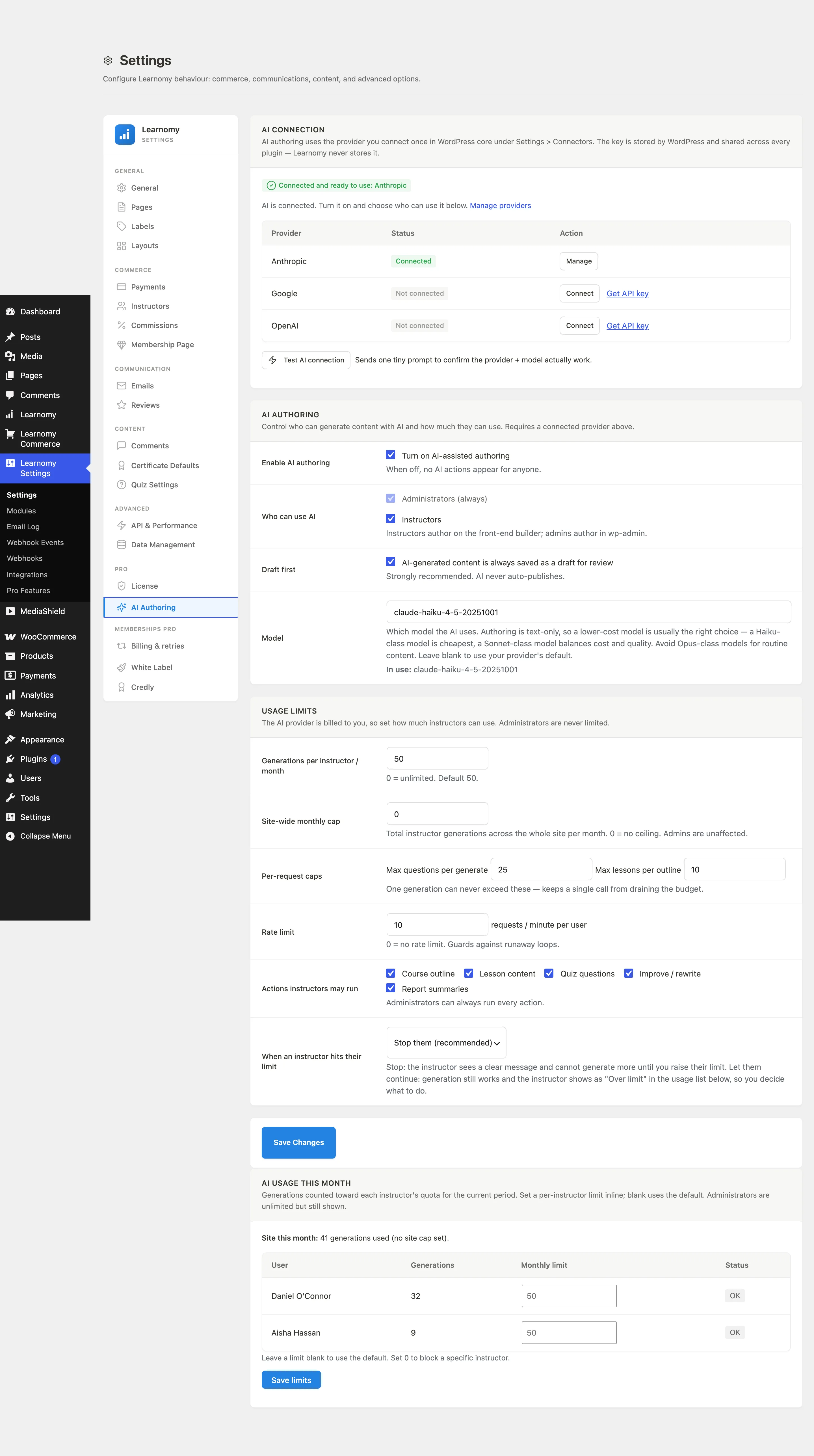
- Connected and ready to use (green): you are set.
- Not connected yet (amber): click Go to Settings > Connectors, add a provider key, then come back.
Use Test AI connection to send one tiny prompt and confirm the provider and model actually work. If your provider's newest model is not available on your account, the test shows the exact error - set a Model (a balanced model such as a Haiku- or Sonnet-class model is the right choice for text authoring) and test again.
Turn it on and choose who can use it#
On the same AI authoring tab:
- Enable AI authoring.
- Who can use it - Administrators are always allowed; tick Instructors to let them use it too.
- Draft-first - leave on so AI content is always created as drafts (recommended).
Generate a course curriculum#
Open a course in the builder (admins: Learnomy → Courses → Course Builder; instructors: the front-end course builder) and go to the Curriculum step. Click Generate with AI.
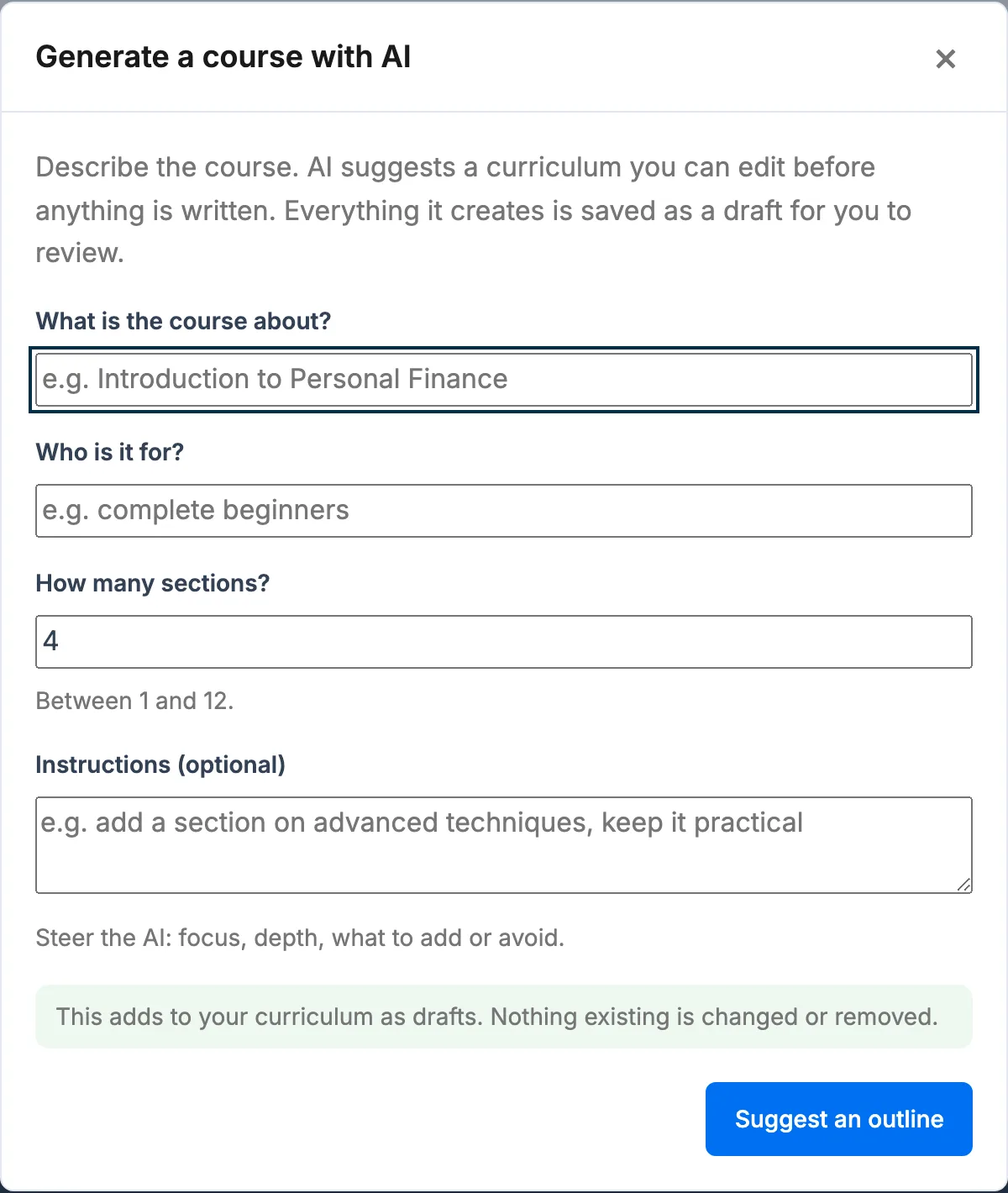
- Describe the course (topic, who it is for, how many sections). Add Instructions to steer focus, depth, or what to add.
- Click Suggest an outline. AI proposes a curriculum - nothing is written yet.
- Review it and remove anything you do not want.
- Click Generate draft curriculum. Each section and lesson is created as a draft, with a starter lesson body you can edit.
- The builder reloads so you can review the new drafts.
It only adds. Generating into a course that already has content adds complementary sections as drafts - it never changes or removes what is already there.
Generate quiz questions#
Open a quiz in the editor (admins: Learnomy → Quizzes → edit a quiz; instructors: the front-end quiz editor) and click Generate questions with AI.
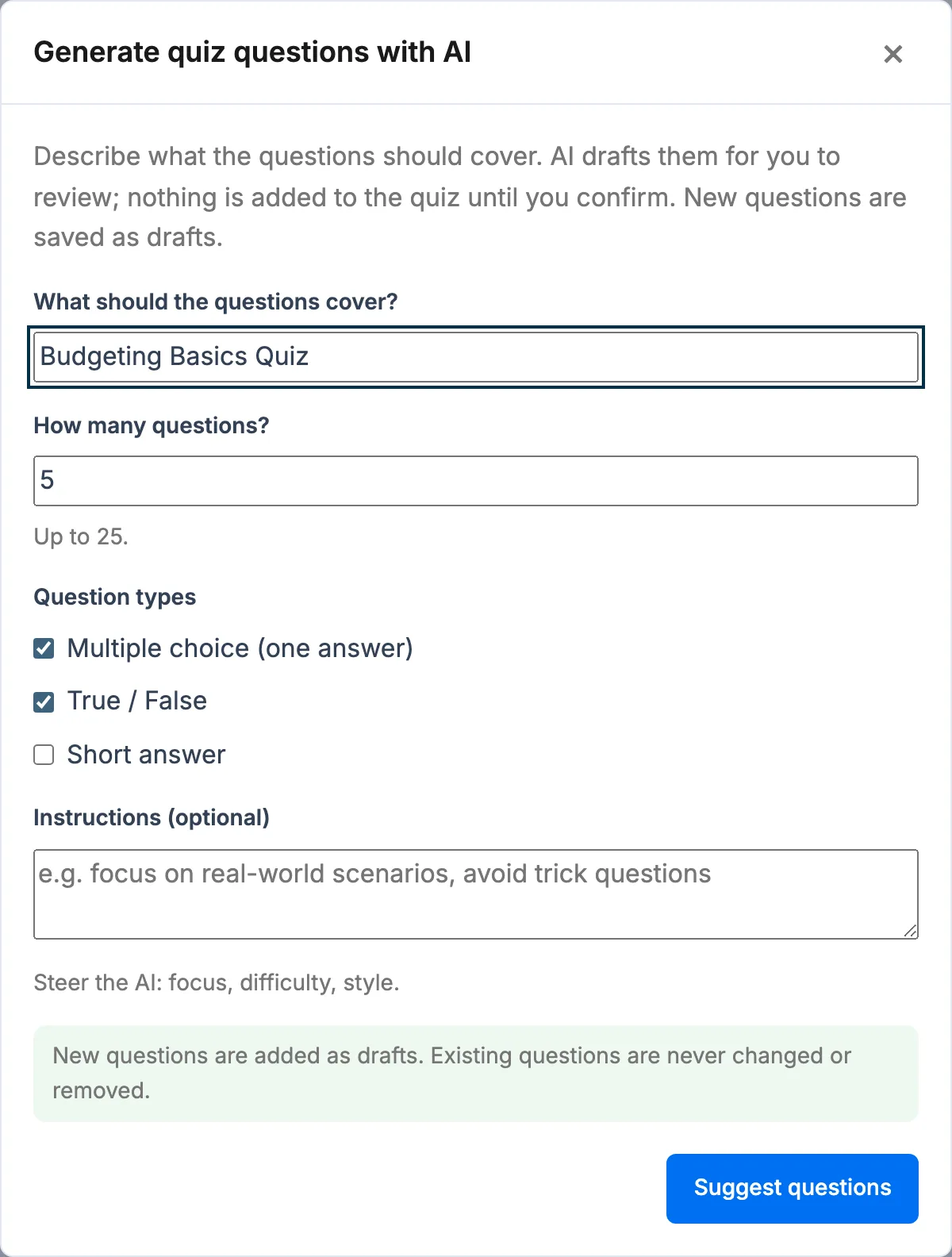
- Set the topic (it is pre-filled from the quiz title), how many questions, and which question types. Add Instructions to steer difficulty or style.
- Click Suggest questions. AI drafts them for review - nothing is added yet.
- Review each question (stem and options, with the correct answer marked) and remove any you do not want.
- Click Add to quiz. The questions are created as drafts and added to this quiz.
Running it again returns new questions - the AI knows which questions the quiz already has and will not repeat them.
Summarize a report#
Go to Learnomy → Analytics and click Summarize with AI. You get three to five plain-language points about your courses and students, ending in one recommended action.
- The button only appears when AI is enabled and a provider is connected. If it is missing, check Settings → AI.
- Nothing is generated when the page loads. One click is one generation, and it counts against your usage limits.
- The summary is ownership-scoped: an instructor's covers their own courses and students, an administrator's covers the whole academy.
- It covers all of your teaching to date. It does not follow the reporting period buttons on that page - those change the revenue and enrolment cards, not the summary.
Usage limits and governance#
The AI provider is billed to you, so you control how much instructors can use. On Learnomy → Settings → AI authoring → Usage limits:
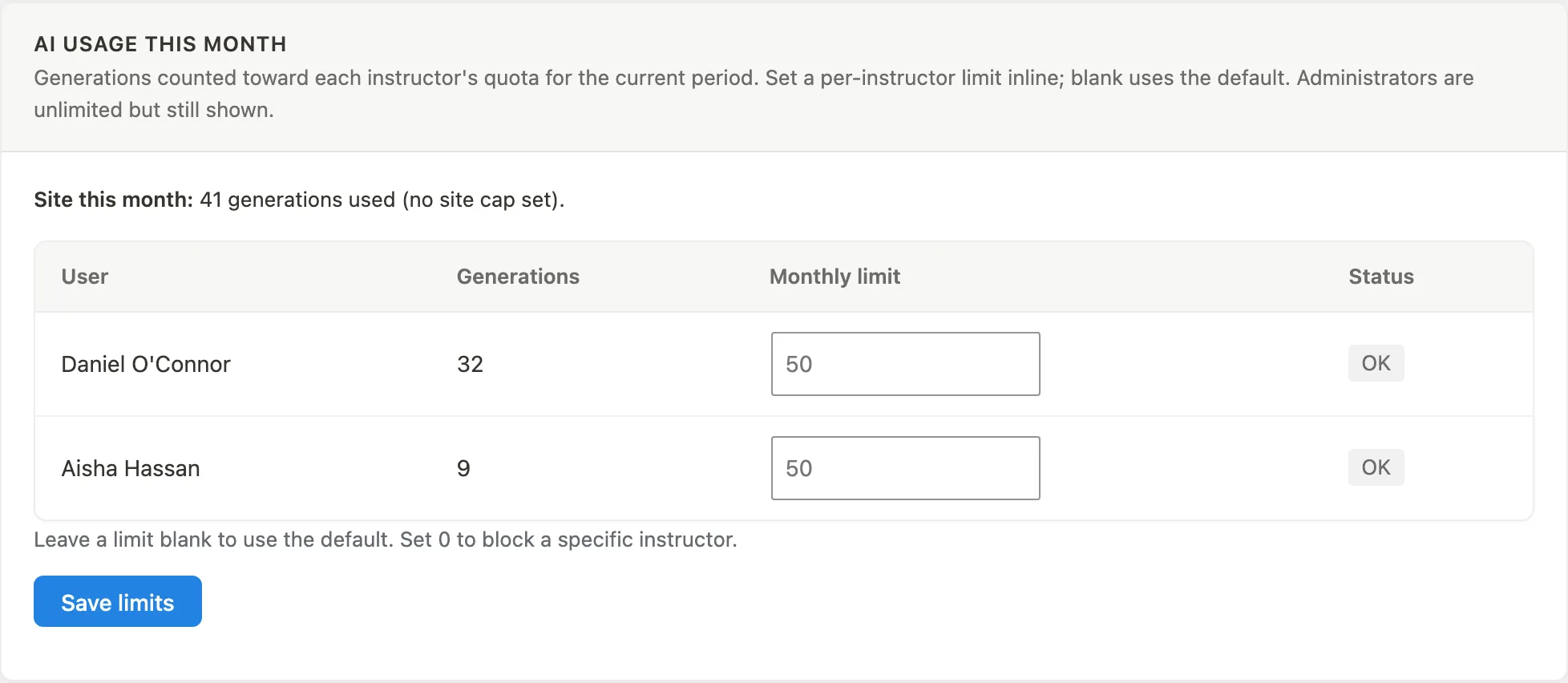
The panel lists every instructor's generations for the current period alongside their monthly limit, so you can see who is consuming the budget before the bill arrives. Administrators show in the list but are never capped.
- Generations per instructor / month - switch on Limit generations per instructor and set the default monthly allowance. Off: unlimited.
- Site-wide monthly cap - switch on Cap generations across the whole site and set a ceiling across all instructors. Off: no ceiling. Administrators are never limited.
- Per-request caps - the most questions per generate and lessons per outline, so a single call cannot drain your budget.
- Rate limit - requests per minute per user, to guard against runaway loops.
- Actions instructors may run - which AI actions are available to instructors.
- When an instructor hits their limit:
- Stop them (recommended) - they see a clear message and cannot generate more until you raise their limit.
- Let them continue, but flag it - generation still works and the instructor is flagged Over limit in the usage list, so you decide what to do.
The usage panel#
The AI usage this month panel shows the site total versus your cap, and every instructor's usage this month with a status: OK, Near limit, Over limit, Unlimited or Blocked. For each instructor choose Site default, Custom (then type their monthly number) or Blocked, then click Save limits. A blocked instructor sees "AI is turned off for your account" and cannot generate, even when the limit setting is Let them continue, but flag it. The list shows everyone who used AI this month, then everyone with a Custom limit or Blocked who has not, 20 per page, so a blocked instructor can always be found and unblocked.
How it stays safe and consistent#
- Draft-first - AI content is created as drafts; you approve before anything goes live.
- Additive - the wizards add content; they never delete or overwrite existing courses, lessons, or questions.
- Same as hand-authored - AI writes through the same internal authoring path as the manual editors, so AI-created content behaves identically and shows up consistently on the front end, in wp-admin, and over the API.
- Permission-scoped - instructors can only generate into their own courses and quizzes; administrators can manage all.
For developers#
AI generation is exposed under the learnomy-pro/v1 REST namespace (admin / allowed-instructor only): POST /ai/propose-outline, POST /ai/generate-course, POST /ai/propose-questions, POST /ai/generate-questions, POST /ai/summarize-report, and the admin-only read-only GET /ai/usage.
Useful hooks:
learnomy_pro_ai_request_timeout(filter) - HTTP timeout in seconds for AI calls (default 60).learnomy_pro_ai_generate_text(filter) - short-circuit the model call (return a string) to inject a custom transport or a test response.learnomy_pro_ai_overage(action) - fires when an instructor generates past a limit under "Let them continue" mode ($user_id, $kind, $used, $limit); hook it to email or Slack your admins.