
Focused
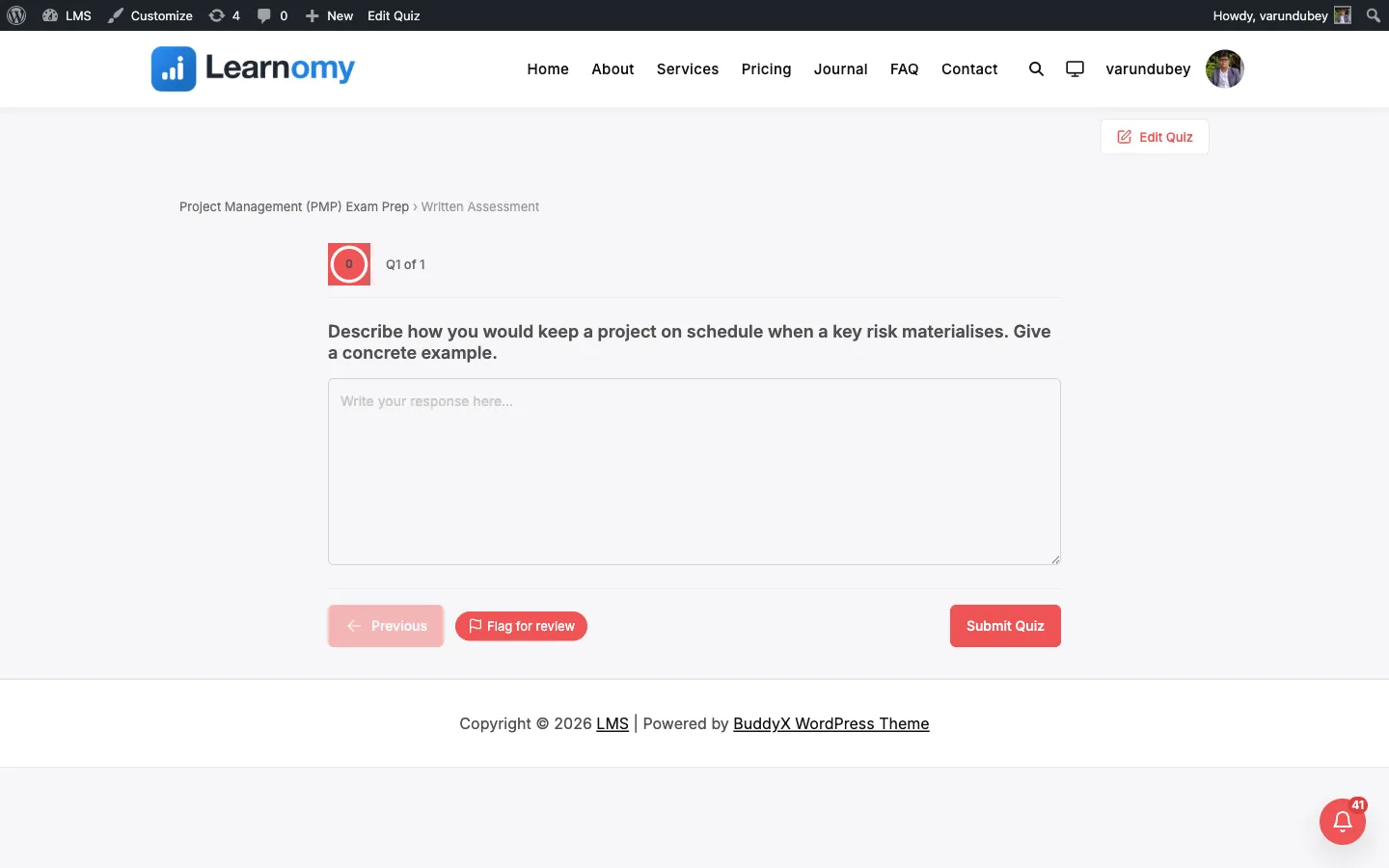
Quizzes and GradingThe Focused layout shows one question at a time on a clean screen, with a start screen, previous/next navigation, and a results screen. It is the default quiz layout in Learnomy Free and works for quizzes of any length.
What you can do#
- Present a quiz as one question at a time instead of a long scrolling page, so students focus on a single question.
- Give students a start screen with the quiz rules (question count, time limit, passing percentage, and attempts when limited) before the attempt begins.
- Move through questions with Previous and Next, and submit from the last question.
- Show a progress ring with the answered count, and a question map (opened from the ring) to jump straight to any question.
- Flag a question for review and come back to it before submitting.
- See a pre-submit review that lists anything still unanswered or flagged before the final submit.
- Run the quiz timed, with a top-bar timer that turns urgent in the last minute and auto-submits at zero.
- End on a results screen with the score, pass/fail status, an optional per-category breakdown, and a question-by-question review.
How to use it#
- Open the quiz in Learnomy > Quizzes and edit it (or add a new one).
- In the quiz settings, find Display template. Focused is selected by default, so a new quiz already uses it -- you do not need to change anything to get this layout.
- Add your questions as normal. Each one appears on its own screen at quiz time, in quiz order.
- Set a Time limit if you want the quiz timed. One timer runs across the whole quiz.
- Set the Passing score and any attempt limit as you would for any other layout.
- Save and publish the quiz.
What the student sees at quiz time:
- A start screen with the quiz title, description, and rules summary. The student clicks Start Quiz to create the attempt. If the quiz belongs to a course they have not enrolled in, they see an enroll prompt instead.
- One question fills the screen. The top bar shows a progress ring with the answered count and, when the quiz is timed, a timer.
- The student answers, then uses Previous and Next to move; on the last question the Next button becomes the submit action.
- The student can open the question map from the progress ring to jump to any question, and use the flag button to mark a question for review.
- When the student reaches submit with anything unanswered or flagged, a pre-submit review offers to jump back to those questions or submit anyway.
- The results screen shows the pass/fail icon, the score, the passing status, an optional score-by-category breakdown, and a per-question review. Depending on the quiz settings the student can move on to the next item, go back to the course, or try again if attempts remain.
Settings and options#
These are set on the quiz editor (Learnomy > Quizzes > edit a quiz) and stored on the quiz.
| Setting | Field name | Values | Notes |
|---|---|---|---|
| Display template | display_template |
focused (default) |
The default Free layout. A new quiz uses it with no configuration. |
| Time limit | (quiz time limit) | minutes | One timer for the whole quiz. When under 60 seconds remain the timer turns urgent; at zero the attempt auto-submits. |
| Passing score | passing_score |
percentage | Same passing rule as every other layout. |
| Attempt limit | attempt_limit |
number | When attempts remain, the results screen shows Try Again; otherwise it shows an "all attempts used" message. |
The question map, flag-for-review, and pre-submit review are built into the layout -- there is nothing to configure for them.
For developers#
- REST: the quiz create and update endpoints (
learnomy/v1/quizzes) acceptdisplay_template(enum includesfocused) and return it on the quiz resource. - Database:
display_templateis a column onlrn_quizzes(defaultfocused). - Template override: the layout renders from
templates/quiz/focused.php. Copy it totheme/learnomy/quiz/focused.phpin your theme to override it through the Template Loader. - Frontend store: the player uses the shared
learnomy/quizInteractivity store inassets/js/quiz-view.js. Question data is fetched from the REST API when the student clicks Start Quiz -- the template renders only the shell (start screen, question container, navigation, results).