
Taking a Quiz
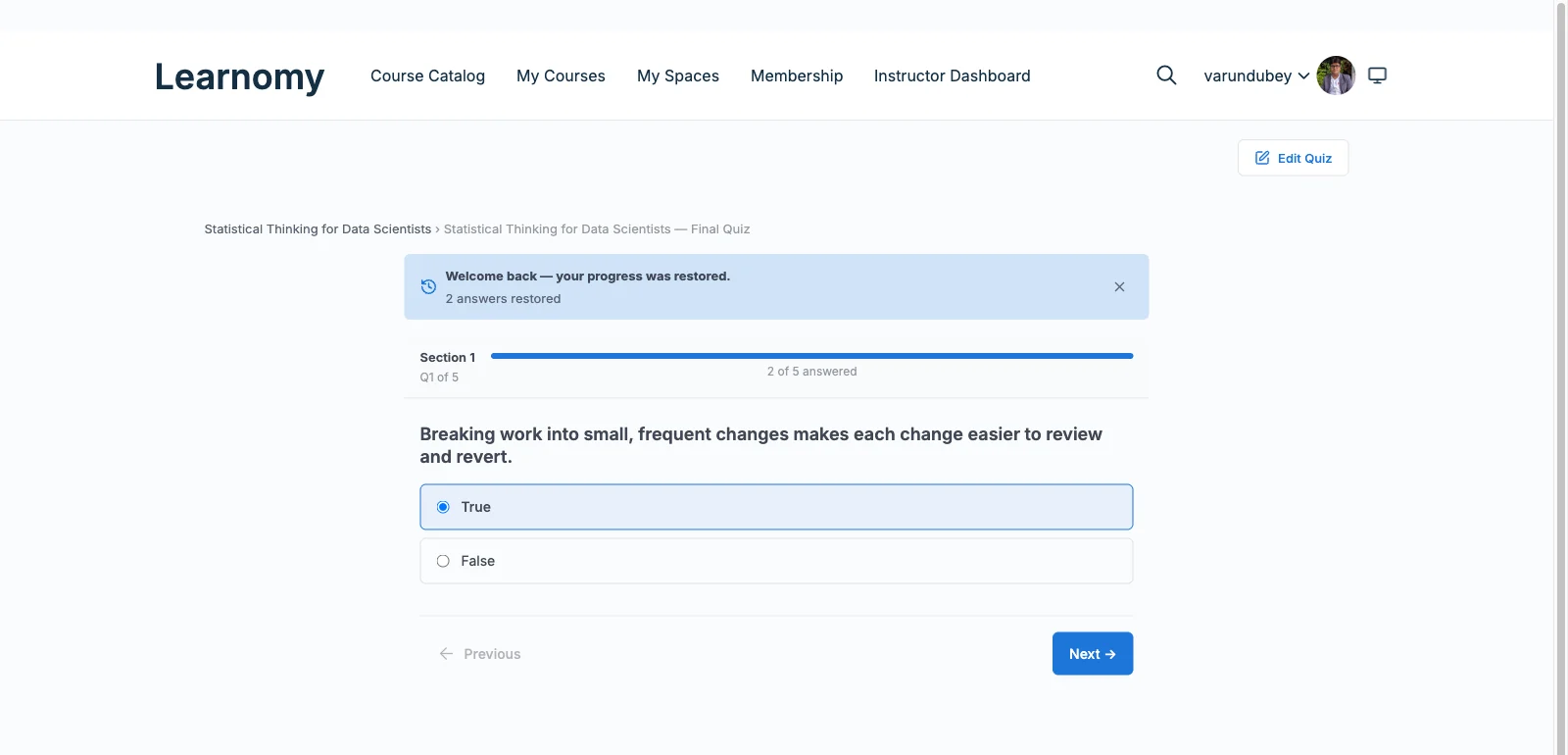
This page describes the student experience: what students see before, during, and after a quiz. Use it to understand the player flow and to set student expectations in your course.
Overview
Students access quizzes through a course lesson, from the course outline, or directly at a standalone quiz URL. The player is the same in all cases. The quiz template (Focused, Classic, or a Pro template) is chosen by the instructor per quiz.
Before the quiz: gates
If the instructor configured any access restrictions, the student sees a blocking screen before the quiz player loads.
| Gate | What the student sees |
|---|---|
| Scheduled | "This quiz opens on [date]." Students can see the start screen but cannot start until the open date. |
| Closed | "This quiz closed on [date]." No new attempts are accepted. |
| Cooldown | "Another attempt available in [countdown timer]." The page reloads automatically when the cooldown ends. |
| Locked out | "You've used all [N] attempts." The student must contact the instructor to be reset. |
| Access code | A code entry form. The student must enter the correct code to proceed. |
The start screen
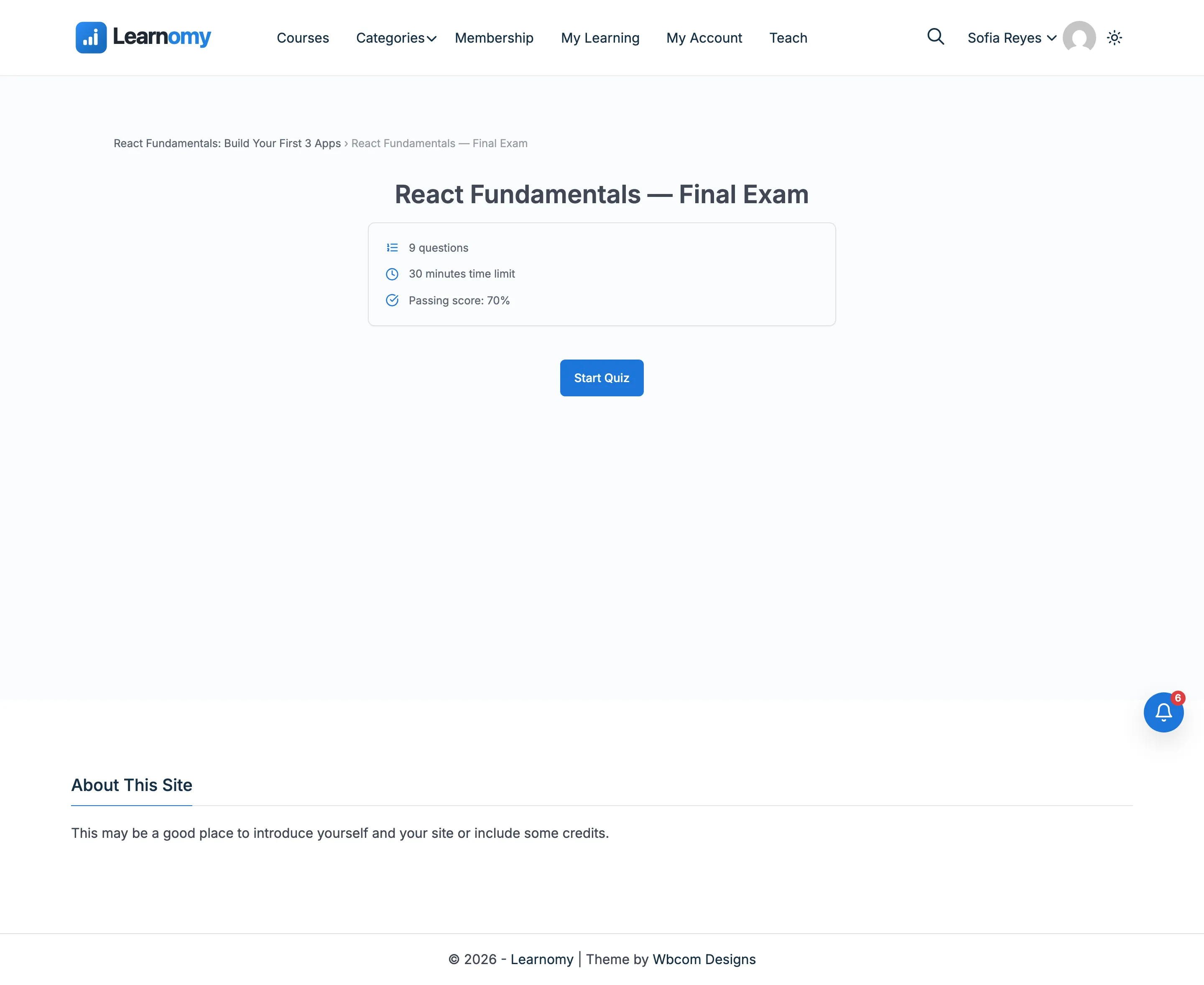
When no gate is blocking, the student lands on the start screen.
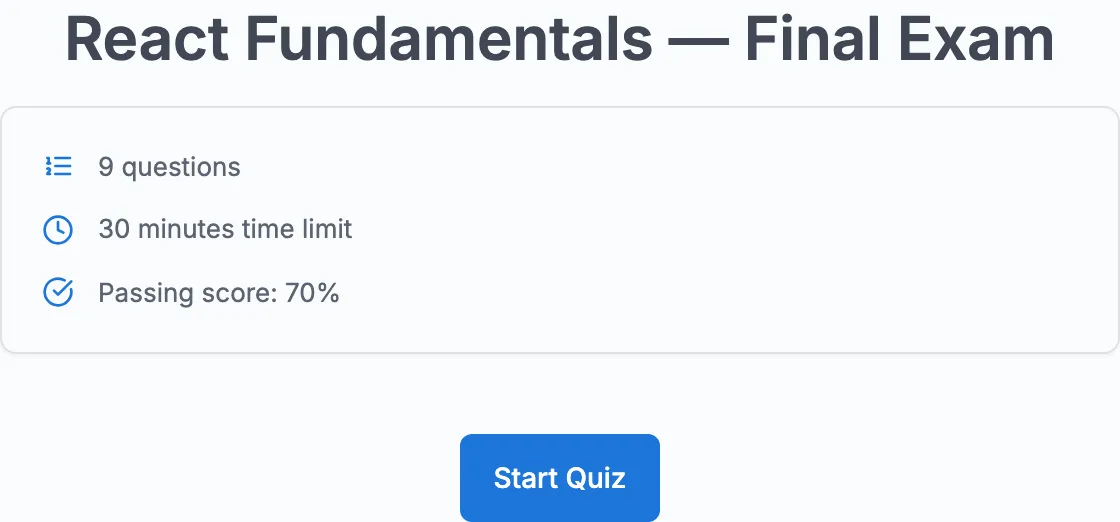
The start screen shows:
- The quiz title and description (if the instructor added one).
- A rules summary card listing the number of questions, time limit (if set), passing score, and attempt limit (if set).
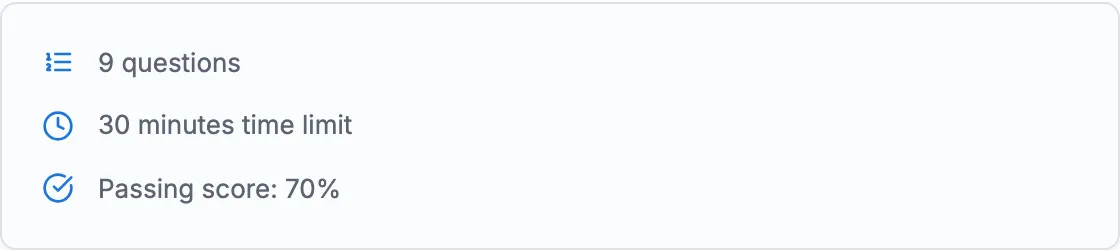
If the student is not yet enrolled in the course the quiz belongs to, the start screen shows an enrollment prompt instead of the Start Quiz button.
Click Start Quiz to begin. The attempt is created at this point.
Answering questions
Once the quiz starts, the question player appears. The layout depends on the display template the instructor selected.
Focused template (default): One question at a time. The top bar shows a progress ring, a question counter (e.g. "Question 2 of 8"), and a countdown timer if a time limit is set.
Classic template: All questions on a single scrollable page.
Pro templates (Sectioned, Conversational, Review Board): Available with Learnomy Pro. See Building a Quiz for descriptions.
Answering each question type
| Question type | How to answer |
|---|---|
| Multiple choice (single) | Click one option. |
| Multiple choice (multiple) | Click all options that apply. |
| True / False | Click True or False. |
| Short answer | Type a response in the text field. |
| Fill in the blank | Type the missing word(s) in each blank field. |
| Essay | Type a longer response in the text area. |
| Ordering (Pro) | Drag the items into the correct sequence. |
| Matching (Pro) | Click a term on the left, then click its match on the right. Click "Clear matches" to redo. |
Hints
If the instructor added a hint to a question, a "Show hint" link appears below the question. Clicking it reveals the hint. Hints may carry a small marks cost depending on quiz configuration.
Navigation
In Free navigation mode, Previous and Next buttons let students move between questions freely. In Sequential mode, only the Next button is shown and students cannot go back.
Tab switching detection
Learnomy detects when the student switches away from the quiz tab. A warning banner appears when this happens: "Tab switching detected. This activity is recorded." Tab switch counts are stored with the attempt for the instructor to review.
Timer
If a time limit is set, the remaining time appears in the top bar. When fewer than 60 seconds remain, the timer turns red. When time runs out, the attempt is submitted automatically with whatever answers have been saved.
Reloading or leaving mid-quiz
While an attempt is under way, the browser asks the student to confirm before it reloads the page, closes the tab, or navigates away. Answers are saved as they are given, so a reload resumes the attempt with them intact - but a timed quiz keeps counting down while the page reloads, so the confirmation is there to stop a stray refresh costing exam time.
It is armed only between starting and submitting:
| Moment | Does it ask? |
|---|---|
| Start screen, or a gate screen (scheduled, closed, cooldown, locked out, access code) | No. No attempt exists yet. |
| Any question, in any layout | Yes. |
| Submitting the quiz, including the automatic submit when time runs out or the tab-switch limit is reached | No. Submission is already under way, so leaving costs nothing. |
| Results screen | No. |
| After clicking Retake, before starting the new attempt | No. It arms again once the new attempt begins. |
If a submission fails and the student is returned to their answers to try again, the confirmation comes back with them.
The wording of the prompt comes from the browser, not from Learnomy, so it differs between Chrome, Firefox and Safari and cannot be customised or styled.
Immediate feedback
If the instructor set Feedback timing to After each question or Immediate, a feedback panel appears after each answer showing whether it was correct and the explanation (if the instructor wrote one). In other feedback modes, this panel does not appear during the quiz.
Submitting
When the student reaches the last question, the Next button changes to Submit Quiz. Clicking it opens a confirmation step, then submits the attempt.
Once submitted, the attempt status changes from In Progress to Submitted. For quizzes with only auto-graded questions, the status immediately advances to Graded and the results screen is shown. For quizzes with essay or manual questions, the attempt stays Submitted until an instructor grades those responses.
Results screen
After submission (and finalization for auto-graded quizzes), the results screen shows:
- Pass or fail with the score percentage.
- The passing threshold.
- Per-question feedback (if the instructor enabled it in the feedback timing settings).
- A button to retake the quiz if the student has remaining attempts.
- A link to go back to the course.
For essay quizzes, the results screen shows a "Pending review" message until the instructor finishes manual grading.
Tips for instructors
- Students who are locked out see a message to contact their instructor. You can reset an attempt limit manually from the student's profile.
- If a student's attempt is stuck in "Submitted" and does not show results, check the Grading inbox. There may be an ungraded essay response holding it.
- The cooldown countdown timer on the gate screen reloads the page automatically. Students do not need to refresh manually.
- A student who reports "the browser asked me if I really wanted to leave" is seeing the mid-quiz confirmation working as intended. It cannot be turned off per quiz, and their answers are safe either way.