The short version
- Yes, you can run a Udemy-style course marketplace on your own WordPress site. Instructors apply, you approve them, they publish courses, and every sale splits between your site and the instructor automatically.
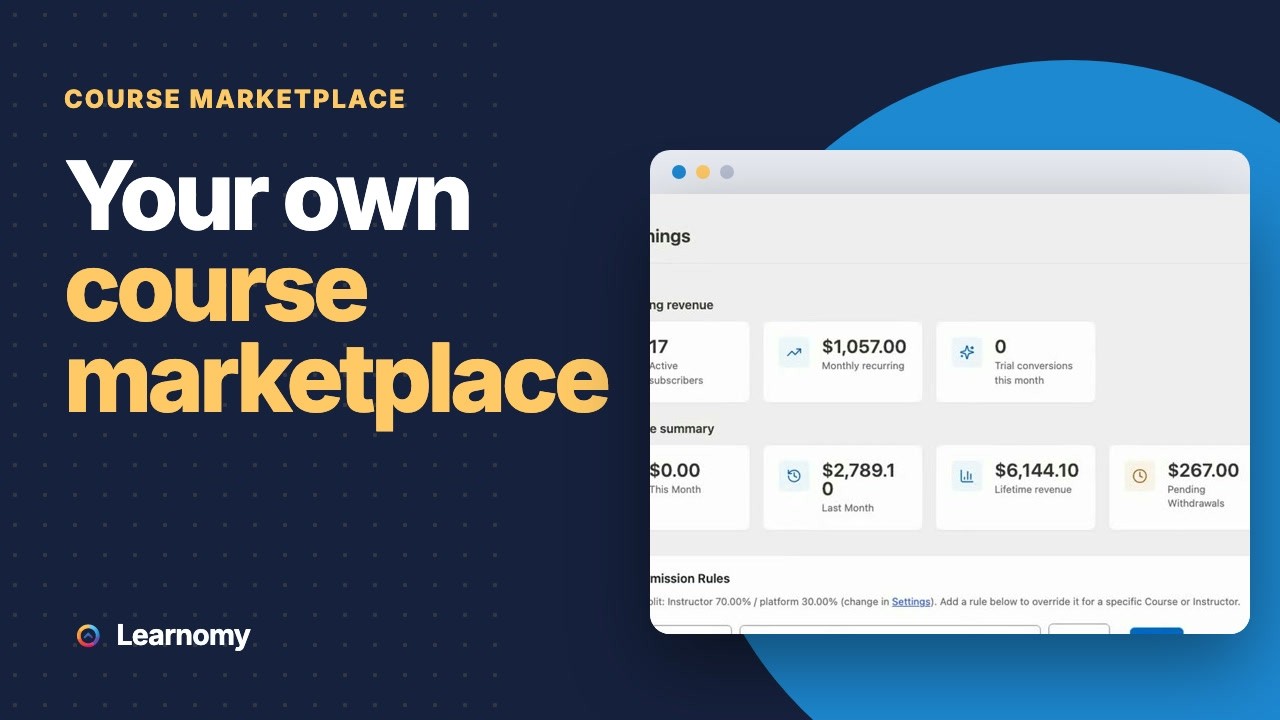
- Learnomy covers applications, course approval, commission with per-course and per-instructor rates, an earnings dashboard for each instructor and a withdrawal queue.
- Stripe Connect pays instructors straight to their own Stripe accounts on a schedule you pick, or you can send the money yourself.
- What you don’t get is Udemy’s audience. Your marketplace is your site, so students arrive through your marketing, not a shared catalog.
Can you run a Udemy-style marketplace on your own site?
Yes. A course marketplace needs four things: a way for teachers to join, a way for them to publish, a way to split each sale, and a way to pay them. Learnomy handles all four inside WordPress, so the whole marketplace lives on your domain and in your database.
The difference from Udemy is who runs the shop. Udemy is a marketplace: strangers search it, find a course and buy. Hosting, checkout, delivery and discovery are the platform’s job, and the platform sets the rules for instructors. On your own site, you’re the platform. You set the commission, you approve the instructors, you decide what a course page looks like, and you own the relationship with every student.
That’s a real trade. You gain control and you take on the job of bringing students in. If you’re a community, a training brand or a niche publisher that already has an audience, that trade usually pays. If you have no audience at all, read the section near the end about when a marketplace listing is still the better start.
How a marketplace works in Learnomy, step by step
Here’s the path from a fresh install to your first instructor’s first payout. Each step happens on a real screen.
- Turn on the marketplace side. Make sure Academy Mode under Learnomy Settings > Settings > General isn’t set to solo, and switch on the Commissions and Payouts module under Learnomy Settings > Modules.
- Set your default split. Under Learnomy Settings > Commissions, the Platform Commission (%) starts at 30, which leaves the instructor 70%. Change it to whatever your marketplace offers.
- Open applications. Your site gets a public form at
/become-instructor/. Link it from your menu or a “Teach with us” page. - Approve instructors. Applications land in Learnomy > Applications with Pending, Approved and Rejected tabs. Approve one and that person becomes an instructor right away, with an email to say so.
- Decide how courses go live. By default, instructors publish without review. You can switch that off for everyone, or require approval for one instructor at a time.
- Let the first sale happen. When a student pays, the commission is worked out on the spot and shows in the instructor’s earnings.
- Pay out. The instructor asks for a withdrawal from their dashboard, and you approve it. With Stripe Connect, the transfer goes to their Stripe account for you.
The rest of this page goes through each part in more detail, including what happens with refunds, which is where most marketplaces get into trouble.
Bringing instructors in
The application form at /become-instructor/ asks for a short bio, areas of expertise, a course idea and, optionally, teaching experience. Applicants need to be logged in, so a visitor is asked to sign in or create an account first. Bots are filtered out with a hidden honeypot field.
Every application goes to Learnomy > Applications. You can approve or reject one at a time or in bulk. A rejection can carry a reason, and the applicant sees it on the form page, so a “not yet, tell us more about your course idea” doesn’t turn into a support email. They can apply again later, and a new application starts as pending.
Once approved, an instructor appears under Learnomy > Instructors. From their detail page you can add a verified badge to their public profile, make their courses wait for your approval, or suspend them if something goes wrong. There’s no delete, on purpose: suspending keeps their sales history and their students’ records intact.
Keeping quality up: course approval
A marketplace lives or dies on the quality of its catalog. Learnomy gives you two levels of control.
The site-wide switch is Self-Publish Courses under Learnomy Settings > Settings > Instructors. It’s on by default, which suits a small group of trusted teachers. Turn it off and every instructor’s course goes to a Pending Review tab under Learnomy > Courses before it can go live.
The per-instructor switch is more useful once you grow. On an instructor’s detail page, Require course approval puts just that person’s courses in review, while your established teachers keep publishing freely. It’s a good default for new instructors, and you can flip it back with Allow self-publish once they’ve shown what they can do.
When you reject a course, you give a reason and the course goes back to draft. The instructor sees your reason under the course in their course list and at the top of the editor, so the fix is obvious.
How the money splits
Commission is the heart of a marketplace, so it pays to know exactly how Learnomy works it out.
| Rule | Applies to |
|---|---|
| Default split | Every sale with no other rule (30% to your site, 70% to the instructor, unless you change it) |
| Per-course rule | One course, whoever sells it |
| Per-instructor rule | All of one instructor’s courses that don’t have their own course rule |
Rules are checked in that order from the most specific: a course rule beats an instructor rule, which beats the default. You add them under LMS Commerce > Earnings, in the Commission Rules card.
A few details that matter once real money flows:
- The split is taken from the net amount. Fees and tax come off first. The docs give the example of a $79 course with 15% tax: your site’s share comes to $23.70 and the instructor’s to $55.30.
- Rates are frozen at the time of sale. If you change a rule next month, past sales keep the rate they were made at. Nobody’s earnings move under them.
- The course’s main author is the one paid. If several instructors work on one course, the commission goes to the primary author.
- Memberships share fairly. When a membership plan includes several courses, each month’s plan revenue is split equally across the plan’s published courses, and each course’s author is paid at their own rate.
- Store bridge sales don’t create commission. If you sell a course as a WooCommerce or other store product through the store bridges, the store keeps the sale and Learnomy only gives access. Learnomy’s own checkout, including WooCommerce used as that checkout, does create commission. Our payments page explains the difference.
Refunds without the headaches
Refunds are where a marketplace’s books usually go wrong. Learnomy handles them by the rules below, the same way on every payment method.
- A partial refund reduces both shares in proportion, and the student keeps access.
- A full refund marks both shares as reversed, and the student’s access ends.
- Money already paid out is never clawed back by editing old records. If a refund comes after the instructor was paid, the extra becomes a negative earning that nets against their future earnings. Their balance can briefly go below zero, and the next sales bring it back.
That last rule is why instructor balances always reflect real, settled money. It also means you never have to chase an instructor for a refund. The system recovers it from what they earn next.
Paying instructors
A withdrawal queue
Each instructor has an Earnings widget on their dashboard at /instructor/, showing what’s available to withdraw, this month’s earnings and their lifetime total. When they want to be paid, they click Request Withdrawal, enter an amount and pick a method: PayPal, bank transfer or Stripe. You can set a minimum withdrawal in the settings, 25 by default.
Requests arrive in the Withdrawal Requests card on LMS Commerce > Earnings, with Pending, Processed, Rejected and All tabs. Approving a request marks it processed. That’s a record, not a transfer: you send the money yourself by the method in the row. Rejecting asks for a reason and puts the amount back in the instructor’s balance.
For a marketplace with a handful of instructors, this works well. You pay everyone once a month in one sitting.
Stripe Connect
Once you have more than a few instructors, sending payments by hand gets old. Stripe Connect in Learnomy turns approved earnings into real Stripe transfers.
You enable Stripe Connect Payouts under Learnomy Settings > Modules, then fill in the Connect Settings card under LMS Commerce > Stripe Payouts. You pick a payout schedule (monthly, every two weeks or weekly), set a minimum payout amount, and choose whether payouts run automatically on that schedule. Balances under the minimum wait for the next cycle.
Instructors connect from their own dashboard, not from your admin. They click connect in the Earnings widget, go through Stripe’s onboarding and come back to your site. A transfer only goes out once Stripe says the account can take charges and receive payouts, so a half-finished signup never gets money it can’t hold. A failed payout can be retried, and Learnomy uses idempotency keys so a retry never pays twice.
What instructors see
Good instructors stay where they feel informed. Each instructor’s dashboard at /instructor/ shows their total courses, students, published courses and revenue, plus:
- My Courses, with edit, view and duplicate
- a Completion Funnel from enrolled to started, halfway and completed
- Recent Enrollments and a Revenue Trend
- Announcements, with an option to also send them by email
- the Earnings widget described above
Instructors also get a students roster at /instructor/students/. It lists the students across their own courses with progress and completion for each course, and a search by name or email. They only ever see their own students. You, as the admin, see everyone.
Every instructor gets a public profile at /instructor/{username}/ with their photo, headline, bio, expertise tags, social links, course and student counts, average rating once ratings exist, and a grid of their published courses. They edit it themselves under My Account. A profile page is also something an instructor can share, which helps bring students to your marketplace rather than away from it.
Launch checklist for a course marketplace
Before you invite your first outside instructor:
- Write your instructor terms: the commission rate, when you pay, the minimum payout, and your refund policy. Put them on the page that links to
/become-instructor/. - Set the Platform Commission (%) to match those terms.
- Decide on course approval. For a new marketplace we’d turn on Require course approval for every new instructor.
- Make a test sale on your own test course, refund it in full, and check that both shares show as reversed.
- Decide how you’ll pay: the withdrawal queue, or Stripe Connect.
- Talk to an accountant about invoices and tax for payments to instructors in your country. That’s a business question, not a software setting.
- Check your catalog at
/courses/on a phone. Most marketplace browsing happens there.
When Udemy is still the better start
We’d be doing you a disservice if we said your own marketplace always wins. If you have no audience, the marketplace may be where your first hundred students come from. If you want to test whether a topic sells before building anything, a listing is a cheap experiment. And if hosting, checkout and delivery are chores you’d rather never think about, Udemy removes them.
Plenty of course businesses do both. We would put an introductory course on the marketplace and the full programme on your own site, as long as Udemy’s current instructor terms allow it. Our comparison of Learnomy and Udemy goes through that split in more detail.
Running your own marketplace pays off when you already have the attention: a community, a newsletter, a professional network or a brand people search for. Then every sale is yours to split on your terms, and every student stays in your database.
If you want to see the instructor screens before you install anything, the live demo below builds you a private copy to click around in. For the full feature list, see instructors and payouts and pricing.