
Membership Plans
Free & Pro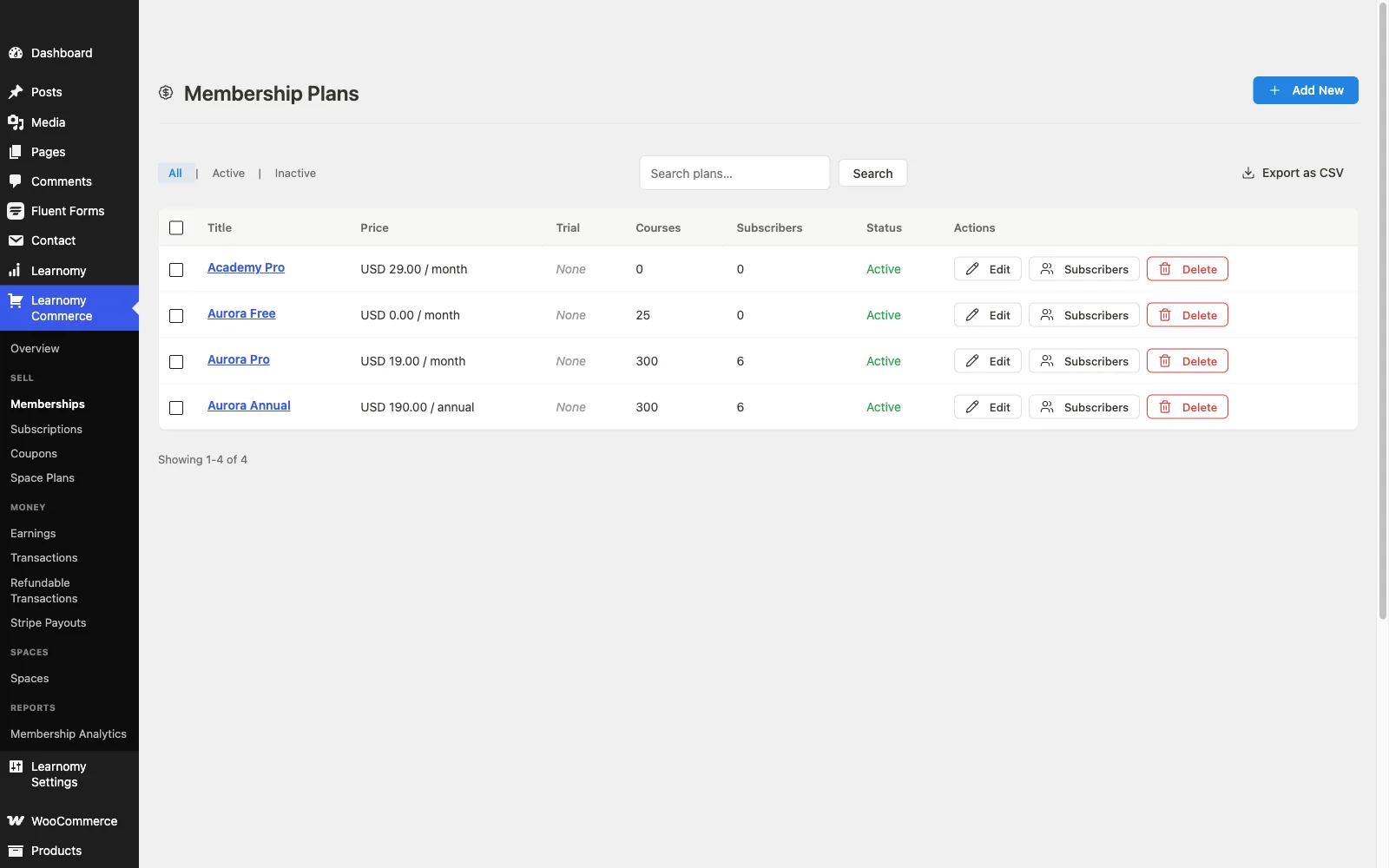
Membership plans let students subscribe for recurring or one-time access to a bundle of courses. You set the price, billing interval, trial period, and which courses subscribers can access. Students see and compare plans on the public membership pricing page.
Overview
Go to LMS Commerce > Memberships. From here you create new plans, see how many subscribers and courses each plan has, toggle a plan active or inactive, and export the full list to CSV.
The plans list
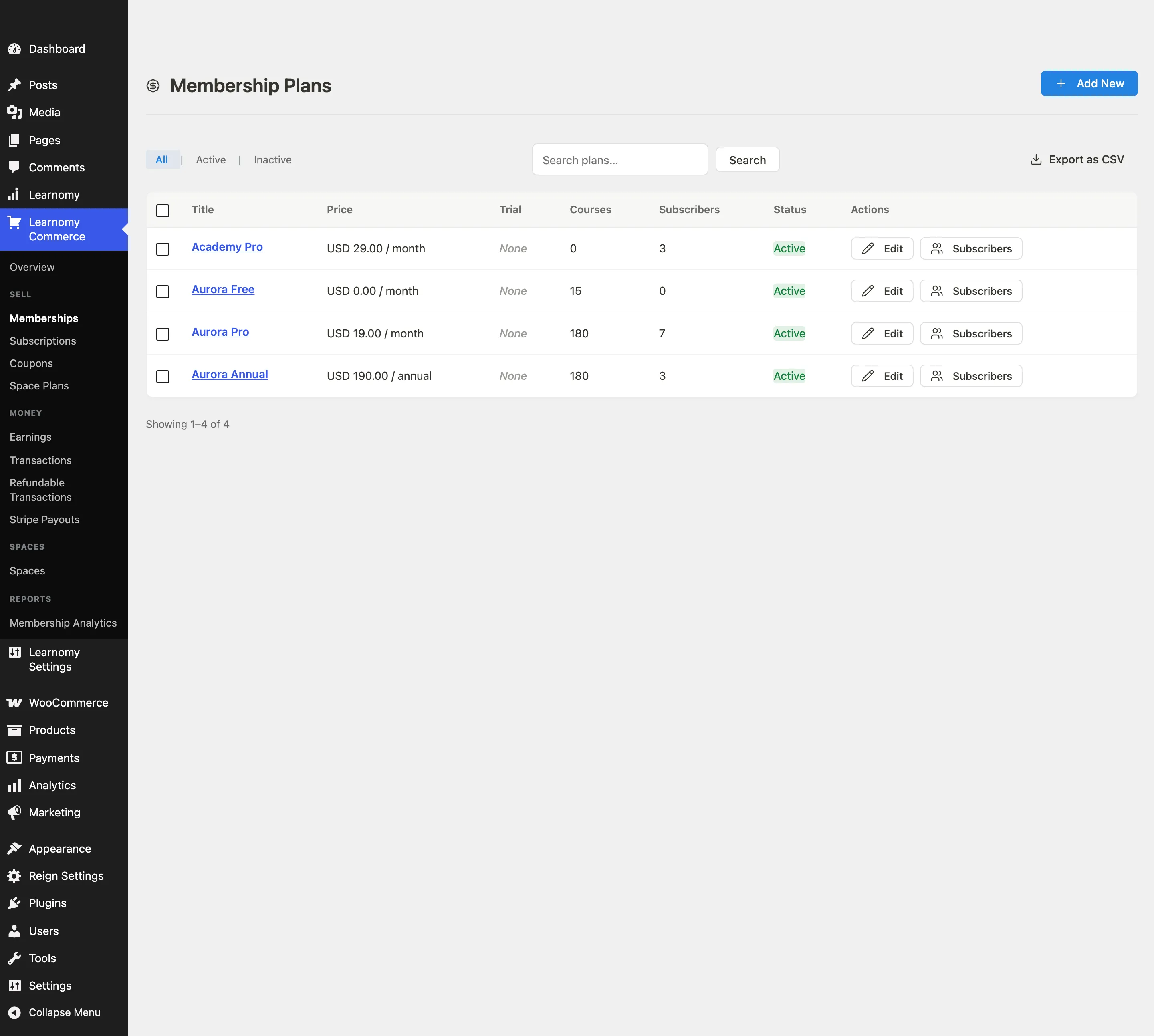
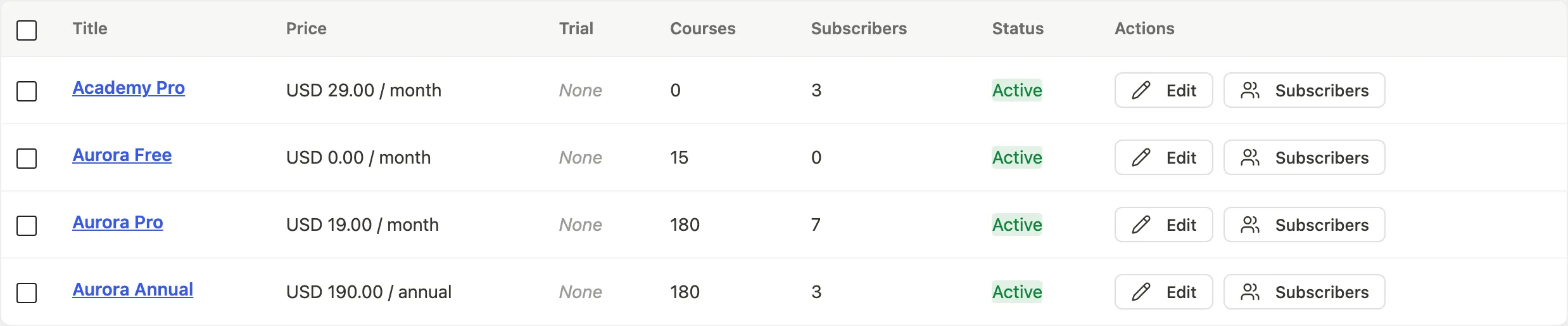
The list shows every plan with columns for Title, Price, Trial, Courses (count), Subscribers (count), Status, and Actions.
Status tabs at the top filter by All, Active, or Inactive. Use the search field on the right to find a plan by name.
Row actions offer three options:
- Edit - opens the plan editor.
- Subscribers - jumps to the Subscriptions list pre-filtered to this plan.
- Delete - permanently deletes the plan. Existing subscriptions referencing the plan show "Deleted plan" in their records.
You can select multiple rows with the checkboxes and use Bulk Actions to Activate, Deactivate, or Delete a set of plans at once.
Starting from a template
If you have no plans yet, the page shows a template picker instead of the empty table.

Four templates are available:
| Template | Price | Trial | Courses |
|---|---|---|---|
| Monthly Basic | $9/month | 14 days | Up to 5 |
| Yearly Premium | $79/year | None | Unlimited |
| Free Trial | $29/month after trial | 14 days | Unlimited |
| Custom | Blank | None | None |
Selecting a template pre-fills the editor. Every field is editable before saving.
Creating or editing a plan
Click Add New (or Edit on an existing plan) to open the plan editor.
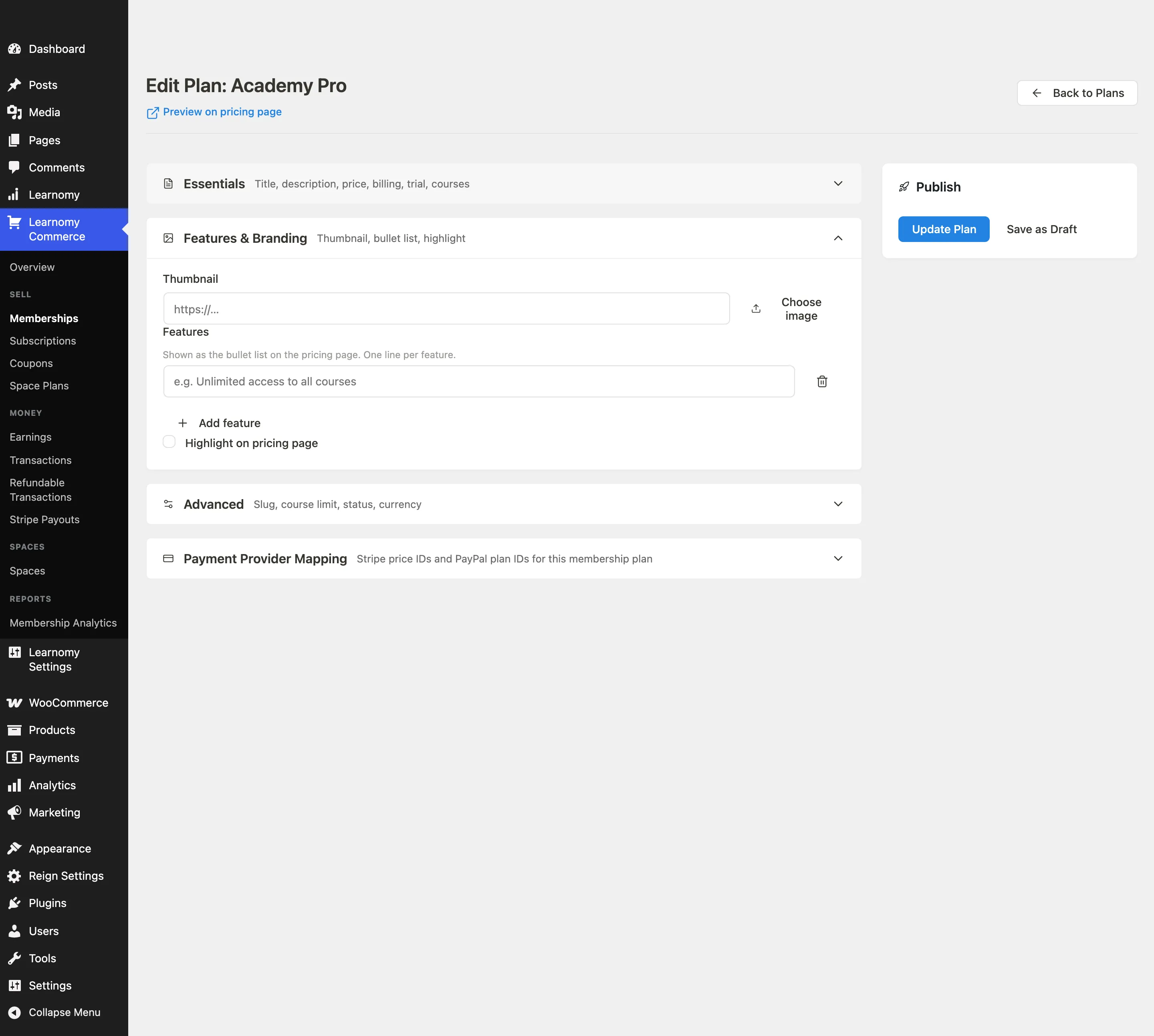
The editor has a two-column layout: a main column of accordion sections on the left, and a Publish sidebar on the right.
Essentials accordion
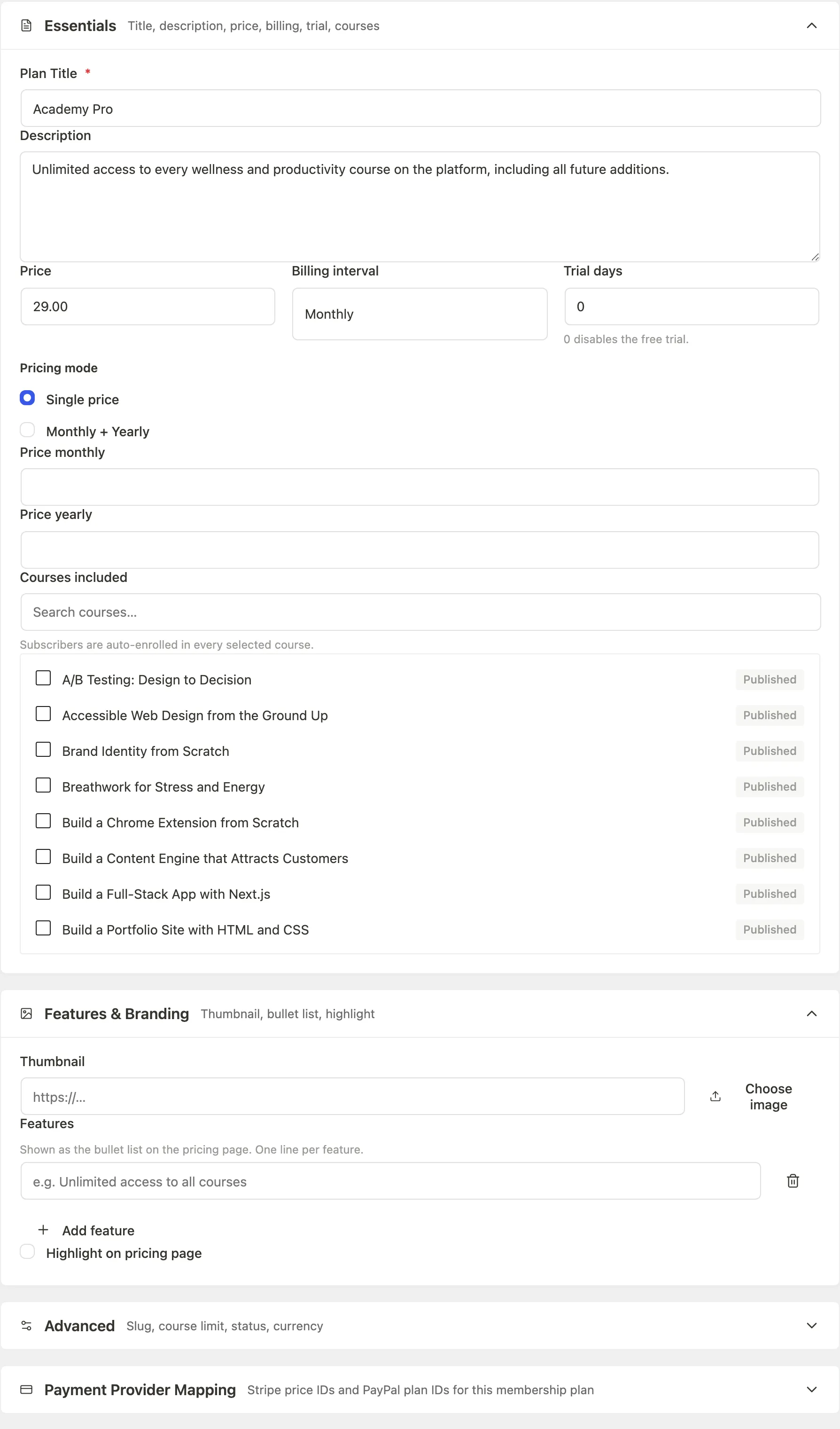
- Plan Title (required) - the name students see on the pricing page and in their account.
- Description - shown below the title on the pricing page card. Plain text.
- Price - the amount charged each billing interval, or the single charge when the interval is One-time.
- Billing interval - Daily, Weekly, Monthly, Yearly, or One-time (lifetime access). See One-time (lifetime) plans below.
- Trial days - the number of free days before billing starts. Set to 0 to disable the trial.
- Pricing mode - Single price (one billing rate) or Monthly + Yearly (show both on the pricing page with a toggle).
- If you choose Monthly + Yearly, two additional fields appear: Price monthly and Price yearly. Students pick the option at checkout.
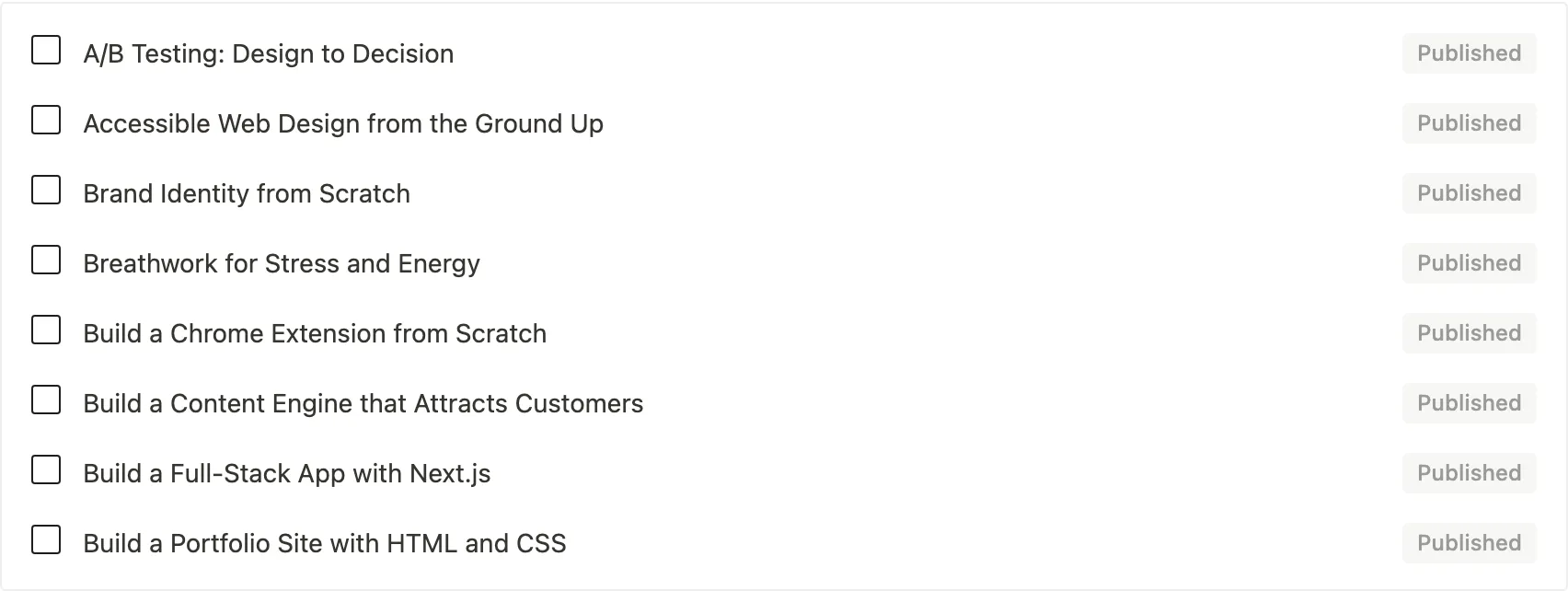
- Courses included - a searchable checklist of all your courses. Subscribers are auto-enrolled in every checked course. Leave all unchecked to give access without any course pre-enrolment.
One-time (lifetime) plans
Choosing One-time (lifetime access) as the billing interval sells the plan as a single purchase rather than a subscription. The buyer is charged once, no recurring payment is set up at the gateway, and the membership never expires.
What changes across the site when a plan is set to one-time:
- The pricing card prices it as one-time instead of "/ month", and the button reads Buy for $X rather than the recurring Subscribe for $X / month (or / year, / week, / day).
- Checkout asks the gateway for a single charge, not a subscription. Nothing repeating is created at Stripe or PayPal, so there is no renewal to fail, retry, or cancel.
- The member's subscription record is stored with no period end at all, which is what keeps it out of the nightly expiry sweep. A lifetime membership is never expired by Learnomy.
Everything else about the plan works normally: included courses, course limit, thumbnail, features, and the Learning Space scope all behave the same way.
Because there is no renewal, a coupon on a one-time plan is simply a discount on the purchase, with none of the first-payment-only rules that apply to recurring plans. See Coupons.
Features & Branding accordion
- Thumbnail - the plan's image at checkout, and the small preview in the Memberships list. It is not shown on the pricing page card: that card is a price comparison and stays text only. Enter a URL or click Choose image to pick from the media library.
- Features - bullet points shown on the pricing page card. One line per feature. Use the trash icon to remove a row and Add feature to add another.
- Highlight on pricing page - marks this plan as the featured/recommended option (displayed with a visual emphasis on the pricing page).
Advanced accordion
- Slug - the URL-friendly identifier. Auto-generated from the title; edit it to control the URL.
- Currency - the currency code for this plan (USD, EUR, GBP, INR, AUD, CAD, JPY, BRL, or any code on your site).
- Interval count - allows billing every N intervals, e.g. every 2 months. Defaults to 1.
- Course limit - the maximum number of courses a subscriber can access at one time. Leave blank for unlimited.
- Learning Space - scopes the plan to one Learning Space. Defaults to Not scoped to a space, which is a normal plan. See below.
- Status - Active or Inactive. Inactive plans are hidden from the pricing page and cannot be purchased.
Scoping a plan to a Learning Space
Pro feature. The dropdown only appears when Learnomy Pro's Spaces extension is active and at least one Learning Space exists. On a site without spaces the field is not shown at all, rather than shown empty.
Pick a space and the plan becomes a space plan. The scope is a restriction, not a grant: it does not add the space's courses to the plan. Subscribers still reach exactly the courses in the plan's own Included courses picker, and only while they are actually a member of that space. Somebody who buys the plan but does not belong to the space gets no course access from it, and somebody removed from the space loses the access the plan was giving them, without the subscription itself changing.
Use it to sell seats into one team or department rather than to the whole site. Leave it on Not scoped to a space for an ordinary plan.
Deleting a space does not delete the plans scoped to it. The plan survives, so you are never left billing against a product that vanished; point it at another space or unscope it.
Payment providers
You do not map a plan to a Stripe price or a PayPal billing plan by hand. Set the price and the billing interval on the plan, and Learnomy creates the matching recurring product on the gateway the first time it is needed, in whichever mode (test or live) your gateway is configured for.
Earlier versions asked you to paste four IDs here - a Stripe test price, a Stripe live price, and a PayPal sandbox and live plan ID. Those fields were removed: they were four chances to typo an identifier that only failed at checkout, and the gateway can tell us the answer itself. If you are following an older guide or screenshot that shows a "Payment Provider Mapping" accordion, that section no longer exists and nothing replaces it - you have already done the work by setting the price.
When WooCommerce is your gateway it uses a single reusable checkout product and reads the price dynamically at checkout, so nothing is configured per plan there either.
Saving a plan
Click Create Plan (or Update Plan when editing) in the Publish sidebar to save. The Save as Draft button saves the plan with status Inactive so it does not appear on the pricing page yet.
A success notice appears at the top of the page when the save completes.
The public membership pricing page
Students browse plans at /membership/. The page shows each active plan as a card with title, price, trial period, features bullet list, and a subscribe button.
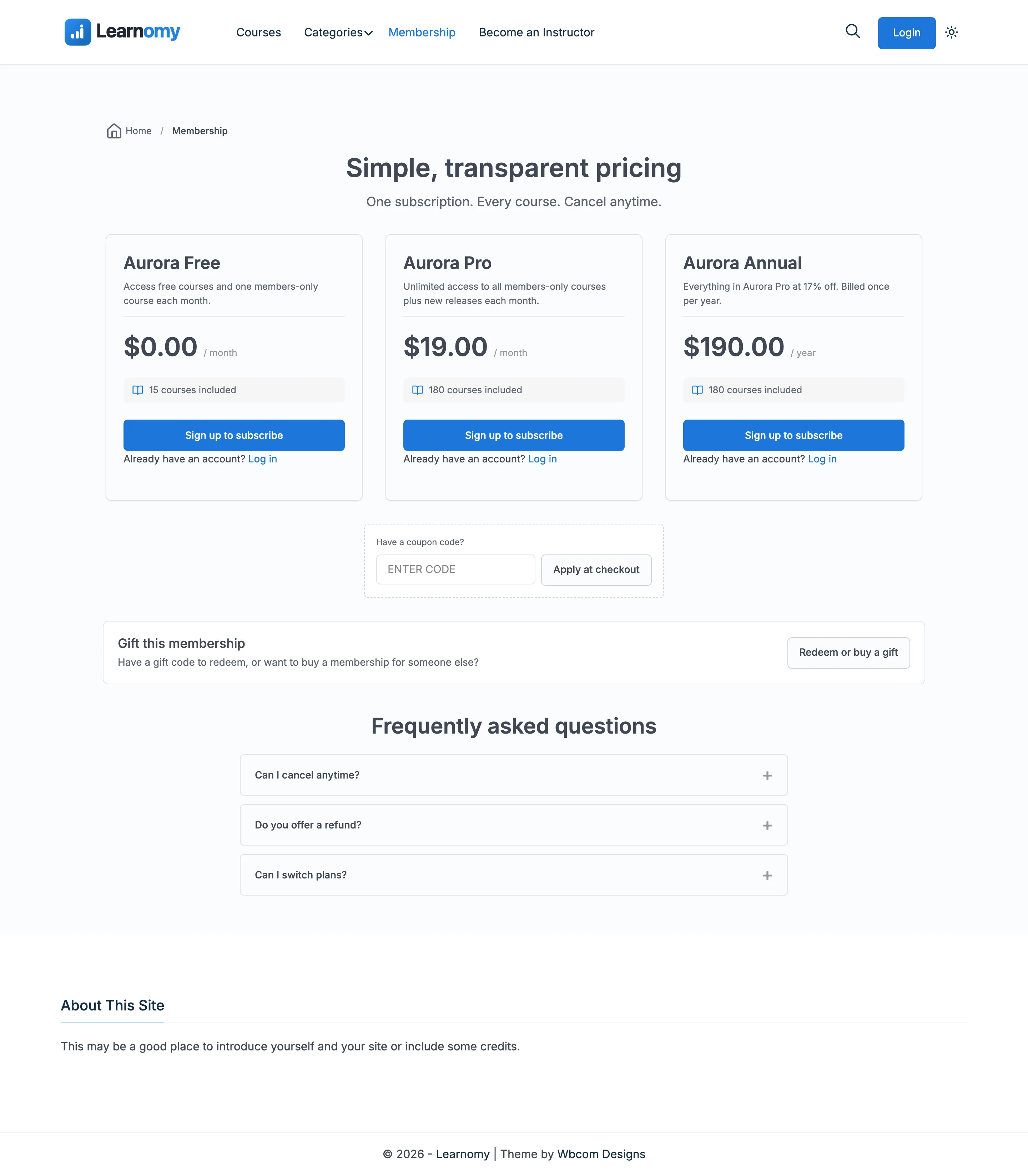
Plans with Highlight on pricing page enabled are visually emphasized. Plans with Monthly + Yearly pricing show a toggle so students can switch between the two rates.
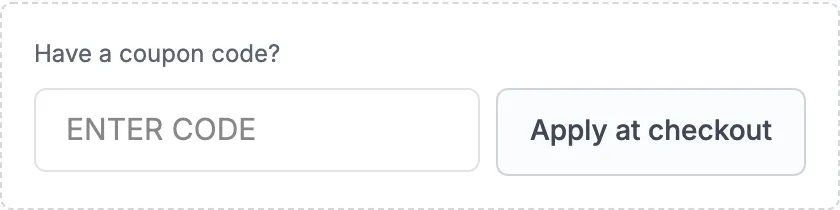
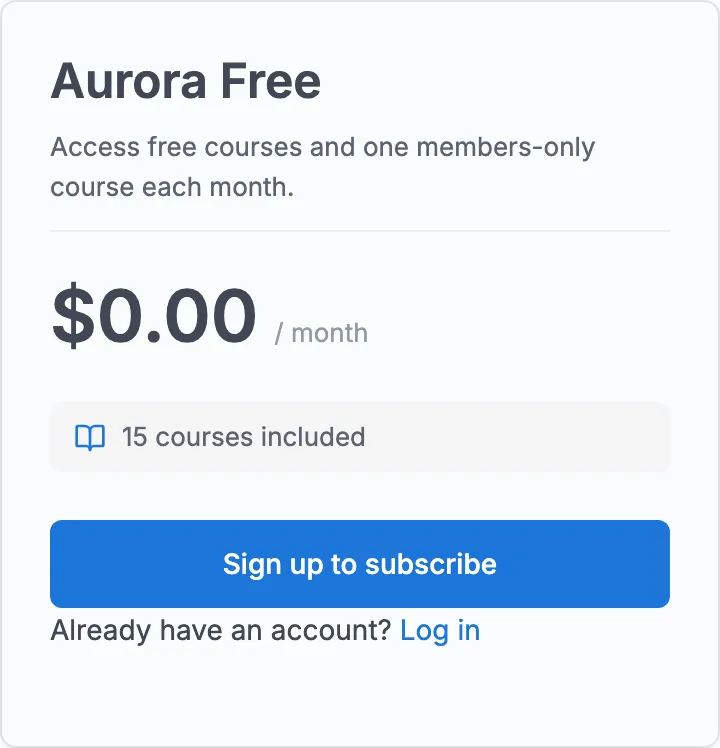
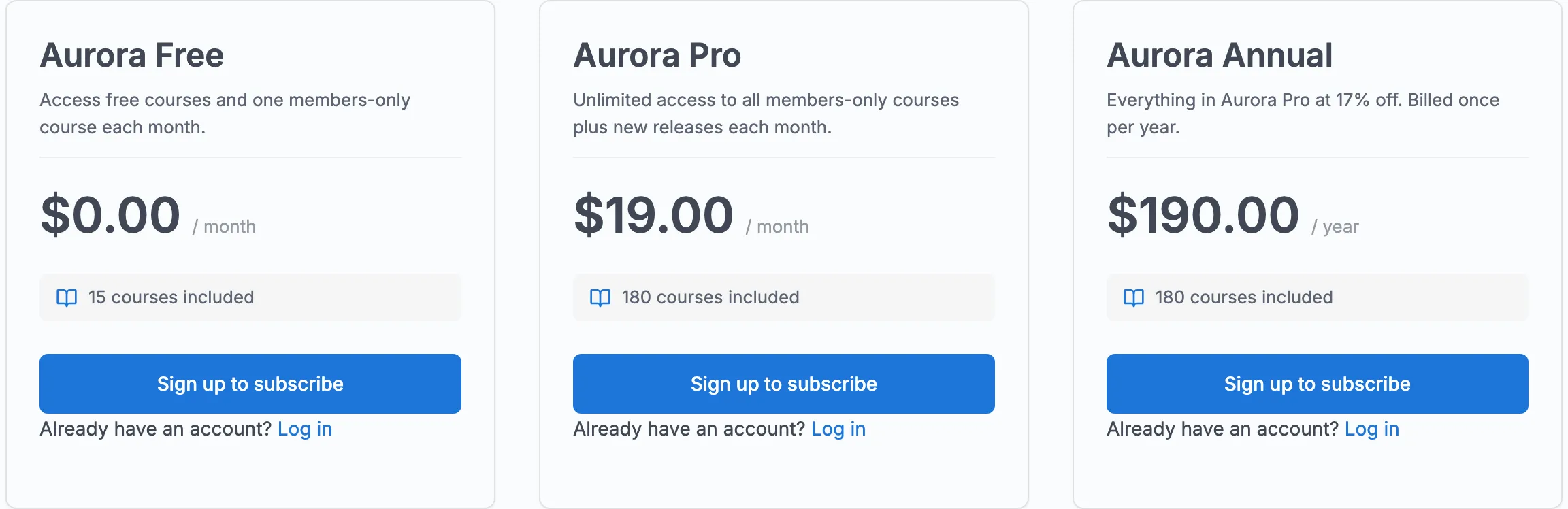
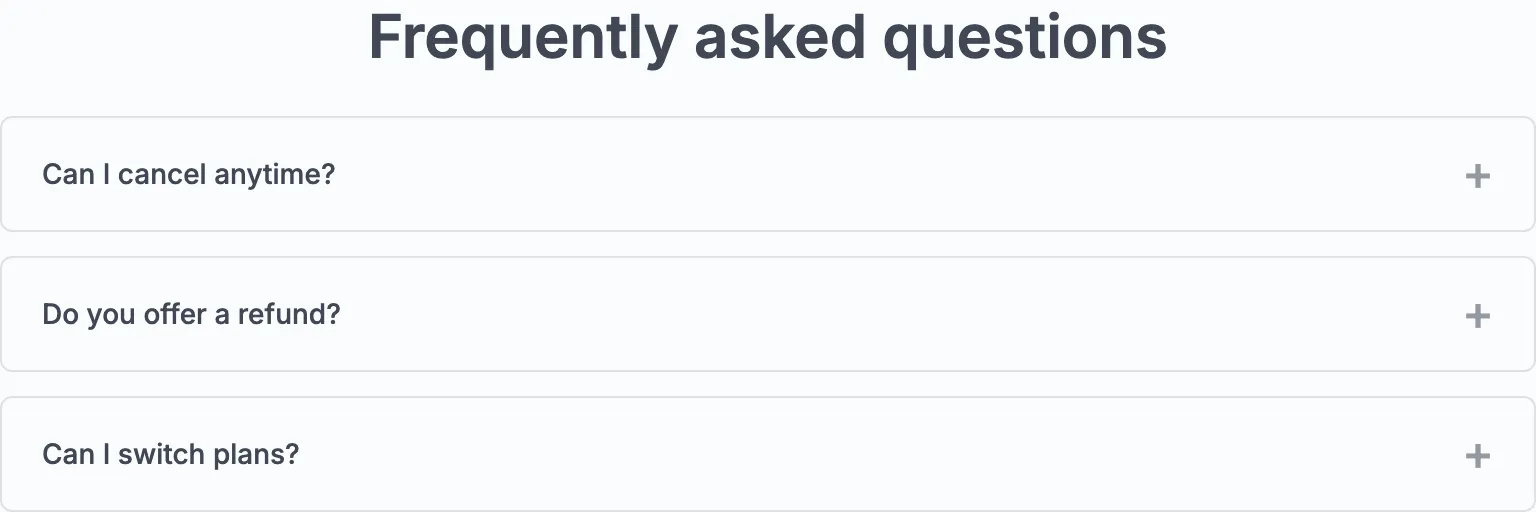
The FAQ section and a gift membership call-to-action appear below the plan cards when configured in Learnomy Settings > Membership Page.

Editing the membership page content
Go to Learnomy Settings > Membership Page. Three cards control the public pricing page:
- Membership page content - the Headline and Subtitle shown above the plan cards. Leave the headline blank to use the default.
- Page sections - toggles for Show the FAQ section and Show gift redeem / buy-as-a-gift widgets (gifting requires Learnomy Pro).
- Frequently asked questions - the FAQ editor itself.
The FAQ editor is an add/remove repeater, not a fixed grid of blank rows. Each question has a text field and an answer textarea, with a trash icon to delete that row. Click Add Question to append a new blank row. Blank rows (no question or answer entered) are ignored on save, so you don't need to manually clean up an empty row you added by mistake.
Gift memberships (Pro)
Pro feature. Requires Learnomy Pro with the Membership Pro extension active.
Members can buy a membership as a gift for someone else, and the recipient redeems a code to activate it. Both halves live on a dedicated, shareable page at /<membership-slug>/gift/, and the gift call-to-action on the pricing page links to it.
Buying a gift
On the gift page, the buyer picks a plan and a quantity. The running total updates live as quantity changes, and the buyer pays through your normal gateway (Stripe or PayPal) using the same on-page checkout as a regular purchase. The price is resolved on the server, so the displayed total cannot be tampered with. After payment, the buyer receives one gift code per quantity purchased to pass on to the recipient.
Redeeming a gift
The recipient enters their code on the gift page (or anywhere you place the [learnomy_gift_redeem] shortcode). A logged-in recipient who redeems a valid code immediately gets an active subscription to the gifted plan; an anonymous visitor is prompted to sign in first. Redemption is atomic, so a code can be claimed only once even if two people submit it at the same moment. Invalid, already-claimed, or expired codes return a clear plain-English message rather than failing silently.
For quick access, a Gift entry is added to the My Account navigation so members can buy or redeem from inside their account.
Billing and retries settings (Pro)
Pro feature. Requires Learnomy Pro with the Membership Pro extension active.
Go to Learnomy Settings and click Memberships Pro in the sidebar (its own settings nav group, anchor #membership-pro), then open the Billing & retries card. This is a separate section from Free's Membership Page content section (#membership-page), which controls the public pricing-page copy. These settings control what happens when subscription payments fail and how plan changes and refunds are handled site-wide.
| Setting | What it does |
|---|---|
| Payment retries | How long Learnomy keeps retrying a failed subscription charge before giving up and cancelling. Options: Conservative (14 / 28 / 56 days), Standard (7 / 14 / 28 days), Aggressive (3 / 7 / 14 days), or Off (cancel immediately on the first failure). |
| Plan changes | When on, switching plans mid-cycle credits the unused time from the old plan against the new charge. When off, the full price of the new plan is charged immediately. |
| Refunds | When on, refunding a payment also cancels the subscription immediately. When off, the refund is recorded but the member keeps access until the end of the current billing period. |
These settings apply to all membership plans on the site. You cannot override them per plan.
Tips
- Inactive plans are hidden from
/membership/but their existing subscribers are unaffected. - Deleting a plan cancels no subscriptions automatically. Existing subscription rows show "Deleted plan" in their detail view.
- The plan's slug controls the URL anchor on the pricing page. Changing the slug after subscribers have shared links will break those links.
- Trial days only apply to new subscriptions. Existing subscribers are not affected when you add or change the trial setting.
- The Courses included picker lists all courses (up to 500). For larger catalogs, use the search field to filter.
- A one-time (lifetime) plan never expires and never renews, so nothing you do to the retry cadence, proration, or grace period affects it. Price it as a purchase, not as a discounted year.
- If your site runs WooCommerce as the payment gateway without the WooCommerce Subscriptions extension, recurring plans cannot be billed at all. The plan editor warns you at the Billing interval field itself, and One-time is the way to keep selling that plan on such a site.
- The Conservative retry cadence is recommended for sites with international subscribers where payment failures are often caused by temporary bank holds rather than genuine non-payment.