
Bulk Enroll from a List
Courses and ContentBulk enroll lets you add many students to a course at once by pasting a list of email addresses or uploading a CSV file. It runs from the course detail screen in wp-admin, creates accounts for people who do not have one yet, and skips anyone who is already enrolled.
What you can do#
- Enroll a whole list of students in one course in a single action instead of adding them one by one.
- Paste email addresses straight into a box, one per line or separated by commas.
- Upload a CSV (or plain text) file of email addresses instead of pasting.
- Automatically create an account for any email that does not have one yet, and send that person a set-password invite so they can log in.
- Skip anyone who is already enrolled in the course, so re-running the same list never double-enrolls or double-charges.
- See a per-run summary that tells you how many were enrolled, how many new accounts were invited, how many were skipped, and how many failed.
- Grant access to a course set to Access granted externally (closed) without a payment step, since these courses are not sold on your site.
How to use it#
Step 1 -- open the course detail screen#
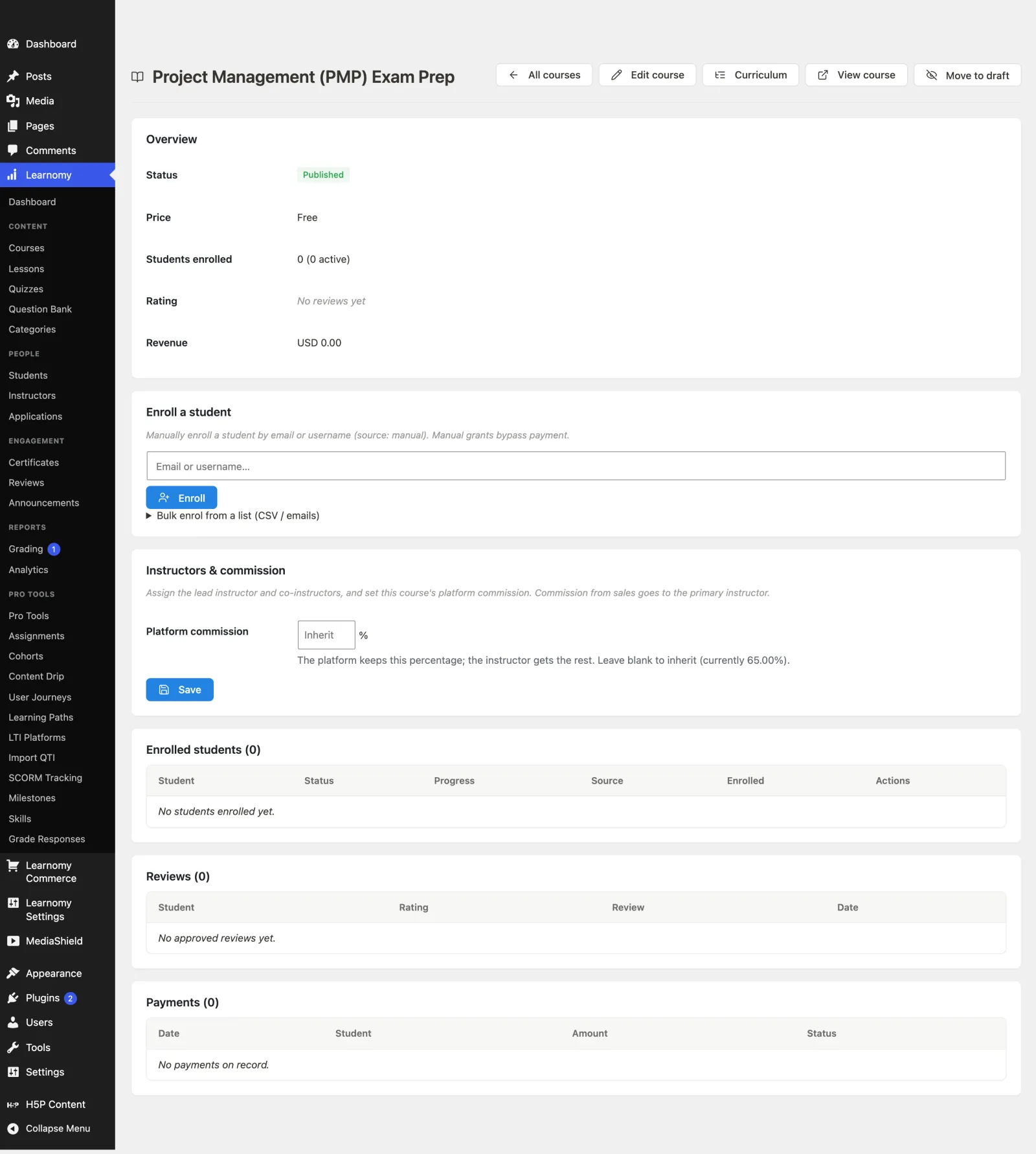
Go to Learnomy -> Courses, then open the course you want to enroll people into. This opens the course detail screen (?page=learnomy-course-detail&course_id=<course id>).
Step 2 -- find the Enroll a student card#
Scroll to the Enroll a student card. Below the single-student email box there is a collapsible row labelled Bulk enrol from a list (CSV / emails). Click it to expand.
Step 3 -- provide the list of emails#
You have two ways to supply the list, and you can use either one:
- Paste the addresses into the text box, one email per line or comma-separated. Whitespace, commas, and semicolons between addresses all work as separators.
- Upload a file by clicking Choose CSV and picking a
.csvor plain text file. Its contents are read into the same text box, so you can review or edit the list before submitting.
Invalid entries are ignored, and duplicate addresses are collapsed to one (matching is case-insensitive), so a messy list is fine.
Step 4 -- enrol everyone#
Click Enrol everyone. Learnomy processes the list and, for each address:
- If the person already has an account and is already enrolled, they are skipped.
- If the person already has an account but is not enrolled, they are enrolled (source: manual).
- If the email has no account yet, Learnomy creates one and sends a set-password invite, then enrolls the new account.
Step 5 -- read the result summary#
When the run finishes, a summary line appears under the button, for example: how many were enrolled, how many new accounts were invited, how many were already in, and how many failed.
If your list was longer than the per-request cap (500 by default), the summary tells you how many are left to do and asks you to submit again to continue. The remaining addresses are never silently dropped, so keep clicking Enrol everyone until nothing is left.
Settings & options#
The bulk enroll controls live inside the Enroll a student card on the course detail screen. The fields are:
| Control | What it does |
|---|---|
| Bulk enrol from a list (CSV / emails) | The collapsible section that holds the whole feature. |
| Choose CSV | File picker. Accepts .csv, text/csv, and text/plain. The file is read into the text box. |
| Email text box | Paste target. One email per line or comma / semicolon / whitespace separated. |
| Enrol everyone | Submits the list to the bulk enroll endpoint. |
Behavior worth knowing:
- Source is manual. Every seat created this way is recorded with
source = manual, which bypasses payment. Use it for teams, cohorts, comped access, or closed courses. - Already-enrolled students are skipped, so re-submitting the same list is safe.
- New emails are provisioned with an account plus a set-password invite, the same way the incoming enrollment webhook provisions first-time buyers.
- Per-request cap. At most 500 addresses are processed per submission. Anything beyond that is reported as "left to do" so you can submit the rest, rather than being truncated without notice. The cap is adjustable with the
learnomy_bulk_enroll_maxfilter.
For developers#
REST route (under the learnomy/v1 namespace, admin only):
POST /admin/courses/{id}/bulk-enroll-- enrolls a list of emails into course{id}. Permission callback isis_admin. Body paramemailsis a required array of strings (each string may itself contain several addresses; the handler splits on whitespace, commas, and semicolons, sanitizes, and dedupes). Returns asummaryobject (enrolled,created,skipped,failed), a per-emailrowsarray, and aremainingcount for anything past the cap.
Filter:
learnomy_bulk_enroll_max-- the maximum number of addresses processed per request. Defaults to500. Raising it increases the risk of a request timing out on a large paste, which is why the default is capped and the remainder is reported instead of dropped.
Under the hood the handler resolves or creates each account through Provisioning_Service::ensure_user_by_email() (the same path a guest checkout and the incoming sales webhook use) and enrolls through Enrollment_Service::enroll( $user_id, $course_id, 'manual' ). Already-active seats are detected with Enrollment::find_active().