
General Settings
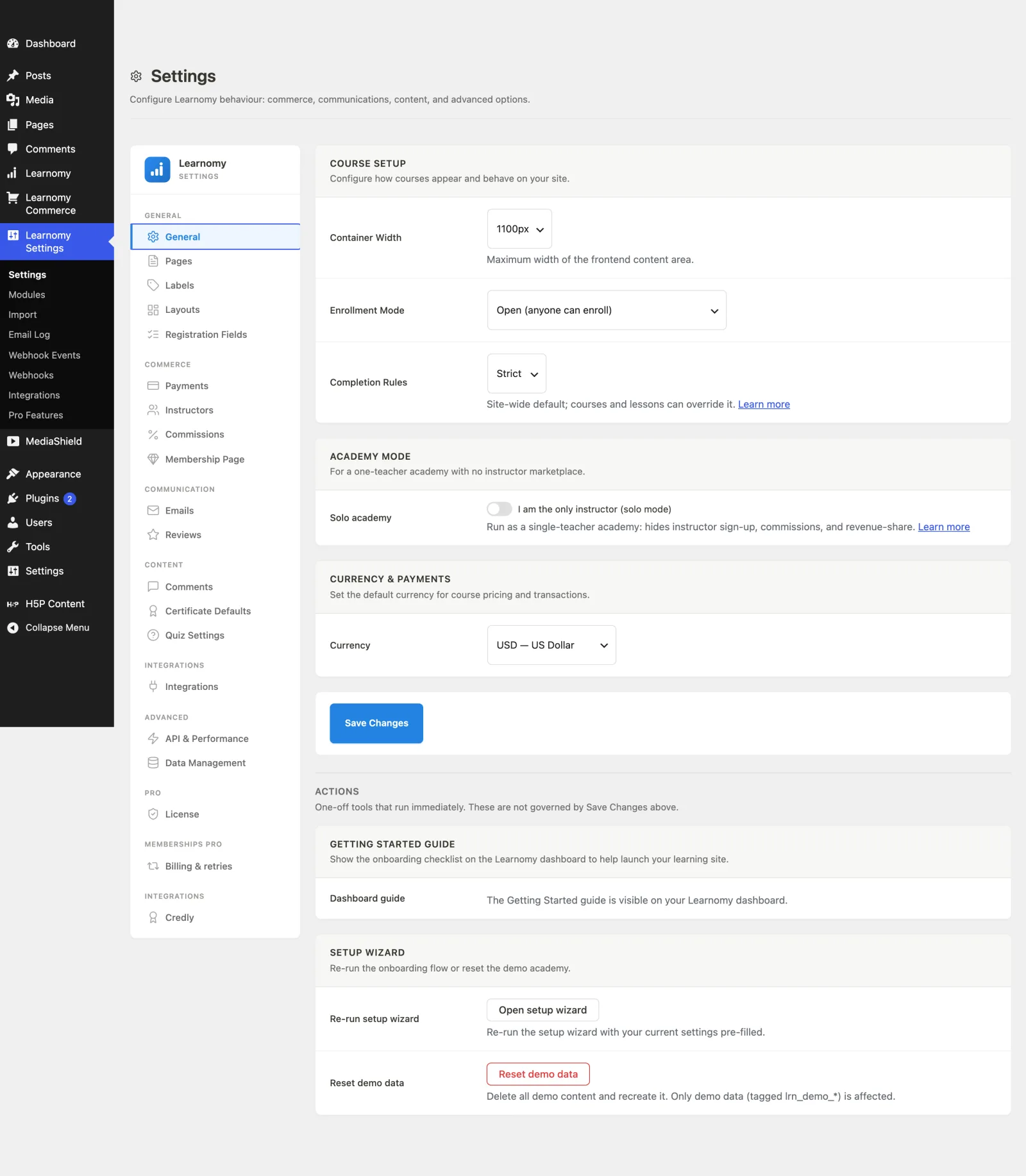
SettingsThe General section is the first thing you see on the Settings page. It sets the site-wide defaults for how courses look and behave, the default currency, and the launchers for onboarding and demo data.
What you can do#
- Set the maximum width of the Learnomy content area on the frontend (Container Width).
- Set the site-wide completion rule that courses and lessons can override (Completion Rules).
- Require login to view any course content, for a fully private academy (Private site).
- Turn on Solo mode to run a single-teacher academy with no instructor sign-up, commissions, or revenue-share.
- Set the default currency used for course pricing and transactions.
- Re-run the Setup wizard with your current settings pre-filled, or reset the demo academy.
How to use it#
Step 1 -- open General#
Go to Learnomy Settings in the sidebar. The page opens on General by default; if not, click General in the left-hand navigation.
Step 2 -- configure the Course Setup card#
- Container Width -- pick 960px, 1100px, 1200px, 1400px, or Full Width for the frontend content area.
- Completion Rules -- Strict, Advisory, or Off. This is the site-wide default; individual courses and lessons can override it.
Step 3 -- set Access Control (optional)#
In the Access Control card, turn on Private site to require login for all course content. When enabled, logged-out visitors are redirected to the login page for the course catalog, individual courses, lessons, quizzes, and public instructor profiles (a profile lists that instructor's courses). Use this for a fully private, members-only academy where sign-up and payment are handled off-site (an invoice, a bank transfer, or an external CRM). This setting is off by default -- your catalog and courses are public until you turn it on.
Step 4 -- set Academy Mode (optional)#
In the Academy Mode card, turn on I am the only instructor (solo mode) to hide instructor sign-up, commissions, and revenue-share. Use this when you are the only teacher.
The same card has an Allow students to sign up themselves toggle (on by default). Turn it off to run a members-only academy, or to collect sign-ups through your own form (for example a Gravity Forms page) instead of the built-in one. When it is off, the student registration page returns a 404, the registration API rejects student sign-ups, and every "Sign up to enroll" button sends visitors to the login page instead of the disabled page -- so no link is ever left pointing at a page that no longer works. Students you create yourself in WordPress are unaffected. To send those buttons to your own form instead of the login page, point the learnomy_student_registration_url filter at it (see the developer guide on registration and security).
Step 5 -- set the currency#
In the Currency & Payments card, choose your Currency. This is the one currency everything is sold in: courses, membership plans, and with Learnomy Pro, Space plans and seat packs. None of them has a currency setting of its own, and price fields across the admin name the currency in their label, for example Price (USD).
Changing the currency does not convert anything. Prices keep their numbers and are charged in the new currency from then on, so a 20.00 plan becomes 20.00 in the new currency. When that happens, a notice on Learnomy's admin screens lists every plan that was switched so you can re-price it; it stays until you dismiss it. A subscription that is already running keeps billing what the subscriber agreed to at the payment provider until it is replaced.
Currency Symbol is optional. Leave it empty and every price shows the symbol of your currency ($ for USD, £ for GBP, € for EUR). Type your own text, for example US$ or Rs, and it replaces the symbol everywhere prices appear: the course catalog, checkout, membership pages, receipts, emails and the admin screens. It changes only how a price is written, never the currency, the amount or what the payment provider charges.
Past transactions, commissions, payouts and withdrawals keep the currency they were charged in. A member's Billing page shows each past payment in its own currency, and the Earnings screen says when its totals add sales made in more than one currency (the totals are added as recorded, not converted).
Step 6 -- save, then use the Actions#
Click Save Changes to store the cards above. The cards under the Actions divider run immediately and are not governed by Save Changes:
- Setup wizard -- click Open setup wizard to re-run onboarding, or Reset demo data to delete and recreate demo content (only data tagged
lrn_demo_*is affected).
Settings and options#
All fields save into the single learnomy_settings option.
| Field | Option key | Values |
|---|---|---|
| Container Width | container_width |
960px / 1100px / 1200px / 1400px / none (Full Width). Default 960px. |
| Completion Rules | completion_enforcement |
strict / advisory / off. Default strict. |
| Private site | require_login_all_content |
On/off toggle. Default off. |
| Solo academy | solo_mode |
On/off toggle. |
| Allow students to sign up | student_registration |
On/off toggle. Default on. Off = register page 404s, sign-up API rejected, "Sign up" buttons go to login. |
| Currency | currency |
USD / EUR / GBP / AUD / CAD / INR. Default USD. |
| Allow the Learnomy mobile app to connect to this site | mobile_app_enabled |
On/off toggle. On when the key is absent, so a fresh site allows the app. Turn it off to stop the companion app connecting at all. The app also needs an active Pro licence; see REST API and App. |
The Setup wizard controls are one-off actions, not saved settings. Reset demo data only touches demo content; Open setup wizard links to admin.php?page=learnomy-setup&rerun=1.
Access Control / Private site#
When Private site is on, a logged-out visitor who requests the course catalog, a category archive, a single course, a lesson, a quiz, or a standalone quiz is redirected to the WordPress login page instead of seeing the content. Logged-in users are unaffected -- this setting only gates anonymous access.
This is intended for closed academies that don't sell or advertise publicly: everyone who needs access already has (or is given) a WordPress account, and enrollment is arranged outside Learnomy's own checkout.
Turning this on does not change enrollment, pricing, or course visibility settings -- it only adds a login requirement in front of the routes listed above.
What else it hides#
Redirecting the pages is not enough on its own, so Private site also closes the other ways an anonymous visitor could read the same information:
- The REST API. The public course list and both public category endpoints return nothing to an anonymous caller. Hiding the courses while still publishing the taxonomy that describes them is not a private academy: a category list named "Q4 Onboarding" or "Unreleased Product Training" tells an outsider what you are building even when they cannot open a single course.
- The sitemap. The course sitemap yields no URLs and no pages, so search engines are not handed a map of content nobody may read.
- Course listing blocks. The course-grid and course-catalog blocks render a login notice to anonymous visitors instead of a list.
Signed-in users are unaffected in all three cases. This is the same one gate throughout, so a site that forces it on with the filter below gets every part of this behavior, not just the redirect.
For developers#
learnomy_container_width-- filter (string,$route) for the content container width on one Learnomy page. Receives the saved Container Width and the route name (catalog,course,enroll, ...). Return any CSS width (1200px,80rem,min(100%, 70rem)) ornonefor full width; a value with characters a CSS width never needs is ignored. For a different width on small screens, override--lrn-container-widthin a media query in your theme's CSS instead.learnomy_require_login_for_content-- filter (bool) that runs after the Private site setting is read. Returntrueto require login when the setting is off, for example to key it off a different condition like a custom capability or a multisite network setting. From 2.1.2 the owner's setting wins: when Private site is on, afalsereturn no longer opens the academy, so another plugin cannot switch the gate off.learnomy_content_route_names-- filter (string[]) for the list of route names gated by Private site. Defaults tocatalog,category,course,lesson,quiz,standalone-quiz,instructor-profile. Add or remove route names to change which frontend routes require login.