
Quiz Proctoring
Quizzes and GradingProctoring gives a graded quiz light, honest-effort integrity checks without a webcam or a third-party service. Learnomy records when a student leaves the quiz tab, warns them on screen, flags the attempt for graders, and can auto-submit the quiz once the student switches away too many times. It works on any quiz layout and is built into the free plugin.
What you can do#
- Record every time a student switches to another browser tab or minimises the browser window during a quiz. Clicking into another window that sits side by side is not counted: that signal also fires for embedded videos and system notifications, and would auto-submit honest attempts.
- Show the student an on-screen warning the moment a tab switch is detected.
- Flag attempts with a high tab-switch count for the grader, so suspicious submissions stand out in the grading queue.
- Auto-submit the quiz automatically once the student reaches a number of tab switches you choose.
- Tell candidates the rules up front with a monitored notice on the quiz start screen.
- See the tab-switch count, the submission IP address, and a late-submission signal on each attempt in the grading detail.
How to use it#
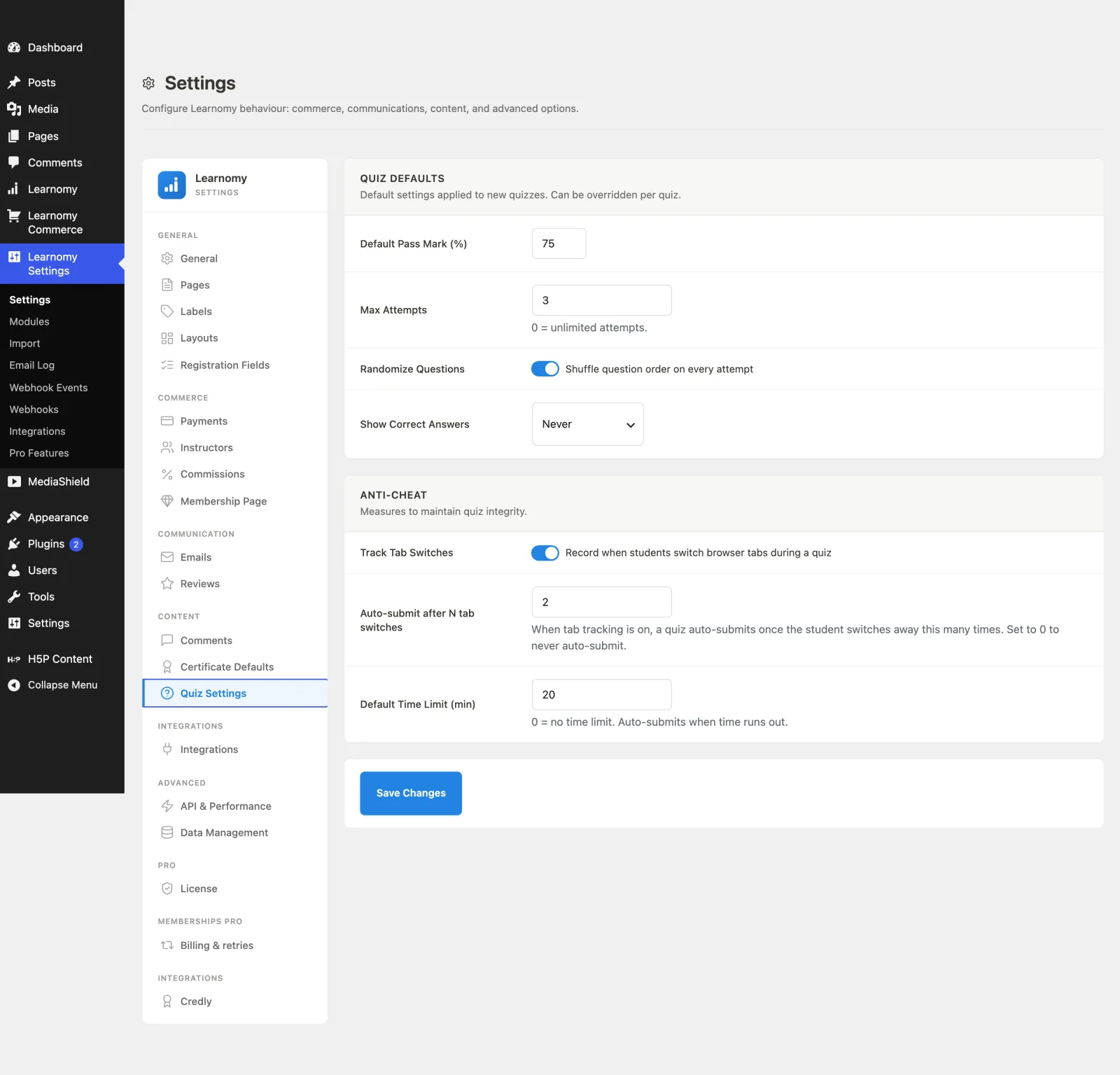
- Go to Learnomy Settings > Settings > Quiz.
- Turn on Track Tab Switches. This starts recording tab switches on every quiz attempt.
- In Auto-submit after N tab switches, enter the switch number that triggers submission. The quiz submits on that switch, not after it -- set 2 and the second switch ends the attempt, so a candidate gets one grace switch. Leave it at 0 to only warn and record, never auto-submit.
- Save. Any quiz the student takes now shows a monitored notice on the start screen, warns on each tab switch, and (if a limit is set) submits automatically when the limit is reached.
When a student switches tabs during a timed exam, they see a "tab switching detected, this activity is recorded" warning. If you set the limit to, for example, 2, the quiz submits on the second switch and the student lands on the results screen with a note that it was submitted for them. The switch that triggers submission is recorded too, so the grader sees 2. With Track Tab Switches off, students see no warning at all.
What graders see#
Open Learnomy > Grading and pick a submitted attempt. The exam-integrity panel shows:
- Tab switches: how many times the student left the quiz tab.
- IP address: where the attempt was submitted from.
- Late submission: a signal when the attempt was submitted after the time limit.
Attempts whose tab-switch count is at or above the flag threshold are highlighted so you can review them first.
Settings and options#
- Track Tab Switches (
learnomy_settings[quiz_track_tabs]) - the master switch, off until you turn it on. When off, tab switches are never recorded and nothing auto-submits. - Tab switch limit (
learnomy_settings[quiz_tab_switch_limit]) - switch on Auto-submit after tab switches and set the threshold. Off (stored as0): no auto-submit.
For developers#
learnomy_tab_switch_auto_submit_limit- filter the auto-submit limit, e.g. to vary it per quiz. Receives(int $limit, object|null $quiz).learnomy_tab_switch_flag_threshold- filter the tab-switch count at which the grading view flags an attempt (default3). Receives(int $threshold, object $attempt, object $quiz).- The limit is resolved by
\Learnomy\Services\Quiz_Defaults::tab_switch_auto_submit_limit()and sent to the player astab_switch_limitin the quiz start payload. - Enforcement is server-authoritative:
POST /learnomy/v1/quiz-attempts/{id}/tab-switchrecords each switch and returnsauto_submit: trueonce the count reaches the limit, so a tampered client-side threshold cannot bypass it.