
Instructor Dashboard
Free & Pro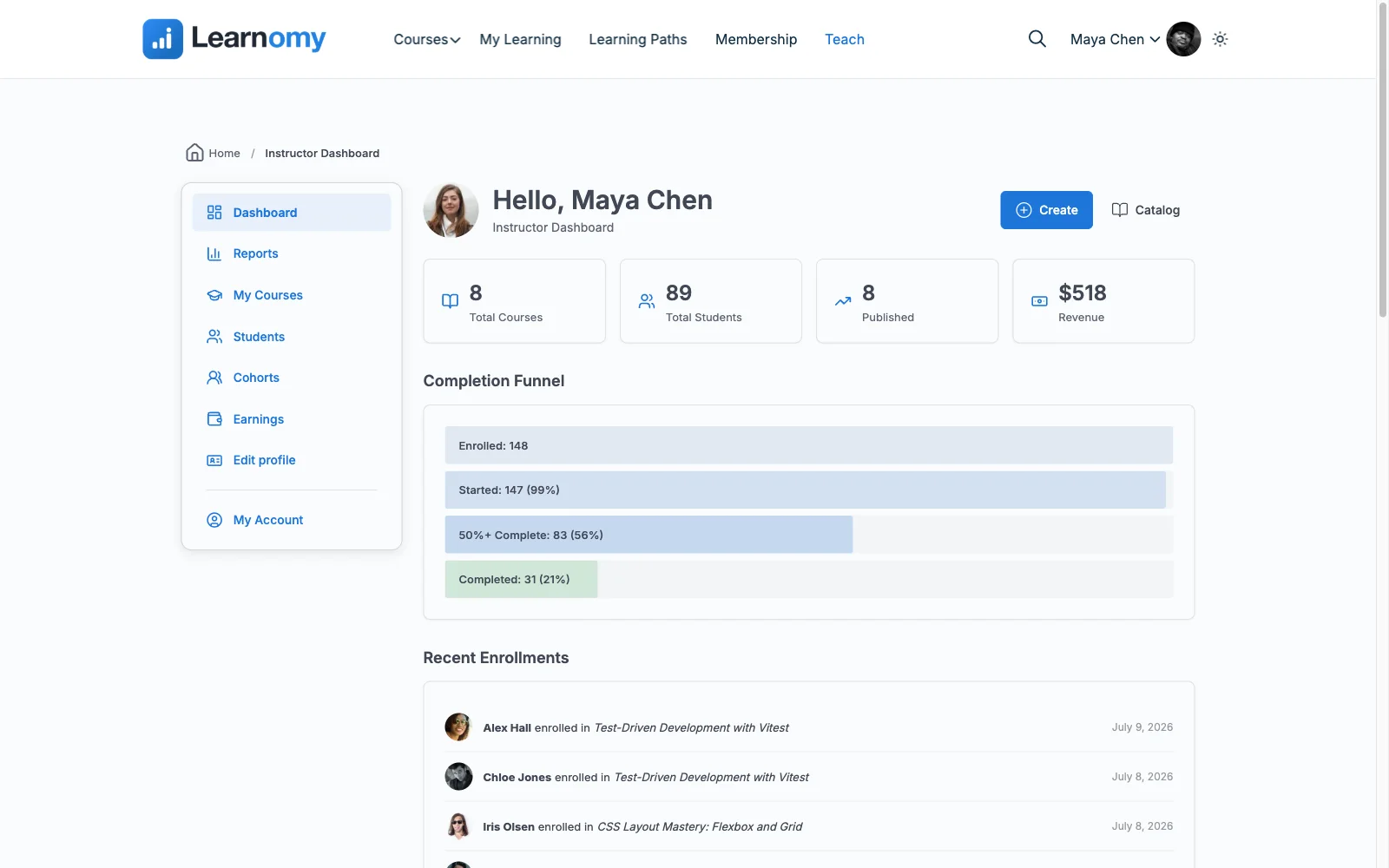
The instructor dashboard at /instructor/ is an approved instructor's home base. It shows a real-time snapshot of course activity, student progress, and revenue, and it links directly into wp-admin for course authoring.
Overview
The dashboard is only accessible to users with the lrn_instructor role (or admins). Anyone who visits /instructor/ without that role sees either an "Application Under Review" notice (if they have a pending application) or a prompt to apply.
The dashboard itself is a read view: it surfaces what is happening across the instructor's courses, not a form for editing them. Course authoring happens elsewhere, and where depends on whether the front-end builder is active - see Create and edit courses below.
Create and edit courses
Instructors do not author courses on the dashboard. There are two authoring paths, and which one an instructor gets is decided by the site, not by them.
Without the front-end builder (the default)
Create and edit both happen in wp-admin:
- Click Create in the dashboard header, or go to Learnomy > Add New Course
(
?page=learnomy-new-course). - Fill in the course details and save.
- To edit later, open My Courses and click the course title, or the Edit action on the row. Both open the wp-admin course editor.
This is what a Free site does, and it is what a Pro site does whenever the front-end builder extension is switched off.
With the Pro front-end builder
When the Front-end Builder extension is enabled, the same Create and
Edit controls point at the front end instead - /instructor/create-course/
and /instructor/edit-course/{id}/ - and the instructor never leaves the site's
theme. The builder also has dedicated lesson and quiz editors underneath those
URLs.
Nothing in the dashboard changes shape when this is on; only the destinations of the Create and Edit links change. Full walkthrough: Front-end Course Builder.
The wp-admin editor stays available either way. An administrator can always edit any course from Learnomy > Courses, which is the fallback if an instructor reports the builder misbehaving.
For developers. The edit destination is one filter,
learnomy_instructor_course_edit_url, exposed by Free and defaulting to the wp-admin editor. Pro's front-end builder overrides it. Anything that links an instructor to "edit this course" must go through that filter rather than building a wp-admin URL directly, or it will strand builder sites in the admin.
The Dashboard Header
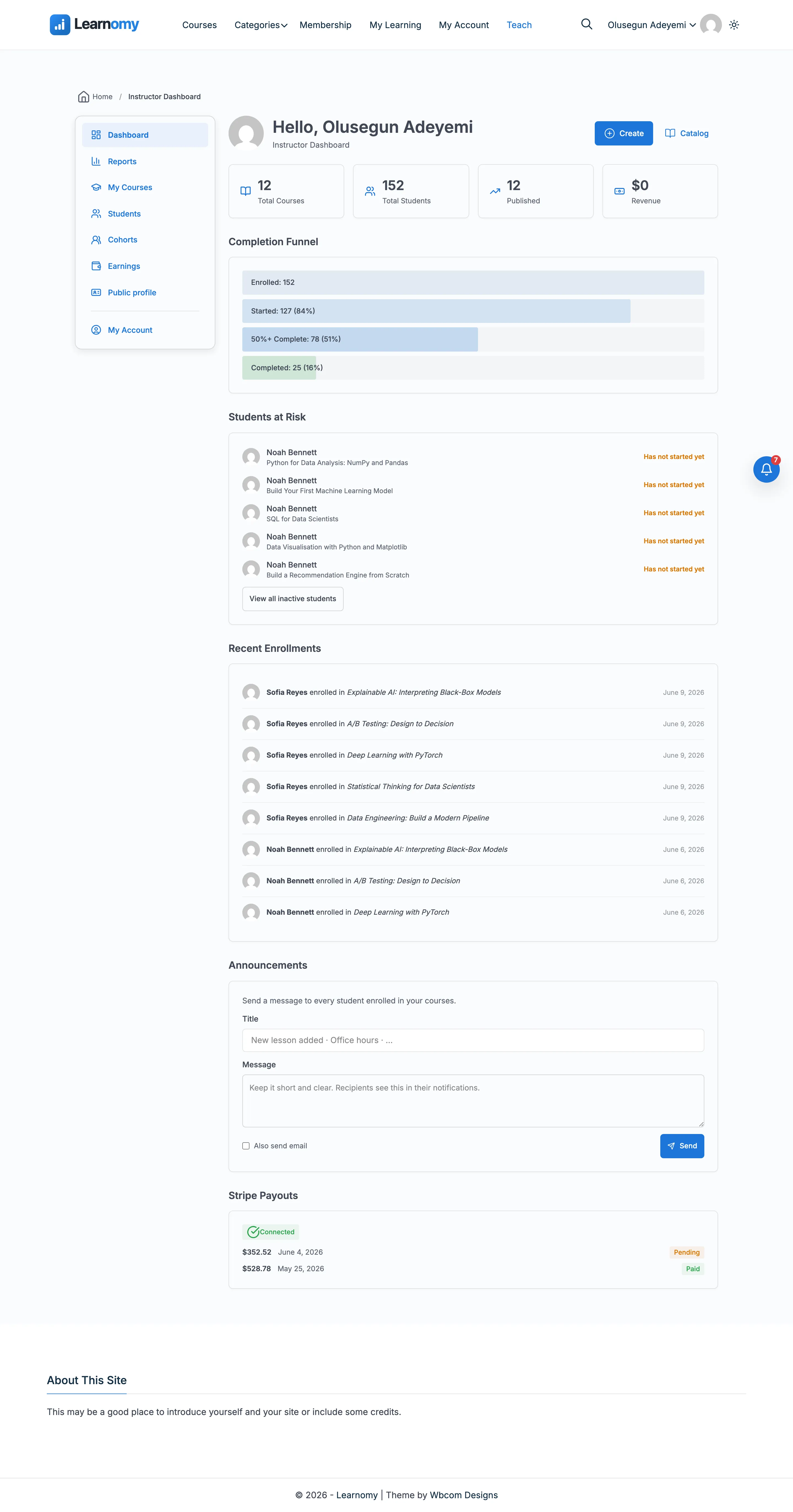
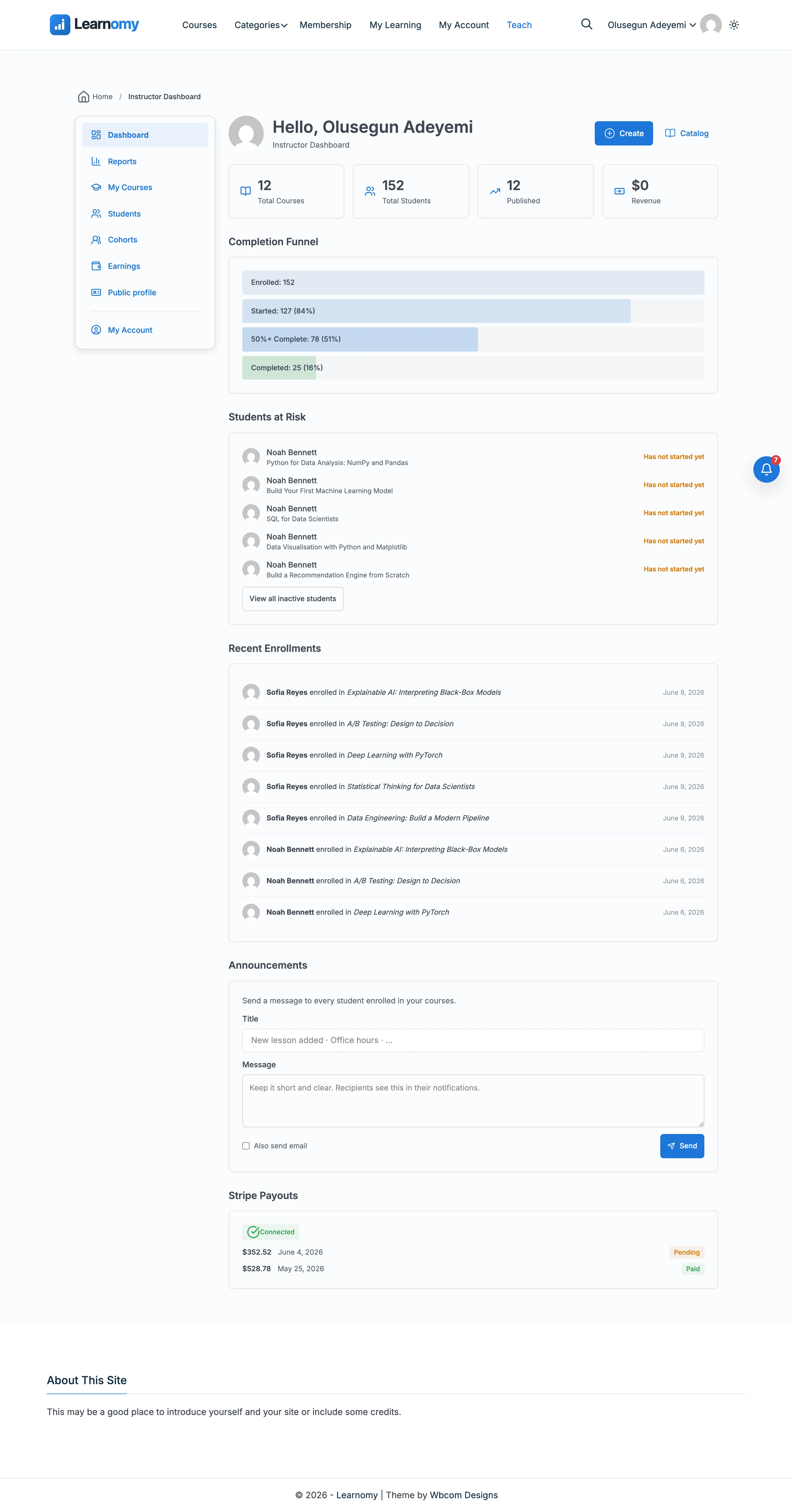
The header greets the instructor by name and shows their avatar. Two action buttons are always visible:
- Create - Opens the Add New Course page in wp-admin (
?page=learnomy-new-course), or the front-end builder's create screen when that extension is enabled. - Catalog - Opens the public course catalog.

Stats Row
Immediately below the header, four stat cards summarize the instructor's account at a glance.

| Card | What it shows |
|---|---|
| Total Courses | Total number of courses the instructor authors or co-teaches |
| Total Students | Total enrolled students across all their courses |
| Published | Number of courses currently in Published status |
| Revenue | Lifetime commission earnings (the instructor's share of completed sales) |
If the instructor has not authored any courses yet, the dashboard shows site-wide aggregates and displays an informational notice explaining the fallback.
My Courses Table
The courses widget lists the instructor's courses with title, status, and student count.
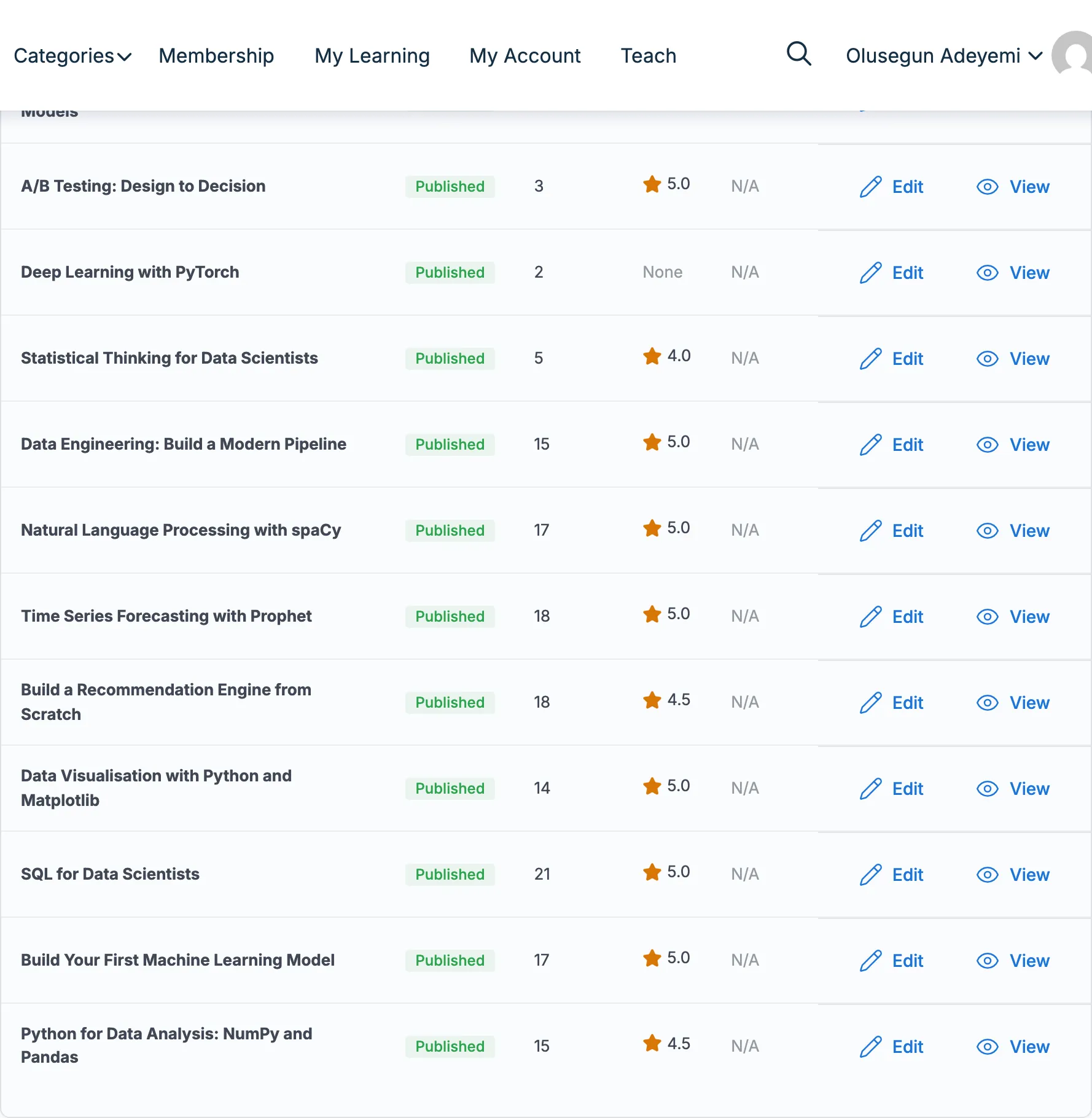
Click a course title to open it in the course editor - wp-admin by default, or the front-end builder when that Pro extension is enabled (see Create and edit courses). The table shows the first few courses; if you have more, a link to the full courses list in wp-admin appears.
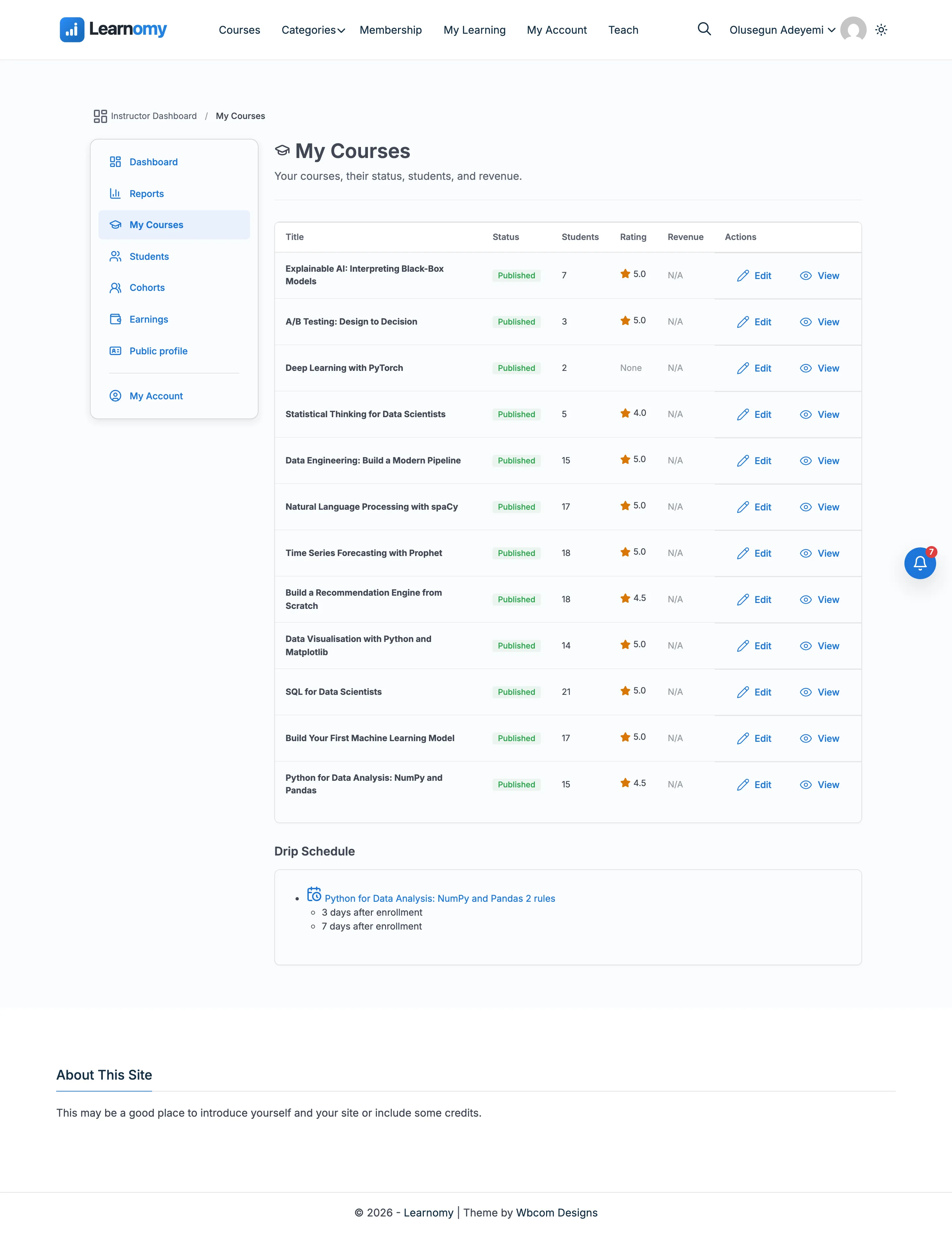
Each row carries three actions:
| Action | What it does |
|---|---|
| Edit | Opens the course in the editor - wp-admin, or the front-end builder when that Pro extension is on. |
| View | Opens the public course page in a new tab. |
| Duplicate | Makes a draft copy of the course. |
Duplicating a course
Duplicate is the fastest way to start a course that is mostly like one the instructor already runs: a new cohort, a second language, a shorter version of a long program. It is the same action administrators have had in wp-admin (see Creating a Course); it is now on the instructor dashboard as well, which matters because most instructors never open wp-admin at all.
Click Duplicate on a row. There is no confirmation prompt, because nothing is changed or removed - a copy is added. The list reloads to the first page with a "Course duplicated" message, and the copy sits at the top.
The copy takes the original's title with (Copy) appended, gets its own new URL, and is always created as a draft. Nothing is published and no student sees anything until the instructor opens the copy, edits it and publishes it deliberately.
What the copy keeps:
- Description, short description, content, thumbnail and intro video
- Category and difficulty level
- Pricing and access settings, including sale price and access duration
- Prerequisites and completion rules
- SEO title, meta description and share image
- The instructor team, with each member's revenue share and who is primary
- Every section and every lesson inside it, drafts included
What the copy does not get:
- Students, enrollments and their progress
- Reviews, the star rating and the review count - the copy starts unrated
- The student count, which starts at zero
- Quizzes, files attached to lessons, and course tags
- The published status - the copy is always a draft
The quiz exclusion is worth flagging to instructors before they duplicate a heavily assessed course. The lessons arrive, the quizzes do not, and they have to be rebuilt on the copy.
Duplicate succeeds for the course's main author, for administrators, and for a co-instructor marked as primary on that course.
A co-instructor who is not primary sees the button - co-instructed courses appear in My Courses and the row actions are not filtered by permission - but the action fails with "Could not duplicate that course. Please try again." A site can grant it to all co-instructors through the learnomy_co_instructor_can_manage filter.
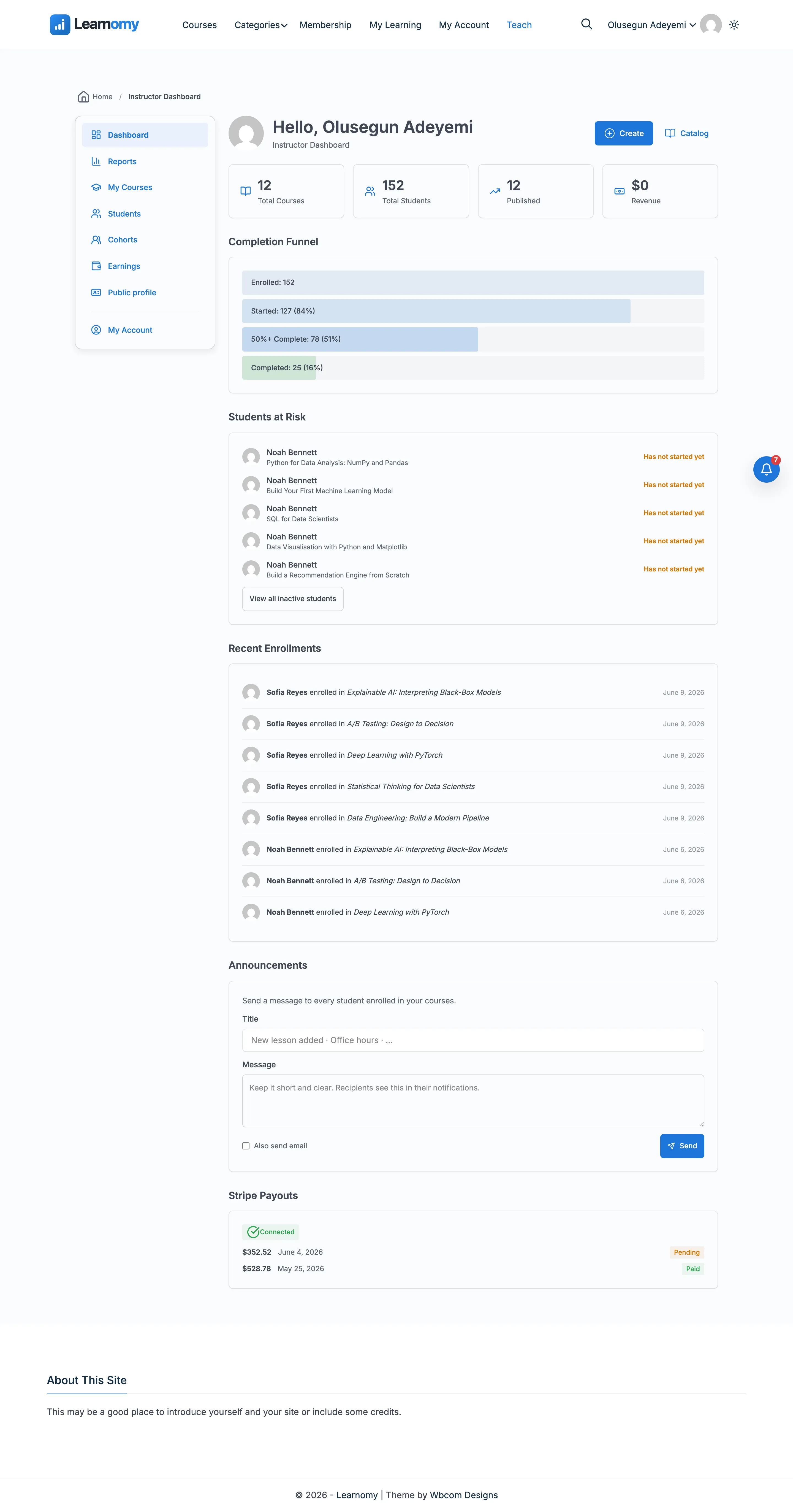
Completion Funnel
The funnel widget shows how students progress through the instructor's courses.
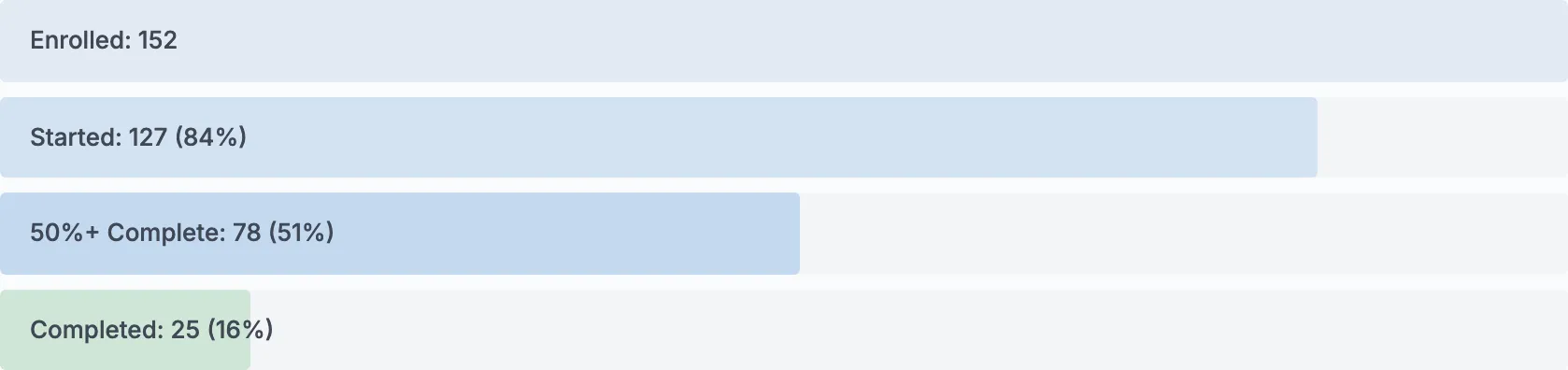
Four stages are tracked as both counts and percentages of the enrolled cohort:
- Enrolled
- Started (at least one lesson completed)
- Halfway (50% or more complete)
- Completed (course completion criteria met)
Use this to spot where students drop off. A steep drop between Enrolled and Started often means the first lesson needs work.
Recent Enrollments
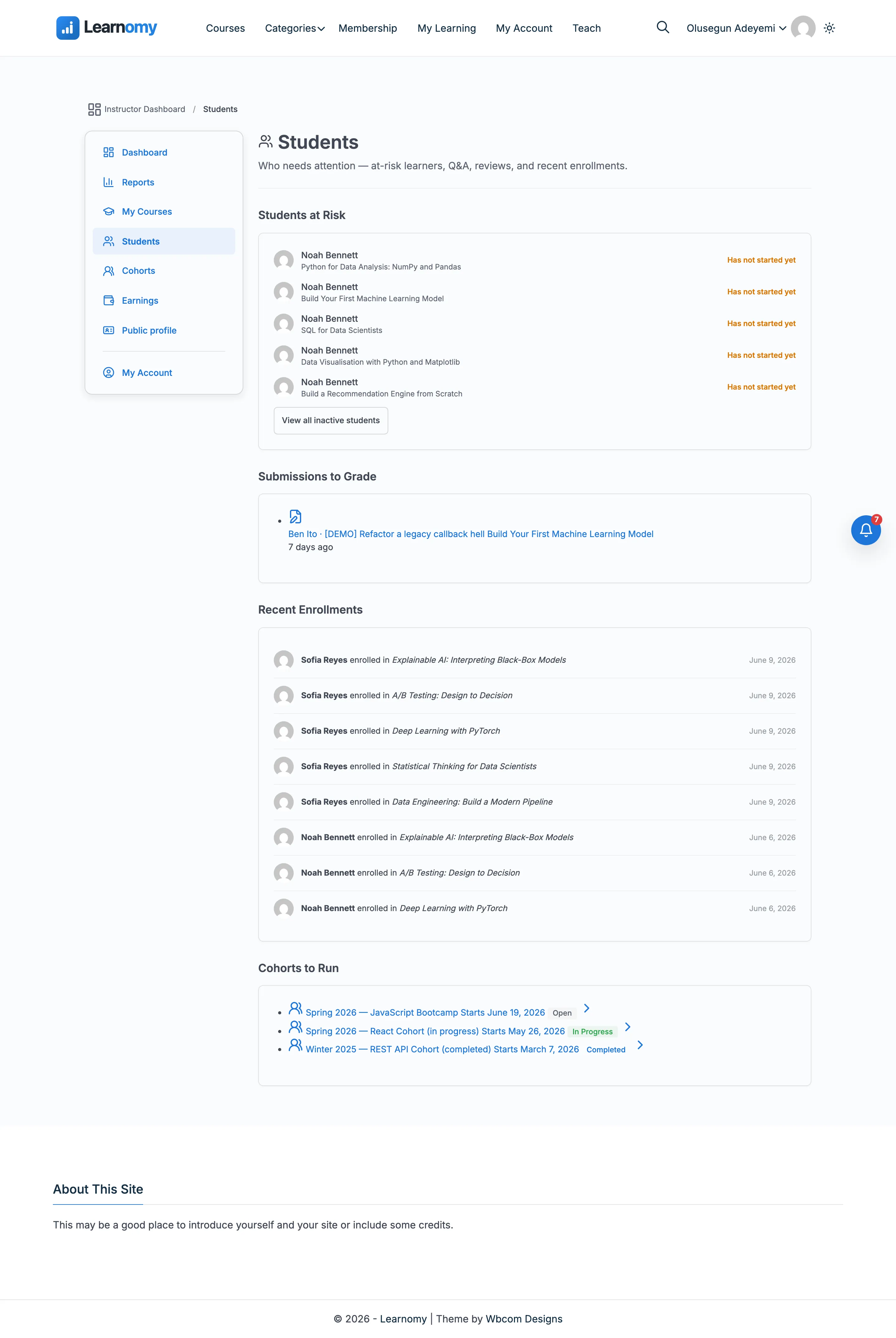
This widget lists the most recent students to enroll in any of the instructor's courses.
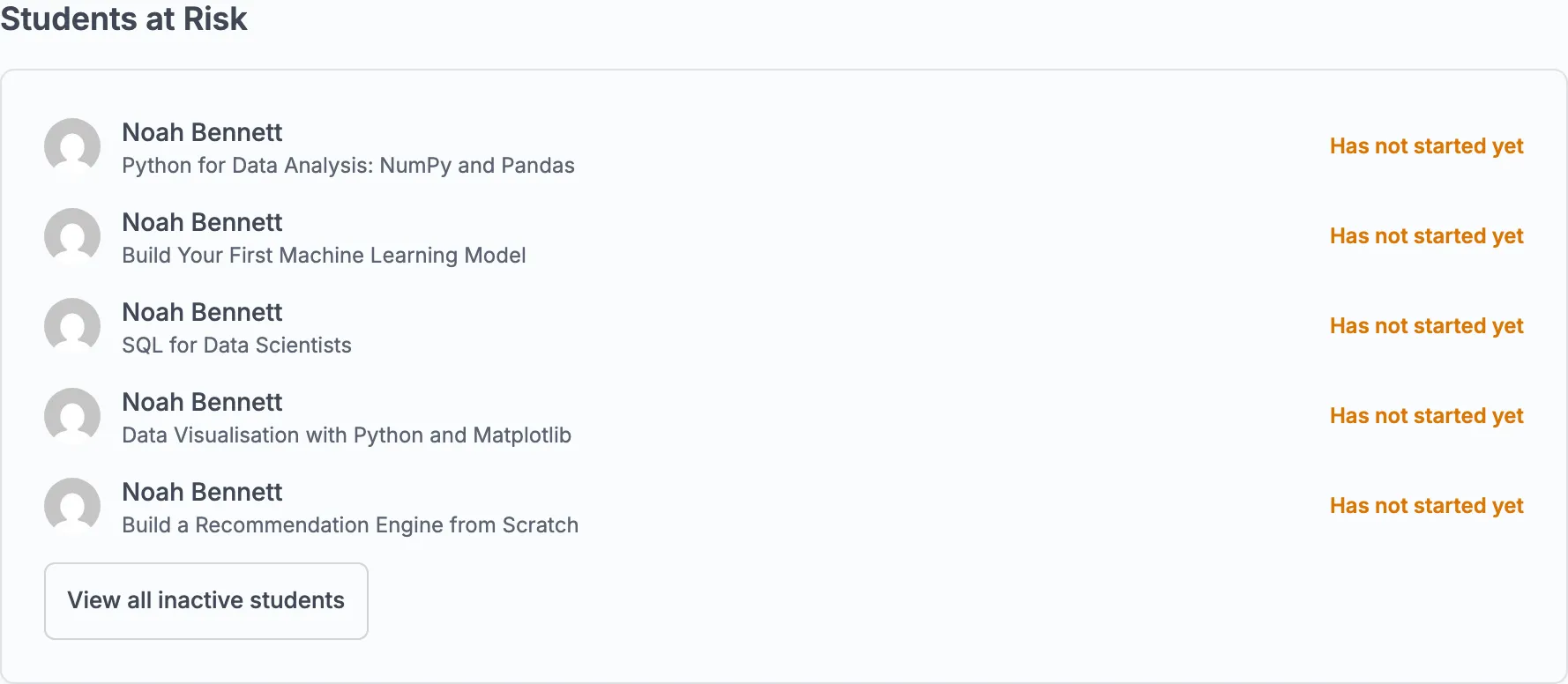
Each row shows the student's name and the course they enrolled in.
Earnings Widget
The earnings widget shows three figures and a withdrawal button.

| Figure | Meaning |
|---|---|
| Available to Withdraw | Cleared commissions not yet paid out |
| This Month | Earnings recorded in the current calendar month |
| Lifetime | Total earnings since the account was created |

The Request Withdrawal button opens a withdrawal request. See Commissions and Earnings for the full withdrawal flow.

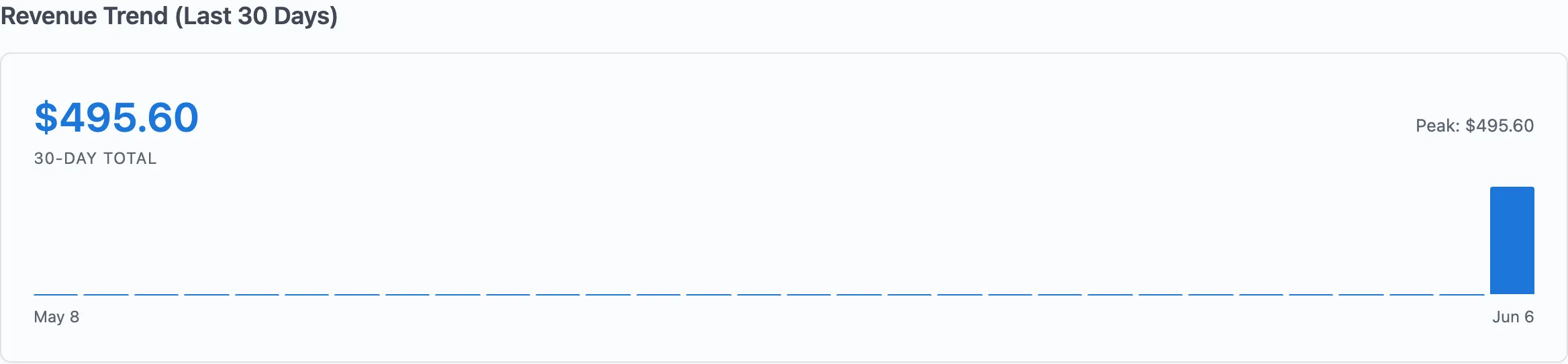
Revenue Trend
The revenue trend widget charts the instructor's earnings over recent periods so they can see whether revenue is growing or declining.
Announcements
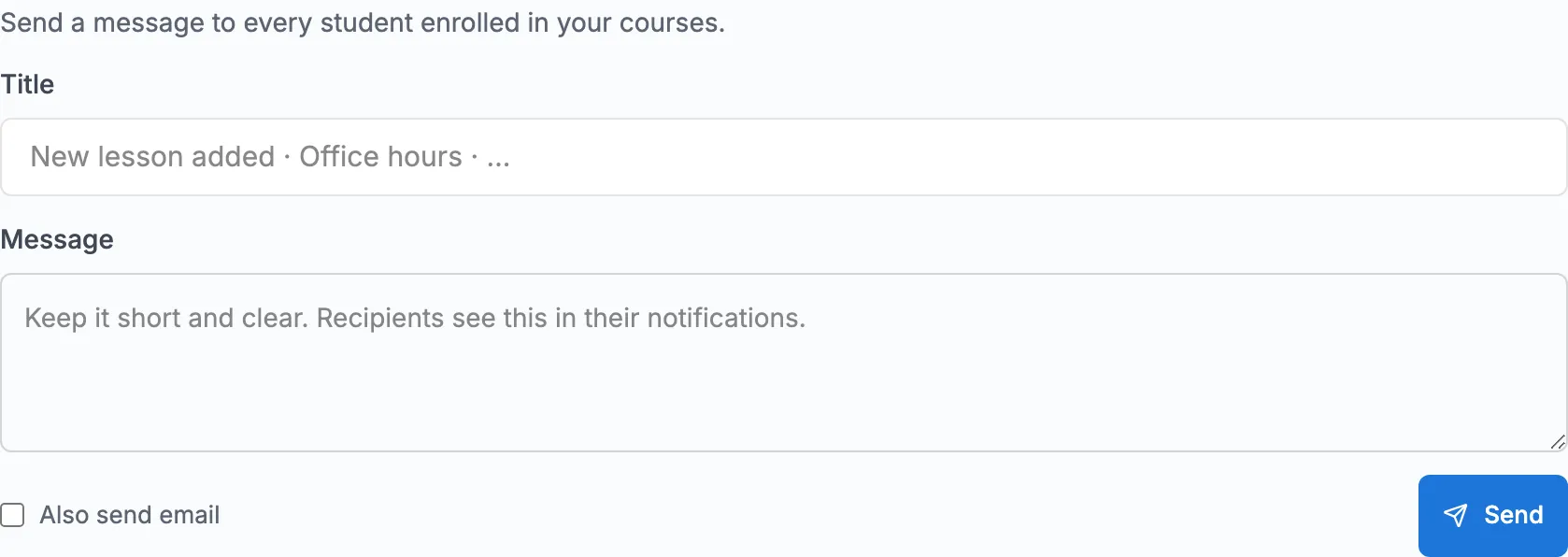
The Announcements widget lets instructors send a broadcast message to every student enrolled in their courses. Type a title and message, optionally check Also send email, then click Send. The message is delivered as an in-app notification and, if the email option is checked, by email.
Below the compose form, the widget shows the three most recently sent broadcasts with the recipient count and time elapsed since sending.
Public Instructor Profile
Each approved instructor has a public profile page at /instructor/<username>/. This is separate from the dashboard and is visible to all visitors without login.
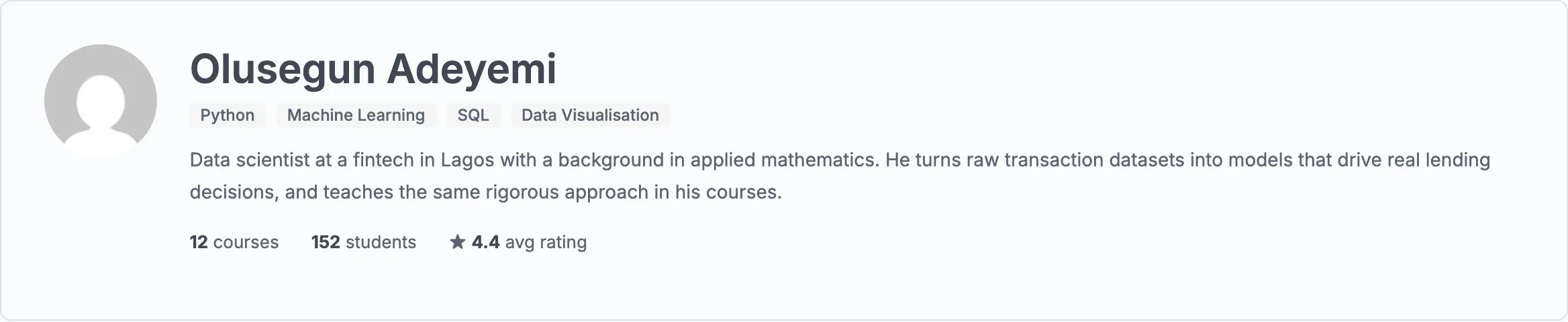
The public profile shows the instructor's avatar, headline, bio, and the list of their published courses.
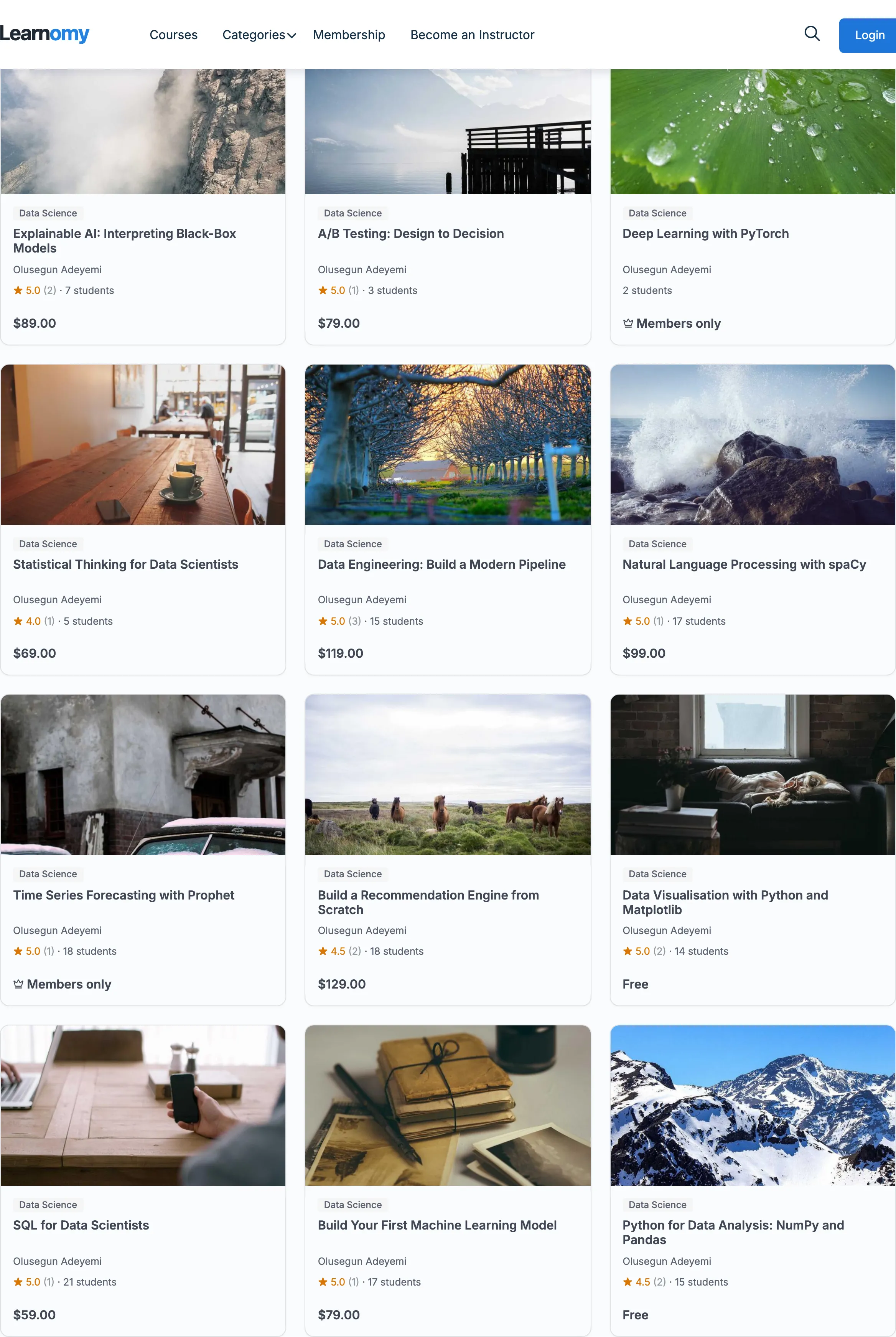
Instructors update their profile information at /account/instructor-profile (the Instructor profile link in the account navigation). An admin can also edit it from the instructor detail page in wp-admin.
Tips
- Instructors author all course content (courses, lessons, quizzes, questions) in wp-admin, not on this dashboard.
- The dashboard respects ownership scope: an instructor sees only their own courses' data. A WordPress administrator who visits the dashboard sees site-wide data and an informational notice.
- Widget sections are rendered through a registry. Pro extensions can add new sections via the
learnomy_dashboard_widgetsfilter.