
Credly Integration
Pro feature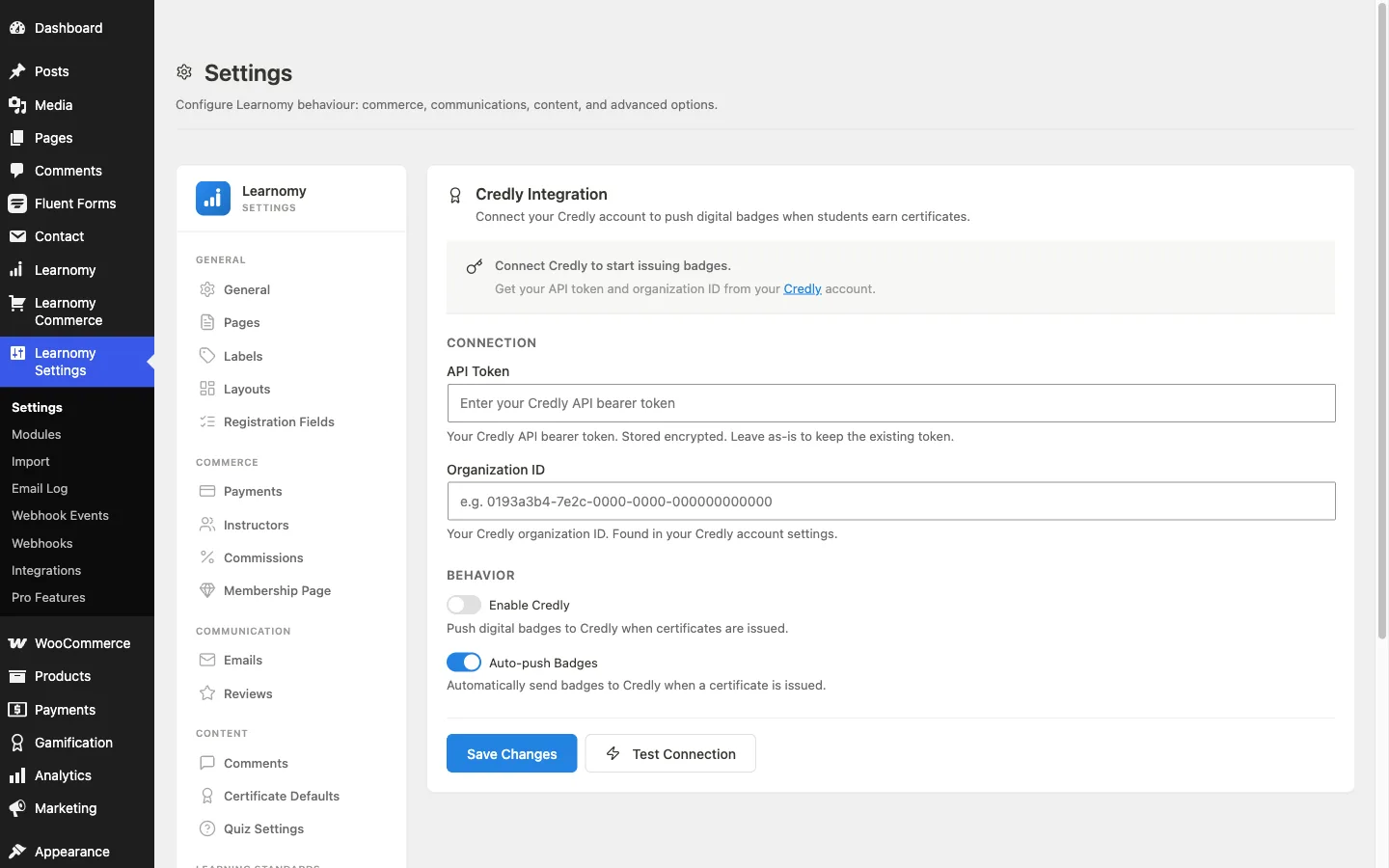
Pro feature. Requires Learnomy Pro with the Certificates Pro extension active.
Credly is a digital badge platform. When the Credly integration is connected, Learnomy pushes a digital badge to the student's Credly account every time a certificate is issued. Students receive an email from Credly inviting them to accept the badge and add it to their profile, LinkedIn, and other networks.
Overview
Connecting Credly requires three things from your Credly account: an API bearer token, your organization ID, and a badge template mapped to each course. The connection settings live in Learnomy Settings > Credly.
The section only appears in the settings sidebar when Learnomy Pro is active and the Certificates Pro extension is enabled.
Setting up the connection
Go to Learnomy Settings and click Credly in the sidebar.
Step 1 - Get your Credly credentials
- Log in to your Credly account at credly.com.
- Go to Account Settings > API.
- Generate a new API bearer token and copy it.
- Go to your Organization settings and copy your Organization ID. It looks like a UUID:
0193a3b4-7e2c-0000-0000-000000000000.
Step 2 - Enter credentials in Learnomy
In the Connection section of the Credly settings panel:
- API Token -- paste your Credly API bearer token. The field is a password input. Once saved, the stored value is encrypted and the field shows eight placeholder characters. Leave it as-is on subsequent saves to keep the existing token.
- Organization ID -- paste your Credly organization ID.
Step 3 - Configure behavior
In the Behavior section:
| Setting | What it does |
|---|---|
| Enable Credly | Push digital badges to Credly when certificates are issued. Turn this off to pause badge delivery without removing your credentials. |
| Auto-push Badges | Automatically send the badge push request to Credly the moment a certificate is issued. When off, no badge is sent on issue; a badge can only be pushed later through the REST API (POST /certificates/{id}/push-credly), so leave this on unless you are driving pushes from your own integration. |
Step 4 - Save and test
Click Save Changes. Then click Test Connection to verify that Learnomy can reach the Credly API with the credentials you entered. A success or failure message appears next to the button without reloading the page.
What happens when a badge is issued
When Auto-push Badges is on and a student earns a certificate:
- Learnomy issues the certificate and generates the unique verification URL.
- Learnomy calls the Credly API to issue the badge to the student's email address.
- Credly sends the student an email inviting them to accept the badge.
- The student accepts the badge on Credly and can share it from there.
If the Credly API call fails (for example, if the student's email is not registered on Credly), the failure is logged in the admin but the Learnomy certificate is still issued normally.
Tips
- The API token is stored encrypted in the database. It is never exposed in admin HTML or REST responses once saved.
- Turning off Enable Credly pauses badge pushes without clearing your credentials. You can re-enable it later and push the next batch normally.
- If a student does not receive a Credly invitation, check that their WordPress account email matches a Credly account. Credly matches by email address.
- Credly badge templates are configured in Credly, not in Learnomy. Each Learnomy course can be assigned to a specific Credly badge template from the course editor when Certificates Pro is active.