
Course Reviews
Course reviews let enrolled students rate and comment on the courses they have taken. Admins can moderate every review before it appears publicly, or enable auto-approval to publish reviews immediately.
Overview
Reviews are managed from Learnomy > Reviews in the admin sidebar. The page shows every review submitted on your site, grouped by status tab. You can approve, reject, mark as spam, or delete reviews individually or in bulk.
Review moderation behavior is controlled by two settings in Learnomy Settings > Reviews.
Turning Reviews On or Off
Go to Learnomy Settings in the admin sidebar.
Click Reviews in the left-hand settings navigation.
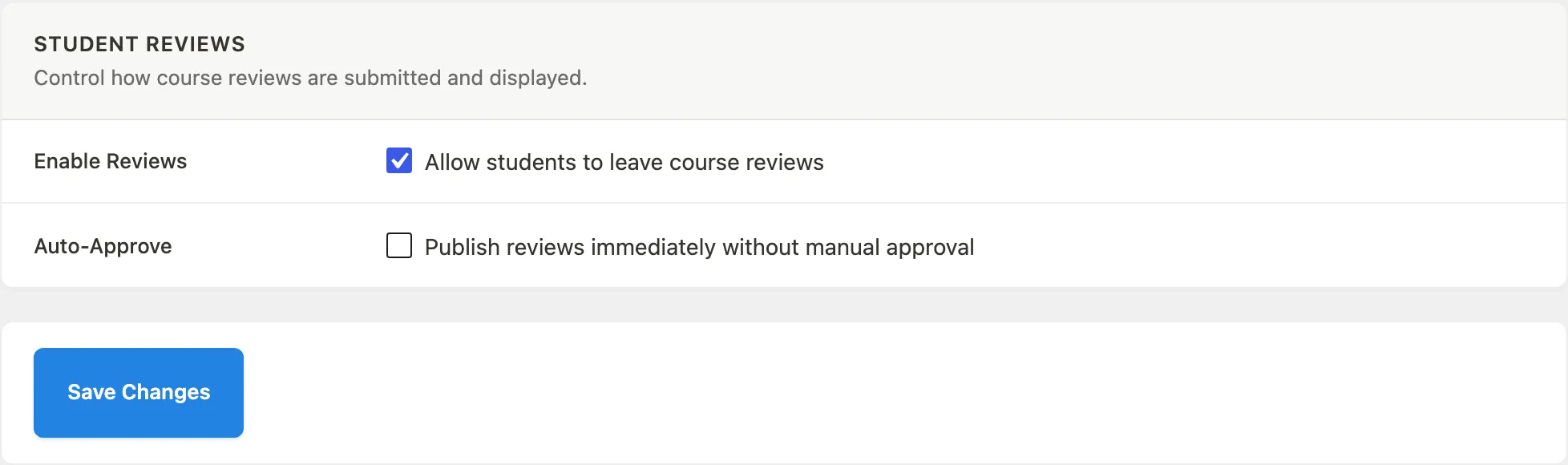
Check or uncheck Enable Reviews to turn the review system on or off site-wide.
Check Auto-Approve if you want new reviews to go live immediately without a moderation step.
Click Save Changes.
Moderating Reviews
Go to Learnomy > Reviews in the admin sidebar.
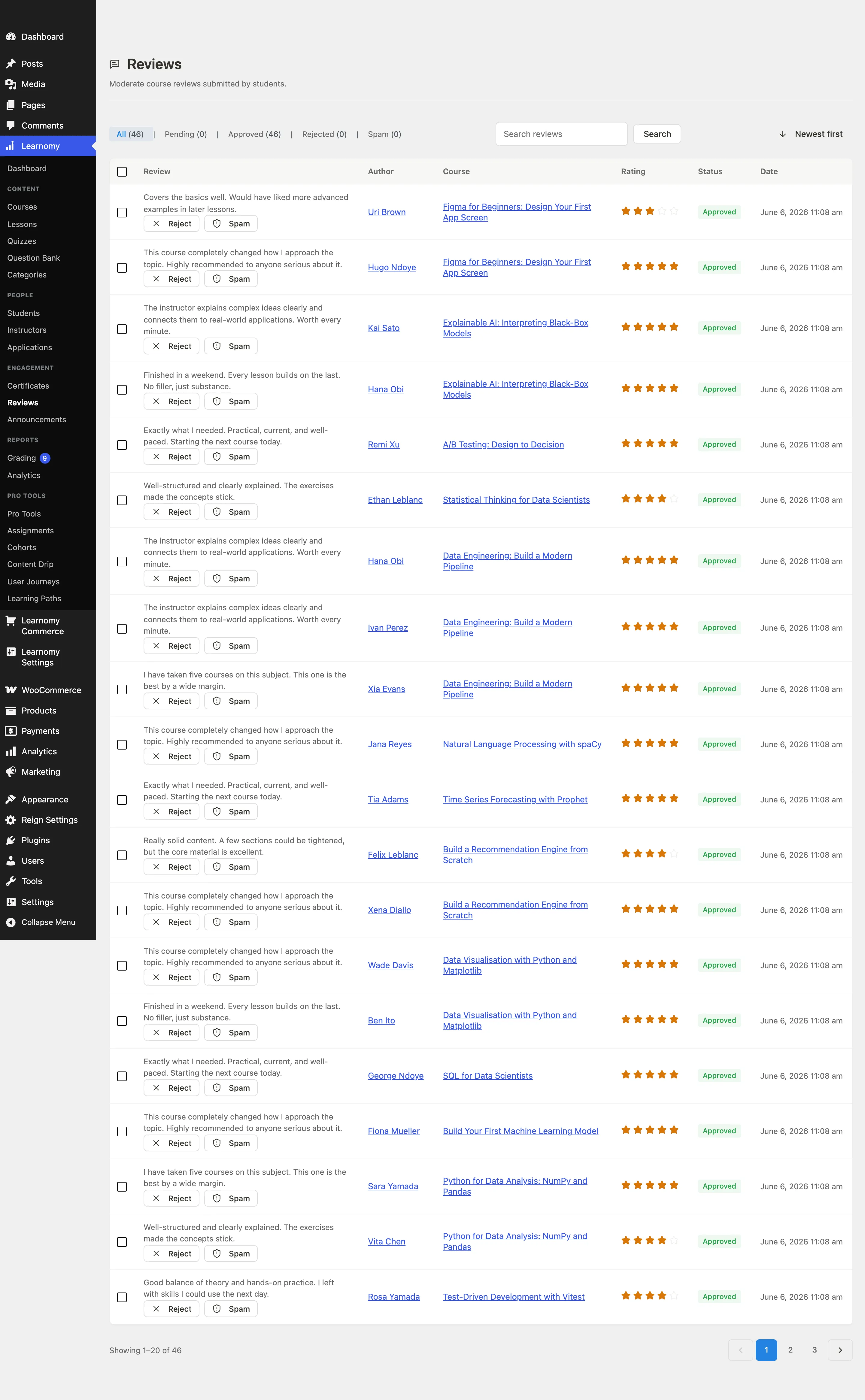
The page header shows the Reviews title and a brief description.

Use the status tabs at the top of the table to filter by All, Pending, Approved, Rejected, or Spam. Each tab shows the count of reviews in that status.
The table lists each review with the following columns:
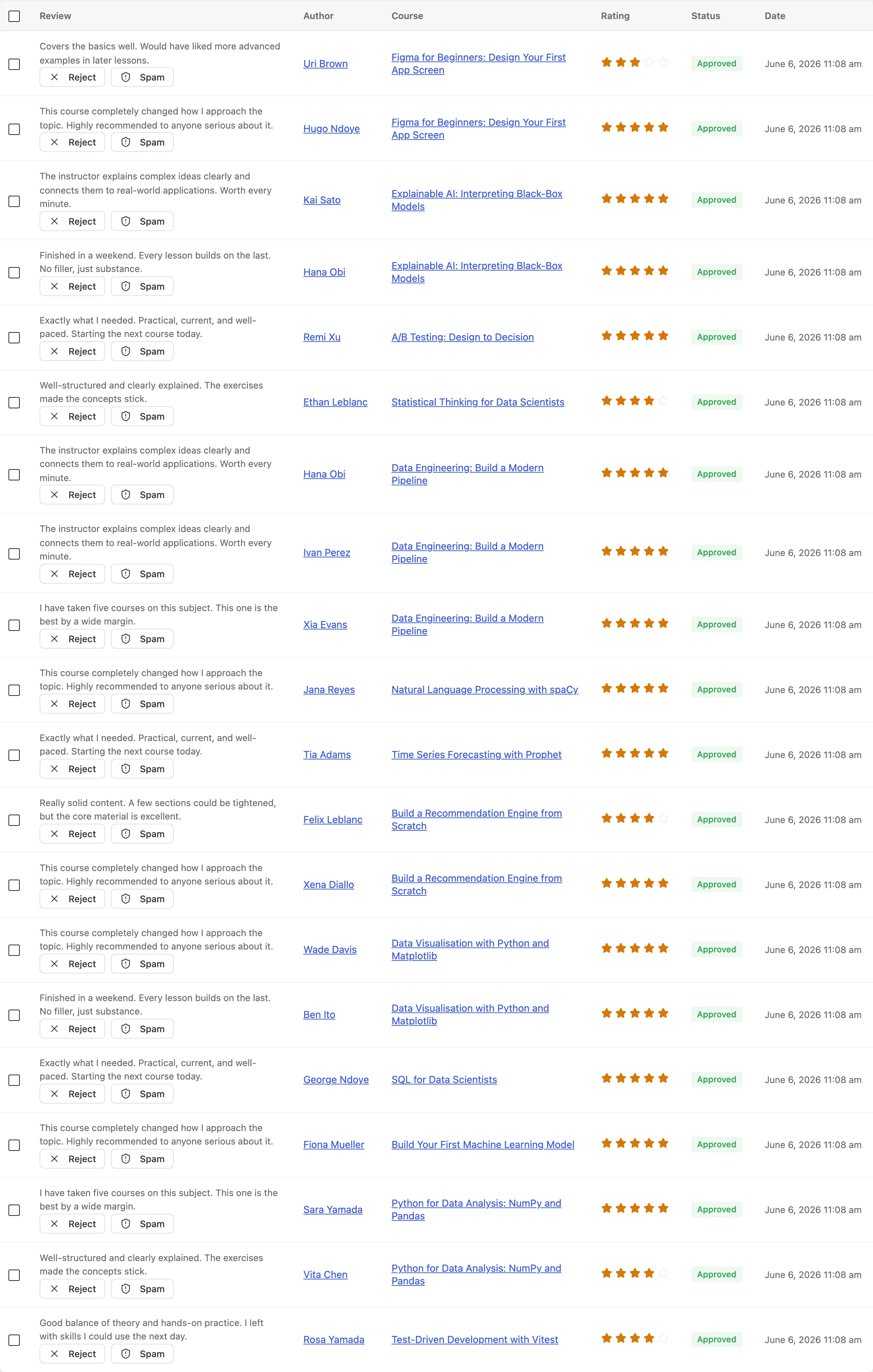
Column What it shows Review An excerpt of the review text, with row actions below Author The student who wrote the review Course The course being reviewed, linked to its editor Rating The star rating (1 to 5) Status The current moderation status pill Date When the review was submitted To take action on a review, use the row actions that appear under the review excerpt:

- Approve publishes the review and updates the course's average rating. Only available when the review is not already approved.
- Reject hides the review from the public course page. Only available when the review is not already rejected.
- Spam marks the review as spam. Only available when it is not already marked spam.
- Mark Pending returns the review to the pending queue. Only available when the review is not already pending.
- Delete permanently removes the review.
Using Bulk Actions
When you have multiple reviews to process:
- Check the box at the top of the table to select all visible reviews, or check individual rows.
- The bulk action bar slides in at the bottom of the screen showing how many reviews are selected.
- Choose an action from the dropdown: Approve, Reject, Mark as spam, Mark as pending, or Delete.
- Click Apply.
Searching Reviews
Use the search box at the top right of the reviews table to filter by keyword. The search runs against the review title and body. Click Search to apply it and Clear (or remove the search term and search again) to reset.
You can also toggle the sort order between newest first and oldest first using the sort button next to the search field.
Tips
- When Auto-Approve is on, new reviews bypass the pending state entirely and go directly to approved. The Pending tab will show zero unless a review is manually moved back to pending.
- Approved reviews update the
avg_ratingandreview_countcolumns on the course record immediately. Rejecting or deleting an approved review recalculates both values. - Students can submit one review per course. Submitting a new review replaces any previous one.
- The Anonymized status appears for reviews where GDPR erasure has removed the author's personal data but the review text has been kept.
- The Reviews list is paginated and supports search, so it stays usable even with thousands of reviews.