
Assignments
Pro feature
🔶 Pro feature. Available in Learnomy Pro.
Assignments attach written tasks to any lesson. An enrolled student sees the assignment widget below the lesson content, writes their response, and submits it. You then review each submission and award a numeric score with optional feedback. The student sees the result the next time they open the lesson.
Overview
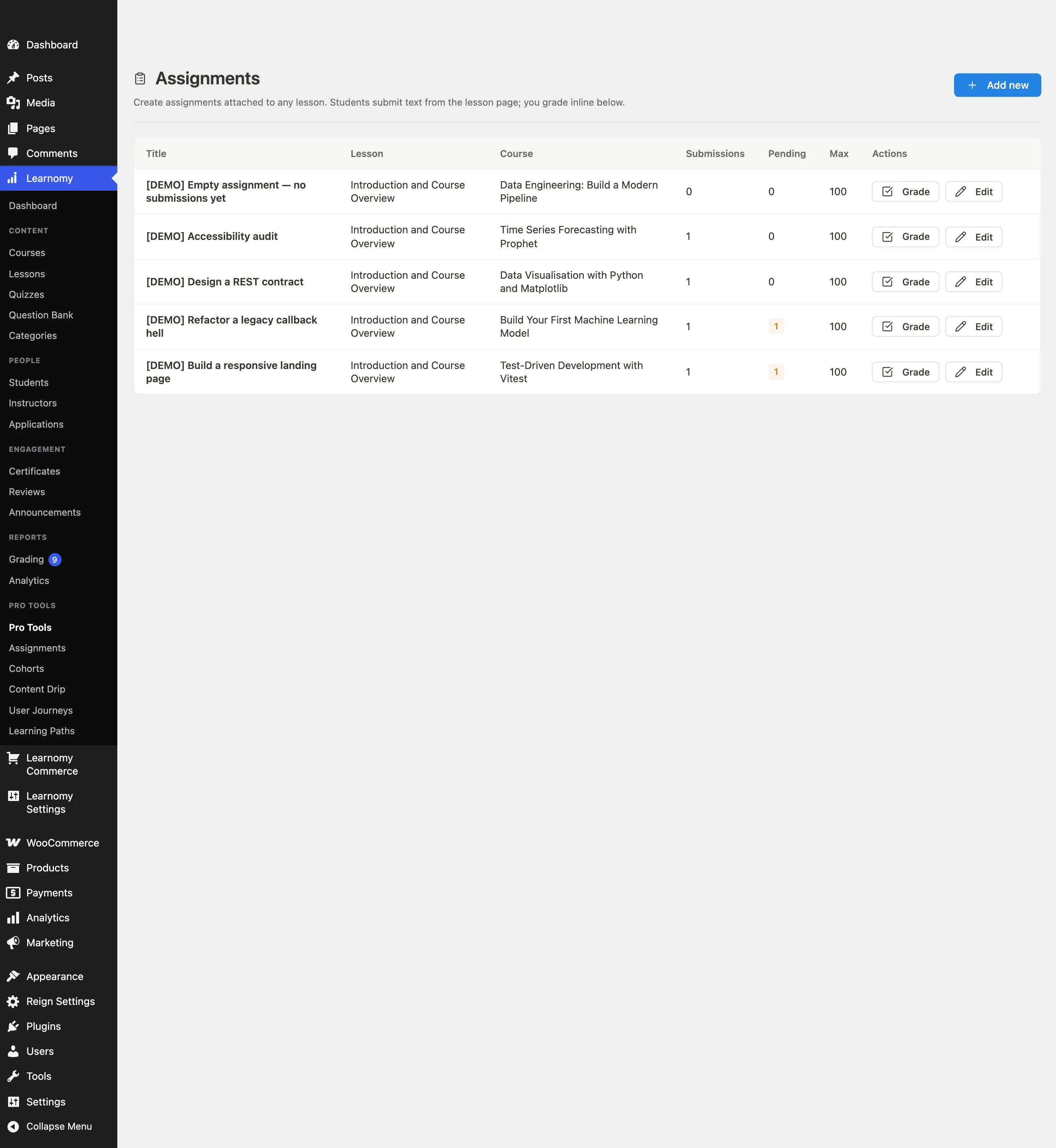
Go to Learnomy > Pro Tools > Assignments to see all assignments. The table shows each assignment's title, the lesson and course it is attached to, the total submission count, and how many submissions are pending grading.
Creating an assignment
Click Add new. The create form slides into view above the table.

Fill in the fields:
- Assignment title - a short description of the task, for example "Write a 300-word reflection".
- Lesson - select any lesson from the dropdown. Only one assignment can be attached to each lesson.
- Max score - the maximum numeric score for this assignment (for example, 100).
- Due date - optional. When set, the due date appears in the student widget and is enforced: submissions after the deadline are rejected. The due date is a calendar day, and it is evaluated in your site's timezone: a "Due July 10" assignment keeps accepting work through 23:59:59 on July 10, site-local time, not midnight UTC.
- Reference files - optional. Attach a brief, starter files, or a rubric from the media library. Students see these as Reference files on the lesson, alongside the assignment instructions, regardless of whether they have submitted yet.
Click Save assignment. The assignment is now active on the selected lesson for all enrolled students.
You can also add or edit the assignment attached to a lesson from the lesson editor itself, in the Assignment panel next to the lesson's release settings.
The student experience
An enrolled student opens the lesson. The assignment widget appears below the lesson content, showing the instructions and any Reference files or Reference links the instructor attached.
The student types their submission text into the text area. They can attach it two ways, and can use both on the same submission:
- Attach files (optional) - upload one or more files from their device, up to the maximum the site owner configured.
- Add a link (optional) - paste a video, audio, or document URL instead of uploading a large file. This is meant for content that already lives somewhere else, like a hosted screen recording or a Google Doc.
The student clicks Submit. The widget immediately shows a Submitted, awaiting grade confirmation, with an expandable "Show what you submitted" section listing their submitted files and links.
After grading, the student returns to the lesson and sees their score (for example, 78 / 100), the instructor's feedback, and their submitted files and links in the widget. The same feedback also appears on the account Assignments page (My Account > Assignments), which lists every assignment the student has upcoming or submitted across all their courses.
If an instructor requests a resubmission instead of grading, the widget shows a Resubmission requested notice with the instructor's note, and the submission form reopens even if the original due date has passed - the resubmission request supersedes the deadline.
Grading submissions
From the Assignments list, click Grade in the row for an assignment that has pending submissions. You land on the grader view for that assignment.
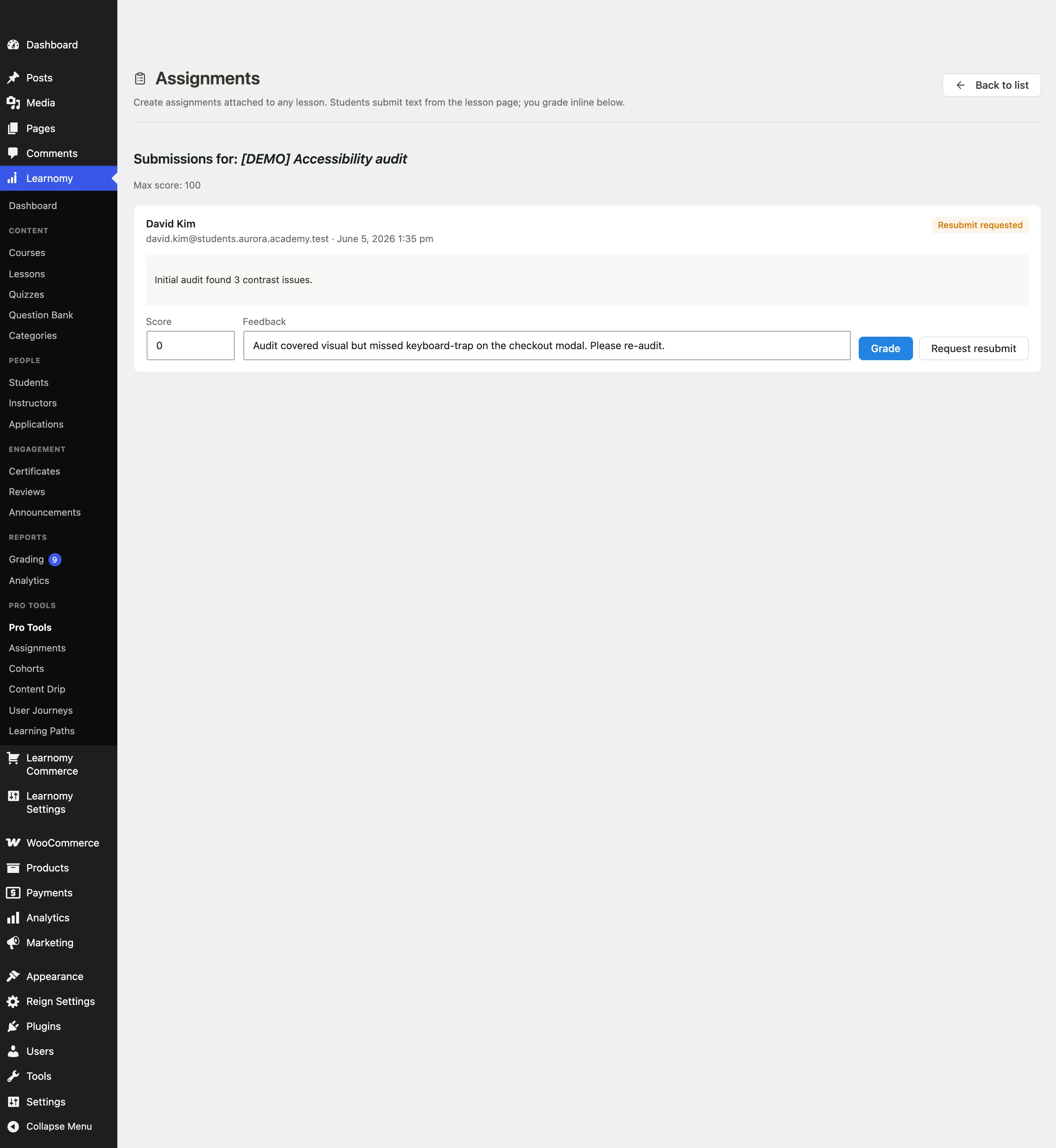
The grader shows every submission for this assignment with the student's name, their submitted text, any uploaded files, and any submission links - a link opens in a new tab so you can watch or read it full-screen instead of in a cramped inline frame.

For each submission, enter a numeric score in the score field (0 to the assignment's max score). Optionally add feedback text.
Click Grade to save. The submission is marked graded. The student sees the score and feedback the next time they open the lesson.
When all submissions are graded, the page shows "All caught up. No assignments to grade."
Click Back to list to return to the full assignments table.
Grading against a rubric
New in 1.9.4. Instead of judging a whole submission with one number, you can break the task into named criteria and score each one. Learnomy works the assignment score out from the weighted result, and you can still overrule it.
Writing the criteria
Criteria belong to the assignment, not to each submission. Open the assignment in Add new or Edit and find the Grading rubric field under Max score:
Click Add criterion. A row appears with three fields.
Fill the row in:
Field What it does Criterion The name the grader sees, for example "Clarity" or "Use of sources". Max The points this criterion is scored out of, 1 to 1000. Defaults to 10. Weight How much this criterion counts relative to the others. Defaults to 1 and accepts decimals such as 0.5 or 2.5. Add as many criteria as the task needs. Use the row's remove button to take one out.
Save the assignment. A row left without a criterion name is dropped rather than stored, so an empty row you never filled in does nothing.
Leave the rubric empty for a straight numeric score. Nothing about the assignment changes until it has at least one criterion.
Scoring a submission against it
When an assignment has a rubric, a Rubric panel appears on each submission's grade form, below the score, the feedback field and the action buttons. It shows one input per criterion, capped at that criterion's Max, and a Calculated score line underneath.
Score each criterion and the calculated score updates as you type, and is written into the score field above. Saving stores that number exactly as if you had typed it in yourself. The button reads Grade on an ungraded submission and Update on one you have already graded.
How the total is worked out
Each criterion contributes the fraction you awarded it multiplied by its weight. Those are added up, divided by the total weight, multiplied by the assignment's Max score, and rounded to a whole number.
A criterion's Max only decides the scale you score it on. Weight decides how much it matters.
For example, on an assignment out of 100 with two criteria:
- Clarity, Max 10, Weight 2, awarded 8 - that is 0.8 of the criterion, counting double.
- Use of sources, Max 5, Weight 1, awarded 3 - that is 0.6 of the criterion.
((0.8 x 2) + (0.6 x 1)) / 3 = 0.733, and 0.733 of 100 rounds to a calculated score of 73.
Overriding the calculation
The score field stays editable. Type over the calculated number and your number is what saves.
Opening a submission you have already graded does not disturb the saved score either. The criterion inputs start at zero and the panel only recalculates once you touch one of them, so reviewing a graded submission never quietly re-scores it.
Because the saved result is a single score, the per-criterion numbers are working notes rather than a stored record: reopening a graded submission shows the score you saved, not the criterion scores that produced it. Put anything the student needs to see criterion by criterion into the feedback field.
Rubrics share a store with quiz rubrics
Assignment rubrics are kept in the same store as quiz rubrics. You do not need to do anything to enable that, and assignment rubrics keep working whether or not the Advanced Quizzes module is switched on - the store's table is created when Pro is activated and its code loads independently of the module toggle.
The gain from sharing the store is that both rubrics behave identically: the same criterion fields and the same weighted maths, so a quiz essay and an assignment judged on the same criteria produce the same number. See Grading Submissions for the quiz essay half.
Assignment reporting
When the Analytics extension is active, assignment activity joins the same reporting engine as revenue and enrollments:
- Instructor Reports include an Assignments section (paginated, 20 per page) with submissions, graded count, average score, and late count per assignment.
- REST:
GET /analytics/assignmentsandGET /analytics/assignments/{id}underlearnomy-pro/v1. - Shared CSV and PDF export cover assignment stats with the rest of the analytics export.
See Analytics Dashboard and Gradebook for how assignment scores feed the weighted course grade.
Who can grade
An assignment can be graded by the course author or any WordPress administrator. The grading REST endpoint checks this ownership rule.
Empty states
- If no assignments exist yet, the list shows "No assignments yet. Click 'Add new' to create one."
- If an assignment has no submissions, the grader shows "All caught up. No assignments to grade."
Tips
- Students can submit text, file attachments, a link, or any combination. Files are uploaded to the WordPress media library; links are stored as-is and are meant for content that already lives elsewhere (a hosted video, a cloud document).
- Grading uses a numeric score, either typed in directly or calculated from a rubric. Add criteria in the Grading rubric field on the assignment to score against a rubric, and see Grading against a rubric above.
- The due date is displayed in the assignment widget and enforced at the REST layer, evaluated in your site's timezone. Submissions after the deadline are rejected with an error - unless the instructor has explicitly requested a resubmission, which reopens the form regardless of the deadline.
- Reference files and reference links you attach to the assignment definition are visible to every enrolled student on the lesson, whether or not they have submitted yet - use them for the brief, starter files, or a marking guide the students should read. That is a document you attach; the Grading rubric field above is the scoring tool you grade with.
- The assignment widget on the lesson page is injected via the
learnomy_lesson_player_asidehook, so it appears in the lesson sidebar area regardless of which course template is active.