
If you already sell through WooCommerce, Easy Digital Downloads, a membership plugin or even a checkout page on another service, you probably don’t want a second shop just because you added courses. Your customers know where to pay. Your accounting, tax setup, coupons and email flows already hang off that store. The only thing missing is a way for a paid order to open the right courses and for a refund to close them again.
Learnomy gives you three ways to do that, and they aren’t interchangeable. This guide explains each one, who it fits, exactly what happens on a paid order, a refund, a cancellation and a renewal, and what to check before you go live. It also covers the screens you’ll live in afterwards: the Access Log, the “Your access is ready” email, and what a student sees in My Courses.
The three routes, and how to pick
Route A: Learnomy’s own checkout. Learnomy sells the course itself, with Stripe, PayPal or WooCommerce as the payment method. The sale is recorded in Learnomy, with coupons, tax, subscriptions and commissions. This is in the free plugin.
Route B: store and membership bridges (Pro). Your existing product or membership level is the sale. You pick what it gives on the product or level screen, and Learnomy follows the store’s orders. Covers WooCommerce, Easy Digital Downloads, Paid Memberships Pro, Restrict Content Pro and MemberPress.
Route C: Access Grants for everything else. A signed webhook (free), a CSV or email list (free), or a WP Fusion tag (Pro) tells Learnomy who should have what. Use it for a CRM, a Zapier or Make scenario, Gumroad, a payment link, a sales team that takes invoices, or a store without a bridge.
The decision usually comes down to three questions.
Where does the customer pay today, and do you want that to change?
If you’re happy for course buyers to pay in Learnomy’s checkout, Route A is the least moving parts. Nothing to map, nothing to keep in sync. You give up nothing by choosing it, and the Payments page lists what the checkout handles.
If your customers pay in your store and you want them to keep doing that, because your coupons, bundles, tax rules or upsells already live there, choose B or C.
Which tool takes the money?
If it’s one of the five plugins above, use Route B and skip the glue code. If it’s anything else, Route C works with any tool that can send one signed request. The webhook doesn’t care what took the payment.
Do you need Pro for the things the order should give?
A course or a membership plan can be given by Route C with the free plugin. A learning path, a seat in a Learning Space or a cohort place can be given by either Route B or the webhook, but those items themselves are Pro features. The Free vs Pro page has the current split.
A small table helps:
| Situation | Route |
|---|---|
| New to selling, no store yet | A |
| WooCommerce shop, happy for Learnomy to take payment through WooCommerce | A, with WooCommerce as the payment method |
| WooCommerce shop, products and bundles already built, you want those to give courses | B (Pro) |
| EDD, PMPro, RCP or MemberPress already running | B (Pro) |
| Gumroad, Shopify, a payment link or invoices | C |
| Zapier or Make already watching your orders | C |
| CRM tags decide who gets what | C with WP Fusion (Pro) |
| Hundreds of past buyers to add once | C by CSV |
You can mix routes. A site can sell one course at Learnomy’s checkout, another through a WooCommerce product and a third from a CRM tag. The one rule that Learnomy enforces for you is that the same course isn’t sold two ways through WooCommerce, which the bridge section below explains.
What Learnomy does and doesn’t do when a store gives access
Say it plainly once, since everything else follows from it. When your store or automation gives access, Learnomy records the access, not the sale. There’s no transaction, no receipt, no commission and no payment event in Learnomy for that order. Your store is the book of record for money.
That has consequences you should decide about up front:
- Instructor commissions in Learnomy won’t be calculated on store sales. If you pay instructors a share, work that out from the store’s reports.
- Learnomy’s revenue reports won’t include those orders.
- Coupons, tax and refunds happen in the store. Learnomy coupons don’t apply.
- Subscriptions billed by a store stay off Learnomy’s billing clock. Learnomy never renews, reminds or cancels them. The member sees which store bills them, and you can still end their access yourself.
If you want one place that shows every sale, Route A gives you that. If you want to stay where you are, accept that the money reports stay there too.
Route A: Learnomy’s own checkout
This is the shortest path and it’s worth saying who it fits: someone starting out, or someone with a store they’re glad to leave alone for course sales.
Checkout offers every payment method you’ve enabled. Stripe and PayPal ship with the free plugin. WooCommerce can also be switched on as a payment method under Learnomy Settings, in which case buyers pay through WooCommerce’s checkout for a Learnomy price. That is still Route A: the course isn’t a WooCommerce product, and the sale is recorded in Learnomy.
A few facts worth having:
- Guest checkout is off by default. You turn it on under Learnomy Settings > Payments. With it on, a guest can pay by card or with PayPal, and Learnomy makes the account from the email.
- Delayed bank methods through Stripe (SEPA, Bacs, BECS, boleto, OXXO and Konbini) give access when the money clears, not when the customer clicks pay.
- Coupons, membership plans, subscriptions and tax all work here.
- A refund removes only the access its own sale gave.
If that covers you, you can stop reading and go build your first course. If you keep a store for other products and want those orders to give courses, keep going.
Route B: store and membership bridges (Pro)
The bridges are a module in Learnomy Pro. It’s off until you turn it on under Learnomy Settings > Modules, and even then nothing happens until you map a product or level.
The idea is the same for every store. On the product, download or level, a Learnomy access picker lets you search and choose what that purchase gives:
- Courses
- Membership plans
- Learning paths
- Space seats (a place in an existing Learning Space)
- Cohort places
Picks show as chips grouped by kind, with a line saying what the product gives. If two picks give the same course, say one directly and one inside a membership plan, a note tells you. The buyer gets that course once and keeps it while either pick is active.
Only site administrators see the picker and only they can change a mapping. A shop manager can still edit the product; the mapping stays as it was.
Two limits apply to every bridge, so say them now:
- Nothing is retroactive. Orders and memberships that existed before you mapped a product don’t give access. Give access to earlier buyers another way (see the checklist).
- Learnomy won’t let you sell a WooCommerce course twice. If a course is sold through Learnomy’s WooCommerce checkout, you can’t also pick it on a product. Saving the product shows a message naming the course, and everything else on the product is saved.
WooCommerce
Needs WooCommerce 8.2 or newer. WooCommerce Subscriptions is optional.
Mapping. Edit a product, open the Learnomy access tab in Product data, pick what it gives, save.
What happens:
| In WooCommerce | In Learnomy |
|---|---|
| Order is Processing or Completed | The buyer gets everything picked on the products in the order. A card or PayPal payment for a virtual product sits in Processing, and access starts then; you don’t have to complete the order. A guest buyer gets an account made from the billing email. |
| On hold or Pending payment | Nothing yet. |
| Same order completed after Processing, or paid again | Nothing new. Each order gives access once. |
| Partial refund | Access stays. |
| Full refund, or the order is Refunded or Cancelled | Access from that order ends. Access from anywhere else stays. |
| A Subscriptions subscription | Access belongs to the subscription, not to one order. The Access Log shows it as Subscription with its number. Renewals add nothing, and a failed payment changes nothing because WooCommerce handles retries. |
| The member cancels the subscription | Access stays until the paid time runs out, then ends. If you cancel it from the admin, access ends then. |
| Upgrade, downgrade or crossgrade | What the old product gave ends and the new product’s access starts. |
| A subscription’s order or renewal is fully refunded | The subscription’s access ends at once. The next paid renewal gives it back. |
| A one-off product bought with a subscription | It keeps its own access when the subscription ends. |
An order with more than three items to give is handled in the background a few seconds after payment, so checkout stays fast.
If a course’s pricing is Access granted externally and has no button link, saving the mapping points the course’s button at the product page, so visitors go to your shop to buy.
Easy Digital Downloads
Needs EDD 3.0 or newer. EDD Recurring Payments is optional.
Mapping. Edit a download. The Learnomy access box sits under Download Details.
What happens:
- A Completed order gives everything picked on the downloads in it. A guest gets an account from the order email, and an email that already has an account gets the access on that account.
- Pending or Failed gives nothing.
- Partially Refunded keeps access. Refunded (the whole order) or Revoked ends the access that order gave.
- With EDD Recurring, access belongs to the subscription and renewals add nothing. A cancelled subscription keeps access until its expiration date, then it ends. If the first order is refunded or revoked, access ends at once.
- A one-off download bought alongside a subscription keeps its own access when the subscription ends.
Paid Memberships Pro
Needs PMPro 3.0 or newer.
Mapping. Go to Memberships > Settings > Levels, edit a level and find Learnomy access under Expiration Settings. Copying a level copies its mapping too.
What happens:
- Getting the level, at checkout or by you adding it on the member’s profile, gives what the level maps.
- A renewal checkout for the same level adds nothing while access is on. If a refund had ended access, the renewal brings it back. Access you removed in the Access Log stays removed.
- Moving to another level ends the old level’s access and gives the new level’s. A course both levels give stays.
- If the level is cancelled, expires or is removed, access ends when PMPro ends the level. If your PMPro setup keeps a cancelled level until the paid period runs out, Learnomy access lasts until then too.
- A refunded payment doesn’t end access by itself. Access follows the level: it ends once the member no longer holds the level in PMPro. If PMPro keeps the level after the refund, access stays, and you cancel the level in PMPro to end both.
That last point surprises people, so it earns its own line in your checklist.
Restrict Content Pro
Needs RCP 3.0 or newer.
Mapping. Restrict > Membership Levels, add or edit a level, and use the Learnomy access row.
What happens:
- A membership that becomes Active (after payment, a free level, or you adding it by hand) gives what the level maps.
- Pending or abandoned signups give nothing.
- Activated again or Renewed adds nothing. An RCP membership keeps its id across renewals, so there’s one grant per membership.
- Cancelled keeps access until the membership’s expiration date, as it does in RCP, since cancelling only stops the renewals.
- Expired ends access. Renewing after it expired brings it back.
- Upgrading or downgrading ends the old level’s access and gives the new one’s. Deleting a membership ends its access.
MemberPress
Needs MemberPress 1.11 or newer.
Mapping. Edit a membership; the Learnomy access box is under Product Options.
What happens:
- A payment that completes gives what the membership maps. Pending and failed payments give nothing.
- A renewal payment adds nothing while access is on. If a refund had ended access, the next paid renewal gives it back.
- A refund (from the gateway, or you setting the transaction to Refunded in MemberPress > Transactions) ends the access at once. So does a one-time membership that expires.
- A cancelled subscription keeps access until the paid period runs out, then ends. If no paid time is left, it ends immediately.
- Moving to another membership in the same group ends the old access and gives the new one’s.
- MemberPress reports an ended payment period roughly twelve hours after it ends, so access from a membership can last up to half a day longer than the membership’s own pages. A refund ends it at once.
- A free trial gives access with the first paid payment, since MemberPress records no completed payment for the trial itself.
If MemberPress is the plugin you’re weighing against Learnomy rather than alongside it, the Learnomy vs MemberPress page covers that comparison.
If the store plugin is switched off or too old
Access already given stays. The mapping screens and order events stop until the plugin is active again. If the version is older than the minimum, a note on the Learnomy dashboard, Modules and Plugins screens says the bridge is waiting for an update.
For per-field detail, the docs have one page for each store: WooCommerce, Easy Digital Downloads, Paid Memberships Pro, Restrict Content Pro and MemberPress. Developers who want to write a bridge for another store will find the outline in Store bridges for developers.
Route C: Access Grants for anything else
If your store isn’t one of the five, or it is and you don’t have Pro, Learnomy can still hear about a sale. This route is called Access Grants and it’s in the free plugin. An order somewhere else gives access to courses and membership plans, and with Pro to learning paths, Space seats and cohort places, without a sale being recorded.
Three ways in, from most automatic to most manual.
The signed incoming webhook
You’ll find it at Learnomy Settings > Webhooks, in the Incoming access panel. It’s one endpoint that takes a signed POST.
- Click Regenerate to create a signing secret and copy it into your tool. With no secret set, every request is refused.
- For each request, send the current unix time in
X-Learnomy-Timestamp, and the HMAC-SHA256 of{timestamp}.{body}, keyed with your secret, inX-Learnomy-Signature. A request more than five minutes old is refused. - Send
op: grantwithuser_email,item_id,external_refand apurchase_type. The type iscourseby default,membership_planfor a plan, and with Prolearning_path,spaceorcohort. - When the order is refunded or cancelled, send
op: revokewith the sameexternal_ref.
external_ref is your order or membership id, and you should always send it. Make and Zapier retry on timeouts, and with the reference a retry grants once and answers already. If one order covers several items, send one request per item with the same reference.
Use the Send test button before connecting anything. It signs a request exactly the way your tool must, runs the real grant, then takes the access back and removes the test row and any account it made. Nobody is notified.
The docs include a Make recipe and a Zapier code step you can copy: Incoming Access Webhook. Two details matter for membership plans. A plan granted this way is billed by your store, so Learnomy never renews, reminds or cancels it. And a Space Plan is sold through Learnomy’s own checkout; you grant a seat in an existing Space instead.
One more point for anyone who has used the older sale-recording calls: op: purchase and op: refund still exist but they’re deprecated, they do write a sale into Learnomy’s transactions, and your admin shows a notice while a tool still sends them. Use grant and revoke for stores.
The closed pricing model, plus a list
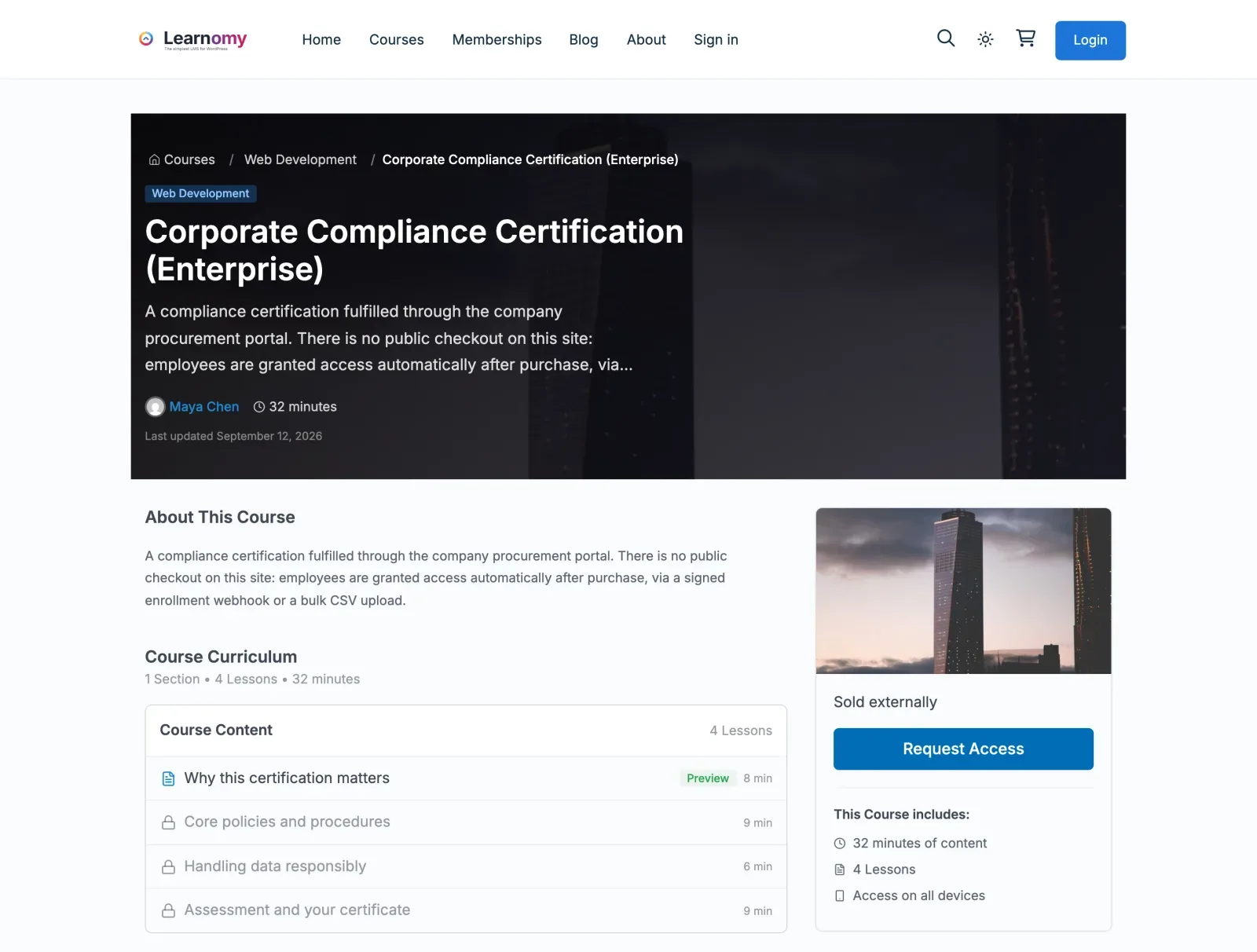
Set the course’s pricing to Access granted externally. The course shows no price and no Buy button. You can add a button label and link, for example “Buy on Gumroad”, or leave both empty and visitors see a plain “Enrolment is managed externally” note. This is always available, with no payment module needed.
From there, get people in by email, one at a time or as a list, from the course’s Students screen. Paste addresses or upload a CSV. Learnomy makes accounts for new emails, sends a set-password invite, skips anyone already enrolled, and processes up to 500 addresses per submission, telling you how many are left. Details: Closed pricing and Bulk enrollment.
If your sales volume is small, this might be all you ever need. A coach who sells six places a month by invoice can paste six emails. If you’re sending the same list every week, move to the webhook.
WP Fusion tags (Pro)
If your CRM already decides who has bought what, WP Fusion can drive access. On a course, the Auto-enroll tag link field lists tags. When a student gains one, the course is granted through Access Grants, with WP Fusion as the source in the Access Log. When they lose every linked tag, the grant ends. If you removed that grant in the Access Log, getting the same tag again doesn’t give it back.
Be careful with this one. Because the tag is the entitlement, it can grant a paid course with no purchase behind it. Treat who can apply those tags in your CRM as access control. Only access this bridge gave is affected; manual, purchase, membership and store access are left alone. Setup is in the WP Fusion doc.
Selling a membership plan that lives in your store
Memberships are the most common reason people want the store route. You sell a monthly plan in WooCommerce or MemberPress, and Learnomy delivers the courses.
In the membership plan editor, turn on Sold elsewhere and paste the store page into Store link. Then:
- Every Join button for the plan goes to the store link: the pricing page card, the Membership Pricing block and shortcode, and the Other plans list on a member’s Manage membership page.
- Learnomy’s checkout won’t sell the plan. Someone who opens a checkout link sees that nothing has been charged and gets a button to the store.
- The plan is left out of the gift form, and members can’t switch onto it with Change plan.
- Until a store link is set, the plan stays off the pricing page, so nobody sees a card with nothing to press.
The members themselves still get the plan’s courses when the store tells Learnomy about the sale, through a bridge or the webhook. With Pro, mapping the plan to a WooCommerce product fills in an empty Store link with that product’s page when you save the product.
In the Subscriptions screen, you can filter by who bills a subscription. A cancelled store subscription that may still be billing can be marked as stopped, which is useful when you’ve reconciled with the store by hand. See the memberships doc for the whole plan editor.
The Access Log: your safety net
Every grant from a store, a membership plugin, a webhook call or a WP Fusion tag appears in Learnomy Settings > Access Log, newest first. Each row has the person, what they got, the store, the order number and a status. Filter by status, store or kind of access, or search by buyer email or order number.
The statuses mean:
- Active. The person has the access. Remove takes it back now. A replay of the same order doesn’t give it back; a new order does. The store keeps any money, so refund there if that’s what you want.
- Refused. Learnomy couldn’t give it and the row says why: a course prerequisite not met, a full Space, a full cohort, a deleted course, an order with no email address. After fixing the cause, Try again asks once more. Grant anyway gives it regardless, for that person only, where the rule allows it (prerequisites and cohort size).
- Ended at the source. The store, plugin, automation or tag that gave it took it back.
- Removed by you. You took it back, here or with Remove access on the student’s screen.
The webhook’s own calls, accepted or refused, are in Payment Log under the Incoming webhook filter. When a customer writes “I paid and have no access”, look here in this order: the store’s order status, the Access Log by email, then the Payment Log for a refused call.
Taking access back sticks. That’s deliberate. If you remove a grant because of a chargeback and the store later sends the same order again, the person doesn’t get it back. A genuinely new order does.
The “Your access is ready” email
One email per grant, listing what the person got and your store’s name. If the grant created their account, it carries a Set your password button. For that person and that grant, it replaces the per-course welcome, the membership email and WordPress’s separate set-password email, so one order produces one message from Learnomy instead of three.
If your store sends its own confirmation, that’s a second email, not a replacement. Most owners keep both. The store’s one is the receipt and Learnomy’s is the “here’s how to log in” message. If you’d rather send only your own, turn off Access Ready (from a store) under Learnomy Settings > Emails. The ordinary emails then send as before, so a new account still gets its way in.
What students see
A student opens My Courses and sees every course they have, with progress. Where a course comes from a store, My Courses shows which store gives it. That small line cuts a lot of support mail: “why can’t I cancel this in Learnomy?” has an answer on screen.
For a membership billed elsewhere, the member sees which store bills it. They manage payment there, and you can still end their access from Learnomy if you need to.
A student whose access ended can’t open the course any more, and a refund removes only what its own sale gave. A common case: someone buys a course on its own, then joins a membership that includes it, then refunds the membership. They keep the course they paid for.
Mistakes to avoid
Mapping before testing refunds. Everyone tests the paid order. Test the refund too, on a real small order, and read the Access Log afterward. The PMPro behaviour above, where access follows the level rather than the payment, is the sort of detail you want to learn on your own order.
Forgetting earlier buyers. The first day after you connect a store, everyone who bought last year has no access in Learnomy. Plan the backfill.
Two ways to buy the same course. If a course can be bought at Learnomy’s checkout and also through a store product, buyers can pay twice. Learnomy warns you when you map it (“buyers can now pay in two places”), and for WooCommerce’s own checkout it refuses. Pick one door per course.
Skipping the secret hygiene. If a signing secret leaks, regenerate it. The old one keeps working for 24 hours so you can update your tools. If you need it dead now, use Stop accepting it now.
Treating a grant as a sale for reporting. It isn’t one. Decide where your sales numbers come from.
Setup checklists
Route A checklist (Learnomy’s checkout)
- Stripe, PayPal or WooCommerce is connected under Learnomy Settings > Payments, with a test purchase done.
- Guest checkout is on or off, as you intend.
- Coupons, tax and any membership plans are set up.
- A refund of a test order removes the access it gave.
Route B checklist (store and membership bridges, Pro)
- The store plugin is at or above the minimum version.
- Store and membership bridges is turned on under Learnomy Settings > Modules.
- Each product, download or level has its Learnomy access picked, and the summary line reads the way you expect.
- No course is sold both ways through WooCommerce.
- A test order gives access, and the Access Log row shows the store and order number.
- A test refund takes it back. For PMPro, you cancelled the level too.
- A test subscription renewal adds nothing, and a cancelled one keeps access to the paid end.
- Earlier buyers are given access by profile, CSV or webhook.
- “Your access is ready” reads well, or is turned off because your store’s email is enough.
- A membership plan sold in the store has Sold elsewhere on and a Store link set.
Route C checklist (Access Grants)
- The course is set to Access granted externally, with a button label and link if you want one.
- A signing secret exists and is stored in your tool, not in a shared document.
- Send test passes from the Webhooks screen.
- Your automation sends
external_refon every call, and one request per item. - Refund and cancel steps send
op: revokewith the same reference. - You can find a test grant in the Access Log and a refused call in the Payment Log.
- For WP Fusion, you know who can apply the linked tags, and a tag removal ends the grant.
- Earlier buyers are loaded by CSV.
A worked example
Take a language teacher who sells one-off lesson packs in WooCommerce and a monthly “practice club” through MemberPress. She adds three courses.
She puts the beginner course on a WooCommerce product by picking it on the Learnomy access tab. She picks the practice club’s two courses and a learning path on the MemberPress membership. The practice club plan in Learnomy is marked Sold elsewhere, with the MemberPress sign-up page as the Store link, so the pricing page sends people there.
She tests with a real small order in each store. Both give access within seconds. She refunds the Woo order in full: the beginner course closes, but the student’s club courses stay. She cancels a test club subscription and confirms access remains until the period ends.
For last year’s students she exports emails from the store and pastes them into bulk enrollment on the beginner course. She leaves the Access Log open for the first week. Two rows show Refused: one for an order with no email address, one for a cohort that was full. She fixes the first by adding an email to the order and the second by choosing Grant anyway.
That’s the whole project. The shop is still the shop, and the LMS is the thing that teaches.
When to use something else
If your store is your only checkout and you’d rather not maintain two plugins’ worth of settings, Route A is simpler. If you’re on Free and your store isn’t one of the five, use Route C and accept a little glue. And if you’re choosing between running a membership plugin and Learnomy for the same members, don’t run both for billing; pick one place for money and have the other follow it.