
Use case walkthrough
Free plugin onlyAdd courses to your WooCommerce store with Learnomy
You already run a WooCommerce store. Physical goods, digital downloads, maybe a few services, all with an order history, a set of payment methods your customers already trust, and possibly a tax setup you have spent real time getting right. Now you want to sell courses too, and you would rather route that money through the checkout you already operate than stand up a second, separate payment system next to it.
Learnomy supports exactly that: WooCommerce as a pure payment gateway. It is worth being precise about what that means, because it is a narrower job than "WooCommerce integration" usually implies. WooCommerce collects the money. Learnomy still owns the course, the price, the enrollment, and the receipt. Nothing about your course catalog lives in WooCommerce, and nothing about your WooCommerce product catalog knows a course exists.
What you'll use
WooCommerce checkout (gateway)
Payment Gateways →Pricing and access models
Pricing and Access Models →Flat tax rate
Tax (Flat Rate) →Checkout and purchase flow
Checkout and Purchase Flow →Transactions
Transactions →Coupons
Coupons →The walkthrough
Phase 1 - Decide whether WooCommerce is the right route
Go to LMS Settings > Payments. Learnomy offers four gateways, and more than one can be enabled at once:
Your options here:
- Test - a synchronous in-memory gateway for building and QA. No real money, no setup. Turn it off before you launch.
- Stripe - on-page checkout with Stripe's Payment Element, plus delayed bank and voucher methods (SEPA, Bacs, BECS, boleto, OXXO, Konbini) per region. No separate store to run; one webhook to configure.
- PayPal - a second on-page, real-money option, no delayed methods.
- WooCommerce - routes the purchase through your existing WooCommerce cart and checkout instead of Learnomy's own.
The decision between Stripe/PayPal direct and WooCommerce comes down to what you already have and what you actually need:
- Stripe or PayPal direct is the pick when you are not already running a store. You get an on-page checkout, delayed payment methods where Stripe supports them, and nothing extra to install or maintain. This is the default for most academies, covered in Run a solo creator academy and Run a global academy.
- WooCommerce is the pick when a store already exists and you want courses to check out through it rather than beside it: your existing WooCommerce payment methods (any WooCommerce payment plugin), your existing tax setup (per-region rates, exemptions, EU VAT with the reverse charge), and one order history that already includes your physical or digital products. The trade-off is Stripe's delayed bank and voucher methods, which are Stripe-only and do not carry over to a WooCommerce checkout.
An existing WooCommerce store selling courses alongside its regular catalog is exactly this guide's case: WooCommerce is already the checkout the customer trusts, so courses join it rather than opening a second one.
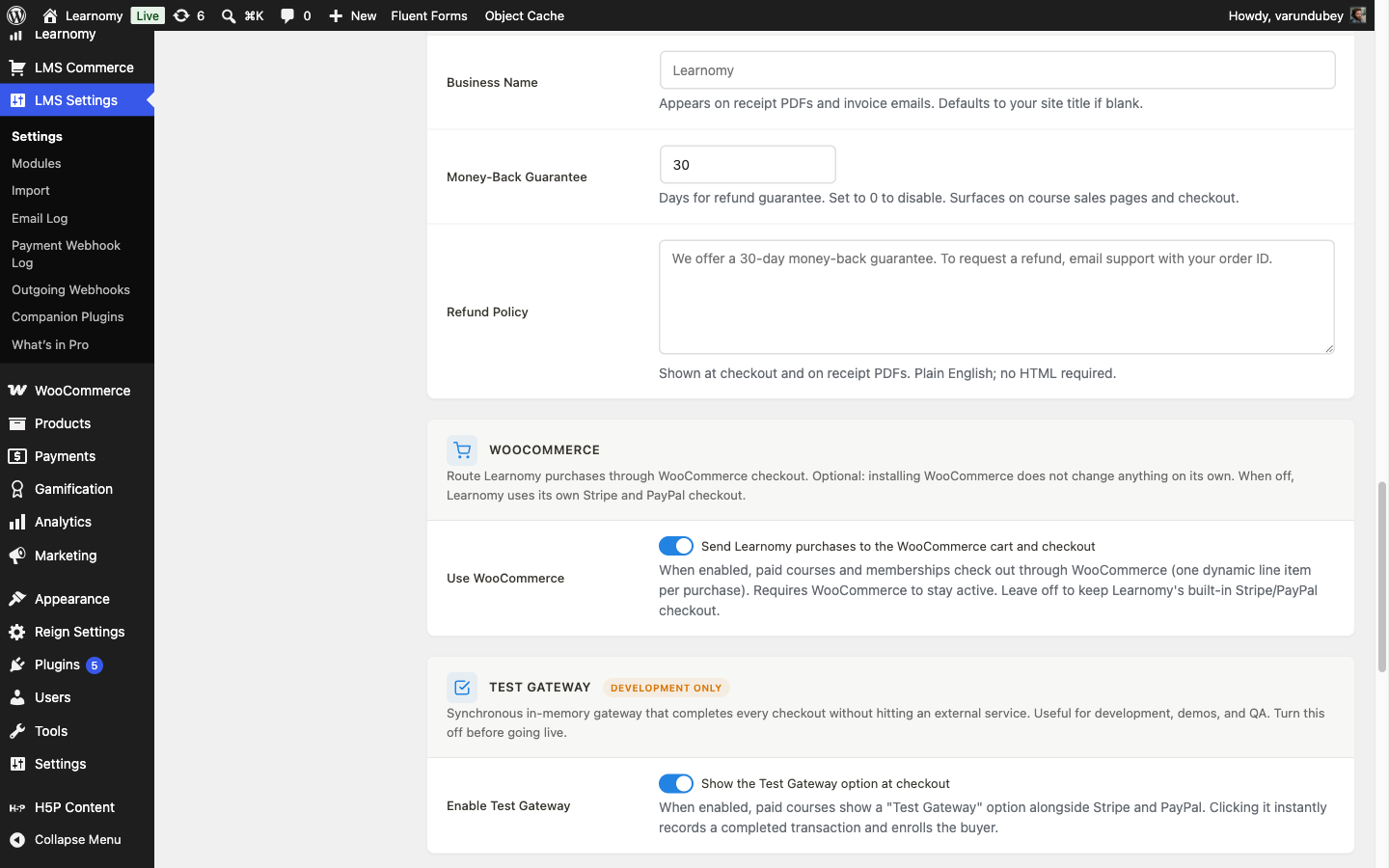
Phase 2 - Enable WooCommerce as a gateway
Confirm WooCommerce is installed and active, and check three things WooCommerce needs in place before Learnomy can hand a purchase to it:
- The Checkout page uses the classic
[woocommerce_checkout]shortcode, not the block-based checkout. The block checkout only supports payment methods built against the Store API, and Learnomy's gateway operates outside it. - The Cart page uses the classic
[woocommerce_cart]shortcode for the same reason. - WooCommerce's Coming soon store mode is off (WooCommerce > Settings > General > Store notice). Coming-soon mode blocks the cart and checkout for every visitor, Learnomy purchases included.
- The Checkout page uses the classic
Go to LMS Settings > Payments, open the WooCommerce card, check Send Learnomy purchases to the WooCommerce cart and checkout, and click Save Changes.
No API keys and no per-course product mapping are required. WooCommerce now appears as a gateway option, and it uses whatever payment methods your WooCommerce install already has configured (card, PayPal, bank transfer, cash on delivery, or any WooCommerce payment plugin) for the actual charge. See Payment Gateways.
Phase 3 - Understand what moves to WooCommerce and what does not
This is the part worth reading closely, because the honest answer is narrower than "WooCommerce integration" sounds. WooCommerce is a pure gateway adapter: it collects the money and reports back that the money arrived. Everything else about running the course stays in Learnomy, on purpose, because a course and a WooCommerce product are two different records and letting them drift out of sync is worse than not syncing them at all.
What moves to WooCommerce:
- The cart and checkout page the student sees, and the payment method they pick there.
- The order record: WooCommerce creates one hidden, reusable virtual product ("Learnomy Checkout Item") and sets its line price to the exact amount owed for this specific purchase, already adjusted for any sale price or coupon Learnomy applied before the hand-off. One shared product carries every one-time purchase; Learnomy does not create a WooCommerce product per course.
- Recurring membership billing, when the WooCommerce Subscriptions extension is active (a Pro feature) -- a small set of period-keyed subscription products, one per billing interval, again with the price set dynamically rather than one product per plan.
What stays in Learnomy, regardless of which gateway was used:
- The course catalog. WooCommerce never gains a product-per-course, a category tree that mirrors your course categories, or stock levels for seats. There is no course-as-WooCommerce-product mapping to keep in sync, because there is no second copy of the catalog to drift.
- Enrollment. When the WooCommerce order reaches "processing" or "completed," Learnomy's adapter reads the order, records a transaction, and fires the same enrollment (or subscription) action it fires for a Stripe or PayPal purchase. The student is not enrolled by WooCommerce; WooCommerce is the signal Learnomy is watching for.
- Pricing models. All eight pricing models -- Free, One-time (lifetime), One-time (time-limited), Recurring subscription, Members only, One-time or Members, Invite only, and Access granted externally -- are set on the course exactly as they would be for Stripe or PayPal. WooCommerce collects whatever amount the pricing model and any active sale or coupon produce; it does not add its own pricing logic. See Pricing and Access Models.
- Receipts and transaction records. The purchase shows up in LMS Commerce > Transactions with the same fields a Stripe purchase would have, tagged with provider "WooCommerce" and the WooCommerce order number as its reference, so you can always trace one to the other. See Transactions.
- Commission. When the order completes, Learnomy fires the standard
learnomy_payment_completedaction and calculates instructor commission the same way it does for any other gateway. - The flat tax rate, conditionally. Learnomy checks whether WooCommerce itself is actually calculating tax (its Enable taxes setting). If WooCommerce's own tax engine is switched on, it handles the sale and Learnomy's flat rate steps back, so the buyer is not taxed twice. If WooCommerce's tax setting is off, which is WooCommerce's own default, Learnomy keeps applying its configured flat rate to the amount before handing it to WooCommerce, exactly as it would for Stripe or PayPal, so a WooCommerce buyer is never left untaxed by accident. See Tax (Flat Rate) and, for a broader look at Stripe's regional payment methods against WooCommerce's tax engine as two different answers to the same global-buyer problem, Run a global academy.
One real limitation to plan around: course-scoped coupons. A Learnomy coupon restricted to a specific course is applied on Learnomy's own checkout page, before the purchase is handed to a gateway. With WooCommerce routing turned on, the student never reaches that page: Buy Now takes them straight to the WooCommerce cart, and the coupon field there belongs to WooCommerce, not Learnomy. A Learnomy coupon code has no field to be entered into on a WooCommerce-routed checkout, so it cannot be redeemed there. If launch discounts and per-course coupons matter to how you sell a course, run that course through Stripe or PayPal, or build the discount as a WooCommerce coupon instead (it will not carry Learnomy's course-scoping or usage limits, since it lives outside Learnomy entirely). See Coupons.
This is why WooCommerce-as-gateway is the right call when the thing you need is an existing checkout with its own payment methods and tax engine, and the wrong call when you need Learnomy's course-scoped coupons at checkout -- you cannot have both on the same purchase today.
Phase 4 - Buy a course through the WooCommerce route
Log out, then log back in as a student who has not bought the course. Open the course page. The price and Buy Now button show exactly as they would with any other gateway enabled -- nothing in the course page indicates which gateway is behind the button.
Click Buy Now. Instead of landing on Learnomy's own checkout page, the browser goes straight to your WooCommerce checkout, with one line item already in the order: the course title, the instructor's name, and the price Learnomy calculated (including any flat tax, per Phase 3).
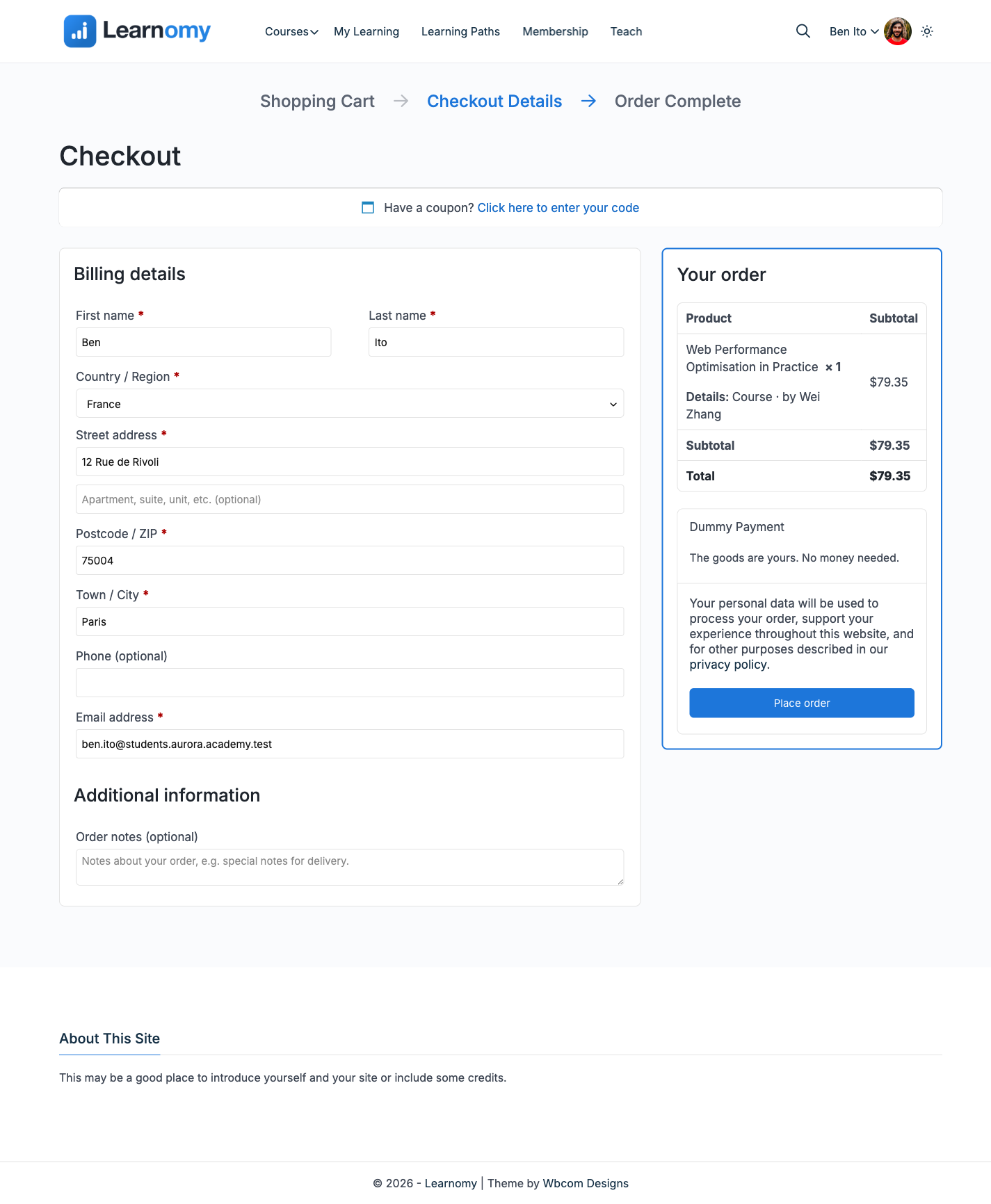
WooCommerce checkout carrying the course as a single line item Complete checkout using whichever payment method your WooCommerce store has enabled. The student never sees a Learnomy-branded payment form on this route; everything from here on is WooCommerce's own checkout experience, receipt email, and order-confirmation page.
Verify it works
As a student who has not bought the course, open its page and confirm Buy Now shows the current price, then click it and confirm the browser lands on the WooCommerce checkout with the course as a single line item, not on Learnomy's own checkout page.
Complete the WooCommerce checkout. You land on WooCommerce's own "Order received" page with a WooCommerce order number.
As the site owner, open that order in WooCommerce > Orders. Confirm it reached Processing (or Completed), with the course as its one line item.
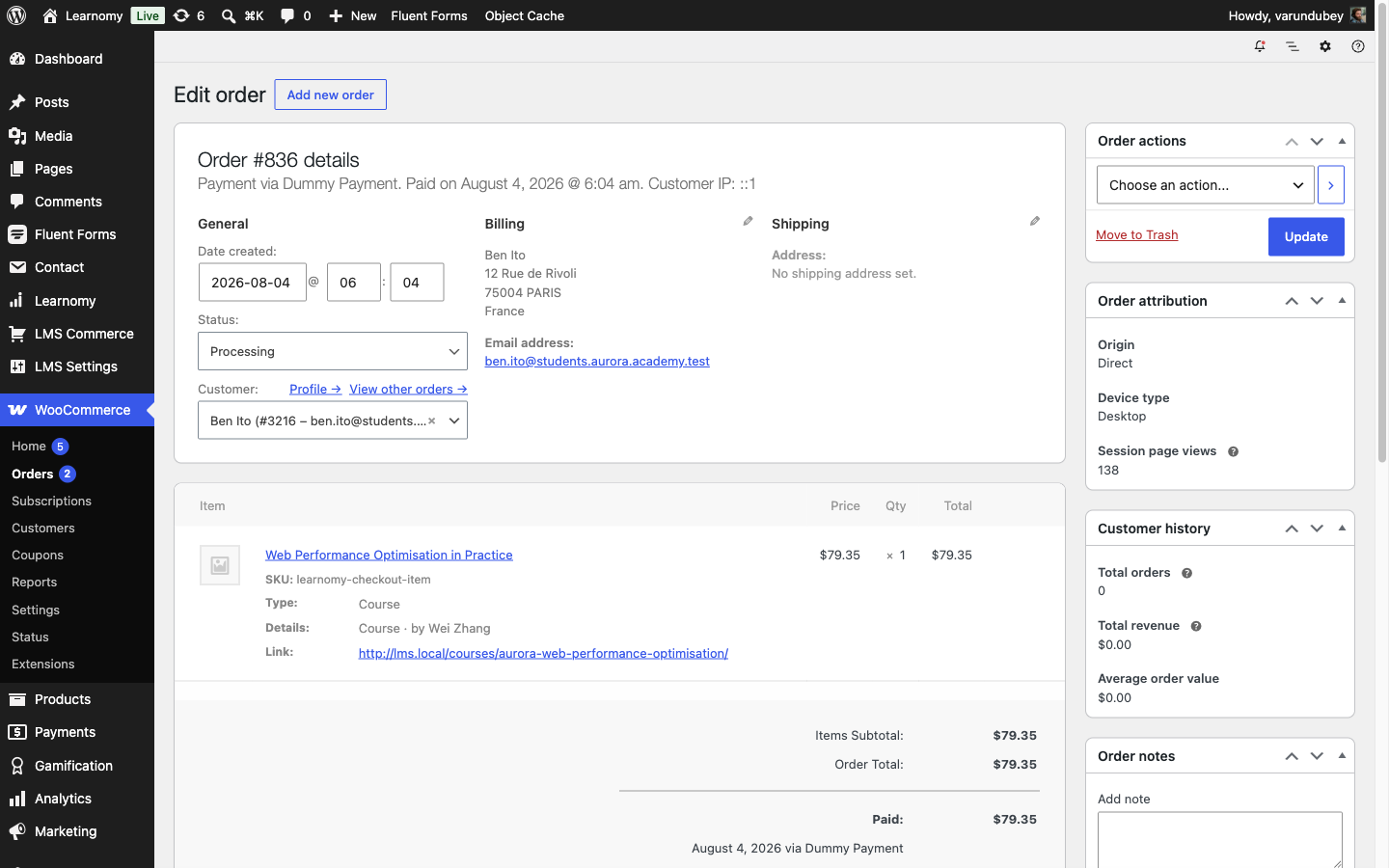
Completed WooCommerce order for the course purchase Open LMS Commerce > Transactions and confirm a matching row exists for the same student and course, with provider WooCommerce and the WooCommerce order number as its reference, status Completed -- the same fields a Stripe or PayPal transaction would carry.
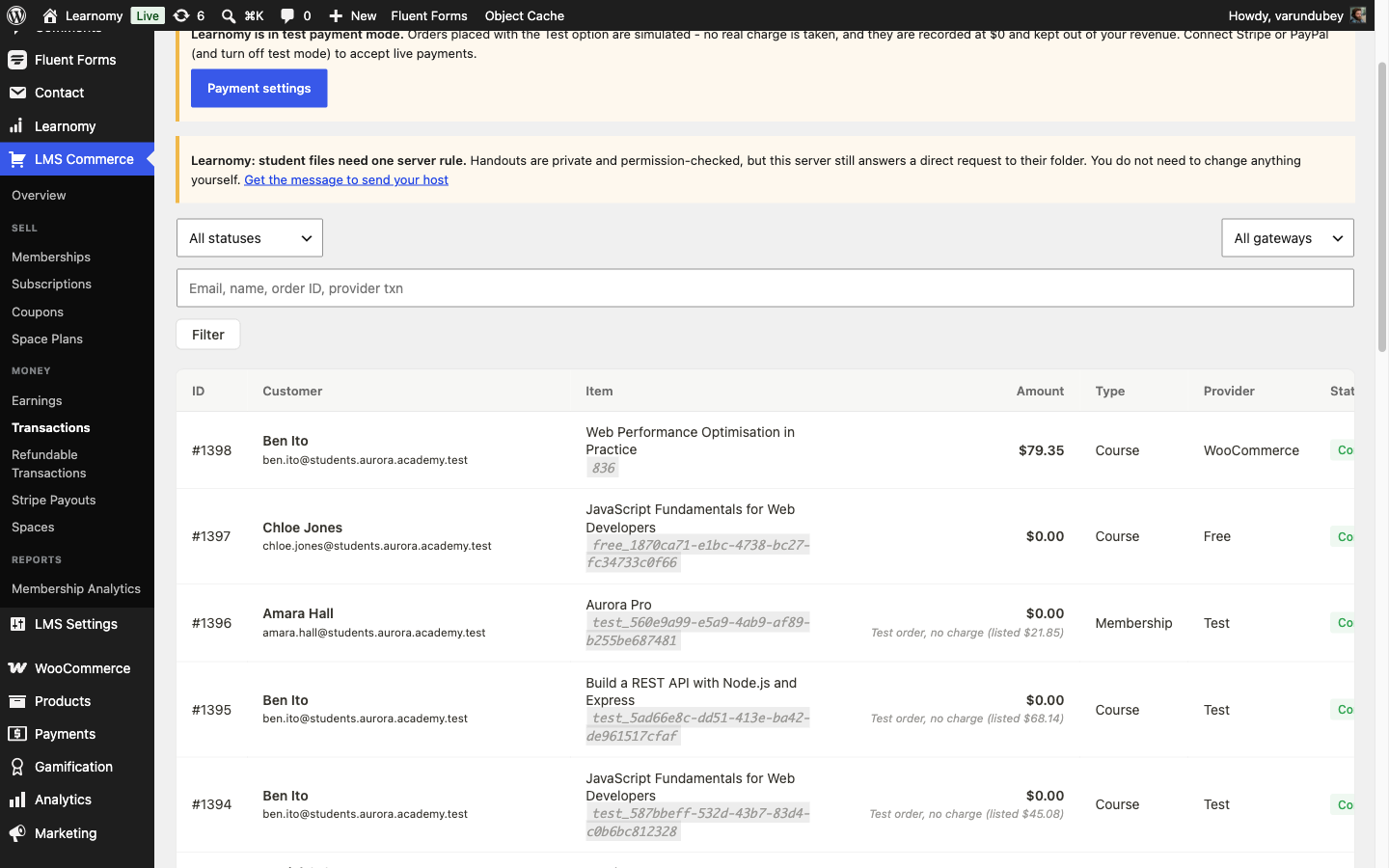
Learnomy transaction record showing provider WooCommerce and the matching order number Log back in as the student and open the course page. It shows Enrolled with a 0% progress bar, exactly as it would after a Stripe or Test Gateway purchase -- WooCommerce paid for the order, but the enrollment itself came from Learnomy the same way it always does.
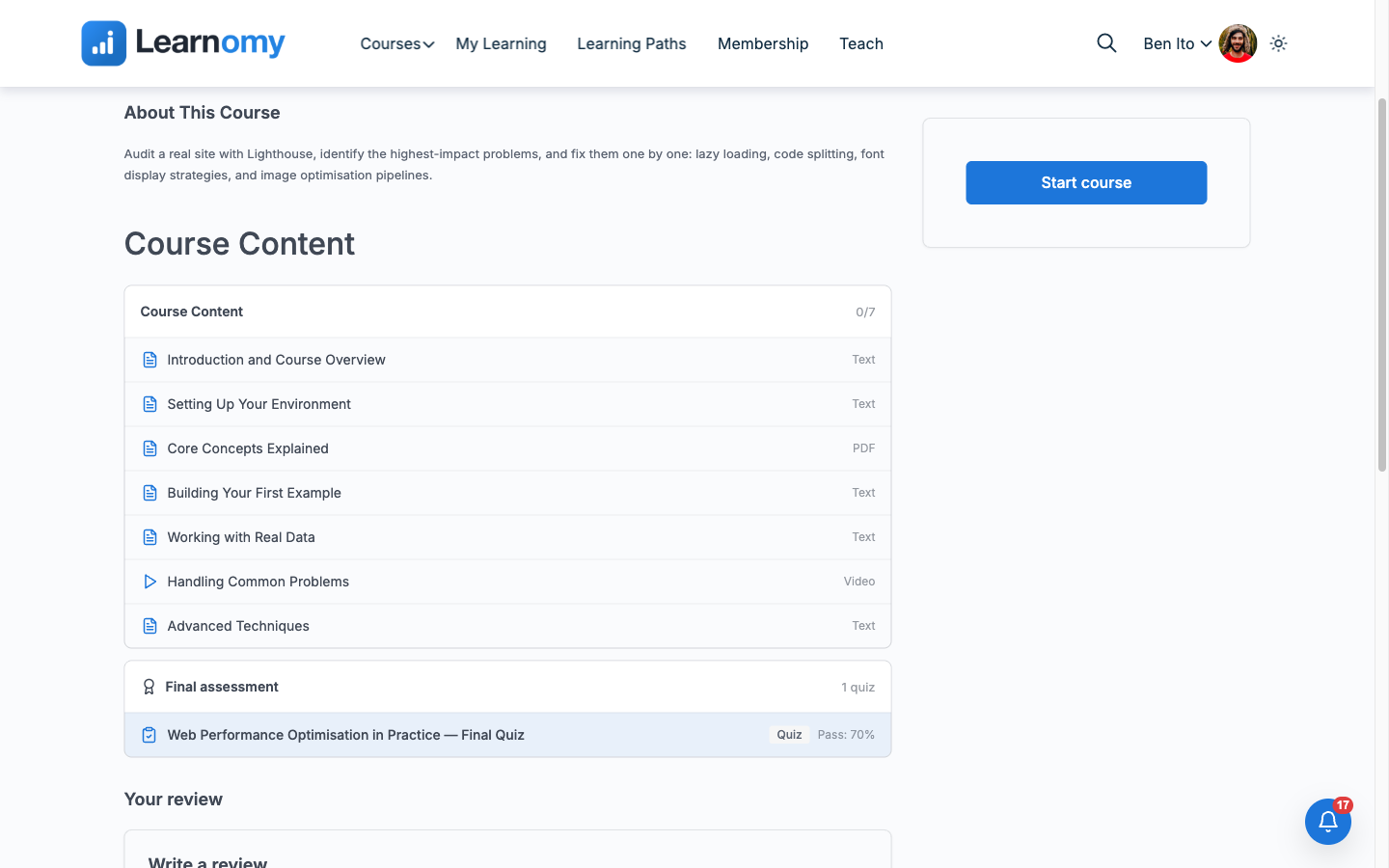
Course page showing Enrolled after the WooCommerce purchase
On the model site this was exercised end to end as a test student
(Ben Ito) against "Web Performance Optimisation in Practice" ($69.00,
one-time, instructor Wei Zhang), with enable_woocommerce already on at
baseline. WooCommerce's own tax setting was off, so Learnomy's 15% flat
rate applied through the WooCommerce hand-off, producing a $79.35 line item
and order total. Checkout completed via WooCommerce's Dummy Payment method
(a zero-friction, no-money gateway already enabled on this development
site for exactly this kind of walk-through; it is not a payment method
recommended for a live store). The result: WooCommerce order #836 reached
Processing, Learnomy transaction #1398 recorded provider woocommerce
with order #836 as its reference at $79.35 completed, and enrollment #16896
was created with source = purchase and status = active, all within the
same second the order was placed. Order, transaction, and enrollment were
left in place as model-site evidence.
Keep reading
Build this on your own site
Everything above runs on your WordPress server. Start with the free plugin; add Pro when a step here needs it.