
Use case walkthrough
Free & ProRun a test-prep academy with Learnomy
You run an academy that drills students for a standardized exam: a professional certification, an entrance test, a licensing paper. Your students do not need a credential from you directly. They need repeated, realistic practice at the exam's own format, a huge reusable bank of questions, a per-subject score so they know exactly what to study next, and a way to pick up a long timed paper exactly where they left off. Retakes are routine, not an exception you handle by hand every time.
This guide covers the drilling and practice side of exam building. If you also issue a verifiable credential for passing, read Run a certification body with Learnomy, which covers the same seeded exam from the credentialing angle: proctoring, completion rules, and Ed25519-verifiable certificates. The two guides do not repeat each other's steps.
What you'll use
Quiz Modes (Graded/Practice/Survey)
Quiz Modes →Question Bank
Question Bank →Question Types (incl. Pro numeric, matching, ordering)
Question Types →Building a Quiz (layouts, settings)
Building a Quiz →Focused layout
Focused →Classic layout
Classic →Sectioned layout
Sectioned exam layout →Conversational layout
Conversational quiz layout →Review board layout
Review board exam layout →Group Questions by Subject
Group Questions by Subject →Large-exam Autosave and Resume
Large-exam Autosave and Resume →Question Map and Flag for Review
Question Map and Flag for Review →Question Pools and Per-Question Timers
Question Pools and Per-Question Timers →Rubric grading for essay questions
Grading Submissions →Quiz attempt limits and retake grants
Managing Students →The walkthrough
Phase 1 - Build the exam
Go to Learnomy > Quizzes > Add New and set the Mode. A test-prep paper is almost always Graded, but Learnomy supports three modes on every quiz:
Your options here:
- Graded - scored on submit, produces a pass/fail result against a passing score. Use this for a full mock exam.
- Practice - auto-scored so the student sees a result immediately, but it never blocks course completion. Use this for an ungraded drill the student can retake as often as they like without it counting against anything.
- Survey - collects answers with no score and no pass/fail. Rarely the right choice for exam prep, but useful for a diagnostic "what topics should you focus on" intake quiz before a study plan starts.
See Quiz Modes.
Pick a Display template. This is the single biggest decision in a test-prep build, because it decides how close the practice experience feels to the real exam. Learnomy ships five:
Your options here:
- Focused (Free) - one question at a time, with a question map, flag for review, and a pre-submit review screen. Pick this for shorter graded quizzes and for any drill where you want the built-in map and flagging, since those two features are specific to Focused.
- Classic (Free) - every question on one scrollable page, answer in any order, one submit button at the bottom. Pick this for short ungraded drills and homework-style practice sets where speed of answering matters more than exam realism.
- Sectioned (Pro) - the exam is split into ordered parts of ten questions each, with a section intro card, a segmented progress bar, and one timer running across the whole paper. Pick this for a SAT/GRE/professional-certification-style mock exam, where the real test itself is sectioned and you want students to practice the section structure, not just the questions.
- Conversational (Pro) - one full-screen question at a time, auto-advancing on multiple choice and true/false answers, with keyboard shortcuts. Pick this for a light, low-stakes daily drill you want students to actually finish, not a paper meant to feel like exam day.
- Review board (Pro) - a split panel: a clickable question navigator on the left, the active question on the right, with filters for unanswered and flagged questions. Pick this for a long paper (40, 100, 150+ questions) where a candidate needs to jump around and triage, which is exactly how most people actually sit a long certification exam.
A test-prep academy modeling a real standardized exam typically reaches for Sectioned: it is the layout that matches how the actual exam is administered, and it is what the model site's own flagship exam uses. See Building a Quiz.
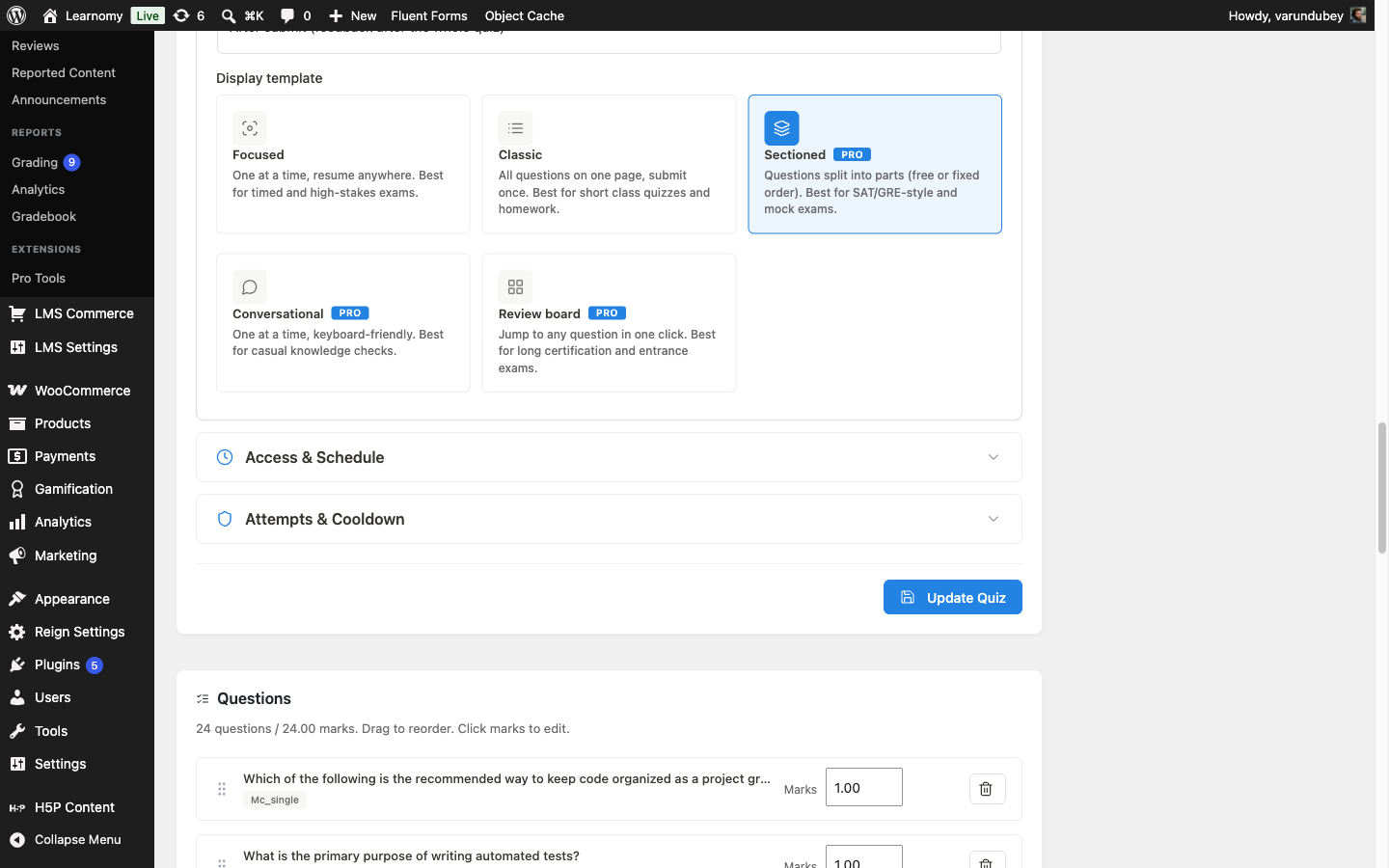
Display template selector showing all five layouts, Focused, Classic, Sectioned, Conversational, and Review board, with Sectioned selected A candidate sitting a Sectioned exam sees a section intro card before each part, with a segmented progress bar tracking which sections are done, active, or still to come:
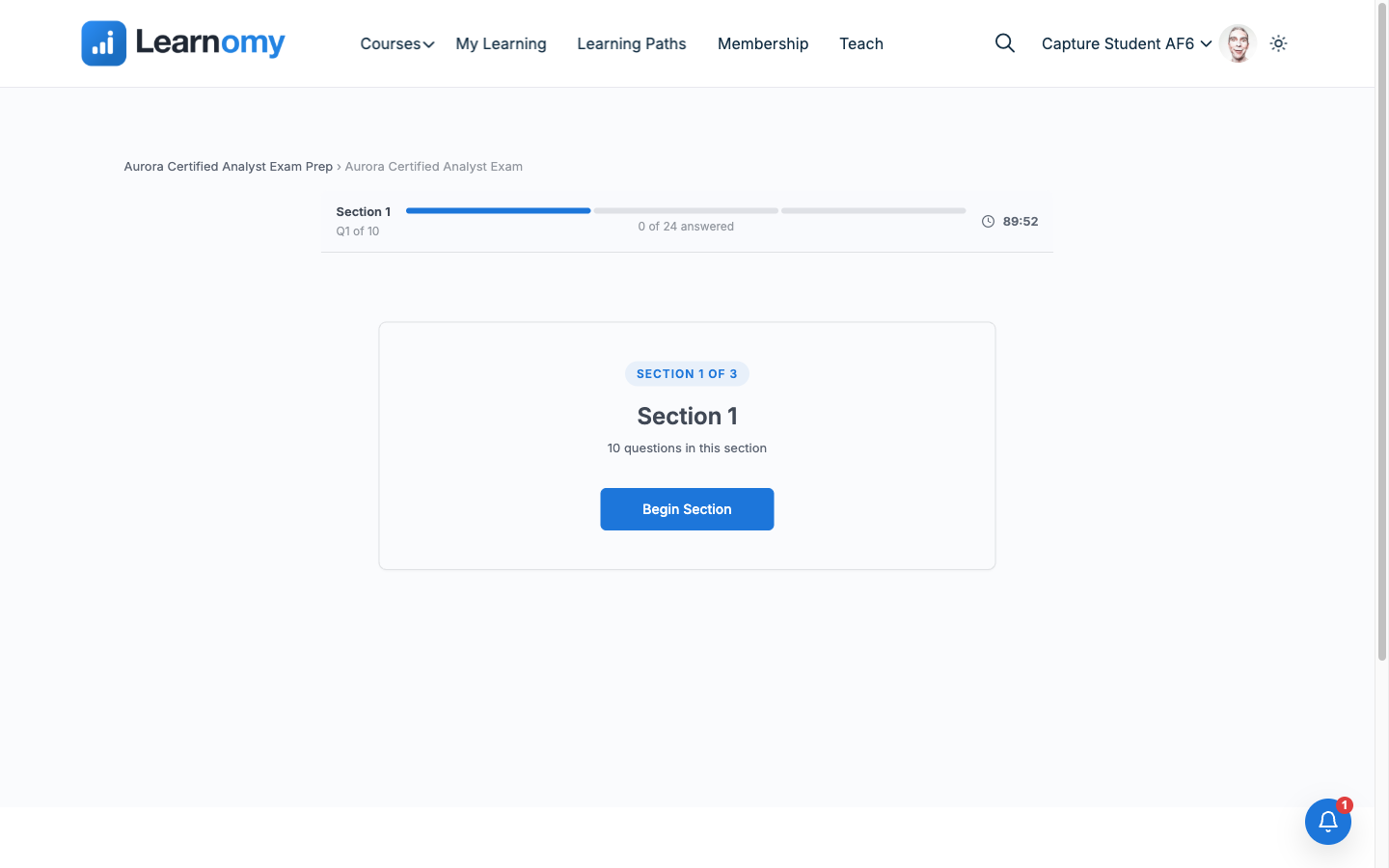
Sectioned exam player at the section intro card, showing the section map, an answered count, and the countdown timer If you chose Sectioned, set Section navigation. Learnomy supports two orders:
Your options here:
- Linear (default) - the candidate completes each section in order and cannot go back once a section ends. Pick this for a strict, exam-realistic mock paper.
- Free - the candidate picks which section to attempt first and can switch between sections until they submit. Pick this for a study-mode paper where you want students to attack their weaker subject first rather than always starting cold on section one.
Section size is fixed at ten questions per section; add or remove questions from the quiz to change how many sections it has. See Sectioned exam layout.
Decide where the exam's questions come from. Learnomy gives you three sources, and a real test-prep bank usually uses all three over time:
Your options here:
- Write the question directly in the quiz editor - click Create new question from the quiz's Questions card. Fastest for a one-off question you will not reuse elsewhere.
- Add from the Question Bank - click Add questions from bank and pick existing questions with the picker's search and type filters. This is the normal path for a drilling academy: build one large bank once, then assemble many different mock exams from it by picking different slices.
- Draw from a Pro question pool - on the quiz's Advanced settings, configure a Pool (categories, an optional difficulty range, an optional question type, and a count) instead of hand-picking slots. Learnomy then selects that many random questions from the bank at the moment each student starts the quiz, so no two attempts are identical. Pick this when you want every retake to be a genuinely different paper, which matters most for a test-prep product where a student might retake the same mock exam a dozen times before the real thing.
A test-prep academy typically builds its core bank with Add from the Question Bank for full-length mock exams (where the paper needs to be fixed and repeatable for scoring comparisons across cohorts), and layers in Question pools for shorter, unlimited practice quizzes where variety matters more than a fixed paper. See Question Bank and Question Pools and Per-Question Timers.
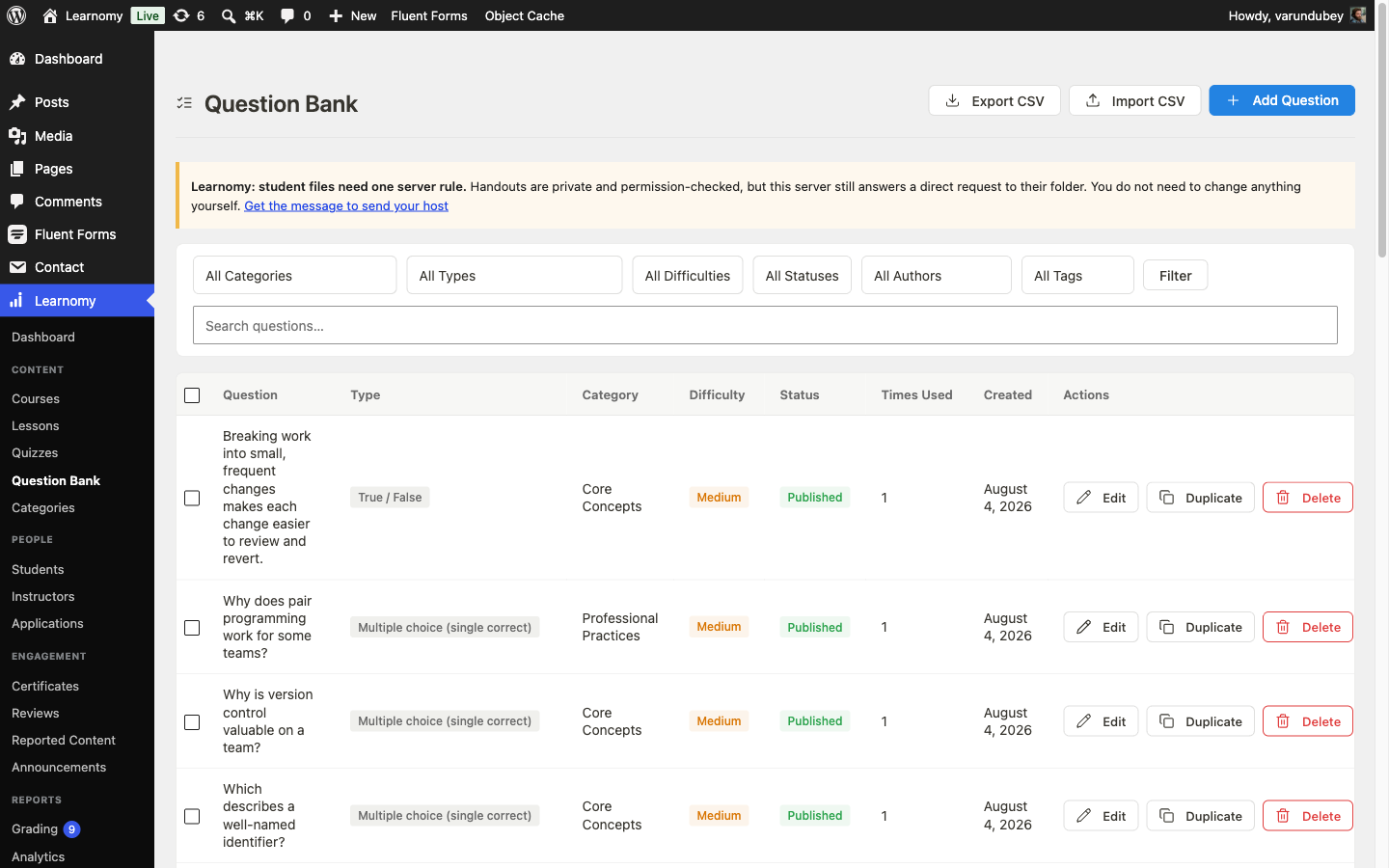
Question Bank list with filter bar for category, type, difficulty, status, author, and tag Tag each question with a Category in the Question Bank (for example "Core Concepts" or "Professional Practices" for a general certification, or the named subjects of the real exam you are modeling). Then, in the quiz settings, tick Group questions by category. This is what powers the per-subject score breakdown students see on their results screen, and it is the feature that turns a single quiz into a genuine multi-subject mock exam. See Group Questions by Subject.
Phase 2 - Configure retakes and question depth
Decide the retake policy. A drilling academy lives or dies on how it handles repeat attempts, and Learnomy supports three approaches:
Your options here:
- Unlimited - set Attempt limit to
0on the quiz. Anyone can retake the paper as many times as they want. Pick this for a practice drill meant to be run over and over until the score sticks. - Capped - set Attempt limit to a fixed number (for example
2, matching the real exam's own retake rule). Pick this for a full mock exam meant to simulate the stakes of the real test, where unlimited retakes would undercut the practice value. - Per-student grant - leave the cap in place for everyone, then open a specific student's profile at Learnomy > Students, find Quiz attempt limits, and click Grant 1 attempt on that quiz's row. This adds one extra try for that student only; their existing scores and progress on the quiz are untouched, and the grant is reversible with Take back 1 attempt. Pick this when a capped student has a documented reason for one more try (a technical issue, a coaching decision) without loosening the cap for everyone else.
A capped exam with per-student grants is the standard combination for a test-prep academy: it keeps a full mock exam feeling like the real thing for most students, while giving you a lever for the exceptions. See Managing Students.
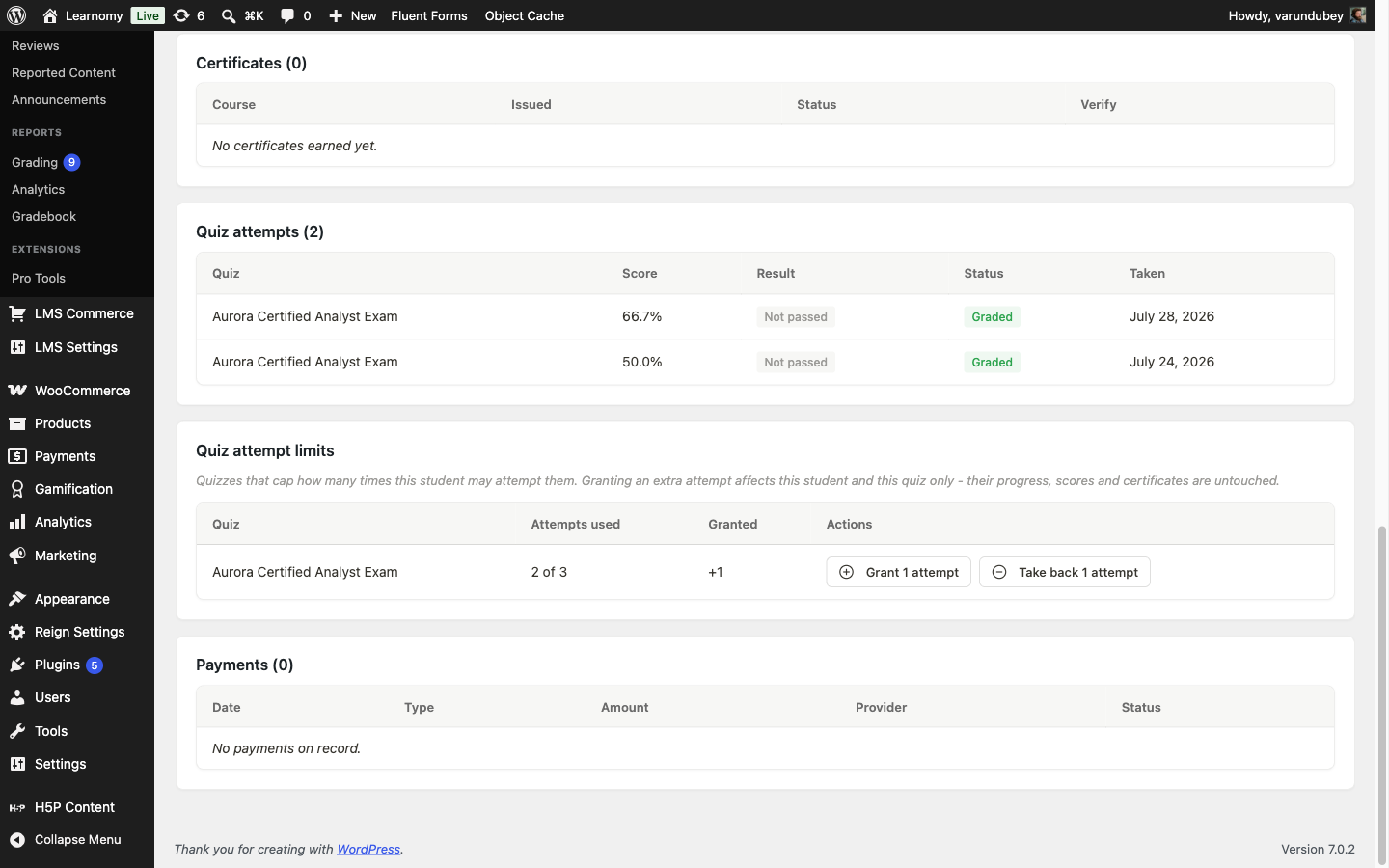
Quiz attempt limits table on a student's profile showing 2 of 3 attempts used and a +1 grant, with Grant and Take back actions - Unlimited - set Attempt limit to
Leave autosave and resume alone. It runs on every quiz attempt with nothing to switch on: every answer, every navigation move, and every flag is saved in the background as the student works, and reopening an in-progress attempt restores their saved answers and remaining time. This matters most on a Sectioned mock exam, where a 90-minute paper is exactly the kind of attempt a student cannot afford to lose to a closed tab or a dropped connection. See Large-exam Autosave and Resume. On the Focused layout specifically, students also get a clickable question map and a flag-for-review marker, both built in with nothing to configure. See Question Map and Flag for Review.
For deeper question types, add the Pro advanced-quizzes extension and reach for Numeric, Matching, Ordering, Math expression, or Calculated questions alongside the six free types. A Numeric question is common in quantitative test prep: set a Correct value and an optional Accepted tolerance so an answer that is close enough still counts, rather than forcing an exact string match.
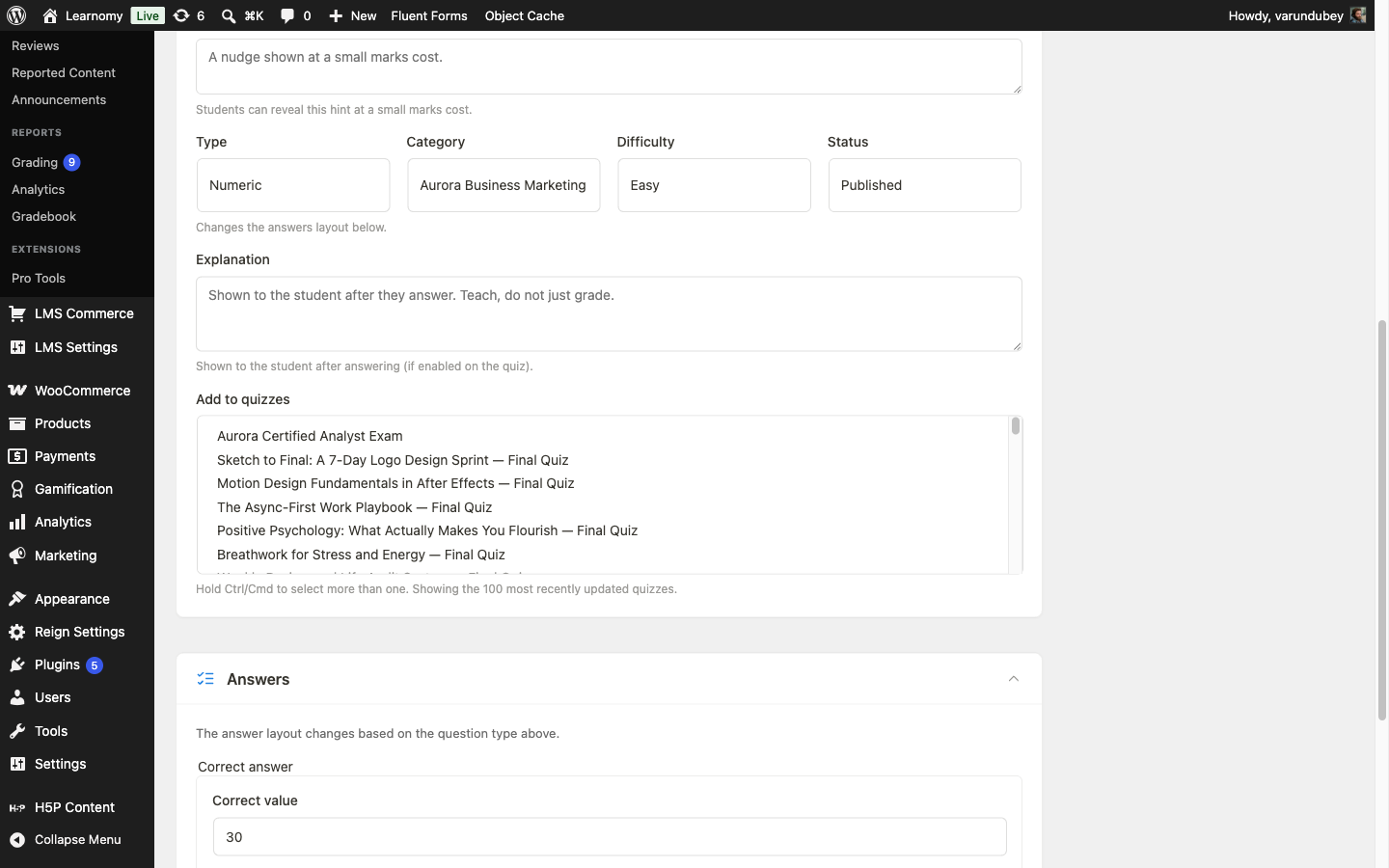
Question editor showing Type set to Numeric, with Correct value and Accepted tolerance answer fields If your mock exam includes essay or short-response questions, define a rubric on the question (a set of named criteria, each with a maximum point value) so grading goes through the dedicated rubric grading page instead of a single freeform score. See Question Types and Grading Submissions.
The same extension's Per-question timers card sets a separate time limit on any single question (blank or 0 means no per-question limit, so only the quiz-level timer applies); today it advances the student automatically at zero on the Focused layout, and the advanced-quizzes settings page also carries a Conditional logic card, badged Coming soon, for showing a question only when an earlier answer matches.
Phase 3 - Test it as a student
Log in as a student mid-way through a long paper and open the exam at Aurora Certified Analyst Exam Prep > Aurora Certified Analyst Exam. Click Start Quiz. Because Farah has an attempt already in progress, the player shows "Welcome back - your progress was restored" along with how many answers were restored and how much time is left, then opens on the Section 1 intro card with all of her earlier answers preserved, ready for her to step forward to where she left off.
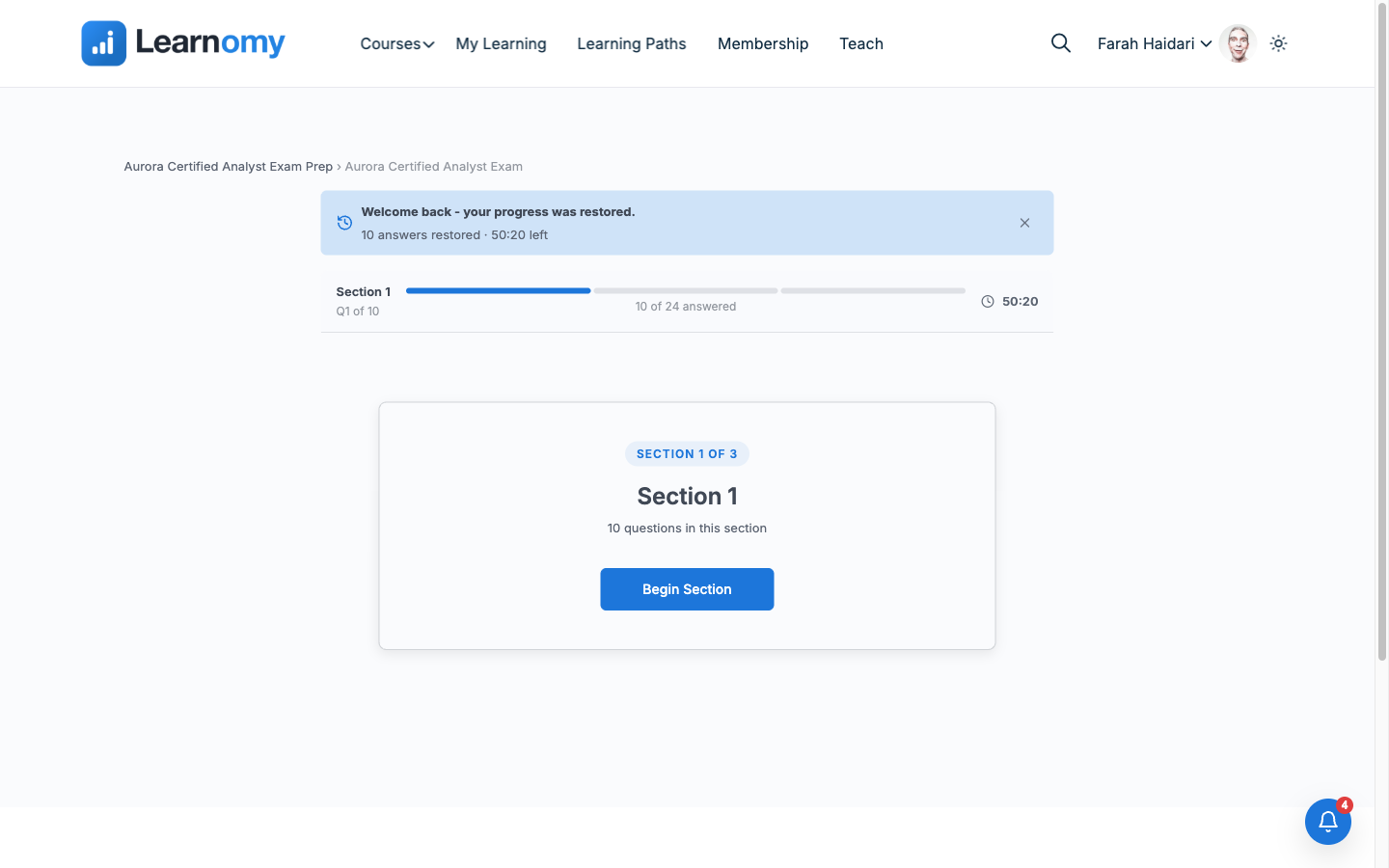
Welcome back banner confirming 10 answers restored and time remaining, at the section intro card Step forward through that section with Next. Already-answered questions show your prior selection and cost nothing to pass through; when you reach the point where you actually stopped, the question is exactly the one you left unanswered, matching the saved attempt. Farah's attempt stopped on a question in section two, and stepping forward from the restored section one lands precisely there, with the timer still counting down from where the original session left it.
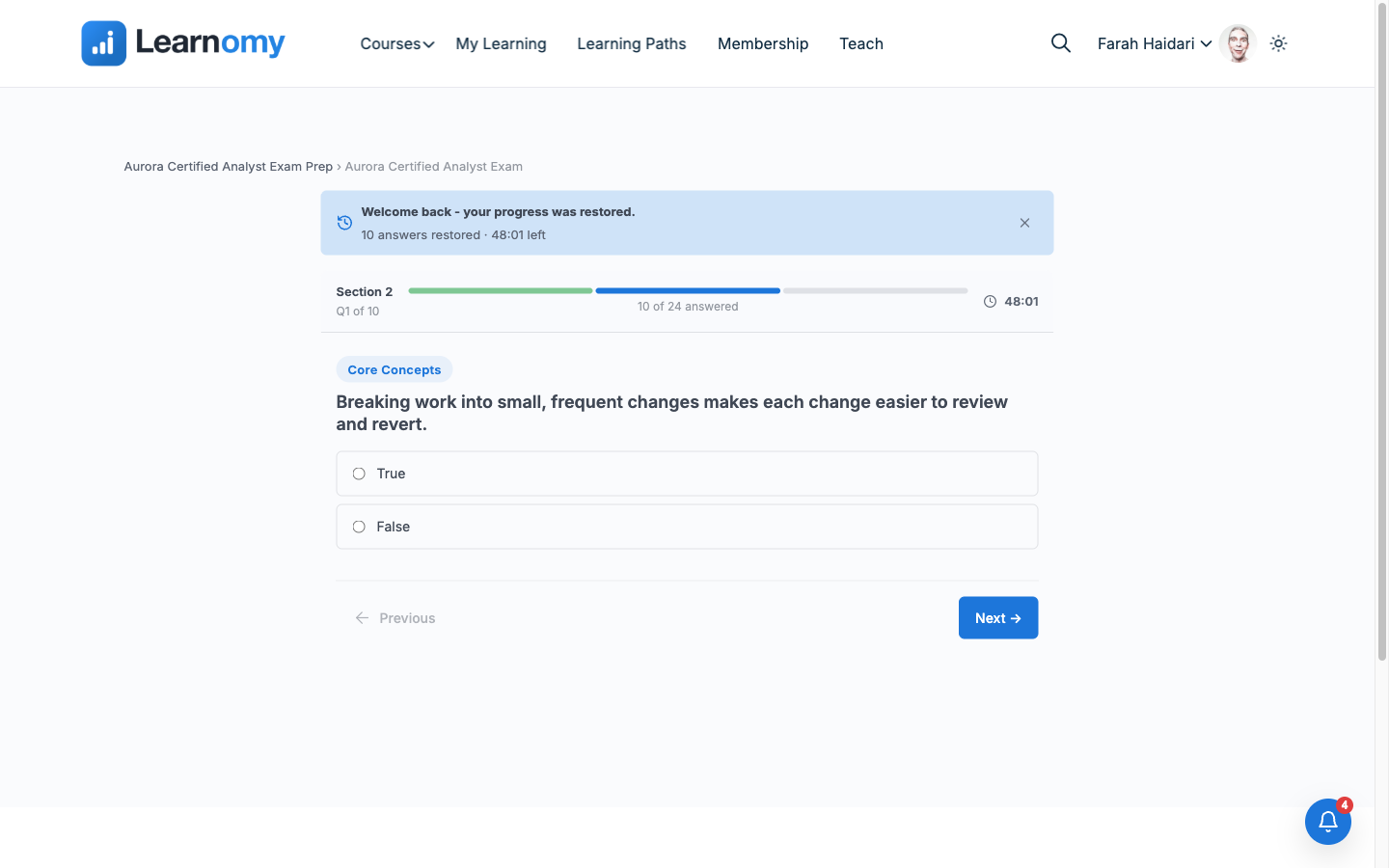
Resumed exam player landing on the exact saved question in section two, with the welcome-back banner still showing "10 answers restored" Complete a mock exam that groups questions by subject and submit it. The results screen adds a Score by category block beneath the overall pass/fail score, with one row per subject showing the earned and possible marks and a percentage, reconciling exactly to the overall score.
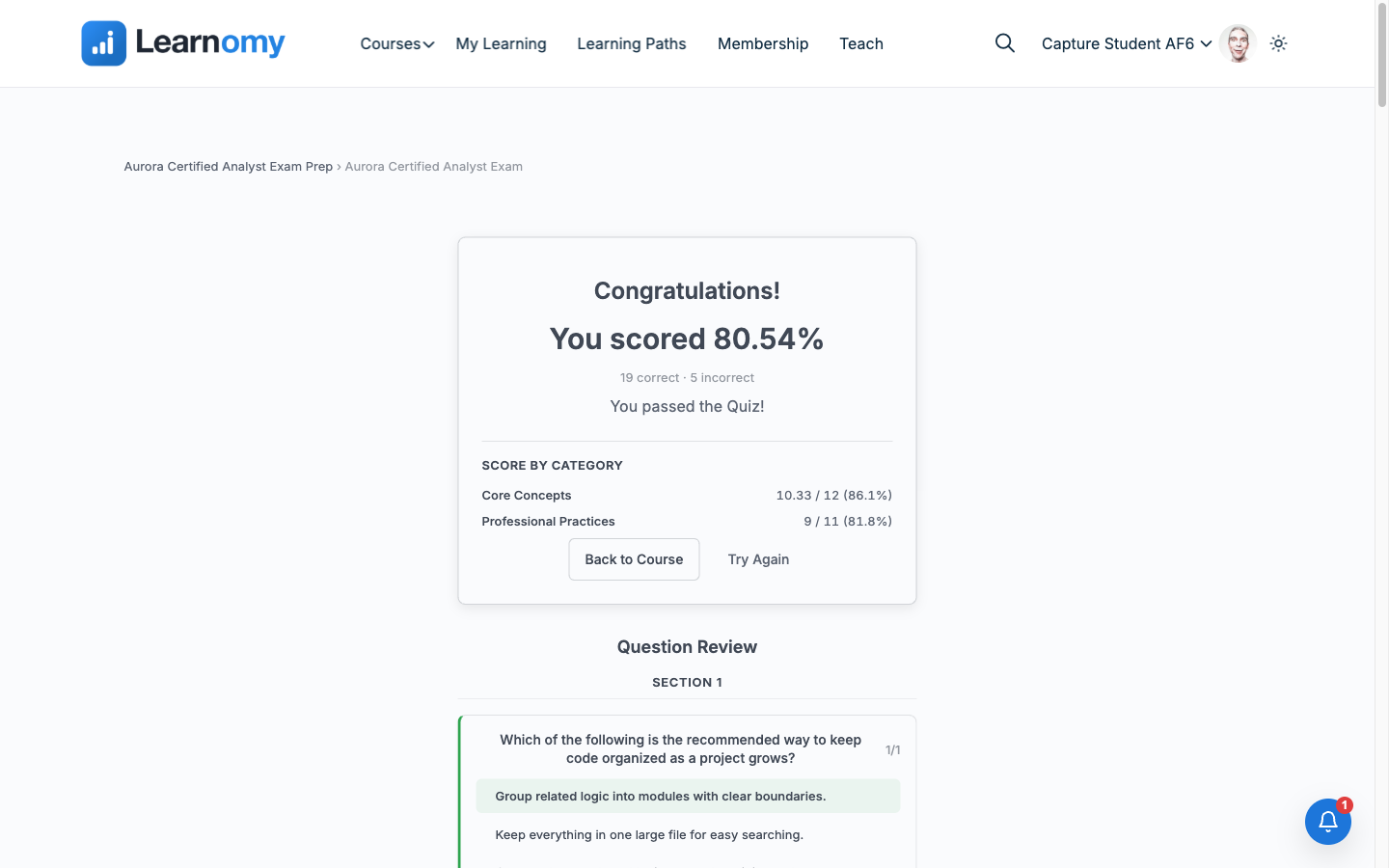
Quiz results screen showing an overall score plus a Score by category breakdown for two subjects This is the view that tells a student what to actually study next: a passing overall score can still hide a weak subject, and the per-subject breakdown is what surfaces it.
Phase 4 - Go live
- Publish the quiz and confirm the Attempt limit, Cooldown between attempts, and Max failed attempts are set the way you want for launch, not left at build-time defaults. If your test-prep product also needs to model exam-day integrity (tab-switch tracking, a flagged attempt review, retake grants after a documented issue), that full workflow is covered in Run a certification body with Learnomy rather than repeated here.
Verify it works
- Log in as Farah and open
/courses/aurora-certified-analyst-exam-prep/quiz/aurora-certified-analyst-exam/. Click Start Quiz. Confirm the "Welcome back - your progress was restored" banner shows the correct restored-answer count and remaining time, then step forward through the restored section with Next and confirm you land on the same question the saved attempt stopped on (unanswered, matching the frozen question order), with every earlier answer in that section already filled in. - Submit a completed attempt on a quiz with Group questions by category turned on and confirm the results screen's Score by category block shows one row per subject, each with its own earned/possible marks and percentage.
Farah's attempt remains in progress after this walkthrough. Nothing in this guide submitted it: every step that touched it navigated forward through already-answered questions only, and it is still resumable, exactly as before this guide's capture pass.
Keep reading
Build this on your own site
Everything above runs on your WordPress server. Start with the free plugin; add Pro when a step here needs it.