
Use case walkthrough
Uses Pro featuresRun a school or university department with Learnomy
You run a for-credit style department: written and file-based coursework, a quiz component, and one weighted final grade that a registrar or a student can point to. Department policy sometimes overrides the computed number by hand, with a reason on file. You may already have a question bank or an interactive lesson built outside Learnomy, and you do not want to retype it. Some of your students arrive through a partner institution's own LMS rather than signing up on your site directly.
What you'll use
Assignments (text and file submissions)
Assignments →Grading inbox (quiz essays)
Grading Submissions →Building a Quiz
Building a Quiz →Gradebook (weights, override, learner view)
Gradebook →Cohorts
Cohorts →LTI 1.3 Tool Provider
LTI 1.3 Tool Provider →QTI Assessment Import
QTI Assessment Import →H5P Interactive Content
H5P Interactive Content →xAPI (Tin Can) Learning Records
xAPI (Tin Can) Learning Records →Assignment activity in Analytics
Analytics Dashboard →The walkthrough
Phase 1 - Attach graded coursework to your lessons
Go to Learnomy > Pro Tools > Assignments and click Add New to attach a written task to any lesson, or open Edit on an existing one. The model site's "JavaScript Fundamentals for Web Developers" course carries five: three that ask for typed text ("Written Reflection: Key Concepts", "Case Study Analysis", "Research Summary") and two that ask for an uploaded deliverable ("Upload: Final Project Files", "Upload: Portfolio Submission"). Only one assignment can attach to a given lesson.
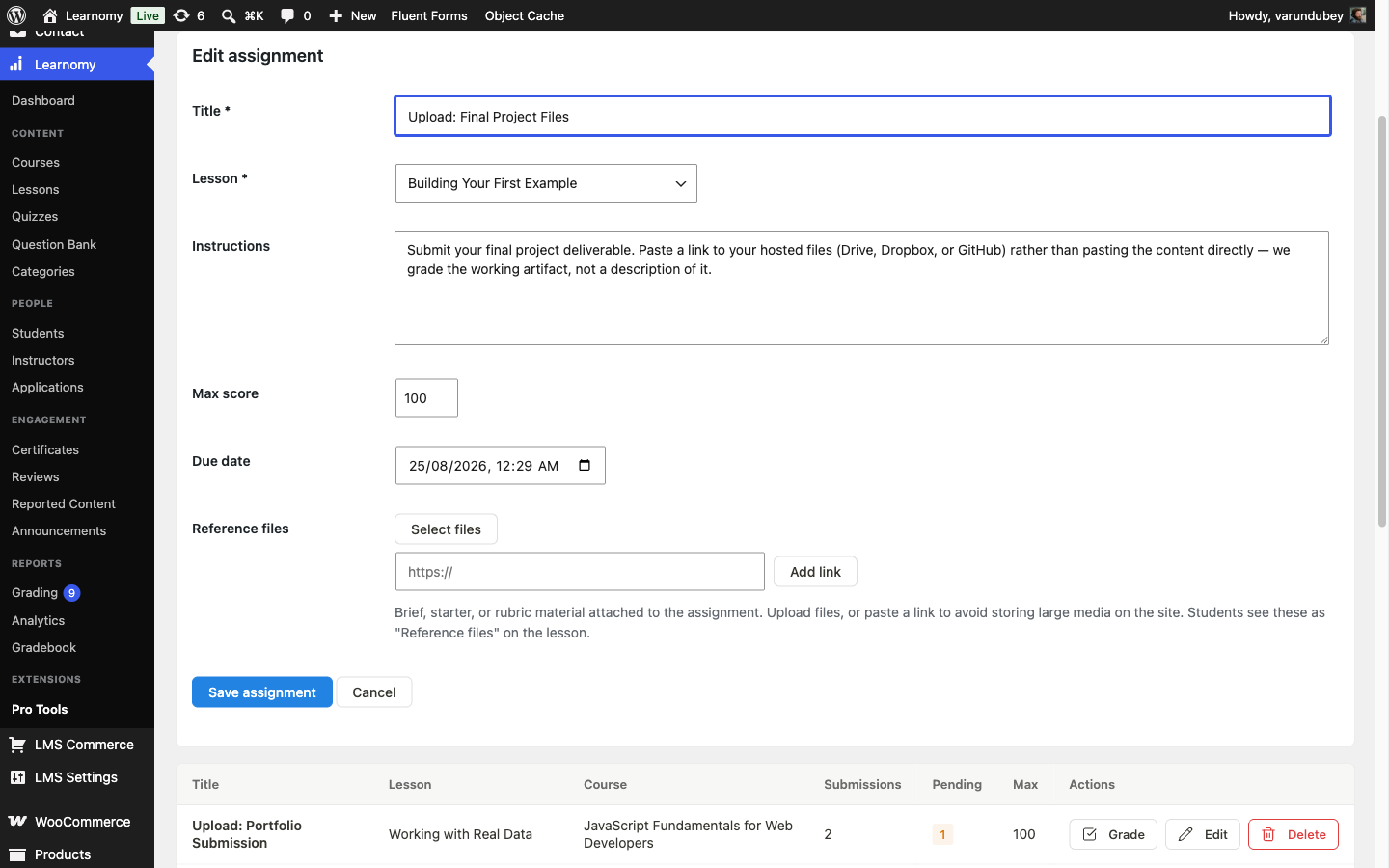
Assignment editor for the Upload: Final Project Files assignment, showing title, lesson, instructions, max score, due date, and reference files A student sees the assignment widget below the lesson content and can submit typed text, one or more uploaded files, a link to hosted content (a Drive folder, a GitHub repo), or any combination of those on the same submission. Which combination you expect is set entirely by what you write in the Instructions field. The two upload-style assignments on the model course ask for a link to hosted files rather than a raw upload, because the deliverables are working code, not a document.
Set a Due date if the department enforces deadlines; it is optional. A submission after the due date is rejected unless you have explicitly requested a resubmission from that student, which reopens the form regardless of the deadline. Attach Reference files (a brief, starter files, a rubric) if the department distributes one; every enrolled student sees them on the lesson whether or not they have submitted yet.
Phase 2 - Weight every graded source into one grade
Enable the Gradebook module under LMS Settings > Modules (Reports category) if it is not already on, then open Learnomy > Gradebook (Reports section) and click into a course. The Gradebook computes a weighted grade from scores you already collect; it invents no fourth score store of its own.
Your options here (all three can count, and any can be excluded):
- Quizzes - the student's best or latest attempt percentage on the course's quizzes.
- Assignments - the student's assignment score divided by max score, averaged across the course's assignments.
- Standards (SCORM) - the scaled score reported by any SCORM package lessons in the course. See SCORM Packages and the SCORM completion gate covered in the certification body guide.
Set a weight of 0 to exclude a source entirely; the remaining weights are scaled back up to 100% on save. The model course's department policy is Quizzes 40 / Assignments 40 / Standards 20, with a Pass threshold of 70%. A source that counts toward the grade but has no data yet is treated as a 0, not skipped, so an incomplete student does not read as a perfect one until they finish the outstanding work. On the model site this shows up honestly: the course has a published graded final quiz but no attempts recorded yet, and no SCORM lesson at all, so every student's Quiz and Standards columns currently display the grid's dash placeholder for "no data" (0), and only the Assignment column carries real numbers.
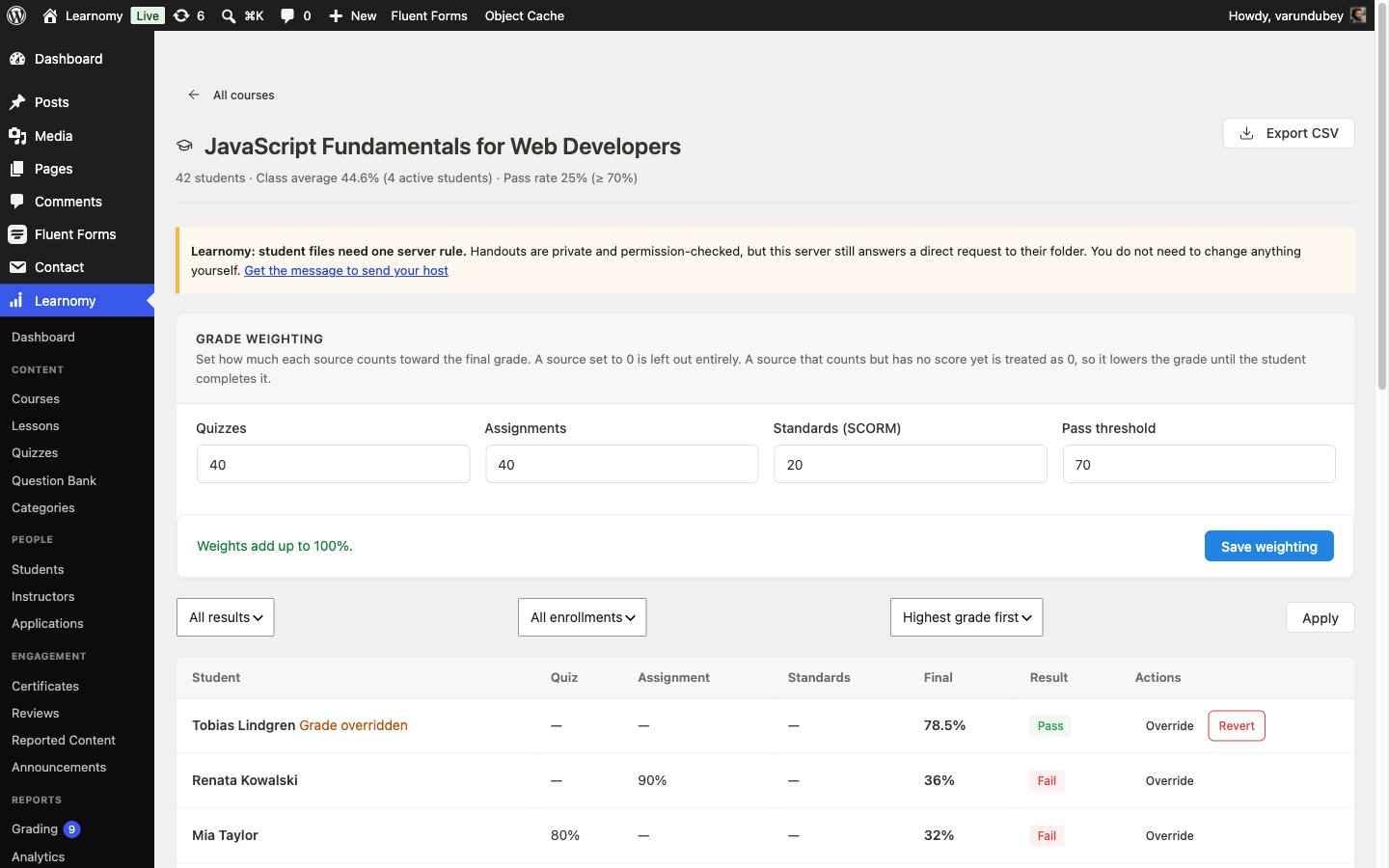
Gradebook weighting card for JavaScript Fundamentals for Web Developers, set to Quizzes 40, Assignments 40, Standards 20, pass threshold 70 A department that has no SCORM content and no graded quiz yet should set Standards to 0 rather than leave a phantom 20% nobody can ever earn. Set the weights to match the coursework that actually exists in the course, and revisit them once a quiz or a SCORM lesson goes live.
Phase 3 - Grade the queue, then decide when to override it
Grading happens on whichever surface matches who is doing it. Learnomy splits grading three ways, and a department typically uses more than one:
Your options here:
- wp-admin - Learnomy > Grading grades quiz essay responses; Learnomy > Pro Tools > Assignments grades text and file submissions; Learnomy > Gradebook sets weights and overrides. This is the only surface that can grade assignments or touch weights, and it needs a wp-admin login.
- Instructor site pages -
/instructor/grading/, a Free feature, mirrors the wp-admin quiz-essay inbox one for one (same queue, same grader, same finalize-on-last-grade behavior) but lives in the public teaching shell. It exists specifically so an instructor never has to be sent into wp-admin, a system they may not have signed up to use, just to mark an essay. It covers quiz grading only, not assignments. - REST -
learnomy/v1for quiz grading,learnomy-pro/v1for assignment grading and gradebook writes, both ownership-gated to the course's author or an administrator. Use this to sync grades from or to a student information system.
A department typically keeps assignment grading and gradebook weighting in wp-admin, since that is the only place either exists, and points any adjunct instructor who only grades quiz essays at the front-end
/instructor/grading/page so they never need a wp-admin login at all.On the Assignments grader (Learnomy > Pro Tools > Assignments, click Grade on a row with a pending count), each submission shows the student's text and any files or links, with a score field and an optional feedback box beside it. The model course carries exactly one graded and one awaiting submission per assignment: Renata Kowalski's five submissions are graded (92, 88, 95, 90, and 85 out of 100), Tobias Lindgren's five are still Pending.
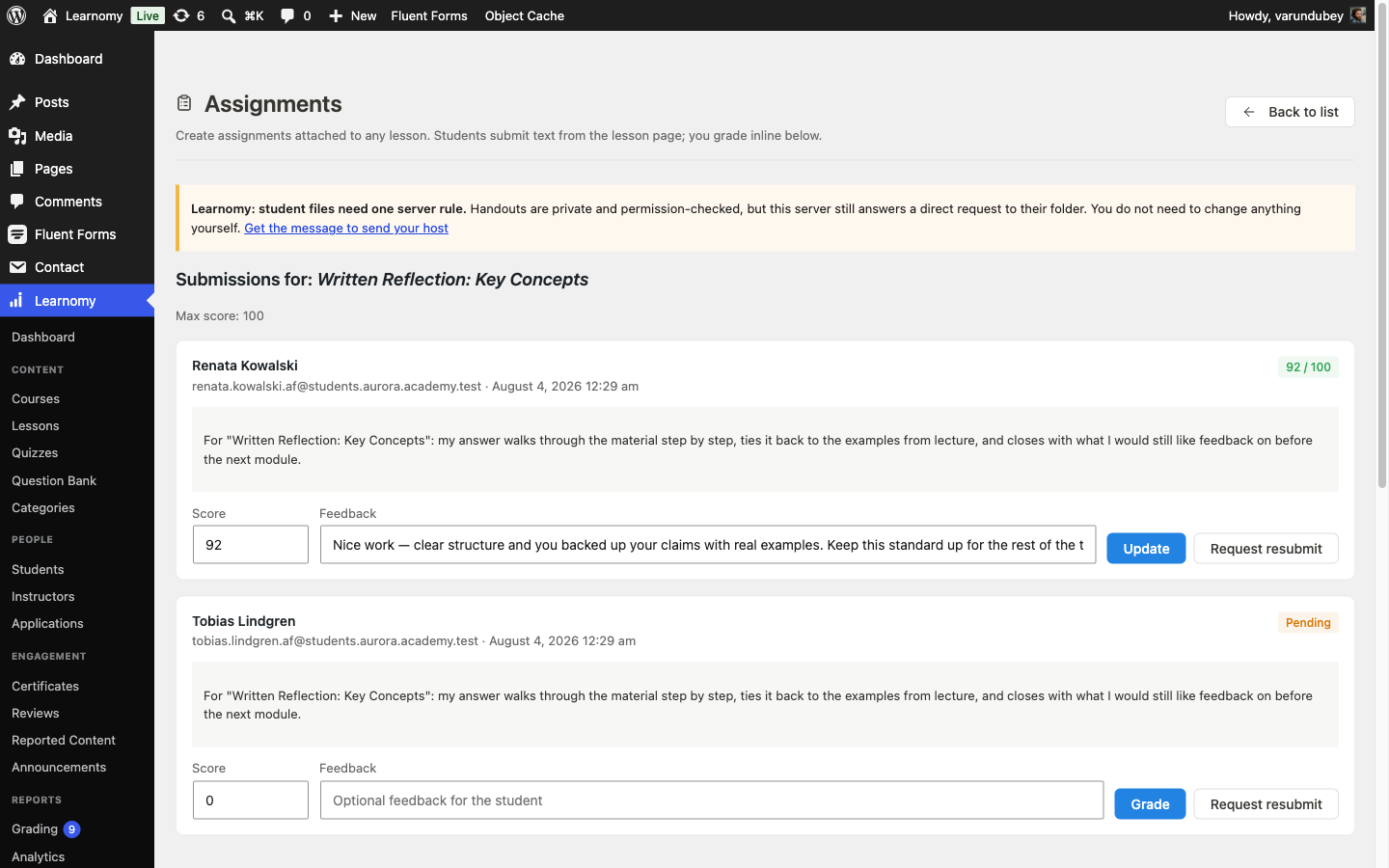
Grading queue for Written Reflection: Key Concepts, showing Renata Kowalski graded 92/100 and Tobias Lindgren still Pending The submissions, graded count, average score, and late count behind that queue also roll up into the instructor Reports page's Assignments section and the shared CSV/PDF export, one grouped query per course. See Analytics Dashboard.
Back in Learnomy > Gradebook, the student grid shows every enrolled student's computed grade, pass or fail against the threshold, and an Override action per row.
Your options here:
- Computed - the weighted formula from step 4 runs automatically every time the page loads. No action needed; this is what every student gets by default.
- Manual override (required reason) - type a Final percentage, a Reason, and save. The row shows a Grade overridden badge, and the reason is kept as an audit trail. Component scores (the raw quiz, assignment, and standards numbers) are never rewritten; only the displayed final grade and pass/fail flag change. Click Revert to delete the override and fall back to the computed grade; there is no partial revert.
A department overrides for the same reasons a registrar would: a granted accommodation, an appeal, a documented technical issue during an exam. On the model site, Tobias Lindgren carries an override of 78.5% (Pass) with the reason on file: "Manual override: approved extended-time accommodation. Crediting the student while the remaining submission finishes grading, per department policy." His raw components stay untouched underneath it, quiz and assignment still show no data, which is exactly the point: the override is a documented department decision layered on top of the computed number, not a rewrite of it.
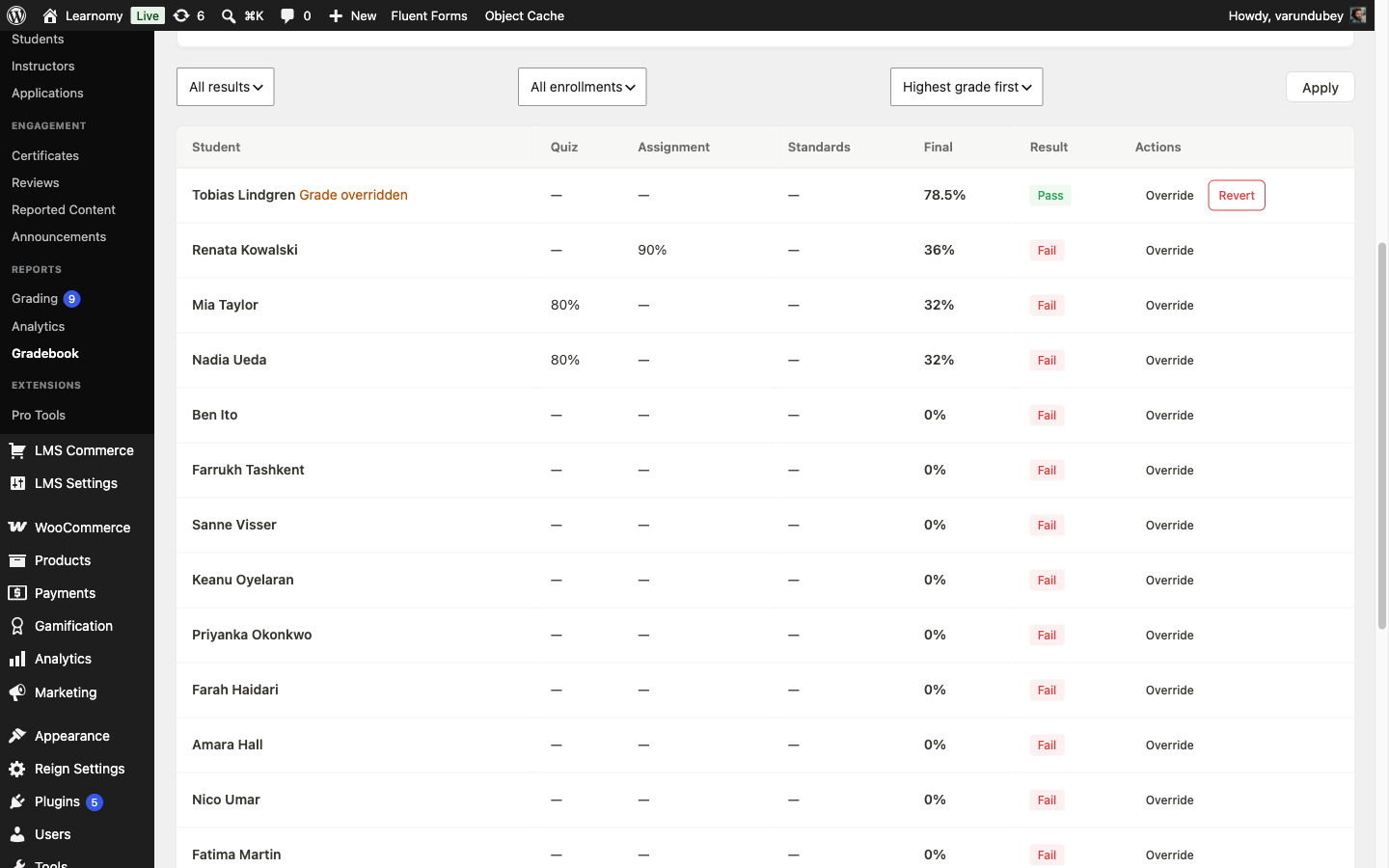
Gradebook grid with Tobias Lindgren showing a Grade overridden badge, 78.5% Pass, and a Revert action Point students at My Account > Grades (
/account/grades/) for their own per-course breakdown and pass badge. An overridden student sees the final percentage and a note that the grade was set by the instructor, not the component breakdown; a computed student sees the live components instead.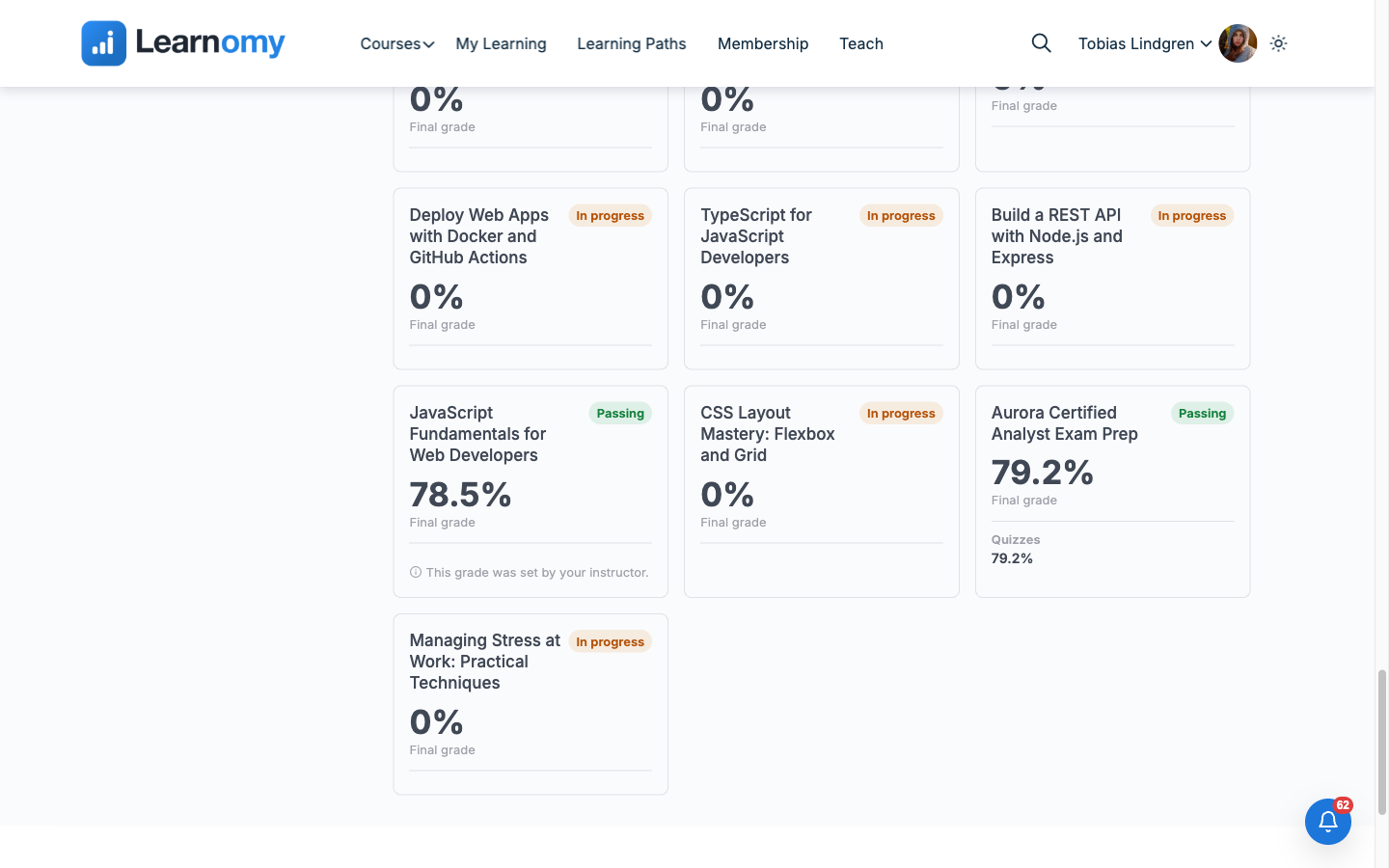
Learner Grades page showing JavaScript Fundamentals for Web Developers at 78.5% Passing with an instructor-set note, next to a computed course showing its Quizzes component
Phase 4 - Reach students outside your enrollment list, and reuse content you already have
A department rarely enrolls every student the same way. Learnomy supports two paths for a student who is not simply buying or being handed a seat on your site directly:
Your options here:
- LTI 1.3 launch, with grade passback - register Learnomy as an
external tool inside a partner institution's own LMS (Canvas, Moodle,
Blackboard, or any LTI 1.3 platform). A student clicks a link inside
their institution's LMS, lands directly in the mapped Learnomy course
already logged in and enrolled (enrollment source
lti, which bypasses the payment gate), and when they pass a graded quiz the score pushes back into the partner LMS's own gradebook automatically. No second account, no second password. - Direct enrollment - add the student's email to the course or a cohort yourself, the way you would any other student. They get their own Learnomy login. This needs no partner LMS at all and is the right call for every student who is not arriving through one.
A department running a joint program with a partner institution, or offering a course as a linked external tool inside that institution's official LMS, wants LTI: single sign-on and grade sync come for free. Direct enrollment is simpler and is what every other student uses, including any student at an institution that has no LTI-capable platform.
- LTI 1.3 launch, with grade passback - register Learnomy as an
external tool inside a partner institution's own LMS (Canvas, Moodle,
Blackboard, or any LTI 1.3 platform). A student clicks a link inside
their institution's LMS, lands directly in the mapped Learnomy course
already logged in and enrolled (enrollment source
To connect a platform, go to LMS Settings > Modules and enable LTI 1.3 (Integrations, Beta, Growth tier or above), then open Learnomy > Pro Tools > LTI Platforms. The top card shows the four values your partner's LMS needs (OIDC Login URL, Launch URL, JWKS URL, and the raw public key); paste those into the partner LMS, then paste back the Issuer, Client ID, Deployment ID, and the partner's own OIDC and token URLs it gives you, plus a Default course ID.
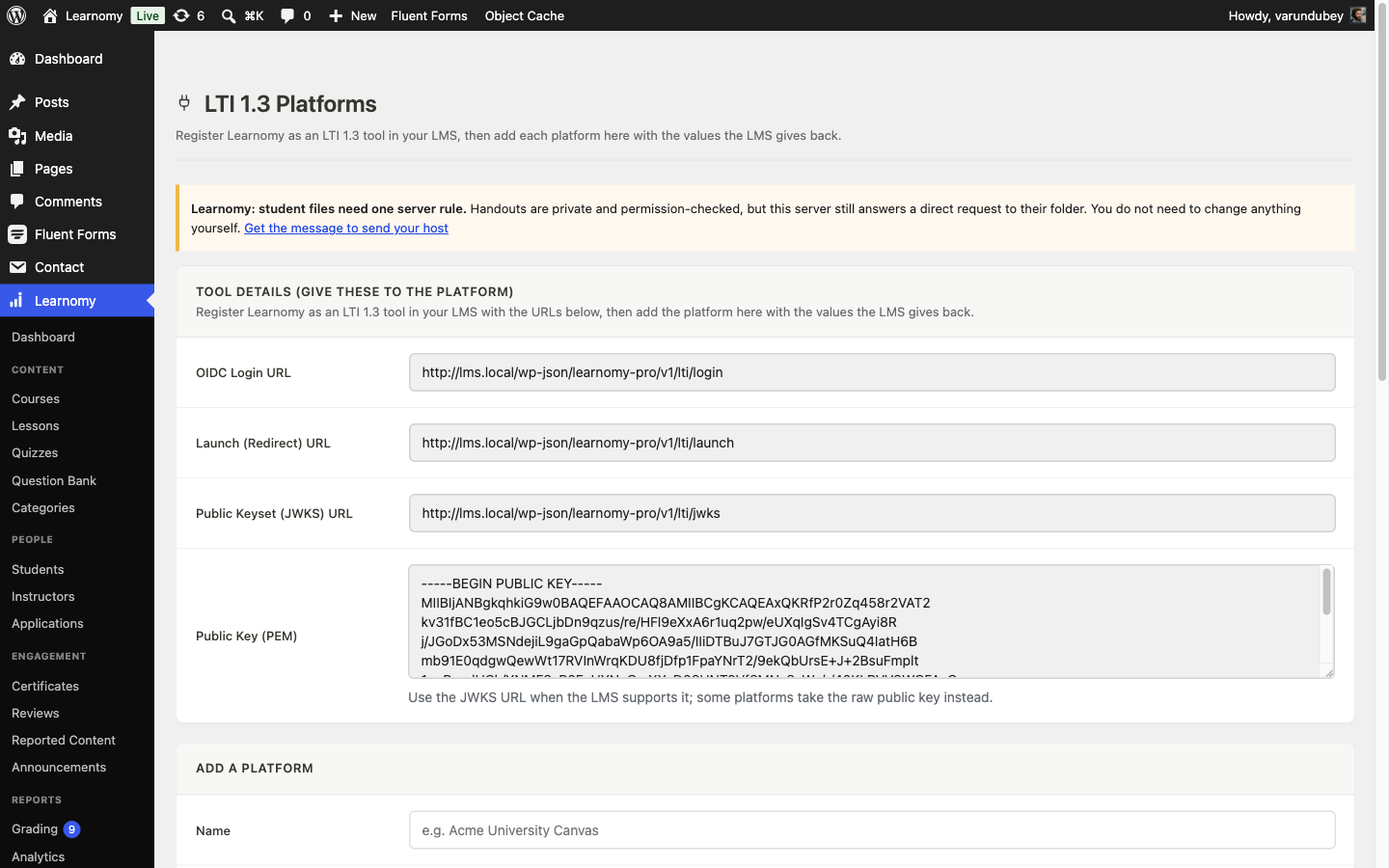
LTI Platforms screen showing the tool's OIDC Login URL, Launch URL, JWKS URL, and public key, ready to paste into a partner LMS The model site already has one platform registered this way: "Demo LMS (example)" (issuer
https://demo-lms.example.edu), mapped to a course. That registration is genuinely live in the sense that the tool keypair, the OIDC and launch endpoints, and the platform row are all real; what it cannot show without a real Canvas or Moodle on the other end is an actual signed launch arriving and a grade landing back in that partner's gradebook. Exercising that end to end needs a real LTI 1.3 consumer, not a fixture we can seed on our own site.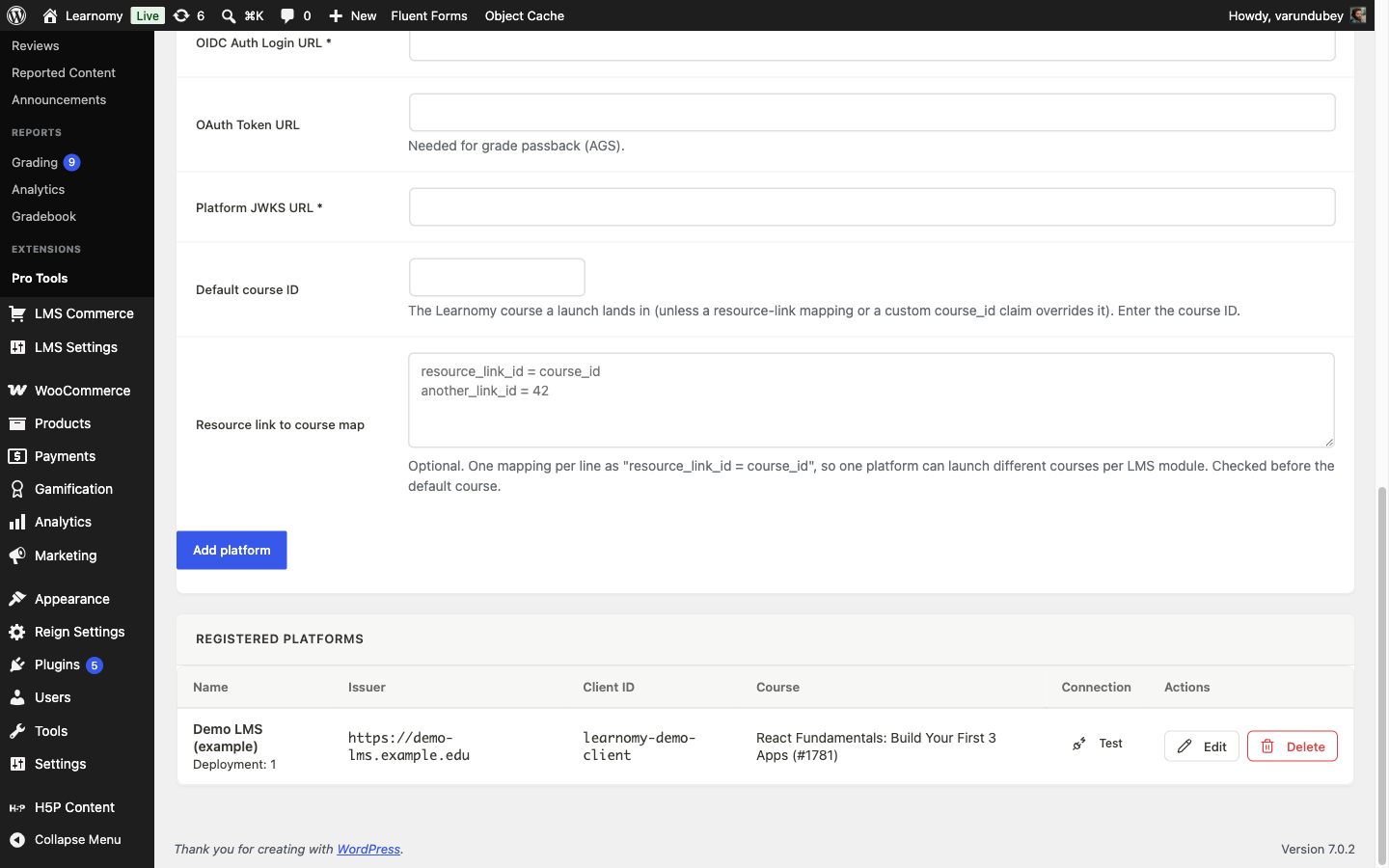
Registered Platforms table showing the Demo LMS (example) platform, its issuer, client ID, and mapped course If part of your exam bank or coursework was authored outside Learnomy as IMS QTI, you do not have to retype it. Enable QTI under LMS Settings > Modules (it ships stable but is off by default), then open Learnomy > Pro Tools > Import QTI. Choose a
.zippackage or a single.xmlitem, optionally name a quiz to group the imported questions into, and click Preview first for a dry run.No QTI fixture ships with the model site, so we hand-built a minimal QTI 2.1 package for this capture: two multiple-choice items ("Which continent is entirely south of the equator apart from a small northern tip?" and "Which tag is the root element of every HTML document?") in a
.zipwith animsmanifest.xml. Preview correctly reported "2 question(s) will be created: mc_single: 2" without writing anything.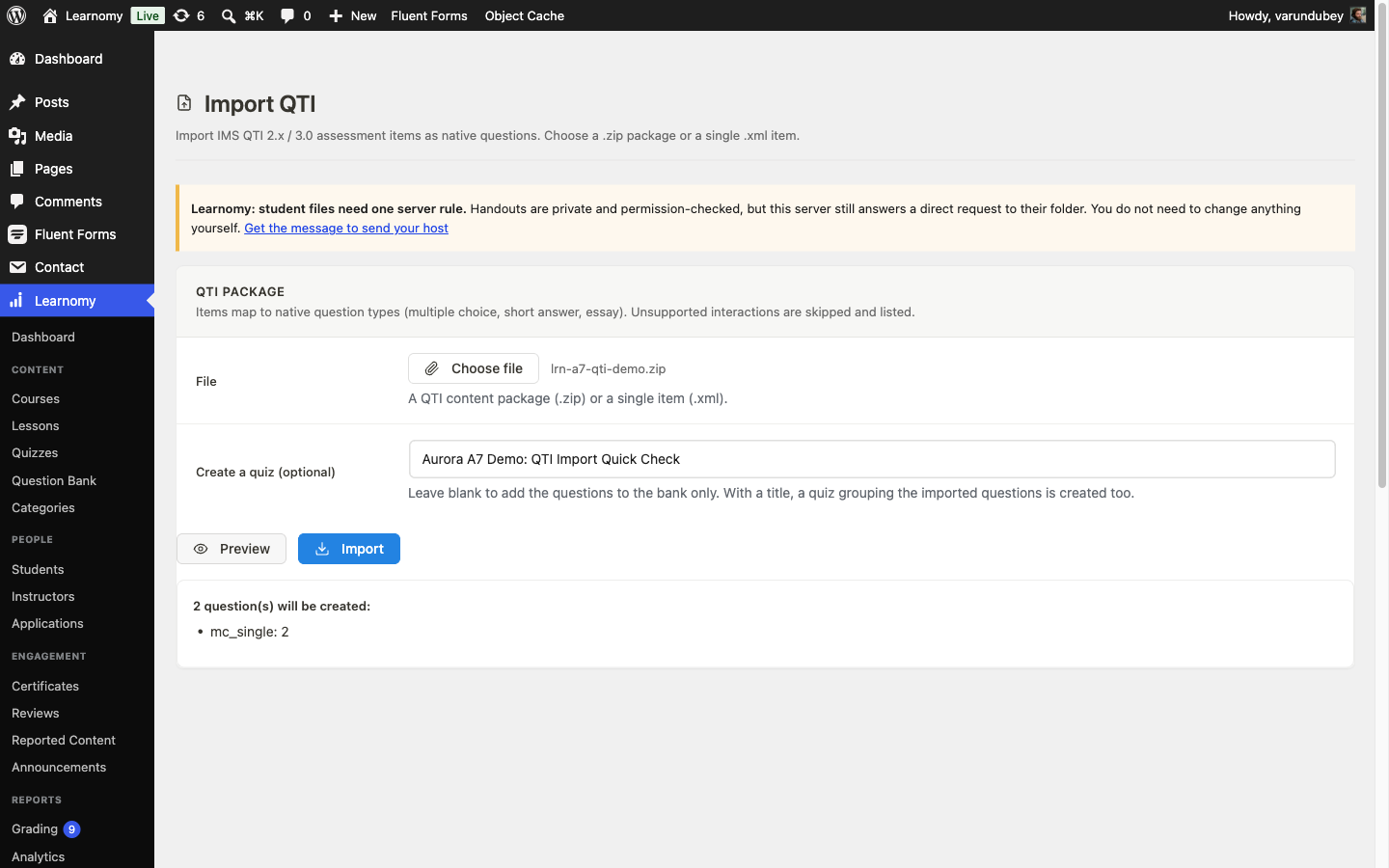
Import QTI screen after Preview, reporting 2 questions will be created as mc_single Clicking Import created both as native questions and, because we supplied a quiz title, a new graded quiz grouping them: "Imported 2 question(s). Quiz created (id 1592)."
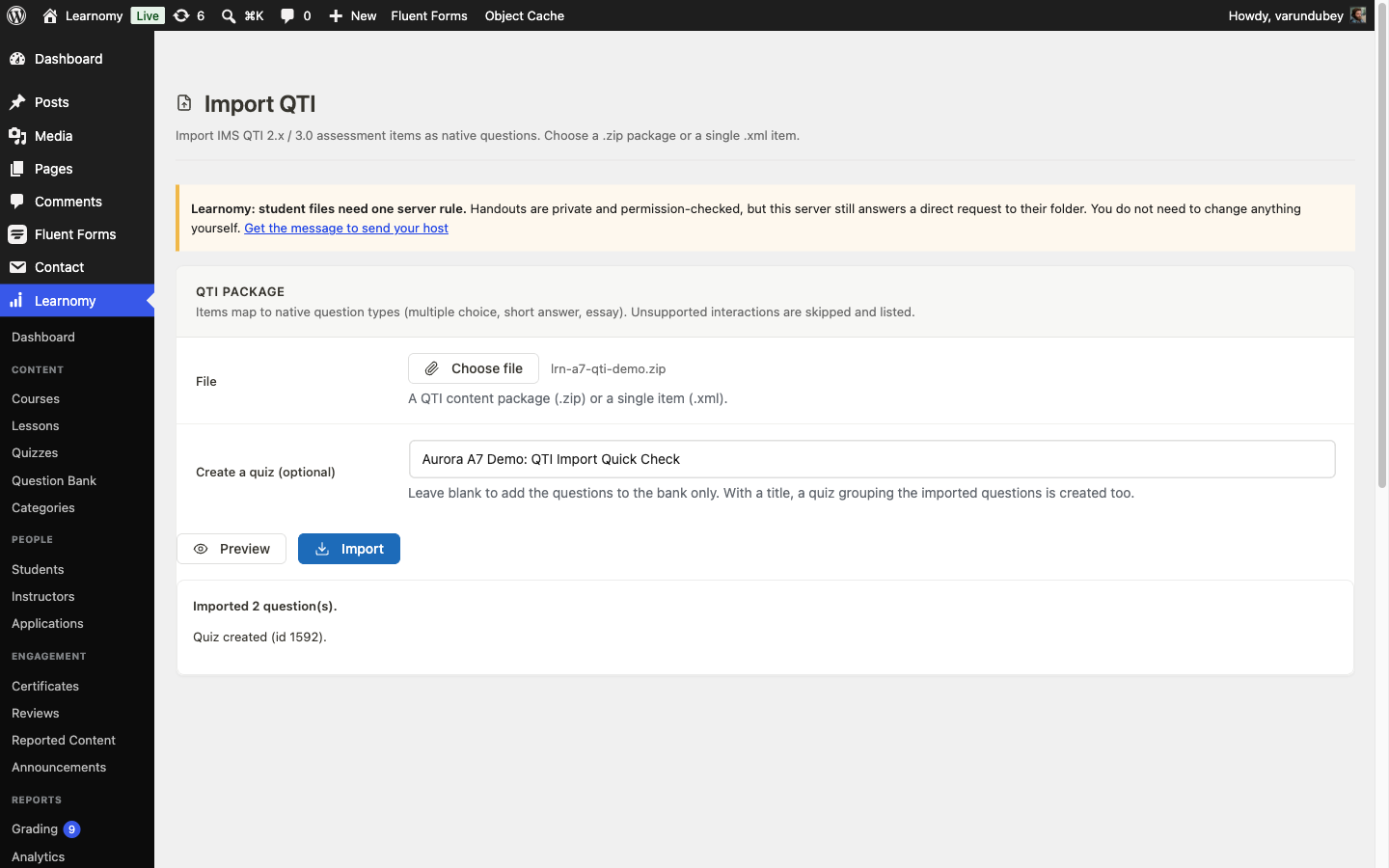
Import QTI screen after Import, reporting 2 questions imported and a quiz created Opening that quiz in the normal quiz editor confirms the point of the feature: it is an ordinary Graded, Published quiz, no different from one you built by hand.
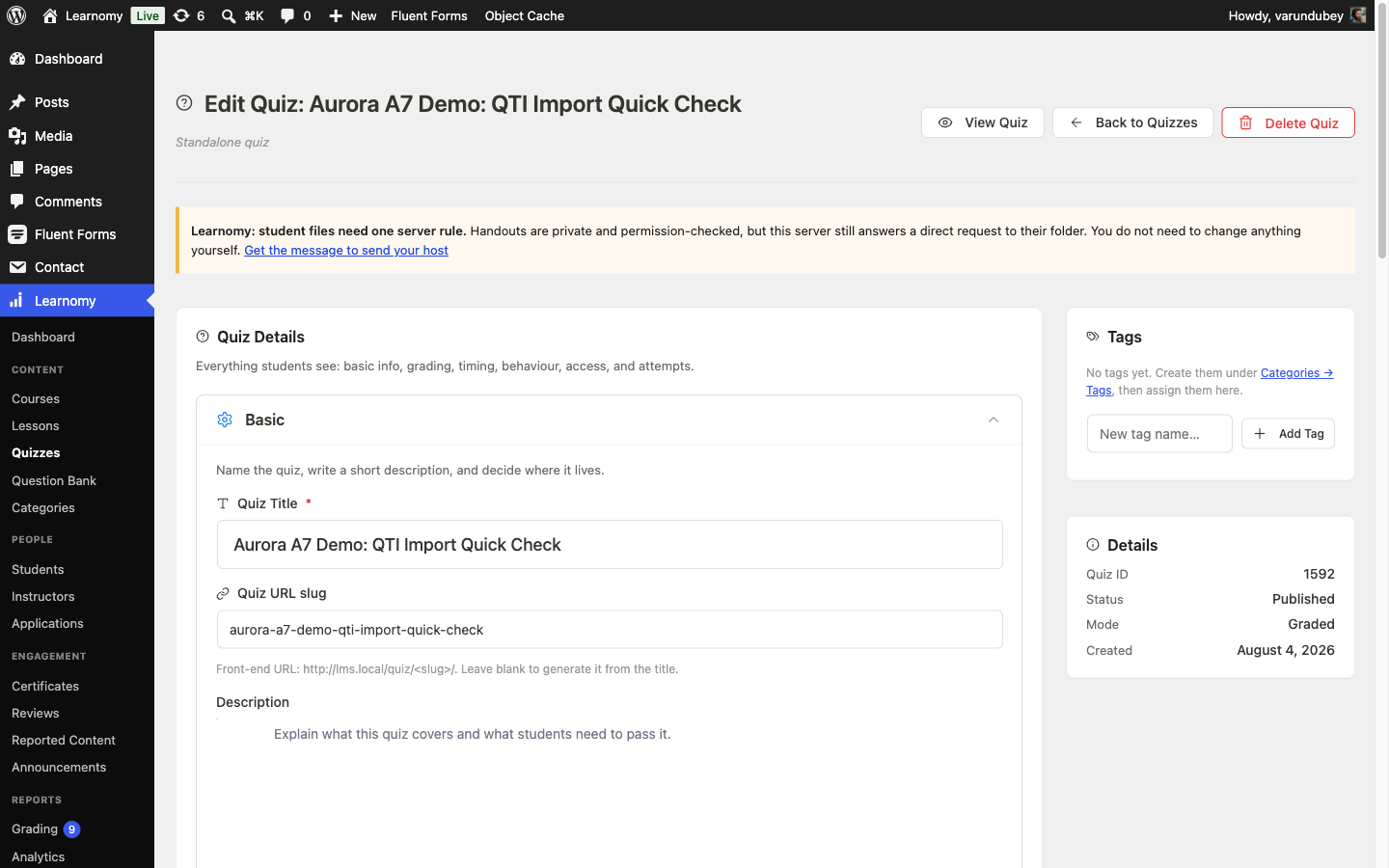
Edit Quiz screen for the imported Aurora A7 Demo quiz, showing Quiz ID, Published status, and Graded mode Its Questions panel holds the two imported items as ordinary questions, editable, reorderable by drag, with their marks in the same field as any hand-typed question, because that is exactly what they are now.
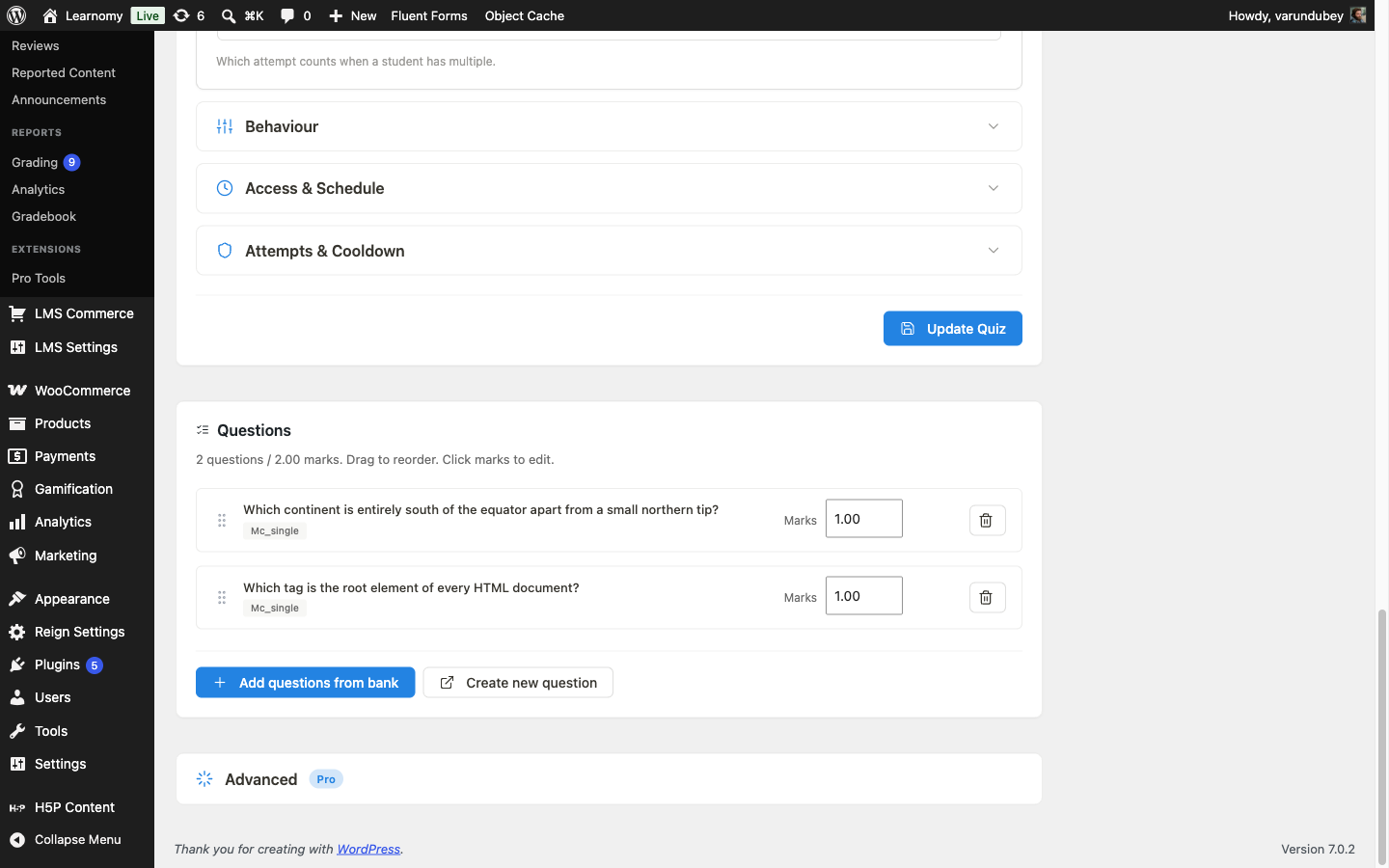
Quiz editor Questions panel showing the two imported multiple-choice questions, editable and drag-to-reorder We deleted the demo quiz and both imported questions immediately after this capture; nothing from it is part of the model site's permanent seed data.
If part of your coursework is an interactive H5P activity (a branching scenario, a drag-and-drop, an interactive video) built in the official H5P plugin, attach it as a lesson instead of rebuilding it. Enable H5P under LMS Settings > Modules, open the lesson editor, set Content Type to H5P interactive, and pick the content from the H5P content dropdown.
The model site already runs the official H5P plugin with one existing content item, "Aurora Academy: quick check", so no install step was needed for this capture. We attached it live to a lesson on the JavaScript Fundamentals course:
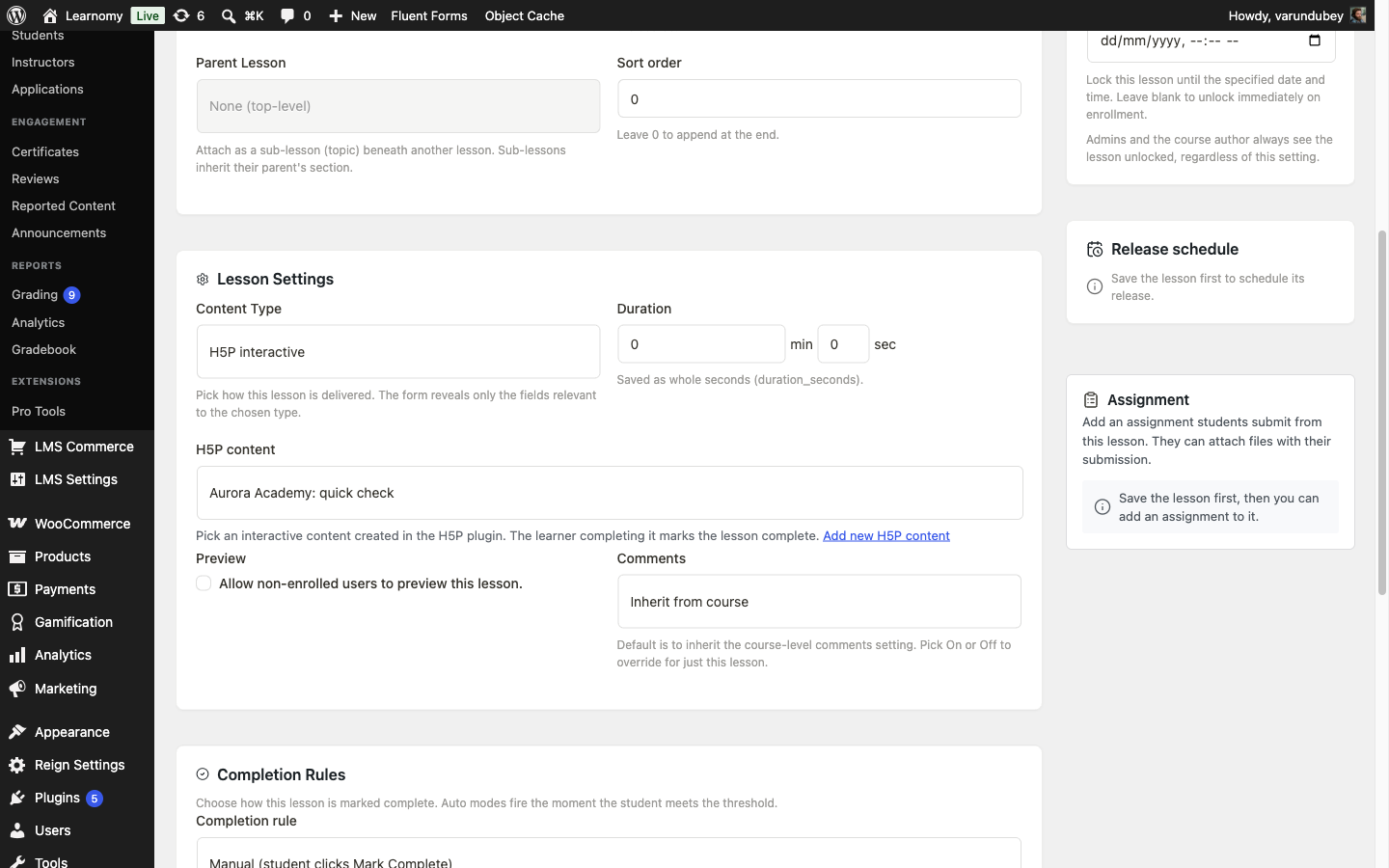
Lesson editor H5P content picker, with Aurora Academy: quick check selected as the H5P content Publishing the lesson and opening it renders the interactive content inline through H5P's own
[h5p]shortcode, in the same lesson player as every other content type, with its native Check button: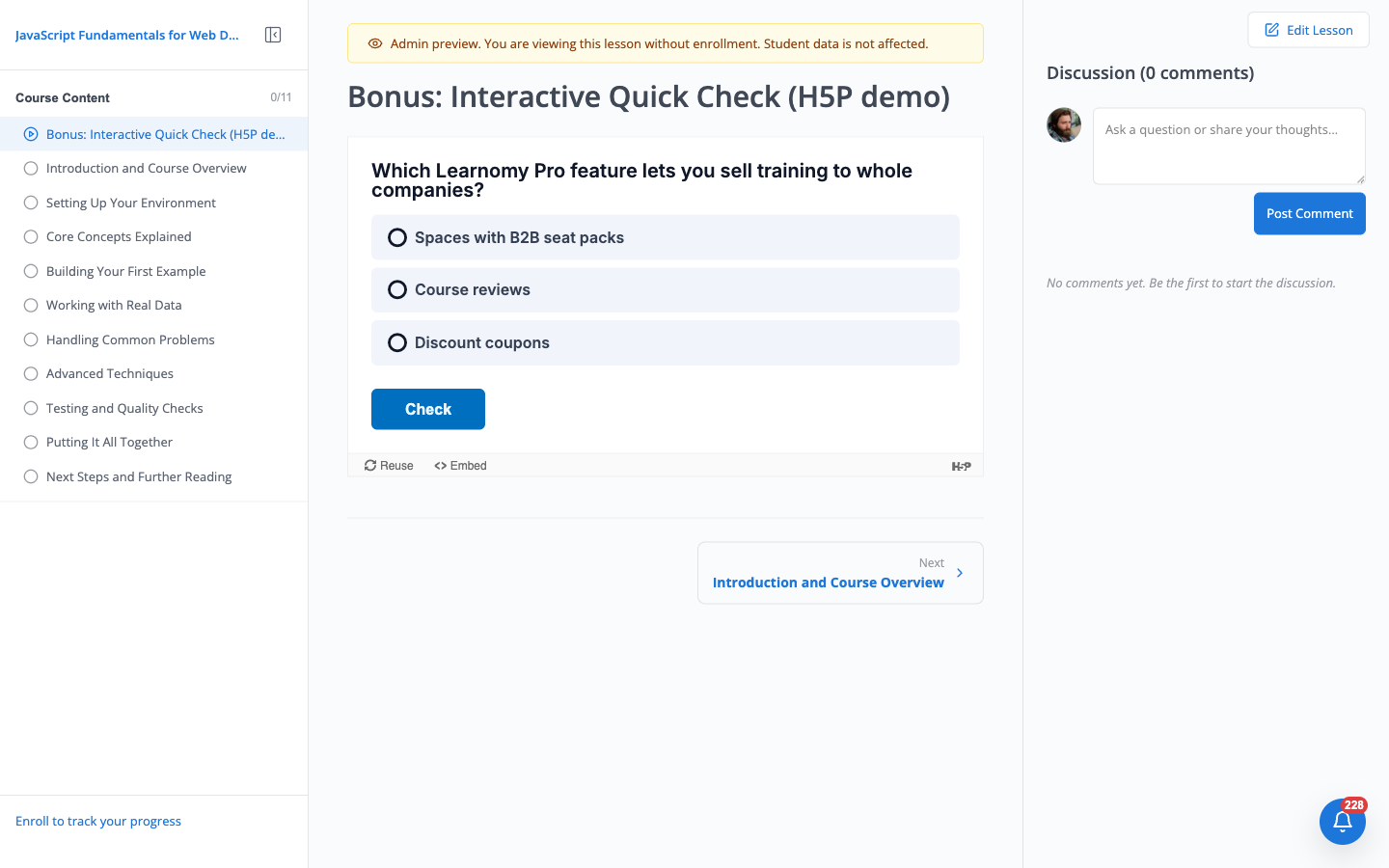
Lesson player rendering the H5P interactive multiple-choice question inline, with a Check button We removed the demo lesson after this capture; the H5P content itself lives in the H5P plugin's own library, untouched.
If the registrar's own analytics system needs the same activity, enable xAPI under LMS Settings > Modules, then connect your Learning Record Store's endpoint, key, and secret on the xAPI card at LMS Settings > Settings > Integrations. Learnomy emits an xAPI statement on enrollment, lesson completion, quiz pass/fail, and each question answered, so the LRS holds the same record independently of Learnomy's own gradebook. See xAPI (Tin Can) Learning Records.
Departments that run the same course in scheduled batches, a fall section and a spring section of the same class, use Cohorts (Learnomy > Pro Tools > Cohorts) to group students by start and end date and seat cap, filter and report on them as a batch, and gate enrollment to whichever cohort is currently Open. The model site runs several at once, at different stages:
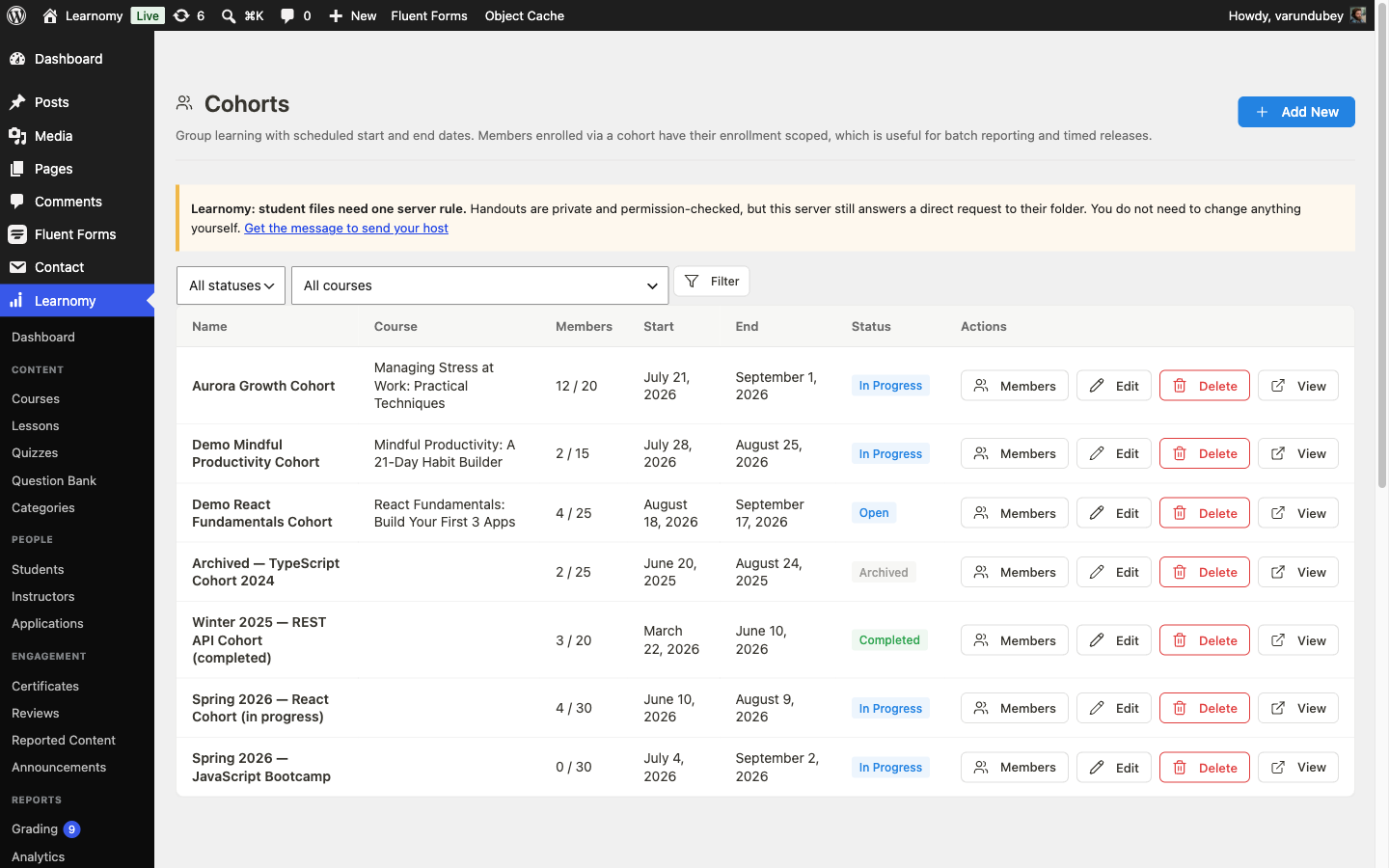
Cohorts list showing several batches at different statuses: In Progress, Open, Archived, and Completed Setting up a cohort, adding members, and running one across a term is its own workflow with enough depth for a guide of its own; this one only establishes that a department course and a cohort-scheduled course are the same underlying course, and that Cohorts is where the department manages the batches.
Verify it works
On Learnomy > Pro Tools > Assignments, click Grade on "Written Reflection: Key Concepts" and grade Tobias Lindgren's pending submission: 88/100, with feedback. Click Grade.
Open Learnomy > Gradebook for the course. Tobias's Assignment column now reads 88%, up from the no-data placeholder. His Final stays 78.5% Pass with the Grade overridden badge still in place: grading a component updates the component. It does not touch an active override.
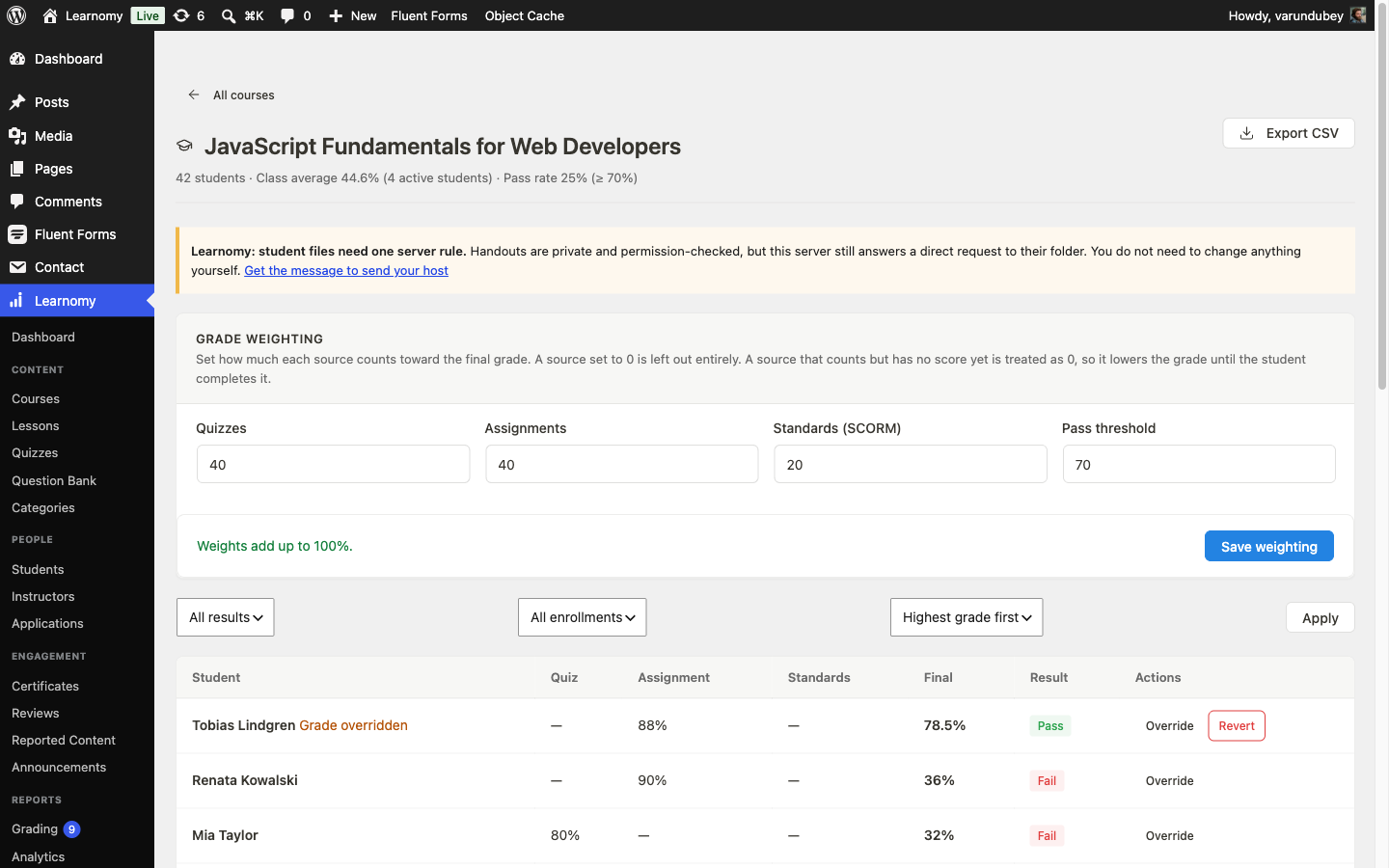
Gradebook grid after grading, Tobias's Assignment column now reads 88% while Final stays 78.5% Pass under the override Log in as the student and open My Account > Assignments. "Written Reflection: Key Concepts" now shows Graded 88 / 100 with the instructor feedback text visible underneath, while the student's other four assignments still read Submitted.
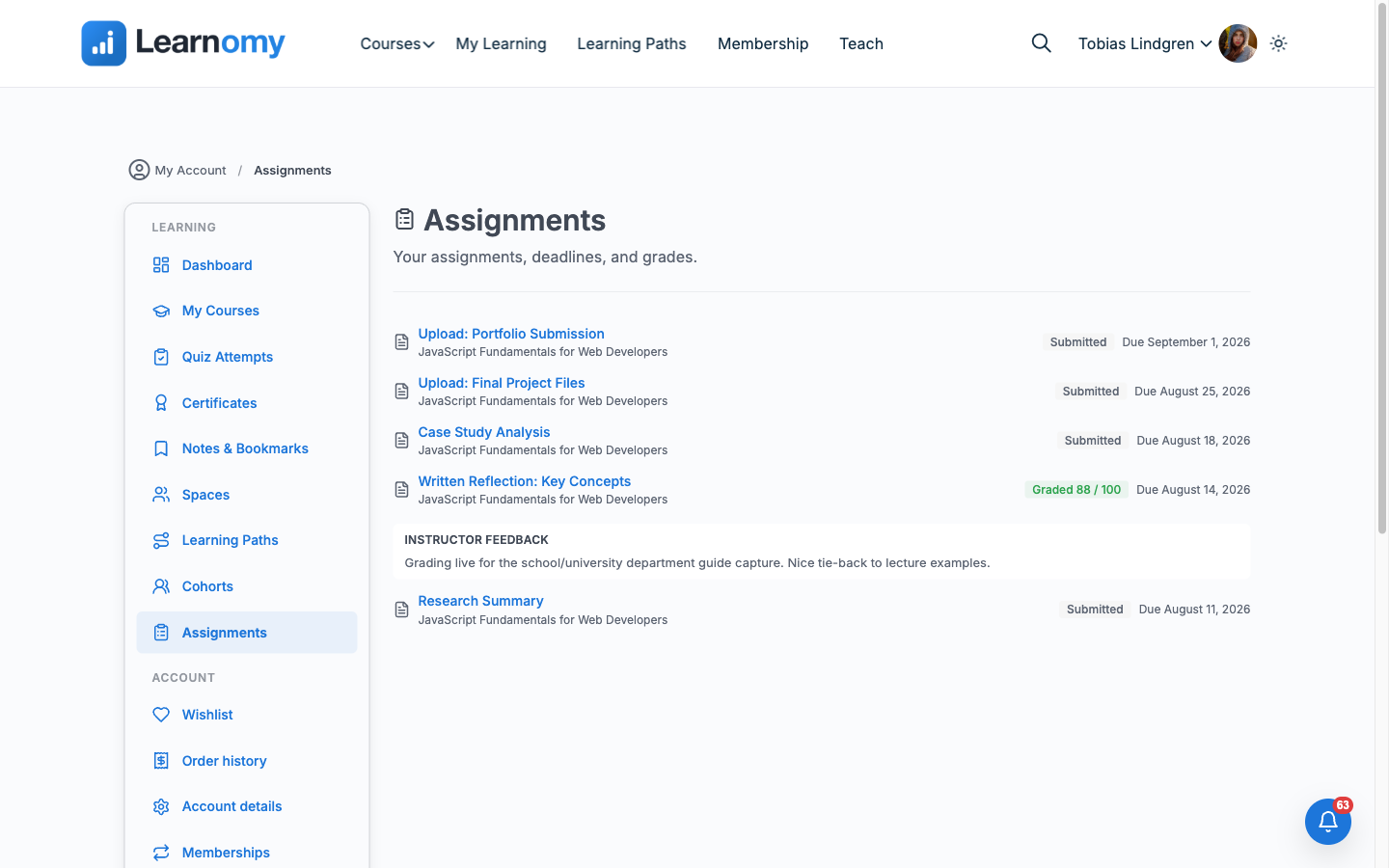
Learner Assignments page showing Written Reflection: Key Concepts graded 88/100 with instructor feedback, other assignments still Submitted Restore the seeded state so the grading queue keeps its one awaiting submission per assignment. We reverted Tobias's "Written Reflection: Key Concepts" submission back to submitted with no score, no feedback, and no graded-at timestamp, byte-for-byte the row it started as. Reloading the Gradebook grid and the Assignments grading queue afterward confirms the reversal held: the Assignment column shows the no-data placeholder again and the row shows Pending again, identical to the pre-grade screenshots above.
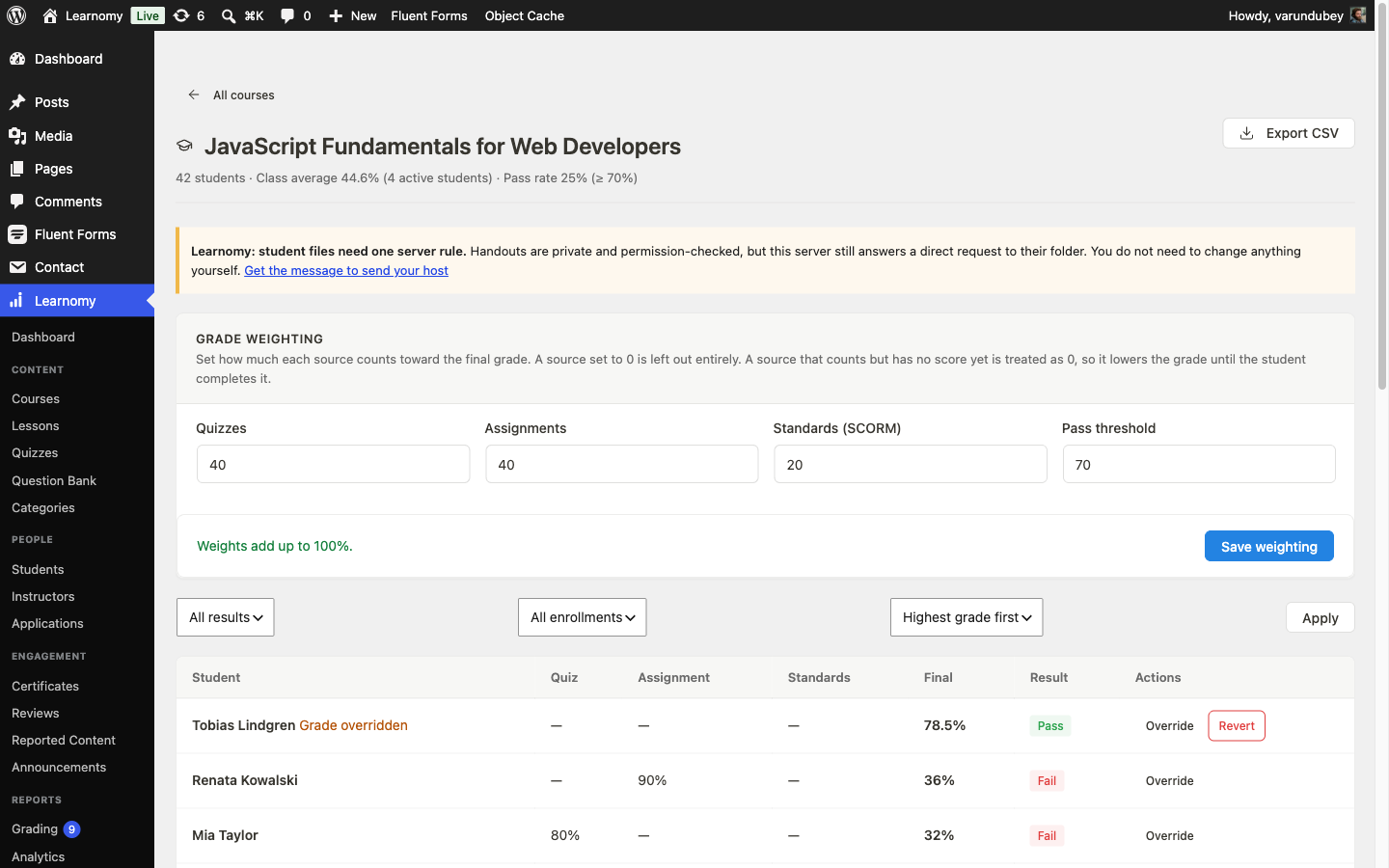
Gradebook grid after restoring, Tobias's Assignment column back to the no-data placeholder, identical to before grading 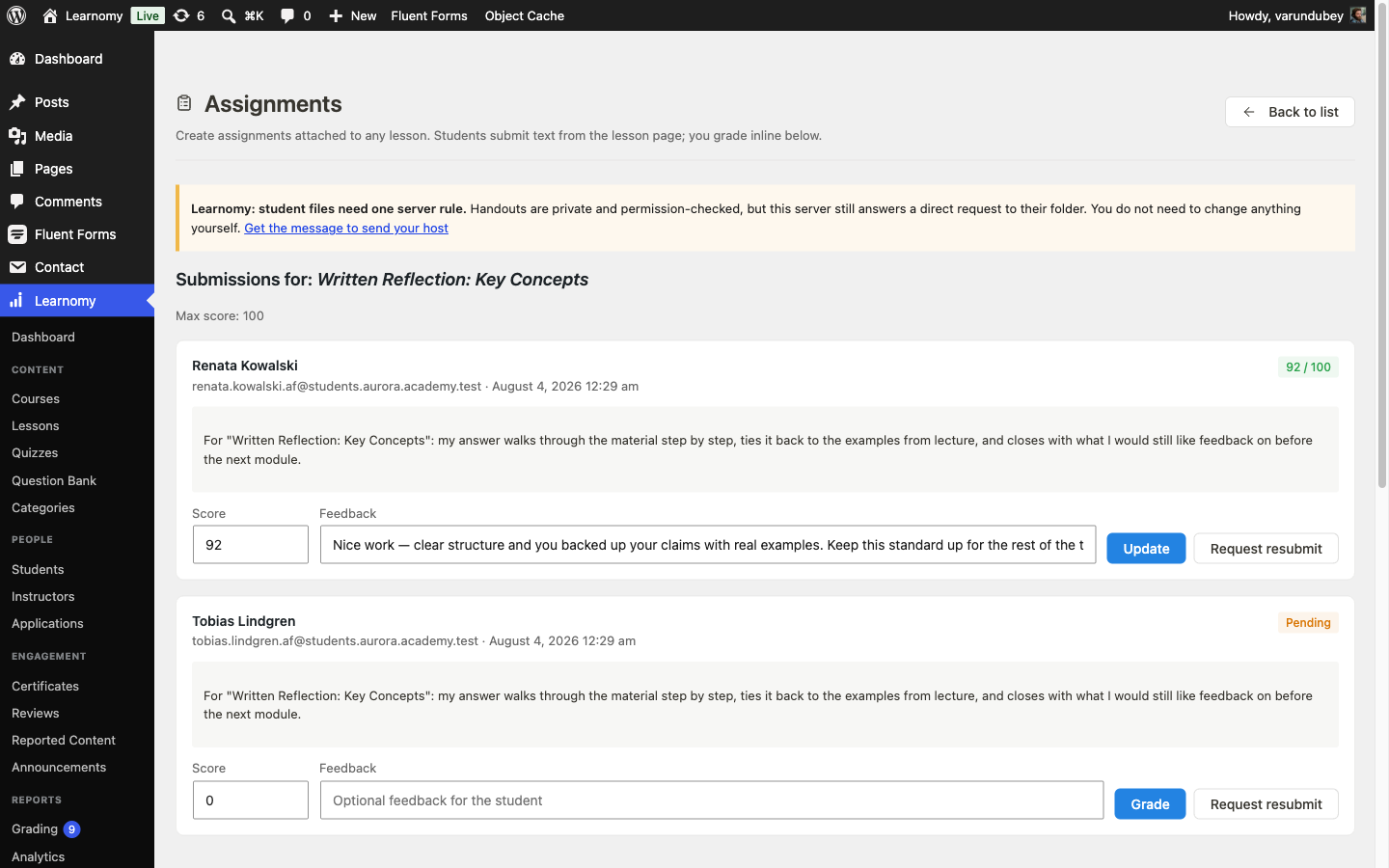
Grading queue after restoring, Tobias Lindgren's submission back to Pending, identical to before grading
Keep reading
Build this on your own site
Everything above runs on your WordPress server. Start with the free plugin; add Pro when a step here needs it.