
A renewal notice is a deadline someone else picked. The useful thing about it is that it tells you exactly how long you have to get your own house in order. This guide is the checklist I’d want in front of me if my Teachable plan were about to renew: what to pull out of the platform, what to decide, and, if you choose to leave, how to rebuild on Learnomy by hand.
One thing up front, because it shapes everything else. I’m not going to quote Teachable’s prices, plan tiers or fee percentages here. They change, and a number copied into a guide goes stale faster than the guide does. Open your own billing settings, find the renewal date and the plan name, and write both on a sticky note. Everything below works back from that date.
The other thing to say plainly: Learnomy has no Teachable importer. Nothing reads a Teachable account and builds courses from it. If you move, you move by hand, and a hand move takes real hours. That’s the honest cost, and it’s the reason the exports come first. If you export everything and then decide to renew anyway, you’ve lost an afternoon and gained a backup. If you skip the exports and decide to leave, you may lose the one thing you can’t rebuild, which is the list of people who paid you.
Start with the date, not the decision
Before you export a single file, work out how much runway you have. Pick three dates.
- The renewal date. The day you get charged again, or the day the plan locks you into another period. Find it in your billing settings.
- The last day you can cancel without being charged. Often a day or more before the renewal. Don’t assume the two are the same.
- Your target move date. If you’re moving, the day your new site takes over for new sales.
A move that has to land before the renewal needs about four to six weeks for a small catalogue, and longer for a big one. If the date is closer than that, don’t force it. Renew, export everything, and set the move for the next natural break in your teaching calendar. Paying for one more period is cheaper than a rushed migration that leaves students locked out in the middle of a course.
The export checklist
Work through this list in order. Create one folder per course and one folder for business records, and put everything in a dated backup location you control, not only on the laptop you’re working at. Hosted platforms differ in what they let you export and the buttons move around, so where I say “export”, read it as “export it if your plan lets you, and capture it another way if not”. A spreadsheet you built by copying rows out of a report screen is still a backup.
Students and email addresses
This is the most important file you’ll make. You want, for every student: name, email address, the course or courses they’re enrolled in, the date they enrolled, and, if you can get it, how they paid (full price, coupon, free, comped). If the export doesn’t include every field, take two exports with different filters and merge them in a spreadsheet.
Check three things before you trust the file. First, open it and make sure the email column is clean: no blank rows, no names in the wrong column. Second, count the rows and compare to the student count shown in your dashboard. Third, look for the people you’d least want to lose, such as your first customers and anyone you comped, and confirm they’re in there.
A word on email permission. Your student list is a customer list for the courses they bought. Whether you may also put them on a newsletter depends on what they agreed to and on the laws where they live. Moving their access is normal service. Adding them to marketing is a separate question.
Sales and transactions
Export every sale: date, student, course, amount, currency, coupon used, and whether it was refunded. You need it for three reasons. Your accountant will want it for the tax year, even after you’ve left. You need to know which students paid and which didn’t so you re-grant access fairly. And you want a record to answer a dispute months from now.
If your platform paid you out in batches, keep the payout statements too. Reconciling a payout to individual sales is a nightmare to do from memory.
Course content
This is the biggest job and the one most people underestimate. For each course, collect:
- Videos. Download the original files if you uploaded them to the platform, or find them in your own archive. If you recorded the lessons yourself, the original recordings are probably still on your computer or an external drive, and those are better than anything you can download back out of a platform, since they’re the unprocessed source. If the videos live on a separate host such as YouTube or Vimeo, you don’t need to re-upload anything; note the links.
- PDFs, worksheets and downloads. Download every attached file. Keep the original filename so the lesson that used it is obvious.
- Lesson text. Copy the written content of each lesson into a document. Text is easy to lose because it feels like it lives “in” the lesson. Paste it into a document per course, with the lesson titles as headings.
- Quiz questions and answers. Copy every question, the answer options, the correct answer, and any explanation text. Quizzes are painful to rebuild from memory, so capture them now even if you aren’t sure you’ll use them.
- Course structure. Write down the order: which lessons sit in which section, which are free previews, which have a prerequisite. A one-page outline per course saves a lot of guessing later.
- Images, thumbnails and the course description. Your sales copy and cover image are assets too.
Do a spot check by opening three random files from each course folder. Corrupted or half-downloaded video files are the classic surprise, and you want to find them now, not after your plan lapses.
Coupons
Write down every active coupon: code, discount, which courses it applies to, expiry, and how many times it’s been used. You may not want to carry all of them over. But if you’ve sent a coupon to an email list or put one in a podcast description, someone will try it after you move. Decide which ones to recreate and which to retire, and retire them on purpose.
Affiliate data
If you’ve run affiliates, export who they are, the commission rate each has, what you owe them, and what you’ve already paid. Affiliates are people with a financial interest in your platform choice, and they’ll notice the day their links stop working. Learnomy’s free plugin has commissions with per-course and per-instructor overrides, aimed at instructor revenue share, so if your affiliate arrangement is closer to a referral program, treat that as its own decision and don’t assume the two are the same thing. Whatever you do, settle what you owe before the old account goes away.
Certificates issued
Export or at least list who earned a certificate, for which course, and when. Past graduates sometimes ask for proof years later. The list is your record, and a PDF copy of the certificate design is useful if you want to recreate something similar. Learnomy issues certificates for completions that happen on your new site; I wouldn’t promise that certificates issued elsewhere carry over, so keep your own list and be ready to confirm a past graduate’s completion yourself if they ask.
Active subscriptions
This one needs its own paragraph because it’s where moves go wrong.
If any of your students pay monthly or yearly, they’re not just on a list, they’re on a billing schedule held by the platform and its payment setup. Those schedules can’t be copied to a different site. A subscriber has to sign up again at your new checkout and enter payment details again. So the checklist item isn’t “export subscribers”, it’s “plan how you’ll re-sign each one”. Export the list with next-billing dates and plan names, and keep reading, because the timeline below has a section on it.
Communications and the small stuff
Export your email templates and welcome messages. Save screenshots of your sales pages and course pages as they look today. Copy your refund policy, terms and privacy text. Note any custom domain, tracking pixels, or integrations that point at the old site. This is the least exciting part of the list and the part most likely to cost you an hour in week five.
Renew or move: how to decide
With the exports done, you can decide with a clear head. Here’s how I’d frame it, which isn’t the same as “move is always better”.
Renew when:
- The date is close and you haven’t finished the exports or the rebuild plan.
- You’re mid-cohort and a switch would disrupt people who are working through a course right now.
- You don’t run WordPress and don’t want to. Learnomy is a plugin on your own site, so you’d be taking on a site, hosting, updates and backups. For some course creators that’s a bad trade, and that’s a legitimate reason to stay.
- You sell a handful of courses, you’re happy, and the fees don’t bother you.
Move when:
- The platform’s fees or plan cost take a share of your revenue that feels wrong at your current sales volume. Work this out with your own numbers, from the transaction export you just made, rather than with anyone’s marketing page.
- You want the courses, the students and the checkout on a site you own, under your own domain and your own policies.
- You already run WordPress for your business, and one site for the blog, the shop and the courses would simplify your life.
- You want to sell through your own Stripe or PayPal account, with the money going to you directly.
The in-between answer is often the right one: renew once, with a firm move date. That gives you a full renewal period to build and test the new site without a cliff edge. If you want to see the two products side by side first, there’s a Learnomy vs Teachable comparison, and the Teachable alternatives page covers where a hosted platform is still the better answer. If you’re also weighing staying on the platform you’re on, the LearnDash renewal post walks through the same renew-or-move question from the WordPress side, and the keep courses online guide covers how to make sure nothing you’ve built disappears.
Moving to Learnomy by hand: step by step
Say you’ve decided to move. Here’s the order I’d do it in. You can do the whole thing without touching your live Teachable account, which stays up as the safety net until the end.
Step 1: Set up the site and the basics
Install WordPress if you don’t have a site, then install the free Learnomy plugin. Before building anything, set your currency, your academy name and your email sender details. Connect Stripe or PayPal now, even though no one is buying yet. Payment setup is where the unexpected waits come from (identity checks, account reviews), so start it early. Learnomy’s free plugin takes payments through Stripe, PayPal and WooCommerce, and checkout offers every gateway you’ve registered. Courses are not WooCommerce products; WooCommerce is only a payment rail if you choose to use it. You can read how each gateway is configured in the payments overview.
Step 2: Re-create each course
Build one course at a time, starting with your best seller, because it teaches you the process on the course where mistakes matter most. Use your outline: create the sections, then the lessons in order. Set the price and the access model, and mark any lessons that were free previews on the old platform. Lessons use a content editor for text, and you can attach files, so your saved PDFs go in here.
Rebuild the quizzes from the questions you captured. Free includes two quiz layouts, Focused and Classic. Pick the one that matches how your students currently take them.
Be realistic about time. A course with thirty lessons is a day or two of careful work, not an hour. If you have many courses, build the top one or two first and put the long tail on a schedule.
Step 3: Upload or embed the video
You have two routes for lesson video. You can embed from YouTube, Vimeo or Loom, and you can require a minimum share of the video to be watched before the lesson counts as done, or you can upload a file or pick one from your WordPress Media Library. Learnomy itself doesn’t host, stream or transcode video, and it has no DRM. If you upload large files to a normal web host, think about whether that host can handle the traffic, or use an outside video host and embed.
If protecting your video matters to you, because you’re worried about it being shared once it’s off a platform that handled that for you, read the guide on stopping access leaks. MediaShield, a separate plugin from Wbcom, adds a protected player on top of Learnomy lessons, and that guide explains what it does and, just as important, what nothing can fully stop.
If you’re deciding where the videos should live in the first place, selling video courses on your own site covers the hosting choices.
Step 4: Import your students
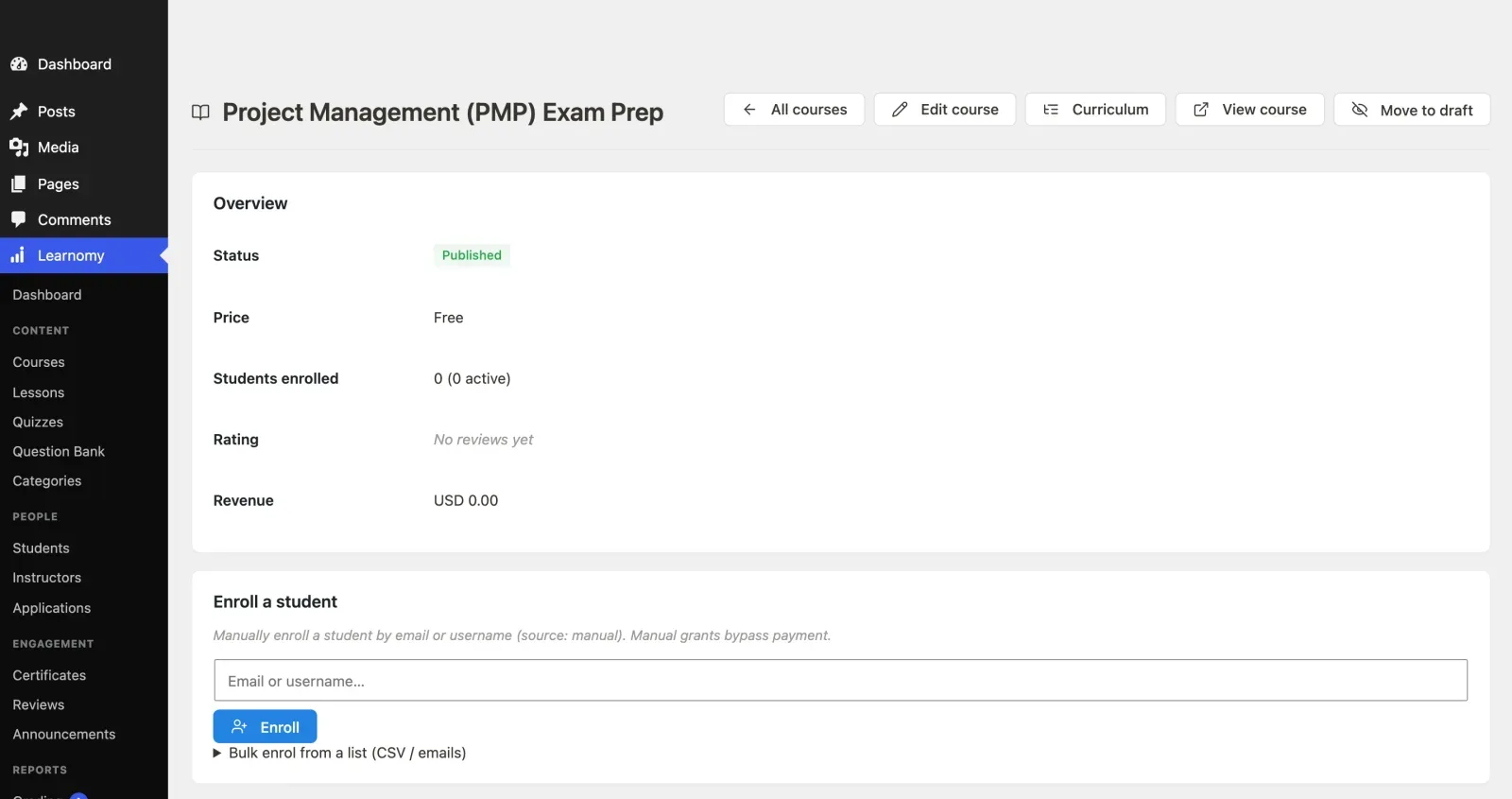
Open the course in wp-admin and use the bulk enrolment box: paste emails or upload a CSV, one address per line or separated by commas. Learnomy creates an account for anyone who doesn’t have one, sends a set-password invite, and skips anyone who’s already enrolled, so running the same list twice is safe. If your list is longer than the per-request cap, it tells you how many are left, and you submit again. The bulk enrolment doc has the full steps.
Use your export to build one clean CSV per course: just the emails of the people who should have that course. This is where the sales export earns its keep. Students who paid get access; students who were refunded don’t.
Step 5: Re-grant access with Access Grants
Bulk enrolment puts students into a course. Access Grants are what you use when access should come from somewhere other than a Learnomy checkout. An order in another store, a membership plugin, or an automation can give access to courses and membership plans without recording a sale in Learnomy. Each grant is listed in the Access Log under LMS Settings with its store and order number, so you can see who got what and why. You can remove a grant, retry one that was refused, or grant anyway. Each person gets one “Your access is ready” email per grant, with a set-password button if their account is new.
For a Teachable move, the typical pattern is simple: your existing students paid on the old platform, so there’s no Learnomy sale to point to. You’re granting access by hand because they already paid. A course set to the closed pricing model is built for this, and the closed pricing model doc explains how.
Step 6: Set up payments and re-sign subscribers
Now the money side. Create your coupons for any codes you decided to keep. For anyone who pays monthly or yearly, set up a membership plan or subscription with the same price and period they’re on today, then email each subscriber a direct link. Tell them what happens next in plain words: they’ll enter their card once on the new site, you’ll cancel the old one the moment they’re done, and nobody pays twice.
That last promise is the one that matters. Keep a spreadsheet with one row per subscriber and a status column: not contacted, contacted, re-signed, old plan cancelled. Don’t cancel anyone’s old plan until the new one is confirmed. A subscriber who’s accidentally charged on both is a refund and an awkward email, and a subscriber you cancelled before they re-signed is a lost customer.
Step 7: Test as a student
Create a test student account, enrol it, and go through the whole path: the invite email, setting a password, finding the course, playing a video, taking a quiz, getting a certificate. Do it once on a phone. Do a test purchase with a real card on a low-priced test course and refund it, so you know the whole payment loop works. This is the step people skip and regret.
A timeline that works back from the renewal date
Here is a schedule you can adapt. It assumes about six weeks. Squeeze it if you’re confident, stretch it if you have a lot of courses.
Six weeks before renewal
- Find the renewal date and the cancellation cutoff. Write them down.
- Do the full export checklist above. Finish it this week.
- Decide renew or move, or decide to renew once with a fixed move date.
Five to four weeks before
- Set up the WordPress site, install Learnomy, connect payments.
- Build your best-selling course and test it end to end.
Three weeks before
- Build the remaining priority courses.
- Draft the announcement email to students and the re-signup email to subscribers.
- Set up your memberships or subscription plans and coupons.
Two weeks before
- Send the announcement. Tell students what’s changing, what they need to do (if anything), and when.
- Import students course by course. Spot check five accounts per course.
- Start moving subscribers across, in small batches.
One week before
- Final test pass on a phone and a laptop.
- Confirm every subscriber is either re-signed or contacted twice.
- Point your sales links, your website buttons and your email signature at the new checkout.
The day before the cancellation cutoff
- Confirm there’s nothing left on the old account that you still need.
- Re-check the export folder: students, sales, content, coupons, affiliates, certificates.
- Cancel, or let the plan lapse deliberately, in time to avoid the next charge.
If you hit week two and you aren’t close, renew. It’s no failure. Renewing buys you the next period to finish properly.
What your students will experience
A move is invisible to students when it’s done well, and a mess when it isn’t, so it pays to think about their side.
They’ll get an email telling them the courses are moving to a new address. If you imported them, they’ll get a second email with a set-password button, because the new site is a separate account. Some will ignore both emails until the day they want to watch a lesson, so keep the old platform running until the final week so those people aren’t stranded.
Their lesson progress will probably start fresh. The importer that preserves lesson completion dates reads LearnDash, LifterLMS and Tutor LMS, not Teachable. If a student is halfway through a course, tell them in the announcement and let them skip ahead. For anyone close to finishing, consider granting them the certificate yourself on request.
Their login changes. This is the most common support question after a move. “I can’t log in” almost always means the student is trying their old password on the new site. Put a “Reset your password” link in the announcement and on the new login page.
Subscribers are the group who have to do something. Be generous: a short grace period, a clear link, and a person they can reply to.
The best announcements I’ve seen are short, state a date, say what the student needs to do in one or two sentences, and give a real person’s name for questions.
One last pass before you commit
Run through this before the plan renews, whichever way you decide.
- Renewal date and cancellation cutoff written down.
- Student list exported, row count checked against the dashboard.
- Sales and transactions exported, refunds marked.
- Every course’s videos, PDFs, lesson text and quiz questions saved, and three files per course opened to confirm they work.
- Course outlines written, including previews and prerequisites.
- Coupons listed, with a keep or retire decision for each.
- Affiliate balances settled or recorded.
- Certificate list saved.
- Subscriber list with plan names and next billing dates saved.
- Email templates, policies and sales page screenshots saved.
- Renew-or-move decision made, with a move date if you’re renewing once more.
- If moving: payments connected, best seller rebuilt and tested as a student, announcement drafted.
Learnomy is the right place for this if you want your courses on a site you own and you’re willing to run that site. If that isn’t you, the exports above still matter, because a business that can leave gets to renew because it wants to, not because it has to. Pricing for the paid add-ons is on the Free vs Pro page, and the course builder page shows what you’d be rebuilding into.