
Most paid course content doesn’t get stolen by a clever stranger. It leaks out through ordinary doors that nobody thought to close: a password two coworkers share, a lesson video whose link got pasted into a Slack channel, a refund that handed the money back and left the course open, a free preview that quietly gave away the best forty minutes. Those are fixable in an afternoon, and fixing them is worth more than any amount of worry about hackers.
This guide goes through four leaks. For each one I’ll say how it happens, what Learnomy does about it, what MediaShield adds, and what nothing can fully stop. I’ll be blunt about that last part, because an owner who believes in a protection that doesn’t exist makes worse decisions than one who knows the limits.
MediaShield is a separate plugin from Wbcom, free on wordpress.org, with a Pro add-on. Learnomy works without it. I mention it throughout because Learnomy itself doesn’t host, stream or protect video, and the video is usually the thing that’s worth protecting. The MediaShield site has the full feature list.
First, a calibration
Before locking anything down, ask what a leak actually costs you. Three honest cases:
- The casual sharer. Someone gives their password to a friend, or a team of three splits one seat. They aren’t pirates. Some of them would happily buy a second seat if you asked nicely. This is the most common leak by far.
- The leaker with an audience. Someone posts your lessons in a group or on a forum. Rarer, more damaging, and the one a watermark exists for.
- The professional ripper. Someone who captures and resells your content. Nothing a WordPress plugin does will stop them. Your defences here are your terms of service, a takedown notice, and the fact that your community, updates and support are not in the ripped copy.
Spend your effort on the first two. Don’t make life hard for the paying student to inconvenience a pirate you can’t stop.
Leak one: shared logins
How it happens
One person pays. They give the email and password to a partner, a colleague, a study group. Now three, five or fifteen people watch from one account. You’ll never see this in your sales numbers, and in most cases it’s invisible in the student list too, because there’s only one student.
What Learnomy does
Plainly: Learnomy has no login or session limit of its own. It doesn’t count devices, it doesn’t kick a second browser out, and it doesn’t detect that an account is being used from three cities. If you’ve seen another platform advertise single-session logins, don’t assume Learnomy copies that.
What it does give you is ways to shape who’s inside in the first place:
- Invite-only courses. For a course where you add the students yourself, nobody can enrol themselves and there’s no checkout. You add people by email or CSV, which suits company training, a class, or a client onboarding where you know who should be there. The invite-only doc has the steps.
- The private academy login toggle. Turn on Private site in the settings and logged-out visitors are sent to the login page for the catalogue, courses, lessons and quizzes. That closes the “anyone with the link can look” door. It’s off by default, so your catalogue is public until you switch it on.
- Per-student accounts. Every student has their own account and email, which gives you an audit trail for who enrolled and when. It’s the foundation for dealing with a sharing problem, even if Learnomy doesn’t police it by itself.
What MediaShield adds
For video, MediaShield adds the controls that make sharing awkward:
- A concurrent stream limit per user. Default 2. If one account tries to play a third video at the same moment, it’s blocked. This doesn’t stop a couple sharing one login on different evenings, but it does stop a household or an office all watching live from a single seat.
- A watermark with the viewer’s name and IP. The overlay moves position at set intervals. Anyone who shares their account is also sharing a video with their own name on it, which is a great reason to think twice.
- Login-gated playback. The video only plays for a logged-in user. You can turn this off if you want logged-out visitors to watch, but for paid content you’ll want it on.
MediaShield Pro adds multi-IP detection and suspicious activity alerts: when one account is playing from several addresses, you get flagged, with configurable sensitivity. Whitelisting a user lets you stop alerts for someone you know travels a lot.
What nothing fully stops
Sequential sharing. If a student gives their password to a friend and never watches at the same time, nothing in a browser can tell the friend from the student. Even multi-IP detection is a signal, not proof: people use phones, offices and VPNs. Treat an alert as a reason to send a polite email, not as a verdict. “We noticed your account is being used from several places. Are you sharing it with your team? We’d be glad to set up a team plan” converts a surprising number of leakers into customers.
If sharing is a real business problem for you, look at the model, not just the lock. Team and company seats exist for this reason. Learnomy Pro has Learning Spaces for B2B seats, and the free plugin has memberships and invite-only courses. Selling the group what it was going to take anyway is usually better than trying to catch it.
Leak two: public video links
How it happens
A lesson video is a URL. If the URL works without a login, it works for anyone who has it. Hosted video embeds, such as a YouTube or Vimeo player, are public addresses unless you protect them. That’s how they’re designed. The lesson page may be behind a login, but the video address inside it can be copied out, pasted into a chat, or opened on its own.
Another version of this: you uploaded a file to your WordPress Media Library and a student opened it directly from its file address, skipping the lesson page entirely.
What Learnomy does
Learnomy lets you embed YouTube, Vimeo or Loom, or upload a file or choose one from the Media Library. It doesn’t host, stream, transcode or apply DRM to video. The lesson page itself follows your course access rules, so a logged-out visitor can’t open a locked lesson. But Learnomy doesn’t change what the host does with the video file or link. That means:
- Set the video’s own privacy at its host. For Vimeo or similar, restrict where it can be embedded and keep it off public listings. A video set to “unlisted” is still reachable by anyone who has the link.
- Don’t paste a video’s share link into the lesson when you meant an embed.
- Test it yourself, logged out, in a private window. Copy the video address out of the lesson and open it. If it plays, a student can do the same.
The guide on selling video courses on your own site covers hosting choices in more depth, and the sections and lessons doc shows how to attach video to a lesson.
What MediaShield adds
This is where MediaShield earns its place:
- Domain whitelisting. Restrict video embeds to approved domains only. A pasted link on someone else’s site stops playing.
- Login-gated playback. The video requires a logged-in user, so the bare video address on its own is useless to an outsider.
- Anti-download protection. Right-click blocking, keyboard shortcut prevention, devtools detection and source URL hiding for self-hosted videos. This removes the easy “Save video as” route.
- Watermarking. Every playback carries the viewer’s name and IP.
- Platform support. It protects self-hosted videos and YouTube, Vimeo, Bunny Stream and Wistia embeds, so you keep the video host you already use.
One detail that trips people up: MediaShield protects videos that are in your MediaShield library. Add the video there first, then use the same URL in the lesson. A video MediaShield doesn’t manage plays in the standard Learnomy player as before, with no extra protection. After you set it up, run the logged-out test again.
What nothing fully stops
A determined student with browser tools can still find a stream. Anti-download measures raise the effort; they don’t make the video impossible to get. MediaShield Pro has experimental software-based encryption, but it isn’t studio DRM and I wouldn’t describe it as a guarantee. And screen recording is untouched by any of this, which brings us to the honest bit.
Screen recording
Anything a student can see and hear can be recorded. A phone pointed at a laptop defeats every browser control in existence. The only thing you can do is make recording unattractive and traceable. A watermark with the viewer’s name and IP, moving around the frame, means a leaked recording carries the identity of whoever leaked it. That deters most people, and it gives you something concrete to act on when it doesn’t. It doesn’t prevent anything. Any product that tells you it does is overselling.
Leak three: refunds that keep access
How it happens
A student asks for their money back, you refund them, and they still have the course because nobody revoked access. Or the opposite problem: you refund a small add-on purchase and the system pulls access to the whole course they’d paid for separately. Both are ways your own process leaks value, or punishes a customer.
What Learnomy does
Learnomy handles this with a simple rule: a refund removes only the access its own sale gave. If a student bought a course and you refund that purchase, the course access that purchase created is removed. If they have access through a different purchase or a membership, that stays put, because the refund didn’t give them that access in the first place.
Access also ends on its end date. If you sell time-limited access, it stops when the period is up. You don’t have to remember to revoke it.
A few practical points:
- Issue refunds from Learnomy’s transactions screen where you can. Whether a refund made only inside your payment provider’s dashboard reaches your site depends on how that gateway is wired, so test it once with a small purchase.
- If you give someone access from outside Learnomy, through Access Grants, the Access Log lists every grant with its store and order number. You can remove a grant, retry one that was refused, or grant anyway. That log is how you find the student who still has access from an order you refunded elsewhere.
- Delayed bank payments through Stripe grant access when the money clears, not before, so there’s no window where someone has the course and the payment later fails.
With the Pro store bridges for WooCommerce, Easy Digital Downloads, Restrict Content Pro, Paid Memberships Pro and MemberPress, a paid order grants access and a refund takes it back. A cancelled subscription keeps access to the end of the paid period, and a renewal after a refund gives access back. See payments and memberships for how the pieces fit.
What MediaShield adds
Nothing here, and I won’t pretend otherwise. Refund handling is about enrolment, not video. What MediaShield does help with is the aftermath: a refunded student whose account is revoked can no longer play protected video, because the lesson is locked for them and login-gated playback needs a logged-in user.
What nothing fully stops
What a student already downloaded or recorded before the refund. If you offered downloadable files, they have them. For digital products, a clear refund window and a policy that says what you refund and when is better protection than any technical control. Many course owners set a short, generous window, since it reduces both disputes and chargebacks.
Leak four: previews that give too much away
How it happens
You mark a lesson as a free preview to tempt visitors. That’s good marketing. Then the preview turns out to be the single most useful lesson in the course, with the template, the worksheet and the video that solve the buyer’s problem, and the rest of the course is padding. Or you preview six lessons out of twenty and someone realises they can learn the whole method from those.
What Learnomy does
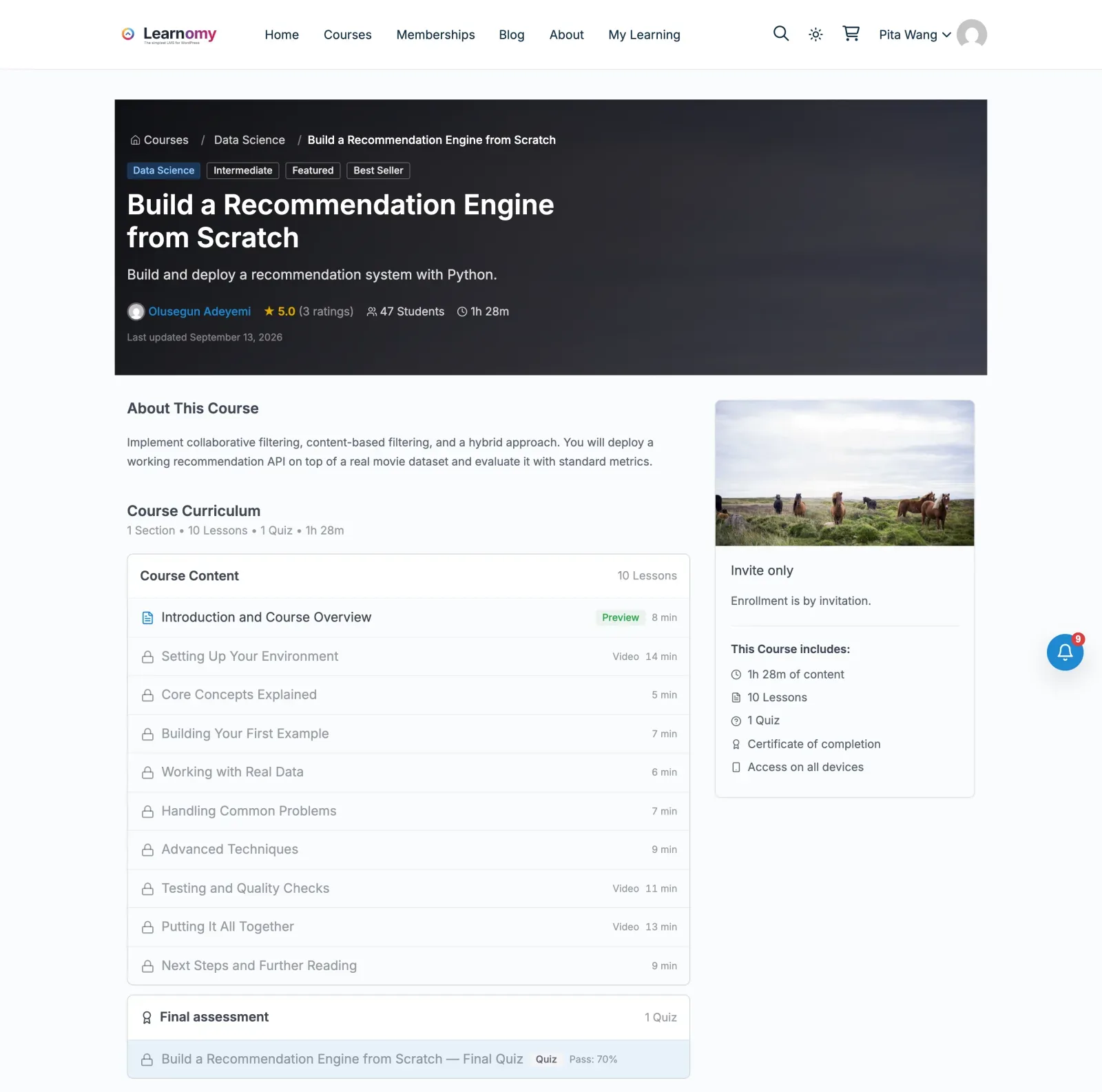
Learnomy lets you mark a lesson as a preview lesson, which visitors can open without enrolling. The course outline shows locked rows for everything else, and the rows tell visitors how each one opens, so nobody clicks into a dead end. Both are set per lesson, so you choose exactly which ones are open. The sections and lessons doc shows where the setting lives.
Previews are a decision, not a leak, as long as you make them on purpose. Some rules of thumb:
- Preview the method, not the result. Show how you teach and what a lesson feels like. Hold back the finished template, the full walkthrough and the downloadable.
- Pick one or two lessons, from different parts of the course. One from the start and one from the middle tells the buyer about the range.
- Keep downloads out of preview lessons. A preview with an attached worksheet is a free worksheet. Test it logged out and see what a visitor can actually reach.
- Look at the preview as a stranger would. Open the course page in a private window and read the page top to bottom. Is the main outcome promised in the description already delivered in the preview?
What MediaShield adds
If the preview lesson has video, it’s still a video. MediaShield’s watermark and domain whitelisting apply to it just like any other lesson, and you can decide whether the preview should require login. Keep login-gated playback on for paid lessons. If you want logged-out visitors to watch a preview, MediaShield lets you turn Require Login off, and their views are still recorded. MediaShield also has per-video overrides, so check the setting on your paid lessons after you change it.
What nothing fully stops
Someone taking notes. Anything you show for free can be summarised, and no setting changes that. The fix is editorial: give enough to prove you’re good, and keep the deep material behind the purchase.
The one-afternoon audit
Set aside a couple of hours and run this list. You need a second browser or a private window, a test student account, and your own courses open in another tab.
Access and accounts
- Open your best-selling course logged out. Can you read any lesson that isn’t marked as a preview?
- Decide whether the academy should be private. If your students are all known to you, turn on Private site.
- For any course meant for a known group, check whether Invite only is a better model than a public checkout.
- Look at the list of enrolled students. Spot anything odd: many accounts from one company domain on a single-seat product, or accounts you don’t recognise.
- Decide your policy for teams. Do you sell team seats? If you don’t, say what you do want people to do.
Video
- Open a lesson video logged out and copy its address. Does it play on its own? Does it play when pasted into a different site?
- Check each video host’s privacy settings. Unlisted is not private.
- If you use MediaShield, confirm every lesson video is in the MediaShield library. Open one lesson and check that the watermark appears with your test student’s name.
- Turn on login-gated playback for paid lessons.
- Set the domain whitelist to your own site.
- Check the concurrent stream limit. The default is 2; leave it unless you have a reason to change it.
- If sharing is a real problem, look at MediaShield Pro’s alerts and decide who looks at them and how often.
- Test on a phone too. A protection that works on a laptop and blocks legitimate students on a phone is a support problem.
Refunds and access
- Make a small test purchase, refund it from the transactions screen, and confirm access is removed from that test student.
- Confirm that a student with two routes to the same course keeps access after one of them is refunded.
- If you sell through another store or a membership plugin, check the Access Log for grants tied to orders you’ve since refunded.
- Check which courses have an end date, and that it ends when you expect.
- Write down your refund policy in one paragraph and put it where buyers see it before they pay.
Previews and downloads
- List every lesson marked as a preview. For each one, ask whether it gives away the whole answer.
- Open each preview logged out. Can you reach a download, a template or a worksheet?
- Read the locked rows on the course page the way a buyer would. Do they tell you how to get in?
What to leave alone
- Don’t add friction for paying students to catch the occasional sharer. Every extra login prompt costs you goodwill.
- Don’t promise “unstealable” anywhere on your sales page. You can say the videos are watermarked and protected, which is true. You can’t say they can’t be recorded.
A sensible order if you can only do three things
If your afternoon shrinks to an hour, do these in order.
- Install MediaShield, add your videos, and switch on login-gated playback and the watermark. This closes the public-link leak and makes sharing visible in one go.
- Run the logged-out test on your best-selling course, including the preview lessons and any downloads.
- Do the refund test purchase. It’s the only way to know your process works, and a refund that doesn’t revoke access is a leak you create yourself.
Then come back to the rest when you have time. For more on the video side, the guide to selling video courses on your own site goes deeper on hosting and delivery, and the course builder page shows how lessons, previews and access rules fit together.