
A good video course takes real effort. You wrote the outline, hired or became a videographer, spent weekends on audio, and now you want to charge a fair price for it without handing a cut to a marketplace and without your students living inside someone else’s storefront. That is a reasonable thing to want, and WordPress can do it. What it asks of you is a handful of decisions up front, mostly about where the video lives.
This guide walks through those decisions in the order you’ll face them: where to put the video, how to lay out the course, how to require that people actually watch it, how far you can protect it, how to charge, how to talk to students, and what to check before launch. It also says plainly what Learnomy doesn’t do. The biggest item on that list: Learnomy is not a video host.
The one thing to understand first: Learnomy plays video, it doesn’t host it
Hosted course platforms bundle everything. You upload a file, they store it, transcode it, stream it and bill you inside one subscription. When you sell on your own site those jobs split apart. WordPress and Learnomy handle the course, the checkout, the student accounts and progress. Something else handles the video bytes.
Learnomy accepts a lesson video in two ways:
- A link to a YouTube, Vimeo or Loom video, played inside the lesson, with an optional minimum watch share before the lesson counts as done.
- A video file you upload or choose from the WordPress Media Library, in the lesson editor (and in the Pro course builder).
Learnomy does not transcode your footage, stream it adaptively or apply DRM. If a vendor tells you a course plugin does all of that by itself, ask who pays for the bandwidth. Video is the expensive part of an online course, and it has to live somewhere that is built for it.
Where should the video live?
You have three realistic choices. Each one trades cost, bandwidth and protection differently.
Option 1: a YouTube, Vimeo or Loom embed
This is the simplest route and the one most people start with. You upload the finished video to the host, copy the link, and paste it into a lesson. Learnomy renders the host’s player in a clean responsive frame and the lesson can refuse to count as done until a share of it has been watched.
What you get:
- No hosting load on your own server. A busy launch day doesn’t slow your site down, because the video comes from the host’s servers.
- Good playback on phones and slow connections, since the host handles adaptive quality.
- A familiar player your students already know.
What to watch for:
- Protection depends on the host’s own privacy settings. A Vimeo video set to hide from public listing and restricted to your domain is far harder to stumble upon than a public YouTube link. An unlisted YouTube video is still a link anyone can pass around.
- You pay the host’s plan fees if the free tier isn’t enough. Vimeo’s paid plans exist for exactly this reason.
- The video lives on a third-party site, so its terms and its pricing are outside your control.
For a creator with a polished course who cares that the video isn’t freely shareable, a private Vimeo setup with domain restrictions is a sensible middle. If you already have your library there, you don’t have to move it. See the Vimeo page linked at the end for the specific case of Vimeo On Demand sellers.
Option 2: upload a file to the WordPress Media Library
You can pick a video file straight from the Media Library when you build a lesson. It’s the least moving parts of any option: one login, one backup, no extra account.
It is also the option most likely to hurt. A WordPress host serves video files like any other file. That means:
- Your hosting plan carries the bandwidth. A 400 MB lesson watched by 200 students is a lot of traffic, and shared hosting plans notice.
- There’s no adaptive streaming. A student on a weak connection gets the same big file as everyone else and buffers.
- Upload limits on your host can block a large file before it gets to WordPress at all.
For short clips, a welcome video or a small course with a handful of students, this is fine. For a long, high-production course with a real audience, we’d put the video on a host built for it.
Option 3: a video host connected through MediaShield
MediaShield is a separate Wbcom plugin (free on WordPress.org, with a Pro add-on) built for protecting and tracking video on WordPress. It supports Bunny Stream, YouTube, Vimeo, Wistia and files on your own site, so you keep whatever hosting you already have. You can see it at wpmediashield.com.
Bunny Stream is the one people ask about for pro-quality courses: you pay the host for storage and the bandwidth you actually use, rather than a flat plan, and the delivery is built for streaming. With MediaShield Pro you can also upload to Bunny, Vimeo, YouTube and Wistia from inside WordPress.
When MediaShield is active, lesson videos that are in your MediaShield library play through its protected player instead of the plain embed. That’s where the protection features in the section below come from.
A quick way to choose
| Your situation | A sensible choice |
|---|---|
| A few short videos, small audience, tight budget | Media Library upload, or an unlisted embed |
| Your library is already on Vimeo and you’d rather not move it | Keep it on Vimeo, restricted to your domain; add MediaShield if you want a watermark |
| A long, polished course with hours of footage | A video host such as Bunny Stream, played through MediaShield |
| You mostly want to avoid any extra account | Media Library, and accept the bandwidth cost |
Whichever you choose, keep your original masters in a safe place. The host is a delivery layer, not your archive.
Structure the course so people finish it
A video course sells on its outline and succeeds on whether people reach the end. Both depend on structure.
Sections and lessons
Group your videos into sections that match how a student thinks about the subject, not how you recorded it. Inside a section, aim for lessons short enough to finish in one sitting. A 40-minute lecture is easier to abandon than four ten-minute lessons, and four lessons give you four completion ticks, which students like.
A pattern that works for a polished course:
- A short welcome lesson that sets expectations and shows the finished result.
- Sections of four to eight lessons, each section ending in something the student can do.
- Downloads and notes attached to the lessons they belong to, rather than one pile at the end.
- A closing lesson that tells them what to do next.
Lessons can also hold text, audio, PDFs, downloads and scheduled live sessions, so your video course can carry a workbook or a live Q&A without a second tool.
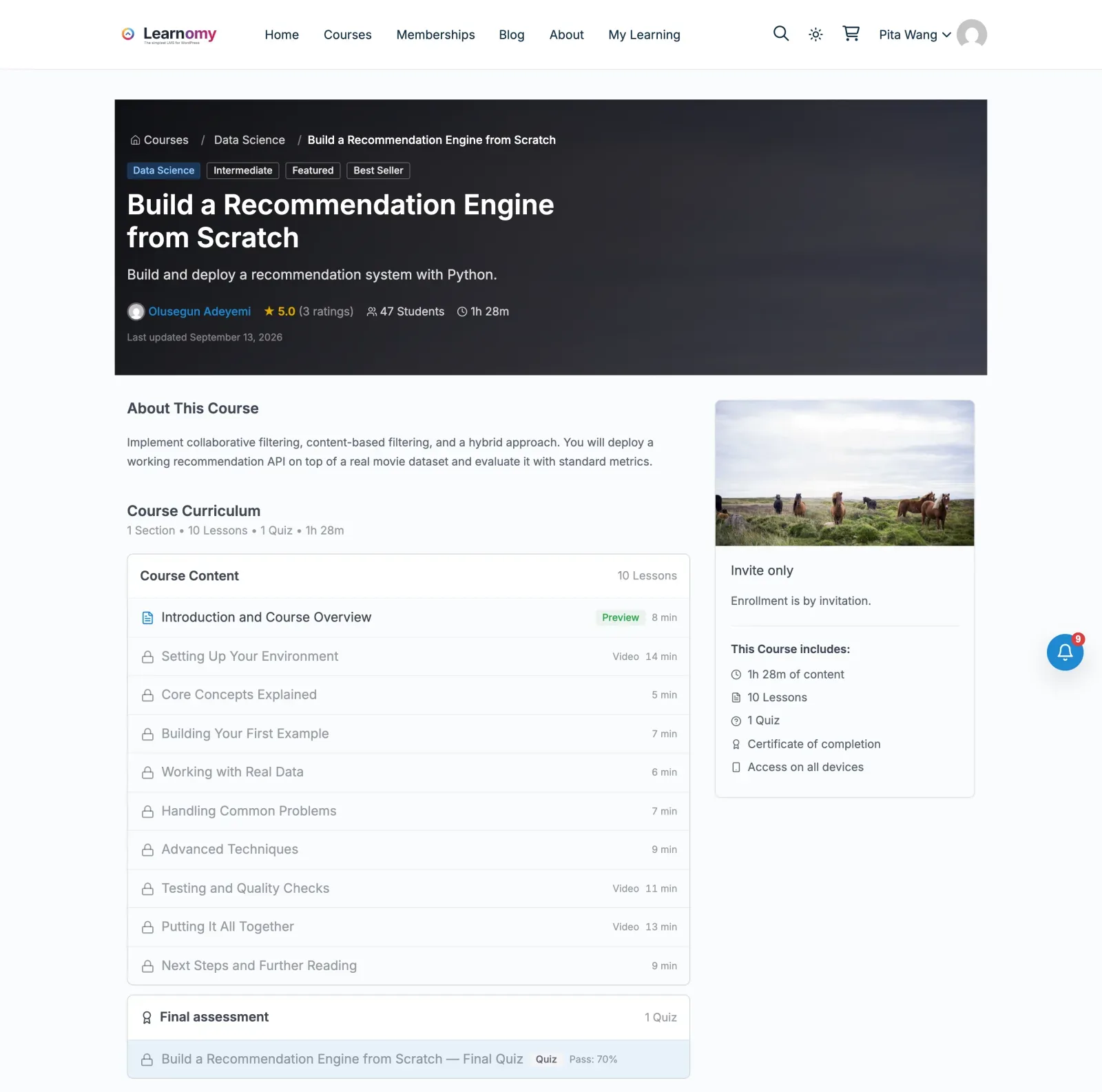
Preview lessons
Mark one or two lessons as preview lessons. Tick Mark as preview lesson in the lesson settings and anyone can open it without enrolling, with a Preview badge in the outline. Every other lesson shows a padlock to a visitor, though the outline still lists each lesson with its type and length, so a buyer sees exactly what the course covers.
Choose your preview carefully. A strong lesson from the middle of the course tells a prospect more than a generic introduction does. Don’t preview your best secret; preview the lesson that proves you teach well.
Watch requirements and completion
For video lessons, Learnomy uses the Plyr player where it can, and a lesson can require a minimum share of the video to be watched before it counts as done. Completion works in two layers.
First, as a rule for finishing a lesson: set the lesson so Mark Complete only activates after the student has watched a percentage of the video that you choose. This stops the one-click “mark all complete” shortcut for lessons where watching is the point. Pick a percentage under 100, since people skip credits.
Second, as a rule for finishing the course. You choose one completion rule per course:
- All lessons completed.
- All lessons plus passing the course quiz.
- A percentage of the content, so a long course can finish before the last optional lesson.
- Manual completion, where you mark each student complete yourself.
The percentage rule suits a course with bonus material at the end. The quiz rule suits anything you want to certify. Completion is also what triggers a certificate, below.
Two honest notes. Course progress shows per student, but Learnomy has no report that tells you how much of each video an individual student watched. And a watch requirement only proves the player ran that far; it can’t tell you the student was paying attention. Use quizzes if you need evidence of learning.
Protecting the video, honestly
People ask whether their video can be made “piracy proof”. It can’t. Anything a screen can show, a phone can film. What you can do is make casual sharing inconvenient and make leaks traceable. That is a real reduction in risk and it’s worth doing.
What you get without any extra plugin
- Payment gating: only students who bought, were granted access, or hold a membership that includes the course can open a lesson. An outline visitor sees padlocks.
- Files you upload to your own site for audio, PDF and download lessons are served through a link that checks the viewer first, so a pasted direct address doesn’t work for someone who isn’t entitled.
- Links to files you don’t host (a YouTube, Vimeo or Loom URL, or a file on your own CDN) are left exactly as they are. Learnomy can’t control access to something it doesn’t store. If the host lets you restrict playback to your domain, use that.
What MediaShield adds
With MediaShield active, a lesson video in your MediaShield library plays in its protected player:
- A watermark showing the viewer’s name and IP address sits on the video, so a leaked screen recording points back to an account.
- Anti-download measures: right-click blocking, keyboard shortcut prevention, devtools detection and hidden source URLs for self-hosted video.
- Domain whitelisting, so the player only works on the sites you approve.
- Login-gated playback, so a visitor who isn’t logged in can’t start the video.
- A concurrent-stream limit per user (two by default), so one purchase can’t feed ten screens at the same time.
MediaShield Pro adds suspicious-activity detection (multiple IPs on one account, for example), richer watermark fields, and uploads straight to your video host. It also has an experimental software encryption option (ClearKey). Treat that as a preview: it deters casual copying and is not hardware DRM, and it isn’t Widevine.
What to tell your students
Say clearly in your terms that the course is for the buyer only and that a watermark identifies them. Most sharing is carelessness, not malice, and a visible name on the video does a lot of quiet work.
Learnomy has no login-sharing or session limit of its own. The concurrent-stream limit above belongs to MediaShield and applies to video playback.
Pricing and checkout
Decide how you want to be paid, then set it on the course. Every Learnomy course has a pricing model, and you can change it later.
One-time price
The simplest model: a price, an optional timed sale price, and lifetime access. Most single video courses are sold this way. You can also sell time-limited access, where a purchase opens the course for a set number of days.
Membership plans and subscriptions
If you add new videos regularly, a membership plan fits better than one big purchase. You create a plan, choose which courses it includes, and students subscribe monthly or yearly. You can also offer both: buy the course outright, or reach it through a plan.
Coupons
Coupons give you launch-week pricing, a discount for your newsletter and a way to reward early students. The Coupons module ships switched off, so enable it under Learnomy Settings > Modules first. Until you do, no checkout accepts a code.
Payment methods and guest checkout
Stripe, PayPal and WooCommerce are available in the free plugin, and checkout offers every gateway you’ve registered. Stripe’s delayed bank methods (SEPA and a few others) grant access once the money clears, rather than the instant the buyer clicks. See Payments for the details.
Guest checkout is off by default. That means a buyer has to have, or create, an account before paying. If you want a buyer to pay with just an email, turn it on under Learnomy Settings > Payments > Guest checkout. The account is then created once the payment succeeds, and an email that already has an account is asked to log in. Each IP is limited to 10 guest checkouts an hour by default.
Refunds remove only the access that sale gave, so a student who also has access through a membership keeps it.
For the broader question of how to price, and what you keep after fees, read How to sell online courses on WordPress.
Emailing your students
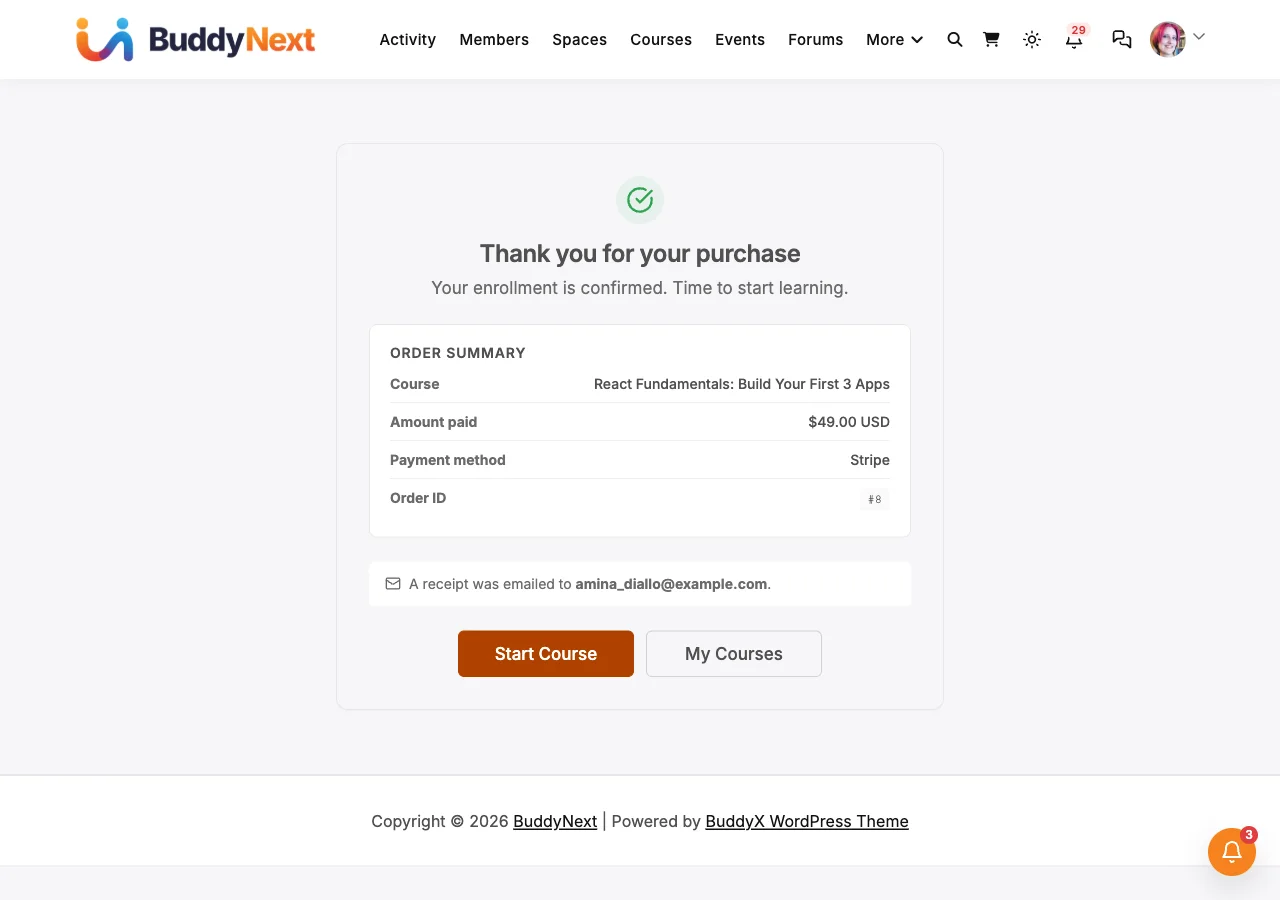
Learnomy sends the emails a course needs: enrollment, purchase receipts, completion and access notifications, each with an on/off switch under Learnomy Settings > Emails. You can customise the wording and the sender name.
Do one thing before launch: check that your site’s email really arrives. WordPress sends through PHP mail by default, which many providers drop or send to spam. Install an SMTP plugin, point it at a real mailbox or sending service, then use the Send test email button in Learnomy’s settings.
You can also send a one-off announcement to everyone or to the students of one course from Learnomy > Announcements (the Notifications module has to be on). That covers “new lesson added” and “live Q&A on Thursday”.
What Learnomy doesn’t do is run a newsletter or an automated email sequence. For regular emails to students and prospects, use an email tool you already trust and connect it to your site. If you use WP Fusion, Pro can grant courses from its tags. A welcome sequence, a launch countdown and a re-engagement email belong in that tool, not in the LMS.
Certificates
When a student meets the course’s completion rule, Learnomy can award a certificate. Certificates are signed so a third party can verify them, you can design them in a drag-and-drop designer, and they carry the instructor’s name. For a professional video course, a certificate gives a student something to put on a profile, and it gives you a quiet piece of marketing every time it’s shared. Details are on the certificates page.
If you’re producing the course with a team
Experts who bring in a videographer, an editor or a hosting person have more moving parts than a solo creator. The site doesn’t change much; the handoffs do.
Videographer and editor. Ask for the final cut in two files: a master you keep, and a web delivery version exported at a sensible bitrate (1080p is plenty for most teaching video). Agree on file naming that matches your lesson order, so the lessons line up with the files. Ask for burned-in captions or a separate caption file, because captions help students and help you if a host supports them.
Hosting. Decide early who owns the video-host account. Put it in your name or your company’s, not the videographer’s, and give the production team a limited login. If you use Bunny Stream through MediaShield, the account that pays the bandwidth bill should be yours.
Review before it goes live. Build the course as a draft. Have a collaborator enrol as a student and watch on a phone and a laptop. Learnomy supports instructors and co-instructors, so a team member can build lessons without being given the keys to your payment settings.
A newsletter to your students. If you run a newsletter, put a signup link on the course welcome lesson and on the order confirmation page. Keep the newsletter in your email tool and use Learnomy announcements only for course-specific notices. Students who joined by purchase are customers; a newsletter signup should be a separate, explicit choice.
Who answers questions. Decide before launch who replies to student emails and how quickly. A beautiful course with a slow inbox gets refund requests.
What Learnomy does not do
You’ll make better decisions knowing the limits:
- It doesn’t host, stream, transcode or DRM video. Use a video host, or MediaShield for protected playback.
- It has no login-sharing or session limit of its own. MediaShield’s concurrent-stream limit covers video playback.
- It doesn’t run email sequences or a newsletter. Use an email tool.
- It can’t import from hosted platforms such as Teachable, Kajabi, Thinkific or Podia. There’s a guided importer for LearnDash, LifterLMS and Tutor LMS; from anywhere else you rebuild the course, re-embed or re-upload the video, and bring students in by CSV.
- It can’t make a video uncopyable. See the protection section above.
Launch checklist
Work through this a few days before you open sales.
Video
- Every video is on the host you chose, and a test lesson plays on a phone and a laptop.
- If the host allows it, playback is restricted to your domain.
- If you use MediaShield, the videos are in its library and the watermark shows on a test account.
- You’ve kept your master files somewhere other than the video host.
Course
- Sections and lessons are in order, with short, clearly named lessons.
- One or two preview lessons are marked, and a logged-out visitor can open them.
- Lesson completion rules are set where watching matters.
- The course completion rule and certificate are set, and a test student receives a certificate.
Selling
- Price and pricing model are set; sale price dates are right.
- Stripe or PayPal is connected, and you’ve bought your own course with a real card once and refunded it.
- Guest checkout is set the way you want (it’s off unless you turned it on).
- Coupons module is on if you plan a launch code, and the code works.
- A test email arrives in a real inbox, not spam.
- Sender name and address are what you want students to see.
- Your newsletter or launch emails are scheduled in your email tool.
People
- Someone is named to answer student emails.
- Your terms say the course is for the buyer’s own use.
If you’re moving a course off a platform that is closing, the Vimeo On Demand page has the dated checklist for getting past buyers back in. For what each plan includes, see Free vs Pro, and for the course features themselves, the courses page.