Move your Vimeo On Demand courses to your own site
You sell a video course, a film series or a workshop through Vimeo On Demand, and you've seen the notice. According to Vimeo's shutdown page, On Demand stopped accepting new uploads on 22 August 2026, stopped new sales and subscriptions on 21 September 2026, and shuts down fully on 20 November 2026. On that day storefronts go offline and buyers lose access to what they bought.
If you're reading this on or around 26 October, that leaves under four weeks. The sales window is already closed, so you aren't losing new revenue to a deadline you can still beat. What you can still protect is your relationship with the people who paid you, and your ability to sell again somewhere you control.
Here's the part that makes this much easier than it sounds: Vimeo's main video hosting is not closing. Only the On Demand storefront is. So you don't need to re-upload hours of footage anywhere. The plan is to replace the storefront, keep your videos where they are, and move your buyers across before 20 November.
This page walks through that plan with Learnomy on WordPress. It's written for a creator or expert with a finished, polished course, perhaps produced with a videographer, who wants a calm path rather than a scramble. For the wider picture of selling video on your own site, read Sell a video course on your own WordPress site alongside this page.
The short version
Keep your videos on Vimeo. Embed them in Learnomy lessons.
Rebuild the course (sections, lessons, descriptions, price) on your WordPress site.
Take your buyer list out of Vimeo while you still can.
Give every past buyer access on your site, by pasting or uploading their emails.
Email them with a clear message and a log-in path well before 20 November.
Turn on checkout for new buyers, and add MediaShield if you want a watermark and a stream limit on top of Vimeo's own privacy settings.
None of this needs a developer if you're comfortable in WordPress. Allow a long weekend for the build and a few evenings for the rest.
What you need before you start
A WordPress site you control, with Learnomy active. The core plugin is free; see Free vs Pro for what Pro adds.
A working email setup. WordPress mail often lands in spam, so install an SMTP plugin pointed at a real sending service and send yourself a test. Buyers who never get the "your access is ready" message will assume you've vanished.
A payment account, if you want to sell again. Stripe and PayPal are built in; see Payments.
Your Vimeo account still open, with your videos intact.
Step 1: Get your data out of Vimeo
Do this first, because the one thing you cannot rebuild is the list of who bought. Open your On Demand dashboard and collect everything it will give you. Here's what to look for.
The buyer list
You need, at minimum, the email address of every person who bought or subscribed, and which title they bought. If the dashboard lets you export purchasers or sales as a file, take it. If it only displays them on screen, copy them into a spreadsheet. If you can't find an export, ask Vimeo support what they can provide before the cutoff. We haven't verified exactly what Vimeo exports for On Demand sellers, so check what your own account offers rather than assuming.
Put the data in a spreadsheet with one column for email and one for the title purchased. If you sell several titles, keep one sheet per title or a column that says which; you'll enroll each group separately.
Two cautions:
Use buyer emails to deliver what they paid for. Whether you may also add them to a marketing newsletter is a separate question with its own rules in your country, so keep the access message and the newsletter invitation apart.
Watch for duplicates and typos. People buy with different addresses. Clean the list now; it saves support emails later.
Titles, descriptions and pricing
Copy out, for each title:
The name and the description as buyers saw it.
The price, and any rental versus purchase pricing, or subscription price.
Any trailer or artwork you uploaded to the storefront, and the poster images.
Extras attached to the title, such as bonus clips or PDFs.
Save the artwork files on your own computer. Don't assume the storefront will let you at them after the shutdown.
The videos themselves
If your videos are in your Vimeo library, they stay. Make a note of which videos belong to which title, in order. Open each in Vimeo and check its privacy settings; you'll want the video hidden from the public and, if your plan allows, restricted to your domain.
One case needs care: if some of your On Demand content exists only inside the On Demand product and not as a normal library video, check that each file is also in your regular Vimeo library, or that you still have the master file. After 20 November you shouldn't depend on the storefront for anything. If you have your masters, you're safe.
Step 2: Rebuild the course in Learnomy
Create the course
In Learnomy, add a course for each On Demand title. Use the same name, so past buyers recognize it. Paste the description, add the artwork, and set a price (more on pricing below).
Add the videos as lessons
Create sections and lessons, then paste each Vimeo link into a lesson. Learnomy renders the Vimeo player in a clean, responsive frame inside the lesson. The video stays on Vimeo; nothing is copied. See the embedding docs for the exact steps.
A film series or a single feature can be one course with one lesson per episode, or one lesson only. A workshop might have a section per session. Match the structure your buyers already know, so the new site feels familiar.
You can also require a minimum share of a video to be watched before a lesson counts as done. For paid courses where students expect to watch end to end, that's useful; for a feature film, leave it off, since people pause and come back.
Set a preview
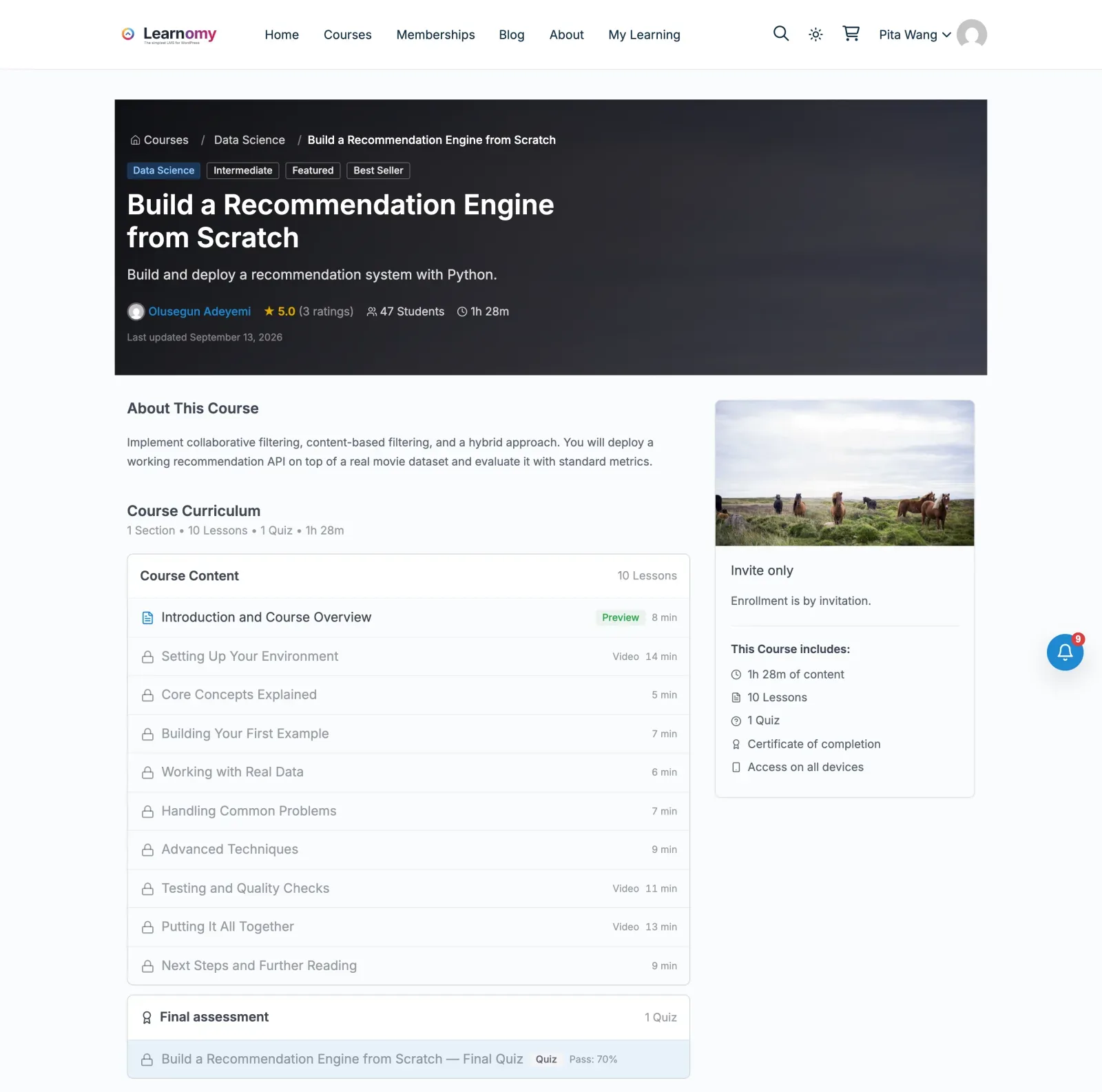
Mark one lesson or a trailer lesson as a preview lesson. A visitor can open it without enrolling, and everything else in the outline shows a padlock. It replaces the trailer on your Vimeo storefront page.
The course outline a visitor sees: one preview lesson open, every other lesson locked
Decide what completion means
Choose how a student finishes the course: all lessons, a percentage of the content, lessons plus a quiz, or manually. If you want to award a certificate on completion, Learnomy signs them and you can design them in a drag-and-drop designer. Past buyers of a film may not want a certificate, so only turn this on where it fits.
No automated Vimeo importer
Be clear about what this step is: manual. There's no tool that reads your On Demand storefront and builds the course for you, and none for moving titles out of a hosted platform. You'll re-create each course by hand. For most sellers that's an afternoon per title, because the videos are already uploaded and you're mostly pasting links and text.
Step 3: Give past buyers access
This is the part that matters most to the people who paid you. Their access ends on 20 November unless you replace it. The goal is that every past buyer can log in to your site before that date and watch what they bought.
Bulk enrollment from a list
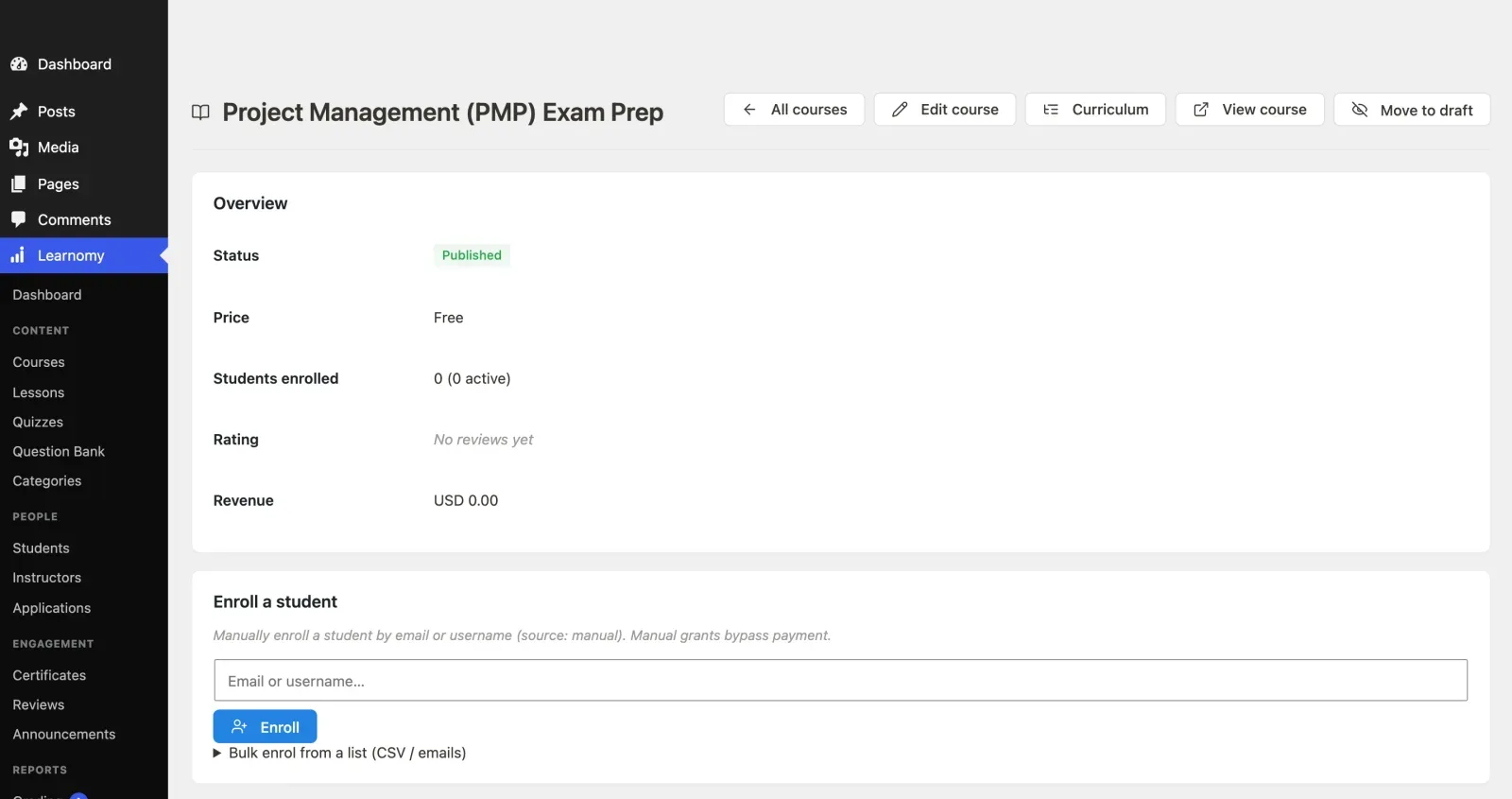
Learnomy has a bulk enroll control on each course's detail screen. Go to Learnomy > Courses, open the course, find the Enroll a student card, and expand Bulk enrol from a list (CSV / emails).
Paste the buyers' emails (one per line, or separated by commas, semicolons or spaces), or choose a CSV or plain text file. The contents go into the same box, so you can review them.
Click Enrol everyone.
For each address, Learnomy does the following:
If the person has an account and is already enrolled, it skips them. Running the same list twice does no harm.
If they have an account and aren't enrolled, it enrolls them.
If there's no account for that email, it creates one, sends a set-password invite, and enrolls the new account.
When it finishes you'll see a summary: how many were enrolled, how many new accounts were invited, how many skipped and how many failed. A single run handles up to 500 addresses by default. If your list is longer it tells you how many are left, and you click again until none are.
Seats created this way are recorded as manual, which bypasses payment. That's exactly what you want here: these people already paid you, on Vimeo.
Two practical points:
Do this per course. Each title has its own list, so the film buyers don't get the workshop by accident.
Invalid entries are ignored and duplicates collapsed, so a messy spreadsheet is fine to paste.
The Enroll a student card on the course detail screen, with Bulk enrol from a list underneath
Pause the emails while you import
If you're enrolling several lists, switch on Pause all emails under Learnomy Settings > Emails first. It stops every Learnomy email while you import, so a buyer who owns three titles doesn't get three messages. Emails aren't sent later for the paused time, so turn it off again when you're done, and then send your own message to everyone (step 4). Note that the set-password invite for new accounts is the thing buyers need to log in; plan your own email so it explains it and tells them where to look.
Access Grants for bigger or ongoing jobs
If your buyers also exist in another system, or you want an order elsewhere to open a course automatically, Learnomy's Access Grants cover that. An order in another store, a membership plugin or an automation can give access to courses and membership plans without recording a sale in Learnomy. Each grant appears in the Access Log under LMS Settings with its source and order number, and you can remove one, retry a refused one or grant anyway. A new account gets one "Your access is ready" email with a set-password button.
For a one-time move from Vimeo, bulk enrollment is simpler. Access Grants earn their place if you'll keep selling through a second channel too, for example an old landing page that points to a checkout elsewhere, or a store you already run. There is also a closed pricing model: sell outside WordPress and grant here by email, CSV or webhook.
Check as a buyer would
Pick a past buyer's email, or one of your own, and run the whole route. Open the invite, set a password, log in and play the first lesson on a phone. Do it before you tell anyone else. If the invite email doesn't arrive, fix email now.
Step 4: Tell your buyers
A buyer who hears nothing will find out on 20 November, and they'll blame you. Write one clear email. It should answer, in order:
What's happening: Vimeo On Demand is closing on 20 November and your storefront with it.
What it means for them: the thing they bought moves to your own site, and it's already there waiting.
What to do: look for the "set your password" email (or "Your access is ready" if they were granted via an outside channel), set a password, log in at your site's address.
A deadline that's earlier than Vimeo's, so the stragglers move in time.
Who to write to if something is missing.
Send it from your own email tool, not Learnomy's announcement screen, if you want to reach people whose accounts haven't been activated yet. Learnomy Announcements (under Learnomy > Announcements, with the Notifications module on) reach students who are already enrolled, which is useful for the reminder after the first message. Learnomy doesn't run automated email sequences, so schedule the reminders in your email tool.
Keep the tone plain. You're not selling anything in this email; you're keeping a promise. Resist adding a discount code to it. Send that separately.
The dated checklist
Dates below assume you start on 26 October 2026. Move them if you start later; the order stays the same.
By Wednesday 28 October
Log in to Vimeo On Demand and export or copy your buyer list for every title.
Copy out titles, descriptions, prices and artwork. Save the artwork locally.
Confirm every video is in your regular Vimeo library, or that you have the masters.
By Sunday 1 November
Install and configure Learnomy, an SMTP plugin and your payment account.
Send a test email to yourself and check it isn't in spam.
Create each course with its sections and lessons, with Vimeo links pasted in.
By Sunday 8 November
Set Vimeo privacy on every video (hidden from the public, restricted to your domain if your plan allows).
Add a preview lesson, set the completion rule and test as a student.
Decide your forward pricing and set it on each course.
Optional: install MediaShield and test the protected player.
By Wednesday 11 November
Pause all Learnomy emails, then bulk enroll each title's buyers by course.
Turn emails back on. Check the summaries for failures and fix those addresses by hand.
Walk through one buyer's journey end to end on a phone.
By Friday 13 November
Send your announcement email to every past buyer.
By Friday 20 November, the real deadline day
Send a reminder around 16 November to anyone who hasn't logged in.
Reply personally to every "I can't get in" message the same day.
Keep your masters and exported lists in a safe place. After the shutdown they're your only copy of who bought what.
If you can only do one thing this week, export the buyer list. Everything else can be rebuilt later; that can't.
Pricing going forward
Vimeo On Demand set your pricing structure, so you may be copying rental versus purchase tiers that don't map cleanly. On your own site you choose:
A one-time price, with an optional timed sale price and lifetime access.
Time-limited access, for a set number of days after purchase. This is the closest match to a rental.
A membership plan or subscription, if you add new content regularly. A subscription can be monthly or yearly.
Coupons for launch pricing. Enable the Coupons module under Learnomy Settings > Modules first; it ships switched off.
Don't set a lower price just because the old storefront had one. You're no longer paying Vimeo's cut, but you're paying your payment processor's per-sale fee, plus your own hosting. Look at what past buyers actually paid, and at what your content is worth.
At checkout, guest checkout is off by default, so a buyer needs an account to pay. Turn it on under Learnomy Settings > Payments > Guest checkout if you want a purchase with just an email. The account is created once the payment succeeds. Details are on the Payments page.
Past buyers don't pay again. They were enrolled manually in step 3. A later refund on a new sale removes only the access that sale gave.
Protecting your videos on Vimeo
Vimeo's own privacy settings are your first layer: keep videos hidden from the public and restrict playback to your domain, if your plan supports it. Learnomy gates the lesson itself, so only enrolled students or members whose plan includes the course can open it.
Learnomy doesn't control access to something it doesn't store. A Vimeo link is played by Vimeo's player; if someone has the direct Vimeo address and your domain restriction isn't set, they might get at it. That's why the domain restriction in Vimeo is worth checking.
If you want more, MediaShield is a separate Wbcom plugin, free on WordPress.org with a Pro add-on, and it supports Vimeo embeds. Add your Vimeo videos to its library and use the same Vimeo URL in the lesson; the video then plays in MediaShield's protected player, with:
A watermark showing the viewer's name and IP address.
Anti-download measures and domain whitelisting.
Login-gated playback.
A concurrent-stream limit per user, two by default.
MediaShield Pro adds suspicious-activity detection, such as several IP addresses on one account, and richer watermark fields. It also has an experimental software encryption option. That isn't hardware DRM and we wouldn't sell it as such. More at wpmediashield.com.
None of this makes a video uncopyable. It makes casual sharing awkward and traces a leak back to a buyer.
What this can't do
Better you hear it here than on launch day.
There's no automated Vimeo importer. Learnomy can import from LearnDash, LifterLMS and Tutor LMS, but not from Vimeo On Demand or other hosted platforms. You'll rebuild the courses and bring buyers across with the bulk enroll list.
Learnomy doesn't host video. It plays what lives on Vimeo, YouTube, Loom or your Media Library. If you ever leave Vimeo, you move the videos yourself.
Your Vimeo plan still matters. Domain restriction and privacy options depend on your plan. Check that your plan covers what you need, because the main hosting service continues.
Buyer history doesn't transfer. Learnomy gets the email and the title. It doesn't get the purchase date, the receipt or how far each buyer got through the video on Vimeo.
Your storefront page doesn't move. Whatever social proof lived on it stays behind, so start fresh on your own pages.
Past buyers' viewing history starts at zero. Progress counts from the day they first open the course on your site.
After the move
Once the dust settles, you're in a better place than a storefront ever put you. You own the customer list and the checkout, and you write the page that explains the course. You can run a sale when you decide to, add a second course, or put several courses behind a membership plan. If you want a community around the course, BuddyNext is our own product for that. And if you later outgrow Vimeo for hosting, you can switch video hosts without touching your students' accounts.
Do I have to move my videos off Vimeo?
No. Vimeo's main video hosting isn't closing; only On Demand is. Leave the videos where they are and embed them in Learnomy lessons.
Will my past buyers have to pay again?
No. You enroll them by hand with their email, and the seat is recorded as manual, which bypasses payment.
What if I miss the 20 November deadline for exporting my buyers?
Do the export now. After the storefront goes offline you may have no way to read the list, and we can't say what Vimeo will still provide.
Can I use this if I only sold one film?
Yes. One course with one lesson works. The embed, preview, checkout and bulk enroll steps are the same.
Build this on your own site
Everything above runs on your WordPress server. Start with the free plugin; add Pro when a step here needs it.
I recently had a fantastic experience with the Wbcom Designs support team. They were incredibly prompt, warm, patient, and friendly as they helped me resolve an issue with my website. I truly appreciate the complexity of troubleshooting website-related issues, as each one is unique, and users often…
Boris Petrov · TH ·
Great support
Great support; the issue was resolved perfectly well.
Fast Incorporated · NG ·
Fantastic 6 star support
Fantastic 6 star support. I wanted to setup a membersite and tried many solutions. I contacted Wbcom for BuddyX and tried the theme with Buddypress. I am not a webdesigner or a coder, but had a requirement that was not standaard. I contacted WBcom and Pallavi helped me from start to finish with…
Hubert · IT ·
Great way of support
Great way of support! Thanks a lot! Direct responding, open for questions and very fast to the right solution!
Ron Henkes, training en begeleiding · NL ·
Fast Respond & Troubleshooting With…
Fast Respond & Troubleshooting With technical insight
Kevin Tan · MY ·
Quick response
Quick response. Solve my problem
Steve Wen · CA ·
just wanted to let you know how pleased…
just wanted to let you know how pleased I am with his work. Shasank was easy to work with and his communication skills were excellent. Please reward him for being a fine employee. Wayne Francis
Wayneo · US ·
Outstanding Service and Exceptional Support from Wbcomdesigns Team
I have already purchased themes and plugins worth over ₹65,000 from wbcomdesigns, and my experience has been nothing short of amazing. Their support is exceptional. Both Shivani Kashyap and Camilia Scott provide incredibly fast responses and have resolved any issues I encountered with my website…
Tushar Garg · IN ·
These guys are absolutely amazing
These guys are absolutely amazing. Such a quick turn around. Their support is second to none.
Miss Decades · GB ·
Fast response for a customisation request
Fast response (1 weekday day) for a simple customisation from Camilia, thank you very much!